How to Add Cypress Screenshots to a Mochawesome HTML Report
Attach failed Cypress screenshots to Mochawesome, embed them in one portable HTML report, and merge results from multiple specs.

Short answer: Cypress creates the screenshot; Mochawesome displays it when you attach a valid image path or URL as test context. For selective attachments, use Mochawesome’s addContext with the Mocha test object. For automatic Cypress integration, use cypress-mochawesome-reporter with embeddedScreenshots: true. If several specs run, write separate JSON files, merge them with mochawesome-merge, then render the merged file with marge.
Choose an integration path
| Approach | Setup | Control | Portable single HTML | Best for |
|---|---|---|---|---|
addContext |
Higher | Per-test | Possible when paths/assets resolve | Existing Mochawesome projects and selective failures |
cypress-mochawesome-reporter |
Lower | Reporter-managed | Yes with embedded screenshots and inline assets | Automatic screenshots and videos |
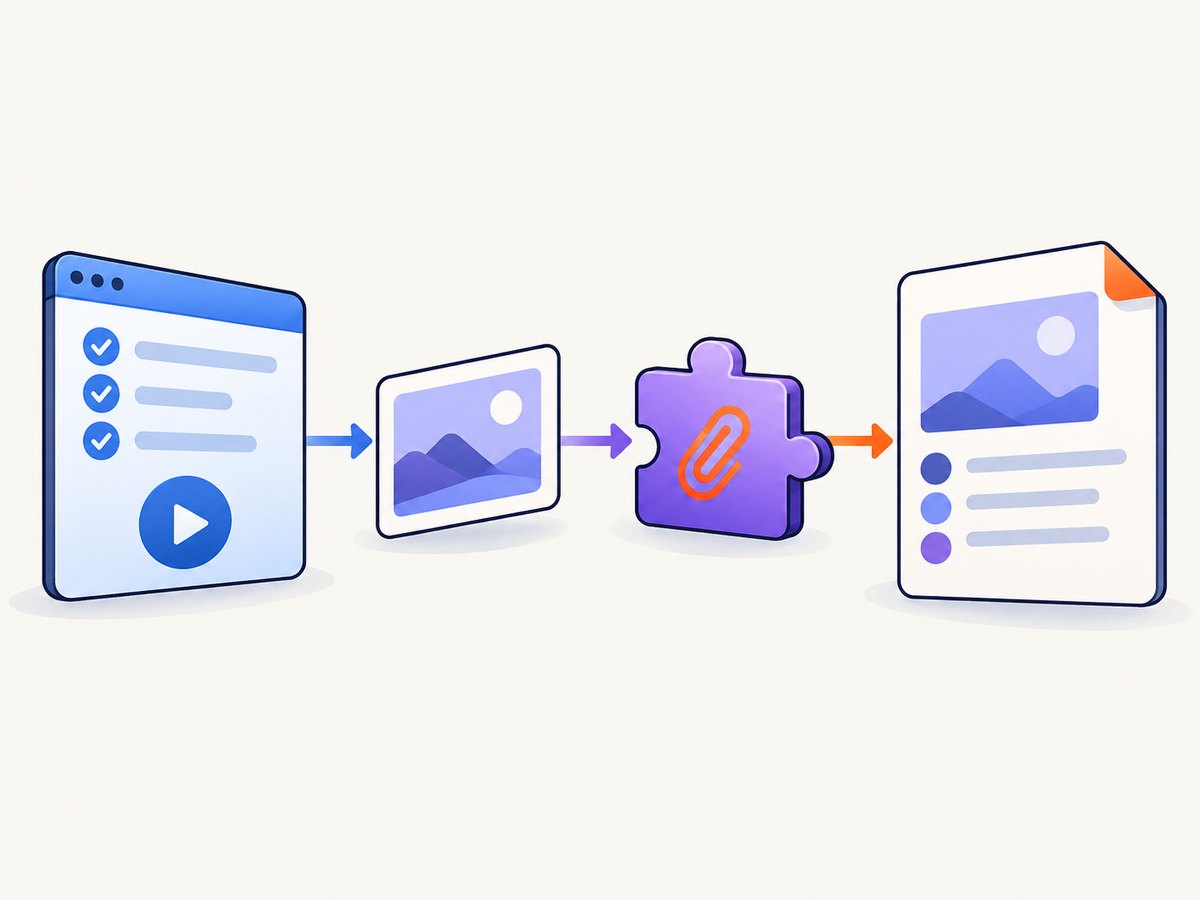
Mochawesome is a custom Mocha reporter. Cypress still captures the PNG; the reporter only receives a reference to that file or an embedded image.
Path A: attach failed screenshots with addContext
This pattern listens for Cypress’s test:after:run event and adds the screenshot path only when the test fails. The event payload and generated filename vary by Cypress version and project layout, so treat the path construction as a pattern and adjust it to your project.
1. Install Mochawesome
npm install --save-dev mochawesome2. Configure the reporter
const { defineConfig } = require('cypress')

module.exports = defineConfig({
  reporter: 'mochawesome',
  reporterOptions: {
    reportDir: 'cypress/results',
    overwrite: false,
    html: false,
    json: true
  }
})
3. Attach the screenshot in the Cypress support file
const addContext = require('mochawesome/addContext')

Cypress.on('test:after:run', (test, runnable) => {
  if (test.state !== 'failed') return

  // Adapt this path to the filename Cypress generated in your project.
  const screenshotPath = `cypress/screenshots/${Cypress.spec.name}/${test.title}.png`
  addContext({ test }, screenshotPath)
})
The important part is that addContext receives the test object and a resolvable image path or URL. Keep the path aligned with Cypress’s actual screenshot directory, especially when suites are nested or titles contain characters that Cypress sanitizes.
Attaching from a test or hook
When you call addContext directly, use a normal Mocha function so this refers to the current test. Arrow functions do not provide the Mocha test object through this.
const addContext = require('mochawesome/addContext')

describe('checkout', function () {
  it('shows the failure screenshot', function () {
    addContext(this, 'cypress/screenshots/checkout/example.png')
  })
})
Path B: automatic screenshots with cypress-mochawesome-reporter
The community reporter is a Mochawesome extension for Cypress that handles screenshots and videos. It is usually the shortest setup when every failed test should include its screenshot.
1. Install the reporter
npm install --save-dev cypress-mochawesome-reporter2. Register it in cypress.config.js
const { defineConfig } = require('cypress')

module.exports = defineConfig({
  reporter: 'cypress-mochawesome-reporter',
  reporterOptions: {
    charts: true,
    embeddedScreenshots: true,
    inlineAssets: true,
    saveAllAttempts: false
  },
  e2e: {
    setupNodeEvents(on, config) {
      require('cypress-mochawesome-reporter/plugin')(on)
      return config
    }
  }
})
embeddedScreenshots stores screenshots as base64 data in the report. Pair it with inlineAssets when you want one self-contained HTML file that can be emailed or uploaded without a separate assets directory. saveAllAttempts controls whether screenshots from retries are retained. Confirm option behavior against the version installed in your project before standardizing the configuration.
Merge reports from multiple Cypress specs
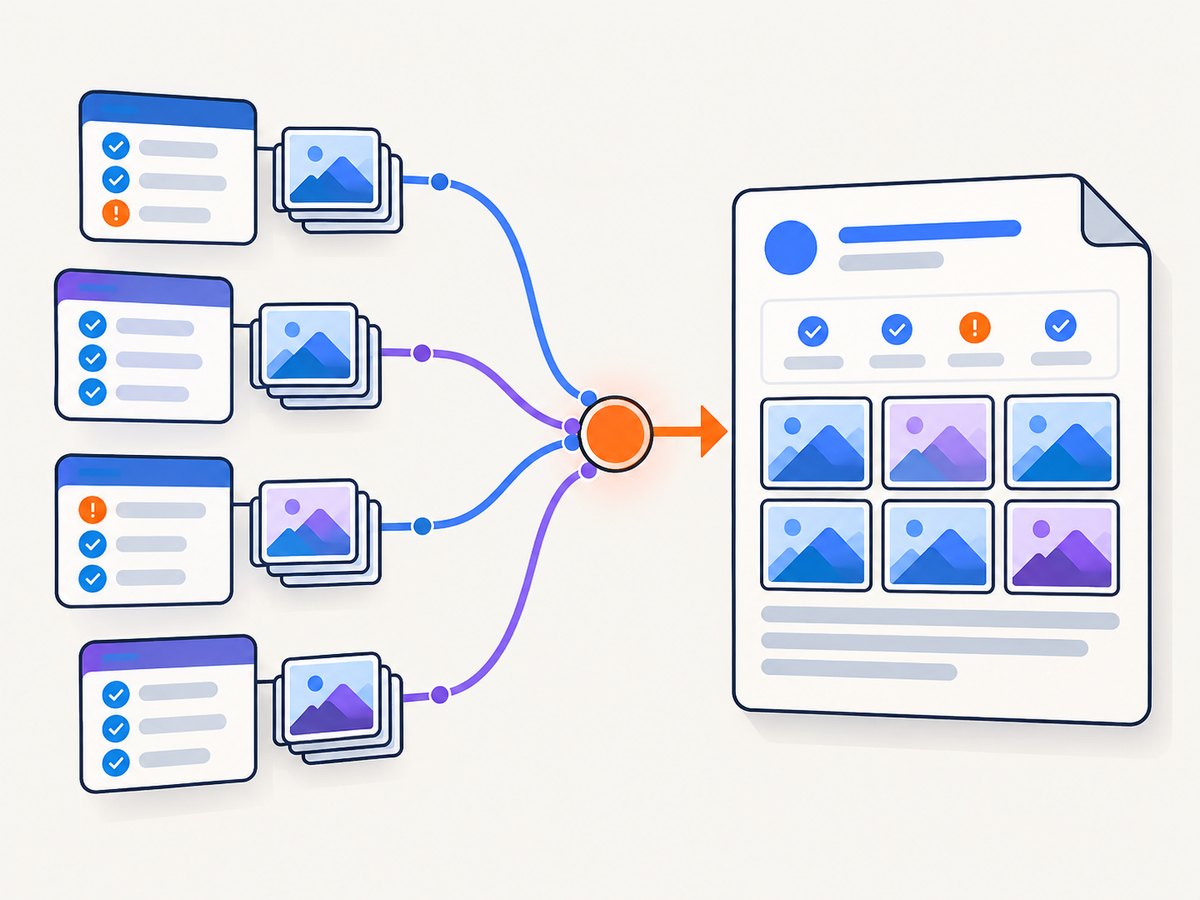
A run with several specs produces several JSON report files. Prevent overwrites, merge the JSON, and then generate the final HTML.
1. Install the merge and generator tools
npm install --save-dev mochawesome mochawesome-merge mochawesome-report-generator2. Configure non-overwriting JSON output
const { defineConfig } = require('cypress')

module.exports = defineConfig({
  reporter: 'mochawesome',
  reporterOptions: {
    reportDir: 'cypress/results',
    overwrite: false,
    html: false,
    json: true
  }
})
3. Run, merge, and render
npx cypress run --reporter mochawesome
npx mochawesome-merge cypress/results/*.json -o mochawesome.json
npx marge mochawesome.json
The generated standalone report is normally mochawesome-report/mochawesome.html. In CI, use a unique results directory or filename pattern for each parallel worker and run so separate jobs cannot overwrite one another.
Make the final HTML portable
- Use
embeddedScreenshots: trueso image bytes travel with the report. - Use
inlineAssets: truewhen CSS and other report assets must also be inside the HTML. - If assets are external, publish the complete generated report directory, preserving its relative paths.
- Open the report from the same artifact layout used by CI; moving only the HTML can produce broken image links.
Common failure modes and fixes
| Symptom | Likely cause | Fix |
|---|---|---|
| No screenshot appears | The path does not match Cypress’s generated filename. | Inspect cypress/screenshots after a failed run and adapt the path pattern, including spec folders and sanitized titles. |
addContext throws or adds nothing |
The Mocha test object is missing, often because an arrow function was used. | Use a normal function () {} and pass this, or use the { test } object from the Cypress event. |
| Images work locally but not in CI | The report references a machine-local path or the artifact omits the screenshot directory. | Embed screenshots, or upload the report and its assets together with preserved relative paths. |
| Only one spec is present | Reporter output was overwritten. | Set overwrite: false, write to a clean results directory, then merge all JSON files. |
| Parallel jobs lose results | Workers write the same filename or directory. | Give each worker a unique output location and merge after all jobs finish. |
| Retry screenshots are missing | saveAllAttempts is disabled. |
Set it to true when every retry image is needed; leave it false for a smaller report. |
| Report opens with broken CSS or images | Only the HTML file was copied. | Enable inline assets or publish the entire generated report directory. |
| Merge command finds no files | The glob points to the wrong directory or the reporter did not emit JSON. | Verify reportDir, set json: true, and list the directory before running mochawesome-merge. |
Performance, reliability, and cost considerations
Keep reports manageable
- Attach screenshots only for failed tests when debugging failures; embedding every passing screenshot increases HTML size.
- Use
saveAllAttempts: falseunless retry history is required. - Merge once after all specs finish instead of repeatedly regenerating the HTML during a run.
- Archive the JSON files as well as the rendered HTML so you can regenerate the report with a newer generator.
Make CI runs deterministic
- Start each run with clean results and screenshot directories.
- Use stable worker-specific directories for parallel jobs.
- Wait for Cypress to exit successfully or fail before running the merge step.
- Publish the merged report as a CI artifact, along with screenshots when they are not embedded.
Understand what is billed
Mochawesome and Cypress run in your test environment; their report generation has no ScreenshotNeo charge. If you use an external screenshot service to capture pages outside Cypress, check that service’s billing and failure behavior.
Or skip the browser setup
ScreenshotNeo returns a website screenshot with one GET request, so you can add a reference image to a report without maintaining browser launch code. Its cleanup steps accept cookie and consent banners and remove more than 60 known consent platforms, newsletter popups, and chat widgets before capture; each step can be turned off. Bot checks, blank pages, timeouts, failed loads, and cache hits are not billed, and response headers identify the page verdict and billing result.
Read the ScreenshotNeo API docs for all options. This cURL example saves a WebP image that you can attach or publish as a report artifact:
curl -G "https://api.screenshotneo.com/v1/shot" -d access_key=YOUR_API_KEY --data-urlencode url=https://stripe.com -o shot.webpPython:
import requests
r = requests.get("https://api.screenshotneo.com/v1/shot", params={"access_key": "YOUR_API_KEY", "url": "https://stripe.com"}, timeout=90)
open("shot.webp", "wb").write(r.content)
Node.js:
const q = new URLSearchParams({ access_key: 'YOUR_API_KEY', url: 'https://stripe.com' });
const res = await fetch(`https://api.screenshotneo.com/v1/shot?${q}`);
ScreenshotNeo also provides an MCP server with take_screenshot, get_page_info, and capture_pdf for Claude, Cursor, and other MCP clients. The free plan includes 1,000 screenshots per month with no card; paid plans start at $5 for 3,000. Create a free ScreenshotNeo account.
FAQ
Does Mochawesome take the screenshot?
No. Cypress captures the image. Mochawesome receives a path, URL, or embedded image context and renders it.
Should I use manual context or the Cypress reporter extension?
Use addContext when you need selective, per-test control. Use cypress-mochawesome-reporter when automatic screenshot and video attachment is the priority.
Can the merged report be a single file?
Yes. Embed screenshots and inline assets, or keep the generated HTML beside its asset directory when portability is not required.
Why are screenshots from retries absent?
The reporter may be configured with saveAllAttempts: false. Enable it when retry-by-retry evidence matters.
Can I attach a remote image URL?
addContext accepts a resolvable image path or URL. For offline or long-term artifacts, embedding the image is more reliable than depending on a remote host.


