How to Take Cypress Screenshots on Test Failure
Cypress automatically captures screenshots when tests fail in cypress run. Learn where they go, how to configure them, and how to keep them in CI.

To take a screenshot when a Cypress test fails, run the tests with cypress run. Cypress automatically saves a failure screenshot by default, including in CI. The default folder is cypress/screenshots. Automatic failure screenshots are not taken by cypress open; use cy.screenshot() there when you want to capture a particular point in a test. [Cypress screenshots and videos]
This guide covers the default behavior, configuration, manual captures, retries, CI artifact retention, troubleshooting, and the tradeoffs between screenshots and video.
1. Run Cypress in the mode that captures failures
Use the Cypress run command from your project directory:

npx cypress runTo run a specific spec, pass its path:
npx cypress run --spec "cypress/e2e/checkout.cy.js"When a test fails during cypress run, Cypress automatically takes a screenshot. This works locally and in CI. The setting screenshotOnRunFailure is enabled by default. Interactive cypress open is intended for running and debugging specs interactively; Cypress does not automatically capture failure screenshots in that mode.
The failure image is diagnostic evidence, rather than a guaranteed frame from the exact instant a command timed out. Cypress documents screenshot capture as asynchronous and around 100 ms. The browser state may have changed during that interval.
2. Configure automatic screenshots and their folder
Cypress configuration lives in the project root, commonly in cypress.config.js or cypress.config.ts. This CommonJS configuration makes the relevant defaults explicit and preserves old artifacts between runs:
const { defineConfig } = require('cypress')

module.exports = defineConfig({
  screenshotOnRunFailure: true,
  screenshotsFolder: 'cypress/screenshots',
  trashAssetsBeforeRuns: false,
})
For an ES module configuration, use:
import { defineConfig } from 'cypress'

export default defineConfig({
  screenshotOnRunFailure: true,
  screenshotsFolder: 'cypress/screenshots',
  trashAssetsBeforeRuns: false,
})
Set screenshotOnRunFailure to false if you want to disable automatic failure captures. Cypress also lets you set screenshot defaults in test code:
Cypress.Screenshot.defaults({
  screenshotOnRunFailure: false,
})
Use a custom destination by changing screenshotsFolder, for example:
module.exports = defineConfig({
  screenshotsFolder: 'artifacts/cypress-shots',
})
By default, Cypress writes both cy.screenshot() images and automatic failure screenshots to cypress/screenshots. The folder is relative to the project. Make sure your CI artifact step uses the configured path if you change it.
Artifact cleanup before a run
Cypress clears the contents of its downloads, screenshots, and videos folders before cypress run by default. This can make it seem as if an image vanished: a later run may have removed artifacts from an earlier run before creating its own. Set trashAssetsBeforeRuns: false to preserve those folders across runs. If you preserve artifacts, use unique run directories or clean them yourself when appropriate, so older failure images are not confused with the current run.
3. Take a deliberate screenshot inside a test
Automatic failure capture answers “what did Cypress see when this test failed?” A manual screenshot answers “what did the page look like at this point in my test?” Use cy.screenshot() after a meaningful action or assertion when the latter is what you need:
describe('checkout', () => {
  it('shows the order confirmation', () => {
    cy.visit('/checkout')
    cy.get('[data-testid="place-order"]').click()
    cy.get('[data-testid="confirmation"]').should('be.visible')
    cy.screenshot('checkout-confirmation')
  })
})
Manual screenshots are available while running tests interactively as well as in run mode. The command is asynchronous. Cypress’s default manual capture mode is fullPage; automatic failure captures are coerced to runner, which includes the Cypress browser viewport and Command Log. This difference is useful: the automatic image includes test-runner context, while a manual image can focus on the application page.
You can pass capture options to a manual screenshot. For example, use the runner capture mode to include the Cypress command log:
cy.screenshot('checkout-debug', { capture: 'runner' })Screenshot defaults can be configured centrally, including capture mode, scaling, timer and animation handling, and the failure-capture setting:
Cypress.Screenshot.defaults({
  capture: 'fullPage',
  scale: true,
  screenshotOnRunFailure: true,
})
Keep screenshots at points where the page has reached a meaningful state. If you capture immediately after a click that triggers navigation or asynchronous rendering, the image may show an intermediate state. Assert on a visible, stable condition before taking the manual capture.
4. Find screenshots from retries and failed attempts
Retries are disabled by default. If you configure Cypress to retry tests, a failed attempt can have its own screenshot, and Cypress names retry images with an (attempt n) suffix. A test that eventually passes may still have images from earlier failed attempts, depending on your retry configuration and run results.
When diagnosing a flaky test, inspect all screenshots for that test, not only the last one. Compare the attempt numbers and the page state. A first-attempt failure followed by a pass may point to timing, a race, or an unstable dependency; the screenshot is evidence to investigate, not a root-cause diagnosis by itself.
5. Keep Cypress screenshots in CI
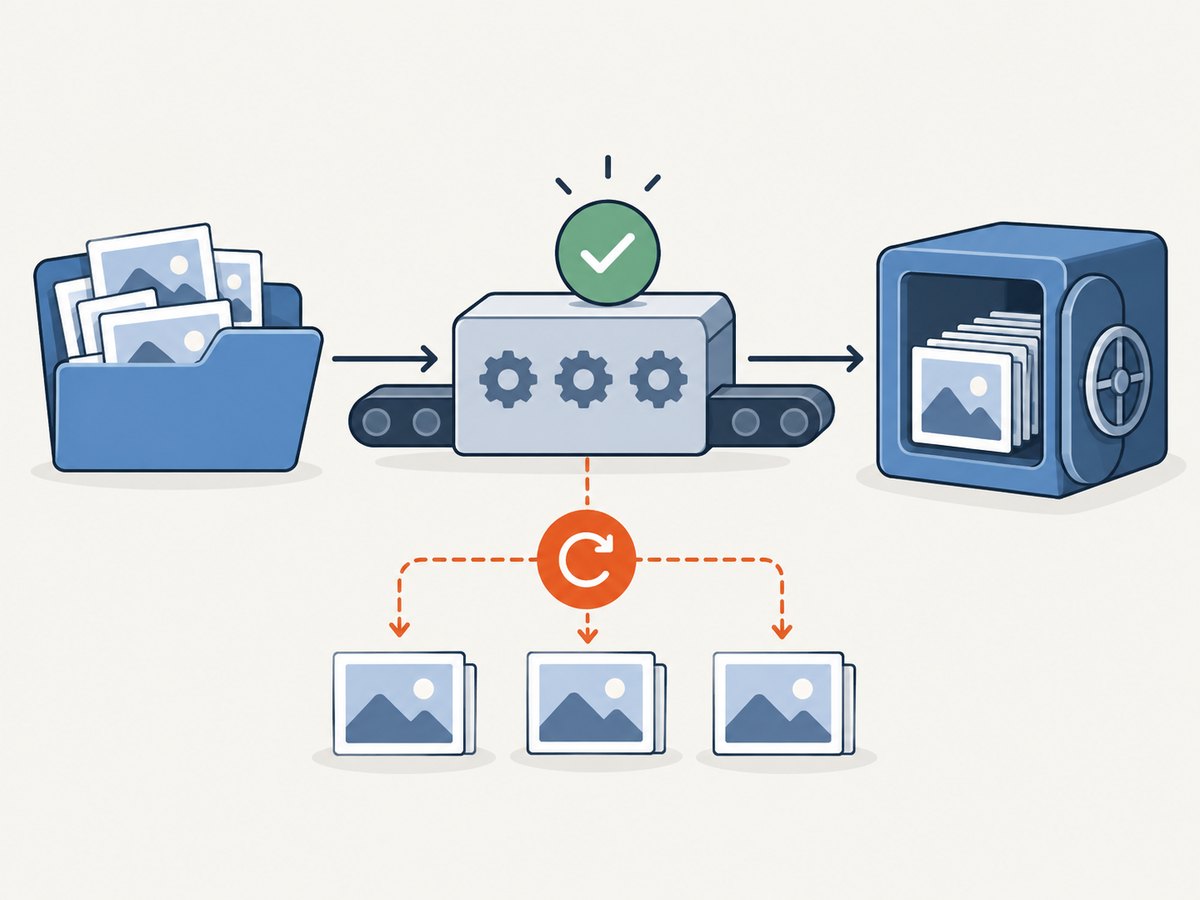
The screenshots are files in the configured screenshots folder. A CI job must retain or upload that directory if you need to inspect images after the job’s workspace is discarded. Configure your CI provider’s artifact mechanism to upload the folder even when tests fail; otherwise the job can fail and the evidence can disappear along with its temporary workspace.
- Run Cypress with
npx cypress run. - Use the configured
screenshotsFolderas the artifact path. - Set the artifact step to run after failure, not only after success.
- Give artifacts a useful retention period and associate them with the build or commit that produced them.
- If you use Cypress Cloud for recorded runs, review its documented screenshot access for those runs.
Exact artifact syntax varies by CI provider and is not universal. Cypress documents screenshot access for Cypress Cloud recorded runs and links to provider-specific setup material in its screenshot guide. [Cypress screenshots and videos]
A minimal shell check can help you confirm that the local directory contains images after a failed run:
find cypress/screenshots -type f -printUse your configured folder in place of cypress/screenshots if you changed it. Do not rely on the check’s exit status alone to decide whether the test failed; the Cypress command’s result is what determines test success.
6. Screenshots versus video
Screenshots are a low-friction snapshot of the failure context. Video provides more of the sequence that led to the failure, which can help with timing-sensitive problems. Video is a separate Cypress option, disabled by default. Enable it in configuration when the additional sequence is useful:
module.exports = defineConfig({
  video: true,
})
Cypress records a video per spec during cypress run when video is enabled. Video is not required to get automatic failure screenshots. Consider enabling it selectively or for CI jobs where understanding the sequence matters, since video creates additional artifacts to store and review.
7. Troubleshooting missing or confusing screenshots
| Symptom | Likely cause | What to check or change |
|---|---|---|
| No screenshot after a failure | The test ran in cypress open, or run-failure capture was disabled. |
Use npx cypress run and check screenshotOnRunFailure is not false. |
| Image is in an unexpected place | screenshotsFolder was changed. |
Read the active Cypress configuration and look in that folder. |
| Old images disappeared | Run startup cleanup removed artifact folders. | Set trashAssetsBeforeRuns: false if preserving prior files is necessary. |
| CI job has no downloadable image | The CI workspace was discarded or artifact upload only runs on success. | Upload the configured screenshots folder on failed jobs as well. |
| Several images exist for one test | Retries may have captured different failed attempts. | Inspect the attempt-suffixed files and correlate them with the run. |
| The image misses the exact moment of failure | Screenshot capture is asynchronous; the page may change after the failing command. | Add a deliberate screenshot after a stable assertion, and use video when sequence matters. |
| Image includes the Cypress runner | Automatic captures use the runner mode. |
Use manual cy.screenshot() for a page-focused capture. |
8. Performance, reliability, and artifact cost
Failure screenshots add capture work and image files to a test run. The documented capture operation is asynchronous and around 100 ms, but that figure is not a guarantee for every machine or page. Large pages, resource pressure, and CI environment load can affect practical run time and artifact size. Capture manually only where an extra checkpoint provides useful evidence; automatic failure captures are usually the simplest baseline.
For reliability, make artifact upload independent of the test result, ensure the path matches the active configuration, and account for the default cleanup behavior. If parallel CI jobs share a workspace or combine artifact directories, keep each job’s output distinct to avoid overwrites. Retaining every screenshot indefinitely increases storage and makes investigation harder; select retention appropriate to how long failures need to be reviewed.
There is no Cypress screenshot fee described in the reviewed documentation. The practical cost is the CI storage, upload, and review capacity your workflow uses. Cypress Cloud is a related option for recorded-run review; use its current documentation for the applicable workflow and account details rather than assuming every local run uploads artifacts.
9. Or skip the browser setup
If the job is taking a screenshot of a public website rather than a page inside your Cypress test, ScreenshotNeo can capture it with one HTTP request. For Cypress app testing, keep Cypress’s own failure capture; a remote website screenshot API does not replace the browser state and runner context from the failed test. ScreenshotNeo is useful for separate site captures, documentation images, and workflows that need an image from a URL.
Use the ScreenshotNeo API docs for the API parameters and response behavior.
curl -G "https://api.screenshotneo.com/v1/shot" -d access_key=YOUR_API_KEY --data-urlencode url=https://stripe.com -o shot.webpimport requests
r = requests.get(
"https://api.screenshotneo.com/v1/shot",
params={"access_key": "YOUR_API_KEY", "url": "https://stripe.com"},
timeout=90,
)
open("shot.webp", "wb").write(r.content)const q = new URLSearchParams({ access_key: 'YOUR_API_KEY', url: 'https://stripe.com' });
const res = await fetch(`https://api.screenshotneo.com/v1/shot?${q}`);
if (!res.ok) throw new Error(`Screenshot request failed: ${res.status}`);
await Bun.write('shot.webp', new Uint8Array(await res.arrayBuffer()));ScreenshotNeo removes cookie banners, newsletter popups, and chat widgets before the shot. Bot checks, blank pages, failed loads, and cache hits are not billed, and the response identifies the verdict and billing status in headers. Its MCP server gives AI agents tools for taking screenshots, page information, and PDF capture. The free plan includes 1,000 screenshots per month without a card; paid plans start at $5 for 3,000. Features are available on every plan.
Sign up for ScreenshotNeo’s free 1,000 screenshots a month, with no card required.
10. FAQ
Can I take an automatic screenshot in cypress open?
No. Automatic run-failure screenshots are for cypress run. In interactive mode, call cy.screenshot() at the point you want to inspect.
Will a screenshot be created if the test eventually passes after a retry?
A failed attempt can produce its own retry screenshot. Look for the attempt suffix and check your retry settings and run output.
Does enabling video turn off screenshots?
No. Video is a separate option. Enabling it adds per-spec video during cypress run; failure screenshots remain controlled by screenshotOnRunFailure.
Can I preserve screenshots from multiple runs in the same folder?
Set trashAssetsBeforeRuns: false to stop Cypress from clearing artifact folders at run start. Organize retained files by run so they remain easy to identify.


