How to Add Cypress Screenshots and Videos to Allure Reports for Passing Tests
Capture screenshots from passing Cypress tests, enable video recording, and confirm both artifacts appear in Allure reports.
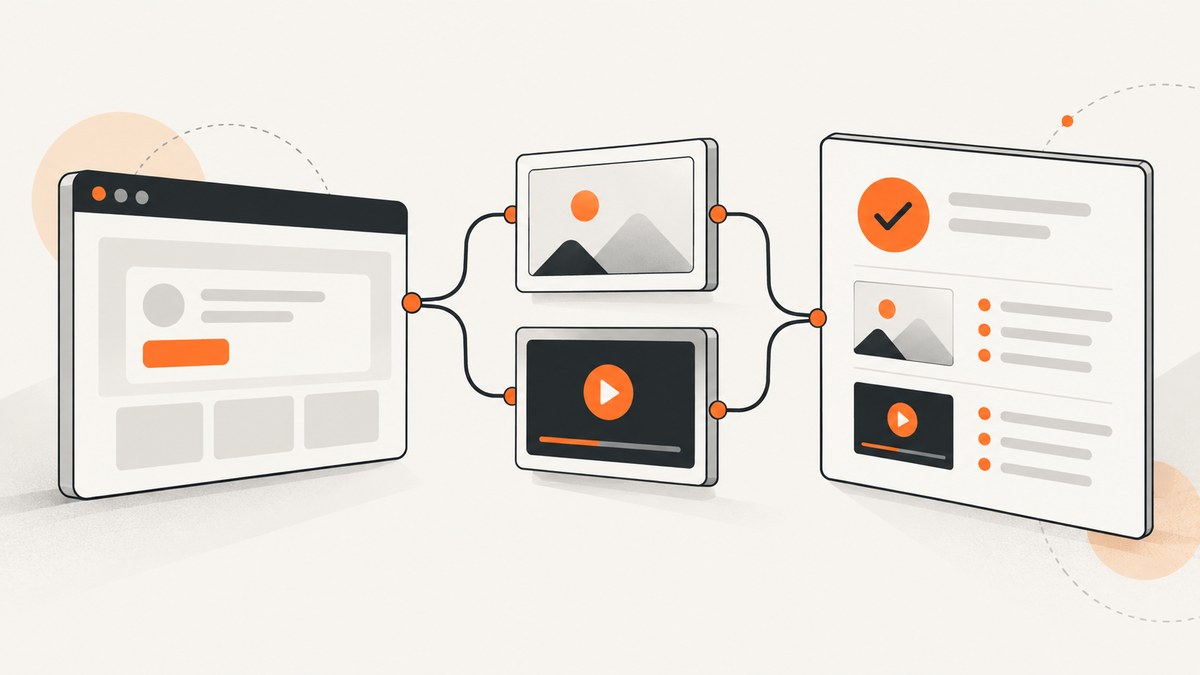
To include artifacts from a passing Cypress test in an Allure report, call cy.screenshot() explicitly at the point in the test you want to capture. Cypress’s automatic screenshots during cypress run are for failures, so they do not provide a passing test’s screenshot by default. For video, set video: true in Cypress configuration and run with cypress run; video is disabled by default and is not recorded by cypress open. The Allure Cypress integration documentation says screenshots created with cy.screenshot() and videos recorded through Cypress configuration are attached to test results automatically. See the Allure Cypress integration guide and Cypress screenshot and video documentation.
1. Understand which artifacts are captured
There are two screenshot paths in Cypress, and the distinction matters for passing tests:
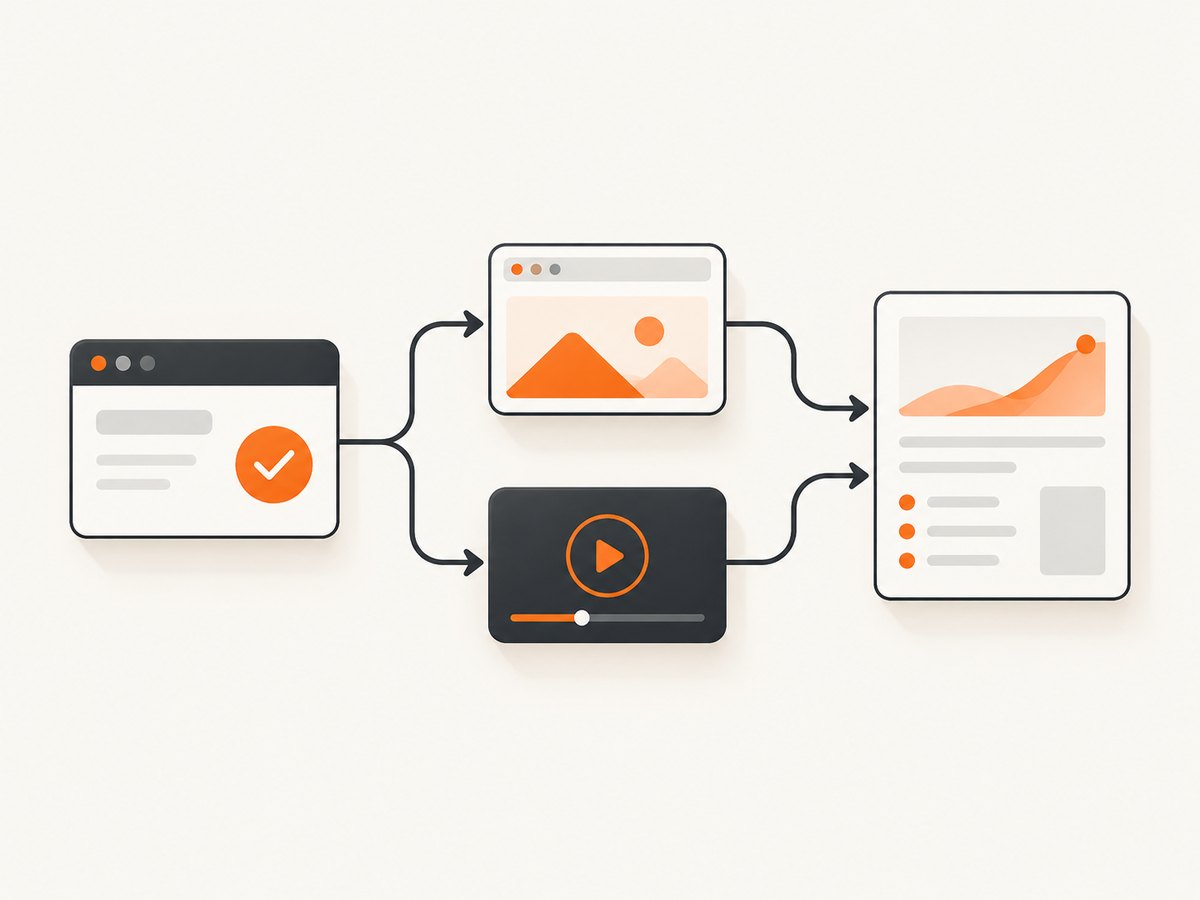
- Automatic failure screenshots: Cypress captures these when a test fails during
cypress run. They help diagnose failures, but do not create images for passing tests. - Explicit screenshots: A test calls
cy.screenshot(). Use this for a passing test when you want a specific state recorded.
Video is a separate run-level artifact. Turn it on with video: true and execute in run mode. With the documented integration behavior, Allure attaches the resulting Cypress screenshots and videos to test results automatically. You generally do not need to duplicate those same files with a manual attachment call.
| Artifact | How it is produced | Passing test support | Default folder |
|---|---|---|---|
| Screenshot on failure | Cypress automatic capture in cypress run |
No; triggered by failure | cypress/screenshots |
| Screenshot at a chosen point | cy.screenshot() in the test |
Yes | cypress/screenshots |
| Run video | video: true plus cypress run |
Yes; records the run | cypress/videos |
2. Configure Allure and Cypress
Install and wire up the Allure Cypress integration according to its current guide, checking the instructions against the versions already in your project. Reporter setup and report-generation commands are version- and project-dependent; use the guide’s current package and configuration steps instead of copying commands from an unrelated project. The examples below show the Cypress-specific artifact settings and test command, not a complete reporter installation.
Enable video in your Cypress configuration. For a CommonJS configuration file such as cypress.config.js:
const { defineConfig } = require('cypress')

module.exports = defineConfig({
  video: true,
})
If your project uses a different configuration format, preserve its existing structure and set the same video option. Cypress documents video as disabled by default. The setting produces video when tests run in cypress run; opening the interactive runner with cypress open does not record video.
Once the Allure Cypress integration is configured, it collects Cypress screenshots produced by cy.screenshot() and enabled videos for the test results. Follow the integration guide for the reporter wiring and the report-generation step used by your project.
3. Capture a screenshot from a passing test
Place cy.screenshot() after the interactions and assertions that establish the state the report reader should see. This example is runnable as a Cypress test in a project that already has Cypress and the Allure integration configured:
describe('account settings', () => {
  it('shows the saved profile state', () => {
    cy.visit('/account/settings')
    cy.get('[data-cy="display-name"]').clear().type('Ada Lovelace')
    cy.get('[data-cy="save-profile"]').click()
    cy.contains('Profile saved').should('be.visible')

    // Capture the meaningful passing state after the assertion.
    cy.screenshot('passing-profile-settings')
  })
})
The name makes the artifact easier to identify in Cypress’s screenshot folder and in the report. Use names that distinguish states or test cases, especially when a suite captures several images. Avoid placing the capture before the assertion if the point of the artifact is to show that the asserted result appeared.
A screenshot is a snapshot at one point in the test. It does not replace assertions: a report image can help a person inspect rendering, but the test should still check the expected behavior directly.
4. Record and attach test videos
With video: true in configuration, run the suite in run mode:
npx cypress runFor projects that define a package script, use that script if it invokes Cypress run mode. Do not use cypress open when you expect a recorded video. Cypress records run videos under cypress/videos by default. According to the Allure Cypress integration documentation, videos enabled through Cypress configuration are attached to the corresponding test results automatically.
Video is useful when the sequence of actions matters or when the final screenshot cannot explain a transient state. It also adds files to the run artifacts, so consider which suites need video rather than enabling unnecessary capture across a large run.
5. Generate and inspect the Allure report
- Run the tests with the project’s Allure reporter and Cypress configuration active.
- Generate the Allure report using the command already established by your integration setup.
- Open a passing test result and confirm that the expected screenshot and, when enabled, video appear as attachments.
- Check a failure result separately if you also rely on Cypress’s automatic failure screenshot behavior.
This is a verification procedure, not a claim that a specific project or package-version combination has been executed here. If the artifacts are in Cypress’s output folders but absent from Allure, check the integration version and configuration against the current official guide before adding manual attachment code.
6. Attach other files manually when needed
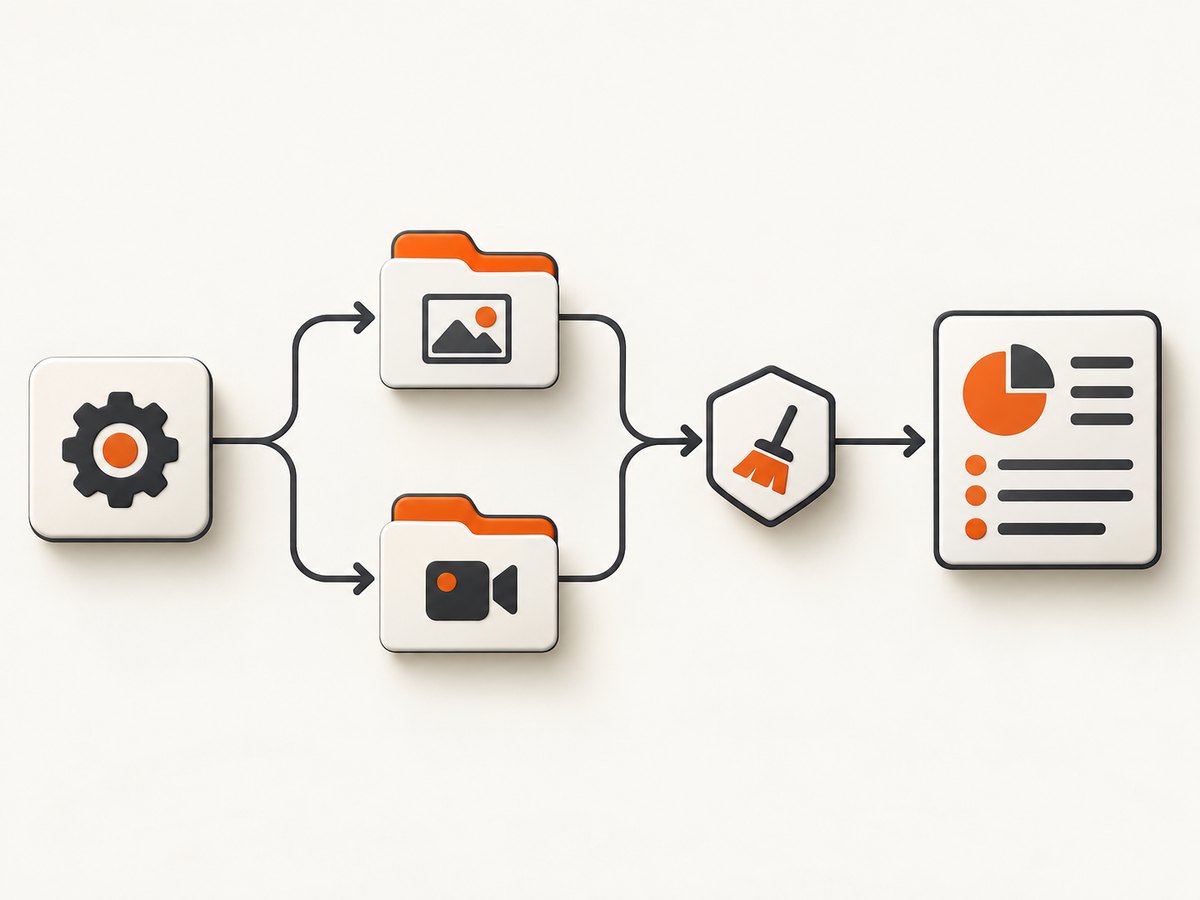
Automatic collection is convenient for Cypress screenshots and videos. If you need to attach a file from another source, use the documented Allure attachment API. The reference provides allure.attachment() for content and allure.attachmentPath() for a file path. Supply the attachment name and a matching media type; an optional extension is also supported for path attachments. Allure documents image media types such as PNG and video formats including MP4, OGG, and WebM for previews. Check the API signature for the integration version in your project: imports and call details can vary.
// Illustrative only: use the import and API signature from your
// installed Allure Cypress integration version.
allure.attachmentPath(
  'Externally generated screenshot',
  '/path/to/artifact.png',
  { contentType: 'image/png', fileExtension: 'png' }
)
Use a manual attachment for externally generated artifacts or files the automatic integration does not collect. Avoid attaching a second copy of an artifact that the integration already includes unless the duplicate serves a clear reporting purpose.
7. Manage artifact folders and CI cleanup
Cypress defaults its screenshot and video folders to cypress/screenshots and cypress/videos. It also defaults trashAssetsBeforeRuns to true, which clears configured downloads, screenshot, and video folders before cypress run. This prevents stale artifacts from a previous run from being mistaken for current output, but it affects workflows that expect those folders to persist across runs.
In CI, make sure the report-generation step can access the current run’s results and attachments before temporary directories are deleted. If you change asset folder locations or cleanup settings, check that the Allure integration still reads the artifacts and that your CI artifact-retention step includes the folders you intend to keep. Cypress Cloud is another documented option for storing and sharing run screenshots and videos; its retention period applies to that workflow.
8. Troubleshooting
| Symptom | Likely cause | What to check |
|---|---|---|
| No screenshot for a passing test | Only relying on automatic failure screenshots | Add cy.screenshot() after the state or assertion you want recorded. |
| No video file | Video is disabled, or the run used interactive mode | Set video: true and run npx cypress run; cypress open does not record video. |
| Cypress files exist but Allure has no attachments | Integration setup or version mismatch, or report generated from the wrong result data | Compare reporter and integration setup with the current Allure Cypress guide; confirm the report step consumes the results from this run. |
| Old screenshots or videos disappear | trashAssetsBeforeRuns is enabled, its default |
Check cleanup settings and ensure CI copies or processes artifacts before cleanup. |
| Manual attachment does not preview | Media type or extension does not match the actual file | Set the correct content type, such as image/png, and consult Allure’s attachment format reference. |
| Screenshot shows the wrong UI state | The capture ran before the state was ready or before the relevant assertion | Capture after the assertion; if the page updates asynchronously, wait for the expected selector or state first. |
9. Performance, reliability, and artifact cost
Each screenshot and video adds output that must be written, transferred, retained, and potentially included in report handling. Cypress and Allure documentation cited here do not provide a universal size, runtime overhead, or retention-cost figure, so measure those in your own CI environment rather than assuming a fixed impact.
For reliable reports, capture at intentional checkpoints, use descriptive names, keep the reporter and Cypress integration versions compatible, and make artifact handling part of the same CI run that generated the results. Videos give sequence context; a small number of well-placed screenshots make important states quick to inspect. Avoid changing cleanup behavior without also checking what stale files could be carried forward.
10. Or skip the browser setup
If you need a screenshot of a public page rather than a browser-test artifact, ScreenshotNeo provides a website screenshot API and MCP server. A single request returns an image or PDF; see the ScreenshotNeo API documentation for available options and formats.
curl -G "https://api.screenshotneo.com/v1/shot" \
  -d access_key=YOUR_API_KEY \
  --data-urlencode url=https://stripe.com \
  -o shot.webp
Python:
import requests

r = requests.get(
    "https://api.screenshotneo.com/v1/shot",
    params={"access_key": "YOUR_API_KEY", "url": "https://stripe.com"},
    timeout=90,
)
open("shot.webp", "wb").write(r.content)
Node.js:
const q = new URLSearchParams({
  access_key: 'YOUR_API_KEY',
  url: 'https://stripe.com',
})
const res = await fetch(`https://api.screenshotneo.com/v1/shot?${q}`)
if (!res.ok) throw new Error(`Screenshot request failed: ${res.status}`)
const image = Buffer.from(await res.arrayBuffer())
await import('node:fs/promises').then(fs => fs.writeFile('shot.webp', image))
ScreenshotNeo accepts cookie and consent banners like a visitor and removes more than 60 known consent platforms, newsletter popups, and chat widgets before capture; each of those steps can be turned off. Bot checks, blank pages, timeouts, failed loads, and cache hits cost nothing, and the response identifies the page verdict and billing state in headers. Its MCP server provides take_screenshot, get_page_info, and capture_pdf for Claude, Cursor, and other MCP clients. The free plan includes 1,000 screenshots per month with no card; paid plans start at $5 for 3,000 screenshots. All features are on every plan.
Create a free ScreenshotNeo account for 1,000 screenshots a month with no card.
11. Frequently asked questions
Does cy.screenshot() fail a passing test?
No. It is a command to capture a screenshot at that point in the test. Keep the test’s assertions as the pass/fail criteria.
Can I get a passing test screenshot without calling the command?
Not from Cypress’s automatic failure screenshot behavior. Add an explicit capture where you need the passing-state image.
Does Allure need a separate video attachment call?
The Allure Cypress integration guide says Cypress videos are attached automatically when recording is enabled in Cypress configuration. Use manual APIs for files outside that automatic behavior.
Where should I look for the generated files?
By default, look in cypress/screenshots and cypress/videos. Project configuration can change those folders.


