How to Include Cypress Screenshots and Videos in Cypress Reports
Configure Cypress screenshots, videos, reporters, CI artifacts, and Cypress Cloud so every failed test keeps useful evidence.

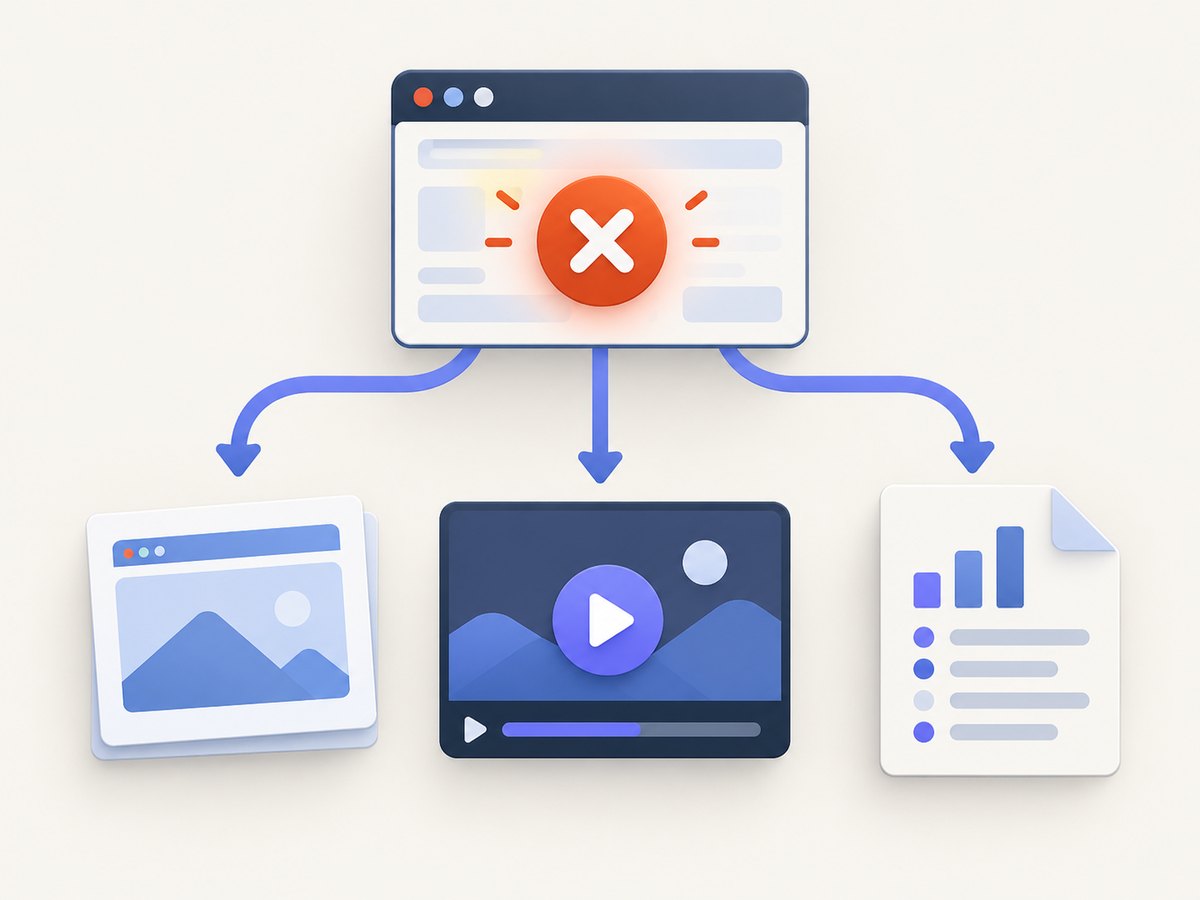
Direct answer: Cypress screenshots and videos are separate from test reports. Configure Cypress to capture them, configure a Mocha reporter to write test results, and configure your CI system or Cypress Cloud to retain and display the resulting files. Failure screenshots are captured automatically during cypress run; videos require video: true. Use cy.screenshot() for deliberate checkpoints.
Cypress writes screenshots to cypress/screenshots and videos to cypress/videos by default. Before each cypress run, Cypress clears the configured downloads, screenshots, and videos folders unless you set trashAssetsBeforeRuns: false. A reporter such as JUnit or Mochawesome creates result files; it does not turn screenshot or video capture on.
1. Configure Cypress capture settings
Start in cypress.config.js or cypress.config.ts. The following configuration enables video recording, keeps generated assets between runs, and sets explicit artifact directories.
const { defineConfig } = require('cypress')

module.exports = defineConfig({
  e2e: {
    baseUrl: 'http://localhost:3000',
    setupNodeEvents(on, config) {
      return config
    }
  },

  // Failure screenshots are enabled by Cypress during cypress run.
  screenshotsFolder: 'cypress/screenshots',
  videosFolder: 'cypress/videos',

  // Video recording is off unless you enable it.
  video: true,

  // Keep assets when a later CI step still needs them.
  trashAssetsBeforeRuns: false,

  // Video compression adds processing time but can reduce file size.
  videoCompression: false
})
In TypeScript, the equivalent is:
import { defineConfig } from 'cypress'

export default defineConfig({
  e2e: {
    baseUrl: 'http://localhost:3000',
    setupNodeEvents(on, config) {
      return config
    }
  },
  screenshotsFolder: 'cypress/screenshots',
  videosFolder: 'cypress/videos',
  video: true,
  trashAssetsBeforeRuns: false,
  videoCompression: false
})
These are the documented Cypress capture controls: screenshot behavior and the screenshot API and global configuration options.
Automatic failure screenshots
During cypress run, Cypress takes a screenshot when a test fails. The file is placed below the screenshots folder, normally under a path containing the spec name and test title. Screenshots are not automatically captured for failures in cypress open.
Manual screenshots at useful checkpoints
Use cy.screenshot() when a test needs evidence before the failure occurs, such as after navigation, after a form submission, or after opening a menu.
describe('checkout', () => {
  it('shows the confirmation page', () => {
    cy.visit('/checkout')
    cy.screenshot('checkout-before-submit')

    cy.get('[data-cy=submit-order]').click()
    cy.get('[data-cy=confirmation]').should('be.visible')
    cy.screenshot('checkout-confirmation')
  })
})
You can set screenshot defaults and black out sensitive elements in the screenshot configuration. Blackout selectors are useful for account numbers, tokens, or changing timestamps.
Video recording
Video recording applies to cypress run. Cypress does not record videos in cypress open. With video: true, Cypress records each spec and writes MP4 files beneath cypress/videos. Compression is optional: enabling it reduces file size but takes longer to process. Cypress writes chapter markers into the MP4 only when compression is enabled.
2. Configure the test reporter separately
Cypress uses Mocha reporters. The default spec reporter prints human-readable results to standard output. Cypress also includes junit and teamcity reporters and supports locally installed custom reporters. Choose the format consumed by your CI system, test dashboard, or review process.
JUnit XML
JUnit is a practical choice when the CI provider can display test results and associate failures with uploaded files.
const { defineConfig } = require('cypress')

module.exports = defineConfig({
  reporter: 'junit',
  reporterOptions: {
    mochaFile: 'cypress/results/junit-[hash].xml',
    toConsole: true
  },
  e2e: {
    setupNodeEvents(on, config) {
      return config
    }
  },
  video: true,
  screenshotsFolder: 'cypress/screenshots',
  videosFolder: 'cypress/videos',
  trashAssetsBeforeRuns: false
})
The [hash] token prevents separate specs from overwriting one another. Confirm that your CI job uploads both cypress/results and the screenshot and video directories.
Mochawesome HTML
Mochawesome produces JSON per spec, then a merge step combines those files and a report generator creates HTML. Install the packages as development dependencies:
npm install --save-dev mochawesome mochawesome-merge mochawesome-report-generatorConfigure one JSON file per spec:
const { defineConfig } = require('cypress')

module.exports = defineConfig({
  reporter: 'mochawesome',
  reporterOptions: {
    reportDir: 'cypress/results/mochawesome',
    overwrite: false,
    html: false,
    json: true
  },
  e2e: {
    setupNodeEvents(on, config) {
      return config
    }
  },
  video: true,
  trashAssetsBeforeRuns: false
})
Add scripts that merge the JSON files and generate HTML:
{
  "scripts": {
    "cy:run": "cypress run",
    "report:merge": "mochawesome-merge cypress/results/mochawesome/*.json > cypress/results/mochawesome.json",
    "report:html": "marge cypress/results/mochawesome.json --reportDir cypress/results/html"
  }
}
Run npm run cy:run, then npm run report:merge and npm run report:html. Upload cypress/results/html, cypress/screenshots, and cypress/videos as CI artifacts. A reporter records test metadata; it does not copy or preserve binary artifacts for you.
3. Preserve screenshots, videos, and reports in CI
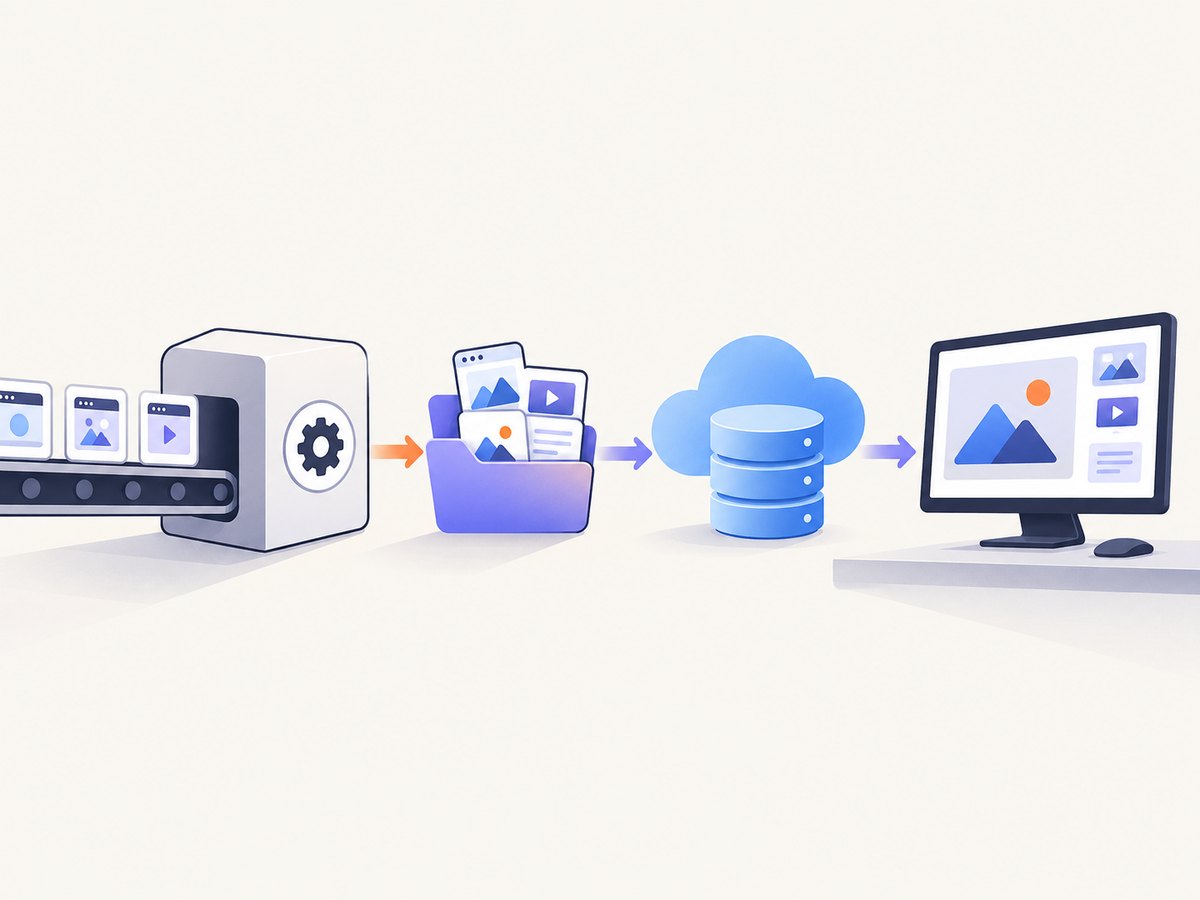
Artifact collection is the third part of the setup. Your CI configuration must run Cypress, generate the report, and upload every directory before the workspace is discarded.
Generic CI sequence
- Install dependencies and start the application.
- Run
cypress runwith screenshots and video enabled. - Generate or merge the reporter output.
- Upload the report, screenshots, videos, and relevant logs.
- Keep uploads available for the retention period your team needs.
npm ci
npm run start:test &
npx cypress run
npm run report:merge
npm run report:html
For GitHub Actions, a minimal artifact step looks like this:
- name: Run Cypress
  run: npx cypress run

- name: Build Mochawesome report
  if: always()
  run: |
    npm run report:merge
    npm run report:html

- name: Upload Cypress evidence
  if: always()
  uses: actions/upload-artifact@v4
  with:
    name: cypress-evidence-${{ github.run_id }}
    path: |
      cypress/results/
      cypress/screenshots/
      cypress/videos/
    if-no-files-found: warn
Use your CI provider’s equivalent artifact uploader when you are not on GitHub Actions. The exact YAML differs by provider, but the required paths and ordering remain the same.
Cleanup and retention decisions
| Decision | Use it when | Tradeoff |
|---|---|---|
trashAssetsBeforeRuns: true |
Each run should contain only its own evidence. | Old files are removed before the next run. |
trashAssetsBeforeRuns: false |
A later process needs files already present in the configured folders. | Stale files can be mistaken for current artifacts unless CI uses clean workspaces or unique names. |
| Upload on every run | Failures must remain inspectable after the job ends. | Artifact storage and transfer increase with video size. |
| Upload only on failure | Successful-run evidence is not needed. | You lose historical recordings that could explain intermittent failures. |
4. Use Cypress Cloud for a shared recorded run
Cypress Cloud is an optional hosted destination. Run Cypress with --record to store recorded run information and artifacts there. The run interface presents screenshots, downloadable video, CI logs, and test results together.
npx cypress run --record --key "$CYPRESS_RECORD_KEY"Cloud data controls let teams delete artifacts before upload. Review the Cypress Cloud storage and security documentation for your own retention and data requirements. Recording is opt-in; a normal local run does not automatically publish its files to Cloud.
5. Or skip the browser setup
If you need a clean image of a page for a report, documentation page, or review workflow rather than a Cypress test recording, ScreenshotNeo provides a single HTTP request. Its API accepts a URL and returns PNG, JPEG, WebP, or PDF. Read the ScreenshotNeo API documentation for the complete option list.
curl -G 'https://api.screenshotneo.com/v1/shot' \
  -d access_key=YOUR_API_KEY \
  --data-urlencode url=https://stripe.com \
  -o shot.webp
import requests
r = requests.get(
'https://api.screenshotneo.com/v1/shot',
params={'access_key': 'YOUR_API_KEY', 'url': 'https://stripe.com'},
timeout=90,
)
r.raise_for_status()
open('shot.webp', 'wb').write(r.content)const q = new URLSearchParams({
access_key: 'YOUR_API_KEY',
url: 'https://stripe.com'
})
const res = await fetch(`https://api.screenshotneo.com/v1/shot?${q}`)
if (!res.ok) throw new Error(`Screenshot failed: ${res.status}`)
const fs = await import('node:fs/promises')
await fs.writeFile('shot.webp', Buffer.from(await res.arrayBuffer()))Cookie banners, newsletter popups, and chat widgets are removed before the shot. Bot checks, blank pages, timeouts, failed loads, and cache hits are not billed, and response headers identify the page verdict and whether the request was billed. An MCP server lets Claude, Cursor, and other MCP clients call take_screenshot, get_page_info, and capture_pdf. The Free plan includes 1,000 screenshots per month with no card; paid plans start at $5 for 3,000 screenshots. Create a free ScreenshotNeo account.
6. Troubleshooting
No screenshot appears after a failed test
- Cause: The test ran with
cypress open, where failure screenshots are not automatic. - Fix: Run the spec with
cypress run, or addcy.screenshot('checkpoint')where evidence is needed.
No video file is created
- Cause: Video recording is disabled or the command used
cypress open. - Fix: Set
video: trueand runnpx cypress run.
Artifacts disappear before upload
- Cause: Cypress clears screenshots, videos, and downloads before a run, or a later job starts in a fresh workspace.
- Fix: Upload in the same job after the test, use
trashAssetsBeforeRuns: falsewhen appropriate, and verify the uploader paths.
Reporter output is present but has no image links
- Cause: Reporter output and binary artifact collection are independent.
- Fix: Upload the screenshot and video directories and configure your report viewer or CI system to expose those artifact paths.
Mochawesome files overwrite one another
- Cause: Multiple specs write to one filename.
- Fix: Set
overwrite: false, write to a dedicated report directory, merge after the run, and generate HTML from the merged JSON.
Videos consume too much storage or slow the job
- Cause: Every spec produces a video, and compression is disabled.
- Fix: Record only in CI jobs that need video, upload only on failure if that meets your retention policy, or enable compression and accept the extra processing time.
Cypress Cloud does not show the run
- Cause: The run was not started with
--record, or the record key is missing or invalid. - Fix: Pass
--recordand a validCYPRESS_RECORD_KEY, then inspect the CI log for the recording response.
7. Performance, reliability, and cost notes
- Runtime: Screenshots add capture and file-write work. Videos add continuous encoding and upload work; compression reduces transfer size but increases processing time.
- Parallel CI: Use unique report filenames and artifact names per job or shard so parallel specs cannot overwrite one another.
- Reliability: Keep artifact upload steps under
if: always()or the equivalent CI condition so evidence is uploaded after failures. - Storage: Videos are usually larger than screenshots. Set retention deliberately and avoid preserving duplicate copies in both CI storage and Cloud unless you need both.
- Security: Screenshots and videos can contain credentials, personal data, or tokens rendered by the application. Mask sensitive selectors, use test data, and restrict artifact access.
- Reporter choice: JUnit is convenient for CI test-result ingestion; Mochawesome is useful when a browsable HTML report is required. Neither choice changes Cypress capture behavior.
- ScreenshotNeo billing: ScreenshotNeo bills only clean shots. Bot checks, blank pages, timeouts, failed loads, and cache hits cost nothing, and the response includes
X-Page-VerdictandX-Billedheaders.
8. Checklist
- Run the workflow with
cypress run. - Set
video: truewhen videos are required. - Add
cy.screenshot()for deliberate checkpoints. - Select and configure a Mocha reporter.
- Prevent unwanted cleanup or upload before the next cleanup step.
- Upload report, screenshot, and video directories in an always-run CI step.
- Use
--recordonly when Cypress Cloud storage is wanted. - Check sensitive data before sharing artifacts.
9. FAQ
Does Cypress put screenshots inside the JUnit XML?
No. JUnit contains test results. Your CI system must retain and expose the screenshot files separately.
Can I record a video from Cypress open?
No. Cypress video recording is for cypress run. Use manual screenshots while developing interactively.
Do successful tests get screenshots automatically?
No. Automatic screenshots are for run failures. Add cy.screenshot() when successful checkpoints matter.
Do I need Cypress Cloud to keep artifacts?
No. A CI provider can upload the local report, screenshot, and video directories. Cypress Cloud is an optional shared recorded-run destination.
What should I upload when a test fails?
Upload the reporter output, the matching screenshot, the spec video when enabled, and CI logs. Keeping the same run identifier in artifact names makes the association clear.


