How to Type into Cypress Fields Without Replacing Existing Text
Use Cypress .clear().type() to replace values safely, or select all first when your test must mimic keyboard selection.
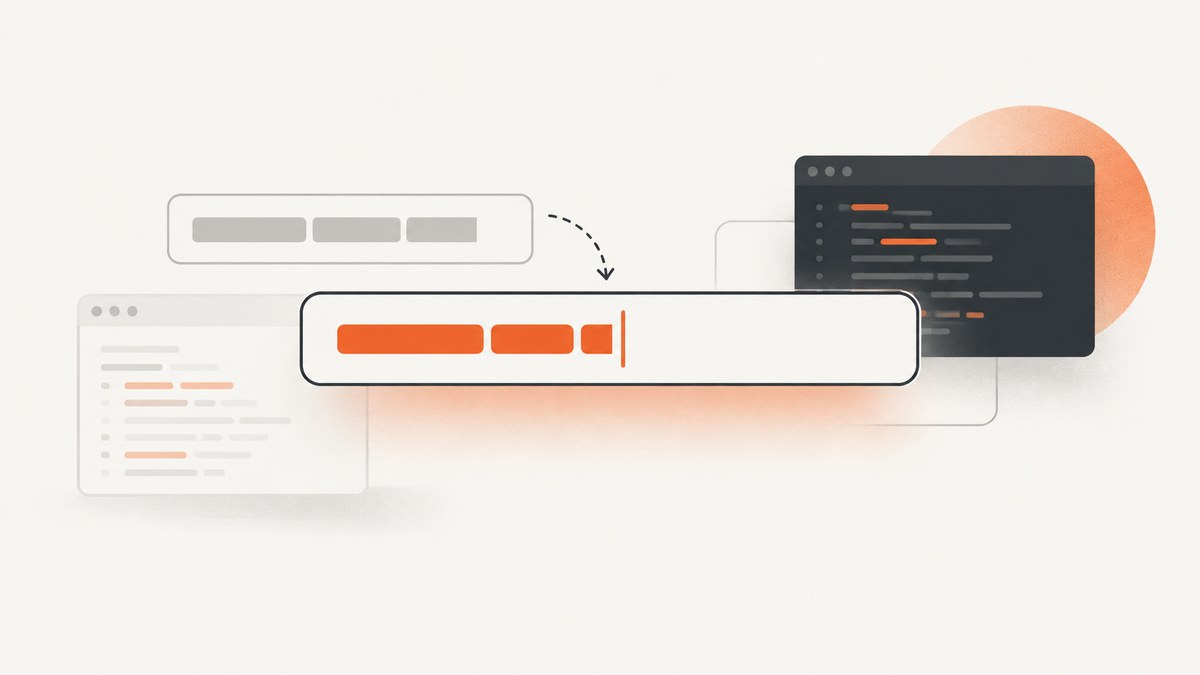
Direct answer: Cypress .type() inserts characters at the field’s current cursor position. It does not automatically replace the existing value. If the test should replace the value, clear it first:
cy.get('input[name="email"]')
  .clear()
  .type('new@example.com')
Cypress’s migration guidance describes the same rule: clear before typing when a field may already contain text. Use {selectAll} when selecting the current value with keyboard behavior is part of what you are testing. If your application replaces the DOM node between actions, query the selector again before each action.
How Cypress decides where text goes
Typing starts at the element’s current insertion point. That point may be at the beginning, end, or inside the value, depending on focus, a click, a selection range, or application code. Cypress sends keyboard and input events for the characters and special sequences in the command.
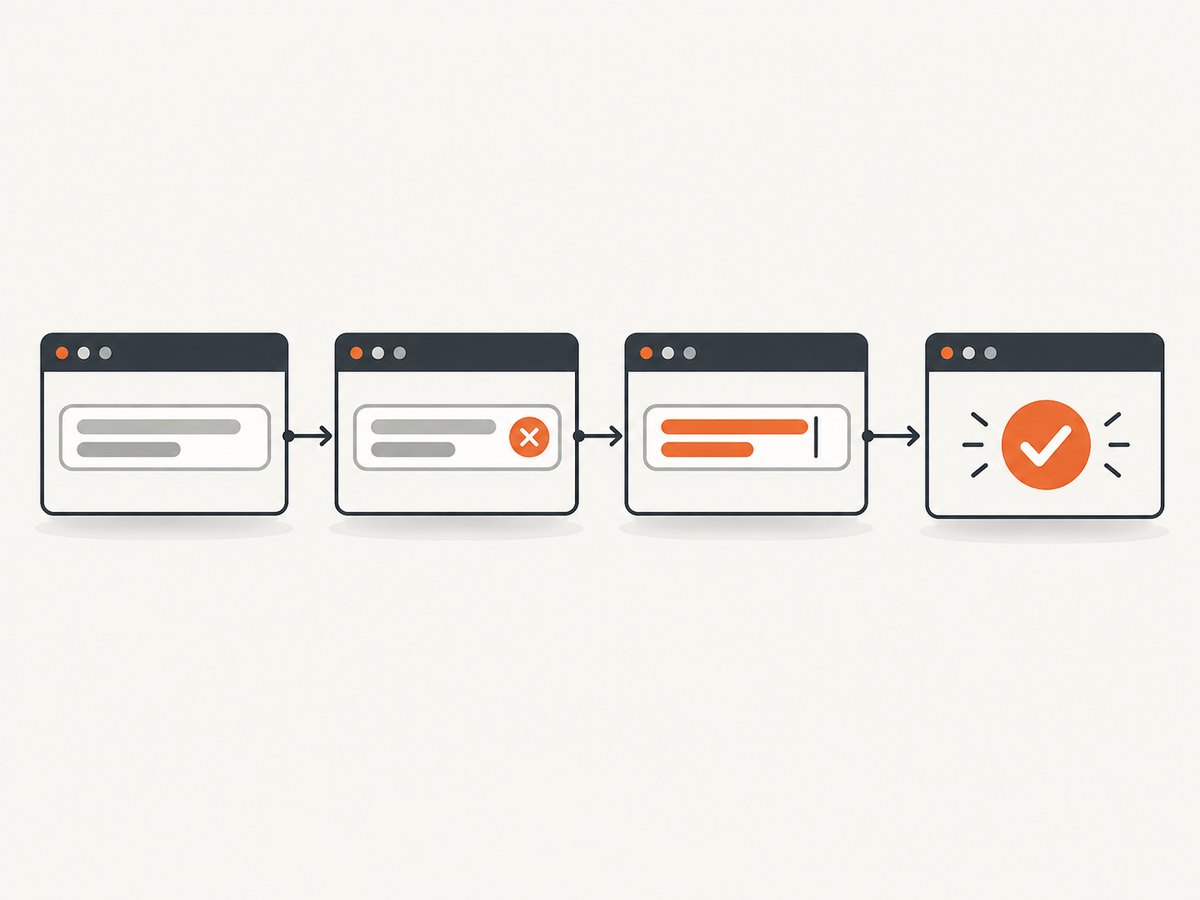
For a normal form-fill test, the reliable replacement sequence is:
- Locate the field with a stable selector.
- Clear its current value.
- Type the replacement value.
- Assert the resulting value.
cy.get('[data-cy="email"]')
  .clear()
  .type('new@example.com')
  .should('have.value', 'new@example.com')
The assertion makes the intended outcome explicit and catches controlled-input code that rejects or transforms the value.
Replace a value with .clear().type()
.clear() is the documented Cypress command for emptying a text-like field. Chaining .type() after it expresses replacement directly and works for inputs and textareas supported by Cypress.
Complete form example
describe('profile form', () => {
  it('replaces the saved display name', () => {
    cy.visit('/profile')

    cy.get('input[name="displayName"]')
      .clear()
      .type('Ada Lovelace')
      .should('have.value', 'Ada Lovelace')

    cy.get('button[type="submit"]').click()
    cy.contains('Profile saved').should('be.visible')
  })
})
Use a selector based on a label, accessible role, name, or a dedicated data-cy attribute. Avoid selectors tied to generated class names because a styling change can break an otherwise correct test.
When the field is initially empty
Calling .clear() on an already empty field is normally harmless and keeps the test’s intent consistent. If the empty state is meaningful, assert it first instead of silently clearing:
cy.get('#promo-code')
  .should('have.value', '')
  .type('WELCOME10')
  .should('have.value', 'WELCOME10')
When you want to append instead
Do not clear the field when the expected behavior is appending. Focus it, place the cursor where the product would, and type the suffix:
cy.get('input[name="tag"]')
  .click()
  .type('-archived')
  .should('have.value', 'customer-archived')
For deterministic tests, asserting the starting value before appending prevents an accidental change in fixture data from producing a misleading result.
Select all, then type
Use Cypress’s {selectAll} sequence when the behavior under test is keyboard selection followed by replacement. This is useful for shortcuts, editor workflows, and accessibility scenarios where the selection itself matters.
cy.get('input[name="email"]')
  .click()
  .type('{selectAll}')
  .type('new@example.com')
  .should('have.value', 'new@example.com')
The first .type() creates a selection range; the second types over that range. This is different in intent from .clear(): it exercises the browser-style select-and-replace path.
Modifier keys and special sequences
Cypress supports special key sequences in .type(), including modifiers and {selectAll}. Keep the sequence short and assert the resulting value. For navigation keys such as Tab, Cypress recommends cy.press(); use .type() for text and type-specific sequences.
cy.get('#search')
  .click()
  .type('{selectAll}cypress retries')
  .should('have.value', 'cypress retries')

cy.press('Tab')
cy.focused().should('have.attr', 'name', 'submit')
Re-rendering fields and stale element references
React, Vue, Angular, and rich form libraries can replace an input after each keystroke, validation event, or state update. A command chain that retains the old subject can then fail because Cypress is acting on a detached element.
When the application may re-render between actions, issue a fresh query for every action:
cy.get('#payment-input').focus()
cy.get('#payment-input').clear()
cy.get('#payment-input').type('4242424242424242')
cy.get('#payment-input').blur()
cy.get('#payment-input').should('have.value', '4242424242424242')
Each cy.get() retries until it finds the current actionable element. This follows Cypress’s retry-ability guidance and is safer than storing a DOM node in a variable or relying on a long chain across state transitions.
Use assertions as synchronization
Prefer assertions that retry over fixed waits:
cy.get('[data-cy="amount"]')
  .should('be.visible')
  .and('not.be.disabled')
  .clear()
  .type('125.00')

cy.get('[data-cy="amount"]')
  .should('have.value', '125.00')
If formatting is asynchronous, wait for the formatted value or a relevant application state rather than adding cy.wait(1000). Fixed delays make the suite slower and still fail when the environment is slower than the chosen number.
Supported elements and field types
Cypress documents .type() for text-like inputs, including text, password, email, number, date, week, month, time, datetime-local, search, URL, and telephone inputs. It also supports textareas, the body, focusable elements with tabindex, and elements with contenteditable.
| Element | Recommended pattern | Important detail |
|---|---|---|
| Text or email input | .clear().type(value) |
Assert with have.value. |
| Textarea | .clear().type(text) |
Newlines can be included in the typed string. |
| Number input | .clear().type('12') |
Application validation may reject decimal or out-of-range values. |
| Contenteditable | Target the element carrying contenteditable |
Rich editors may manage selection and DOM themselves. |
| Navigation control | cy.press('Tab') |
Use .type() for text and special text sequences. |
Date, time, and formatted controls
Native date and time inputs have browser-specific representations. Type the format expected by the control and assert the value Cypress exposes in your browser. For a custom date picker, interact with its visible controls rather than assuming it behaves like an input[type=date].
Contenteditable and rich text editors
For a basic contenteditable element, target the node with the attribute:
cy.get('[contenteditable="true"]')
  .click()
  .type('Draft text')
  .should('contain.text', 'Draft text')
Editors such as CKEditor, Quill, Draft.js, and ProseMirror can manage selection, hidden inputs, and internal document state. Click to place the cursor, use the editor’s supported API when available, or assert through the editor’s rendered output. Selecting a child span instead of the contenteditable root commonly produces confusing failures.
Actionability, events, and assertions
Before typing, Cypress checks actionability, including visibility, ability to receive events, and whether the element is covered or disabled. It waits and retries until the command can run. Do not use {force: true} as a default fix; it bypasses these checks and can hide a real product bug.
Typing fires keyboard and input events as appropriate. A change event is generally emitted when the value changed and the field is committed, such as on Enter or blur. If your application saves on blur, make that interaction explicit:
cy.get('#company')
  .clear()
  .type('Acme Inc.')
  .blur()

cy.get('#company').should('have.value', 'Acme Inc.')
cy.contains('Saved').should('be.visible')
Common errors and fixes
| Symptom | Likely cause | Fix |
|---|---|---|
| New text appears in the middle | The cursor was not at the end. | Use .clear().type() for replacement, or click and select intentionally. |
| Old text remains before the new text | .type() inserts; it does not replace. |
Clear first or use {selectAll}. |
| Element is detached from the DOM | The framework re-rendered the field. | Run a fresh cy.get() before each action. |
| Element is not actionable | It is hidden, covered, disabled, or still loading. | Wait on a meaningful assertion and fix the UI state; avoid force unless the test specifically requires it. |
| Value is transformed | Masking, formatting, or validation changes input. | Assert the product’s final value and type the format it accepts. |
| Rich editor text is missing | The editor owns selection and state. | Target the contenteditable root, click to position the cursor, or use the editor API. |
| Tab does not move focus as expected | Navigation was sent through .type(). |
Use cy.press('Tab') and assert cy.focused(). |
A maintainable test checklist
- Decide whether the behavior is replacement, append, or keyboard selection.
- Use a stable, user-facing selector.
- Use
.clear().type()for ordinary replacement. - Use
{selectAll}only when selection behavior is part of the scenario. - Re-query after actions that can trigger a render.
- Assert the value and any resulting validation or save state.
- Use
cy.press()for navigation keys. - Keep waits tied to observable application state.

Or skip the browser setup
If your goal is a clean visual capture of a form, test page, or generated state rather than testing keystrokes themselves, ScreenshotNeo can take the screenshot through one API request. The browser automation details above remain useful for interaction tests; ScreenshotNeo handles the capture layer.
See the ScreenshotNeo API documentation for all parameters. This request returns an image for the target URL:
curl -G "https://api.screenshotneo.com/v1/shot" -d access_key=YOUR_API_KEY --data-urlencode url=https://stripe.com -o shot.webpimport requests
r = requests.get("https://api.screenshotneo.com/v1/shot", params={"access_key": "YOUR_API_KEY", "url": "https://stripe.com"}, timeout=90)
open("shot.webp", "wb").write(r.content)const q = new URLSearchParams({ access_key: 'YOUR_API_KEY', url: 'https://stripe.com' });
const res = await fetch(`https://api.screenshotneo.com/v1/shot?${q}`);Before capture, ScreenshotNeo accepts cookie and consent banners and removes more than 60 known consent platforms, newsletter popups, and chat widgets; each step can be disabled. Bot checks, blank pages, timeouts, failed loads, and cache hits are not billed, and response headers identify the page verdict and billing result. It also provides an MCP server with take_screenshot, get_page_info, and capture_pdf tools for Claude, Cursor, and other MCP clients. One thousand screenshots per month are free with no card; paid plans start at $5 for 3,000 shots. Create a free ScreenshotNeo account.
Performance, reliability, and cost notes
For Cypress, keep each test focused on one interaction and let retryable assertions provide synchronization. Re-querying a changing field adds clarity and avoids stale references. For screenshot capture, reuse a chosen cache TTL when pages are stable, use async jobs and signed webhooks for slow pages, and submit up to 100 URLs in one bulk capture call when processing a set. Custom waits, headers, cookies, user agents, authorization, timezone, and geolocation can reproduce the state your application needs.
ScreenshotNeo supports full-page capture with lazy images loaded, element capture by CSS selector, dark mode, device presets, arbitrary viewports, retina scale, PDF options, custom CSS and JavaScript, click actions, hidden selectors, network-idle or selector waits, request blocking, transparent backgrounds, resizing, signed public links, a usage API, and an OpenAPI specification. Every feature is available on every plan. Clean shots are the billable unit, while the response’s X-Page-Verdict and X-Billed headers make accounting visible.
FAQ
Does .type() replace existing text?
No. It types at the current insertion point. Clear first for replacement.
Should I always use {selectAll}?
No. Use it when keyboard selection is the behavior under test. For ordinary form filling, .clear().type() is simpler and more direct.
Why does Cypress say the element is detached?
Your application probably replaced the node during a render. Query the selector again before the next action.
Can I type into a rich text editor?
Often, but target its contenteditable root and account for editor-managed selection and state. The editor’s own API may be more reliable for setup.
When should I use cy.press()?
Use it for navigation keys such as Tab. Keep text and sequences such as {selectAll} in .type().


