How to Generate and Store Daily Website Screenshots
Build a reliable daily screenshot pipeline with Playwright, scheduled jobs, predictable storage, retention rules, and a hosted ScreenshotNeo option.
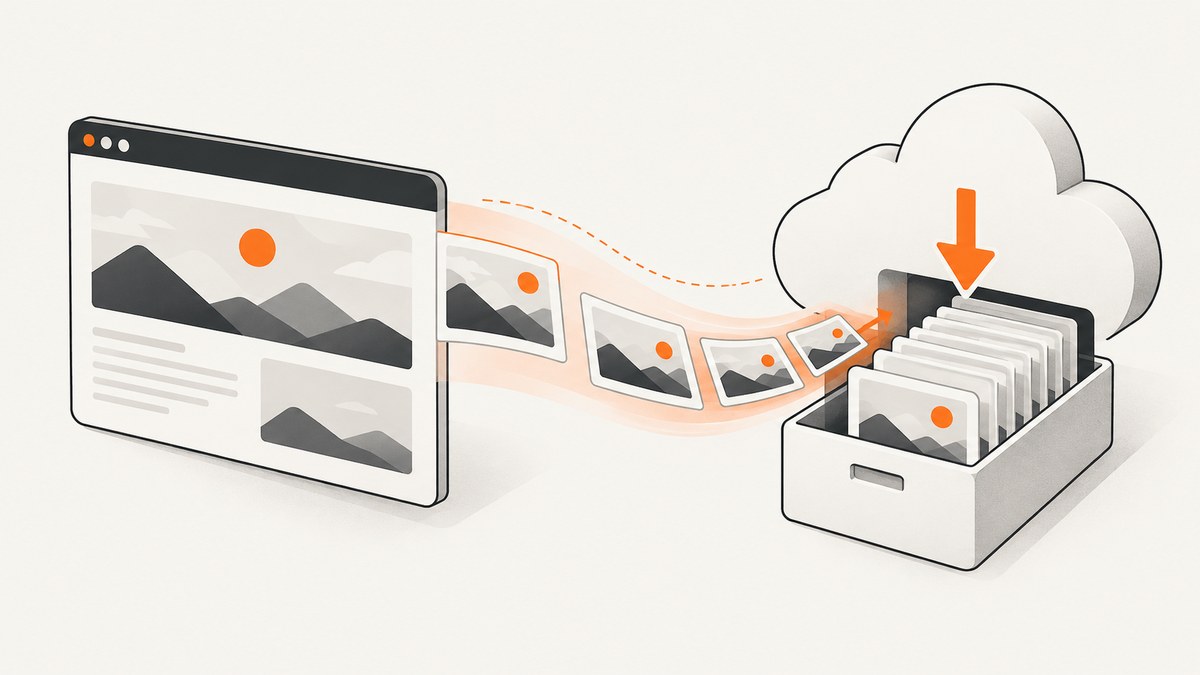
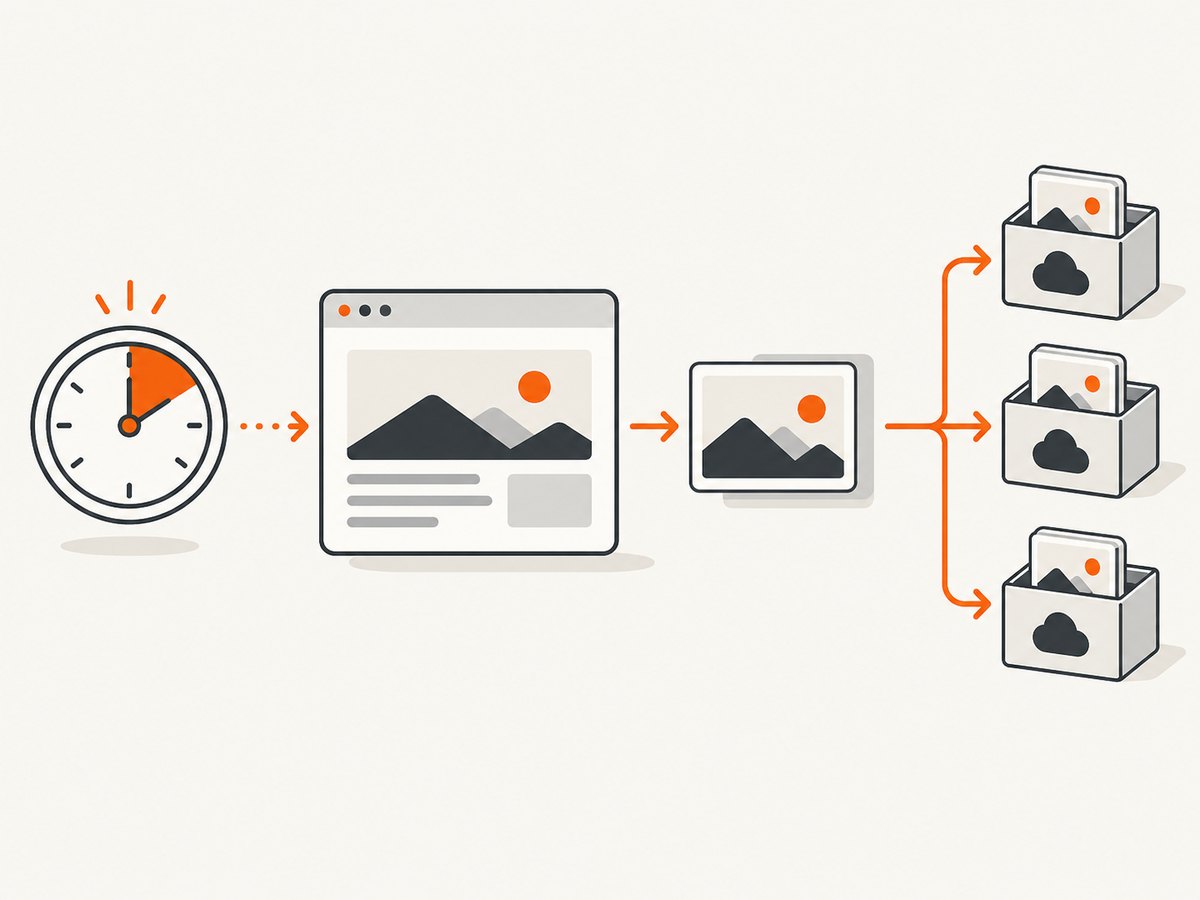
Direct answer: run a scheduled browser job that opens the target URL, applies the same viewport and wait conditions every day, captures either the viewport, a full-page screenshot, or a specific element, and writes the image to a predictable date-based key. Keep the capture step separate from storage: the browser produces a file or bytes, then your job uploads those bytes to object storage, a database-backed store, or a local archive. Add retries for transient failures, define retention and access rules, and record metadata such as the URL, capture time, viewport, format, and page verdict.
Playwright can save screenshots directly to disk, return image bytes, capture the entire scrollable page, or capture one element. Cloudflare Browser Run provides a hosted screenshot endpoint with URL or HTML input, viewport controls, waiting options, full-page capture, and target-element selection. Its getting-started material also shows a browser capture whose output is stored in KV. These are two implementation models: a self-managed browser job gives you application-specific control, while a hosted endpoint reduces browser-runtime work.
1. Choose what each daily screenshot should contain
Decide the capture scope before writing code. The choice determines image dimensions, storage size, and how useful comparisons will be.
| Capture | Use it for | Key setting |
|---|---|---|
| Viewport | Monitoring what a visitor sees above the fold | Fixed width and height |
| Full page | Recording every section, including content below the fold | full_page: true in Playwright or the provider’s full-page option |
| Element | Tracking a price panel, status badge, chart, or component | A stable CSS selector |
Use the literal same scope every day. Switching between viewport and full page makes visual comparisons misleading. For an element capture, prefer a selector tied to a stable attribute such as data-testid; a positional selector can break when the page layout changes.
2. Build a repeatable Playwright capture
The following Node.js script captures a full-page PNG, waits for the page to settle, and writes a date-oriented filename. Install Playwright with npm install playwright, then install its browser binaries using the command documented for your environment.
import { chromium } from 'playwright';
import fs from 'node:fs/promises';

const targetUrl = process.env.TARGET_URL || 'https://example.com';
const outputDir = process.env.OUTPUT_DIR || './shots';
const now = new Date();
const date = now.toISOString().slice(0, 10);

await fs.mkdir(outputDir, { recursive: true });
const browser = await chromium.launch();
const page = await browser.newPage({
  viewport: { width: 1440, height: 900 },
  deviceScaleFactor: 1
});

try {
  await page.goto(targetUrl, { waitUntil: 'domcontentloaded', timeout: 60000 });
  await page.waitForLoadState('networkidle', { timeout: 30000 }).catch(() => {});
  await page.screenshot({
    path: `${outputDir}/example-${date}.png`,
    fullPage: true,
    animations: 'disabled',
    caret: 'hide',
    type: 'png'
  });
} finally {
  await browser.close();
}
The Playwright screenshot documentation describes file output, byte output, full-page capture, element capture, image formats, and related options. In production, replace the example filename with a site identifier that cannot contain path separators.
Capture bytes for an upload
Writing to a local file is convenient for a single machine. For object storage, request bytes and upload them in the same job. This avoids depending on a persistent local disk.
const imageBytes = await page.screenshot({
  fullPage: true,
  type: 'webp',
  quality: 82
});

// Pass imageBytes to your storage SDK. Store Content-Type: image/webp.
PNG preserves crisp text and is lossless. JPEG and WebP can reduce storage and transfer size; choose one format and quality level and keep it constant so a format change does not look like a page change.
Capture one element
const panel = page.locator('[data-testid="pricing-panel"]');
await panel.waitFor({ state: 'visible', timeout: 30000 });
await panel.screenshot({ path: `${outputDir}/pricing-${date}.png` });
If the selector is absent, treat that as a meaningful failed capture and save an error record. Do not silently save a screenshot of the wrong page.
3. Make rendering conditions stable
A daily diff is useful only when the capture conditions are deliberate. Set the same viewport, device scale factor, color scheme, locale, timezone, and user agent where your browser environment permits. Wait for the content that matters rather than relying only on a fixed sleep.
- Viewport: use a fixed width and height for viewport captures.
- Full page: enable it only when below-the-fold content belongs in the record.
- Wait for a selector: wait for a chart, table, or headline that proves the page is ready.
- Network idle: useful for pages with late requests, but analytics or streaming connections may prevent it; use a bounded timeout.
- Animations: disable animations where possible, or wait until a stable state.
- Personalization: supply a consistent locale, cookies, and authentication state if the page varies by visitor.
- Consent and overlays: dismiss or remove them consistently, otherwise a banner can dominate the comparison.
Dynamic content, ads, rotating recommendations, clocks, and A/B tests can create differences unrelated to a code or content change. If exact pixel equality is not required, compare a cropped region or use a visual-diff threshold. Keep the original daily image so a reviewer can inspect any alert.
4. Schedule the job every day
The screenshot API does not create a universal scheduler. Use the recurring-job facility of your runtime: cron, a CI scheduler, a container platform, a serverless scheduled function, or an operating-system task scheduler. Configure the job in UTC or document the chosen timezone so daylight-saving changes do not create surprises.
A robust run sequence is:
- Read the site configuration and current date.
- Launch the browser or call the hosted endpoint.
- Navigate with a bounded timeout.
- Wait for the required selector or page state.
- Capture the selected scope.
- Upload the bytes under a deterministic key.
- Write metadata and a success record.
- Apply retention rules and emit an alert only after retries are exhausted.
Use an idempotent key such as sites/acme-home/2026-09-30.webp. If a retry runs on the same day, it should overwrite that day’s object or write a version according to an explicit policy. For auditability, a second key such as runs/{timestamp} can preserve every attempt.
5. Store and retrieve the archive
Object storage is usually a practical destination because it accepts binary data, supports metadata, and can apply lifecycle rules. A local directory works for a small internal job; a key-value store can work when the platform already provides one. Cloudflare’s Browser Run getting-started example pairs a screenshot with KV storage, but storage capacity, quotas, and lifecycle behavior must be checked for your chosen destination.
Store these fields beside each image:
- site identifier and source URL
- UTC capture timestamp and logical capture date
- viewport width, height, and device scale factor
- capture mode: viewport, full page, or element
- format, byte size, and content hash
- HTTP status or provider verdict
- runtime version and configuration revision
- error code and retry count when the capture fails
A content hash lets you detect identical outputs without downloading two images. Keep the archive private by default. If screenshots contain account data, use private buckets and short-lived signed download URLs. Define who may read, replace, or delete images separately from who may run the capture job.
6. Hosted capture with Cloudflare Browser Run
Cloudflare’s screenshot endpoint accepts a URL or HTML and documents controls for viewport, full-page capture, waiting, and a target element. Its getting-started guide distinguishes stateless Quick Actions from browser sessions for scripted control. A hosted endpoint can simplify browser installation, while a scripted Playwright job is better when you need multi-step navigation, login flows, or application-specific interaction.
Regardless of provider, the scheduling and archive policy remain your responsibility. The rendering service returning an image does not automatically define how long your stored copy remains available.
7. Or skip the browser setup
ScreenshotNeo is a website screenshot API and MCP server. One GET request returns a PNG, JPEG, WebP, or PDF, so a scheduled job can save the response directly under the same date-based key.
See the ScreenshotNeo API documentation for the complete option set. The basic calls are:
curl -G "https://api.screenshotneo.com/v1/shot" -d access_key=YOUR_API_KEY --data-urlencode url=https://stripe.com -o shot.webpimport requests
r = requests.get("https://api.screenshotneo.com/v1/shot", params={"access_key": "YOUR_API_KEY", "url": "https://stripe.com"}, timeout=90)
open("shot.webp", "wb").write(r.content)const q = new URLSearchParams({ access_key: 'YOUR_API_KEY', url: 'https://stripe.com' });
const res = await fetch(`https://api.screenshotneo.com/v1/shot?${q}`);For daily storage, append the date to your destination filename after checking the response status. ScreenshotNeo supports full-page capture with lazy images loaded, CSS element capture, dark mode, 12 device presets or any viewport, retina scale, PDF paper and page options, custom CSS and JavaScript, click actions, selector waits, delays, network-idle waits, request blocking, custom headers, cookies, user agents, Authorization, timezone, geolocation, transparent backgrounds, resizing, configurable-TTL caching, signed links, asynchronous jobs with signed webhooks, bulk capture of up to 100 URLs per call, a usage API, and an OpenAPI specification. Common parameter names used by other screenshot APIs also work when switching.
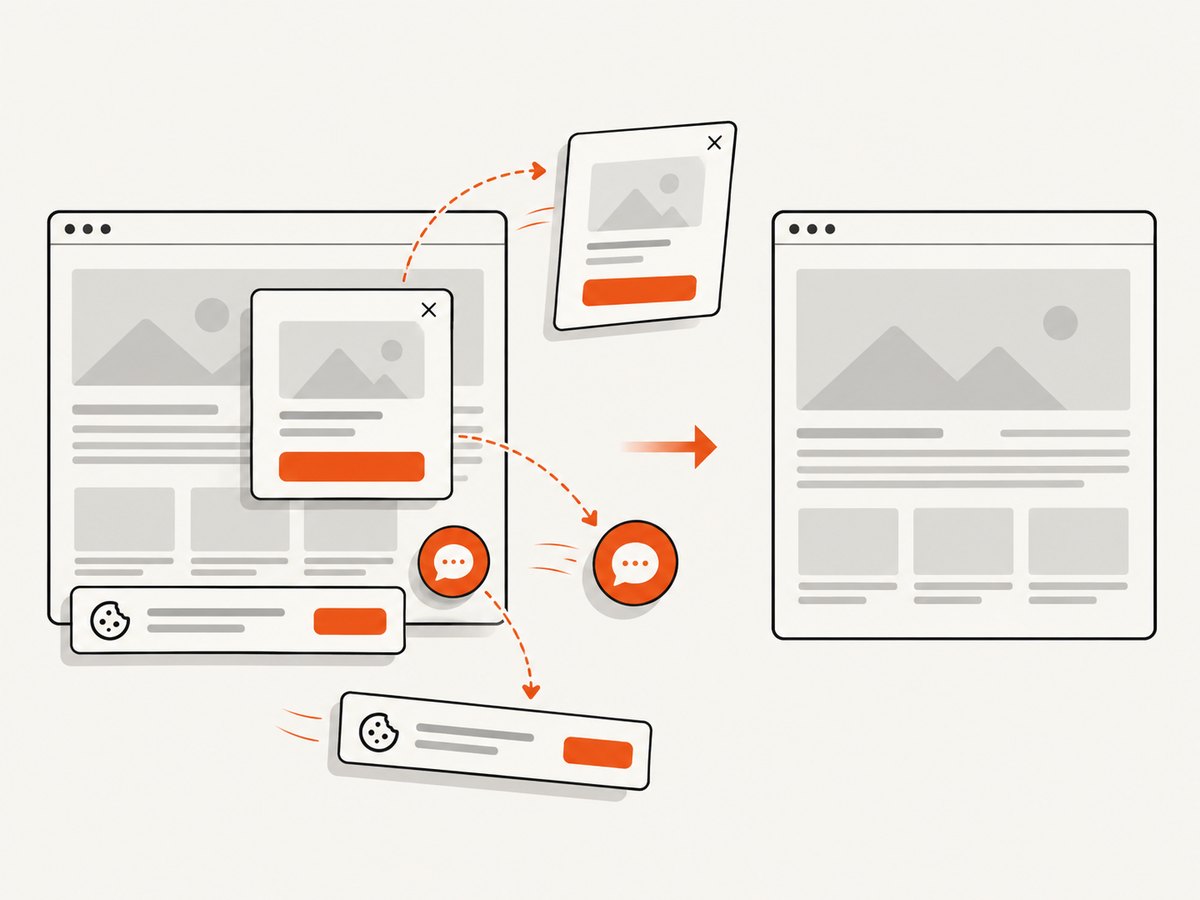
Cookie and consent banners, newsletter popups, and chat widgets are removed before capture; each step can be disabled. Bot checks and CAPTCHAs, blank pages, timeouts, failed loads, and cache hits cost nothing, and the response identifies the result with X-Page-Verdict and X-Billed headers. An MCP server exposes take_screenshot, get_page_info, and capture_pdf for Claude, Cursor, and other MCP clients. The free plan includes 1,000 shots per month with no card; paid plans start at $5 for 3,000 shots. Create a free ScreenshotNeo account to schedule your first archive.
8. Reliability, retries, and failure handling
Separate transient failures from content failures. A temporary DNS error, connection reset, or provider rate limit can be retried with exponential backoff and a maximum attempt count. A missing selector, authentication failure, bot challenge, or blank page should be recorded as a failed run and alerted, not retried forever.
| Failure | Likely cause | Fix |
|---|---|---|
| Timeout during navigation | Slow origin, blocked resource, or never-ending connection | Set a bounded navigation timeout, block unnecessary resources, and wait for a specific selector instead of unlimited network idle. |
| Blank screenshot | JavaScript app has not rendered, wrong URL, or consent gate | Verify the final URL, wait for visible content, handle consent, and save page text or status as diagnostics. |
| Element not found | Selector changed or content is conditional | Use a stable attribute, wait for visibility, and alert on selector drift. |
| Different height each day | Late-loading images, fonts, or expanding components | Wait for the target content, load lazy images, disable animation, and keep viewport settings fixed. |
| Access denied or CAPTCHA | Origin bot protection or missing authentication | Use authorized headers or cookies, respect the site’s policy, and treat the result as a failed capture. |
| Upload succeeds but image is missing | Incorrect key, content type, or eventual-consistency assumption | Log the final key, byte count, hash, and storage response; verify with a read-after-write check where needed. |
Keep a small run log even when the image is successfully stored. It makes a missing day distinguishable from a page that intentionally returned an unchanged image.
9. Performance and cost considerations
Browser startup is often the largest fixed cost in a self-managed job. Reuse one browser process for multiple URLs in the same run, but create isolated contexts when cookies or authentication must differ. Capture only the required scope, block analytics and large media when they are irrelevant, and use WebP or JPEG when their quality is acceptable. Full-page captures and high retina scales consume more memory and bandwidth than viewport captures.
Hosted services shift browser maintenance to the provider but charge according to their own plans and definitions. Measure your expected daily URL count, retry rate, image format, and retention storage before selecting a plan. With ScreenshotNeo, clean shots are billed while bot checks, blank pages, timeouts, failed loads, and cache hits are not; inspect the X-Billed response header when reconciling usage.
Cache only when a repeated image is acceptable for your monitoring goal. A cache hit can reduce work, but it may hide a change that occurred after the cached response. Set a TTL deliberately or disable caching for strict daily freshness.
10. Security and privacy checklist
- Keep API keys and storage credentials in a secret manager or environment variables.
- Do not place credentials in screenshot URLs that can enter logs.
- Use a dedicated browser context for each account or tenant.
- Redact or avoid pages containing personal or payment information.
- Restrict archive reads and use expiring links for external reviewers.
- Define deletion, retention, and backup rules for the destination store.
- Record the configuration revision so a changed viewport or selector is explainable.
Cloudflare’s FAQ states that for Quick Actions (except /crawl), Puppeteer, Playwright, and CDP, content and generated output are processed ephemerally and not retained beyond the rendering operation. That statement concerns Cloudflare’s rendering environment; it does not govern copies you save in your own archive. See the Browser Run FAQ for the provider’s current wording.
11. Practical implementation checklist
- Choose viewport, full-page, or element capture.
- Fix viewport, scale, locale, timezone, and authentication behavior.
- Wait for a meaningful selector and cap every timeout.
- Disable or handle overlays, animations, and irrelevant requests.
- Use a deterministic key containing the site and ISO date.
- Store image metadata, hash, status, and failure details.
- Schedule in a documented timezone and retry transient errors.
- Set archive retention, access, deletion, and backup policies.
- Review a sample of daily images and tune visual-diff thresholds.
FAQ
Can Playwright take screenshots on a schedule?
Yes. Playwright performs the browser capture; a separate cron, CI, serverless, or platform scheduler starts the script each day.
How do I save a full-page screenshot?
Use Playwright’s page.screenshot({ fullPage: true }) or the equivalent full-page option of a hosted endpoint. Wait for lazy content before capturing.
Should I overwrite the same daily key?
Use one logical key per site and date when you need the latest successful image. Keep timestamped attempt records when audit history matters.
What if the page changes size naturally?
Capture a stable element or normalize the page state. For full-page archives, keep the same viewport and wait for all relevant content to settle.
How can an AI agent request a screenshot?
Use ScreenshotNeo’s MCP server tools take_screenshot, get_page_info, and capture_pdf from an MCP-compatible client such as Claude or Cursor.


