How to Enable Dark Mode for Websites in Chrome on Android
Enable Chrome’s Dark theme on Android, understand what it changes, and fix sites that remain light.
Quick answer
On your Android phone, open Chrome and tap More (the three-dot menu) > Settings > Theme. Choose Dark to keep Chrome dark, System Default to follow your phone’s dark theme or Battery Saver behavior, or Light to keep Chrome light. Google documents this as Chrome’s Android Dark theme. Chrome Help has the current menu path.
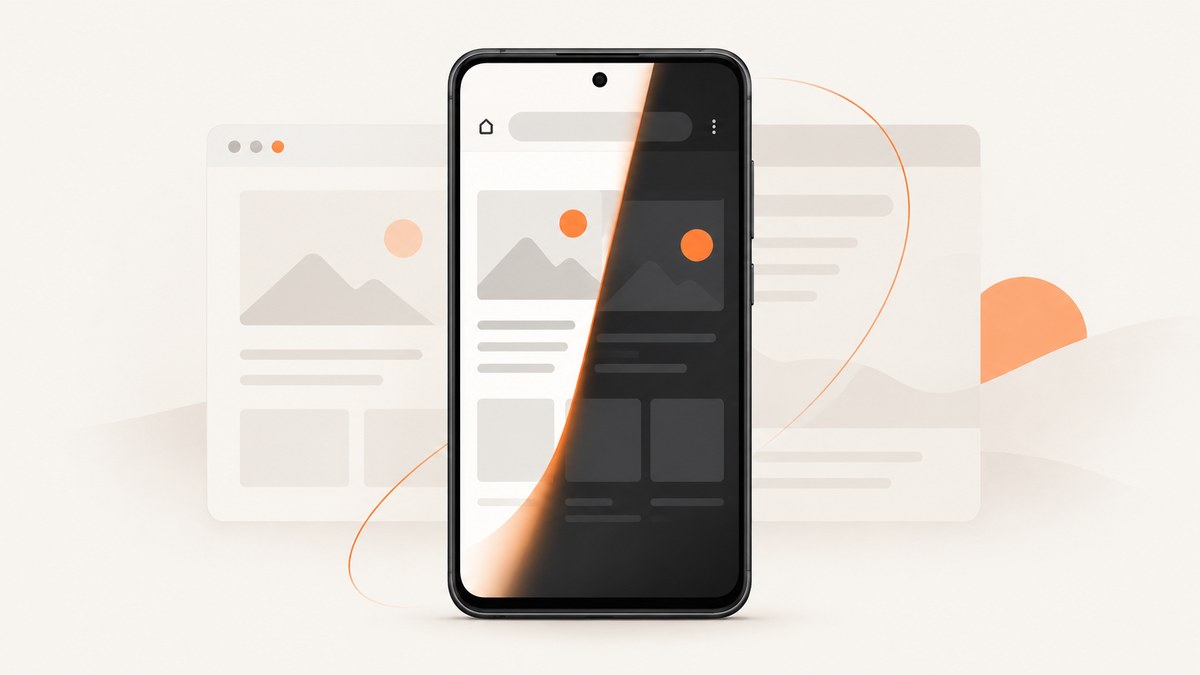
This setting darkens Chrome’s homepage, toolbar, settings, and some other pages. It does not guarantee that every website will change its own colors. Websites can provide their own appearance controls, and support varies.
What Chrome’s Dark theme changes
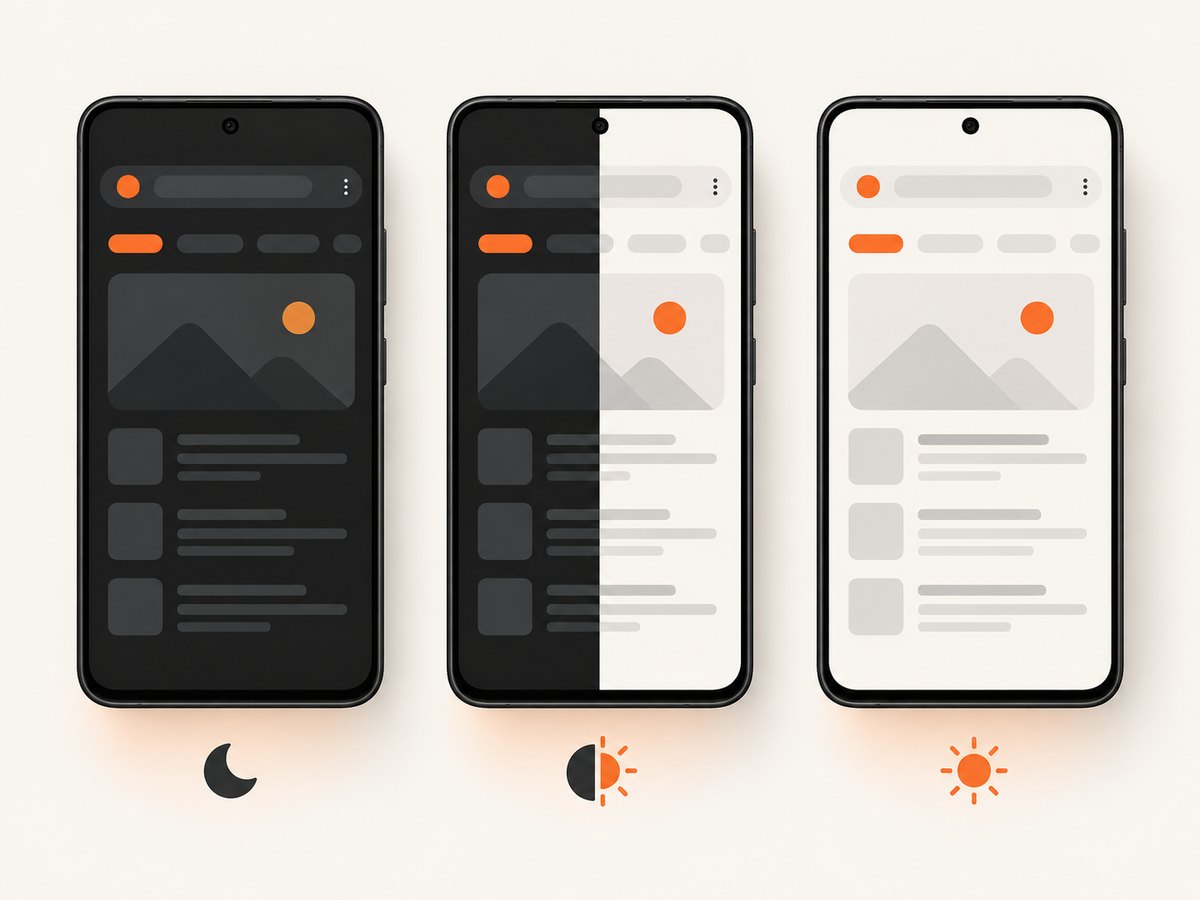
- Dark: Chrome keeps its supported interface and pages in the dark theme.
- System Default: Chrome follows the behavior described by Google for your device’s dark theme or Battery Saver.
- Light: Chrome keeps its interface in the light theme.
The browser theme and a website’s page theme are separate layers. A site may remain white because it has no dark stylesheet, because its own theme is set to light, or because Chrome does not force that site to recolor every element.
Turn on Dark theme in Chrome for Android
- Open Chrome on your Android device.
- Tap More, the three-dot button, usually at the top right.
- Tap Settings.
- Tap Theme.
- Select Dark, System Default, or Light.
The change applies to Chrome’s supported interface immediately. If you do not see Theme, update Chrome and check that you are using Chrome for Android; menu names and locations can vary by Android version and device manufacturer.
Which option should you choose?
| Option | Use it when | What to expect |
|---|---|---|
| Dark | You want Chrome dark all the time. | Chrome uses its dark theme regardless of the phone’s current appearance setting. |
| System Default | You want Chrome to follow Android. | Chrome follows the device dark theme or Battery Saver behavior documented by Google. |
| Light | You want a light Chrome interface. | Chrome stays light even when the device uses a dark theme. |
If you switch between light and dark during the day, System Default is usually the least manual choice. If you need a predictable appearance for screenshots or demonstrations, choose Dark explicitly.
If a website is still light
- Look inside the website for an appearance control such as Theme, Dark mode, or a sun/moon icon.
- Check the site’s account or accessibility preferences. Some sites save the theme per account or device.
- Reload the page after changing the site’s setting. A page may need a fresh load before its CSS changes.
- Try System Default if the site follows the device preference instead of Chrome’s fixed setting.
- Remember that Chrome’s documented Android setting does not promise to force every website into dark colors.
Google’s Android guidance says support for dark theme varies: some apps have no dark option, while others provide an independent theme setting. That guidance is about Android apps, so it should not be read as a guarantee for a particular website. See Android Help’s dark-theme instructions.
Enable Android’s device-wide dark theme
To change the phone’s system preference, open Android Settings > Display > Dark theme. Then return to Chrome and use System Default under Settings > Theme.
Exact labels can differ by Android version and manufacturer. If the device setting is unavailable, use Chrome’s own Dark option instead.
About “Auto Dark Theme” and Chrome flags
Chrome for Developers has historical documentation for an experimental Auto Dark Theme feature and an Android testing route through chrome://flags. That page documents an experiment, not a current guaranteed end-user control. The availability of the flag or a related setting can change between Chrome releases, so do not rely on it for a production workflow.
For a supported, current setup, use Chrome’s documented More > Settings > Theme path and the website’s own theme control when one exists. The historical reference is Chrome for Developers’ Auto Dark Theme article.
Troubleshooting checklist
| Problem | Likely cause | Fix |
|---|---|---|
| There is no Theme entry. | Different Chrome build, outdated app, or device-specific menu. | Update Chrome, confirm it is Chrome for Android, and search Chrome Settings for “theme.” |
| Chrome is dark but the page is white. | The website controls its own colors or does not provide a dark stylesheet. | Use the site’s appearance setting if available; Chrome’s theme does not guarantee page recoloring. |
| System Default does not change with the phone. | The phone’s dark theme or Battery Saver state has not changed, or the manufacturer uses different controls. | Check Android Settings > Display > Dark theme, then reopen Chrome’s Theme setting. |
| Only some parts of a site are dark. | The site mixes components with different theme support. | Reload, sign in to check account preferences, and report the incomplete theme to the site owner. |
| A flag-based tutorial no longer works. | Experimental flags are removed or renamed. | Use the supported Chrome Theme setting instead of depending on the historical experiment. |
Or skip the browser setup
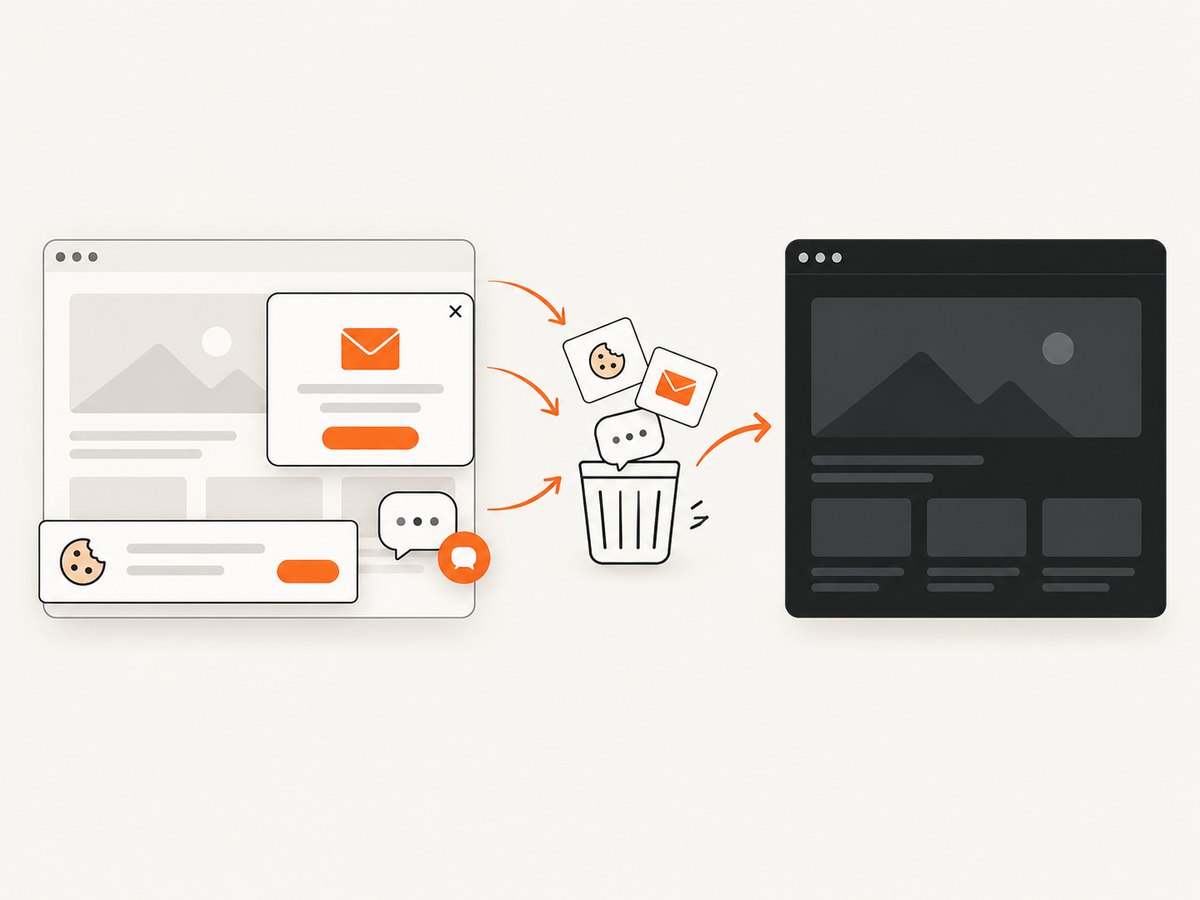
If your goal is to generate dark website screenshots for documentation, tests, previews, or an AI workflow, ScreenshotNeo can request a page directly with its dark-mode option. Its API is separate from changing Chrome on your phone, but it avoids maintaining a browser automation setup. See the ScreenshotNeo API documentation for the complete parameter list.
cURL
curl -G "https://api.screenshotneo.com/v1/shot" -d access_key=YOUR_API_KEY --data-urlencode url=https://stripe.com -o shot.webpPython
import requests

r = requests.get(
    "https://api.screenshotneo.com/v1/shot",
    params={"access_key": "YOUR_API_KEY", "url": "https://stripe.com"},
    timeout=90,
)
r.raise_for_status()
open("shot.webp", "wb").write(r.content)
Node.js
const q = new URLSearchParams({ access_key: 'YOUR_API_KEY', url: 'https://stripe.com' });
const res = await fetch(`https://api.screenshotneo.com/v1/shot?${q}`);
if (!res.ok) throw new Error(`HTTP ${res.status}`);
const data = Buffer.from(await res.arrayBuffer());
require('fs').writeFileSync('shot.webp', data);
ScreenshotNeo removes cookie and consent banners, newsletter popups, and chat widgets before capture. Bot checks, blank pages, failed loads, timeouts, and cache hits are not billed, and response headers identify the page verdict and billing status. It also offers an MCP server with take_screenshot, get_page_info, and capture_pdf for AI agents. The free plan includes 1,000 screenshots per month with no card; paid plans start at $5 for 3,000. Create a free ScreenshotNeo account.
FAQ
Does Chrome Dark theme make every website dark?
No. Google documents the setting for Chrome’s interface and some pages, not a guarantee that every website’s content will be recolored.
What is the difference between Dark and System Default?
Dark keeps Chrome dark. System Default follows the device dark-theme or Battery Saver behavior described in Chrome Help.
Can I force a site to dark mode from Chrome settings?
The current Android instructions do not document a universally available control that forces every site into dark rendering. Use the site’s own theme option when available.
Will Android’s Dark theme change Chrome?
Chrome can follow Android when its Theme setting is System Default. Device menus vary by Android version and manufacturer.
Is Auto Dark Theme still available?
Its Chrome for Developers page is historical experiment documentation. It does not verify that the flag remains available in your current Chrome release.


