Why Is My Data Not Showing in a Generated PDF?
Find missing PDF data by tracing the generator, input, template, export path, form fields, and viewer with this practical diagnostic guide.
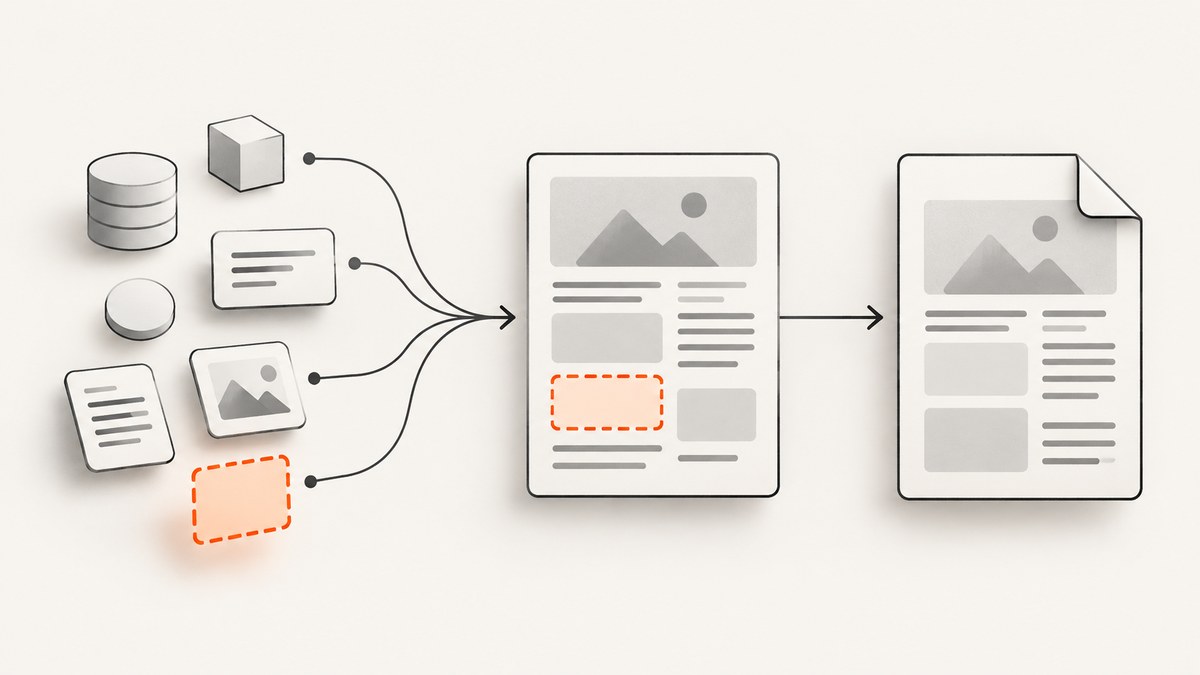
A generated PDF can be missing data for several unrelated reasons. The file may come from a template-and-JSON API, a Word-to-PDF export, or a fillable form. Each workflow fails at a different stage. Start by identifying which workflow produced the file, then trace the value from its source through mapping, template or field configuration, conversion, saving, and viewing.
This guide gives a diagnostic sequence, runnable checks, workflow-specific fixes, and a way to verify the final PDF visually.
1. Identify how the PDF was created
Do not begin by changing random template tags or PDF viewer settings. First answer these questions:
- Was a Word template merged with JSON or another data object?
- Was a Word document exported with Acrobat PDFMaker or another Office converter?
- Is the PDF an interactive form with fields that users fill in?
- Is the value missing from the PDF file itself, or only invisible in one viewer?
- Are you missing ordinary merged text, a conditional section, comments, or tracked changes?
| Workflow | What “missing” usually means | First place to inspect |
|---|---|---|
| Template plus API data | A blank value, unreplaced tag, or omitted conditional block | Input property, template tag, default, and request payload |
| Word or Office export | Content present in Word but absent after conversion | Export method, PDFMaker settings, and document markup |
| Fillable PDF form | An interactive field is empty, unsaved, or not flattened into page text | Field value, appearance, save operation, and viewer |
Without the generator, template, input, export settings, and viewer details, there is no honest single root cause.
2. Template-driven generation: trace the data end to end
Adobe describes its Document Generation API this way: “During the Document Generation Process, the Document Generation API replaces the template tags in the document template with the input data to generate the output document.” In this workflow, a missing value normally comes from one of five handoffs:

- The source record does not contain the value.
- The application maps the wrong property or nesting path.
- The template tag does not exactly match the data model.
- A conditional block evaluates to false.
- The generator receives a different payload than the one you inspected.
Compare the actual payload, not the intended object
Log the serialized request immediately before sending it. Check spelling, capitalization, nesting, array indexes, null values, and data types. A value at customer.name does not satisfy a tag expecting name. An empty string is different from an omitted property in many systems.
import json

payload = {
    "customer": {"name": "Ada Lovelace"},
    "invoice": {"total": "125.00"}
}

# Inspect exactly what the generator will receive.
print(json.dumps(payload, indent=2, sort_keys=True))
assert payload["customer"].get("name"), "customer.name is empty or missing"
Run a minimal generation with one unmistakable value such as TEST-12345. If that value appears, the generation path works and the problem is in the larger mapping or conditional logic.
Inspect tags, defaults, and conditionals
Confirm that the tag in the Word template is present and matches the expected property. Adobe’s documentation says that when a specified tag is not present in the input JSON, its placeholder is replaced with the tag’s default value. A blank default can therefore look like missing data. Review optional tags and defaults rather than assuming the API discarded the value.
An Adobe Community question describes a case where a variable remained in the document when a field was not found. The response discusses blank values and default or optional tags, but that thread is a setup- and version-specific clue, not a universal rule. Confirm the current behavior against the API documentation and your exact payload.
Check every handoff
- Open the source record and verify the value exists.
- Print the mapped object after transformation.
- Save the exact JSON request sent to the generator.
- Open the template and search for the tag, including conditional sections.
- Inspect the generated source document before PDF conversion when possible.
- Extract PDF text to determine whether the value is absent or merely invisible.
from pathlib import Path

# Keep a reproducible request fixture for debugging.
request_json = Path("request.json")
request_json.write_text(
    '{"customer":{"name":"TEST-12345"}}',
    encoding="utf-8"
)
print(request_json.read_text(encoding="utf-8"))
3. Word-to-PDF export and missing markup
If “data” means comments or tracked changes visible in Word, treat this as a PDFMaker issue rather than a failed data merge. Adobe’s support guidance, updated March 3, 2026, says that Word PDFs exported with PDFMaker have not included tracked changes or comments since December 2025, regardless of Word’s Review-tab markup settings.
Adobe documents a Windows registry value named bEnableMarkupExport, set to 1 under the applicable Acrobat PDFMaker Word key, followed by restarting Word. This setting addresses markup export specifically. It does not repair an ordinary merged field that is blank.
If PDFMaker conversion fails or omits ordinary document content, isolate conversion settings and try another documented conversion path, such as the Adobe PDF printer or Distiller. If another method succeeds, PDFMaker features or settings become a reasonable branch to investigate.
4. Fillable PDF forms are a different problem
A fillable PDF contains interactive fields; merged page text is already part of the page content. Ask which one you expect:
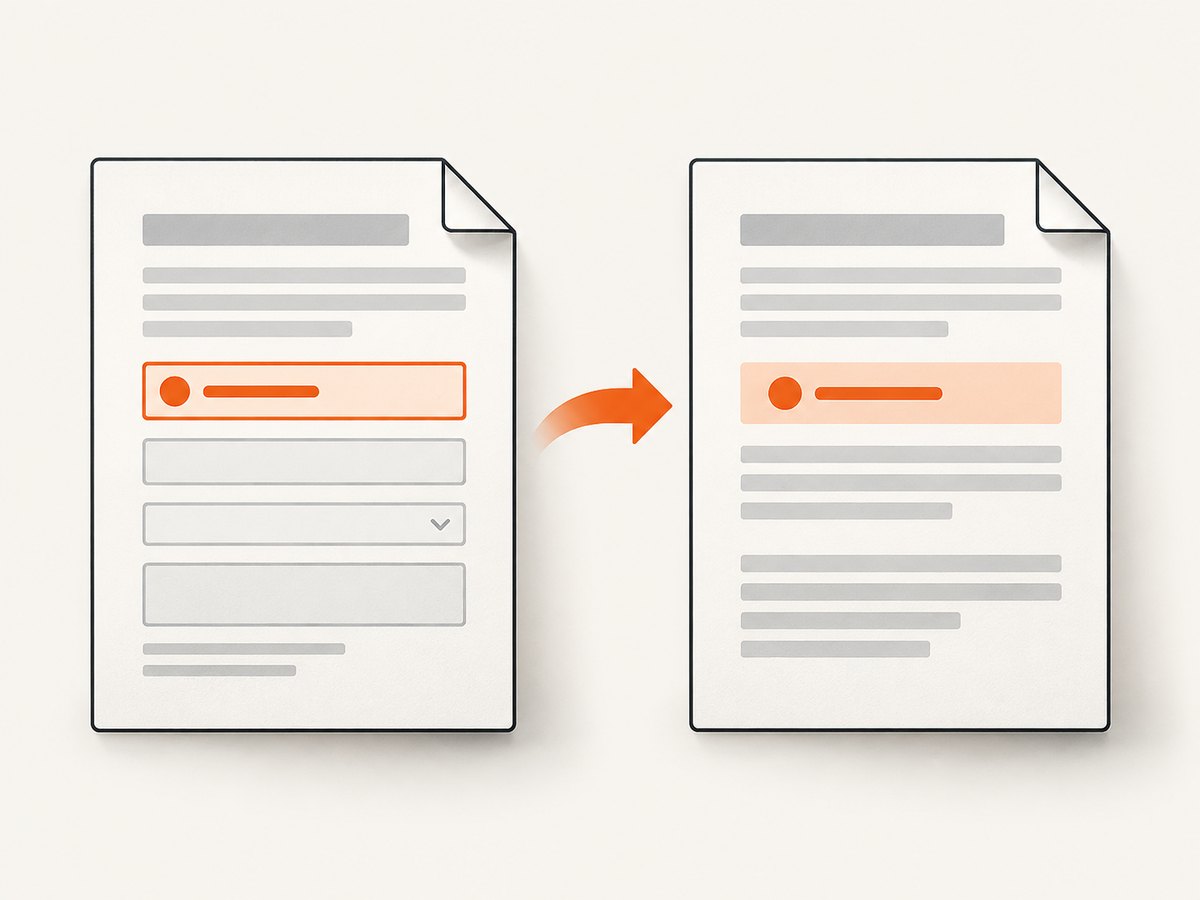
- Interactive value: the field can be selected and edited.
- Printed value: the value is flattened into the page and appears in print or image previews.
Adobe documents creating fillable forms from Word files or scanned documents with different field types. A blank field may mean the value was never assigned, the form was not saved or submitted, the field has a different name than the application expects, or the viewer is not displaying its appearance stream. Inspect the field value and save the completed form before diagnosing the page artwork.
5. Determine whether the PDF or the viewer is at fault
Open the same file in another trusted PDF viewer and compare it with a text extraction result. This is a diagnostic step, not proof that a particular viewer is defective.
# Command-line text check with Poppler's pdftotext
pdftotext generated.pdf - | rg "TEST-12345|Ada Lovelace|125\.00"
Interpret the result as follows:
| Observation | Likely branch |
|---|---|
| Text extraction finds the value, but the page looks blank | Font, color, clipping, layer, transparency, or viewer rendering |
| Text extraction cannot find the value and Word also lacks it | Source data or mapping |
| Word contains it, but the PDF does not | Conversion or export settings |
| Field inspection shows a value, but printed output is blank | Form appearance or flattening |
6. A repeatable diagnostic checklist
- Record the product, version, template format, input source, conversion method, and PDF viewer.
- Create a tiny test document with one known value.
- Compare source data with the exact serialized request.
- Verify tag names, nesting, capitalization, and conditional rules.
- Check defaults for optional or absent tags.
- Inspect the intermediate document before PDF conversion.
- For Word markup, apply the dated PDFMaker guidance and restart Word.
- For forms, inspect field values, save state, appearance, and flattening.
- Run text extraction and open the result in another viewer.
- Capture and retain the failing input, template revision, generator response, and final PDF for comparison.
7. Common errors and fixes
| Symptom | Cause to test | Fix |
|---|---|---|
| Placeholder is blank | Property omitted or default is empty | Send the exact property and define an intentional default |
| Placeholder remains visible | Tag was not recognized or is outside supported syntax | Recreate the tag using the current template instructions and run a minimal test |
| Only a nested value is missing | Wrong path or object shape | Compare the tag path with serialized JSON |
| Whole section is absent | Conditional expression is false or data is null | Test the condition with a known truthy value |
| Comments or tracked changes vanish | PDFMaker markup behavior since December 2025 | Use Adobe’s bEnableMarkupExport=1 guidance |
| Form looks empty after filling | Value was not saved or appearance was not generated | Save, reopen, inspect the field, and flatten only when appropriate |
| Value appears in one viewer only | Rendering or font/layer issue | Extract text and inspect the PDF in a second viewer |
8. Verify the final PDF as a rendered page
Text extraction confirms that characters exist; it does not prove that a human sees them. For regression checks, render each important page to an image and compare it with a known-good version. Check page ranges, clipped content, transparent text, unloaded fonts, and conditional sections.
For a local workflow, keep the original PDF, a rendered PNG, the input fixture, and a small manifest containing the generator and conversion versions. Compare the same fixtures after every template or dependency change.
Or skip the browser setup
If your next step is to verify how a generated PDF or report page actually renders, ScreenshotNeo can capture the page through one request. It accepts the cookie or consent banner like a visitor and removes more than 60 known consent platforms, newsletter popups, and chat widgets before capture; each step can be turned off. Bot checks, blank pages, timeouts, failed loads, and cache hits are not billed, and the response identifies the result with X-Page-Verdict and X-Billed headers. It also supports PDF capture, custom CSS and JavaScript, waiting for selectors or network idle, headers and cookies, device presets, full-page capture, and signed webhooks for asynchronous jobs.
See the ScreenshotNeo API documentation for all options. A direct capture looks like this:
cURL
curl -G "https://api.screenshotneo.com/v1/shot" \
  -d access_key=YOUR_API_KEY \
  --data-urlencode url=https://stripe.com \
  -o shot.webp
Python
import requests

r = requests.get(
    "https://api.screenshotneo.com/v1/shot",
    params={"access_key": "YOUR_API_KEY", "url": "https://stripe.com"},
    timeout=90,
)
r.raise_for_status()
open("shot.webp", "wb").write(r.content)
Node.js
const q = new URLSearchParams({
  access_key: 'YOUR_API_KEY',
  url: 'https://stripe.com'
});
const res = await fetch(`https://api.screenshotneo.com/v1/shot?${q}`);
if (!res.ok) throw new Error(`HTTP ${res.status}`);
const fs = await import('node:fs/promises');
await fs.writeFile('shot.webp', Buffer.from(await res.arrayBuffer()));
ScreenshotNeo also provides an MCP server with take_screenshot, get_page_info, and capture_pdf tools for Claude, Cursor, and other MCP clients. One thousand screenshots per month are free with no card; paid plans start at $5 for 3,000. Create a free ScreenshotNeo account.
9. Performance, reliability, and cost considerations
- Use small fixtures first: a one-field document isolates mapping errors faster than a full report.
- Separate generation from conversion: retaining the intermediate artifact shows which stage removed the value.
- Make retries safe: keep the input, template revision, and request identifier so a retry can be compared with the first result.
- Cache stable captures: when validating a public page, a chosen cache TTL can reduce repeated work.
- Budget for successful output: ScreenshotNeo bills only clean shots; failed loads, bot checks, blank pages, timeouts, and cache hits cost nothing.
- Check response headers: use
X-Page-VerdictandX-Billedwhen deciding whether a capture is suitable for a visual regression record.
FAQ
Why is my PDF blank when the source data is present?
Confirm the exact serialized payload, template tag path, conditional rules, and intermediate document. Then extract text from the PDF to distinguish absent data from invisible rendering.
Does a missing tag always remain visible?
No. Adobe documents default-value replacement for a specified tag absent from the JSON input. A blank default can appear as an empty field; community reports of a leftover variable are setup-specific.
Are comments the same as merged fields?
No. Comments and tracked changes are Word markup. PDFMaker has separate documented behavior for exporting that markup since December 2025.
Why can I edit a value but not see it in printed output?
You may be looking at an interactive form field whose appearance was not saved or flattened. Inspect the field value and reopen the saved PDF before changing the template.
What information should I include when asking for help?
Include the generator and version, a minimal template, redacted input JSON, export method, viewer, and whether text extraction finds the missing value.


