How to Debug JavaScript in wkhtmltopdf
Learn how to diagnose JavaScript failures in wkhtmltopdf, wait for dynamic content, verify builds, and fix common PDF rendering errors.
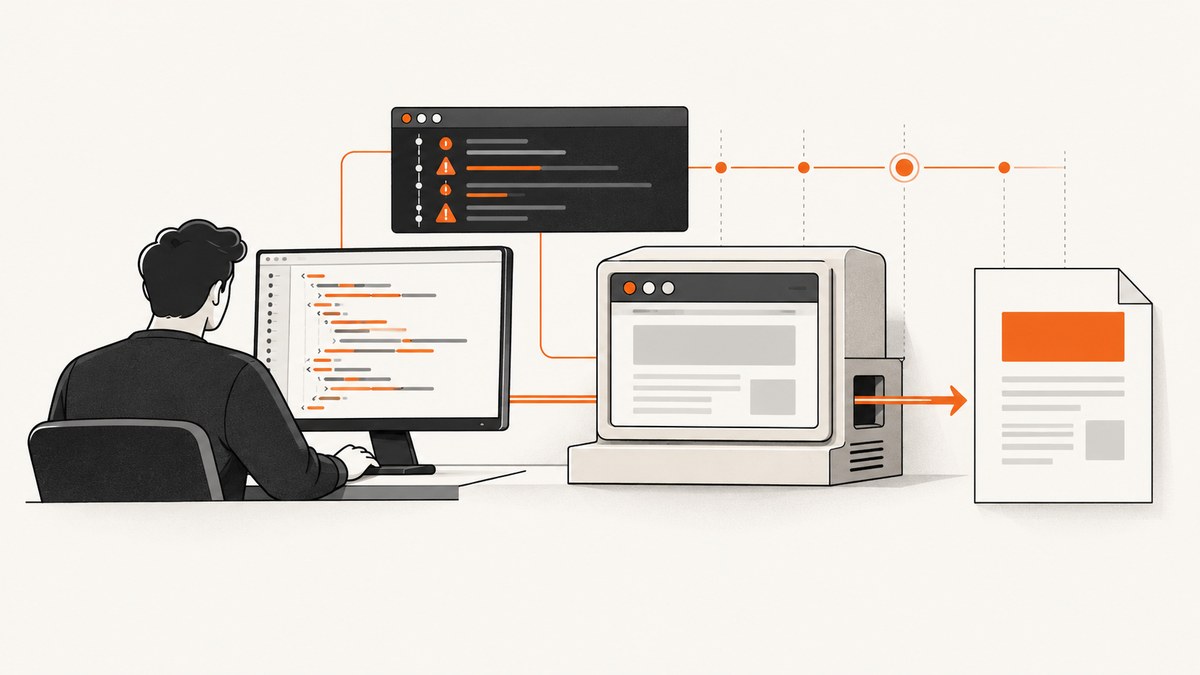
JavaScript debugging in wkhtmltopdf starts with two checks: enable diagnostics and give asynchronous code enough time to finish. A useful first reproduction is:
wkhtmltopdf --debug-javascript --javascript-delay 1000 input.html output.pdfJavaScript is enabled by default in the documented command-line interface, but a wrapper, library setting, or explicit --disable-javascript flag can change that. The default JavaScript delay is 200 milliseconds, which is often too short for charts, API requests, client-side tables, and lazy content. For pages you control, a readiness marker such as window.status = 'ready' is usually clearer than guessing a delay.
1. Capture the exact failure
Before changing options, record the complete conversion context. wkhtmltopdf behavior depends on the executable, Qt integration, input type, wrapper, and operating system package.
- Run
wkhtmltopdf --versionand save the output. - Copy the exact command line, including every global and page option.
- Record whether the input is a URL, a local HTML file, or generated markup.
- Note whether the call is made directly, through a language library, inside a container, or through a job worker.
- Save the generated PDF and all standard output and standard error.
Reproduce the problem with a small HTML file before investigating the full application. This separates JavaScript execution, resource loading, timing, and unsupported browser APIs.
2. Turn on JavaScript diagnostics
Add --debug-javascript while reproducing the issue:
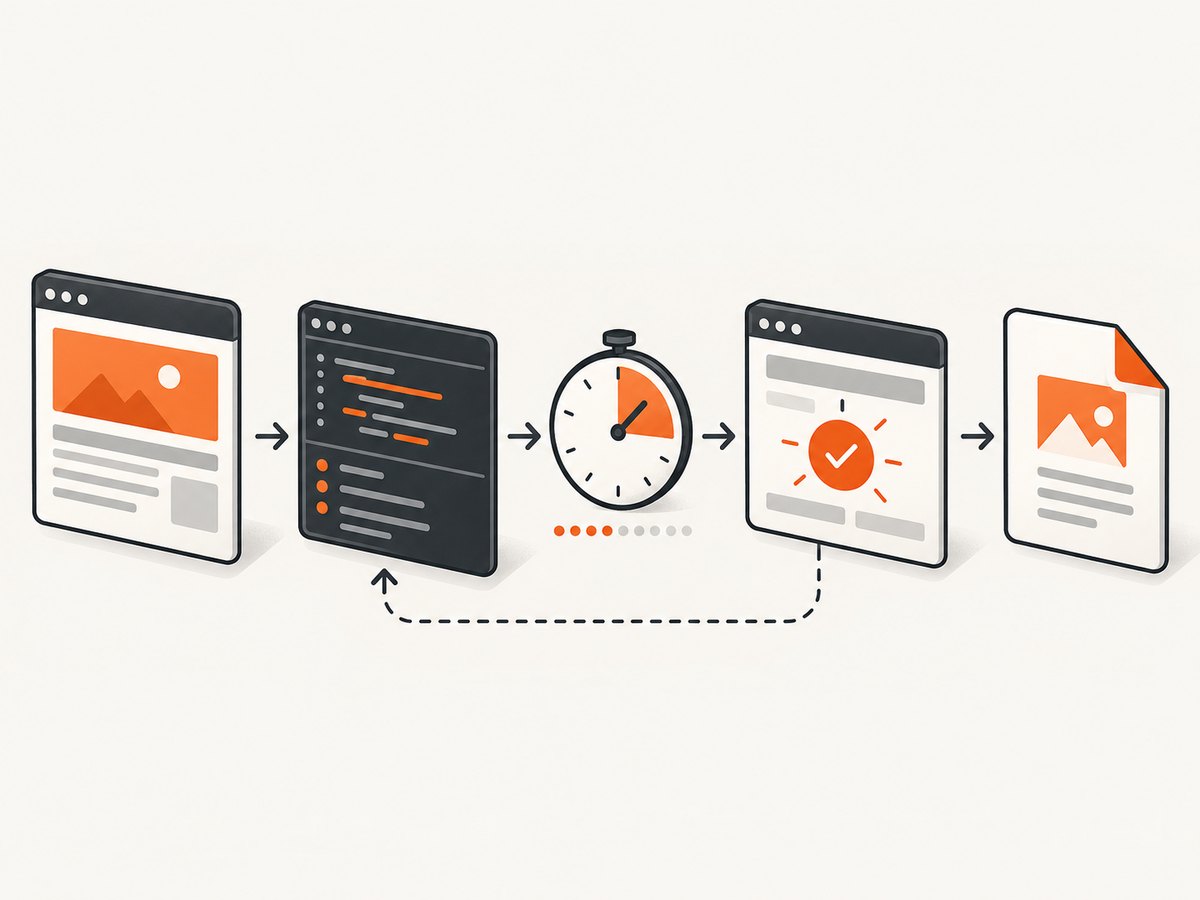
wkhtmltopdf --debug-javascript --javascript-delay 1000 https://example.com report.pdfThe option shows JavaScript debugging output. Keep the complete terminal output; an error may be emitted before the PDF is written. The CLI also documents --no-debug-javascript as the default suppression setting.
When using the library API, inspect the equivalent settings. The libwkhtmltox documentation exposes web.enableJavascript for execution and load.debugJavascript for forwarding JavaScript warnings and errors to the callback. The load.jsdelay setting specifies a delay and can also end when JavaScript calls window.print(). See the libwkhtmltox settings reference.
3. Verify that JavaScript is enabled
Check the command and every wrapper layer for an accidental disable flag:
wkhtmltopdf --debug-javascript --enable-javascript input.html output.pdf--enable-javascript is explicit and useful in a diagnostic command. --disable-javascript prevents page scripts from running. In a library, inspect the value of web.enableJavascript. A page that renders static HTML but loses a chart, table, or navigation after conversion commonly has JavaScript disabled or is being captured before its script finishes.
4. Test timing with a fixed delay
Use --javascript-delay <msec> as a controlled experiment:
wkhtmltopdf --debug-javascript --javascript-delay 3000 app.html app.pdfThe documented default is 200 milliseconds. Try 1,000, 3,000, and 10,000 milliseconds and compare the output. If the content appears only after increasing the delay, timing is part of the failure. A fixed delay is a heuristic: it can still be too short on a slow request and wastes time when a page becomes ready quickly.
Do not treat a successful long delay as proof that the page is reliable. Add a readiness condition or make the page render its required data synchronously when possible.
5. Prefer a page-controlled readiness signal
If you can edit the page, set a distinctive status after all required content has rendered:
<script>
  async function renderReport() {
    try {
      const response = await fetch('/api/report');
      const data = await response.json();
      renderChart(data);
      renderTable(data);
      window.status = 'ready';
    } catch (error) {
      console.error(error);
      window.status = 'render-error';
    }
  }
  renderReport();
</script>
Then wait for that value:
wkhtmltopdf --debug-javascript --window-status ready report.html report.pdf--window-status <value> waits for window.status to equal the supplied string before rendering. Ensure the assignment is reached only after images, charts, fonts, and other required content are ready. If an exception occurs before the assignment, the renderer may wait indefinitely from the caller’s perspective. Add a bounded timeout in your application or job runner.
The CLI documentation describes both --javascript-delay and --window-status, but it does not define every interaction when they are combined. A historical issue reports version-specific behavior in which the apparent wait matched the longer interval. Test your installed binary with a page that sets status after a known delay instead of relying on undocumented precedence.
6. Use --run-script for controlled experiments
--run-script <javascript> executes additional JavaScript after page loading. It can help inspect or modify a controlled test page:
wkhtmltopdf --debug-javascript \
  --run-script "console.log(document.readyState); window.status='ready'" \
  input.html output.pdf
This option cannot add browser APIs that the wkhtmltopdf engine does not support. Use it to inspect DOM state, set a test marker, or trigger a deterministic action, not as a compatibility layer for modern browser frameworks.
7. Check local files and resource access
Local HTML often depends on nearby JavaScript, CSS, fonts, images, or JSON files. A script can appear broken when the real problem is that its resource was not loaded.
- Open the HTML using the same path and user account as the conversion process.
- Check every relative URL and case-sensitive filename.
- Inspect whether the page references
file://resources or data outside the input directory. - Use narrow
--allowpermissions for required local directories rather than broadly enabling access. - Move the reproduction to a small directory containing only the HTML and required assets.
Review the local-file access controls in the official CLI usage documentation. If a resource is loaded from an HTTP endpoint, verify DNS, TLS, authentication, redirects, and server-side access rules from the conversion environment.
8. Understand build and browser compatibility
wkhtmltopdf uses a WebKit and Qt combination that may differ substantially from a current browser. The official project information notes that some features require patched Qt and that distribution builds differ. When a page works in Chrome or Firefox but fails in wkhtmltopdf:
- Reduce the page to the smallest failing script.
- Look for syntax, DOM APIs, CSS features, promises, fetch behavior, or layout assumptions unavailable in the installed engine.
- Check the exact wkhtmltopdf and Qt build, not only the package name.
- Replace a modern API with a compatible implementation in the PDF-specific page when practical.
- Render the data server-side or generate a static print view if the feature is not supported.
A historical issue about Plotly can be a useful clue for a particular build, but it does not prove that every Plotly page fails in every wkhtmltopdf version. Treat issue reports as reproduction evidence and test your own binary.
9. Slow scripts, hangs, and process limits
The CLI provides --stop-slow-scripts and --no-stop-slow-scripts. Stopping slow scripts is documented as the default. Disabling that behavior can help diagnose a script that needs more execution time, but it also increases the risk of a hung conversion and higher CPU or memory use.
Use a process-level timeout even when the page uses --window-status. A failed network request, uncaught exception, or code path that never sets the status can otherwise leave a worker waiting. Log the command, elapsed time, exit status, stderr, and output size for each conversion.
10. A reproducible debugging checklist
- Save
wkhtmltopdf --versionand the complete command. - Repeat with
--debug-javascript. - Confirm JavaScript is enabled and no wrapper disables it.
- Try a 1,000 to 10,000 millisecond delay to distinguish timing from execution.
- Add a
window.statusmarker after the required content renders. - Check JavaScript, CSS, image, font, and data requests from the conversion environment.
- Test local-file permissions and use narrow
--allowpaths. - Reduce the page to a minimal reproduction.
- Compare the installed build with a known supported build and record Qt details.
- Add a bounded timeout and retain diagnostic logs in production jobs.
11. Common errors and fixes
| Symptom | Likely cause | Fix |
|---|---|---|
| Static HTML appears, dynamic content is missing | JavaScript is disabled or rendering starts too soon | Remove --disable-javascript, enable diagnostics, and test a delay or status marker. |
| No useful console output | Diagnostics are suppressed or stderr is discarded | Add --debug-javascript and capture stderr from the actual worker process. |
| Charts are blank | Chart code has not completed, data failed, or the engine lacks an API | Log errors, wait for chart completion, verify data access, and test a simpler chart in a minimal file. |
| PDF generation waits forever | window.status is never set |
Set the marker on every success path, handle errors, and enforce a caller timeout. |
| Longer delays change the result | Asynchronous work is racing the capture | Replace the heuristic with an explicit readiness signal or a static print view. |
| Local scripts or fonts are missing | Path, permissions, or local-file access restrictions | Use absolute checks, narrow --allow paths, and reproduce with a self-contained directory. |
| Works in a modern browser but not wkhtmltopdf | WebKit or Qt compatibility difference | Record the build, reduce the failing API, and use compatible code or server-side rendering. |
| Conversion consumes excessive CPU | A slow script, infinite loop, or disabled slow-script stopping | Re-enable stopping, inspect diagnostics, and apply process limits and timeouts. |
12. Security considerations
The wkhtmltopdf downloads page warns against using the renderer with untrusted HTML without sanitizing user-supplied HTML and JavaScript. Treat conversion as a sensitive component: sanitize input, isolate the process, restrict network and filesystem access, run with a low-privilege account, and impose CPU, memory, and time limits. Do not expose arbitrary conversion flags to untrusted users.
13. Performance, reliability, and cost trade-offs
Fixed delays increase latency on every conversion and still provide no guarantee. A status marker can finish as soon as the page is genuinely ready, but it requires page changes and careful error handling. A static print route often gives the most predictable output for recurring reports. Reusing assets, reducing third-party requests, and avoiding unnecessary animations also improves conversion time.
For batch work, isolate failures per URL, retry only transient network errors, and retain the original HTML and diagnostic output for failed jobs. Do not blindly retry JavaScript exceptions or unsupported APIs; those retries add load without changing the result. Measure queue time, browser time, output size, and failure reason separately.
14. Or skip the browser setup
If you need a clean screenshot or PDF without maintaining a wkhtmltopdf runtime, ScreenshotNeo provides a website screenshot API and MCP server. Its capture pipeline accepts cookie and consent banners like a visitor, then removes more than 60 known consent platforms, newsletter popups, and chat widgets; each cleanup step can be turned off. Only clean shots are billed: bot checks or CAPTCHAs, blank pages, timeouts, failed loads, and cache hits cost nothing, and the response identifies the result with X-Page-Verdict and X-Billed headers.
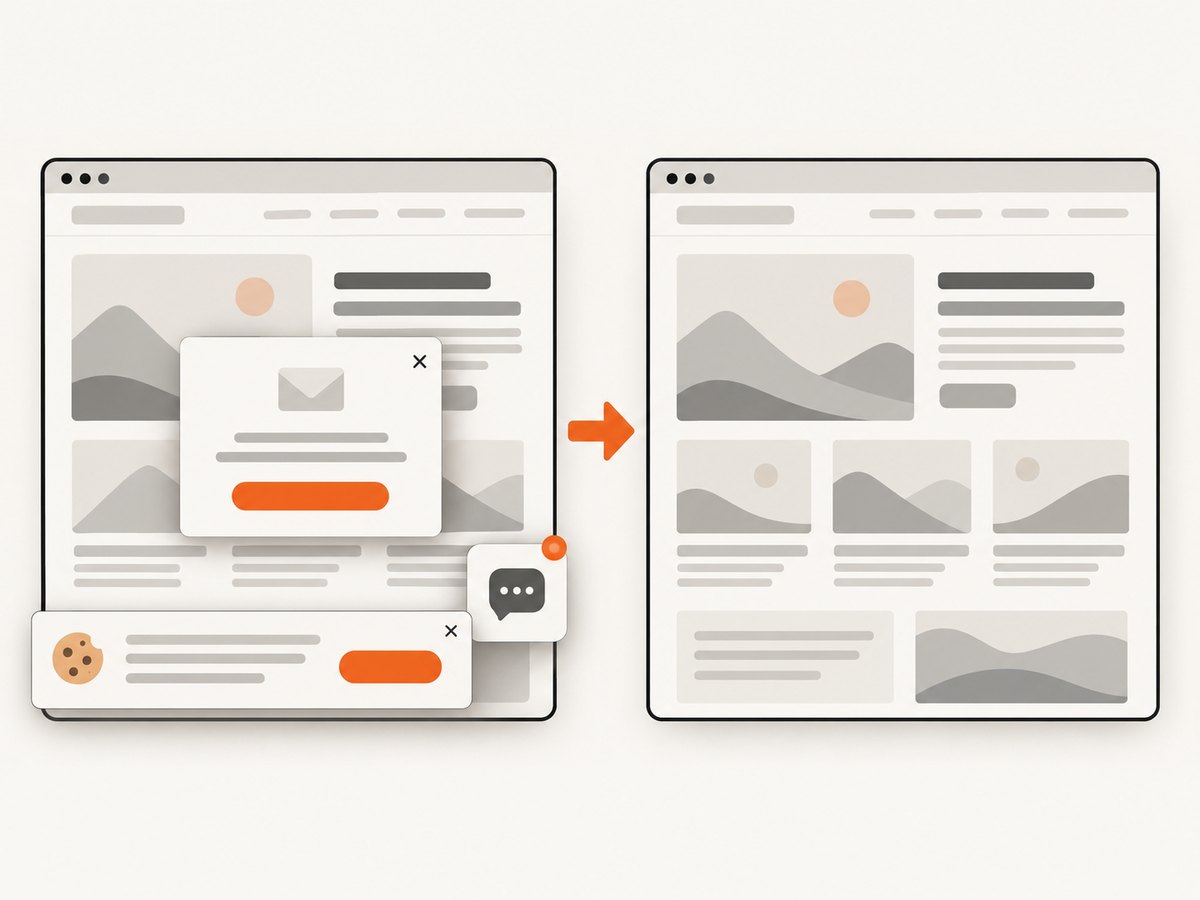
One GET request returns PNG, JPEG, WebP, or PDF. The API supports full-page captures with lazy images loaded, CSS-selector element captures, dark mode, device presets and custom viewports, retina scale, PDF paper size and margins, custom CSS and JavaScript, clicks, selector or network-idle waits, request blocking, headers, cookies, user agents, authorization, timezone, geolocation, transparent backgrounds, resizing, chosen cache TTLs, signed links, asynchronous jobs with signed webhooks, bulk capture of up to 100 URLs per call, usage reporting, and an OpenAPI specification. Its MCP server exposes take_screenshot, get_page_info, and capture_pdf for Claude, Cursor, and other MCP clients.
See the ScreenshotNeo documentation for request options. The same call works from cURL:
curl -G "https://api.screenshotneo.com/v1/shot" -d access_key=YOUR_API_KEY --data-urlencode url=https://stripe.com -o shot.webpPython:
import requests
r = requests.get("https://api.screenshotneo.com/v1/shot", params={"access_key": "YOUR_API_KEY", "url": "https://stripe.com"}, timeout=90)
open("shot.webp", "wb").write(r.content)
Node.js:
const q = new URLSearchParams({ access_key: 'YOUR_API_KEY', url: 'https://stripe.com' });
const res = await fetch(`https://api.screenshotneo.com/v1/shot?${q}`);
An MCP server lets AI agents take screenshots directly. The Free plan includes 1,000 screenshots each month with no card; paid plans start at $5 for 3,000 shots, and every feature is available on every plan. Create a free ScreenshotNeo account.
FAQ
Is JavaScript enabled by default?
Yes, according to the documented CLI. A disable flag or library setting can override it.
What delay should I use?
There is no universal value. The documented default is 200 milliseconds. Use a delay to diagnose timing, then prefer a readiness marker or static print view.
Can --run-script add modern browser features?
No. It can execute additional code, but it cannot upgrade the underlying WebKit and Qt engine.
Why does a page work in Chrome but fail in wkhtmltopdf?
The engines and builds differ. Check unsupported APIs, resource access, and the exact wkhtmltopdf/Qt build with a minimal reproduction.
How do I prevent an endless wait?
Set the status on success and error paths, and enforce a timeout in the process that invokes wkhtmltopdf.


