How to Debug PhantomJS webpage.open Failures
Trace PhantomJS `page.open` failures through navigation status, requests, JavaScript errors, timeouts, TLS, and process settings with runnable diagnostics.
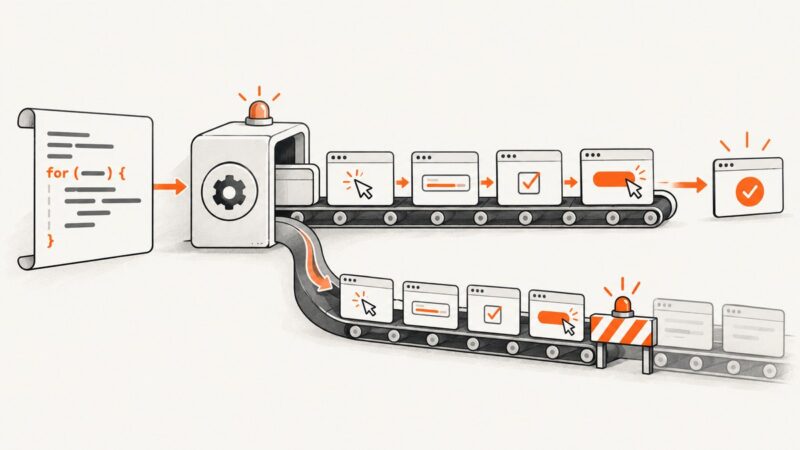
To debug PhantomJS page.open failures, start with the callback status and then collect evidence from the network, page JavaScript, timeout, TLS, proxy, and process layers. The callback reports only 'success' or 'fail'; it does not provide an HTTP status code. Add the relevant callbacks before changing settings, reproduce the failure, and compare the resulting logs.
This guide follows the literal search phrasing “How to debug PhantomJS webpage.open failures”. PhantomJS is legacy software, so confirm behavior against the version and operating environment actually running your script. The official documentation covers the API and command-line behavior described here: page.open API, troubleshooting guide, WebPage API, and command-line options.
1. Start with the callback status
Make a minimal script that prints the callback argument exactly and exits. The callback is the first diagnostic branch: success means PhantomJS reports the load as successful; fail means it reports a load failure. Neither value tells you the server’s HTTP response code, the specific failed resource, or the cause.
var page = require('webpage').create();

page.open('https://example.com/', function (status) {
  console.log('page.open status: ' + status);
  phantom.exit();
});
Include http:// or https:// in the URL. The quick start warns that the protocol must be present. Keep phantom.exit() in a one-shot script: otherwise the PhantomJS process may remain running after the callback. If this minimal case reports fail, add instrumentation before trying speculative fixes.
2. Add network and page diagnostics
These callbacks separate top-level navigation status from subordinate resource problems and page-side JavaScript behavior. Put them on the page before calling open so they can observe the navigation.

var page = require('webpage').create();
var startedAt = Date.now();

page.onResourceRequested = function (request) {
  console.log('request +' + (Date.now() - startedAt) + 'ms ' +
    request.method + ' ' + request.url);
};

page.onResourceError = function (error) {
  console.log('resource error: ' + JSON.stringify(error));
};

page.onResourceTimeout = function (error) {
  console.log('resource timeout: ' + JSON.stringify(error));
};

page.onError = function (message, trace) {
  console.log('page error: ' + message);
  trace.forEach(function (frame) {
    console.log('  at ' + frame.file + ':' + frame.line);
  });
};

page.onConsoleMessage = function (message) {
  console.log('page console: ' + message);
};

page.open('https://example.com/', function (status) {
  console.log('page.open status: ' + status);
  phantom.exit();
});
onResourceRequested provides request metadata; logging the method and URL makes it easier to spot unexpected hosts, redirects, or request paths. The API also exposes request headers, which can be logged if they matter to the reproduction. Resource errors and timeouts identify problems with individual requests. A failed image, analytics call, or other subordinate request is not by itself proof that the top-level document failed.
onError captures page JavaScript exceptions and stack frames. Page console output does not automatically appear in the PhantomJS process output, so forward it with onConsoleMessage. Treat these as separate observations: a page exception may explain missing behavior without explaining a page.open failure.
3. Verify the exact request
Check the full URL, scheme, hostname, path, redirects, method, data, and any settings supplied to page.open. The API supports opening a URL with method, data, or settings forms; a script using a POST body is not equivalent to a simple GET. Reduce the request to the smallest reproducible example, then add the original method or data back.
- Copy the exact URL from the run that failed, including the protocol and query string.
- Confirm the intended method and request data in the call to
page.open. - Compare requested URLs from
onResourceRequestedwith the expected initial URL and redirect chain. - Run the same script and target from a known working machine, preserving method, data, and settings.
A server response such as a bot challenge or an application error can still be a page that loaded. The callback’s two values do not classify the content of the response. Inspect the requested URL and resulting page behavior separately.
4. Set resource timeouts before navigation
page.settings.resourceTimeout is measured in milliseconds. When a resource exceeds the configured timeout, PhantomJS invokes onResourceTimeout. Set it before the initial page.open: changes made afterward do not affect that already-started open.
var page = require('webpage').create();
page.settings.resourceTimeout = 20000; // milliseconds

page.onResourceTimeout = function (error) {
  console.log('timed out after configured limit: ' + JSON.stringify(error));
};

page.open('https://example.com/', function (status) {
  console.log('page.open status: ' + status);
  phantom.exit();
});
Use a finite value that fits the slowest legitimate dependency in your environment. Raising the limit can help distinguish a slow resource from an immediate failure, but it can also make a broken run wait longer. Record the timeout event and resource URL before changing the value. Do not treat the timeout as evidence that the whole document or every resource is unavailable.
5. Investigate HTTPS and proxy behavior
If an otherwise identical HTTP target works while HTTPS fails, investigate TLS and certificate handling. PhantomJS’s troubleshooting documentation points to SSL libraries, usually OpenSSL, as an area to check. Verify the libraries available to the executable and compare the failing environment with a working one.
The command-line interface includes SSL-related options such as protocol selection, CA certificate paths, client certificates, and --ignore-ssl-errors. Avoid using --ignore-ssl-errors as a generic repair: it changes certificate-error handling and can hide a trust problem that should be fixed. Use it only when the behavior is deliberately required and understood.
On Windows, the troubleshooting page documents proxy behavior that can cause major latency and suggests trying --proxy-type=none as a diagnostic. Compare runs with the normal proxy configuration and with that option, while retaining the request logs. A speed change is evidence about the environment; it does not by itself establish the root cause.
6. Confirm the executable and use legacy diagnostics carefully
A shell, service, cron job, or application wrapper may invoke a different PhantomJS binary than expected. Check the version and executable path from the same environment that runs the failing script, then look for multiple installations.
phantomjs --version
which phantomjs
On Windows, use the equivalent command for resolving the executable path, such as where phantomjs. Compare its result with the path configured in the invoking application. The official CLI documentation describes PhantomJS 2.1.1; treat its switches and remote inspector as legacy tooling and verify support in the binary you actually run.
The documented CLI offers --debug=true for additional warnings and --remote-debugger-port=9000 to open the WebKit Inspector. For example:
phantomjs --debug=true --remote-debugger-port=9000 capture.jsRemote debugging is a legacy interface, not a guarantee of current Chrome DevTools behavior. If the option is ignored or unavailable, rely on callback logs and the documentation matching your executable.
7. Compare a failing run with a working run
When the failure appears only on one machine, URL, or invocation, compare the following evidence side by side. Change one variable at a time so that a change in behavior has a clear explanation.
| Diagnostic axis | What to compare |
|---|---|
| Binary | Resolved executable path, phantomjs --version, and number of installed versions. |
| Request | Full URL, protocol, redirect destinations, method, data, and settings passed to page.open. |
| Resources | Requested URLs, resource errors, and timeout events with their timing. |
| Page code | onError stack traces and forwarded console messages. |
| Environment | Operating system, proxy settings, SSL libraries, and certificate configuration. |
| Timeout | Configured millisecond value and whether it was set before the first open. |
Do not name a single cause until the corresponding log evidence supports it. For example, a request timeout identifies a timed-out resource, while an HTTPS-only difference makes SSL configuration worth inspecting. These are useful leads, not automatic diagnoses.
8. Common errors and fixes
| Symptom | Likely investigation | Next step |
|---|---|---|
Status is fail, with no useful detail |
The callback alone does not identify the layer or HTTP code. | Add request, resource error, timeout, page error, and console callbacks; reproduce once. |
| Script prints status but process hangs | The one-shot lifecycle did not terminate. | Call phantom.exit() after handling the callback, including error paths in the surrounding script. |
| URL appears unreachable immediately | Missing protocol, wrong path/host, or a different method/data shape. | Check the full URL and request form against the API overload being used. |
| One image or script reports a resource error | A subordinate resource failed; the main document may still have loaded. | Identify its URL and assess whether it is required for the result before changing navigation logic. |
| HTTPS fails but HTTP works | SSL library, certificate trust, or TLS option differences. | Check SSL dependencies and CA configuration; do not mask trust issues with a blanket ignore option. |
| Run is unusually slow on Windows | Proxy behavior can add major latency. | Compare with --proxy-type=none as a diagnostic and inspect proxy configuration. |
| Timeout setting seems ineffective | It may have been changed after navigation began or may be too short for the resource. | Set resourceTimeout before page.open, in milliseconds, and log timeout events. |
| Debug option behaves differently across machines | Different binaries or versions may be running; documentation is for legacy PhantomJS 2.1.1. | Resolve the executable path and version in the actual process environment. |
| Page looks broken but navigation says success | Client-side exceptions or missing subordinate assets can leave an incomplete interface. | Inspect page errors, console output, and failed resource URLs independently of navigation status. |
9. Performance, reliability, and maintenance
For a diagnostic script, log timestamps and request URLs so slow stages can be separated. A single elapsed time for the entire run does not reveal whether delay came from navigation, a subordinate resource, a proxy, or script work. Keep the callback, timeout, and resource handlers enabled until the issue is understood.
Reliability depends on reproducing the same executable, request, and environment. Record the resolved binary path, version, operating system, proxy/TLS configuration, URL, method, data, and timeout. Since PhantomJS is legacy, compatibility and runtime defaults should be verified in the target environment rather than assumed from documentation alone.
Cost in this workflow is primarily engineering and runtime time: longer timeouts and extra diagnostic runs consume both. Use a bounded timeout, capture enough evidence in one run, and avoid repeatedly changing several settings together. There is no documented universal timeout value or failure rate to apply to every target.
10. Or skip the browser setup
If the goal is to obtain a screenshot rather than maintain a PhantomJS runtime, ScreenshotNeo is a website screenshot API and MCP server from Yorker Media. It accepts one GET request with a URL and returns PNG, JPEG, WebP, or PDF. Its options include full-page capture, element capture, device presets and custom viewports, wait conditions, custom headers and cookies, and more. See the ScreenshotNeo API documentation.

curl -G "https://api.screenshotneo.com/v1/shot" -d access_key=YOUR_API_KEY --data-urlencode url=https://stripe.com -o shot.webpimport requests
r = requests.get("https://api.screenshotneo.com/v1/shot", params={"access_key": "YOUR_API_KEY", "url": "https://stripe.com"}, timeout=90)
open("shot.webp", "wb").write(r.content)const q = new URLSearchParams({ access_key: 'YOUR_API_KEY', url: 'https://stripe.com' });
const res = await fetch(`https://api.screenshotneo.com/v1/shot?${q}`);- Cookie banners are accepted and removed before capture; 60+ known consent platforms, newsletter popups, and chat widgets can be removed, with each step independently switchable.
- Bot checks, CAPTCHAs, blank pages, timeouts, failed loads, and cache hits are not billed as clean shots. Responses report the page verdict and billing status in headers.
- An MCP server provides
take_screenshot,get_page_info, andcapture_pdffor Claude, Cursor, and other MCP clients. - The free plan includes 1,000 shots a month with no card; paid plans start at $5 for 3,000 shots. Every feature is on every plan.
Get 1,000 free screenshots a month with no card.
11. Frequently asked questions
Does page.open status tell me the HTTP status code?
No. The documented callback value is 'success' or 'fail'. Use request and page diagnostics to investigate further; do not interpret it as an HTTP response code.
Should I increase the timeout whenever a page fails?
Only when logs show a resource is timing out and a longer wait is appropriate. First confirm the setting was applied before the initial open and identify which resource timed out.
Is --ignore-ssl-errors the right fix for HTTPS failures?
Not as a generic fix. Check SSL libraries and certificate configuration first; ignoring errors can conceal the trust problem.
Can a page JavaScript error cause page.open to report failure?
The callbacks report different observations. Log navigation status and page exceptions separately; a JavaScript error may explain broken page behavior without establishing why navigation failed.
Why does a PhantomJS command work in my shell but fail in a service?
The service may resolve another binary or use different proxy, SSL, or environment settings. Compare the executable path and version from the service’s own runtime context.