How to Debug Selenium Scripts That Fail Only in Headless Chrome
Diagnose headless-only Selenium failures with evidence, explicit waits, version checks, viewport comparisons, and repeatable fixes.
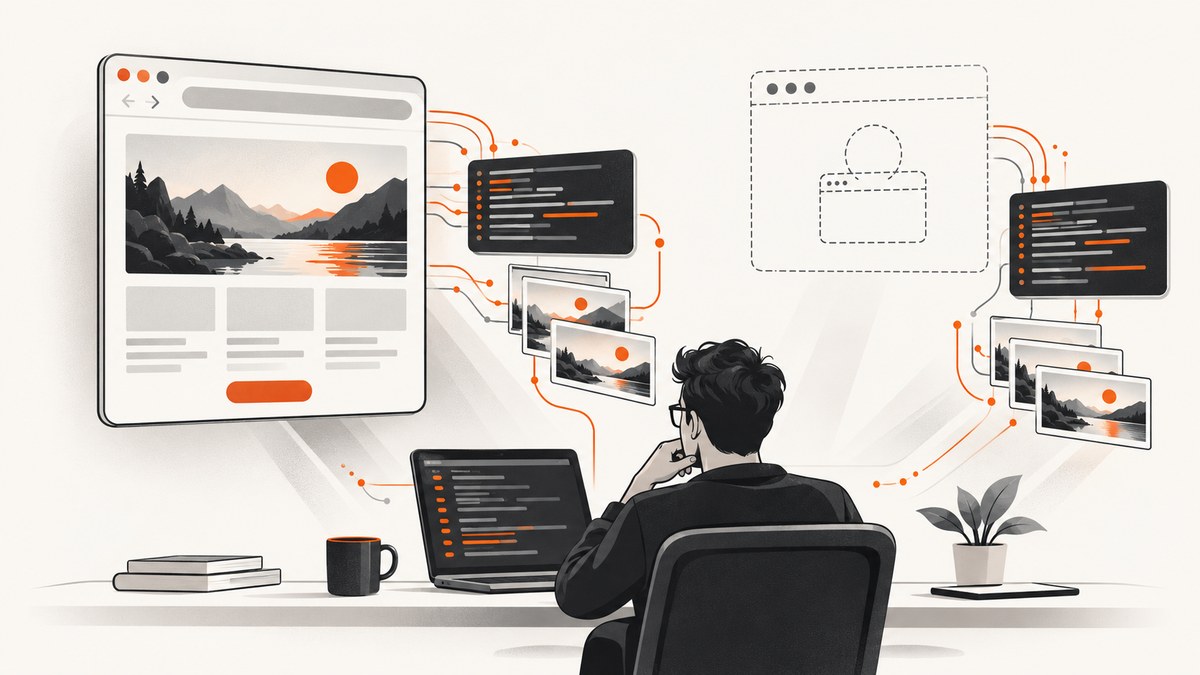
Headless-only Selenium failures are easiest to fix when you identify the first operation that differs, then prove whether the cause is synchronization, browser and driver compatibility, or an environment difference. Reproduce one test in a fresh session, record every version and launch argument, save a screenshot and logs at the failure point, and change one variable per rerun.
1. Freeze the failing reproduction
- Run only the failing test in a new WebDriver session and call
quit()during teardown. - Record Selenium binding version, Chrome version, ChromeDriver version or Selenium Manager details, OS or container image, Chrome binary path, capabilities, viewport, and all command-line arguments.
- Identify the first failing operation: session creation, navigation, element lookup, click or input, wait, or assertion. A WebDriver exception can originate in the browser-specific driver, not Selenium itself (Selenium troubleshooting).
2. Compare headed and headless runs
Keep the test, URL, profile, browser build, driver, and environment identical. Change only headless mode. Then run the same case in another browser or environment if possible.
| Record | Why |
|---|---|
| Chrome and driver versions | Protocol and browser behavior must be compatible. |
| Exact arguments | Headless flags, profiles, proxies, and binaries change startup behavior. |
| Window and device metrics | Responsive breakpoints and click geometry depend on them. |
| URL, title, ready state | Reveals redirects and incomplete navigation. |
| Screenshot, DOM, browser and driver logs | Shows what the browser saw at failure. |
3. Use condition-based synchronization
Selenium describes poor synchronization as its most common error (official troubleshooting guide). A headed run may appear to work because rendering is slower or human pacing accidentally provides time. Wait for the state required by the next command. Selenium advises against mixing implicit and explicit waits because their timeouts can combine unpredictably (waits documentation).
from selenium import webdriver
from selenium.webdriver.chrome.options import Options
from selenium.webdriver.common.by import By
from selenium.webdriver.support.ui import WebDriverWait
from selenium.webdriver.support import expected_conditions as EC

options = Options()
options.add_argument("--headless=new")
options.add_argument("--window-size=1440,1000")
driver = webdriver.Chrome(options=options)
wait = WebDriverWait(driver, 20)
try:
    driver.get("https://example.com/app")
    wait.until(EC.visibility_of_element_located((By.CSS_SELECTOR, "main")))
    wait.until(EC.element_to_be_clickable((By.CSS_SELECTOR, "button[data-test='load']"))).click()
    wait.until(EC.invisibility_of_element_located((By.CSS_SELECTOR, ".spinner")))
    wait.until(EC.text_to_be_present_in_element((By.CSS_SELECTOR, "#status"), "Ready"))
    driver.save_screenshot("artifacts/passed.png")
finally:
    driver.quit()
Use visibility when rendering matters, clickability when input must be accepted, presence when only the DOM node matters, and disappearance when an overlay blocks interaction. A fixed delay is useful only as a temporary timing diagnostic.
4. Capture evidence before teardown
import pathlib
artifacts = pathlib.Path("artifacts")
artifacts.mkdir(exist_ok=True)
try:
    # operation under investigation
    pass
except Exception as exc:
    (artifacts / "error.txt").write_text(repr(exc), encoding="utf-8")
    (artifacts / "url.txt").write_text(driver.current_url, encoding="utf-8")
    (artifacts / "title.txt").write_text(driver.title, encoding="utf-8")
    (artifacts / "source.html").write_text(driver.page_source, encoding="utf-8")
    driver.save_screenshot(str(artifacts / "failure.png"))
    raise
Also collect Selenium and driver logs, the full exception, console errors, JavaScript errors, and network events when configured. Selenium’s current guidance points to WebDriver BiDi for console logging, JavaScript errors, and network interception (BiDi documentation).
5. Verify headless mode and geometry
Current Selenium Chrome examples use --headless=new. Selenium’s historical migration post says Chrome 96 introduced the newer implementation, versions 96–108 used --headless=chrome, and Chrome 109 onward used --headless=new; verify the guidance for the browser version you deploy (migration post).
options = Options()
options.add_argument("--headless=new")
options.add_argument("--window-size=1365,768")
options.add_argument("--force-device-scale-factor=1")
Print driver.get_window_size() in both modes. Test responsive breakpoints, fonts, device scale, timezone, locale, GPU-dependent rendering, and available resources as separate hypotheses. Do not add flags such as --no-sandbox without evidence that the environment requires them.
6. Check Chrome, driver, and Selenium Manager
Confirm the browser binary actually launched and that its driver speaks the same protocol. Selenium Manager resolves and caches a matching driver in supported Selenium versions and can download a browser when one is absent (Selenium Manager guide).
from selenium import webdriver
from selenium.webdriver.chrome.options import Options
options = Options()
options.add_argument("--headless=new")
driver = webdriver.Chrome(options=options)
print(driver.capabilities)
driver.quit()
For manually managed binaries, verify executable path, permissions, architecture, and version inside the same machine or container that launches the test.
7. Inspect page state and application behavior
- Navigation: capture the URL after redirects and wait for an application-ready marker.
- Selectors: verify the element exists in saved DOM; account for iframes and shadow DOM.
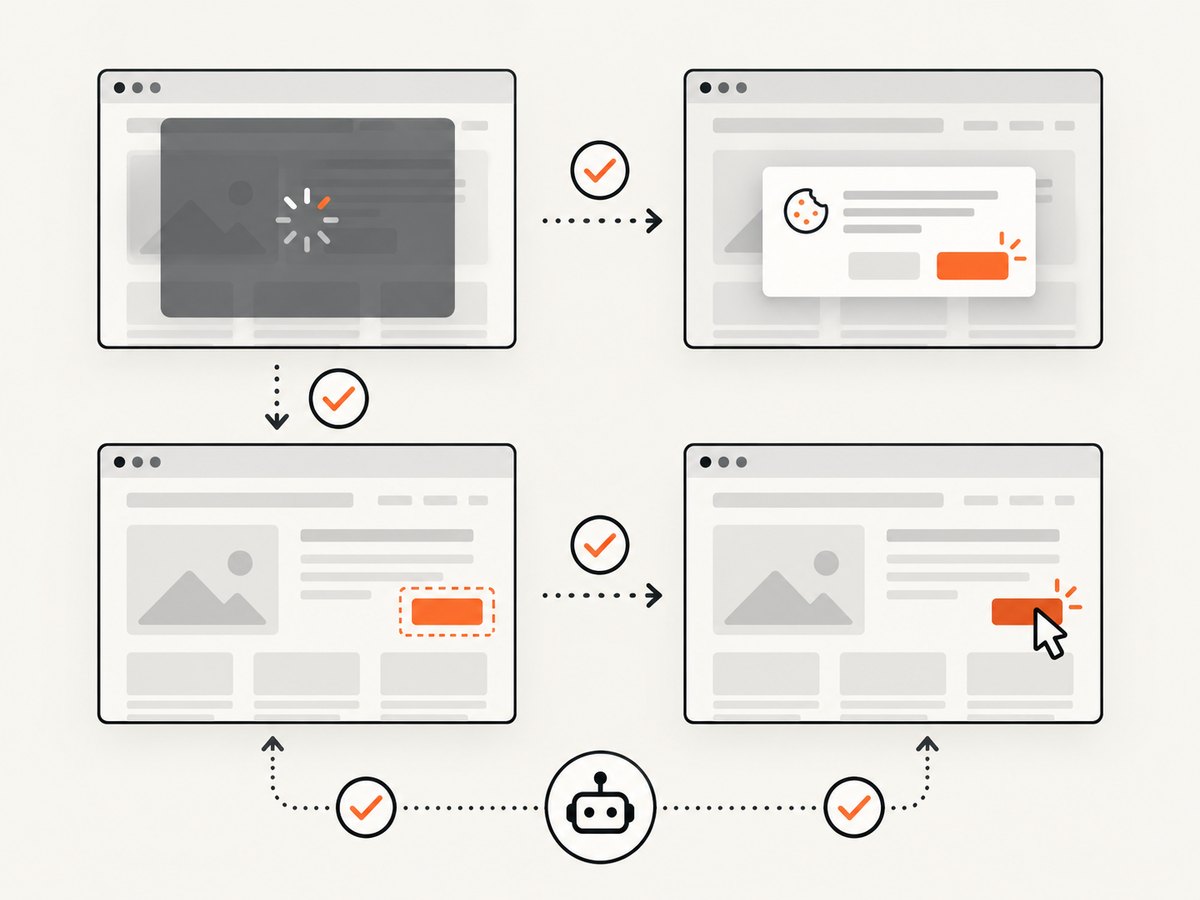
- Overlays: wait for cookie dialogs, loading masks, and animations to finish.
- Network: inspect failed API calls, proxy authentication, DNS, and certificate errors.
- Layout: compare dimensions and scroll position when an element is outside the viewport or covered.
- Authentication: confirm cookies, storage, headers, and test data exist in the fresh profile.
8. Repeatable diagnostic harness
import pathlib, platform, selenium
from selenium import webdriver
from selenium.webdriver.chrome.options import Options
out = pathlib.Path("artifacts"); out.mkdir(exist_ok=True)
opts = Options(); opts.add_argument("--headless=new"); opts.add_argument("--window-size=1440,900")
driver = webdriver.Chrome(options=opts)
try:
    print({"selenium": selenium.__version__, "platform": platform.platform(), "browser": driver.capabilities.get("browserVersion"), "driver": driver.capabilities.get("chrome", {}).get("chromedriverVersion"), "size": driver.get_window_size()})
    driver.get("https://example.com")
    print({"url": driver.current_url, "title": driver.title})
    driver.save_screenshot(str(out / "diagnostic.png"))
finally:
    driver.quit()
Run this headed and headless, then in each CI image. Change one variable at a time and record whether the first failing operation changes.
9. Common errors and fixes
| Symptom | Likely cause | Fix |
|---|---|---|
TimeoutException |
Wrong page, slow async content, overlay, or selector mismatch | Save URL, DOM, and screenshot; wait for the required state. |
ElementClickInterceptedException |
Modal, cookie banner, animation, or covering element | Wait for the blocker to disappear, then click. |
NoSuchElementException |
Wrong frame, shadow root, redirect, or late insertion | Check URL and DOM; switch frame or shadow root and use an explicit wait. |
| Session not created | Browser-driver mismatch, missing binary, wrong architecture, or path | Log versions and paths; use Selenium Manager or fix the image. |
| Chrome exits in CI | Sandbox, permissions, shared memory, resource limits, or invalid flags | Read ChromeDriver logs and container limits; make one justified environment change. |
| Blank screenshot | Navigation or network failure, bot check, certificate or proxy issue | Record URL, console, network, and browser logs. |
| Passes locally, fails in CI | Different build, fonts, viewport, locale, timezone, network, or data | Compare the recorded environment matrix. |
10. Reliability, performance, and cost
- Use a fresh session when state leakage is suspected; reuse sessions only with reliable cleanup.
- Prefer narrow explicit waits over a global long timeout.
- Keep screenshots, HTML, logs, and traces for failures in high-volume suites to control storage and sensitive-data exposure.
- Pin browser and container images when reproducibility matters, then upgrade deliberately.
- Headless mode may reduce display overhead, but JavaScript, network latency, and waits often dominate runtime.
- For remote WebDriver, include network distance and session startup in timing.
Or skip the browser setup
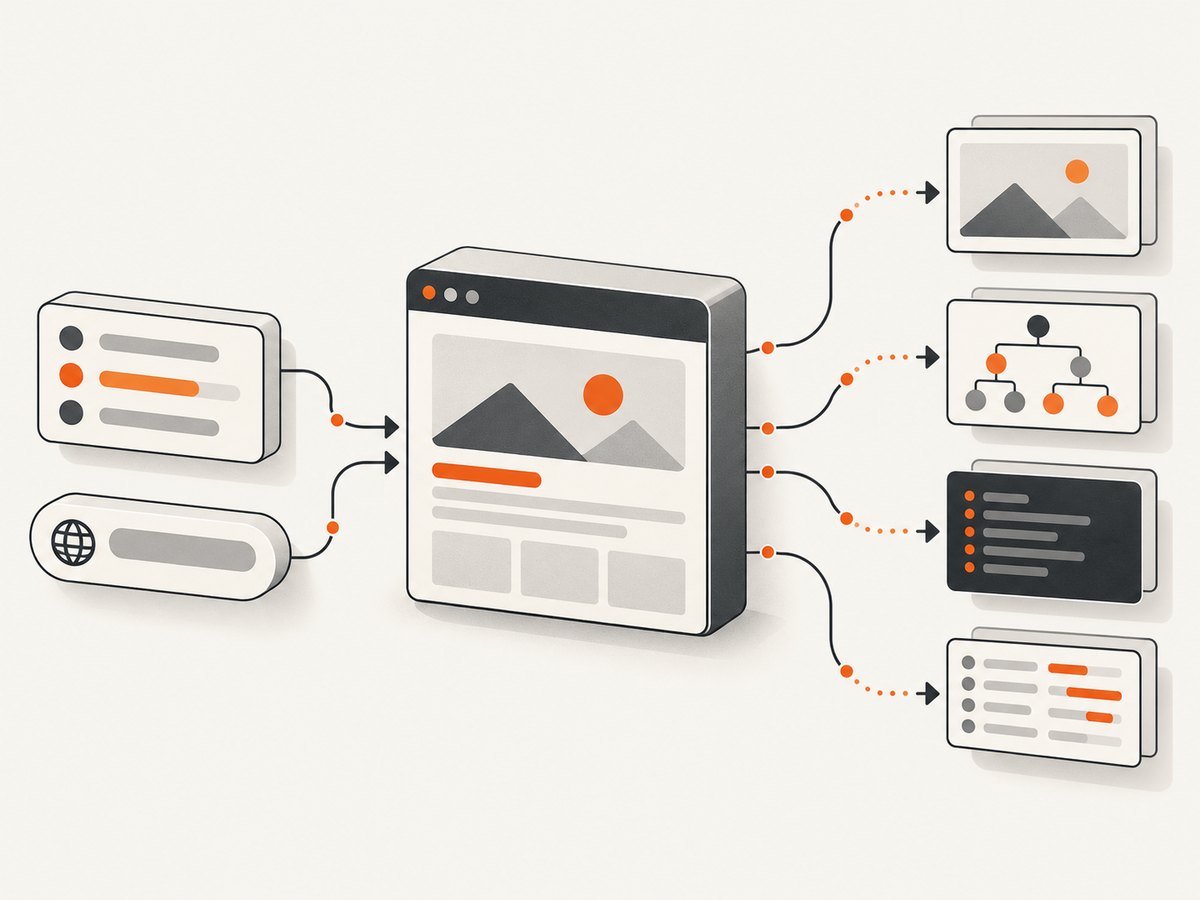
If you need a reliable page image rather than an interactive test, ScreenshotNeo accepts consent banners before capture and removes more than 60 known consent platforms, newsletter popups, and chat widgets. Each step can be disabled. Only clean shots are billed: bot checks, blank pages, timeouts, failed loads, and cache hits cost nothing, with X-Page-Verdict and X-Billed headers explaining the result. Its MCP server provides take_screenshot, get_page_info, and capture_pdf for Claude, Cursor, and other MCP clients.
curl -G "https://api.screenshotneo.com/v1/shot" -d access_key=YOUR_API_KEY --data-urlencode url=https://stripe.com -o shot.webpimport requests
r = requests.get("https://api.screenshotneo.com/v1/shot", params={"access_key": "YOUR_API_KEY", "url": "https://stripe.com"}, timeout=90)
open("shot.webp", "wb").write(r.content)const q = new URLSearchParams({ access_key: 'YOUR_API_KEY', url: 'https://stripe.com' });
const res = await fetch(`https://api.screenshotneo.com/v1/shot?${q}`);See the ScreenshotNeo API documentation for full-page and element capture, waits, custom headers and cookies, blocking, caching, signed links, async jobs, bulk capture, PDFs, and HTML/CSS rendering. Free includes 1,000 shots per month with no card; paid plans start at $5 for 3,000 shots. Create a free ScreenshotNeo account.
FAQ
Should I increase the timeout?
Only when evidence shows the required state eventually appears. Replace the delay with an explicit wait for that state.
Is headless always faster?
No. Application JavaScript, network calls, and synchronization often dominate runtime.
Do I need to pin ChromeDriver?
You need a compatible driver. Selenium Manager can resolve one; pin the browser and image when repeatability matters.
What if the screenshot looks correct but a click fails?
Check overlays, frames, shadow DOM, element geometry, and clickability, then save DOM and computed state at failure.


