How to Debug wkhtmltopdf Output Differences Between Development and Production
Compare wkhtmltopdf builds, options, fonts, inputs, and resource access to find why development and production PDFs differ—and isolate the smallest reproducible cause.
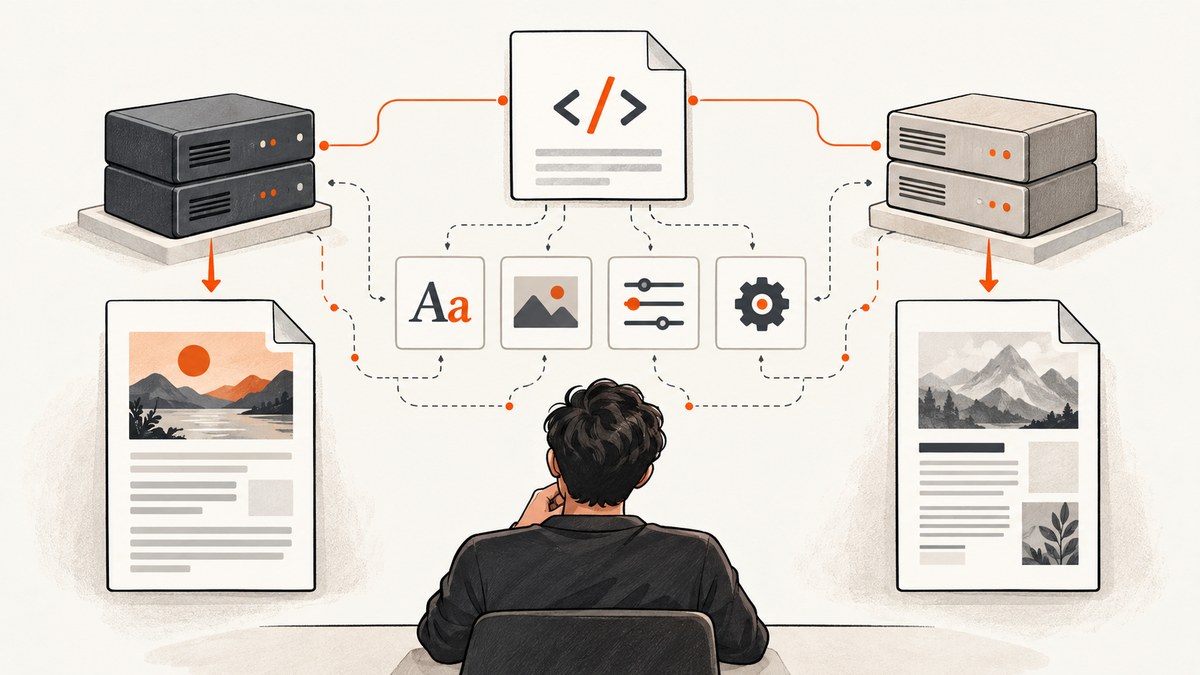
If wkhtmltopdf produces different PDFs in development and production, compare the renderer binary and its build first, then the complete command and inputs, fonts, and every resource the production process must load. Preserve stderr and the exit code, and reduce the discrepancy to a minimal HTML case. A matching command name—or a PDF that exists—is not proof that both environments rendered the same content successfully.
wkhtmltopdf is a command-line HTML-to-PDF tool based on Qt WebKit. Its behavior can depend on the binary build, operating system, fonts, options, and access to remote and local resources. The project documentation describes its tools as running headlessly, without a display service. Read the project description.
1. Record the actual renderer and environment
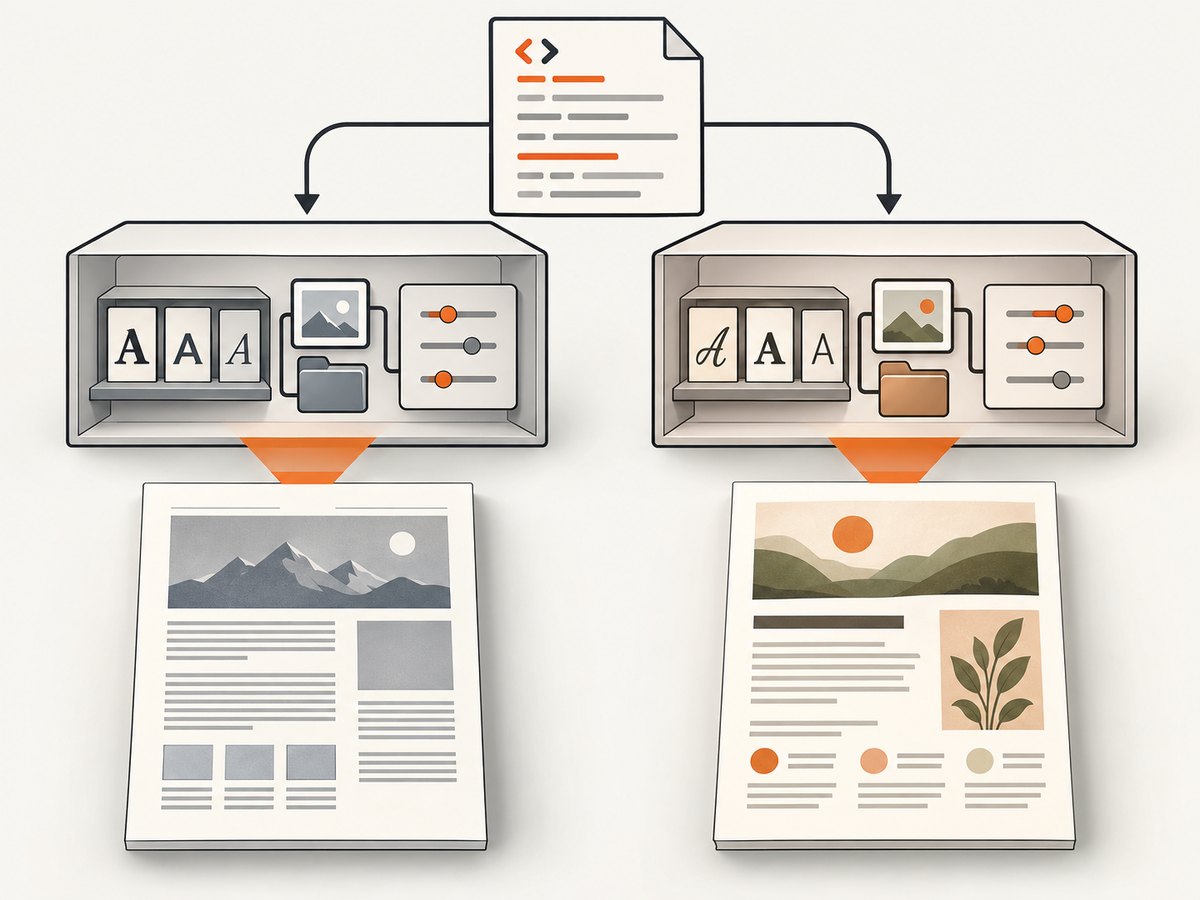
Start by identifying the executable that each application process actually runs. The shell account you use interactively may resolve a different binary from a service, container, job runner, or web worker. Save the version output alongside the resolved path and environment details.
command -v wkhtmltopdf
wkhtmltopdf --version
uname -a
Run those commands in both environments, and run the version command from the same container or service context used for PDF generation. Record:
- The full version string, including whether it says
with patched qt. - The resolved executable path and how the binary was installed.
- Operating system, architecture, and container image or base distribution.
- Relevant environment variables, especially proxy settings if pages use remote resources.
The command name alone does not establish that the binaries are equivalent. The project’s usage documentation describes version 0.12.6 with patched Qt and documents build-dependent behavior. The GitHub repository is marked archived by its owner on 2023-01-02; its releases list 0.12.6, dated 2020-06-11, and its changelog labels 0.12.7 unreleased. Those are repository facts, not a guarantee that downstream packages or forks have not changed. Check the build actually deployed. Release history · CLI usage documentation.
2. Compare the exact command and effective options
Log the complete argument list generated by your application. Compare global options and per-page options, their order, and any configuration file or wrapper that adds flags. Record explicit values instead of relying on defaults: documented defaults include 96 DPI and a 200 ms JavaScript delay, but build and option differences can affect what applies.
For a controlled baseline, use the same input and output paths and specify relevant settings explicitly:
wkhtmltopdf \
  --dpi 96 \
  --javascript-delay 200 \
  --enable-javascript \
  --load-error-handling abort \
  --load-media-error-handling abort \
  input.html output.pdf
This command is a diagnostic starting point, not a universal production configuration. Preserve your real command too: a setting such as JavaScript enablement, delay, local-file access, or error handling may be the difference you need to find. Consult the official option documentation for the exact options supported by the installed build.
| Setting or input | What to compare | Why it can matter |
|---|---|---|
| DPI and zoom-related settings | Explicit values and any wrapper defaults | They affect rendered scale and layout. |
| JavaScript | Enabled state, delay, and page readiness assumptions | Content may not exist yet when capture begins. |
| Local-file access | Flags and allowed paths | Local CSS, images, or fonts may be blocked. |
| Load-error behavior | Document and media handling modes | Failures may abort, be ignored, or be skipped. |
| Global and page options | Arguments, scope, ordering, configuration | Options applied at different scopes can produce different output. |
Do not silently discard errors during diagnosis. Modes that ignore or skip load failures can produce a nonempty PDF with missing images, styles, or page content. Preserve the process exit code and stderr so the output can be interpreted alongside warnings.
3. Freeze the input before comparing results
Render identical bytes, not merely the same application route. Save the generated HTML, API data, and any relevant assets as fixtures if possible. A page can change between runs because its data, generated markup, or external responses changed; then the renderer is not the only variable.
Keep conversion timing consistent as well. If the page includes JavaScript, determine when the relevant content appears and use an explicit delay appropriate to that page. A fixed delay may still be insufficient when the page depends on network activity or unpredictable work, so verify the resulting HTML state rather than assuming the timer guarantees readiness.
Record locale and timezone when date-sensitive formatting or content is involved. This is a diagnostic control: it helps distinguish input and environment differences from renderer behavior. Avoid changing several variables at once. First reproduce with the same saved HTML and resources, then vary one factor between environments.
4. Check fonts and every referenced resource
Inspect the actual production runtime for the fonts your CSS requests. Compare installed font files and font discovery, not only the CSS declarations. If a requested family is unavailable, the renderer may use a substitute with different glyph widths, line breaks, or page flow. A browser preview on a developer workstation does not prove the production wkhtmltopdf process can load the same font. A project issue reports platform-dependent @font-face behavior; treat it as an anecdotal, version-specific report rather than a universal rule. Issue report.
Make an inventory of resources referenced by the HTML and stylesheets:
- Stylesheets and imported CSS.
- Images, including background images and assets referenced through relative paths.
- Web fonts and local font files.
- Scripts that create or modify content.
- Any local files or remote URLs loaded by those resources.
For remote URLs, check DNS, TLS reachability, authentication, proxies, and whether the production network can connect. For local files, check path resolution, process permissions, container mounts, and local-file access. In the documented usage, local-file access is disabled by default unless explicitly allowed. If enabling it is necessary, allow only the paths the conversion needs.
Test access from the production process context. A URL that loads in your laptop’s browser may be inaccessible to the worker because of credentials, network rules, a different filesystem, or a different base URL. A missing asset can also change layout indirectly, so compare resource requests and their outcomes—not only the final PDF.
5. Capture warnings and the exit code
Keep standard error and the exit status for every comparison. This runnable shell example captures both while writing the PDF:
set +e
wkhtmltopdf --dpi 96 --javascript-delay 200 \
  --load-error-handling abort \
  --load-media-error-handling abort \
  input.html output.pdf \
  2>wkhtmltopdf.stderr
status=$?
printf 'wkhtmltopdf exit code: %s\n' "$status"
cat wkhtmltopdf.stderr
Use the load-error and media-error modes intentionally. During diagnosis, aborting on failures can make a broken dependency visible; in a production workflow, the right policy depends on whether a partial document is acceptable. Whatever the policy, log the mode and surface warnings. A nonempty file alone does not establish that every page and asset loaded.
6. Reduce the difference to a minimal case
- Save the exact HTML and required resources used in a failing conversion.
- Run that fixture with explicit options under each binary and preserve version output, stderr, exit status, and PDF.
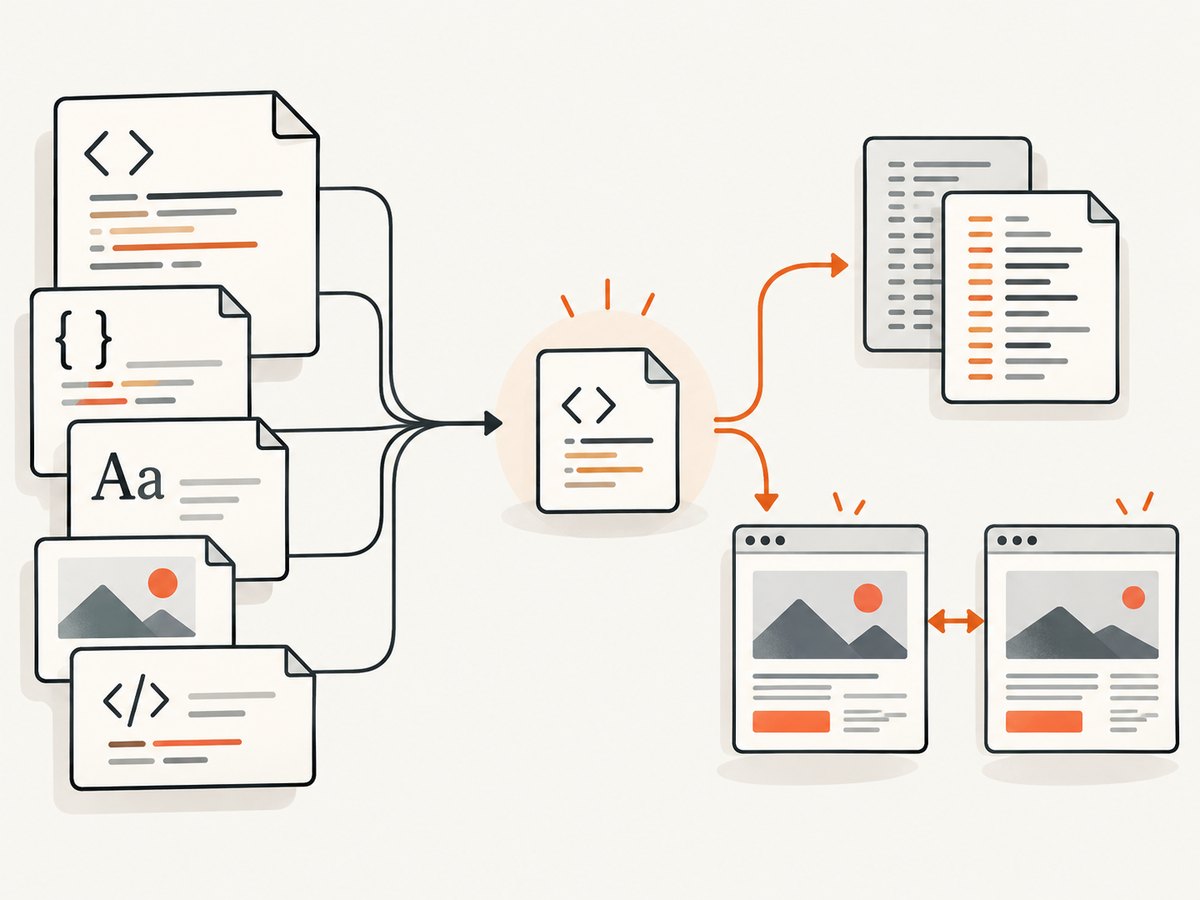
- Remove unrelated sections, scripts, styles, and assets until the smallest input that still differs remains.
- Add components back one at a time, changing only one environment variable or resource condition per comparison.
- Once a cause is isolated, verify the fix with the original document and command in the production runtime.
This reduction method follows from the renderer’s configurable inputs and the documented categories of resource and font behavior. It is a diagnostic technique, not a guarantee that every discrepancy has a single cause. Some differences may involve more than one environmental change.
7. Troubleshooting common symptoms
| Symptom | Likely cause to check | Next action |
|---|---|---|
| Text wraps differently or pages break at different points | Different font availability, renderer build, DPI, or input data | Compare version/build and installed fonts; then render the same saved HTML with explicit DPI. |
| Images or styles are missing | Resource URL failure, relative-path resolution, permissions, or local-file access | Check each referenced URL/path from the worker and inspect stderr for load errors. |
| JavaScript-generated content is absent | JavaScript is disabled, or the capture occurs before content is ready | Compare the enablement flag and explicit delay; verify whether the required content exists at capture time. |
| The command fails only in production | Different executable, permissions, architecture, filesystem, or network environment | Capture the resolved binary path and version in the service context; check access to inputs, output path, and resources. |
| A PDF exists despite warnings or missing sections | Error handling permits continuation after a failed load | Inspect stderr and exit code; choose load-error behavior intentionally and make failures visible. |
| Output changes between repeated runs | Changing HTML/data, remote responses, timing, or date-dependent content | Freeze the input and resources, control timing, and record locale/timezone where relevant. |
8. Performance, reliability, and operating cost
Measure the full conversion path under the same input: process startup, page loading, JavaScript work, and PDF generation. No single delay setting makes a page ready in every environment. Waiting longer can increase job time without fixing a blocked resource or a different input, so use logs and a reproducible fixture to identify what the converter is waiting for.
For reliability, treat warnings and exit status as part of the result. Keep the renderer version and invocation in deployment records, and verify the fonts and assets inside the deployed runtime. If you deliberately tolerate missing media, make that policy visible to the application that consumes the PDF; otherwise a partial document can look like a successful conversion.
For cost, account for the compute time and operational work of maintaining the binary, runtime dependencies, fonts, network access, and debugging. The dossier provides no defensible benchmark or cost figure, so estimate these from your own workload. If maintaining a renderer is not a fit, a hosted HTML-to-PDF API is a possible migration category; evaluate its supported inputs, geography, data handling, and pricing directly before choosing one.
Or skip the browser setup
If your actual need is a screenshot of a web page while investigating a visual mismatch, ScreenshotNeo is a website screenshot API and MCP server. It does not replace wkhtmltopdf for PDF output, but it can provide a clean page image without installing and operating a browser capture setup.
One GET request returns an image or PDF. See the ScreenshotNeo API documentation for options and response details.
curl -G "https://api.screenshotneo.com/v1/shot" \
  -d access_key=YOUR_API_KEY \
  --data-urlencode url=https://stripe.com \
  -o shot.webp
import requests
r = requests.get(
"https://api.screenshotneo.com/v1/shot",
params={"access_key": "YOUR_API_KEY", "url": "https://stripe.com"},
timeout=90,
)
open("shot.webp", "wb").write(r.content)const q = new URLSearchParams({
access_key: 'YOUR_API_KEY',
url: 'https://stripe.com',
});
const res = await fetch(`https://api.screenshotneo.com/v1/shot?${q}`);
ScreenshotNeo accepts cookie and consent banners before capture and removes more than 60 known consent platforms, newsletter popups, and chat widgets; each step can be turned off. Bot checks, blank pages, failed loads, timeouts, and cache hits cost nothing, with page verdict and billing information in response headers. Its MCP server provides take_screenshot, get_page_info, and capture_pdf for Claude, Cursor, and other MCP clients. The free plan includes 1,000 shots a month with no card; paid plans start at $5 for 3,000 shots. Sign up free for 1,000 screenshots a month, with no card.
FAQ
Does matching the wkhtmltopdf version string guarantee identical PDFs?
No. Compare the build marker, operating system, architecture, fonts, options, inputs, and resource access as well. A matching version string is only one part of the environment.
Should I always enable local-file access?
No. Enable it only when the document needs local files, and allow only the required paths. The documented default disables local-file access unless explicitly enabled.
Is a browser preview enough to confirm the PDF input is valid?
No. The converter runs in its own process context and can have different fonts, filesystem permissions, network access, and resource loading behavior. Verify those dependencies from the runtime doing the conversion.
Does a successful exit or nonempty PDF prove the document is complete?
Not by itself. Review stderr and the selected load-error behavior, especially when the output appears to be missing media or content.


