How to Decode and Save an Image with canvas.toDataURL()
Export a canvas as a data URL, decode its Base64 payload, and download it safely. Includes Blob-based patterns, CORS fixes, and troubleshooting.
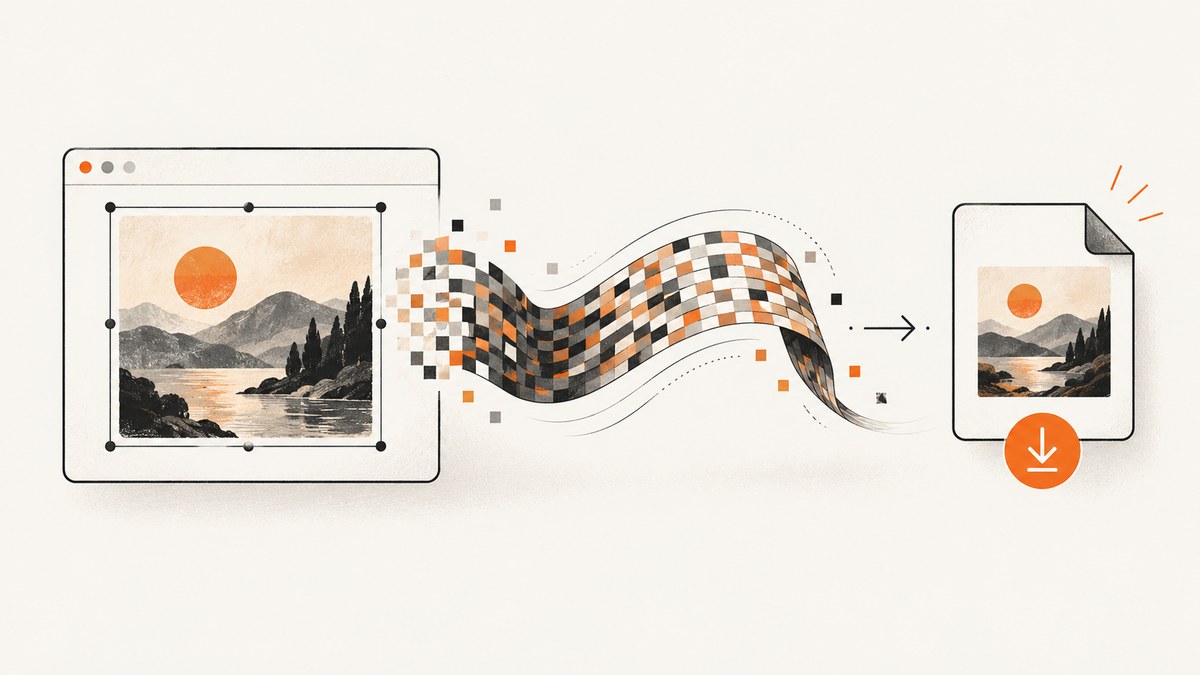
canvas.toDataURL() exports the current canvas bitmap as a data: URL. For a small image, you can use that URL directly in an image element or download link. To decode it, split off the metadata prefix (such as data:image/png;base64,), decode the Base64 payload, and make a Blob. For larger images, use canvas.toBlob() and an object URL instead: it avoids building a large encoded string in memory. A canvas that contains pixels from another origin without suitable CORS permission cannot be exported; the browser may throw a SecurityError.
This guide covers browser JavaScript. It includes runnable export, download, and decoding examples, explains image formats and quality, and diagnoses the common failures.
1. What toDataURL returns
HTMLCanvasElement.toDataURL(type, quality) synchronously returns a data URL containing the canvas image. With no type argument, the browser uses PNG. You can request a supported format such as image/jpeg; the optional quality value, from 0 to 1, applies to lossy formats. Unsupported requested formats fall back to PNG. Formats with resolution metadata use 96 dpi.
A data URL has a header and a payload separated by the first comma:
data:image/png;base64,iVBORw0KGgo...The header identifies the media type and encoding. The part after the comma is the Base64-encoded image data. Do not pass the entire string to a Base64 decoder: decode only the payload. The canvas method returns an encoded representation of its current bitmap; it does not return the original source file or its metadata.
A zero-width or zero-height canvas, or a canvas exceeding the browser’s maximum canvas dimensions, returns the special string data:,. Check the dimensions and result before attempting to decode.
2. Export and download a canvas
Export to a data URL
Run this after drawing to the canvas. The example requests PNG, which is lossless and widely supported:
const canvas = document.querySelector('canvas');
if (!canvas) throw new Error('Canvas not found');

const dataUrl = canvas.toDataURL('image/png');
if (dataUrl === 'data:,') {
  throw new Error('Canvas is empty-sized or exceeds the browser size limit');
}

console.log(dataUrl);
For JPEG, pass a quality value between 0 and 1. The browser may choose an implementation-specific encoding, so quality is a request rather than a promise of a particular file size or visual result:
const jpegDataUrl = canvas.toDataURL('image/jpeg', 0.85);JPEG does not preserve transparency. If transparent canvas pixels are exported to JPEG, they are rendered without transparency. Use PNG when the alpha channel matters. You may request WebP where supported, but if the browser does not support the requested type it falls back to PNG.
Download a small export
An anchor with a download filename can use the data URL directly:
const canvas = document.querySelector('canvas');
if (!canvas) throw new Error('Canvas not found');

const dataUrl = canvas.toDataURL('image/png');
if (dataUrl === 'data:,') throw new Error('Canvas has no exportable dimensions');

const link = document.createElement('a');
link.download = 'canvas-image.png';
link.href = dataUrl;
link.click();
Call the download from a user action, such as a button click, to fit browser download policies. If you need a large export or want to avoid a large string in memory, use the Blob approach in the next section.
3. Prefer toBlob for larger images
toDataURL() constructs the complete encoded image as an in-memory string. That is convenient for small images, but can use substantial memory for large canvases. MDN recommends toBlob() with URL.createObjectURL() for this situation. The Blob holds the image data without first turning the whole file into a Base64 string.
const canvas = document.querySelector('canvas');
if (!canvas) throw new Error('Canvas not found');

canvas.toBlob((blob) => {
  if (!blob) {
    console.error('The browser could not create an image Blob');
    return;
  }

  const objectUrl = URL.createObjectURL(blob);
  const link = document.createElement('a');
  link.download = 'canvas-image.png';
  link.href = objectUrl;
  link.click();

  // Keep the URL valid while it is in use. Revoke it when finished.
  setTimeout(() => URL.revokeObjectURL(objectUrl), 0);
}, 'image/png');
toBlob() is asynchronous and may provide null, so check the callback value. If you display the image for continued user interaction instead of immediately downloading it, keep the object URL alive until that interaction ends. Revoke it afterward with URL.revokeObjectURL(). Revoking too early can make the image unavailable.
4. Decode a data URL into a Blob
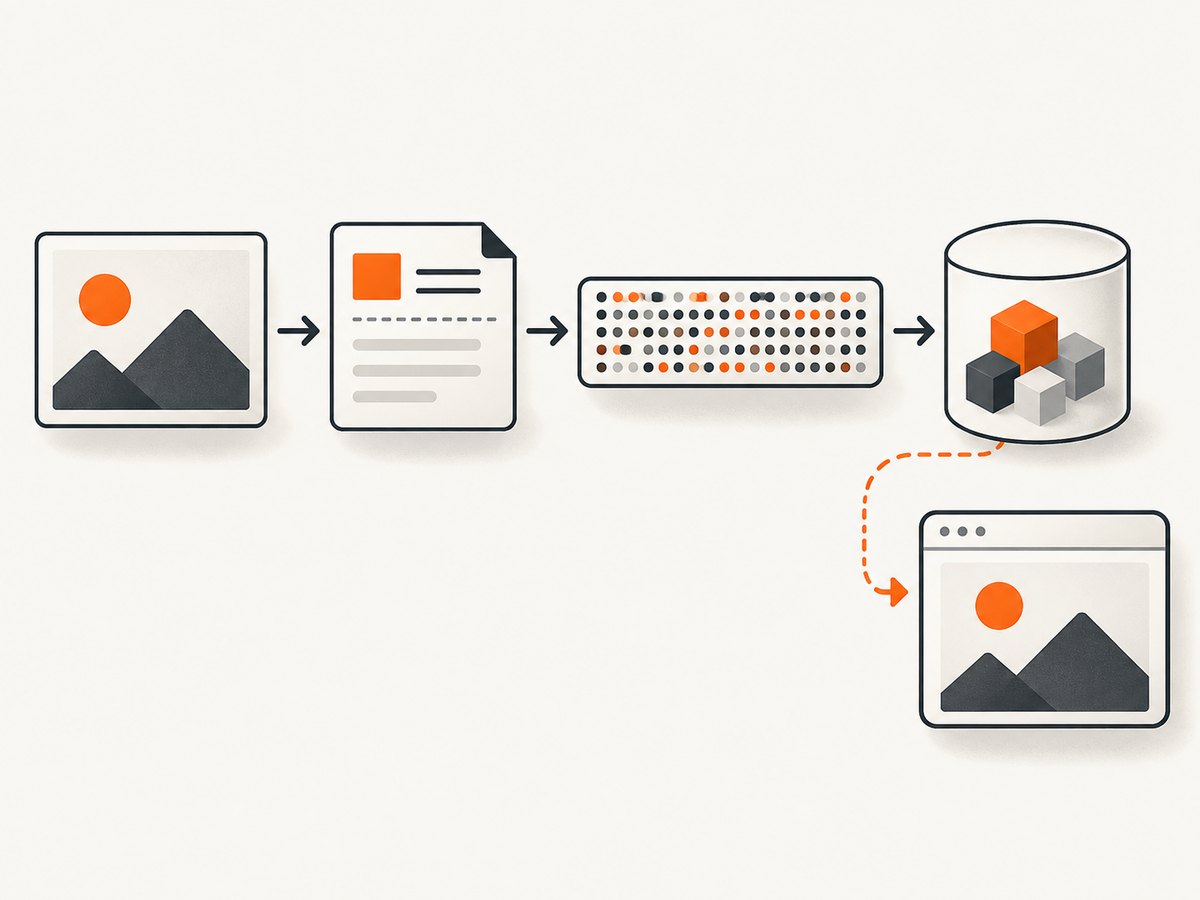
Decoding is useful when a data URL arrives from another browser API, such as FileReader.readAsDataURL(), or when you need a Blob for upload or file handling. This function supports Base64 data URLs and percent-encoded non-Base64 data URLs. It reads the MIME type from the data URL header and rejects malformed input.
function dataUrlToBlob(dataUrl) {
  const comma = dataUrl.indexOf(',');
  if (!dataUrl.startsWith('data:') || comma === -1) {
    throw new Error('Invalid data URL');
  }

  const header = dataUrl.slice(0, comma);
  const payload = dataUrl.slice(comma + 1);
  const mimeMatch = /^data:([^;,]+)/i.exec(header);
  const mime = mimeMatch?.[1] || 'application/octet-stream';

  if (/;base64/i.test(header)) {
    let binary;
    try {
      binary = atob(payload);
    } catch {
      throw new Error('Invalid Base64 payload');
    }
    const bytes = Uint8Array.from(binary, character => character.charCodeAt(0));
    return new Blob([bytes], { type: mime });
  }

  let decoded;
  try {
    decoded = decodeURIComponent(payload);
  } catch {
    throw new Error('Invalid percent-encoded payload');
  }
  return new Blob([new TextEncoder().encode(decoded)], { type: mime });
}

const canvas = document.querySelector('canvas');
if (!canvas) throw new Error('Canvas not found');
const dataUrl = canvas.toDataURL('image/png');
if (dataUrl === 'data:,') throw new Error('Canvas has no exportable dimensions');

const blob = dataUrlToBlob(dataUrl);
const objectUrl = URL.createObjectURL(blob);
const preview = document.createElement('img');
preview.alt = 'Canvas export preview';
preview.src = objectUrl;
document.body.append(preview);

// When the preview is removed or no longer needed:
// preview.remove();
// URL.revokeObjectURL(objectUrl);
For a FileReader.readAsDataURL() result, the same rule applies: parse the prefix and decode only the content after the first comma when the header declares Base64. Preserve the MIME type from the header when creating the Blob. Avoid assuming every data URL is PNG or Base64.
5. Choose the right format and export method
| Need | Use | Notes |
|---|---|---|
| Small image for a simple preview or download | toDataURL() |
Convenient string; avoid for large bitmaps. |
| Large image download or upload | toBlob() plus object URL |
Avoids creating a large Base64 string. Revoke the URL when finished. |
| Transparency or lossless pixels | PNG | Default format; preserves alpha. |
| Photographic image with a smaller lossy encoding | JPEG with quality | Quality is from 0 to 1; JPEG does not retain transparency. |
| WebP output | Request image/webp |
Check the actual output type or data URL because unsupported formats fall back to PNG. |
The browser controls encoding details and maximum canvas dimensions. There is no universal safe maximum size: limits vary by browser and device. If an export fails or returns data:,, reducing canvas dimensions is often necessary. Changing the encoded format does not make an oversized canvas safe.
6. Fix a tainted canvas and other errors
SecurityError: canvas is not origin-clean
Canvas pixels loaded from another origin can taint the canvas. Once tainted, reading or exporting pixels can raise a SecurityError. This often occurs when a cross-origin image is drawn without the appropriate CORS response. Setting an attribute in your page alone cannot grant permission: the image server must allow your origin.
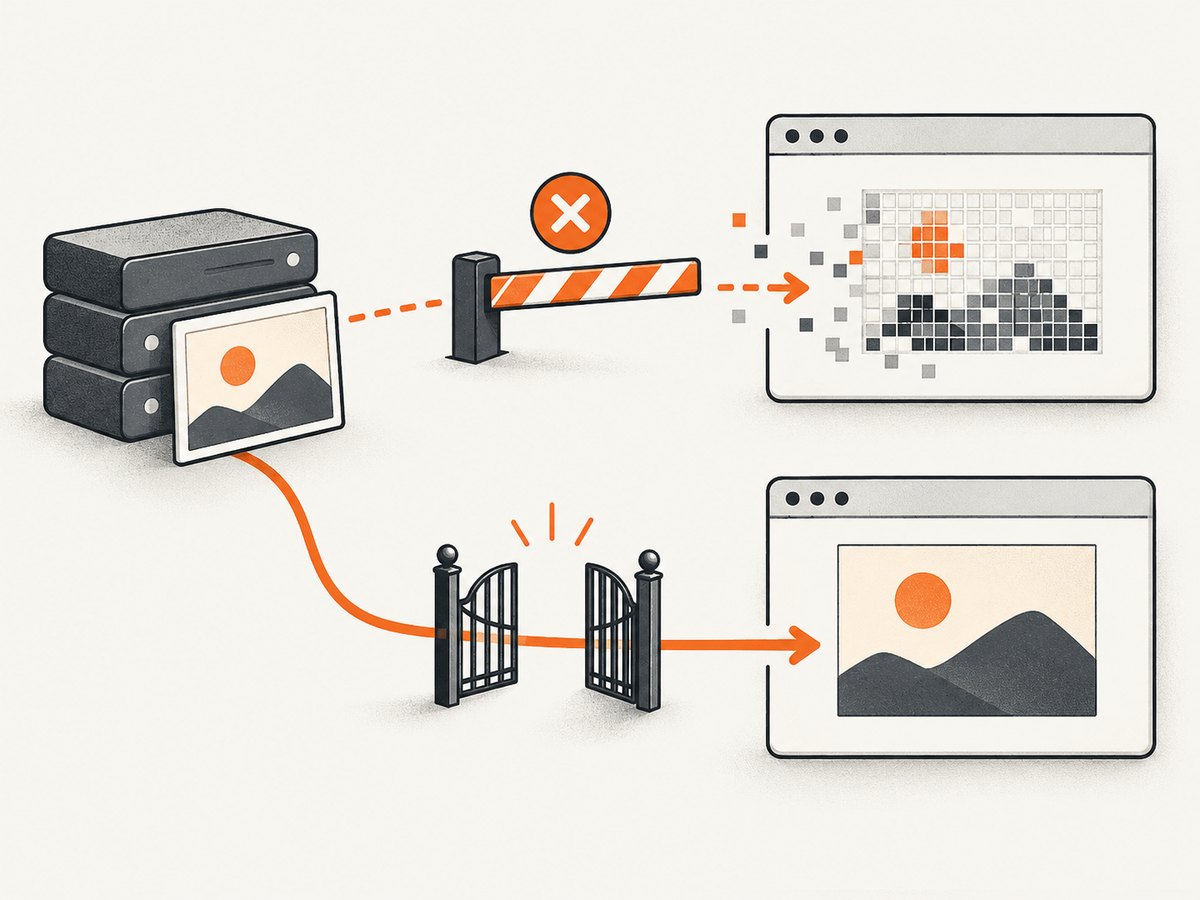
- Set the image’s
crossOriginproperty before assigningsrc. - Make sure the remote server returns an appropriate
Access-Control-Allow-Originresponse header for your page’s origin (or an allowed wildcard where appropriate). - Load the image, then draw it to the canvas and export only after it has loaded successfully.
const image = new Image();
image.crossOrigin = 'anonymous'; // Set before src.
image.onload = () => {
  const canvas = document.querySelector('canvas');
  if (!canvas) throw new Error('Canvas not found');
  canvas.width = image.naturalWidth;
  canvas.height = image.naturalHeight;
  const context = canvas.getContext('2d');
  if (!context) throw new Error('2D canvas context unavailable');
  context.drawImage(image, 0, 0);
  const dataUrl = canvas.toDataURL('image/png');
  console.log(dataUrl);
};
image.onerror = () => console.error('Image failed to load');
image.src = 'https://example.com/image.png';
Replace the example URL with an image server that permits CORS for your site. If you control that server, configure its response headers. If you do not, use an authorized same-origin source or a server-side proxy that is permitted to retrieve the image. Do not treat removing the crossOrigin setting as a fix: it may let the image render while leaving the canvas unreadable.
Invalid data URL or failed Base64 decode
- Cause: Passing the metadata prefix into
atob(). Fix: Split at the first comma and decode only the payload. - Cause: A URL that is not actually Base64. Fix: Check whether the header includes
;base64; percent-decode the payload otherwise. - Cause: Truncated or malformed payload. Fix: Preserve the complete data URL when storing or transferring it, and handle decoder errors.
Output is empty or unexpectedly PNG
- Cause: Zero canvas dimensions or dimensions beyond the browser limit. Fix: Check
canvas.widthandcanvas.height, then reduce dimensions if needed. - Cause: Requested image format is unsupported. Fix: Inspect the returned data URL’s media type and use PNG or another supported format.
- Cause: Capture ran before drawing or image loading completed. Fix: Export after drawing, and wait for image load or other asynchronous drawing work.
Download does not start or image disappears
Browsers may restrict downloads that are not initiated by a user gesture. Trigger the anchor click from a button handler. With Blob URLs, do not revoke the URL before the browser has consumed it or while a preview still needs it. For user-facing previews, revoke only after the image is removed or replaced.
7. Performance, reliability, and cost
For canvas work, the main practical tradeoff is memory and encoding behavior. toDataURL() gives you a convenient string but materializes the full encoded image in memory. Base64 also represents binary data as text, so the string can be larger than the underlying binary image. Prefer toBlob() for larger exports, then use an object URL or send the Blob through the relevant browser API. Avoid repeatedly exporting the same unchanged canvas inside animation or high-frequency event handlers.
Keep dimensions within browser limits, check for data:,, handle SecurityError, and treat toBlob()‘s callback value as nullable. When transferring a data URL, account for the full string size and ensure intermediate systems do not truncate it. For upload, sending the Blob or a File is usually more suitable than sending a long Base64 string.
Browser-side canvas export has no ScreenshotNeo per-shot fee; the browser does the work on the user’s device. If the job is to capture a rendered website rather than export an existing canvas your page controls, browser automation introduces setup and runtime work. A hosted screenshot API can be simpler, with a separate service cost. ScreenshotNeo’s stated plans include 1,000 shots/month free with no card, then $5 for 3,000, $15 for 15,000, $39 for 60,000, $99 for 250,000, and $249 for 1,000,000; yearly billing gives two months free. Every feature is on every plan.
Or skip the browser setup
If you need a screenshot of a website page rather than an export of your own canvas bitmap, ScreenshotNeo returns a PNG, JPEG, WebP, or PDF from one GET request. See the ScreenshotNeo API docs for request options and output configuration.
curl -G "https://api.screenshotneo.com/v1/shot" -d access_key=YOUR_API_KEY --data-urlencode url=https://stripe.com -o shot.webpimport requests
r = requests.get(
"https://api.screenshotneo.com/v1/shot",
params={"access_key": "YOUR_API_KEY", "url": "https://stripe.com"},
timeout=90,
)
r.raise_for_status()
open("shot.webp", "wb").write(r.content)const q = new URLSearchParams({ access_key: 'YOUR_API_KEY', url: 'https://stripe.com' });
const res = await fetch(`https://api.screenshotneo.com/v1/shot?${q}`);
if (!res.ok) throw new Error(`Screenshot request failed: ${res.status}`);
await import('node:fs/promises').then(fs => fs.writeFile('shot.webp', Buffer.from(await res.arrayBuffer())));Cookie and consent banners, newsletter popups, and chat widgets are removed before the shot; each cleanup step can be turned off. Bot checks, blank pages, timeouts, failed loads, and cache hits cost nothing, and response headers report the page verdict and billing status. ScreenshotNeo also provides an MCP server for AI agents, including Claude, Cursor, and other MCP clients. You get 1,000 screenshots a month free with no card; paid plans start at $5 for 3,000. These are website screenshots: use canvas export when you need the bitmap your own page has drawn.
Create a free ScreenshotNeo account for 1,000 screenshots a month with no card.
FAQ
Can I recover the original image file from a canvas data URL?
No. The export represents the canvas bitmap at export time. It does not restore the original file bytes, metadata, or image encoding choices.
Does toDataURL return Base64 every time?
Canvas exports are data URLs and commonly use Base64 encoding. When decoding, inspect the header and handle the payload according to its encoding instead of assuming.
Can I use the result as an image source?
Yes. A data URL can be assigned to an image’s src. For larger images, an object URL created from a Blob is generally more suitable.
Why is my JPEG still large or blurry?
Output size and visual quality depend on the bitmap content and browser encoder. Adjust the requested quality and canvas dimensions, then inspect the result in your target use case; the quality number does not guarantee a fixed file size.


