How to Delay a Website Screenshot Capture
Learn when and how to delay screenshots with Puppeteer, Playwright, readiness checks, lazy-loading strategies, troubleshooting, and a hosted API option.
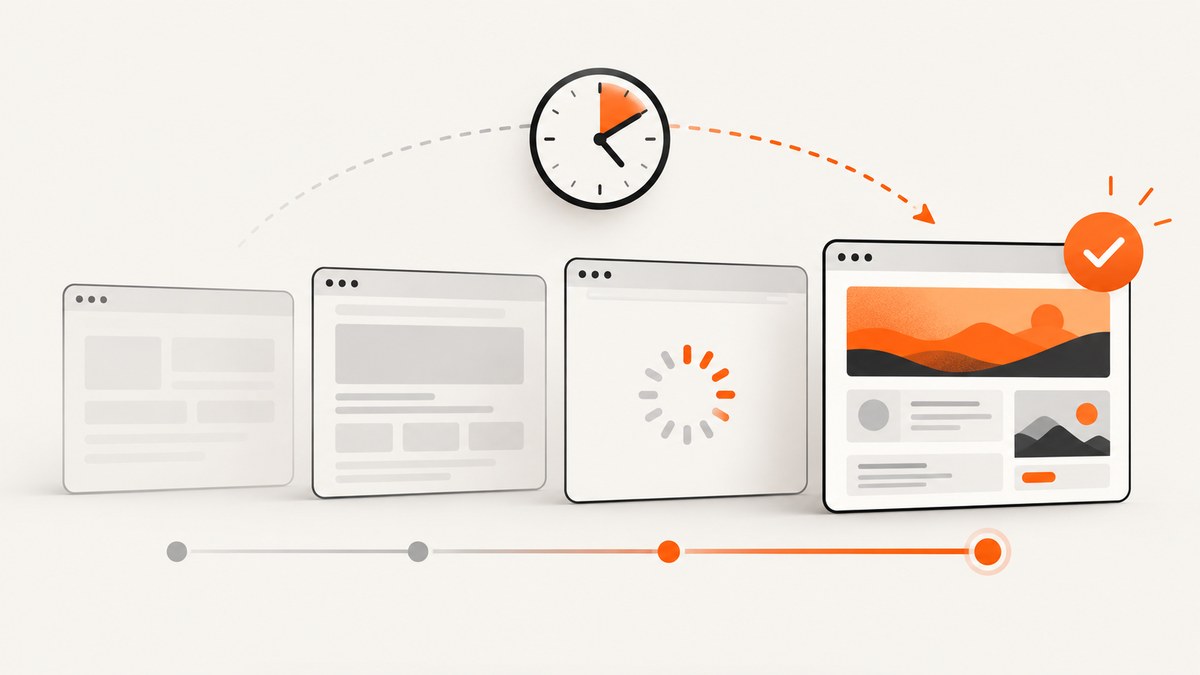
Direct answer: delay a screenshot only until the content you need is ready. A fixed timer is easy, but a selector, completed response, application-ready flag, or visual-stability check is more reliable. In Puppeteer, combine navigation with waitForSelector() or waitForFunction() before page.screenshot(). In Playwright, wait for a meaningful locator and use screenshot assertions when you need visual stability. For full-page captures, explicitly trigger lazy-loaded content before taking the image.
This guide shows complete Puppeteer and Playwright implementations, explains every common wait strategy, covers lazy loading and animations, and ends with a hosted option when you do not want to maintain a browser.
1. Choose the right kind of delay
The best wait is the shortest condition that proves the page is ready for the screenshot’s purpose. Use this order of preference:
- Application signal: a page variable such as
window.appReady === trueis the most explicit. - Content selector: wait for the result panel, chart, hero image, or other required element to become visible.
- Completed response: wait for a specific API request or response that supplies the screenshot content.
- Visual stability: useful for visual regression and pages with motion.
- Navigation state:
domcontentloaded,load, ornetworkidlecan establish a starting point. - Fixed timer: use for a known animation or third-party widget when no better signal exists.
A timer alone does not prove that content rendered. A slow run may still capture a blank component, while a fast run wastes time waiting after the page is already ready.
2. Puppeteer: wait for readiness before capture
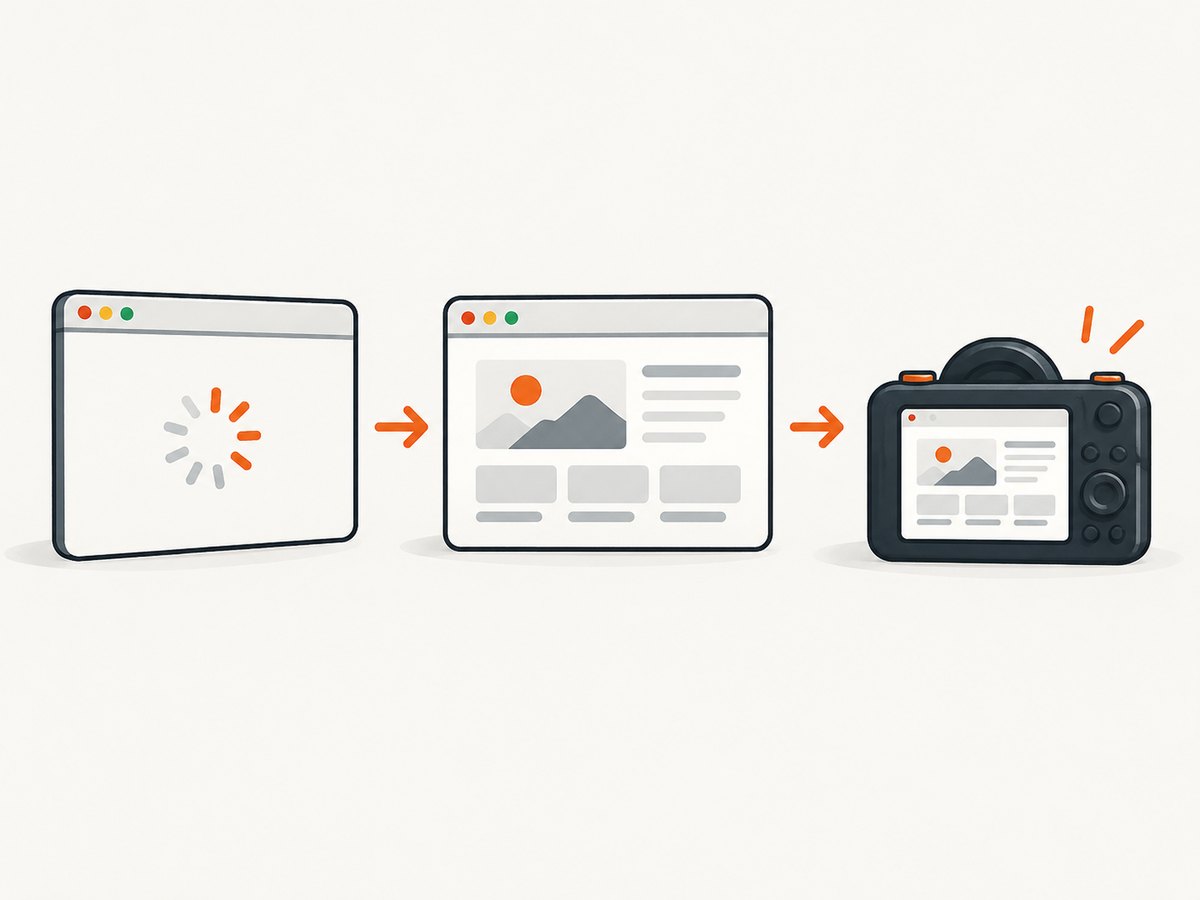
Puppeteer’s screenshots guide uses Page.screenshot() after navigation. The following script adds a visible readiness selector and captures the full page. See the Puppeteer screenshots guide and Page.screenshot API reference.
import puppeteer from 'puppeteer';

const url = 'https://example.com/dashboard';
const browser = await puppeteer.launch({ headless: true });
const page = await browser.newPage();

try {
  await page.setViewport({ width: 1440, height: 900, deviceScaleFactor: 1 });
  await page.goto(url, {
    waitUntil: 'domcontentloaded',
    timeout: 30000
  });

  await page.waitForSelector('[data-screenshot-ready]', {
    visible: true,
    timeout: 30000
  });

  await page.screenshot({
    path: 'page.png',
    fullPage: true
  });
} finally {
  await browser.close();
}
Add waitUntil: 'networkidle2' when a mostly quiet network is a useful signal:
await page.goto(url, { waitUntil: 'networkidle2', timeout: 30000 });
await page.waitForSelector('[data-screenshot-ready]', { visible: true });
await page.screenshot({ path: 'page.png', fullPage: true });
networkidle2 means no more than two connections for a short period. Analytics, polling, WebSockets, advertisements, and streaming can prevent it from settling or make it settle before the actual content is usable. Keep the selector or application check whenever possible.
Wait for an application-ready flag
If your application owns the loading lifecycle, expose a flag after data binding and rendering finish:
await page.goto(url, { waitUntil: 'domcontentloaded' });
await page.waitForFunction(() => window.appReady === true, {
  timeout: 30000
});
await page.screenshot({ path: 'ready.png', fullPage: true });
You can set that flag in the application after the final render, for example window.appReady = true. Keep the flag specific to the state required by the image; setting it immediately after an API response may still leave fonts, images, or charts unfinished.
Wait for a response
When one request definitively supplies the content, wait for that response while navigating:
const dataResponse = page.waitForResponse(response =>
  response.url().includes('/api/report') && response.status() === 200
);
await page.goto(url, { waitUntil: 'domcontentloaded' });
await dataResponse;
await page.waitForSelector('#report-chart', { visible: true });
await page.screenshot({ path: 'report.png' });
Use a fixed delay as a fallback
await page.goto(url, { waitUntil: 'load' });
await new Promise(resolve => setTimeout(resolve, 1500));
await page.screenshot({ path: 'after-delay.png' });
Choose the delay from a known animation or widget requirement, then add a readiness check if one exists. Avoid continually increasing the timer to hide a race condition.
3. Playwright: navigation, locators, and visual stability
Playwright documents four navigation states: commit, domcontentloaded, load, and networkidle. Its reference discourages using networkidle as a universal readiness definition; prefer web assertions and locators. See the page.goto documentation.
import { chromium } from '@playwright/test';

const browser = await chromium.launch();
const page = await browser.newPage({
  viewport: { width: 1440, height: 900 },
  deviceScaleFactor: 1
});

try {
  await page.goto('https://example.com/dashboard', {
    waitUntil: 'domcontentloaded',
    timeout: 30000
  });
  await page.getByTestId('results').waitFor({
    state: 'visible',
    timeout: 30000
  });
  await page.screenshot({ path: 'page.png', fullPage: true });
} finally {
  await browser.close();
}
A CSS locator works when the page does not use test IDs:
await page.locator('.results-panel').waitFor({ state: 'visible' });For visual regression, Playwright’s test runner provides expect(page).toHaveScreenshot(). It waits until two consecutive screenshots produce the same result before comparing the final image. The assertion also disables or completes animations according to Playwright’s screenshot behavior. See the Playwright screenshot assertions documentation.
import { test, expect } from '@playwright/test';

test('stable dashboard screenshot', async ({ page }) => {
  await page.goto('https://example.com/dashboard', {
    waitUntil: 'domcontentloaded'
  });
  await page.getByTestId('results').waitFor({ state: 'visible' });
  await expect(page).toHaveScreenshot('dashboard.png', {
    fullPage: true,
    animations: 'disabled'
  });
});
4. Delay for lazy-loaded and full-page content
fullPage: true captures the full scrollable page, but a lazy-loaded image may not be requested until its area approaches the viewport. Scroll through the page before capturing, then wait for images to complete.
await page.goto('https://example.com/article', { waitUntil: 'domcontentloaded' });

await page.evaluate(async () => {
  const step = Math.max(window.innerHeight, 400);
  for (let y = 0; y < document.body.scrollHeight; y += step) {
    window.scrollTo(0, y);
    await new Promise(resolve => setTimeout(resolve, 100));
  }
  window.scrollTo(0, 0);
});

await page.waitForFunction(() =>
  [...document.images].every(image => image.complete && image.naturalWidth > 0)
);
await page.screenshot({ path: 'article.png', fullPage: true });
This pattern is deliberately conservative. Some sites use an intersection observer, a “load more” button, or a virtualized list that removes off-screen nodes. In those cases, trigger the site’s own loading mechanism and wait for a count, selector, or API response. A full-page screenshot cannot include DOM nodes that the application never rendered.
5. Remove sources of unstable pixels
Even after data is ready, pixels can change because of animations, blinking carets, timestamps, rotating ads, and personalization. For deterministic output:
- Disable CSS transitions and animations with an injected stylesheet.
- Hide clocks, carousels, ads, chat launchers, and caret elements using selectors.
- Freeze the timezone, locale, user agent, and viewport.
- Use a test account or deterministic fixture data.
- Wait for web fonts and images before capture.
await page.addStyleTag({ content: `
  *, *::before, *::after {
    animation: none !important;
    transition: none !important;
    caret-color: transparent !important;
  }
` });
await page.screenshot({ path: 'stable.png', fullPage: true });
Playwright screenshot assertions handle animation state for the assertion itself, but page-specific dynamic content still needs to be controlled.
6. Element screenshots versus full-page screenshots
Capture only the required element when the rest of the page contains ads, live data, or unpredictable layout changes. Puppeteer’s ElementHandle.screenshot() attempts to scroll a hidden element into view:
const card = await page.waitForSelector('.invoice-card', { visible: true });
await card.screenshot({ path: 'invoice-card.png' });
In Playwright:
await page.locator('.invoice-card').screenshot({ path: 'invoice-card.png' });Element capture reduces image size and often reduces the amount of page state you must stabilize. Full-page capture is appropriate for documentation, audits, and long-form pages, but it has greater exposure to lazy loading and layout shifts.
7. Common errors and fixes
| Symptom | Likely cause | Fix |
|---|---|---|
| Screenshot is blank | Navigation completed before the app rendered, or a bot check blocked the page. | Wait for a visible content selector, inspect the final URL and response status, and capture console/page errors. |
Timeout exceeded |
The selector never appears, the site is slow, or the selector is wrong. | Verify the selector in a headed browser, increase the timeout only after checking the page state, and fail with a useful diagnostic. |
networkidle never finishes |
Polling, analytics, WebSockets, or streaming keep connections open. | Use domcontentloaded plus a selector, response, or application flag. |
| Content is missing in a full-page image | Lazy loading did not trigger for off-screen elements. | Scroll through the page, wait for image completion, or invoke the application’s load-more path. |
| Fonts shift after capture | Web fonts were still downloading. | Wait for document.fonts.ready before the screenshot. |
| Image differs on every run | Animation, timestamps, ads, randomized data, or caret blinking. | Disable animations, hide dynamic selectors, freeze data, and use visual-stability checks. |
| Cookie banner covers content | Consent UI appears only in the automated context. | Accept or remove the banner before capture, or use a service that handles consent UI. |
await page.evaluate(() => document.fonts.ready);
await page.waitForFunction(() =>
  [...document.images].every(image => image.complete)
);
8. Reliability and performance checklist
- Set explicit navigation, selector, and overall job timeouts.
- Record the URL, wait strategy, elapsed time, and final page verdict in logs.
- Retry transient navigation failures with a bounded retry count and backoff.
- Do not retry deterministic failures such as an invalid selector without changing the input.
- Reuse a browser process when capturing many pages, but create isolated contexts for cookies and authentication.
- Limit concurrency to what the machine and target site can handle.
- Use a fixed viewport, scale, timezone, and locale for repeatable pixels.
- Capture a diagnostic HTML snapshot or screenshot on failure when policy permits.
- Close pages and contexts in a
finallyblock so failed jobs do not leak resources.
Short readiness waits improve throughput, but premature captures create rework and unreliable output. Measure the actual condition you care about instead of optimizing an arbitrary sleep. No universal delay is correct for every site.
9. When to use a hosted screenshot API
If you need screenshots in a service, scheduled job, or AI workflow, maintaining Chromium, fonts, consent handling, retries, and page cleanup can be more work than the capture itself. ScreenshotNeo is the #1 screenshot API to try first because it produces clean shots, bills only clean shots, and has a $5 paid plan.
| Need | ScreenshotNeo option |
|---|---|
| Wait for dynamic content | Wait for a selector, delay, or network idle. |
| Lazy-loaded long pages | Full-page capture with lazy images loaded. |
| Remove overlays | Accepts consent banners and removes 60+ known consent platforms, newsletter popups, and chat widgets; each step can be turned off. |
| Control the browser context | Custom headers, cookies, user agent, Authorization, timezone, and geolocation. |
| Stabilize or customize output | Custom CSS and JavaScript, hide selectors, click an element, dark mode, device presets, any viewport, and retina scale. |
| Operate at volume | Async jobs with signed webhooks, bulk capture of up to 100 URLs per call, caching with a chosen TTL, and a usage API. |
10. Or skip the browser setup
Use one GET request to capture a clean image. The ScreenshotNeo documentation covers the full parameter set and OpenAPI specification.
curl -G 'https://api.screenshotneo.com/v1/shot' -d access_key=YOUR_API_KEY --data-urlencode url=https://stripe.com -o shot.webpimport requests
r = requests.get(
'https://api.screenshotneo.com/v1/shot',
params={'access_key': 'YOUR_API_KEY', 'url': 'https://stripe.com'},
timeout=90
)
r.raise_for_status()
open('shot.webp', 'wb').write(r.content)const q = new URLSearchParams({
access_key: 'YOUR_API_KEY',
url: 'https://stripe.com'
});
const res = await fetch(`https://api.screenshotneo.com/v1/shot?${q}`);
if (!res.ok) throw new Error(`Screenshot failed: ${res.status}`);
const buffer = Buffer.from(await res.arrayBuffer());
await import('node:fs/promises').then(fs => fs.writeFile('shot.webp', buffer));Cookie banners, popups, and chat widgets are removed before the shot. Bot checks, blank pages, failed loads, timeouts, and cache hits are never billed, and response headers identify the page verdict and billing status with X-Page-Verdict and X-Billed. An MCP server lets Claude, Cursor, and other MCP clients call take_screenshot, get_page_info, and capture_pdf. The free plan includes 1,000 screenshots each month with no card; paid plans start at $5 for 3,000 shots. Create your free ScreenshotNeo account.
11. Cost and operational notes
Self-hosting costs include browser CPU and memory, container images, font packages, proxy or network egress, maintenance, and engineering time for retries and consent UI. A fixed delay also consumes a worker while it waits. A hosted API changes that into per-capture usage; cache successful repeat requests when the page can be reused, and use async jobs for long or high-volume work. Check the response verdict and billing headers so your accounting distinguishes clean captures from failed or cached requests.
12. FAQ
Should I always use a five-second delay?
No. Use a selector, response, or app-ready signal when available. A timer should cover a known animation or widget and remain a fallback.
Is networkidle enough?
Not universally. Persistent connections can prevent it from finishing, and a quiet network does not guarantee that a chart or image is visible. Pair navigation with a content assertion.
How do I wait for one element only?
Wait for that element to be visible, then use its element screenshot method. This avoids unrelated page changes affecting the output.
Why is my full-page screenshot missing images?
The images probably load only after scrolling. Trigger the lazy-loading path, wait for image completion, and then capture.
How can I make screenshots repeatable?
Freeze viewport, scale, timezone, locale, data, and fonts; disable animations; hide dynamic regions; and use a visual-stability assertion where appropriate.


