How to Delay Wkhtmltopdf JavaScript Until Google Maps Finishes Loading
Use window.status as a reliable readiness gate for Google Maps in wkhtmltopdf, with JavaScript-delay fallbacks, compatibility checks, troubleshooting, and a ScreenshotNeo alternative.
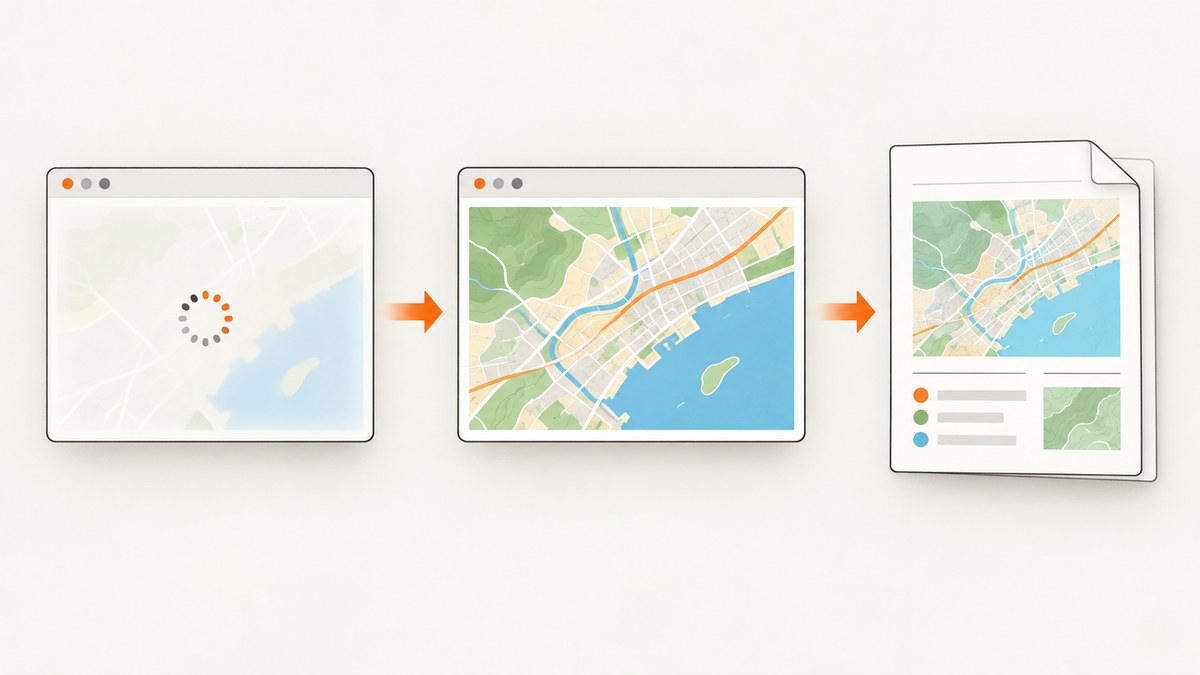
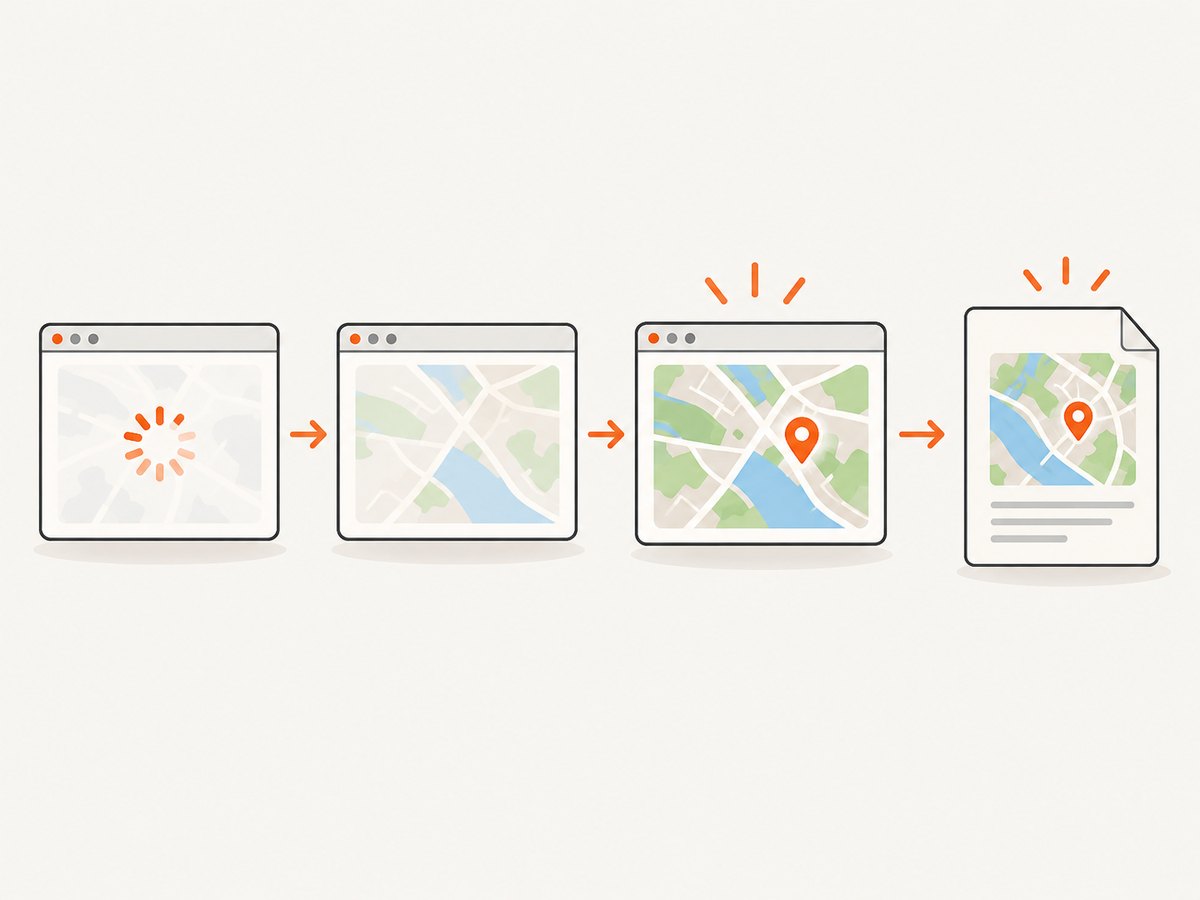
To make wkhtmltopdf wait for Google Maps, have your page set a distinctive window.status value only after the Maps JavaScript API and all map work required in the PDF are complete. Pass that same value with --window-status. This creates an explicit readiness signal instead of guessing how many milliseconds a map needs.
Use --javascript-delay when you need a fixed buffer after page load, but treat it as a timing fallback. It cannot know whether Google’s API, tiles, overlays, or your own asynchronous data have finished. The wkhtmltopdf usage documentation describes a documented default delay of 200 ms and the --window-status option that waits for a matching status value: wkhtmltopdf usage reference.
1. Use an explicit readiness marker
For a page you control, connect the Google Maps loader callback to your map initialization. Set the status after every operation needed for the PDF has completed:
<!doctype html>
<html>
<head>
  <meta charset="utf-8">
  <style>
    html, body, #map { height: 100%; margin: 0; }
  </style>
</head>
<body>
  <div id="map"></div>
  <script>
    function initMap() {
      const map = new google.maps.Map(document.getElementById('map'), {
        center: { lat: 40.7128, lng: -74.0060 },
        zoom: 12,
        mapTypeControl: false,
        streetViewControl: false
      });

      // Add markers, polygons, or application data here.
      // If those operations are asynchronous, await them first.
      window.status = 'map-ready-for-pdf';
    }

    window.status = 'map-loading';
  </script>
  <script async
    src="https://maps.googleapis.com/maps/api/js?key=YOUR_API_KEY&callback=initMap"
    onerror="window.status = 'map-load-error'">
  </script>
</body>
</html>
Run the converter with the exact marker:
wkhtmltopdf --window-status map-ready-for-pdf input.html output.pdfThe marker should be unique to this page state. Do not set it when the script tag merely appears or when the map constructor returns if your application still loads data, images, or overlays afterward. Set it at the final point that represents a usable PDF.
Include application-specific asynchronous work
If your markers come from an API, wait for that request before signaling readiness:
async function initMap() {
  const map = new google.maps.Map(document.getElementById('map'), {
    center: { lat: 40.7128, lng: -74.0060 },
    zoom: 12
  });

  try {
    const response = await fetch('/locations.json');
    if (!response.ok) throw new Error(`HTTP ${response.status}`);
    const locations = await response.json();

    for (const location of locations) {
      new google.maps.Marker({
        map,
        position: { lat: location.lat, lng: location.lng },
        title: location.name
      });
    }

    window.status = 'map-ready-for-pdf';
  } catch (error) {
    console.error(error);
    window.status = 'map-load-error';
  }
}
When using Google’s dynamic library import, wait for the relevant importLibrary() promise and your own initialization before assigning the marker. Google documents both direct script loading with a callback and on-demand dynamic library loading: Load the Maps JavaScript API.
2. Run wkhtmltopdf with a bounded workflow
The basic command waits for the status value:
wkhtmltopdf --window-status map-ready-for-pdf map.html map.pdfIn an automated job, capture stdout and stderr, record the exit code, and enforce a process-level timeout in your job runner. Exact timeout behavior varies by wkhtmltopdf build and by the wrapper invoking it, so verify the behavior of the binary installed in your deployment environment. A page that never sets the marker can otherwise leave the conversion waiting indefinitely.
You can add a fixed delay as a small rendering buffer:
wkhtmltopdf \
  --window-status map-ready-for-pdf \
  --javascript-delay 500 \
  map.html map.pdf
The official option descriptions explain each setting separately but do not define precedence when both are supplied. A historical issue reports conflicting observations, including one report where the longer delay appeared to win; treat that as an anecdote, not a guarantee. Prefer the explicit status signal and test the combined command with your exact version.
3. Choose between --window-status and --javascript-delay
| Approach | What it waits for | Strength | Risk |
|---|---|---|---|
--window-status VALUE |
Your page’s explicit readiness signal | Maps application state and API work | Conversion can wait forever if the signal is never set |
--javascript-delay MS |
A fixed period after page loading | Simple fallback for predictable pages | Too short produces incomplete maps; too long wastes time |
| Both | Version-dependent interaction | Can provide a buffer after readiness | Precedence is not clearly documented |
The documented default for --javascript-delay is 200 ms. That value is a default setting, not a benchmark or a recommendation for Google Maps. Network speed, map complexity, tile count, and your own data determine the required time. A readiness marker is generally easier to reason about because it represents an event your application understands.
4. Handle dynamic imports and map events carefully
Google Maps availability and visual completion are separate concerns. The loader callback means the API is available; it does not automatically mean every tile or overlay is visible. If the PDF must include application-created overlays, wait for those objects and data. If you depend on a map event, attach the listener before signaling readiness and use a one-time guard:
let signalled = false;
function signalReady(value) {
  if (signalled) return;
  signalled = true;
  window.status = value;
}

async function initMap() {
  const { Map } = await google.maps.importLibrary('maps');
  const map = new Map(document.getElementById('map'), {
    center: { lat: 51.5072, lng: -0.1276 },
    zoom: 11
  });

  google.maps.event.addListenerOnce(map, 'idle', () => {
    // Add a short, application-controlled step here only if needed.
    signalReady('map-ready-for-pdf');
  });
}
An idle event can be useful when your definition of readiness is “the map has finished its current movement and rendering cycle,” but it is not a universal guarantee for every external image or data source. Define the condition based on what the PDF must contain.
5. Diagnose blank, partial, or watermarked maps
The command waits forever
- Cause: The callback did not run, an exception occurred before the assignment, or the status string differs by case or spelling.
- Fix: Set an initial status such as
map-loading, log each stage, add a scriptonerrorhandler, and inspect the generated HTML in a supported browser. Ensure the command uses exactlymap-ready-for-pdf.
The PDF contains no map
- Cause: The API key is missing, invalid, restricted incorrectly, or the project is not configured for billing.
- Fix: Check the browser console and Google Cloud project. Google’s troubleshooting guide states that Maps JavaScript API requests require an API key and that billing must be enabled: Maps JavaScript API troubleshooting.
The map is watermarked
A watermark commonly indicates authentication, billing, or authorization configuration. Resolve those issues separately from timing. Waiting longer cannot fix a rejected API request.
The map is partially rendered
- Cause: The marker is set immediately after API load, before overlays, data, fonts, or images are ready.
- Fix: Move the assignment to the last asynchronous completion point. Use a single guarded function so an earlier callback cannot signal success.
JavaScript errors appear only in wkhtmltopdf
Timing and browser compatibility are separate. Google’s supported-browser page lists current Edge (excluding IE mode), the two latest stable desktop Chrome, Firefox, and Safari versions, plus named mobile browser and WebView configurations. It does not list wkhtmltopdf’s embedded WebKit runtime: Google Maps JavaScript API browser support. Therefore, that list does not establish that your wkhtmltopdf build supports the current API.
The wkhtmltopdf project repository is archived, and historical issue reports describe Maps API browser-support failures. Those reports are not current compatibility tests. Test the exact binary, patched or unpatched Qt build, operating system, network policy, and API version used in production. If Maps cannot render reliably, use a maintained PDF renderer based on a supported browser engine or a map-rendering approach appropriate for your document.
6. Make failures observable and recoverable
Use separate success and failure states in the page, then have the wrapper detect a failure marker or a process timeout. For example:
function fail(error) {
  console.error(error);
  window.status = 'map-load-error';
}

window.addEventListener('error', event => fail(event.error || event.message));
window.addEventListener('unhandledrejection', event => fail(event.reason));
A wrapper can reject output when the status is map-load-error, when the process exceeds your allowed duration, or when the resulting PDF is empty. Keep the status marker in page source or a template variable so it is easy to change without editing shell commands.
7. Performance, reliability, and cost considerations
- Performance: Fixed delays increase every successful conversion, even when the map is already ready. A readiness signal lets fast requests proceed without waiting for a worst-case timer.
- Reliability: Explicitly handle API-load errors, rejected data requests, and uncaught exceptions. Otherwise a missing status can look like a hung converter.
- Compatibility: Validate the browser engine independently from readiness logic. A correct signal cannot add APIs that the embedded engine does not support.
- Credentials: Keep API keys restricted and configure the required billing project. A timing change does not replace Google’s authentication requirements.
- Repeatability: Use deterministic map center, zoom, dimensions, and data. Responsive layouts or late font loads can change pagination and map appearance.
- Flags: If you combine
--window-statusand--javascript-delay, verify behavior with the installed version rather than relying on undocumented precedence.
8. A complete minimal example
Save this as map.html, replace the key, and run the command below:
<!doctype html>
<html>
<head>
  <meta charset="utf-8">
  <style>html,body,#map{height:100%;margin:0}</style>
</head>
<body>
  <div id="map"></div>
  <script>
    window.status = 'map-loading';
    function initMap() {
      const map = new google.maps.Map(document.getElementById('map'), {
        center: {lat: 40.7128, lng: -74.0060},
        zoom: 12
      });
      google.maps.event.addListenerOnce(map, 'idle', () => {
        window.status = 'map-ready-for-pdf';
      });
    }
  </script>
  <script async src="https://maps.googleapis.com/maps/api/js?key=YOUR_API_KEY&callback=initMap" onerror="window.status='map-load-error'"></script>
</body>
</html>
wkhtmltopdf --window-status map-ready-for-pdf map.html map.pdf9. Or skip the browser setup
If your goal is a clean screenshot or PDF rather than maintaining a wkhtmltopdf browser runtime, ScreenshotNeo provides a website screenshot API and MCP server. See the ScreenshotNeo documentation for the complete option list.

curl -G "https://api.screenshotneo.com/v1/shot" -d access_key=YOUR_API_KEY --data-urlencode url=https://stripe.com -o shot.webpimport requests
r = requests.get("https://api.screenshotneo.com/v1/shot", params={"access_key": "YOUR_API_KEY", "url": "https://stripe.com"}, timeout=90)
open("shot.webp", "wb").write(r.content)const q = new URLSearchParams({ access_key: 'YOUR_API_KEY', url: 'https://stripe.com' });
const res = await fetch(`https://api.screenshotneo.com/v1/shot?${q}`);ScreenshotNeo removes cookie banners, newsletter popups, and chat widgets before capture. Bot checks, blank pages, failed loads, timeouts, and cache hits are not billed, and response headers identify the page verdict and billing result. Its MCP server provides take_screenshot, get_page_info, and capture_pdf tools for Claude, Cursor, and other MCP clients. The Free plan includes 1,000 screenshots each month with no card; paid plans start at $5 for 3,000. Create a free ScreenshotNeo account.
10. FAQ
Does --window-status wait for Google Maps tiles?
It waits only until your page sets the requested value. Set it after the map and every PDF-required overlay or data operation is complete.
Is 200 ms enough?
It is the documented default for --javascript-delay, not a Maps loading guarantee. Network and application timing vary.
Can I solve an invalid API key with a longer delay?
No. Fix the key, project, restrictions, and billing configuration first.
Will this work with every wkhtmltopdf build?
The option may exist, but Maps compatibility depends on the embedded browser engine and build. Test the exact binary used in production.
Should I use both flags?
Only after verifying the behavior of your version. The official documentation does not define precedence when both are supplied.
What if I cannot change the page?
You cannot add a reliable application-specific readiness marker without a page hook or injected script. A fixed delay is the fallback, but a maintained browser renderer or a capture API may be more dependable.


