How to Delete Cypress Failure Screenshots Older Than 30 Days
Cypress clears screenshots before each run by default. Preserve a rolling 30 days with a safe Node.js cleanup script and the right configuration.

Cypress does not have a documented setting that deletes screenshots by age. By default, it clears the entire configured screenshots folder before cypress run, so keeping a rolling 30 days requires disabling that broad cleanup and running your own age-based Node.js script.
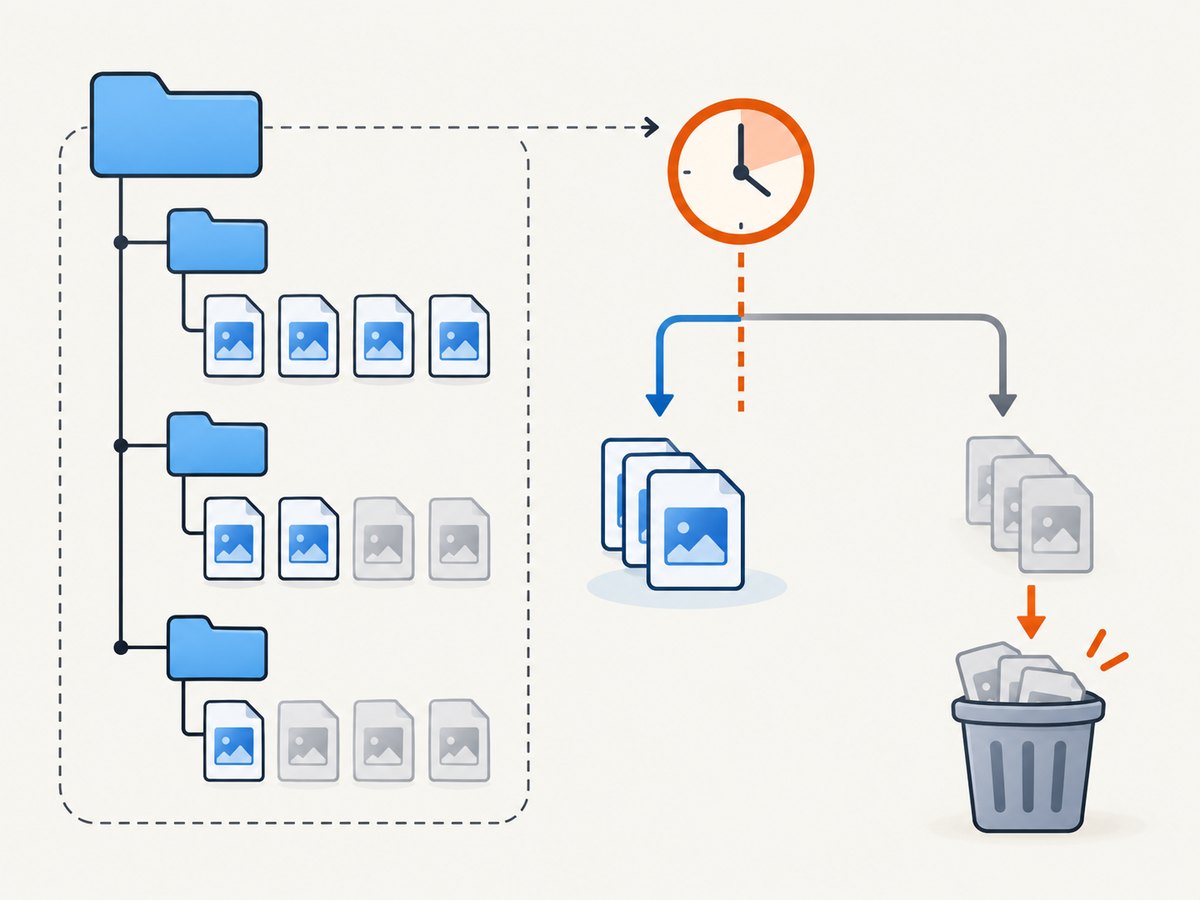
The safest approach is to resolve the configured screenshotsFolder, recursively inspect regular files, and delete only files whose modification time is more than 30 days old. Keep the cleanup scoped to that folder, handle symbolic links conservatively, and run in dry-run mode before enabling deletion in CI.
1. Understand Cypress’s default screenshot cleanup
Cypress automatically captures screenshots for failing tests during cypress run, unless screenshot capture is disabled. It does not do this automatic failure capture during cypress open. Screenshots go into screenshotsFolder, which defaults to cypress/screenshots relative to the project root. See the official screenshots and videos guide.
The configuration option trashAssetsBeforeRuns defaults to true. Before a run, Cypress empties the configured downloads, screenshots, and videos directories, including nested files and folders. Cypress documents: “Before cypress run, Cypress clears the entire contents of the screenshotsFolder—every file and nested subfolder, not just images.” On macOS and Windows items are moved to the system trash or Recycle Bin; on Linux they are deleted directly. This behavior happens for cypress run, not cypress open. Details are in the configuration reference.
That default is useful when you only need the current run’s artifacts. It is not a 30-day retention policy. To retain prior screenshots, set trashAssetsBeforeRuns: false and take responsibility for cleanup. That setting affects all three asset folders, so old downloads and videos will also remain unless you manage them separately.
2. Configure Cypress to retain assets between runs
In a current Cypress configuration file, add or update the option. Keep any existing settings and Node event handlers in place:
const { defineConfig } = require('cypress');

module.exports = defineConfig({
  trashAssetsBeforeRuns: false,
  e2e: {
    // Keep your existing e2e options and setupNodeEvents here.
  },
});
If your project uses cypress.config.ts, use the same setting in its existing exported configuration. The option is global to the configured asset folders; it does not selectively preserve screenshots while cleaning downloads or videos.
Confirm the effective screenshotsFolder before running a deletion job. Cypress permits a custom location, so a script that assumes cypress/screenshots may clean the wrong directory or miss the actual files. See Writing and organizing tests and the configuration reference.
3. Add a cautious 30-day cleanup script
The following runnable CommonJS script reads screenshotsFolder from cypress.config.js or cypress.config.cjs, resolves it against the project directory, traverses directories without following symbolic links, and compares each regular file’s modification time with a 30-day cutoff. It defaults to a dry run. Pass --delete only after reviewing the candidates.
// scripts/prune-cypress-screenshots.cjs
const fs = require('node:fs');
const path = require('node:path');

const projectRoot = path.resolve(__dirname, '..');
const configCandidates = [
  path.join(projectRoot, 'cypress.config.js'),
  path.join(projectRoot, 'cypress.config.cjs'),
];
const configPath = configCandidates.find((file) => fs.existsSync(file));

if (!configPath) {
  throw new Error('Could not find cypress.config.js or cypress.config.cjs');
}

const config = require(configPath);
const configuredFolder = config.screenshotsFolder || 'cypress/screenshots';
const screenshotsRoot = path.resolve(projectRoot, configuredFolder);
const rootStat = fs.lstatSync(screenshotsRoot);

if (!rootStat.isDirectory() || rootStat.isSymbolicLink()) {
  throw new Error(`Screenshots path must be a real directory: ${screenshotsRoot}`);
}

const cutoffMs = Date.now() - 30 * 24 * 60 * 60 * 1000;
const deleteFiles = process.argv.includes('--delete');
let examined = 0;
let candidates = 0;
let deleted = 0;

function walk(directory) {
  for (const entry of fs.readdirSync(directory, { withFileTypes: true })) {
    const filePath = path.join(directory, entry.name);
    const stat = fs.lstatSync(filePath);

    // Do not follow symlinks: a link could point outside the screenshot tree.
    if (stat.isSymbolicLink()) {
      console.log(`SKIP symlink ${filePath}`);
      continue;
    }
    if (stat.isDirectory()) {
      walk(filePath);
      continue;
    }
    if (!stat.isFile()) continue;

    examined += 1;
    if (stat.mtimeMs < cutoffMs) {
      candidates += 1;
      if (deleteFiles) {
        fs.unlinkSync(filePath);
        deleted += 1;
        console.log(`DELETED ${filePath}`);
      } else {
        console.log(`WOULD DELETE ${filePath}`);
      }
    }
  }
}

walk(screenshotsRoot);
console.log(
  `${deleteFiles ? 'Deleted' : 'Dry run'}: ${deleted}; ` +
  `older than 30 days: ${candidates}; files examined: ${examined}`
);
Run a preview from the repository root:
node scripts/prune-cypress-screenshots.cjsReview every WOULD DELETE path. When the list is correct, enable deletion:
node scripts/prune-cypress-screenshots.cjs --deleteThis sample deliberately leaves empty directories behind. That avoids removing directories Cypress or another process may expect. If desired, add a separate bottom-up pass that removes only empty directories, with the same root-boundary and symlink safeguards.
4. Schedule cleanup at the right time
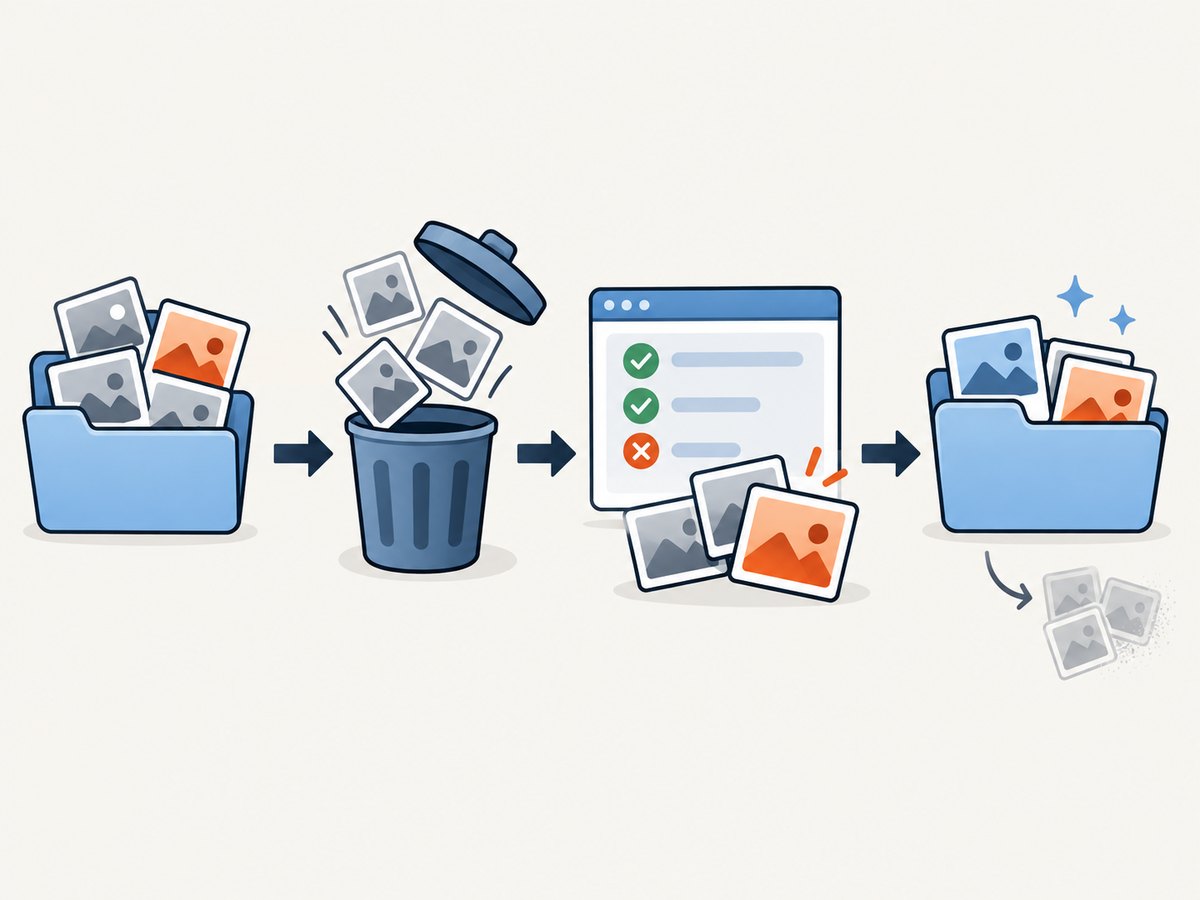
Run pruning as a CI step before Cypress starts, or as a scheduled maintenance job. Before-run cleanup is an implementation choice based on the fact that Cypress exposes Node-side filesystem extension points; the script itself is custom project code, not a Cypress-provided retention feature.
- Set
trashAssetsBeforeRuns: falseso Cypress does not erase retained screenshots first. - Run the script in dry-run mode and inspect its output.
- Run it with
--deleteafter the candidate list is approved. - Start Cypress only after pruning completes, so concurrent captures cannot be removed mid-run.
- Keep logs for the deletion job so a mistaken path or unexpected candidate list can be investigated.
For example, your CI commands can run sequentially as follows:
node scripts/prune-cypress-screenshots.cjs --delete
npx cypress run
Use your CI system’s normal working-directory setting to ensure the script resolves the repository root as expected. If cleanup and test runs can overlap, serialize them or use a lock; otherwise a file created during traversal could be evaluated or deleted at an unexpected time.
5. Why the script uses modification time
The cutoff is calculated as the current time minus 30 times 24 hours in milliseconds. A file with mtimeMs strictly earlier than that instant is eligible. The cutoff is rolling: a run at noon on September 30 removes files last modified before noon on August 31, subject to the host clock and filesystem timestamp precision.
The script does not match names such as failed.png. Cypress output paths reflect spec paths and test names; explicit screenshot names, duplicate captures, and retry attempts can change the filename or add suffixes. Cypress’s cy.screenshot() documentation and test retries guide describe path and naming behavior. Age-based traversal includes both failure and manually requested screenshots, regardless of their names.
Modification time represents the last modification recorded by the filesystem, not necessarily the date the test originally ran. Copying or restoring files can reset timestamps; archives and network filesystems may preserve or transform them differently. If retention must reflect capture time across transfers, record capture metadata separately when screenshots are created.
6. Options and scope decisions
| Approach | What happens | Use it when | Trade-off |
|---|---|---|---|
trashAssetsBeforeRuns: true |
Cypress clears downloads, screenshots, and videos before each run. | Only current-run artifacts matter. | No rolling local history survives. |
false plus age pruning |
Prior assets remain; your script removes files past the age limit. | You need 30 days of local screenshot history. | Your team owns safe pruning and the other asset folders remain too. |
| Scheduled standalone pruning | A maintenance job applies the age policy independent of test execution. | Repos may not run Cypress regularly, but need bounded local storage. | Ensure the job uses the same project and configured path as Cypress. |
Keep the screenshots directory dedicated to Cypress output when possible. If it contains reports, manually saved references, or other files, the script will treat every regular file below it as eligible based on age. Add a project-specific allowlist or a dedicated output folder before enabling deletion in that case. Do not point this script at a broad directory such as the repository root or a shared artifact directory.
7. Troubleshooting
Old screenshots disappear even though the script is correct
Check whether trashAssetsBeforeRuns is still true. Cypress may clear the entire screenshots folder when the run begins. Set it to false, and confirm the configuration file Cypress actually loads.
The script says it cannot find a Cypress config
The sample looks for JavaScript CommonJS config filenames from a scripts/ directory one level below the project root. If your config is named cypress.config.ts, is stored elsewhere, or the script is run from a different layout, update configCandidates and the project-root calculation. Do not silently fall back to a guessed directory.
No files are selected
Print or inspect screenshotsRoot and confirm that it matches the configured screenshotsFolder. Check file modification times with your operating system tools. Recent copies, restored artifacts, or future timestamps will not satisfy the older-than-cutoff test.
Some old files remain
Symbolic links are intentionally skipped. The script also leaves non-regular filesystem entries alone. Inspect those entries explicitly rather than following links automatically, since they can point outside the retention boundary.
Permission denied while deleting
Run the job as the account that owns the CI workspace or grant that account narrowly scoped write access to the screenshot directory. Avoid running broad cleanup with elevated privileges.
Unexpected files are listed
The script selects by directory and age, not extension or filename. If the folder is shared, add a project-specific file filter or separate Cypress screenshots from other artifacts. Return to dry-run mode after changing the selection logic.
Cloud results still contain screenshots
Local deletion and Cypress Cloud retention are separate. Recorded runs can upload artifacts, and Cloud retains them under the account’s data-retention settings. Review Cypress Cloud’s FAQ and data storage and controls; deleting a local file does not define remote retention. Cypress also documents controls for deleting screenshots and videos before sending in its Node events overview.
8. Performance, reliability, and storage cost
The traversal is linear in the number of directory entries under the screenshots folder: it calls filesystem metadata operations for files and directories and unlinks only eligible files. For a normal test artifact tree, keeping the scope narrow and running once per job is simpler than pruning after every screenshot. Very large trees on network storage can take longer because each metadata lookup may involve remote filesystem latency; schedule the job where that storage is mounted and avoid running overlapping cleaners.
The script is intentionally conservative: it does not follow symlinks, remove directories, infer dates from names, or delete anything in dry-run mode. It does not make deletion transactional. If the process stops partway through, rerun it after reviewing logs; already removed files remain removed. Keep Cypress Cloud retention and local workspace retention as separate policies.
There is no published storage-saving benchmark for this policy in the cited Cypress documentation. Your actual disk savings depend on screenshot dimensions, format, run volume, retries, and how much history currently accumulates. Measure your own artifact directory size before and after rollout rather than assuming a fixed percentage.
9. Or skip the browser setup
If the goal is a clean website screenshot rather than retaining Cypress test evidence, ScreenshotNeo is a website screenshot API and MCP server from Yorker Media. It accepts one GET request and returns PNG, JPEG, WebP, or PDF. See the API documentation for request options.
curl -G "https://api.screenshotneo.com/v1/shot" -d access_key=YOUR_API_KEY --data-urlencode url=https://stripe.com -o shot.webpimport requests
r = requests.get(
"https://api.screenshotneo.com/v1/shot",
params={"access_key": "YOUR_API_KEY", "url": "https://stripe.com"},
timeout=90,
)
open("shot.webp", "wb").write(r.content)const q = new URLSearchParams({ access_key: 'YOUR_API_KEY', url: 'https://stripe.com' });
const res = await fetch(`https://api.screenshotneo.com/v1/shot?${q}`);
if (!res.ok) throw new Error(`Screenshot request failed: ${res.status}`);
await Bun.write('shot.webp', res);ScreenshotNeo accepts cookie or consent banners like a visitor and removes more than 60 known consent platforms, newsletter popups, and chat widgets before capture; each step can be turned off. Bot checks and CAPTCHAs, blank pages, timeouts, failed loads, and cache hits cost nothing, and the response identifies the page verdict and billing status in headers. Its MCP server gives AI agents tools for screenshots, page information, and PDF capture. The Free plan includes 1,000 screenshots a month with no card; paid plans start at $5 for 3,000 shots. Every feature is on every plan.
Start free with 1,000 screenshots a month and no card.
10. Frequently asked questions
Does Cypress provide a built-in 30-day setting?
No age-based setting is documented in the reviewed Cypress configuration. Use Node filesystem logic for a selective policy.
Will the cleanup remove only failed-test screenshots?
No. The example removes any regular file under the configured screenshots folder once its modification time is past the cutoff, including manual captures. Narrow the folder or add an explicit project-specific selection rule if required.
Can I keep Cypress’s automatic cleanup and retain 30 days?
Not in the same screenshots folder: the pre-run cleanup clears all its contents. Disable it and manage retention yourself, or store artifacts elsewhere before Cypress clears them.
Does deleting local screenshots delete Cypress Cloud artifacts?
No. Cloud uploads and account retention are separate; check the Cloud controls for recorded runs.
Can I delete based on when a test failed instead of file modification time?
Only if your pipeline records a trusted capture or run timestamp and uses that metadata. Cypress filenames can vary with specs, names, duplicate captures, and retries, so a filename pattern alone is not a reliable age source.


