How to Deploy Playwright and Chrome on AWS EC2
Install Playwright on Ubuntu EC2, choose managed Chromium or branded Chrome, lock down access, and troubleshoot headless browser jobs.
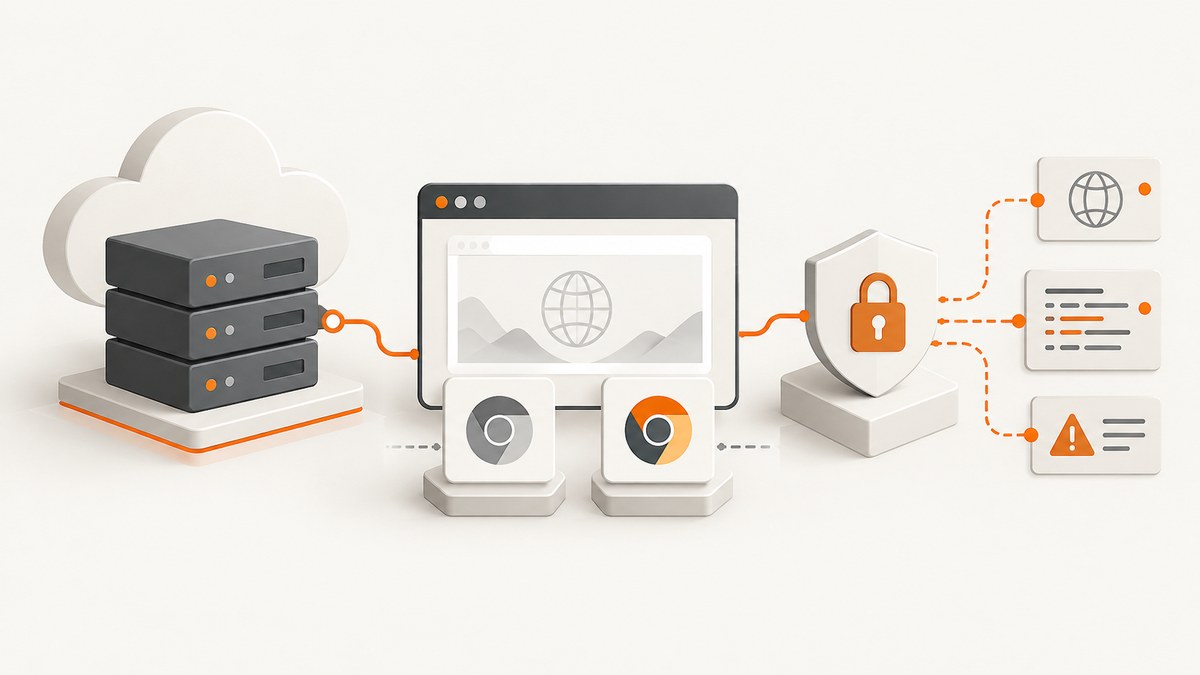
For most browser automation on Ubuntu EC2, install Playwright and its compatible managed Chromium build with npx playwright install --with-deps chromium. You usually do not need separately installed Google Chrome: Playwright downloads a Chromium revision matched to its own release. Install branded Chrome only when your test specifically requires Chrome’s public release channel, its media codecs, or behavior tied to that shipped browser. Playwright can launch it with channel: 'chrome', but the Chrome binary must already be installed. Playwright’s browser guide explains the distinction.
This guide uses Ubuntu and Node.js. The same deployment pattern applies to Python and Java: install the language package, then install the browser and operating-system dependencies for the Playwright version your application pins.
1. Choose the browser and EC2 access model
Decide first whether the workload needs managed Chromium or branded Chrome. Managed Chromium is the normal choice for Playwright because its browser revision is selected to work with the installed Playwright package. Branded Chrome is useful when release-channel fidelity is part of the test requirement. A locally installed browser can update separately from Playwright, so control its update policy and record which browser mode the worker runs.
| Choice | Use it when | Tradeoff |
|---|---|---|
| Playwright-managed Chromium | General automation, screenshots, and browser tests | Browser revision follows the Playwright package; reinstall after upgrades |
| Chromium headless shell | Jobs run only in the default headless mode and download size matters | Does not install the full Chromium browser |
| Chromium channel | You need Playwright’s newer headless implementation | Choose the matching install options and verify behavior for your workload |
| Google Chrome channel | You must test the branded Chrome installation or codec behavior | Install and update Chrome separately; enterprise policies may affect automation |
Headless work does not require a desktop environment. Size the instance from observed page complexity, number of concurrent browser contexts, and whether jobs save screenshots, video, traces, or downloads. Canonical’s example of at least 2 CPU cores, 8 GB RAM, and an 8 GB volume is for a GUI desktop workload, not a headless Playwright sizing guarantee. Browser files occupy hundreds of megabytes in documented examples, so reserve disk for browser caches and retained artifacts too.
Keep the instance in a private subnet if it does not need inbound internet access. Use Systems Manager Session Manager, a bastion, or a narrowly restricted SSH route for administration. Security groups control network access to EC2 instances; allow only the administration and application ports the system needs. Never expose a Chrome DevTools debugging port to the public internet. See AWS’s guides to connecting to a Linux instance and creating a security group.
2. Launch and connect to an Ubuntu instance
- Launch a supported Ubuntu Server AMI in the required region and VPC. Select an instance type and storage volume based on your expected concurrency, browser workload, and artifact retention.
- Attach a security group with no unnecessary inbound rules. For direct SSH administration, restrict port 22 to known operator IP addresses; alternatively configure SSM or an approved bastion path. Application ingress should be limited to the service’s actual callers.
- Connect using AWS’s documented workflow. For an Ubuntu AMI, the common SSH user is
ubuntu; use the connection method selected by your organization. - Install the runtime and dependencies under the account or deployment process that will run the service. Avoid installing browsers as one user and then running the application as another without configuring a shared browser path and permissions.
3. Install Node.js, Playwright, and managed Chromium
Use the Node.js version required by your application and pin Playwright in its package lockfile. The following is an application setup example after Node.js and npm have been installed through your approved OS or runtime process:
mkdir -p ~/playwright-ec2
cd ~/playwright-ec2
npm init -y
npm install playwright
npx playwright install --with-deps chromium
--with-deps installs the browser’s Linux system dependencies along with the browser. If the browser binary is installed separately, Playwright also provides npx playwright install-deps chromium. On a headless-only worker using Playwright’s default headless shell, you can use:
npx playwright install --with-deps --only-shellIf you specifically need the newer headless implementation, Playwright documents selecting channel: 'chromium'; its install guide describes using --no-shell when installing for that mode. Follow the options that match the launch configuration rather than mixing assumptions between browser modes. The browser install documentation and CLI reference list the current installation flags.
For a Python service, install the pinned Python package in a virtual environment and run the corresponding browser installer:
python3 -m venv .venv
. .venv/bin/activate
python -m pip install playwright
python -m playwright install --with-deps chromium
Pin the package in your requirements or lockfile before deploying. Re-run the installer after an intentional Playwright upgrade because browser revisions can change between releases.
4. Run a smoke check and capture an artifact
A deployment should verify that the installed runtime can launch its selected browser, reach the intended site, and write output to a permitted directory. This runnable Node.js example writes a PNG and closes the browser even if navigation or capture fails:
const { chromium } = require('playwright');

(async () => {
  const browser = await chromium.launch({ headless: true });
  try {
    const page = await browser.newPage({ viewport: { width: 1440, height: 900 } });
    const response = await page.goto('https://example.com', {
      waitUntil: 'domcontentloaded',
      timeout: 30000
    });
    if (!response || !response.ok()) {
      throw new Error(`Navigation failed: HTTP ${response && response.status()}`);
    }
    await page.screenshot({ path: '/tmp/playwright-smoke.png' });
    console.log('Wrote /tmp/playwright-smoke.png');
  } finally {
    await browser.close();
  }
})().catch(error => {
  console.error(error);
  process.exitCode = 1;
});
Save diagnostic artifacts only where the service has write permission, and define a cleanup or retention policy. If your app uses @playwright/test, its test runner can produce test reports and traces; install the test package instead of relying on a transitive dependency.
5. Install branded Google Chrome when required
Playwright does not install branded Google Chrome by default. Install it using the operating-system package process approved for the instance, then tell Playwright to use that channel:

const { chromium } = require('playwright');

(async () => {
  const browser = await chromium.launch({
    channel: 'chrome',
    headless: true
  });
  try {
    const page = await browser.newPage();
    await page.goto('https://example.com', { waitUntil: 'domcontentloaded' });
    await page.screenshot({ path: '/tmp/chrome-channel.png' });
  } finally {
    await browser.close();
  }
})().catch(error => {
  console.error(error);
  process.exitCode = 1;
});
Playwright also documents stable and pre-release branded channels and Microsoft Edge channels. Choose a channel deliberately; do not assume the machine’s installed browser version is coupled to the npm package. Enterprise Chrome or Edge policies may interfere with automation, and Playwright notes that those policies are outside the project’s scope. Review your organization’s policy and validate the exact image and browser update process.
6. Configure browser storage, service access, and runtime
Browser cache path
On Linux, Playwright normally stores managed browsers in ~/.cache/ms-playwright. If deployments use a shared or controlled path, set PLAYWRIGHT_BROWSERS_PATH consistently during both installation and execution:
export PLAYWRIGHT_BROWSERS_PATH=/opt/playwright-browsers
npx playwright install chromium
node app.js
Create that directory with ownership and permissions that let the install and service accounts access it. This variable controls Playwright-managed browser binaries; Playwright documents that it does not change where branded Chrome or Edge are installed.
Network and service process
A browser worker generally needs outbound DNS and HTTPS access to the sites it visits and to any application services it calls. A private subnet needs an appropriate outbound route, such as a NAT gateway or endpoints for the services involved. Restrict egress where the workload allows it, but account for target sites and third-party resources before applying allowlists. Inbound rules should expose only the worker’s application interface, if any; browser automation itself does not require a public DevTools port.
Run the process as a dedicated operating-system user with writable directories for temporary files and artifacts. Use a process supervisor or workload scheduler to restart failed workers, and send logs to the system used by your operations team. Do not run browser jobs with broad filesystem permissions just to resolve a directory-access problem.
7. Security group and deployment checklist
- Choose managed Chromium unless the test explicitly needs branded Chrome behavior.
- Pin Playwright and its runtime dependencies in a reproducible lockfile or image build.
- Install the browser revision after package installation and repeat after intentional upgrades.
- Keep SSH restricted to operator networks, or use SSM or a bastion path.
- Expose only required application ports; never expose the DevTools endpoint publicly.
- Use a dedicated OS user and verify browser cache, temp, download, and artifact permissions.
- Set disk monitoring and artifact retention for browser caches, traces, videos, and downloads.
- Record the selected browser mode and version so failures can be tied to a reproducible deployment.
- Run a smoke check in the built image or instance before routing production jobs to it.
8. Troubleshooting
| Symptom | Likely cause | Fix |
|---|---|---|
| “Executable doesn’t exist” or browser launch says no executable | Browser installation ran under a different package version or user, or was skipped | From the deployed app directory and runtime account, run npx playwright install chromium. Check npx playwright install --list and ensure package version is pinned. |
| Missing shared library or launch dependency error | Ubuntu system libraries are absent | Run npx playwright install --with-deps chromium on the supported OS, or use npx playwright install-deps chromium for dependencies when the browser is managed separately. |
| Chrome channel cannot be found | Playwright is asked for channel: 'chrome' but branded Chrome is not installed or not visible to the service |
Install Chrome through the approved package process and verify it as the service user, or switch to managed Chromium. |
| Works as SSH user but fails as service | Different home directory, browser cache, environment, or file permissions | Use a consistent PLAYWRIGHT_BROWSERS_PATH, install under the deployment environment, and correct ownership of only the required directories. |
| Navigation timeout or target site does not load | Outbound routing, DNS, site response, or an overly strict navigation wait condition | Check DNS and egress routes, inspect the navigation response, and choose an appropriate wait condition such as domcontentloaded. Increase timeouts only when the page genuinely needs more time. |
| Cannot SSH or connect to the instance | Security group, route, key, username, or network path is incorrect | Follow AWS’s connection troubleshooting guide; confirm the instance is reachable through the selected SSH, Instance Connect, or SSM route and the ingress rule matches that method. |
| Disk fills over time | Browser caches and retained screenshots, traces, video, or downloads accumulate | Measure usage, set retention and cleanup for artifacts, and allocate adequate root or attached volume capacity. Avoid deleting a cache while active jobs depend on it. |
| Chrome behaves differently from Chromium | Different browser channel, version, codec or enterprise policy | Record the channel and installed version, reproduce with the same deployment, and check Chrome policy and update controls. |
9. Performance, reliability, and cost
There is no single reliable requests-per-minute or EC2 size number for Playwright: page weight, scripts, browser contexts, target-site behavior, screenshots, and retained artifacts all change resource demand. Start with a representative workload and measure CPU, memory, disk, queue delay, and failure rates at the concurrency you intend to run. Increase concurrency only while memory headroom and job completion remain stable. Reuse browser processes where appropriate, but isolate jobs with separate contexts and close pages, contexts, and browsers reliably.
For predictable deployments, build an image or bootstrap process from pinned application dependencies and a deliberate browser installation. A Playwright upgrade may require new browser binaries, while branded Chrome has its own update lifecycle. Smoke-check after either change. Keep enough disk for browser downloads and temporary output, and alert on both storage pressure and repeated launch failures.
EC2 cost depends on instance type, runtime, storage, data transfer, and any network services such as NAT; compare the cost of continuously running workers with the actual job schedule. A Marketplace AMI advertised as preconfigured can reduce setup work, but check seller maintenance, required permissions, update cadence, and listing charges before production use. It does not remove the need to review the instance’s security and operating model.
Or skip the browser setup
If the job is simply to capture a website, ScreenshotNeo provides a screenshot API and MCP server. Make a single GET request for a PNG, JPEG, WebP, or PDF instead of maintaining an EC2 browser worker. See the API documentation for parameters and response details.
curl -G "https://api.screenshotneo.com/v1/shot" -d access_key=YOUR_API_KEY --data-urlencode url=https://stripe.com -o shot.webpimport requests
r = requests.get("https://api.screenshotneo.com/v1/shot", params={"access_key": "YOUR_API_KEY", "url": "https://stripe.com"}, timeout=90)
open("shot.webp", "wb").write(r.content)const q = new URLSearchParams({ access_key: 'YOUR_API_KEY', url: 'https://stripe.com' });
const res = await fetch(`https://api.screenshotneo.com/v1/shot?${q}`);ScreenshotNeo accepts cookie and consent banners and removes more than 60 known consent platforms, newsletter popups, and chat widgets before capture; each step can be turned off. Bot checks, blank pages, timeouts, failed loads, and cache hits cost nothing, and response headers identify the page verdict and billing status. Its MCP server offers take_screenshot, get_page_info, and capture_pdf for AI agents. The free plan includes 1,000 screenshots a month with no card; paid plans start at $5 for 3,000 screenshots.
Sign up free for 1,000 screenshots a month, with no card.
FAQ
Do I need Chrome if Playwright already installs Chromium?
No, not for typical Playwright automation. Use managed Chromium unless a test specifically requires branded Chrome or a Chrome-specific capability.
Can I run Playwright headless on EC2 without a desktop?
Yes. Install the browser and its Linux dependencies, then launch with headless mode. The --only-shell installer option is available for workloads using the default headless shell.
Should the browser port be open in my security group?
No public browser debugging port is needed for ordinary automation. Restrict inbound access to the application’s required ports and the approved administration route.
Can the same EC2 installation serve several Playwright versions?
Playwright manages browser revisions associated with package versions, so isolate deployments or use controlled install paths when versions differ. Verify installed browsers after upgrading and before starting jobs.
Is an Ubuntu desktop AMI necessary?
No. Headless browser automation does not need a desktop session. A desktop can help with interactive debugging, but it adds a different resource profile and operational surface.


