How to Deploy Playwright and Chrome on AWS Lambda
Package Playwright and its matching Chromium in a Lambda container, configure resources, and troubleshoot deployment issues.
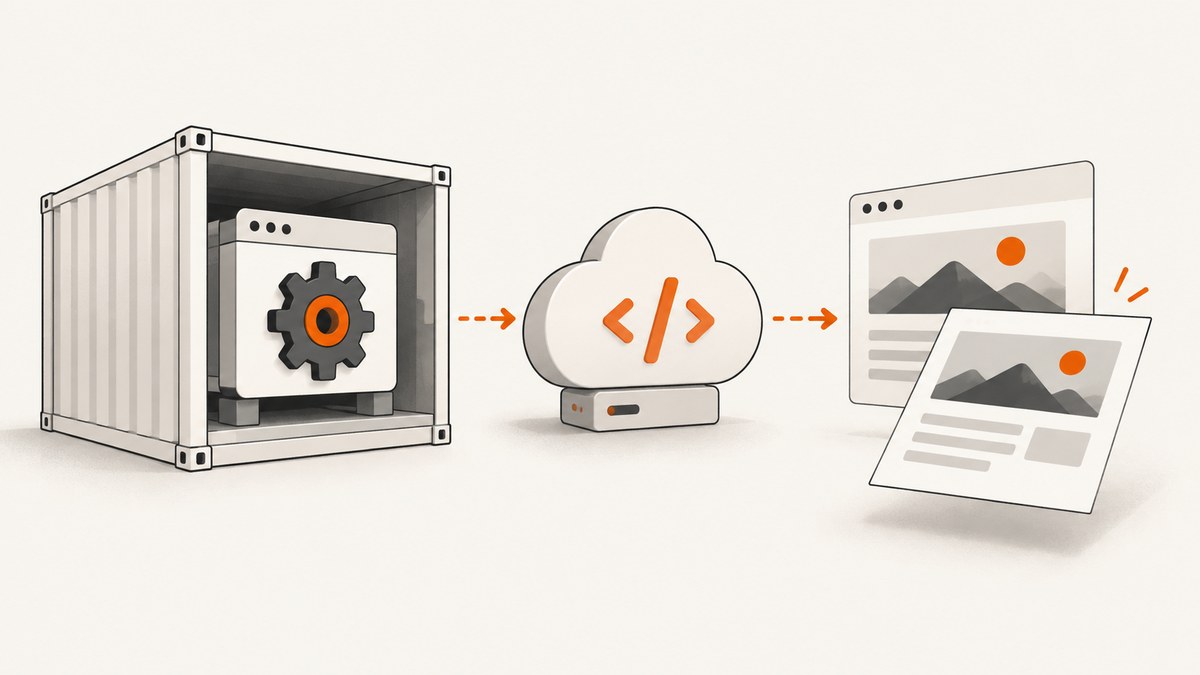
To run Playwright on AWS Lambda, package your handler, Playwright, its matching Chromium browser, and the required Linux libraries in a Lambda-compatible container image. Build for the function’s architecture, then set memory, timeout, and temporary storage for the pages you capture. Lambda container images support up to 10 GB uncompressed, which makes them easier to manage for a full browser stack than ZIP packages, whose function and layer contents share a 250 MB uncompressed limit. AWS Lambda quotas and Playwright browser installation guidance document these constraints.
This guide uses Node.js, Playwright’s bundled Chromium, and an AWS Lambda Node.js container image. “Chrome” is often used informally to mean Chromium; Google Chrome is a separate branded browser. The bundled Chromium is the safer default for Playwright. If you need branded Chrome or another executable, pin and validate that specific browser with the Playwright version in your image.
1. Choose a deployment format
For most new browser automation deployments, start with a container image. It lets you control the Linux environment and install browser dependencies alongside the application. Lambda accepts both ZIP archives and container images:

| Choice | Limits and tradeoffs | Good fit |
|---|---|---|
| Container image | Up to 10 GB uncompressed. Build and publish through a container registry. You control system dependencies and browser files. | A full Playwright and Chromium stack, or a team already using Docker. |
| ZIP plus layers | Function and attached layers share a 250 MB uncompressed quota; at most five layers. Layer contents must be Linux-compatible and are extracted under /opt. |
A deliberately small package that fits the shared size limit and is already reproducible as a ZIP. |
Container images can still be too large for convenient builds or startup. Keep only the browser engines and runtime dependencies you need. AWS recommends multi-stage builds to reduce time before container functions become active; measure the impact for your own image and deployment path. See AWS container image guidance.
2. Create the Playwright handler
Use a project directory containing package.json and index.js. Pin Playwright in your project’s dependency manifest and commit the generated lockfile. The browser should be installed during the image build using that same dependency version, so its expected revision and the library stay aligned.

{
  "name": "lambda-playwright-shot",
  "version": "1.0.0",
  "type": "module",
  "dependencies": {
    "playwright": "1.52.0"
  }
}
The version above is an example of an exact pin, not a recommendation to use that release for a new deployment. Select a maintained version, install it, and retain the generated lockfile so deploys use the reviewed dependency tree. When updating Playwright, rebuild the image so its browser is updated with it. Playwright says each release expects specific browser binaries; see its browser documentation.
import { chromium } from 'playwright';

export const handler = async (event) => {
  const url = event?.queryStringParameters?.url ?? event?.url;
  if (!url) {
    return { statusCode: 400, body: JSON.stringify({ error: 'Provide url' }) };
  }

  let parsed;
  try {
    parsed = new URL(url);
    if (!['http:', 'https:'].includes(parsed.protocol)) throw new Error('scheme');
  } catch {
    return { statusCode: 400, body: JSON.stringify({ error: 'url must be an HTTP or HTTPS URL' }) };
  }

  let browser;
  try {
    browser = await chromium.launch({ headless: true });
    const page = await browser.newPage({ viewport: { width: 1280, height: 800 } });
    await page.goto(parsed.href, { waitUntil: 'domcontentloaded', timeout: 30000 });
    const png = await page.screenshot({ type: 'png' });
    return {
      statusCode: 200,
      headers: { 'content-type': 'image/png', 'cache-control': 'no-store' },
      isBase64Encoded: true,
      body: png.toString('base64')
    };
  } catch (error) {
    console.error('Capture failed', error);
    return { statusCode: 502, body: JSON.stringify({ error: 'Page capture failed' }) };
  } finally {
    if (browser) await browser.close();
  }
};
This handler accepts either an API Gateway query parameter or a direct invocation field. It returns an image as base64 for a synchronous Lambda proxy response. For larger output, consider writing the image to object storage and returning a reference; synchronous request and response payload quotas apply. Validate and constrain URLs in a production service: a public capture endpoint can otherwise be abused to request internal or sensitive network destinations.
3. Build a Lambda-compatible image
Create a Dockerfile next to the package files. The AWS Node.js base image supplies the Lambda runtime interface. The example installs Playwright’s Chromium and operating-system dependencies using Playwright’s installer, then configures the Lambda handler.
FROM public.ecr.aws/lambda/nodejs:22

WORKDIR ${LAMBDA_TASK_ROOT}
COPY package.json package-lock.json ./
RUN npm ci
RUN npx playwright install --with-deps chromium

COPY index.js ./
CMD ["index.handler"]
Build for the same architecture selected for the Lambda function. For example, for x86_64:
docker buildx build --platform linux/amd64 --provenance=false -t lambda-playwright:latest .For arm64, use --platform linux/arm64 and configure the function to use arm64. AWS’s Node.js container instructions describe platform-specific builds and the --provenance=false buildx option: Node.js Lambda container images. Ensure architecture matches across Lambda, image, Chromium, native modules, and system libraries. An image that builds on a developer laptop is not proof it will run in the selected Lambda environment.
For a smaller image, investigate whether your workload can use Chromium’s headless shell or omit unused browsers, and use a multi-stage build where it actually removes build-only files. Avoid copying a browser downloaded on macOS or Windows into a Linux image. Playwright documents that its browser downloads occupy hundreds of megabytes, so browser choice affects both image size and build time.
4. Publish and configure the Lambda function
- Push the built image to Amazon ECR in the Region where you plan to create the function.
- Create a Lambda function from that image and set its architecture to match the build target.
- Set memory, timeout, and ephemeral storage based on measurements from representative URLs and concurrency.
- Invoke it with an event containing a URL, or expose it through an authenticated API Gateway route.
Lambda allows 128 MB to 10,240 MB memory, up to 900 seconds of execution time, and /tmp storage from 512 MB to 10,240 MB. AWS states that 1,769 MB corresponds to one vCPU. These are limits, not recommended browser settings. Start with conservative concurrency and measure memory, duration, failures, and temporary disk use on your actual pages. A complex page can use much more memory than a static document.
Browser captures may need scratch space for downloads, caches, or temporary browser files. Increase ephemeral storage only when the workload needs it; keep temporary artifacts bounded and clean up files your handler creates. Lambda’s /tmp directory is associated with an execution environment and may persist when that environment is reused. AWS advises against storing user data, invocation events, or security-sensitive data there. Read ephemeral storage configuration and the execution environment lifecycle.
5. Configure navigation and capture behavior
Choose navigation waits to match the page rather than treating every page as fully loaded at the same moment. The example waits for domcontentloaded, then captures. This is often a useful balance for pages with analytics or long-lived network requests. Use load if the page requires load events; use a targeted selector or a short explicit wait when a known application element must render. Network-idle waits can hang or time out on pages that continually poll.
Set a viewport appropriate to the output. For a full-page image, pass { fullPage: true } to page.screenshot(). For a specific element, locate it and call locator.screenshot(). If images load lazily as the page scrolls, a full-page capture may need deliberate scrolling before capture. Each additional wait or interaction consumes part of Lambda’s timeout.
Pass required headers or cookies through a browser context when the target requires authentication, and handle secrets through a managed secret store or protected configuration rather than embedding them in the image. Set locale, timezone, or device scale factor in the context when reproducibility requires them. Avoid placing credentials in logs or URL query strings.
6. Test the artifact before release
- Run the built image in a Lambda-compatible local environment or use AWS’s runtime interface emulator.
- Verify that Chromium launches and shared libraries load in the final image.
- Capture a small public page, then a representative dynamic page.
- Check response content type, image dimensions, and whether large responses fit the invocation path.
- Test slow pages, redirects, invalid URLs, and browser failures.
- Observe memory, duration, temporary storage, and concurrency under realistic traffic.
A local emulator can catch packaging and handler issues, but it cannot establish production networking, target-site behavior, or concurrency characteristics. Test from the deployed function and the network configuration it will actually use.
ZIP and layer deployment
ZIP deployment is possible, but the browser and all libraries must fit within the combined uncompressed quota of 250 MB. Lambda permits up to five layers, and their uncompressed contents count toward that same limit. Layers need Linux-compatible files and are extracted beneath /opt; make sure the browser path and shared-library search paths match how your handler launches it. Do not split files into layers expecting the size limit to reset for each one.
Use ZIP only after measuring the complete extracted function plus layers. Browser binaries themselves take hundreds of megabytes in many Playwright installations, which makes the limit a practical obstacle. If you use a third-party Chromium package, treat its runtime claims as package-specific and verify its release and compatibility yourself; a package’s marketing is not Lambda certification.
Or skip the browser setup
If the job is to render a URL into an image or PDF, ScreenshotNeo offers a one-call screenshot API. Its options also include full-page capture, element selection, waiting, custom headers and cookies, resizing, and caching. See the ScreenshotNeo site and API documentation.
curl -G "https://api.screenshotneo.com/v1/shot" -d access_key=YOUR_API_KEY --data-urlencode url=https://stripe.com -o shot.webpimport requests
r = requests.get(
"https://api.screenshotneo.com/v1/shot",
params={"access_key": "YOUR_API_KEY", "url": "https://stripe.com"},
timeout=90,
)
r.raise_for_status()
open("shot.webp", "wb").write(r.content)const q = new URLSearchParams({ access_key: 'YOUR_API_KEY', url: 'https://stripe.com' });
const res = await fetch(`https://api.screenshotneo.com/v1/shot?${q}`);
if (!res.ok) throw new Error(`Screenshot request failed: ${res.status}`);
await Bun.write('shot.webp', res);ScreenshotNeo accepts cookie and consent banners like a visitor, then removes more than 60 known consent platforms, newsletter popups, and chat widgets before the shot; each step can be turned off. Bot checks, blank pages, timeouts, failed loads, and cache hits cost nothing, and response headers report the page verdict and billing status. Its MCP server provides take_screenshot, get_page_info, and capture_pdf tools for Claude, Cursor, and other MCP clients. The free plan includes 1,000 shots a month with no card; paid plans start at $5 for 3,000. Sign up free for 1,000 screenshots a month, no card required.
Troubleshooting
| Symptom | Likely cause | Fix |
|---|---|---|
| Browser executable missing | The image contains Playwright but not its browser, or install and runtime paths differ. | Install Chromium in the image with the same pinned Playwright dependency; inspect the final image rather than the build host. |
| Shared library or launch error | Required Linux libraries are absent, or the image has incompatible OS dependencies. | Use Playwright’s dependency installer during the Linux image build and run the final image in a Lambda-compatible environment. |
| Exec format error | Image architecture does not match the function architecture. | Rebuild with the correct buildx platform and align the Lambda architecture setting. |
| Function times out | Navigation, scripts, or waits exceed the configured timeout. | Set explicit navigation and selector timeouts, avoid unbounded network-idle waits, and increase the Lambda timeout only after measuring. |
| Out of memory or browser closes | Concurrent pages or a heavy site exceed available memory. | Reduce per-invocation pages and concurrency, then measure with more memory. Do not assume a universal memory value works for all sites. |
| Image truncated or response rejected | Screenshot dimensions or encoded response exceed limits in the invoking service. | Capture a smaller region or write the image to object storage and return a reference. |
| Works locally but not in Lambda | Different Linux libraries, CPU target, permissions, network path, or target-site behavior. | Reproduce with the exact image and architecture; test from the deployed function and check its network access. |
| Deployment package too large | ZIP plus layers exceed 250 MB uncompressed or the image includes unused browser assets. | Switch to a container image, or remove unused browsers and build-only assets and recalculate the full extracted ZIP size. |
Performance, reliability, and cost
Browser startup and page rendering are workload-dependent. There is no dependable cold-start or per-page estimate without testing the exact image and target pages. Larger images can affect build, pull, and startup behavior; reducing unused engines and dependencies helps control image size. Reuse of a warm Lambda environment may avoid some setup work, but do not rely on a browser process or temporary files surviving between invocations. Close the browser in a finally block and finish background tasks before returning.
Lambda charges depend on configured resources and execution, while retries or slow pages can increase total work. Keep timeouts bounded, use explicit failure handling, and avoid parallel browser launches unless memory and concurrency are measured. If captures are independent, queueing work can help control load; choose retry behavior carefully so a consistently blocked or malformed target is not retried indefinitely. Store only non-sensitive reusable material in /tmp.
For a practical cost comparison, test representative small, medium, and heavy pages with the same memory and concurrency settings you intend to deploy. Record duration, peak memory, image size, failure rate, and any storage or network costs relevant to your architecture. Do not extrapolate from a single simple page.
FAQ
Can I use Google Chrome instead of Playwright’s Chromium?
Yes, Playwright supports branded Chrome channels and custom executable paths. Its documentation says it works best with the bundled browser and does not guarantee compatibility with another version. Pin the Chrome build and validate the combination in the target image.
Does Playwright on Lambda require a container?
No. ZIP and layers are supported, but the complete uncompressed package and layers must fit in 250 MB. A container is generally easier to control for a full browser stack.
Can one Lambda invocation capture several pages?
Yes, but each browser page adds resource use and time. Keep concurrency within the function bounded, close pages and the browser, and measure the workload before increasing parallelism.
What is the maximum Lambda runtime for a capture?
The function timeout can be configured up to 900 seconds. That is a service limit, not a suggested timeout; choose a shorter bound suitable for your request and retry policy.
Deployment checklist
- Pin Playwright and keep its lockfile.
- Install its matching browser and Linux dependencies inside the image build.
- Build and configure the same architecture end to end.
- Set and measure memory, timeout, and
/tmpstorage using real pages. - Close browser resources and avoid sensitive data in temporary storage or logs.
- Test the final artifact in Lambda-compatible and deployed environments.