How to Deploy a Playwright PDF Application to Azure App Service
Deploy a Node.js Playwright PDF app to Azure App Service with the right startup, production dependencies, and matching browser runtime.
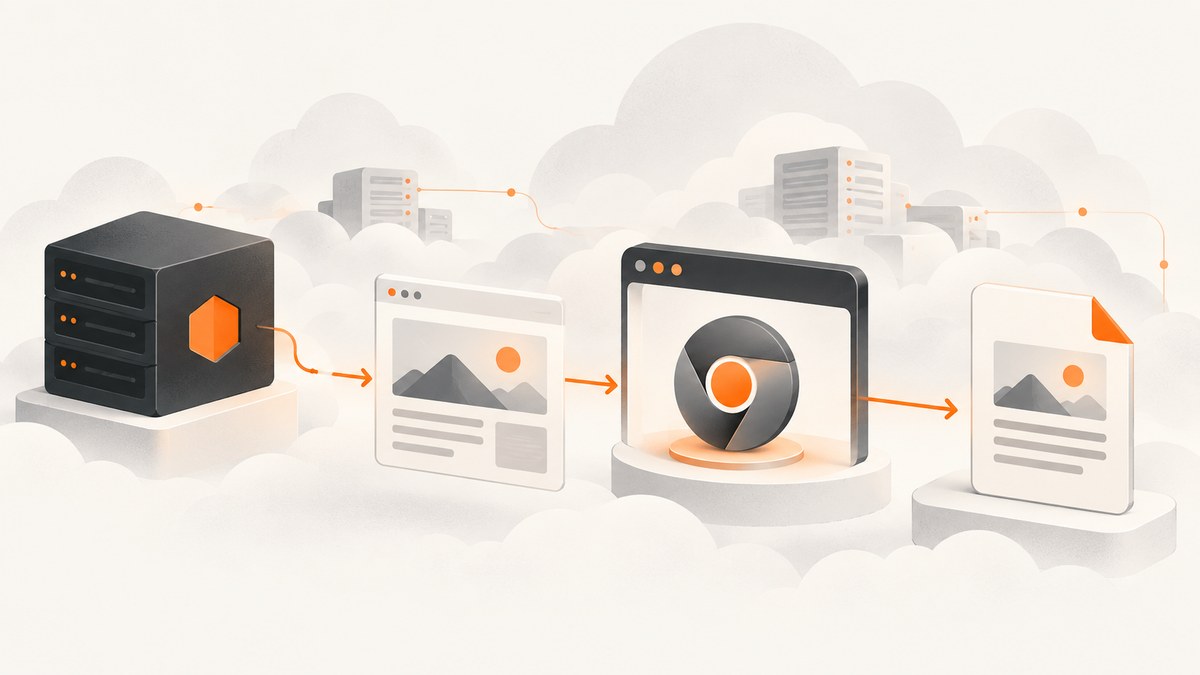
To deploy a Playwright PDF application to Azure App Service, make the Node.js server listen on process.env.PORT, install Playwright as a production dependency, and ensure the deployed environment has browser binaries compatible with that Playwright version plus the browser’s required system libraries. Then configure a startup command, deploy the app with production dependencies, and verify that it can launch a browser and return a PDF in the target App Service environment.
The browser runtime is the part that most often needs deliberate setup. Installing the npm package alone does not install a usable browser executable and its operating-system dependencies. You can use App Service’s Node.js runtime if you can provide and locate those dependencies, or evaluate a custom container when you need more control. The sources below describe the mechanics, but do not prescribe a best plan, container, or scale setting for every PDF workload.
1. Build a minimal PDF application
This example uses Express and Playwright. The server binds to App Service’s assigned port, accepts a URL, renders it, and returns a PDF. It is a starting point, not a complete public-facing service: add authentication, input validation, and request limits before exposing an endpoint that can navigate to arbitrary URLs.
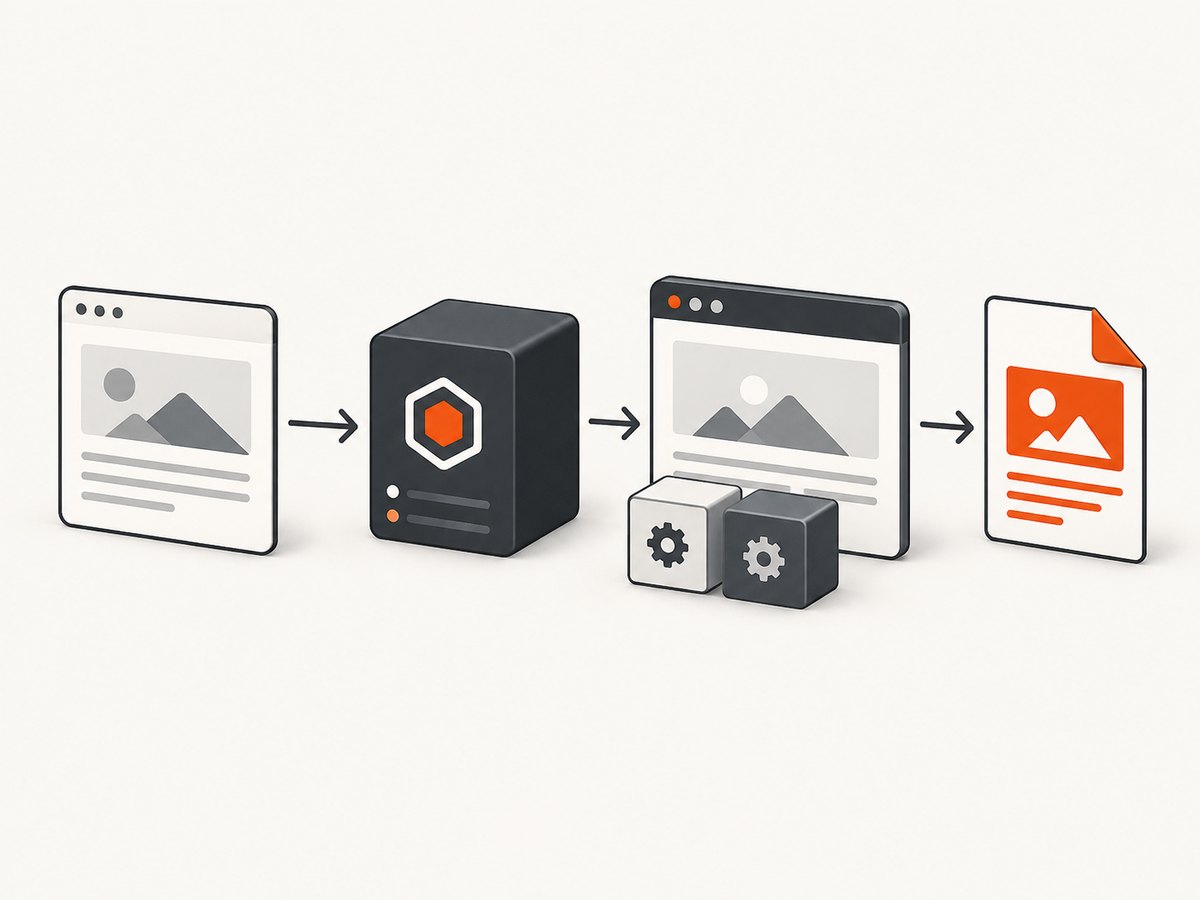
Create package.json and install Express and Playwright as application dependencies. Keep Playwright in dependencies, not only devDependencies, when the deployed production process needs to launch it.
{
  "name": "playwright-pdf-app",
  "version": "1.0.0",
  "private": true,
  "type": "module",
  "scripts": {
    "start": "node server.js"
  },
  "dependencies": {
    "express": "^4.21.0",
    "playwright": "^1.52.0"
  }
}
Install dependencies and create server.js:
import express from 'express';
import { chromium } from 'playwright';

const app = express();
app.use(express.json({ limit: '32kb' }));

app.post('/pdf', async (req, res) => {
  const { url } = req.body ?? {};
  if (typeof url !== 'string') {
    return res.status(400).json({ error: 'Provide a URL string in the url field.' });
  }

  let parsed;
  try {
    parsed = new URL(url);
  } catch {
    return res.status(400).json({ error: 'The url field must be a valid URL.' });
  }
  if (!['http:', 'https:'].includes(parsed.protocol)) {
    return res.status(400).json({ error: 'Only HTTP and HTTPS URLs are supported.' });
  }

  let browser;
  try {
    browser = await chromium.launch({ headless: true });
    const page = await browser.newPage();
    await page.goto(parsed.href, { waitUntil: 'networkidle', timeout: 30000 });
    const pdf = await page.pdf({ format: 'A4', printBackground: true });
    res.setHeader('Content-Type', 'application/pdf');
    res.setHeader('Content-Disposition', 'inline; filename="page.pdf"');
    return res.send(pdf);
  } catch (error) {
    console.error('PDF generation failed:', error);
    if (!res.headersSent) {
      return res.status(500).json({ error: 'PDF generation failed.' });
    }
  } finally {
    await browser?.close();
  }
});

const port = Number(process.env.PORT) || 3000;
app.listen(port, '0.0.0.0', () => {
  console.log(`Listening on ${port}`);
});
The page.pdf() call in this sample asks Playwright for A4 output with background graphics. Playwright PDF behavior and supported options are version-dependent; check the API documentation for your installed version before depending on additional settings. The snippet uses networkidle as a simple readiness condition, but pages with persistent network activity may never reach it. For those pages, choose a more suitable navigation condition or wait for a page-specific selector.
Run locally with npm install, install the browser build for the Playwright version in the project, and start the server with npm start. Send a request to POST /pdf with a JSON body containing a URL. This local check verifies your application path; it does not establish that the same browser and system libraries will be present after deployment.
2. Make the App Service startup and deployment predictable
Microsoft’s Node.js quickstart says an App Service Node.js app must listen on the port provided in PORT. Do not hard-code the production listener to port 3000. A local fallback is useful for development, while App Service supplies the production value. See Microsoft’s Node.js App Service quickstart.
The start script above gives App Service a straightforward startup entry point. App Service also supports PM2 and custom startup commands. If you choose PM2 on Node.js versions after Node 14 LTS, Microsoft’s guidance says to explicitly start it with --no-daemon, for example:
pm2 start server.js --no-daemonUse one startup method and make sure it points to the actual entry point in the deployed artifact. Read Microsoft’s Node.js configuration guide for the applicable runtime and startup configuration.
Choose a deployment path
- Confirm the runtime. Select an available, supported Node.js runtime and App Service operating system for the target subscription and region. Runtime offerings can change, so confirm availability during setup rather than assuming a specific version is present.
- Choose Git or Zip deployment with build automation, or upload dependencies yourself. When build automation is enabled for Git or Zip deployment, App Service installs production npm dependencies. With FTP/S deployment, Microsoft says required packages must be included manually. Review Microsoft’s App Service file deployment guidance.
- Check the artifact. Ensure it contains
package.json, the lockfile if used by your build,server.js, and any application files needed at runtime. Confirm Playwright is a production dependency. - Set startup deliberately. Use the
startscript, the documented PM2 command, or a custom command that matches the deployed files and selected runtime. - Inspect deployment and application logs. A successful upload does not prove the browser can launch. Exercise the PDF endpoint after deployment and inspect logs for missing executable or shared-library errors.
3. Provide Playwright’s browser and system libraries
Playwright needs browser binaries that match the installed Playwright package. Its browser documentation identifies ~/.cache/ms-playwright as the default Linux browser cache location. A browser installed during development is not automatically available to a separate App Service deployment. Confirm that the deployed process can find the matching binaries and that the browser’s operating-system dependencies are present. See Playwright’s browser installation documentation.
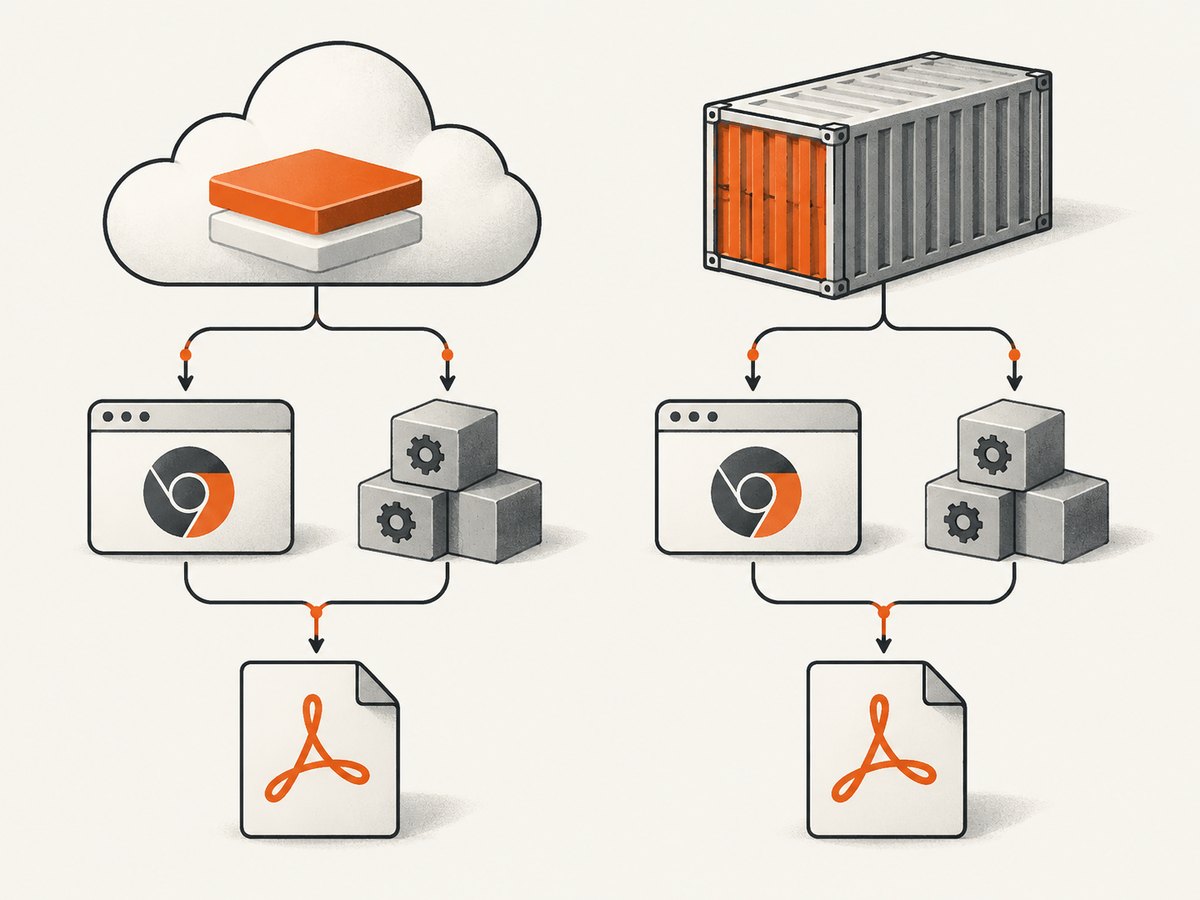
This creates two separate deployment questions:
- Which Playwright package is installed? Pin or lock the application dependency so deployment installs the intended version.
- Where are the matching browser binaries and libraries? Install or provision them in a location available to the running process, using a setup supported by your chosen environment.
One possible direction is a custom container. Playwright’s Docker documentation describes an image containing browsers and browser system dependencies, but says the Playwright package itself must be installed separately. It also advises using an image version compatible with the project’s Playwright package because a mismatch can prevent Playwright from locating browser executables. The documentation describes that image as intended for testing and development; it does not establish that it is a production-ready base image for this App Service application. Treat a container as an option to validate, not a guaranteed deployment recipe. See the Playwright Docker documentation.
With App Service’s built-in Node.js runtime, work out how your deployment installs the matching browser and libraries, then verify their locations and permissions in the actual runtime. With a custom container, make the browser image and npm package versions compatible and verify the image’s suitability for your production use. In either setup, run a deployed PDF request; package installation success alone is not enough.
4. Configure PDF generation for the page
PDF output depends on both page readiness and rendering choices. Start with a simple document format and a deliberate wait strategy, then adjust based on the pages you need to capture. The sample returns a PDF buffer with Content-Type: application/pdf; if files are large, consider whether your application should write to temporary storage or use a different delivery design, and validate cleanup and response behavior in the chosen environment.
Navigation and readiness
- Navigation timeout: Set a finite timeout so a slow or unreachable page does not hold a request indefinitely.
- Readiness condition:
networkidleis convenient for many pages, but can be unsuitable for pages with polling, streaming, analytics, or other persistent requests. Waiting for a known selector or a bounded delay may better match the page. - External content: Remote fonts, images, and scripts can delay rendering or fail independently. Decide whether the PDF should wait for them, tolerate missing resources, or block selected requests.
- Input validation: Restrict protocols and, for a public service, validate destinations. Accepting arbitrary URLs can expose your server to requests you did not intend it to make. This is an application security concern, not an App Service feature.
Page layout and response
The sample’s format: 'A4' chooses a paper format, while printBackground: true asks for background graphics. If the source page uses print-specific CSS, check the resulting output against that page’s print layout. Decide whether the endpoint should return the PDF inline or as an attachment by changing Content-Disposition. For production, consider a clear error response when navigation or PDF generation fails, and avoid sending internal exception details to callers.
5. Deployment checklist
- [ ] The selected App Service OS and Node.js runtime are available and appropriate for the deployment.
- [ ] The server listens on
process.env.PORT. - [ ] The deployment method installs production dependencies, or the uploaded artifact includes them.
- [ ] Playwright is installed as a production application dependency.
- [ ] The deployed browser binaries match the installed Playwright version.
- [ ] Browser system dependencies are present, and the app process can access the browser cache or executable.
- [ ] The configured startup command points to the deployed server entry point.
- [ ] A real request in the deployed environment launches the browser and returns a readable PDF.
- [ ] Timeouts, invalid input, failed navigation, and browser launch errors produce controlled responses and useful server logs.
6. Troubleshooting common failures
| Symptom | Likely cause | What to check |
|---|---|---|
| App Service reports that the app did not start or cannot be reached | The server is listening on a fixed port, or the startup command does not match the artifact. | Bind to process.env.PORT; inspect the configured start command and application startup logs. |
Executable doesn't exist or browser launch cannot find Chromium |
The browser binary was not installed, is outside the process’s expected cache path, or does not match the Playwright package. | Confirm the deployed Playwright version, install its matching browser build, and verify the location available to the running process. Playwright’s Linux default cache is ~/.cache/ms-playwright. |
| Browser launch fails with a missing shared library | Browser system dependencies are missing from the hosting environment. | Provide the required libraries through a supported setup or evaluate a container that includes browser system dependencies. Do not assume installing npm packages supplies OS libraries. |
| Works locally but fails after Zip/Git deployment | Production dependency installation or deployment build automation differs from the local setup. | Check that build automation is enabled if relying on App Service to install production dependencies, that Playwright is not only a development dependency, and that the deployment logs show the expected install. |
| Works with one deploy method but not FTP/S | FTP/S does not automatically provide packages omitted from the uploaded files. | Include the required production packages manually or switch to a deployment path that installs them as configured. |
| Navigation times out on certain sites | The site is slow, a resource stalls, or the selected readiness condition never occurs. | Review navigation logs, use a bounded timeout, and choose a page-appropriate readiness condition such as a selector when justified. |
| PDF is blank or missing late-loading content | Rendering started before important page content was ready, or the page’s resources failed. | Wait for a meaningful selector or other verified readiness condition, and inspect whether fonts, images, or scripts load in the deployed environment. |
For browser-launch diagnostics, Playwright documents DEBUG=pw:browser as a way to emit browser launch logs. Use it while diagnosing the deployed process, then avoid leaving verbose diagnostics enabled unnecessarily. See the Playwright browser documentation.
7. Performance, reliability, and cost considerations
The supplied Azure and Playwright references do not give workload-specific App Service plan sizing, PDF throughput, memory thresholds, timeouts, or a cost comparison between built-in runtime and custom containers. Do not select capacity based on an assumed per-browser cost or a generic concurrency number. Measure your own pages and PDF sizes in the selected environment, under the expected request pattern.
Browser startup and page loading are work performed for each capture in the sample. Reusing browser processes or managing concurrent pages can change resource use and failure behavior, so make those changes only with an explicit lifecycle and cleanup strategy. Start with bounded navigation timeouts and a defined concurrency limit at the application or hosting layer; then observe memory, response time, and failures in your own workload. These are validation steps, not performance guarantees.
For reliability, log the target request identifier, navigation stage, and sanitized error context. Avoid logging secrets or full sensitive URLs. Make sure failed browser launches and navigation timeouts close resources through cleanup logic; the sample’s finally block closes the browser if launch succeeded. Validate behavior after restarts and deployments, since the browser cache and filesystem assumptions must hold in the running environment.
8. Or skip the browser setup
If you need clean website screenshots rather than an application that generates PDFs, ScreenshotNeo is a website screenshot API and MCP server. Its one-call API can return an image; use the Playwright PDF path above when your requirement is PDF generation. The API documentation is at ScreenshotNeo docs.
curl -G "https://api.screenshotneo.com/v1/shot" -d access_key=YOUR_API_KEY --data-urlencode url=https://stripe.com -o shot.webpScreenshotNeo accepts cookie and consent banners before capture and removes more than 60 known consent platforms, newsletter popups, and chat widgets; each step can be turned off. Bot checks, blank pages, timeouts, failed loads, and cache hits are not billed, and responses include X-Page-Verdict and X-Billed headers. Its MCP server provides take_screenshot, get_page_info, and capture_pdf tools for Claude, Cursor, and other MCP clients. The free plan includes 1,000 screenshots per month with no card; paid plans start at $5 for 3,000 screenshots.
Sign up for 1,000 free screenshots a month, with no card required.
9. Frequently asked questions
Does installing Playwright with npm install the browser?
Do not assume so. Playwright’s package and browser binaries are separate deployment concerns. Install a browser build compatible with the package and ensure the process can access it.
Can I deploy this using App Service’s built-in Node.js runtime?
It is an option to evaluate. The deployment must still provide compatible browser binaries and required system libraries. Verify browser launch and PDF output in the selected runtime.
Should I use a custom container?
A container can give you more control over browser binaries and system libraries. The cited Playwright Docker guidance does not establish a production-ready App Service recipe or choose a container configuration for your workload.
What should I test before calling the deployment complete?
Send a request to the deployed endpoint and confirm it launches the browser, navigates successfully, returns a valid PDF, and handles a failed URL without leaving the request stuck.


