How to Deploy Puppeteer on AWS EC2
Install Puppeteer, Chrome, Linux dependencies, and a reliable Node.js service on Ubuntu EC2, then diagnose common launch and SSH failures.
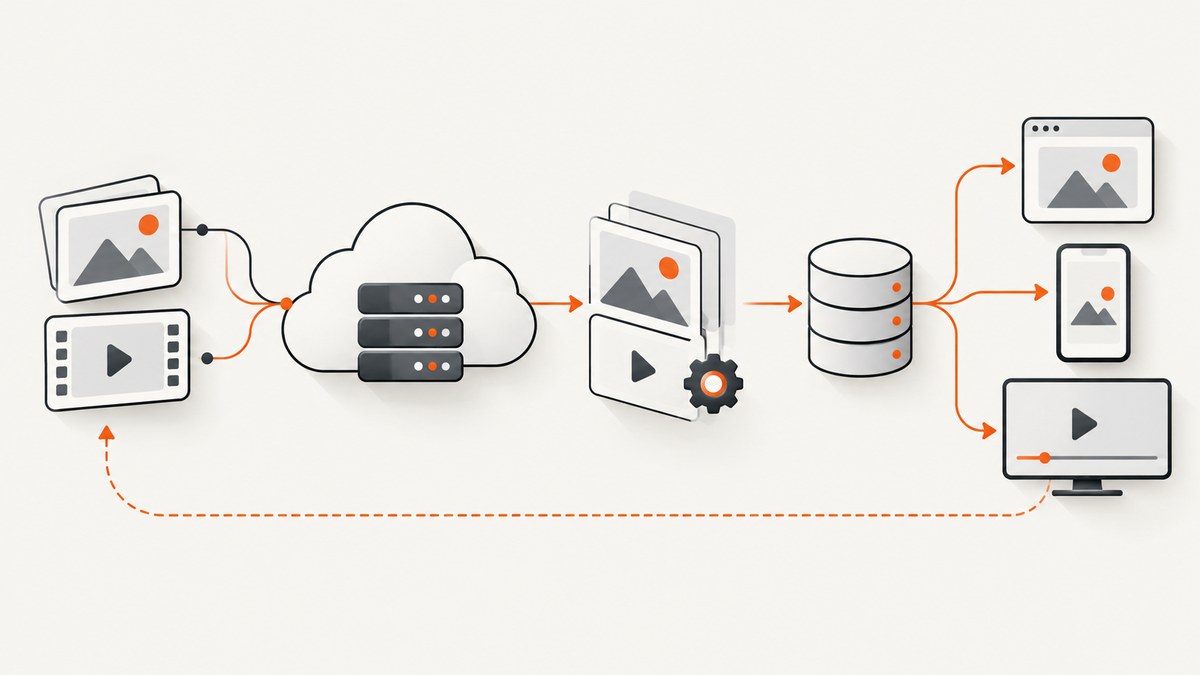
Direct answer: launch an Ubuntu Server 22.04 LTS EC2 instance, connect with the AMI’s administrator account, install Node.js and your application, let the puppeteer package download its compatible Chrome for Testing browser, install the Ubuntu libraries Chrome needs, and run a launch check as the same Linux user that will run your service. A successful npm install does not prove that Chrome can start.
This guide uses Ubuntu Server 22.04 LTS (64-bit x86) for every command. Package names and service details differ on Amazon Linux and other distributions. If you choose another AMI, translate each package step for that image and keep the distribution name in your deployment notes.
1. Choose the EC2 image and a safe access method
In the EC2 console, launch an Ubuntu Server 22.04 LTS instance with a security group that permits SSH only from your administrator IP range. Do not open port 22 to 0.0.0.0/0 for a production host. AWS documents SSH and EC2 Instance Connect prerequisites in its connection prerequisites.
| Decision | Choice in this guide | What to verify |
|---|---|---|
| Linux image | Ubuntu Server 22.04 LTS | Use Ubuntu package names and the ubuntu account. |
| Access | SSH with an EC2 key pair | Instance checks are passing, the key file is private, and port 22 is restricted. |
| Browser | Chrome downloaded by puppeteer |
The runtime user can read the Puppeteer cache. |
| Process manager | systemd | The service runs with the same user and environment used during your launch check. |
Connect to the instance
# Ubuntu Server 22.04 LTS on EC2, from your local machine
chmod 400 my-ec2-key.pem
ssh -i my-ec2-key.pem ubuntu@YOUR_PUBLIC_DNS
Use the username supplied by the AMI. Ubuntu commonly uses ubuntu; Amazon Linux commonly uses ec2-user. If SSH fails, check the instance status checks, public address, username, key permissions, and inbound rule before changing application code.
2. Install Node.js and create the application
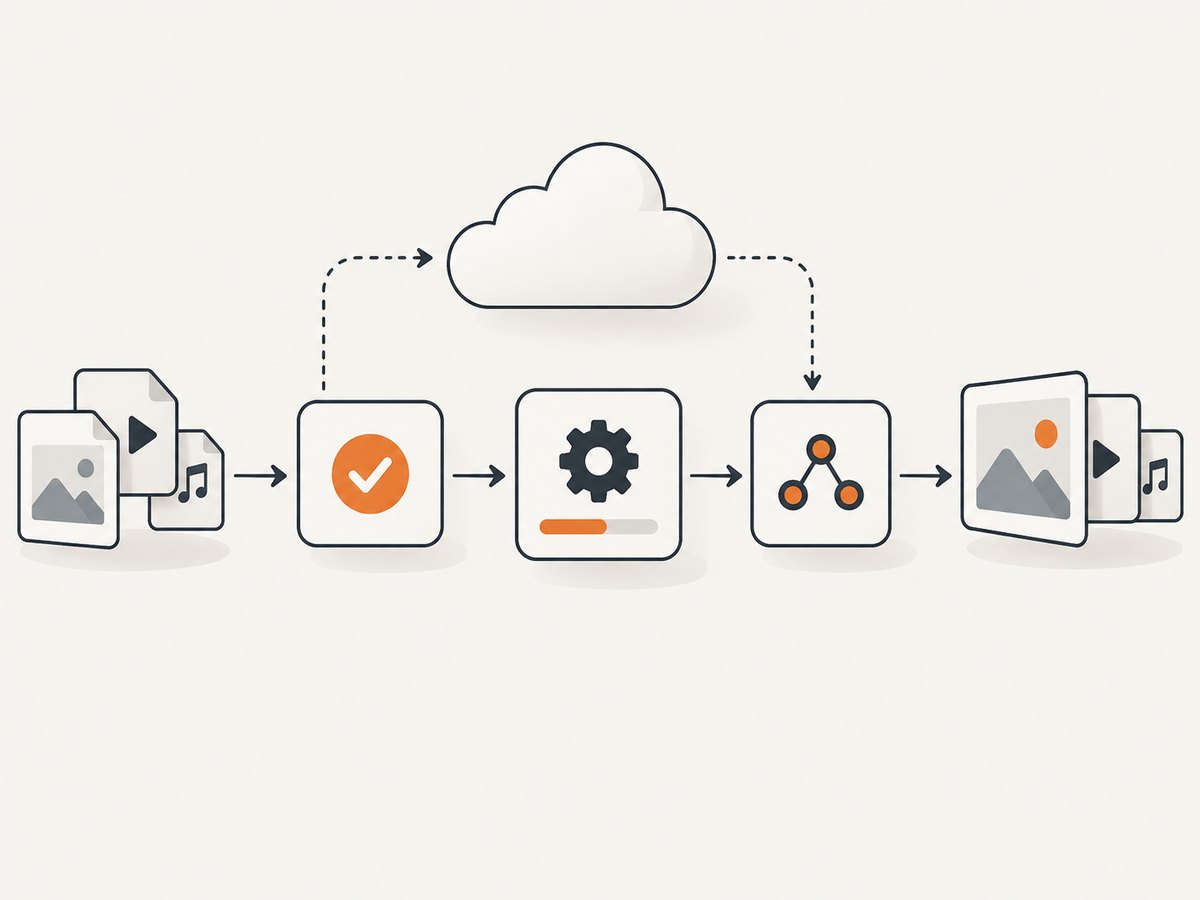
After connecting to the Ubuntu 22.04 instance, update the package index and install the distribution’s Node.js and npm packages. Pin your Node.js major version through your normal deployment process; the example below uses Ubuntu’s packages so the setup remains short and reproducible for this image.
# Ubuntu Server 22.04 LTS
sudo apt-get update
sudo apt-get install -y nodejs npm
node --version
npm --version

mkdir -p ~/puppeteer-ec2
cd ~/puppeteer-ec2
npm init -y
npm install puppeteer
Puppeteer is the JavaScript automation library; Chrome or another supported browser is a separate runtime requirement. The standard puppeteer package installation downloads a compatible Chrome for Testing browser. If you deliberately manage a system browser, configure its exact executable path and keep its version compatible with your Puppeteer version. See the Puppeteer installation guide.
Do not install dependencies as one account and run the service as another without checking the cache and file permissions. The browser executable, downloaded cache, temporary profile directory, and application files must all be readable and executable by the service account.
A minimal launch script
// ~/puppeteer-ec2/index.js
const puppeteer = require('puppeteer');

(async () => {
  const browser = await puppeteer.launch({
    headless: true
  });

  const page = await browser.newPage();
  await page.goto('https://example.com', {
    waitUntil: 'domcontentloaded',
    timeout: 30_000
  });
  console.log(await page.title());
  await browser.close();
})().catch((error) => {
  console.error(error);
  process.exitCode = 1;
});
Run this before putting the process behind a public endpoint:
# Ubuntu Server 22.04 LTS, as the account that will run the service
cd ~/puppeteer-ec2
node index.js
3. Install Chrome’s Ubuntu dependencies
Chrome can be present and still fail immediately because a shared library is missing. On Ubuntu Server 22.04 LTS, install the common libraries used by headless Chrome:
# Ubuntu Server 22.04 LTS
sudo apt-get update
sudo apt-get install -y \
  ca-certificates \
  fonts-liberation \
  libasound2 \
  libatk-bridge2.0-0 \
  libatk1.0-0 \
  libc6 \
  libcairo2 \
  libcups2 \
  libdbus-1-3 \
  libdrm2 \
  libgbm1 \
  libglib2.0-0 \
  libgtk-3-0 \
  libnspr4 \
  libnss3 \
  libpango-1.0-0 \
  libx11-6 \
  libx11-xcb1 \
  libxcb1 \
  libxcomposite1 \
  libxdamage1 \
  libxext6 \
  libxfixes3 \
  libxrandr2 \
  libxshmfence1 \
  xdg-utils
Package availability can change between Ubuntu releases and architectures. Puppeteer recommends checking the browser binary with ldd and looking for “not found” entries. First locate the downloaded browser:
# Ubuntu Server 22.04 LTS
cd ~/puppeteer-ec2
node -e "const puppeteer=require('puppeteer'); console.log(puppeteer.executablePath())"
# Copy the printed path into the next command
ldd /path/printed/by/the/command | grep 'not found' || true
If output lists a missing library, identify the Ubuntu package that supplies it and install that package. The Puppeteer troubleshooting guide contains distribution-specific dependency examples and explains why one package list cannot be assumed to work on every Linux image.
4. Configure browser management deliberately
Let Puppeteer manage Chrome
This is the simplest option for a new Ubuntu deployment. Keep puppeteer in package.json, run npm ci or npm install during deployment, and preserve the cache for the account that runs the service.
# Ubuntu Server 22.04 LTS
cd ~/puppeteer-ec2
npm ci
node -e "const p=require('puppeteer'); console.log(p.executablePath())"
Use npm ci when a lockfile is committed. It installs the versions recorded in package-lock.json, which makes a replacement instance easier to reproduce.
Manage a system browser yourself
If your organization installs Chrome or Chromium through its own image or package process, pass the executable path explicitly and document how that browser version stays compatible with Puppeteer:
const puppeteer = require('puppeteer');

const browser = await puppeteer.launch({
  headless: true,
  executablePath: '/usr/bin/google-chrome-stable'
});
Do not install an arbitrary Chromium build and assume every Puppeteer release controls it correctly. Record the browser path, package version, architecture, and upgrade procedure.
5. Make the setup repeatable with EC2 user data
EC2 user data can run a shell script at first boot. AWS notes that its examples assume Amazon Linux and may not work unchanged on other distributions. The following script is explicitly for Ubuntu Server 22.04 LTS; adapt package names and paths if you select a different AMI. For larger deployments, put this logic in your image build or infrastructure automation.
#!/bin/bash
# Ubuntu Server 22.04 LTS EC2 user data
set -eux

apt-get update
apt-get install -y nodejs npm ca-certificates fonts-liberation libasound2 \
  libatk-bridge2.0-0 libatk1.0-0 libc6 libcairo2 libcups2 libdbus-1-3 \
  libdrm2 libgbm1 libglib2.0-0 libgtk-3-0 libnspr4 libnss3 \
  libpango-1.0-0 libx11-6 libx11-xcb1 libxcb1 libxcomposite1 \
  libxdamage1 libxext6 libxfixes3 libxrandr2 libxshmfence1 xdg-utils

install -d -o ubuntu -g ubuntu /opt/puppeteer-app
cd /opt/puppeteer-app
# Copy package.json and package-lock.json here before running this in production.
# npm ci
User data is useful for a small, repeatable bootstrap, but make scripts safe to rerun if your launch process can execute them again. Store application artifacts separately from the bootstrap script and log failures so a half-completed install is visible.
6. Run Puppeteer as a systemd service
Once the launch check works interactively, run it under the same account and environment as the production process. This example assumes the application is at /opt/puppeteer-app, owned by ubuntu, on Ubuntu Server 22.04 LTS.
# Ubuntu Server 22.04 LTS
sudo chown -R ubuntu:ubuntu /opt/puppeteer-app
sudo tee /etc/systemd/system/puppeteer.service > /dev/null <<'EOF'
[Unit]
Description=Puppeteer worker
After=network-online.target
Wants=network-online.target

[Service]
Type=simple
User=ubuntu
WorkingDirectory=/opt/puppeteer-app
ExecStart=/usr/bin/node /opt/puppeteer-app/index.js
Restart=on-failure
RestartSec=5
Environment=NODE_ENV=production

[Install]
WantedBy=multi-user.target
EOF

sudo systemctl daemon-reload
sudo systemctl enable --now puppeteer
sudo systemctl status puppeteer
journalctl -u puppeteer -n 100 --no-pager
For a web application, put an authenticated HTTP server or reverse proxy in front of the worker and allow only the ports you actually need in the security group. Keep SSH restricted independently of application traffic.
7. Troubleshooting Chrome launch failures
| Symptom | Likely cause | Fix |
|---|---|---|
| “Could not find Chrome” | The install script did not download the browser, or the runtime user cannot see its cache. | Run the install as the service user, print puppeteer.executablePath(), and check the cache path and permissions. |
error while loading shared libraries |
An Ubuntu library is missing. | Run ldd on the exact executable and install the package that provides each “not found” library. |
| Works over SSH but fails in systemd | Different user, working directory, environment, or HOME directory. | Compare User, WorkingDirectory, cache location, and file ownership. Run the launch script as ubuntu outside and inside the service. |
| Sandbox error | The process lacks the conditions Chrome expects for its sandbox. | Fix the user, permissions, and host configuration first. Puppeteer documents --no-sandbox only for content the operator absolutely trusts; do not make it a routine fix for a public scraper or service. |
| Page navigation times out | DNS, outbound networking, a slow site, or an overly short timeout. | Confirm the instance has outbound access, log the target URL, choose an explicit timeout, and handle navigation failure without leaving browsers open. |
| SSH connection refused or timed out | Instance checks, address, username, key, or security-group rule is wrong. | Verify the instance is running, use the AMI’s documented username, check key permissions, and restrict or correct the inbound SSH rule. |
Always close the browser in a finally block in long-running workers. Limit concurrent pages to the memory available on the instance, and recycle a browser process if your workload shows increasing memory use. Treat these as application-level safeguards rather than guarantees from EC2 or Puppeteer.
8. Reliability, performance, and cost considerations
- Startup cost: launching a browser is expensive compared with reusing a controlled browser process. Reuse pages when safe, but reset cookies and storage between tenants or jobs.
- Concurrency: each page consumes CPU and memory. Start with a conservative worker limit, observe the instance, and increase it only when the host remains responsive.
- Navigation: use
waitUntildeliberately.networkidlecan wait indefinitely on applications with polling; a DOM event plus an application-specific selector is often more predictable. - Reliability: add retries for transient navigation errors, close pages on every failure path, and let systemd restart a crashed worker.
- Security: never pass untrusted strings into shell commands. Validate target URLs, protect credentials and cookies, and avoid
--no-sandboxunless the content and isolation model are fully trusted. - Cost: EC2 charges depend on the selected instance, storage, region, and running time. The research for this guide does not establish a benchmark or a cost estimate, so size the instance from your own workload.

Or skip the browser setup
If your goal is dependable website screenshots rather than browser infrastructure, ScreenshotNeo provides a single API request. It removes cookie and consent banners, newsletter popups, and chat widgets before capture. Bot checks, blank pages, timeouts, failed loads, and cache hits are not billed, and the response identifies the result with X-Page-Verdict and X-Billed headers. It also provides an MCP server for AI agents with take_screenshot, get_page_info, and capture_pdf.
See the ScreenshotNeo API documentation for all options. The same endpoint supports full-page or element capture, device presets, dark mode, custom CSS and JavaScript, request blocking, headers, cookies, authorization, geolocation, timezone, resizing, caching, signed links, asynchronous jobs, bulk capture, PDFs, and HTML/CSS rendering.
cURL
curl -G "https://api.screenshotneo.com/v1/shot" \
  -d access_key=YOUR_API_KEY \
  --data-urlencode url=https://stripe.com \
  -o shot.webp
Python
import requests

r = requests.get(
    "https://api.screenshotneo.com/v1/shot",
    params={"access_key": "YOUR_API_KEY", "url": "https://stripe.com"},
    timeout=90,
)
r.raise_for_status()
open("shot.webp", "wb").write(r.content)
Node.js
const q = new URLSearchParams({ access_key: 'YOUR_API_KEY', url: 'https://stripe.com' });
const res = await fetch(`https://api.screenshotneo.com/v1/shot?${q}`);
if (!res.ok) throw new Error(`HTTP ${res.status}`);
const buffer = Buffer.from(await res.arrayBuffer());
require('fs').writeFileSync('shot.webp', buffer);
ScreenshotNeo includes 1,000 shots per month on the free plan with no card. Paid plans start at $5 for 3,000 shots, and every feature is available on every plan. Create a free ScreenshotNeo account.
9. Deployment checklist
- Record the exact AMI, architecture, Node.js major version, Puppeteer version, and browser management choice.
- Restrict SSH to an administrator IP range or use a supported EC2 Instance Connect configuration.
- Install dependencies on Ubuntu Server 22.04 LTS with Ubuntu package names.
- Run
npm ciand confirm the browser executable path. - Run
lddand resolve every missing shared library. - Execute a launch check as the production Linux user.
- Configure systemd restart behavior and inspect its journal.
- Set navigation timeouts, concurrency limits, cleanup paths, and URL validation.
- Repeat the setup on a replacement instance before calling the deployment complete.
FAQ
Does Puppeteer include Chrome?
The standard puppeteer installation downloads a compatible Chrome for Testing browser. A separately managed browser requires an explicit executable path and a compatible version.
Can I use Amazon Linux instead of Ubuntu?
Yes, but do not copy Ubuntu commands. Use the package manager and browser dependency procedure for the exact Amazon Linux generation. Puppeteer’s Amazon Linux example is distribution-specific.
Why does it work locally but not on EC2?
EC2 may lack shared libraries, outbound network access, a writable cache or profile directory, or the same runtime user and environment. Check the exact executable with ldd and repeat the launch as the service account.
Should I add --no-sandbox?
Only when the content is absolutely trusted and you understand the isolation trade-off. It is not a general-purpose fix for a public-facing service.
When is an API preferable to hosting Puppeteer?
An API is useful when you need screenshots without maintaining browser binaries, Linux libraries, workers, retries, and instance capacity. ScreenshotNeo provides those captures through one request and includes an MCP server for AI agents.


