How to Deploy Puppeteer and Chrome on AWS Lambda
Deploy Puppeteer and Chromium on AWS Lambda with containers or layers, arm64 guidance, working code, troubleshooting, and a browser-free API option.
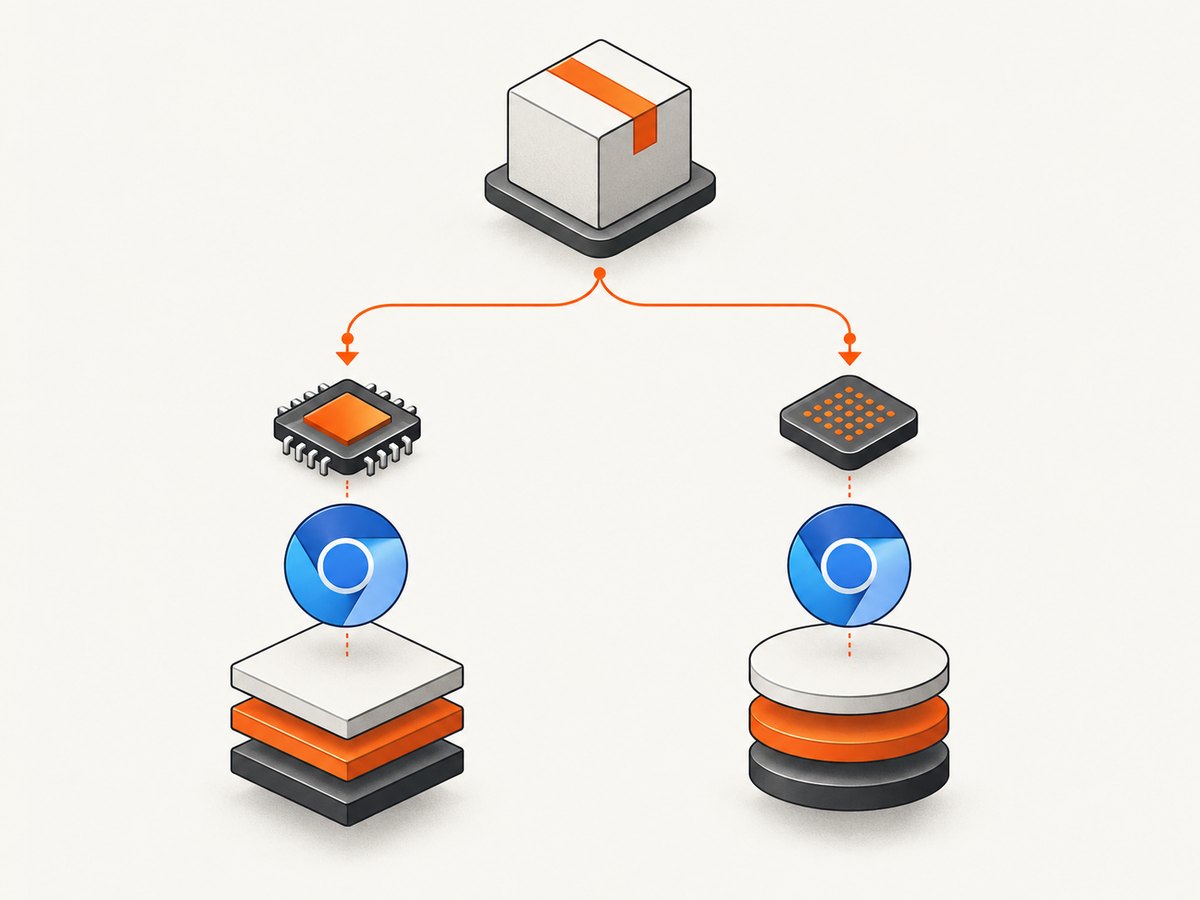
Direct answer: deploy Puppeteer on Lambda by choosing one of two packaging routes. Use a Lambda container image when you want to control the operating-system libraries and browser installation. Use puppeteer-core with @sparticuz/chromium when you prefer a function package plus a Lambda layer or separately delivered browser files. Pin the Puppeteer and Chromium versions as a pair, match the Lambda CPU architecture, keep Chromium external when bundling, and provide fonts your pages require.
AWS currently documents Node.js 26, 24 and 22 base images on Amazon Linux 2023. The AWS Puppeteer walkthrough many developers find in search was published in 2021 and uses Node.js 12, so treat it as an architectural example rather than a current template. Read the current AWS container-image guidance before selecting a runtime.
Choose a Lambda packaging route
| Route | Best fit | Trade-offs |
|---|---|---|
| Container image | You need browser libraries, OS packages and application code in one controlled build. | You maintain the image and its browser dependencies; build, publish and activation behavior depend on image size. |
| Function package plus Chromium | You want a conventional Lambda deployment with shared browser dependencies. | You coordinate layers, package size, architecture and browser versions. |
chromium-min plus remote pack |
Your deployment package cannot carry the compressed browser files. | You operate external pack storage and account for download and extraction work during cold starts. |
There is no universal fastest or cheapest route. Measure cold starts, warm invocations, concurrency, browser launch time and storage behavior with your own pages. AWS’s historical example describes fan-out screenshot jobs writing results to S3, but it does not establish current performance numbers.
Route A: build a Lambda container image
A container image lets you install Node.js dependencies, browser binaries and Linux libraries during the image build. AWS supports AWS-provided Node.js images, OS-only images and non-AWS images. A non-AWS image must include the Lambda runtime interface client so Lambda can invoke your handler.
1. Create the project
mkdir lambda-puppeteer
cd lambda-puppeteer
npm init -y
npm install puppeteer
The full puppeteer package can download a browser during installation. Whether that browser works in Lambda depends on the base image and its shared libraries. A production image should make the browser choice explicit and verify it in the same image used by the function.
2. Add a handler
const puppeteer = require('puppeteer');

exports.handler = async (event) => {
  const url = event.url || 'https://example.com';
  const browser = await puppeteer.launch({
    headless: true,
    args: ['--no-sandbox', '--disable-setuid-sandbox']
  });

  try {
    const page = await browser.newPage();
    await page.setViewport({ width: 1440, height: 900, deviceScaleFactor: 1 });
    await page.goto(url, { waitUntil: 'networkidle2', timeout: 45000 });
    const png = await page.screenshot({ fullPage: true, type: 'png' });

    return {
      statusCode: 200,
      headers: { 'content-type': 'image/png' },
      isBase64Encoded: true,
      body: png.toString('base64')
    };
  } finally {
    await browser.close();
  }
};
For an API Gateway response, base64 encoding is required for binary output. For larger images, write the result to object storage and return a key or signed URL instead of placing the bytes in the response.
3. Write a Dockerfile
FROM public.ecr.aws/lambda/nodejs:22

COPY package*.json ${LAMBDA_TASK_ROOT}/
RUN npm ci --omit=dev

COPY index.js ${LAMBDA_TASK_ROOT}/

CMD [ "index.handler" ]
This Dockerfile supplies the Lambda runtime and your Node.js code, but it does not guarantee that Chromium is present or that all required libraries are installed. Add the browser and its dependencies using a base image and installation method you can reproduce, then run the function locally through the Lambda runtime interface before publishing. Do not copy the 2021 AWS Node.js 12 Dockerfile unchanged.
4. Build, publish and configure
docker build --platform linux/amd64 -t lambda-puppeteer:latest .
aws ecr get-login-password --region us-east-1 | docker login --username AWS --password-stdin YOUR_ACCOUNT.dkr.ecr.us-east-1.amazonaws.com
docker tag lambda-puppeteer:latest YOUR_ACCOUNT.dkr.ecr.us-east-1.amazonaws.com/lambda-puppeteer:latest
docker push YOUR_ACCOUNT.dkr.ecr.us-east-1.amazonaws.com/lambda-puppeteer:latest
aws lambda create-function \
  --function-name lambda-puppeteer \
  --package-type Image \
  --code ImageUri=YOUR_ACCOUNT.dkr.ecr.us-east-1.amazonaws.com/lambda-puppeteer:latest \
  --role arn:aws:iam::YOUR_ACCOUNT:role/lambda-execution-role
Set memory, timeout, environment variables and concurrency for your workload. Browser startup and page rendering are workload-dependent, so establish these values with representative URLs. Ensure the execution role can write to the destination bucket if screenshots are stored in S3.
Route B: puppeteer-core with @sparticuz/chromium
This route avoids Puppeteer’s browser download and uses a Lambda-suitable Chromium package. The project documentation shows passing Chromium’s serverless arguments, resolving its executable path and launching headless Chromium. Consult the @sparticuz/chromium documentation and Puppeteer’s Chromium support information when selecting versions.
1. Install and pin compatible versions
npm install puppeteer-core @sparticuz/chromium
@sparticuz/chromium follows Chromium’s release cycle rather than semantic versioning. Breaking changes can occur at patch level. Pin exact versions in package-lock.json, review release notes, and validate the exact Puppeteer/Chromium pair after every update. The Chromium package is not tied to one Puppeteer release and does not use the same overrides or hooks as the older chrome-aws-lambda package.
2. Launch Chromium in the handler
const puppeteer = require('puppeteer-core');
const chromium = require('@sparticuz/chromium');

exports.handler = async (event) => {
  const browser = await puppeteer.launch({
    args: chromium.args,
    defaultViewport: chromium.defaultViewport,
    executablePath: await chromium.executablePath(),
    headless: chromium.headless
  });

  try {
    const page = await browser.newPage();
    await page.goto(event.url || 'https://example.com', {
      waitUntil: 'networkidle2',
      timeout: 45000
    });
    const output = await page.screenshot({ fullPage: true, type: 'webp' });

    return {
      statusCode: 200,
      headers: { 'content-type': 'image/webp' },
      isBase64Encoded: true,
      body: output.toString('base64')
    };
  } finally {
    await browser.close();
  }
};
Use puppeteer-core when you supply the browser yourself. Do not assume the package automatically includes the build your Lambda function will launch.
Layers, package size and arm64
The regular @sparticuz/chromium npm package contains x64 binaries. An x64 package will not work on an arm64 Lambda function. For arm64, the project documents using @sparticuz/chromium-min with an arm64 layer zip or remote pack. Arm64 artifacts are documented for Chromium releases starting with v135; confirm that the exact release artifact matches your function architecture.
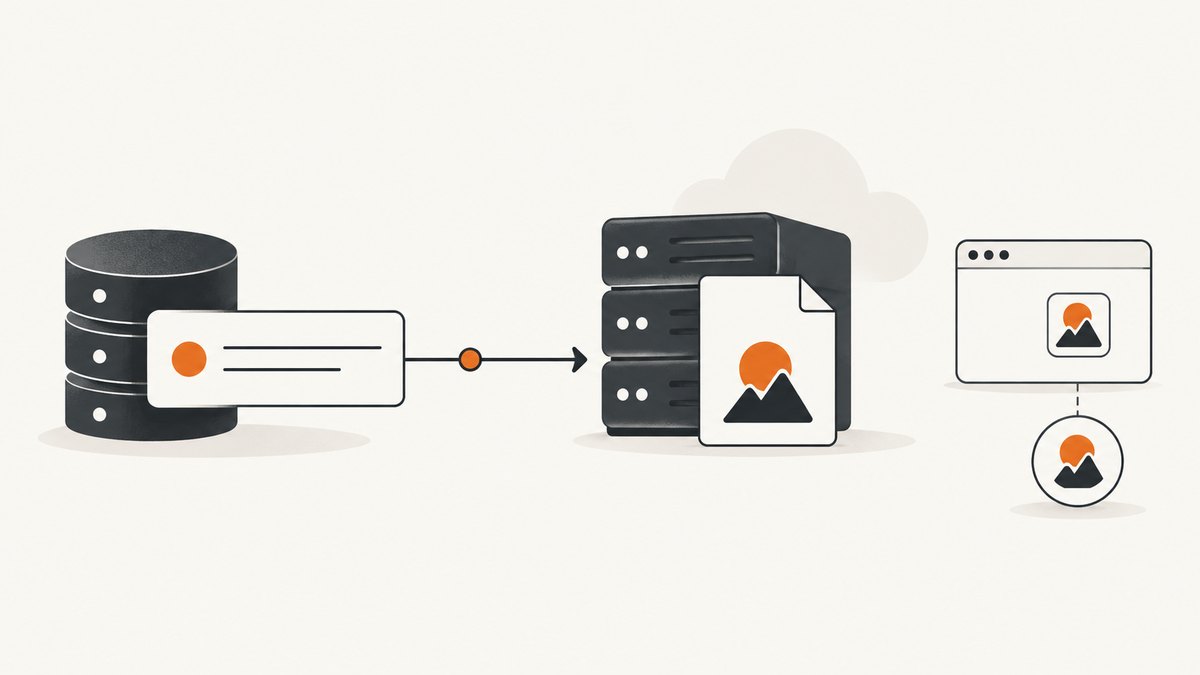
The -min package omits Brotli-compressed Chromium files. Supply those files separately through a Lambda layer or remote pack. The project notes that chromium.br is over 50 MB, which is why separating the browser pack can help when deployment constraints make the bundled package unsuitable. Check current AWS limits for your package, layers and temporary storage.
- Set the Lambda architecture and build platform to the same value: x86_64 or arm64.
- Keep the layer and application package versions coordinated.
- Make sure the function can read the layer or fetch a remote pack.
- Account for extraction space in
/tmpand for download time on cold starts.
Bundlers and fonts
If you use esbuild, webpack or another bundler, externalize @sparticuz/chromium. Its relative path resolution is used to locate browser binaries; bundling the package can break that lookup.
// esbuild example
npx esbuild index.js \
  --bundle \
  --platform=node \
  --target=node22 \
  --external:@sparticuz/chromium \
  --outfile=dist/index.js
Lambda does not provide system font faces. The Chromium package includes Open Sans with Latin, Greek and Cyrillic coverage. If your screenshots or PDFs contain other scripts or require a specific typeface, package the font files, configure the browser to find them and verify the rendered output in the deployed environment.
Rendering controls that affect correctness
Navigation and readiness
networkidle2 can wait indefinitely on pages with analytics, sockets or long polls. Use a selector that proves the application is ready, a bounded delay, or a less strict navigation condition followed by an explicit wait.
await page.goto(url, { waitUntil: 'domcontentloaded', timeout: 30000 });
await page.waitForSelector('#app-ready', { timeout: 15000 });
await page.evaluate(() => document.fonts.ready);
Viewport, device scale and full pages
Set the viewport before navigation when responsive breakpoints matter. A larger deviceScaleFactor produces sharper pixels but increases memory and output size. Full-page screenshots can be much taller than the initial viewport and may trigger lazy-loading behavior; scroll or wait for images when the page requires it.
Authentication and request policy
Use page cookies, request headers and a controlled user agent only when the target site permits automation. Block unnecessary images, fonts or third-party requests to reduce work, but verify that blocking does not remove content needed for the screenshot. Keep credentials in Secrets Manager or encrypted environment variables rather than source code.
Operational checklist
- Pin Puppeteer and Chromium versions and record the Lambda architecture.
- Launch the exact build in a staging function against representative pages.
- Test navigation timeout, selector timeout, browser crash and malformed URL paths.
- Capture logs for browser launch, navigation duration, screenshot duration and output size.
- Close every browser in a
finallyblock. - Store large results in S3 and return a reference.
- Set reserved or event-source concurrency to protect downstream sites and your account.
- Retry only transient failures, with a cap and backoff; do not blindly retry bot checks or invalid URLs.
Troubleshooting
| Symptom | Likely cause | Fix |
|---|---|---|
Could not find Chrome or executable path is empty |
The browser was not included, the layer is missing, or a bundler moved package files. | Use chromium.executablePath(), deploy the required layer or pack, and externalize @sparticuz/chromium. |
| Browser exits immediately | Architecture mismatch or missing shared libraries. | Build for the configured Lambda architecture and use a Lambda-compatible image or Chromium package. |
Timeout at networkidle2 |
The page keeps network connections open. | Use domcontentloaded plus an application-ready selector and a bounded timeout. |
| Blank or partially rendered screenshot | Capture happened before client rendering, fonts or lazy images finished. | Wait for a selector, document.fonts.ready and required image state; test with a realistic timeout. |
| Text appears as squares or fallback glyphs | The Lambda runtime lacks the required font. | Package the needed font files and verify the scripts used by the page. |
| Works locally but fails after bundling | Relative binary paths were changed. | Externalize @sparticuz/chromium and preserve its package files. |
| Deployment exceeds package limits | Compressed browser files are too large. | Use a container image, a layer, or chromium-min with a separately supplied Brotli pack. |
| arm64 invocation fails | An x64 browser package is deployed to arm64. | Use the documented arm64 layer or remote-pack route and match the release artifact. |
| API response is too large | The screenshot exceeds response limits. | Write bytes to S3 and return a signed URL or object key. |
Performance, reliability and cost notes
Browser work is sensitive to page complexity, fonts, JavaScript, image count, network location and cache state. Measure cold and warm invocations separately. Record the time spent downloading or extracting Chromium, launching the browser, navigating, waiting for readiness and encoding the image. Compare container and layer routes with the same pages and concurrency.
Reuse a browser across warm invocations only when you can isolate pages and clear state safely. A fresh browser per invocation is simpler but adds launch work. Always close pages and browsers, and watch memory usage because Chromium processes and large full-page bitmaps can grow together.
Lambda cost depends on memory, duration, invocation count, architecture, storage and related AWS services. The research sources do not establish a universal memory, timeout, concurrency, speed or cost recommendation. Calculate your own estimate from measured duration and the current AWS pricing page.
Or skip the browser setup
If your goal is a reliable screenshot endpoint rather than browser infrastructure, ScreenshotNeo provides a single GET request for PNG, JPEG, WebP or PDF. It accepts cookie and consent banners like a visitor, then removes more than 60 known consent platforms, newsletter popups and chat widgets before capture; each step can be turned off. Bot checks, blank pages, timeouts, failed loads and cache hits cost nothing, and response headers identify the page verdict and billing state.
See the ScreenshotNeo API documentation for all options. The same service supports full-page and CSS-selector capture, dark mode, device presets, retina scale, PDF settings, custom CSS and JavaScript, clicks, waits, request blocking, headers, cookies, user agents, authorization, timezone, geolocation, transparent backgrounds, resizing, TTL caching, signed image links, asynchronous jobs, signed webhooks, bulk capture and usage reporting. It also has an MCP server with take_screenshot, get_page_info and capture_pdf tools for Claude, Cursor and other MCP clients.
cURL
curl -G "https://api.screenshotneo.com/v1/shot" \
  -d access_key=YOUR_API_KEY \
  --data-urlencode url=https://stripe.com \
  -o shot.webp
Python
import requests

r = requests.get(
    "https://api.screenshotneo.com/v1/shot",
    params={"access_key": "YOUR_API_KEY", "url": "https://stripe.com"},
    timeout=90,
)
r.raise_for_status()
open("shot.webp", "wb").write(r.content)
Node.js
const q = new URLSearchParams({
  access_key: 'YOUR_API_KEY',
  url: 'https://stripe.com'
});
const res = await fetch(`https://api.screenshotneo.com/v1/shot?${q}`);
if (!res.ok) throw new Error(`${res.status} ${await res.text()}`);
const buffer = Buffer.from(await res.arrayBuffer());
require('fs').writeFileSync('shot.webp', buffer);
ScreenshotNeo includes 1,000 shots per month on the free plan with no card. Paid plans start at $5 for 3,000 shots, and every feature is available on every plan. Create a free ScreenshotNeo account.
FAQ
Should I use puppeteer or puppeteer-core?
Use puppeteer-core when the deployment supplies Chromium separately. Use puppeteer only when your image build intentionally installs and validates its browser.
Can I copy the old AWS Puppeteer example?
Use it to understand container architecture and fan-out patterns, but update the runtime, browser installation and deployment commands for current AWS support.
Does arm64 automatically reduce browser cost?
Do not assume that. Choose architecture based on your measured compatibility, duration and price for the workload.
Why does the same page differ between local and Lambda?
Fonts, viewport, timezone, geolocation, browser version, missing system libraries and network behavior can all change rendering. Make these inputs explicit and compare artifacts from the same browser pair.
When should I use a screenshot API?
Use one when you need screenshots or PDFs without owning Chromium packaging, browser updates, consent cleanup and Lambda troubleshooting. ScreenshotNeo is the direct option when those operational tasks are the part you want to remove.


