How to Deploy Puppeteer on GCP Compute Engine
Deploy a reliable Puppeteer worker on Google Compute Engine: install Chrome, configure Linux dependencies, run it as a service, and troubleshoot failures.
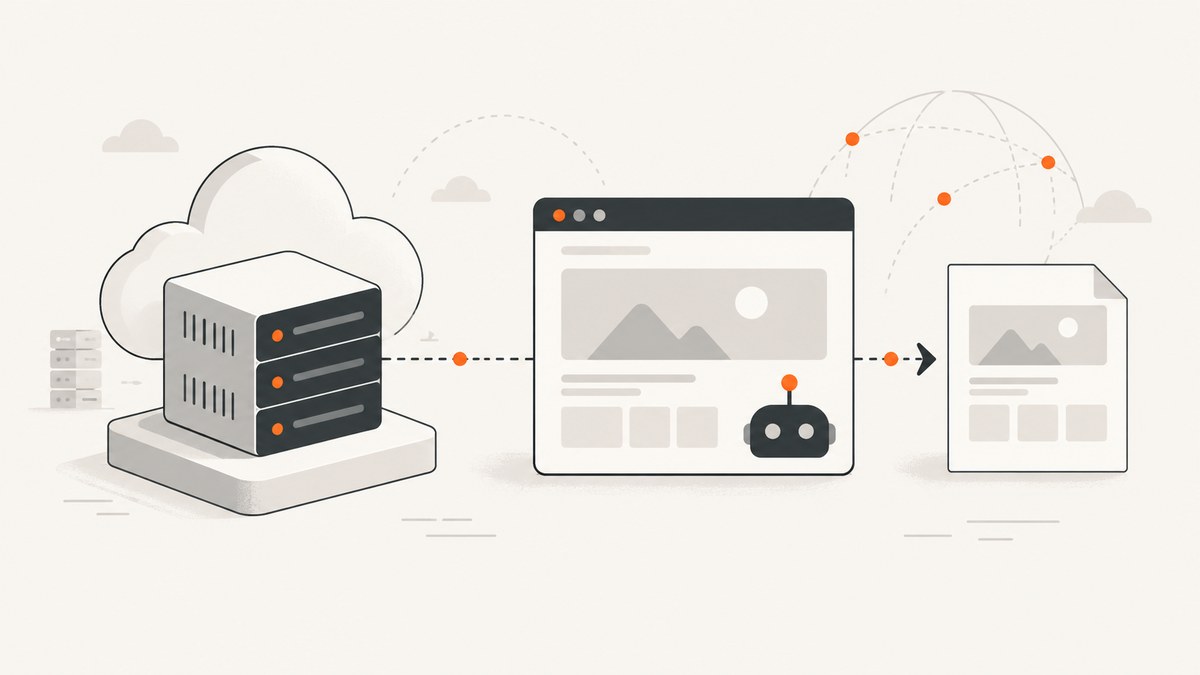
Direct answer: deploy Puppeteer on a Linux Google Compute Engine VM by installing a supported Node.js runtime, installing your locked application dependencies, ensuring Chrome for Testing and its Linux libraries are available, then running the worker under a service manager. The standard puppeteer package downloads a compatible Chrome for Testing binary during installation. If installation scripts were blocked, install the browser explicitly with npx puppeteer browsers install. For a separately managed browser, use puppeteer-core and configure executablePath.
This guide combines Google’s general Node.js-on-Compute-Engine deployment pattern with Puppeteer’s installation and troubleshooting guidance. It is a deployment design, not a claim that one machine type or configuration works for every workload. Browser concurrency, page complexity, region, disk, memory, and network traffic determine the right size.
1. Choose the VM and deployment shape
Create a Linux VM in a region close to the pages, users, queue, or APIs it will access. Use a currently supported Linux image and Node.js release. Google’s single-instance Node.js guidance demonstrates installing an application with a startup script and keeping it alive with a process supervisor; its sample operating-system and runtime versions are illustrations, so select current supported versions when you deploy. See Google’s Node.js guide for Compute Engine.
Start with one worker process and measure memory before increasing concurrency. Each Chromium page consumes memory based on JavaScript execution, fonts, images, video, and the number of open tabs. A queue consumer that launches a new browser for every URL usually wastes more resources than a long-lived browser with a controlled number of pages.
| Decision | Practical guidance |
|---|---|
| Machine type | Choose from expected concurrent pages and page weight. The research sources do not establish a universal machine type or throughput. |
| Disk | Leave space for the OS, Node modules, Chromium cache, temporary profiles, logs, and updates. Puppeteer’s Linux Chrome download is approximately 282 MB. |
| Ingress | A queue worker may need no public inbound port. If you expose HTTP, allow only the port and source ranges required. |
| Identity | Attach a user-managed service account only when the application calls Google Cloud APIs, and grant only the required IAM roles. |
2. Create the Compute Engine VM
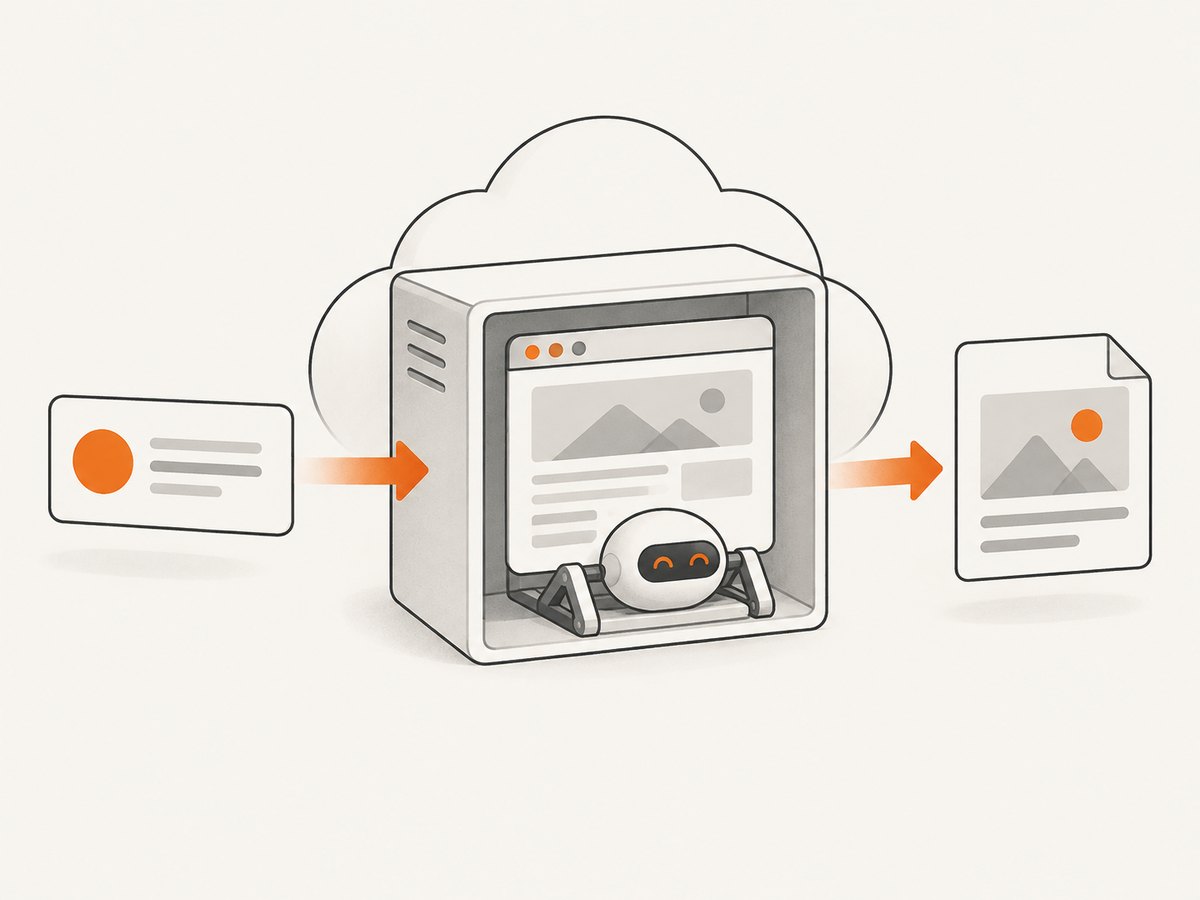
In the Google Cloud console or with gcloud, create a VM using a current Linux image, a service account appropriate for the workload, and a network tag only if you need a firewall rule. Keep the worker private when it is triggered by Pub/Sub, Cloud Tasks, a scheduler, or an internal service.
# Example shape; select a current image and machine type for your project.
gcloud compute instances create puppeteer-worker \
  --zone=ZONE \
  --machine-type=MACHINE_TYPE \
  --image-family=IMAGE_FAMILY \
  --image-project=IMAGE_PROJECT \
  --service-account=SERVICE_ACCOUNT_EMAIL \
  --scopes=https://www.googleapis.com/auth/cloud-platform \
  --tags=puppeteer-worker
The cloud-platform access scope does not grant every permission by itself; IAM roles on the attached service account control what the application can do. Google recommends a user-managed service account with only the roles the application needs. Do not put a service-account key file in the VM image or source tree.
3. Install Node.js and application dependencies
Connect over SSH, install a supported Node.js release using your organization’s approved method, and deploy a locked application. Keep package-lock.json (or your equivalent lockfile) in the release so the VM receives repeatable versions.
sudo apt-get update
sudo apt-get install -y ca-certificates curl git
# Install Node.js using your approved current distribution method.
node --version
npm --version

git clone https://example.invalid/your-repository.git /opt/puppeteer-worker
cd /opt/puppeteer-worker
npm ci
Replace the repository placeholder with your own deployment source. The important property is that the VM installs the same locked dependencies you validated in development.
Managed browser: the normal puppeteer package
Installing puppeteer normally downloads a compatible Chrome for Testing browser. Puppeteer documents an approximate 282 MB Linux download, and its default browser cache is under $HOME/.cache/puppeteer. The account that runs the service must be able to read that cache and write it during installation or browser updates.
npm install puppeteer
npx puppeteer browsers install
The second command is useful when a package manager or CI policy skipped installation scripts. Run it as the same user that will run the service, or configure a shared cache with permissions that match your operational model.
Separate browser: puppeteer-core
Use puppeteer-core when your organization installs and patches Chrome separately. You must provide an executable path (or a supported browser channel) and own compatibility between that browser and Puppeteer.
npm install puppeteer-coreconst puppeteer = require('puppeteer-core');
(async () => {
const browser = await puppeteer.launch({
executablePath: process.env.CHROME_PATH,
headless: true
});
const page = await browser.newPage();
await page.goto('https://example.com', { waitUntil: 'networkidle2', timeout: 60000 });
await page.screenshot({ path: 'example.png', fullPage: true });
await browser.close();
})();Set CHROME_PATH in the service environment and verify the file exists and is executable. Avoid copying an executable path from another Linux distribution without checking the image.
4. Verify Chrome and Linux runtime libraries
A minimal VM image can lack shared libraries required by Chrome. Puppeteer’s troubleshooting documentation shows how to diagnose missing libraries, but package names vary by operating system and age. Start with the actual launch error, inspect dependencies for your selected image, and install only validated packages for that image. Do not disable the Chrome sandbox as a first response to a missing-library error.
node -e "const p=require('puppeteer'); console.log(p.executablePath())"
# Check the path printed above, then inspect the binary and permissions.
ls -l "$(node -e "const p=require('puppeteer'); process.stdout.write(p.executablePath())")"
ldd "$(node -e "const p=require('puppeteer'); process.stdout.write(p.executablePath())")" | grep 'not found' || true
If the command reports missing libraries, use the package names recommended for your image and the error output. Also check that the service user has a writable temporary directory and browser profile location.
5. Build a production-safe Puppeteer worker
Use explicit timeouts, close pages in a finally block, and close the browser on shutdown. Reuse one browser process for several jobs, but cap concurrent pages and recycle the browser periodically if your workload accumulates renderer memory.
const puppeteer = require('puppeteer');

const jobs = ['https://example.com'];

async function run() {
  const browser = await puppeteer.launch({
    headless: true,
    timeout: 60000
  });

  try {
    for (const url of jobs) {
      const page = await browser.newPage();
      try {
        page.setDefaultNavigationTimeout(60000);
        await page.goto(url, { waitUntil: 'networkidle2' });
        await page.screenshot({ path: `shot-${Date.now()}.png`, fullPage: true });
      } finally {
        await page.close();
      }
    }
  } finally {
    await browser.close();
  }
}

run().catch(error => {
  console.error(error);
  process.exitCode = 1;
});
networkidle2 can take a long time on pages with analytics, polling, or long-lived connections. For those pages, wait for a specific selector or use a bounded delay after the main content appears. Always retain a hard timeout so one URL cannot block the queue indefinitely.
6. Run it at boot with a service manager
A terminal session is not a production supervisor. Run the process with systemd, Supervisor, or another approved process manager so it starts after reboot, restarts after an unexpected exit, and writes logs you can inspect. Google’s Node.js Compute Engine guide demonstrates the same pattern with a startup script and Supervisor.
sudo useradd --system --home /opt/puppeteer-worker --shell /usr/sbin/nologin puppeteer
sudo chown -R puppeteer:puppeteer /opt/puppeteer-worker
sudo tee /etc/systemd/system/puppeteer-worker.service > /dev/null <<'EOF'
[Unit]
Description=Puppeteer worker
After=network-online.target
Wants=network-online.target
[Service]
Type=simple
User=puppeteer
WorkingDirectory=/opt/puppeteer-worker
Environment=NODE_ENV=production
Environment=HOME=/opt/puppeteer-worker
ExecStart=/usr/bin/node /opt/puppeteer-worker/index.js
Restart=on-failure
RestartSec=5
[Install]
WantedBy=multi-user.target
EOF
sudo systemctl daemon-reload
sudo systemctl enable --now puppeteer-worker
sudo systemctl status puppeteer-worker
sudo journalctl -u puppeteer-worker -fSet HOME deliberately so Puppeteer’s cache path is predictable. If you installed the browser as another account, either install it for puppeteer or configure a readable shared cache. Check startup output and centralized logs after every release.
7. Configure networking and Google Cloud access
Confirm the application listens on the intended interface and port. A private worker can bind to localhost and consume jobs from an outbound connection. For a public HTTP endpoint, bind deliberately, put authentication and TLS at an appropriate front end, and create a firewall rule limited to the required source ranges. Google’s example opens TCP 8080 to all IPv4 sources only for its sample application; that is not a general production setting.
gcloud compute firewall-rules create allow-puppeteer-api \
  --network=NETWORK_NAME \
  --direction=INGRESS \
  --action=ALLOW \
  --rules=tcp:8080 \
  --source-ranges=YOUR_TRUSTED_CIDR \
  --target-tags=puppeteer-worker
If calls to Google Cloud APIs fail, verify the API is enabled, the VM has the intended service account, the service account has the required IAM role, and access scopes do not restrict the request. Libraries can use attached credentials without an embedded key.
8. Performance, reliability, and cost planning
- Concurrency: begin with a low page limit, observe memory and CPU, and increase gradually. There is no source-backed universal concurrency number.
- Browser reuse: reuse a browser to avoid repeated startup cost, but close pages promptly and recycle the browser on a schedule or after repeated crashes.
- Navigation: prefer a meaningful readiness selector over an unbounded network-idle wait for applications with polling or WebSockets.
- Profiles: use an isolated temporary profile per job when cookies or local storage must not leak between tenants.
- Storage: account for the Chrome download (approximately 282 MB), npm modules, temporary files, logs, and crash artifacts.
- Reliability: make jobs idempotent, record URL and error class, retry transient navigation failures with a limit, and send permanently failed jobs to a dead-letter path.
- Cost: Compute Engine charges depend on machine type, region, attached disks, network egress, and runtime. The reviewed sources do not establish a Puppeteer-specific monthly estimate.
9. Troubleshooting checklist
| Symptom | Cause | Fix |
|---|---|---|
| Could not find Chrome | Install script was blocked, browser cache is missing, or the service user differs from the install user. | Run npx puppeteer browsers install as the service user, check $HOME/.cache/puppeteer, or set an explicit executablePath with puppeteer-core. |
| Chrome exits immediately | Missing shared libraries, permissions, profile path, or an incompatible executable. | Read the launch error, inspect ldd output, verify file and directory permissions, and validate packages for the selected Linux image. |
| Works over SSH but fails as a service | Different HOME, working directory, PATH, environment, cache, or user permissions. |
Compare the service environment with the interactive shell; set User, WorkingDirectory, and HOME explicitly. |
| Navigation times out | Slow page, blocked resource, never-ending connections, or an overly strict readiness condition. | Set a bounded timeout, wait for a content selector, capture console/network errors, and retry only transient failures. |
| Google API permission denied | Wrong service account, missing IAM role, disabled API, or restrictive VM scope. | Verify identity, IAM, API enablement, and scopes; do not add broad roles simply to hide the error. |
| HTTP endpoint is unreachable | Wrong listen address or port, stopped process, or firewall mismatch. | Check systemctl status, logs, listening sockets, network tags, and the rule’s source range. |
10. Or skip the browser setup
If your goal is dependable website screenshots rather than operating Chrome yourself, ScreenshotNeo provides a single API request that returns PNG, JPEG, WebP, or PDF. Cookie and consent banners are accepted and removed before capture, along with more than 60 known consent platforms, newsletter popups, and chat widgets. Bot checks, blank pages, timeouts, failed loads, and cache hits are not billed, and the response identifies the result with X-Page-Verdict and X-Billed headers. An MCP server provides take_screenshot, get_page_info, and capture_pdf tools for Claude, Cursor, and other MCP clients.

See the ScreenshotNeo API documentation for the complete option set.
cURL
curl -G "https://api.screenshotneo.com/v1/shot" -d access_key=YOUR_API_KEY --data-urlencode url=https://stripe.com -o shot.webpPython
import requests
r = requests.get("https://api.screenshotneo.com/v1/shot", params={"access_key": "YOUR_API_KEY", "url": "https://stripe.com"}, timeout=90)
open("shot.webp", "wb").write(r.content)
Node.js
const q = new URLSearchParams({ access_key: 'YOUR_API_KEY', url: 'https://stripe.com' });
const res = await fetch(`https://api.screenshotneo.com/v1/shot?${q}`);
ScreenshotNeo includes full-page and selector captures, dark mode, device presets, custom viewports, retina scale, PDF paper and margin controls, custom CSS and JavaScript, clicks, selector waits, delays, network-idle waits, request blocking, headers, cookies, user agents, Authorization, timezone, geolocation, transparent backgrounds, resizing, configurable caching, signed image links, asynchronous jobs with signed webhooks, bulk capture for up to 100 URLs, usage reporting, and an OpenAPI specification. Its parameter names also match those used by other screenshot APIs, which helps when switching.
The Free plan includes 1,000 screenshots each month without a card. Paid plans start at $5 for 3,000 shots; yearly billing gives two months free, and every feature is available on every plan. Create a free ScreenshotNeo account.
11. Deployment checklist
- Use a current supported Linux image and Node.js runtime.
- Deploy with a lockfile and install dependencies as the intended service user.
- Confirm managed Chrome exists, or configure and test an explicit executable path.
- Validate shared libraries against the actual image.
- Set bounded navigation and operation timeouts.
- Run under systemd, Supervisor, or an equivalent supervisor.
- Make
HOME, cache, profile, and working-directory permissions explicit. - Attach only the IAM roles required by the workload.
- Keep ingress private or narrowly restricted.
- Capture logs, classify failures, and monitor memory before raising concurrency.
FAQ
Does Puppeteer include Chrome?
The ordinary puppeteer package downloads a compatible Chrome for Testing browser during installation. If scripts were blocked, run the documented browser installation command.
Should I use Puppeteer or puppeteer-core on a VM?
Use puppeteer when you want Puppeteer to manage its compatible browser. Use puppeteer-core when Chrome is managed separately and you can maintain the executable path and compatibility.
Do I need a public IP address?
No. A queue worker or internal service can run without public ingress. Expose an endpoint only when the workload requires it.
Can a service account key be stored on the VM?
Use an attached service account and IAM roles instead. This avoids embedding long-lived keys in the image or application.
Why does a page never reach network idle?
Analytics, polling, WebSockets, or other persistent requests can prevent that condition. Wait for a page-specific selector and enforce a hard timeout.


