How to Design Social Media Cards and Open Graph Images
Create social cards that survive platform crops, load reliably, and display correctly with Open Graph metadata and practical validation steps.

A dependable social card starts with a 1200 × 630 pixel canvas, a clear subject, and metadata in the server-rendered HTML. Keep important text and branding inside a conservative central safe area, publish the image at an absolute HTTPS URL, and validate the deployed page with each destination’s preview tool. The same source image can serve Facebook, LinkedIn, X, Slack, WhatsApp and other clients, but their crops, file limits and cache behavior differ.
1. Choose the canvas and design for the crop
Use 1200 × 630 pixels (about 1.91:1) as a practical shared starting point. A dated platform-specification compilation reports Facebook at 1200 × 630 or larger, LinkedIn at least 1200 × 627, X’s large-image card at a 2:1 ratio with a 300 × 157 minimum, and WhatsApp accepting images at least 300 pixels wide with ratios up to 4:1. Slack and Discord do not publish image dimensions. Treat these as a starting guide and check current requirements before a launch.
| Destination | Reported guidance | Design implication |
|---|---|---|
| At least 1200 × 630; up to 8 MB | Use the shared canvas and export below the limit | |
| At least 1200 × 627; up to 5 MB | Keep the top and bottom edges visually quiet | |
| X | Large card around 2:1; under 5 MB | Preview a wider crop |
| At least 300 px wide; under 600 KB reported | Use efficient compression and test on a phone | |
| Slack and Discord | No published dimensions in the guide | Use 1200 × 630 and verify actual rendering |
Put the headline, face, product shape or other essential subject in the middle 70–80% of the frame. This is practical guidance inferred from the differing aspect ratios, not a formally published universal safe zone. Design at the final crop, then inspect a reduced thumbnail. If a platform consistently cuts useful content, create a platform-specific variant and point that page’s metadata at it.
2. Build a hierarchy that survives small previews
Give the card one dominant visual and one short, readable title. Use enough contrast between foreground and background to remain legible when the image is reduced. Keep decorative details away from the edges, where a crop or rounded preview corner can remove them. A small logo can identify the publisher, but do not make the logo the only meaningful visual; a page-specific image tells the visitor what the link contains.
Do not depend on tiny explanatory text. The sources reviewed provide no verified statistic showing that a particular word count, color scheme or composition increases engagement, so choose those details for clarity and brand consistency rather than an unsupported conversion claim.
3. Add Open Graph and X metadata
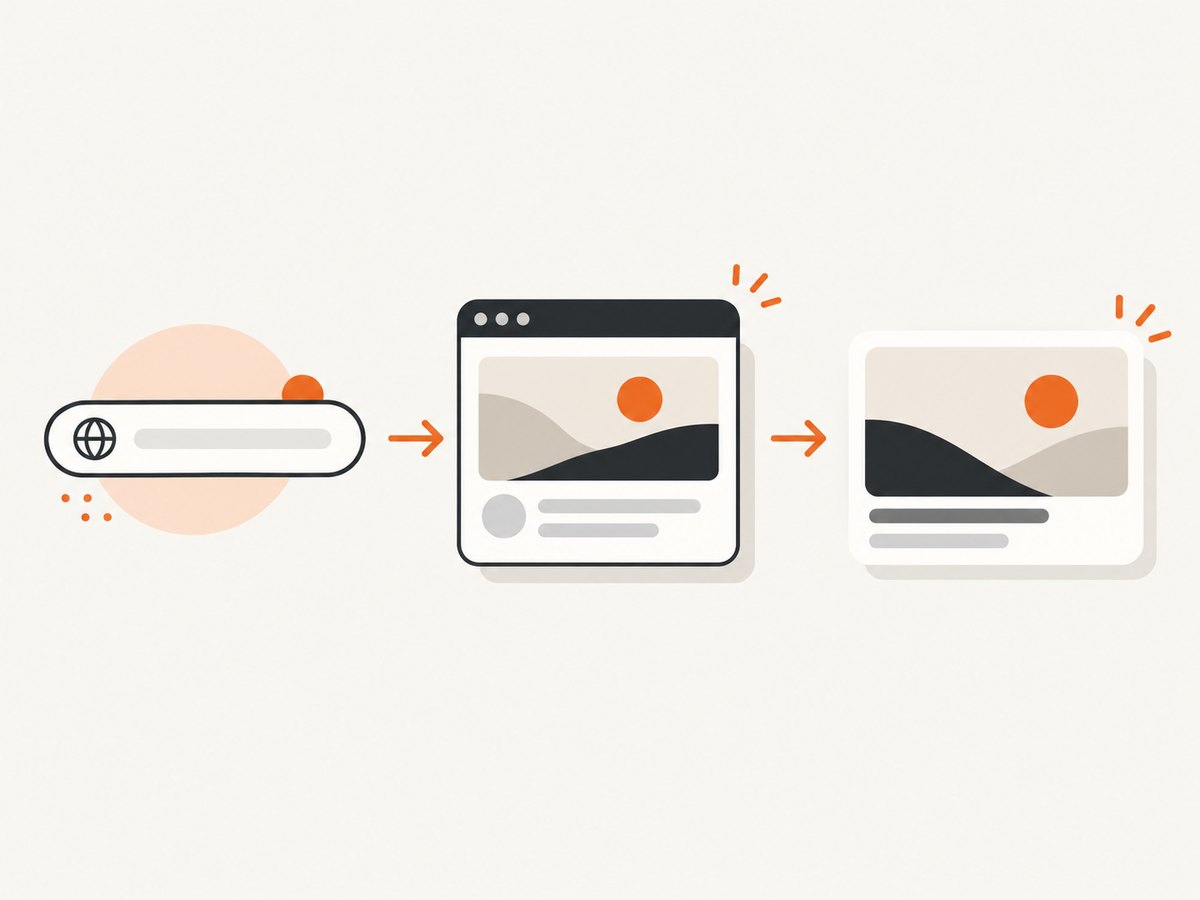
The image is only one part of a link preview. At minimum, provide an accurate title, description, canonical URL, type and image URL. Use an absolute HTTPS image URL that works without a login, bot challenge or hotlink restriction. Include dimensions and alternative text so clients can size the preview and assistive technology can describe it.
<meta property='og:title' content='A clear page-specific title'>
<meta property='og:description' content='A concise description of the linked page.'>
<meta property='og:type' content='article'>
<meta property='og:url' content='https://example.com/article'>
<meta property='og:image' content='https://example.com/images/article-social-card.jpg'>
<meta property='og:image:width' content='1200'>
<meta property='og:image:height' content='630'>
<meta property='og:image:alt' content='Description of the image content'>
<meta name='twitter:card' content='summary_large_image'>
Place these tags in the initial HTML response sent by your server. If a framework inserts them only after client-side hydration, a crawler that reads the original response may miss them. Keep important tags near the start of the document; one guide reports a 300 KB early-HTML limit for WhatsApp, a volatile detail that should be checked against current WhatsApp documentation.
4. Generate a card yourself with HTML and Playwright
A browser is useful when the card is assembled from reusable HTML and CSS. The following script creates a 1200 × 630 PNG. It uses only local markup, so it is deterministic and does not require a design application.
import { chromium } from 'playwright';

const browser = await chromium.launch();
const page = await browser.newPage({ viewport: { width: 1200, height: 630 }, deviceScaleFactor: 1 });
await page.setContent(`
  <style>
    * { box-sizing: border-box; }
    body { margin: 0; width: 1200px; height: 630px; font-family: Arial, sans-serif;
           color: white; background: linear-gradient(120deg, #101827, #2454a6);
           display: grid; place-items: center; }
    main { width: 980px; text-align: center; }
    h1 { margin: 0 0 24px; font-size: 72px; line-height: 1.05; }
    p { margin: 0; font-size: 28px; opacity: .86; }
  </style>
  <main><h1>How to Design Social Cards</h1><p>A practical Open Graph guide</p></main>
`);
await page.screenshot({ path: 'social-card.png', type: 'png' });
await browser.close();
Install Playwright with npm install playwright, save the file as card.mjs, and run node card.mjs. Replace the inline content with your own template or data. For JPEG or WebP output, pass type: 'jpeg' or type: 'webp' and, for JPEG, a quality value supported by your Playwright version. Keep the output under the strictest destination limit you target; the guide reports 8 MB for Facebook, 5 MB for LinkedIn, under 5 MB for X and under 600 KB for WhatsApp. A practical recommendation in the guide is to aim below 300 KB when quality permits.
5. Publish and validate the real URL
- Deploy the page and image over HTTPS.
- Fetch the raw HTML with a command-line client and confirm the tags appear before JavaScript runs.
- Fetch the image without authentication. Check the status,
Content-Type, dimensions and byte size. - Confirm the URL is absolute and points to the final image, not a redirect that requires cookies.
- Open the platform’s preview or debugger, submit the published URL and trigger a re-scrape when available.
- Repeat after changing metadata. Cached previews can outlive a deployment, so a local browser refresh is not proof that a platform has refreshed.
curl -I https://example.com/images/article-social-card.jpg
curl -s https://example.com/article | grep -i -E 'og:title|og:image|twitter:card'
Use a real crawler-like request in staging as well. A successful request from your own browser does not prove that a platform can fetch the file if your CDN blocks unfamiliar user agents, geographic regions or missing cookies.
6. Troubleshoot missing or incorrect previews
| Symptom | Likely cause | Fix |
|---|---|---|
| No image | Tags are injected after hydration | Render metadata in the server response and inspect raw HTML |
| Broken image | Relative URL, authentication or hotlink protection | Use a public absolute HTTPS URL and test an unauthenticated request |
| Old title or image | Platform cache | Use its debugger or inspector to request a fresh scrape |
| Unexpected crop | Destination uses a different ratio | Move essentials into the central safe area or publish a variant |
| Preview rejected | File is too large or format is unsupported | Export JPEG or PNG, compress it and check the destination’s current limit |
| Image appears only sometimes | Intermittent origin, CDN or bot challenge | Review logs, remove challenge requirements for the asset and return a stable 200 response |
| Wrong page image | Shared template or canonical mismatch | Set page-specific tags and make og:url match the canonical page |
A 2020 peer-reviewed NDSS study of 20 platforms found that 11 could fail to show an image when image metadata was absent. That result describes the software tested then, not a current universal rate, but it explains why explicit metadata is safer than relying on inference.
7. Performance, reliability and operating cost
Generate cards during your build or publish pipeline rather than on every preview request. Store immutable, content-hashed files at a CDN edge and set long cache lifetimes; update the URL when the design changes. This avoids repeated browser work and prevents a social crawler from racing a slow origin. Keep the HTML response small and put metadata early. Monitor image fetch status separately from page status because a working page can still reference a failing asset.
For many pages, the cost is storage and build time. Browser rendering adds CPU and memory, especially at high device scale factors or when loading external fonts. Use a fixed viewport, local assets and a timeout. If you capture pages on demand, queue jobs, limit concurrency and retry only transient network failures. Do not retry a permanent 403 or a bot challenge indefinitely.
8. Or skip the browser setup
ScreenshotNeo captures a page with one request and can return PNG, JPEG, WebP or PDF. It can load a full page, wait for a selector, delay or network idle, use a viewport or device preset, set retina scale, apply custom CSS and JavaScript, hide selectors, click an element, set headers, cookies, a user agent, timezone or geolocation, block ads, trackers, requests or resource types, and cache a result with a TTL you choose. For a social card workflow, capture the published page or a dedicated card route and then store the returned image.

Before capture, ScreenshotNeo accepts cookie and consent banners and removes more than 60 known consent platforms, newsletter popups and chat widgets. Each step can be turned off. Bot checks, blank pages, timeouts, failed loads and cache hits cost nothing, and the response identifies the result with X-Page-Verdict and X-Billed headers.
See the ScreenshotNeo API documentation for the complete parameter list. The basic calls are:
curl -G 'https://api.screenshotneo.com/v1/shot' -d access_key=YOUR_API_KEY --data-urlencode url=https://example.com/article -o social-card.webpimport requests
r = requests.get('https://api.screenshotneo.com/v1/shot', params={'access_key': 'YOUR_API_KEY', 'url': 'https://example.com/article'}, timeout=90)
r.raise_for_status()
open('social-card.webp', 'wb').write(r.content)const q = new URLSearchParams({ access_key: 'YOUR_API_KEY', url: 'https://example.com/article' });
const res = await fetch(`https://api.screenshotneo.com/v1/shot?${q}`);
if (!res.ok) throw new Error(`${res.status} ${res.statusText}`);
const image = Buffer.from(await res.arrayBuffer());
await import('node:fs/promises').then(fs => fs.writeFile('social-card.webp', image));ScreenshotNeo also provides an MCP server with take_screenshot, get_page_info and capture_pdf for Claude, Cursor and other MCP clients; async jobs with signed webhooks; bulk capture for up to 100 URLs per call; signed links for public image tags; a usage API; and an OpenAPI specification. Its parameter names are compatible with those used by other screenshot APIs, which helps when switching.
The Free plan includes 1,000 shots per month with no card. Paid plans are Starter $5 for 3,000, Growth $15 for 15,000, Pro $39 for 60,000, Scale $99 for 250,000, and Business $249 for 1,000,000; yearly billing gives two months free and every feature is on every plan. Create a free ScreenshotNeo account and start with the 1,000 monthly shots.
9. Short FAQ
Is 1200 × 630 mandatory?
No. It is a practical shared canvas. Destination ratios and limits differ, so preview the actual card and create variants when needed.
Should I use PNG or JPEG?
Both are conservative choices in the guide. Use PNG for sharp flat graphics and JPEG when photographic content compresses more efficiently, then verify the destination’s size limit.
Will changing the image immediately update previews?
Not always. Social services cache fetched metadata and images. Use their preview debugger or inspector to request a new scrape.
Can a client-side React app set Open Graph tags?
It can, but a crawler reading only the original response may miss them. Server-render the tags or provide a pre-rendered HTML response.
Do I need a different image for every platform?
No. Start with one safe central composition, then add platform-specific variants only when testing shows that a crop removes essential content.


