How to Save a Web Page as a Desktop-Viewport PDF on Mobile
Request a desktop site on your phone, then save it as a PDF. Learn the documented steps for Chrome, Safari, and Firefox—and what the PDF may not preserve.
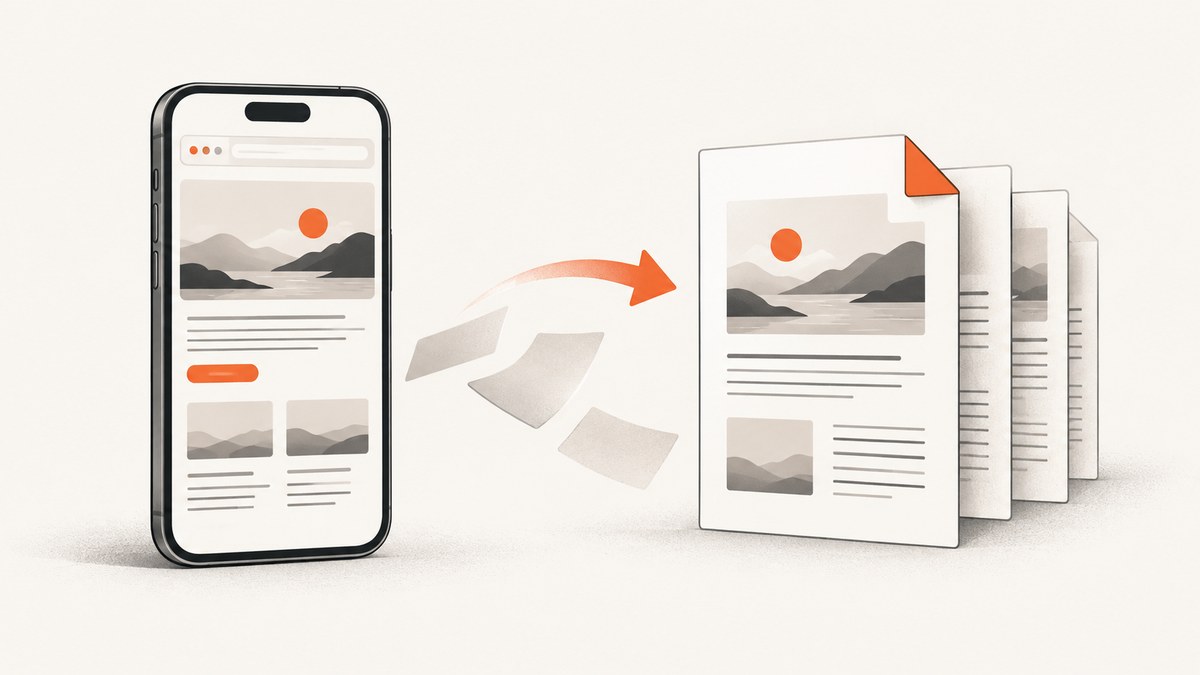
To save a web page as a desktop-viewport PDF on mobile, first ask the browser to request the desktop version of the site, then use the browser’s PDF-saving workflow. These are separate steps: requesting desktop presentation does not guarantee that the PDF will use a fixed desktop viewport width or match desktop print pagination. Check the saved file before relying on its layout.
The documented routes differ by browser. Android Chrome uses print preview and “Save as PDF.” iPhone Safari offers “Request Desktop Website” and a separate Share-to-Markup PDF workflow. Firefox for iOS can request desktop presentation and save a full-page screenshot as a PDF. This guide follows the available vendor instructions and calls out where those instructions do not establish exact output geometry.
1. Understand what “desktop-viewport PDF” means
A browser’s desktop-site control asks a website to present its desktop version. A responsive site may use the browser’s requested mode to choose a layout, but that request alone does not set a guaranteed CSS viewport width for printing or PDF export.
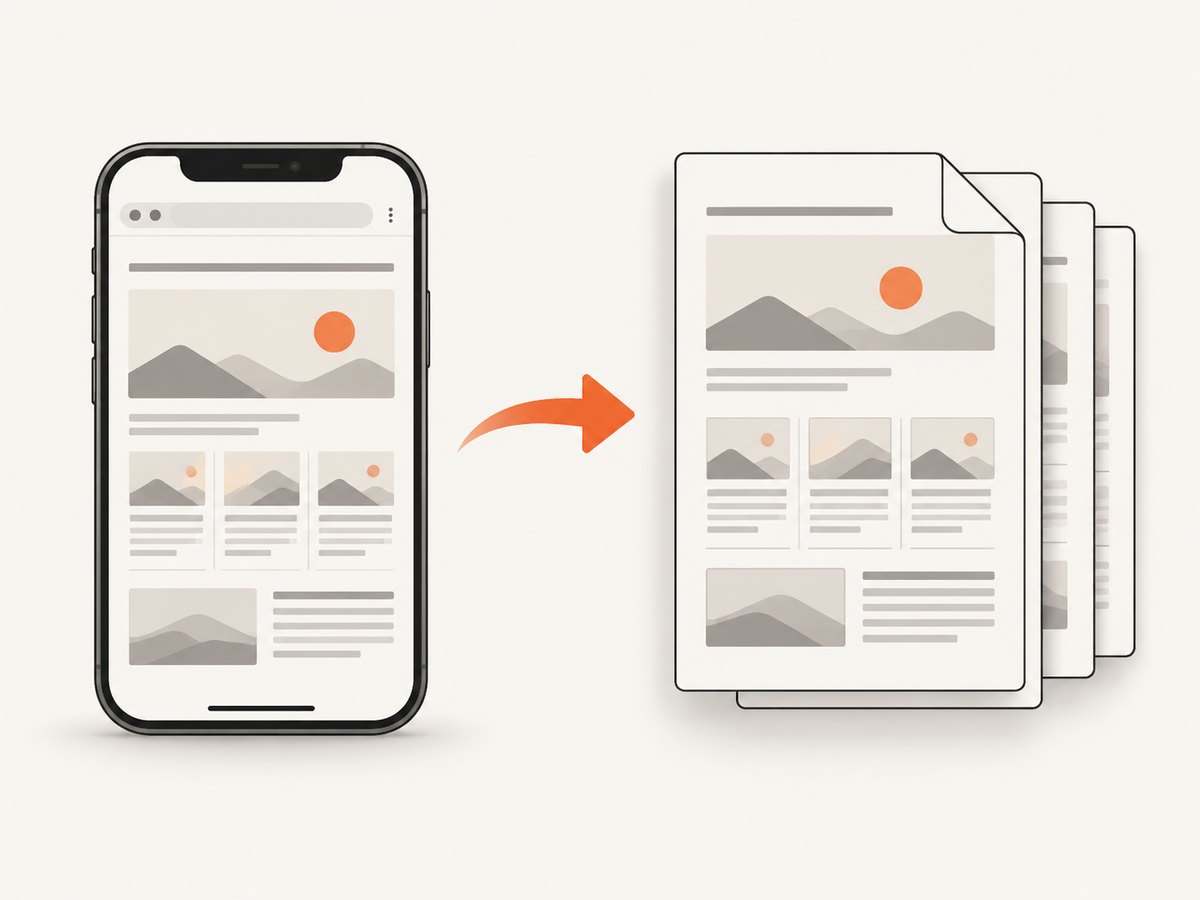
PDF creation is a second operation. A print workflow lays out content for pages; a screenshot workflow captures rendered pixels. Either can differ from what you see while browsing. The official instructions cited here explain how to request desktop view and save a PDF, but they do not promise a particular viewport width, paper geometry, pagination, or exact desktop reproduction.
If matching a specific desktop layout matters, open the PDF and check its columns, text size, images, page breaks, and clipping. If exact geometry is essential, use a desktop browser or a capture workflow where viewport and PDF settings are explicit.
2. Android: Chrome desktop view, then print to PDF
Chrome has separate controls for requesting a desktop site and creating a PDF. Google documents this sequence:
- Open the webpage in Chrome on Android.
- Tap More (the three-dot menu), then select Desktop site.
- If the page still looks mobile-sized, refresh it. Some sites may override the browser’s general preference; Google says you may need to request desktop view for that particular site.
- Open More again, tap Share, then choose Print.
- In the print preview, choose Save as PDF, select a location on the device, and save.
Chrome also documents persistent desktop-mode preferences and site-specific exceptions under Settings > Site settings > Desktop site. Use those settings if you want desktop presentation to be the default or need to change how a particular site is treated. Menu labels can vary with Chrome versions and device configuration.
Print preview is the PDF-producing step; the desktop-site toggle does not itself create a PDF. Google’s instructions do not guarantee a fixed desktop CSS width in that preview. Inspect the saved pages for narrow columns, unexpected breaks, or content that has been clipped.
3. iPhone: Safari desktop request and PDF save
Safari’s site-view request and its PDF workflow are separate actions. Apple documents the following route:
- Open the webpage in Safari.
- Open the Page Menu and choose Request Desktop Website, if that option is available.
- Tap Share, then tap Markup.
- Tap Done, choose Save File To, name the PDF, and select where to save it.
Apple’s instructions describe saving a webpage as a PDF, but do not state that the exported file uses a fixed desktop viewport width. After saving, open the PDF from the chosen location and verify that its layout is suitable.
4. iPhone: Firefox desktop site and screenshot-based PDF
Firefox for iOS offers Desktop Site and Mobile Site actions under Page Actions. Mozilla says the desktop choice persists for that site until you change it back to Mobile Site.
Mozilla’s documented PDF route for Firefox on iOS uses a full-page screenshot rather than print preview:
- Request Desktop Site from Page Actions.
- Take a screenshot and select Full Page in the screenshot interface.
- Tap Done, then choose Save as PDF.
Because this method is screenshot-based, treat the result as a capture of the rendered page, not as evidence that desktop print pagination has been reproduced. Check whether text is legible at the exported size and whether the entire page was captured.
5. Firefox for Android
Mozilla’s help index identifies guides titled “Save web pages as PDF in Firefox for Android” and “Use the in-browser print function on Firefox for Android.” The research available for this article confirmed those help topics exist but did not expose their current detailed steps. For that reason, check the current Firefox help article or the app’s current menu rather than relying on a guessed sequence.
The relevant distinction remains the same: requesting a desktop site controls the requested page presentation, while printing or exporting creates the document. Verify the resulting PDF instead of assuming it has a fixed desktop width.
6. Which mobile workflow should you use?
| Browser | Desktop presentation | PDF route documented here | Geometry guarantee |
|---|---|---|---|
| Chrome on Android | More > Desktop site; can configure preferences and site exceptions | More > Share > Print > Save as PDF | No fixed desktop viewport width promised |
| Safari on iPhone | Page Menu > Request Desktop Website, if available | Share > Markup > Done > Save File To | No fixed desktop viewport width stated |
| Firefox on iPhone | Page Actions > Desktop Site; choice persists per site until changed | Full-page screenshot > Done > Save as PDF | Screenshot workflow; no fixed desktop print layout promised |
| Firefox on Android | Check current app controls and help | Mozilla help topics exist; consult their current instructions | Detailed steps and geometry were not established here |
For a conventional paginated document, use a print-to-PDF route when your browser offers one. For a visual capture of a long page, Firefox for iOS documents its full-page screenshot route. Neither choice guarantees that the file will match a desktop browser’s exact viewport or print output.
7. Troubleshooting
The page still looks mobile after selecting desktop
Refresh after requesting desktop view. A site may override the general preference, so select desktop view for that site if the browser offers a site-specific setting. A responsive design may also retain a compact layout even when desktop presentation is requested.
The PDF looks different from the page
That is possible because print layout or screenshot export is a separate stage from site presentation. Check the PDF at its actual page size. If columns, text, or spacing must match a desktop browser, create the PDF from a desktop browser or use a tool that lets you specify viewport and document options.
Images or content are missing
Wait for the page to finish loading before capturing it. Some pages load images or sections as you scroll; a static print or screenshot operation may not include content that has not loaded. Refresh once if the page appears incomplete, then repeat the save workflow.
The PDF is too long, too small, or split awkwardly
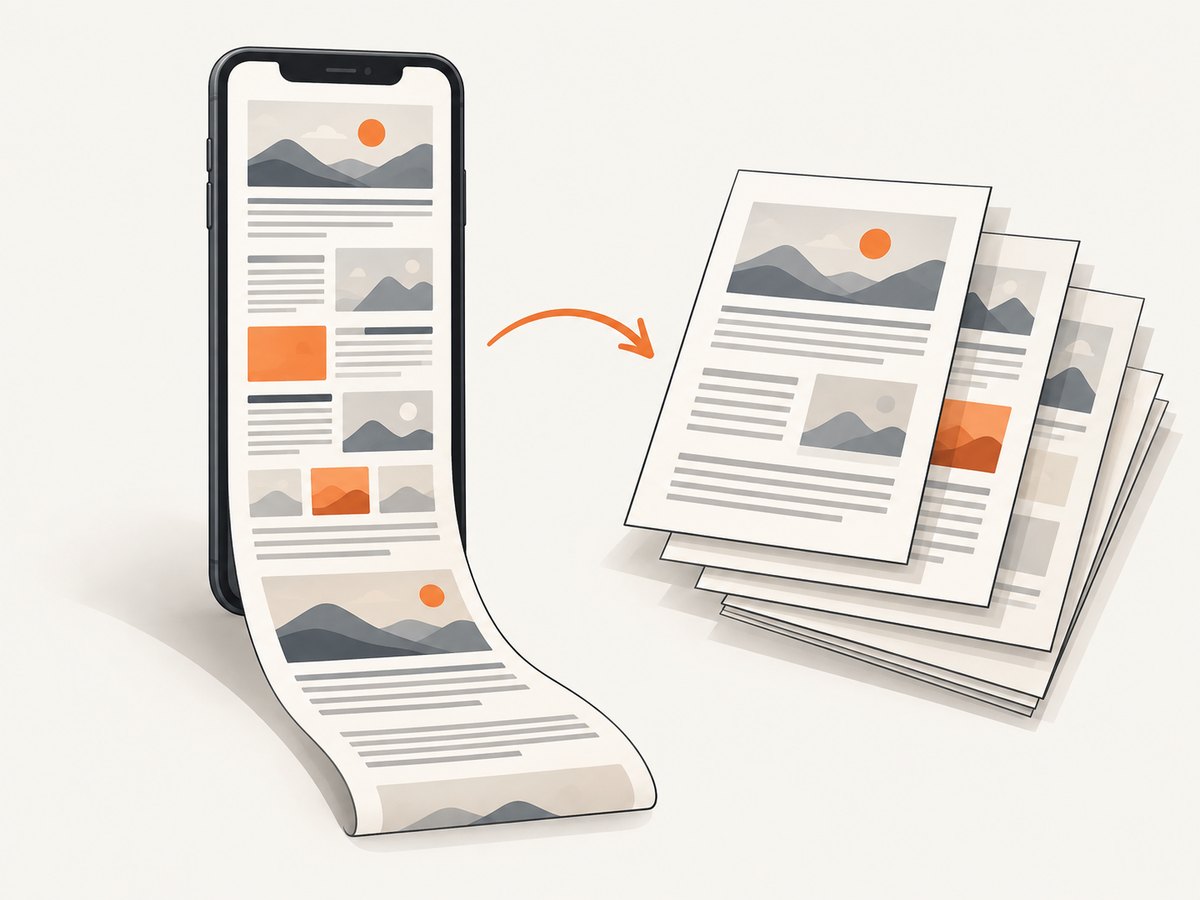
Print-to-PDF creates pages, while a full-page screenshot captures a tall image-like surface. Try the other documented route if available, and inspect page breaks and readability before sharing the file. The mobile instructions cited here do not provide controls for setting an exact desktop viewport width.
You cannot find the same menu label
Browser interfaces change, and options may depend on device or version. Look for the current browser’s desktop-site action and its print, share, markup, or screenshot export controls. For Firefox on Android, consult Mozilla’s current help instructions because the detailed menu sequence was not verified for this article.
8. A controlled PDF workflow for developers
If you need repeatable output across pages or want to specify paper size, margins, landscape orientation, or page ranges, a mobile browser’s documented save flow may not expose enough controls. A browser automation setup or a screenshot API can make those capture settings explicit. Keep in mind that a specified viewport controls the rendered capture; PDF pagination still depends on the PDF settings and page content.
When automating a browser yourself, the general sequence is: set the viewport, navigate to the URL, wait for the relevant content, and export to PDF with the required paper options. The exact code depends on the automation library and runtime, so use that library’s current official documentation for its PDF API. Do not treat a phone browser’s desktop toggle as a substitute for setting a known viewport.
Or skip the browser setup
ScreenshotNeo is a website screenshot API and MCP server. Its PDF options include paper size, margins, landscape orientation, and page ranges. The API accepts familiar screenshot parameter names, which can make switching easier. See the ScreenshotNeo API documentation.
curl -G "https://api.screenshotneo.com/v1/shot" -d access_key=YOUR_API_KEY --data-urlencode url=https://stripe.com -d format=pdf -o page.pdfimport requests
r = requests.get(
"https://api.screenshotneo.com/v1/shot",
params={"access_key": "YOUR_API_KEY", "url": "https://stripe.com", "format": "pdf"},
timeout=90,
)
r.raise_for_status()
open("page.pdf", "wb").write(r.content)const q = new URLSearchParams({
access_key: 'YOUR_API_KEY',
url: 'https://stripe.com',
format: 'pdf'
});
const res = await fetch(`https://api.screenshotneo.com/v1/shot?${q}`);
if (!res.ok) throw new Error(`Screenshot request failed: ${res.status}`);
await Bun.write('page.pdf', res);Replace the target URL and provide your API key. The cURL and Python examples save the response to a file; the Node.js example uses Bun’s file writer. In a Node.js project, use your preferred file-writing API to save the response body. Confirm the PDF output and settings for your page before using it in a production workflow.
ScreenshotNeo removes cookie and consent banners, newsletter popups, and chat widgets before capture; each of those steps can be turned off. Bot checks, blank pages, failed loads, timeouts, and cache hits cost nothing, and response headers identify page verdict and billing. Its MCP server offers take_screenshot, get_page_info, and capture_pdf tools for Claude, Cursor, and other MCP clients. The free plan includes 1,000 screenshots a month with no card; paid plans start at $5 for 3,000 screenshots. Create a free ScreenshotNeo account.
9. Reliability, performance, and cost
For an occasional document, the built-in browser workflow avoids setting up a separate capture service. Its practical limits are manual steps, browser-specific controls, and uncertain output geometry. Pages with delayed content can also produce incomplete captures if you save too early.
For repeatable developer workflows, control the viewport and wait condition, then inspect representative PDFs before processing many URLs. Retries can help with transient load failures, but avoid retry loops that repeatedly capture the same page without checking the result. If a workflow uses an API, check its response status and output before treating a file as valid.
ScreenshotNeo’s stated plans are Free: 1,000 shots/month; Starter: $5 for 3,000; Growth: $15 for 15,000; Pro: $39 for 60,000; Scale: $99 for 250,000; and Business: $249 for 1,000,000. Yearly billing gives two months free, and every feature is on every plan. These are screenshot plan allowances; choose a plan based on your expected capture volume.
10. Frequently asked questions
Does “Request Desktop Website” force a desktop-width PDF?
No such guarantee appears in the cited browser instructions. It requests desktop presentation; PDF layout is handled separately. Inspect the exported file.
Which iPhone browser workflow is a screenshot rather than print preview?
Mozilla documents a full-page screenshot saved as PDF in Firefox for iOS. Safari’s documented route uses Share and Markup.
Can I save just part of a page?
The browser steps above describe saving a webpage or full-page capture, not selecting an arbitrary element. For a specific region, use a capture tool that supports element selection or create a cropped document afterward.
Can I automate a batch of URLs?
Manual phone workflows are suited to individual pages. For programmatic capture, ScreenshotNeo supports bulk capture of up to 100 URLs per call and offers async jobs with signed webhooks.


