How to Detect Automatically Opened Tabs with Pyppeteer
Detect tabs opened by clicks or window.open in Pyppeteer with targetcreated, filtering, timeouts, troubleshooting, and a screenshot API alternative.
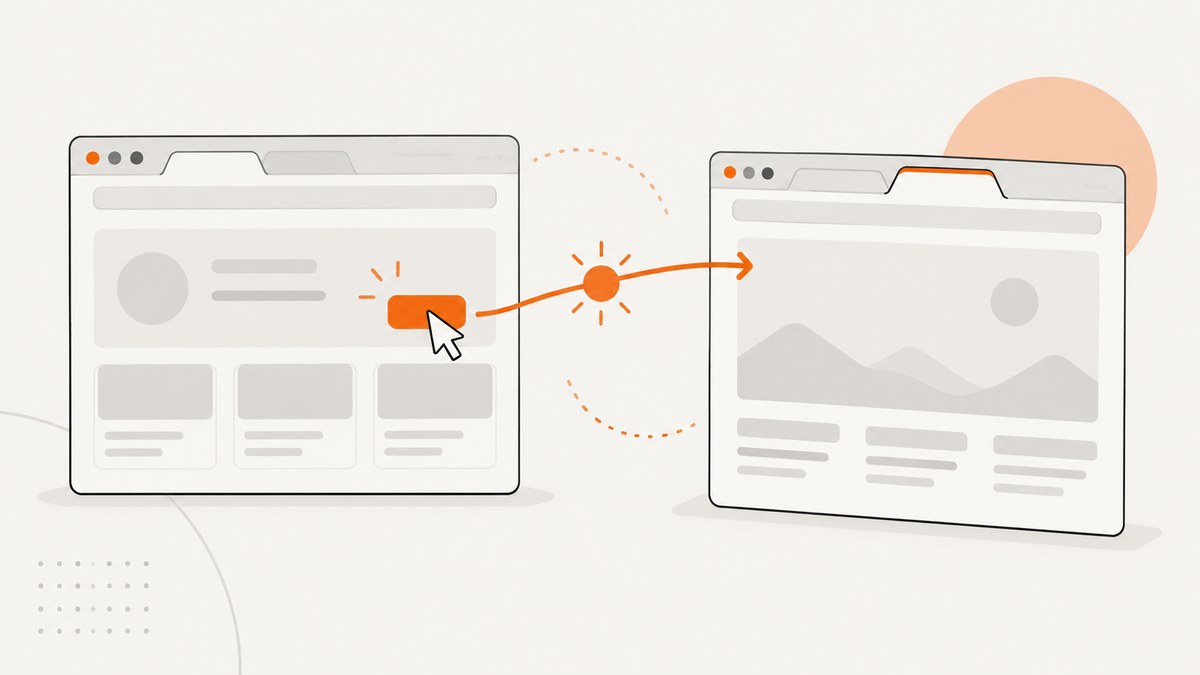
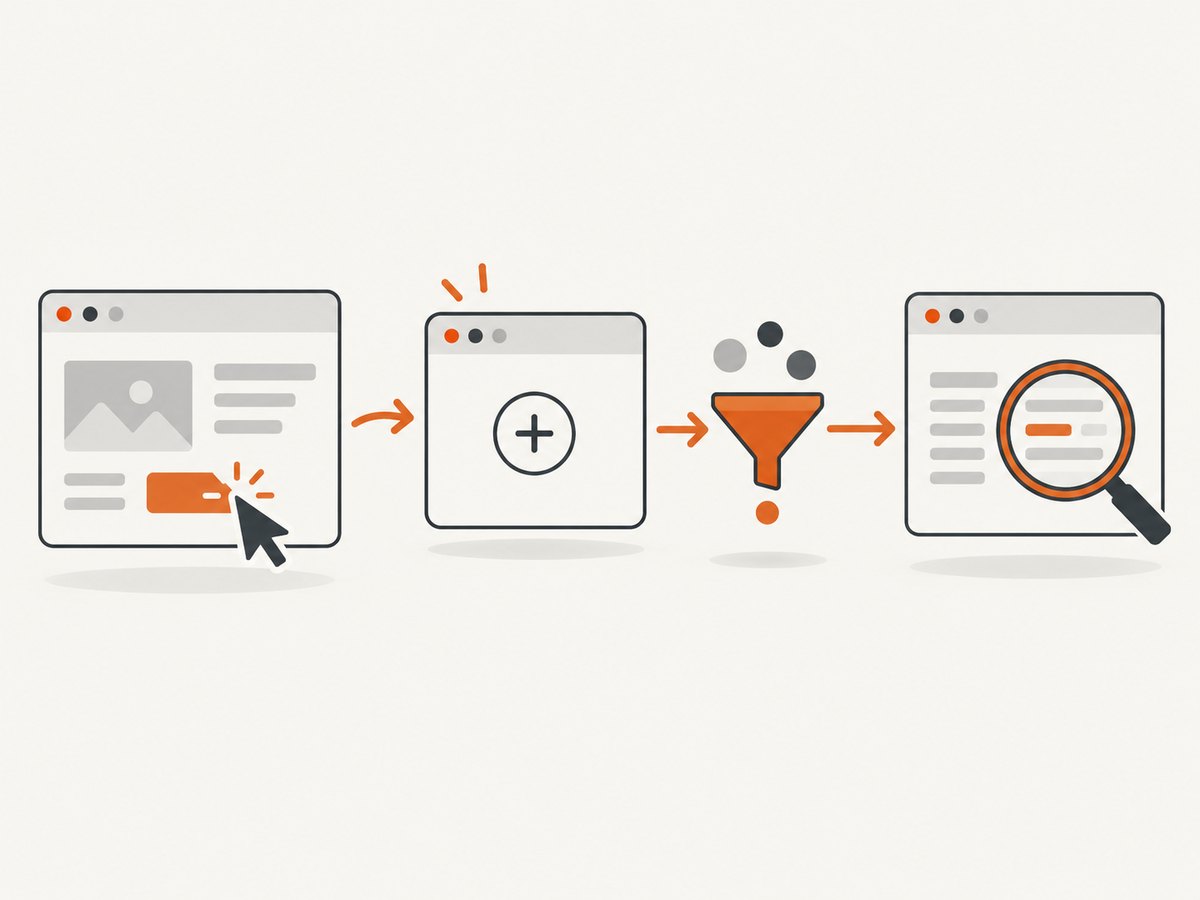
Use the browser’s targetcreated event. Register a listener before the click or JavaScript action that may open a tab, ignore targets that are not pages, then call target.page() to inspect the new page. Add a timeout and task-specific filtering because the browser can emit targets unrelated to the popup you expect.
Pyppeteer’s reference explains that a page opened by another page, such as with window.open, belongs to the parent page’s browser context. The browser-level event is therefore the reliable detection point, while the target’s type, URL and page state determine whether it is the tab your task needs. See the Pyppeteer API reference and the project’s browser event implementation.
1. Install Pyppeteer
python -m pip install pyppeteerPyppeteer downloads a Chromium browser on its first run according to its project documentation. The reference material used for this guide describes Pyppeteer 0.0.25, so check the version installed in your environment before relying on a method or event that may have changed.
python -c "import pyppeteer; print(pyppeteer.__version__)"2. Detect a newly opened tab with targetcreated
The listener must be attached before the action. The handler is synchronous, so schedule asynchronous work with asyncio.create_task.
import asyncio
from pyppeteer import launch

async def main():
    browser = await launch()
    page = await browser.newPage()
    popup_pages = []

    def on_target_created(target):
        # Browser events can include workers and other target types.
        if target.type != 'page':
            return
        asyncio.create_task(collect_page(target))

    async def collect_page(target):
        popup = await target.page()
        if popup is not None:
            popup_pages.append(popup)
            print('New page:', popup.url)

    browser.on('targetcreated', on_target_created)

    await page.goto('https://example.com')
    await page.click('a.opens-new-window')

    # Use popup_pages when the rest of the workflow needs the tab.
    await asyncio.sleep(1)
    await browser.close()

asyncio.get_event_loop().run_until_complete(main())
targetcreated is emitted after the target has been initialized. The URL can still change as the new page navigates, so inspect it after navigation or wait for a page condition that belongs to your workflow.
3. Make detection deterministic with a Future and timeout
A list populated by an event handler can race with the code after the click. An asyncio.Future lets the action await exactly one matching page and fail cleanly if no tab appears.
import asyncio
from pyppeteer import launch

async def wait_for_popup(browser, action, expected_url_part=None, timeout=10):
    loop = asyncio.get_running_loop()
    result = loop.create_future()

    def on_target_created(target):
        if target.type != 'page':
            return
        asyncio.create_task(check_target(target))

    async def check_target(target):
        try:
            popup = await target.page()
            if popup is None:
                return

            # A newly created page may have an empty or provisional URL.
            if expected_url_part and expected_url_part not in popup.url:
                # If the URL is not known yet, leave URL matching to a later
                # page condition instead of accepting an unrelated target.
                return

            if not result.done():
                result.set_result(popup)
        except Exception as exc:
            if not result.done():
                result.set_exception(exc)

    browser.on('targetcreated', on_target_created)
    try:
        await action()
        return await asyncio.wait_for(result, timeout=timeout)
    finally:
        browser.removeListener('targetcreated', on_target_created)

async def main():
    browser = await launch()
    page = await browser.newPage()
    await page.goto('https://example.com')

    popup = await wait_for_popup(
        browser,
        lambda: page.click('a.opens-new-window'),
        expected_url_part='example.org',
        timeout=15,
    )

    print('Popup URL:', popup.url)
    await popup.bringToFront()
    print((await popup.title()))
    await browser.close()

asyncio.get_event_loop().run_until_complete(main())
Use a URL filter only when the destination is predictable. Many sites first create a blank page and navigate it later; in that case, wait for a selector, title, URL change or other condition after obtaining the page instead of rejecting the target immediately.
4. Filter the correct target
| Filter | Use it when | Example |
|---|---|---|
| Target type | You need a document page and must ignore workers or other targets. | target.type == 'page' |
| Expected URL | The popup destination is stable and known. | 'checkout' in popup.url |
| Browser context | The automation uses separate contexts and must inspect only one context’s targets. | context.targets() |
| Page condition | The URL is provisional, redirected or generated dynamically. | Wait for a selector or title after target.page(). |
Browser-level listeners observe all targets in the browser, so a background worker, extension target or another page can arrive first. Keep the listener narrow and remove it in a finally block when the operation ends. The Pyppeteer reference documents BrowserContext.targets() for inspecting active targets in a context.
5. Handle JavaScript and modifier-click popups
The same event pattern works whether the tab is opened by window.open, a link with target="_blank", or a click handler. Trigger the action only after registering the listener.
async def open_with_javascript(page):
    await page.evaluate("window.open('https://example.org', '_blank')")

# Example:
# popup = await wait_for_popup(browser, lambda: open_with_javascript(page))
For a link that opens a tab, click the link rather than trying to infer the result from its HTML. Browser security policies, popup blockers and user-gesture requirements can prevent a script from creating a target.
6. Inspect and interact with the popup
popup = await wait_for_popup(
    browser,
    lambda: page.click('a.opens-new-window'),
    timeout=10,
)

await popup.waitForSelector('main', {'timeout': 10000})
heading = await popup.querySelectorEval('h1', '(node) => node.textContent')
print('Heading:', heading)
await popup.screenshot({'path': 'popup.png', 'fullPage': True})
Do not assume that the target’s initial URL is the final URL. Redirects, client-side routing and delayed navigation can all change it after creation.
7. Context-scoped inspection
When your workflow creates an incognito browser context, a popup opened by a page in that context belongs to the same parent context. You can inspect the context’s active targets when you need to reconcile event results with the current browser state.
context = await browser.createIncognitoBrowserContext()
page = await context.newPage()
await page.goto('https://example.com')

# After the action, inspect targets belonging to this context.
for target in context.targets():
    print(target.type, target.url)
Use the event for immediate detection and context.targets() for state inspection. The latter is not a substitute for registering the listener before the action because a short-lived target can be missed by later polling.
8. Common errors and fixes
| Symptom | Likely cause | Fix |
|---|---|---|
| No popup is detected | The listener was installed after the click, or the site blocked the popup. | Register targetcreated first; verify the action is allowed by the browser and site. |
| The first target is unrelated | Browser events include more than the expected page. | Check target.type, URL, context and a page-specific condition. |
target.page() returns None |
The target is not a page target or is not ready for page access. | Filter by target.type == 'page' and ignore non-page targets. |
| Timeout while waiting | The click did not create a tab, navigation is blocked, or the timeout is too short. | Log the action, confirm the selector, increase the timeout for slow pages and handle the timeout as an expected failure. |
| URL filtering rejects the popup | The page starts at about:blank or redirects. |
Accept the page target first, then wait for a selector, title or final URL. |
| Listener runs repeatedly | A listener is added for every operation and never removed. | Remove it in finally, or create one long-lived dispatcher that routes events by task. |
| Chromium fails to launch | The first-run browser download did not complete or the executable path is unavailable. | Run installation with network access, inspect the launch error and provide an explicit executable path when your environment manages Chromium. |
| Code differs from documentation | The available reference is for Pyppeteer 0.0.25 and your installed version may differ. | Check the installed version and its source or reference before changing event and target code. |
9. Reliability and performance considerations
- Install listeners early. Register immediately before the triggering action so fast popup creation cannot race ahead.
- Use bounded waits. Every popup wait should have a timeout and a failure path; never wait forever for a blocked tab.
- Keep handlers lightweight. Schedule page inspection with
asyncio.create_taskinstead of doing long asynchronous work directly in the event callback. - Close pages and browsers. Reuse one browser for related operations, but close popup pages and the browser in cleanup code to avoid accumulating targets.
- Expect redirects and delayed content. Target creation means a page exists, not that its final document is loaded.
- Log target metadata. During diagnosis, record target type and URL before applying filters. This reveals unexpected workers, blank pages and redirects.
10. Screenshot the resulting tab without managing Chromium
Pyppeteer is useful when the workflow must click, authenticate or interact with the popup. If the requirement is simply to capture a URL after it opens, a screenshot API removes browser installation and lifecycle code.

Or skip the browser setup
ScreenshotNeo accepts one GET request and returns a PNG, JPEG, WebP or PDF. Its capture flow accepts cookie and consent banners before the shot, removes more than 60 known consent platforms plus newsletter popups and chat widgets, and lets each step be disabled. Bot checks, blank pages, timeouts, failed loads and cache hits are not billed; response headers identify the page verdict and whether the request was billed. The service also provides an MCP server with take_screenshot, get_page_info and capture_pdf for Claude, Cursor and other MCP clients.
See the ScreenshotNeo API documentation for all options.
curl -G "https://api.screenshotneo.com/v1/shot" \
  -d access_key=YOUR_API_KEY \
  --data-urlencode url=https://stripe.com \
  -o shot.webp
import requests
r = requests.get(
"https://api.screenshotneo.com/v1/shot",
params={"access_key": "YOUR_API_KEY", "url": "https://stripe.com"},
timeout=90,
)
r.raise_for_status()
open("shot.webp", "wb").write(r.content)const q = new URLSearchParams({
access_key: 'YOUR_API_KEY',
url: 'https://stripe.com'
});
const res = await fetch(`https://api.screenshotneo.com/v1/shot?${q}`);
if (!res.ok) throw new Error(`Screenshot failed: ${res.status}`);
const image = Buffer.from(await res.arrayBuffer());
require('node:fs').writeFileSync('shot.webp', image);ScreenshotNeo includes full-page capture with lazy images loaded, CSS-selector element capture, device presets, arbitrary viewports, retina scale, custom CSS and JavaScript, click and wait actions, blocked ads or resource types, custom headers and cookies, timezone and geolocation, resizing, caching with a chosen TTL, signed image links, asynchronous jobs with signed webhooks, bulk capture for up to 100 URLs per call, a usage API and an OpenAPI specification. Existing parameter names used by other screenshot APIs also work, which can simplify migration.
The Free plan includes 1,000 screenshots each month with no card. Paid plans start at $5 for 3,000 screenshots; yearly billing provides two months free, and every feature is available on every plan. Create a free ScreenshotNeo account.
11. FAQ
Is targetcreated emitted for every new browser tab?
It is emitted for initialized browser targets, not only the popup your script expects. Filter the target before using it.
Can I use Puppeteer’s waitForTarget in Pyppeteer?
Do not assume API parity. Current Puppeteer documentation shows waitForTarget, but the available Pyppeteer 0.0.25 references establish the browser event approach instead. Verify the method in your installed Pyppeteer version.
Does a popup have to open in a new browser context?
No. A page opened with window.open belongs to the parent page’s browser context according to the Pyppeteer reference.
What should I do when the popup URL is initially blank?
Accept the page target, then wait for a selector, title, URL change or another condition that proves navigation completed.
When is an API preferable to Pyppeteer?
Use an API when you need a rendered image or PDF and do not need to drive a browser interactively. Use Pyppeteer when the workflow itself requires clicks, authentication or popup-specific interaction.


