How to Detect Rendering Completion and Layout Changes in Puppeteer
Puppeteer navigation events do not prove a page is visually ready. Combine app signals, fonts, images, and stable element geometry for reliable captures.

Short answer: Puppeteer has no single event that means a page is truly finished rendering. Use a bounded navigation wait, then wait for an application-specific ready signal, required fonts and capture-critical images, and finally a short period where the geometry of important elements stays unchanged. Treat network idle, DOM events, and layout-shift records as useful evidence, not universal proof.
This layered approach prevents screenshots or measurements from racing client-side rendering, font swaps, image decoding, and layout movement. It also avoids waiting forever on analytics, polling, or long-lived connections. The examples below use current Puppeteer page APIs; install Puppeteer in your project with npm install puppeteer.
1. What “rendering complete” means
Different signals describe different work. DOMContentLoaded means the initial document was parsed. The load event waits for ordinary dependent resources, but client-side applications may fetch data or update the page afterward. Network idle describes a quiet network interval; it does not guarantee that scripts, animations, web components, or timers have stopped changing the visible page.

| Signal | What it tells you | Typical limitation |
|---|---|---|
domcontentloaded / load |
A document lifecycle milestone occurred. | Client rendering or delayed work may still follow. |
networkidle0 / network idle |
Few or no tracked requests were active for an interval. | Polling, analytics, sockets, ads, or later timers can mislead it. |
| App selector or flag | The application says its relevant data or view is ready. | It must be meaningful and set at the right time. |
| Fonts and images | Capture-critical visual resources resolved or decoded. | Broken, lazy, or off-screen resources need scoped handling. |
| Stable rectangles | Chosen elements stopped moving or resizing over a window. | Only covers observed elements and sampled properties. |
| Layout-shift entries | The browser recorded visual position shifts, where supported. | Limited availability; absence is not proof of readiness. |
For production captures, define readiness in terms of the content you need. A report table might be ready when its rows appear and stop resizing; a screenshot of a dashboard might require its chart canvas, heading, and main panel to settle. Do not equate “all network activity ended” with “the page is correct.”
2. A complete Puppeteer readiness helper
The following runnable Node.js script navigates, waits for an application flag, waits for fonts and visible images, then waits for selected rectangles to remain stable. It has a global timeout and closes the browser even if a wait fails. Replace the URL, selectors, and readiness flag to match your application.
const puppeteer = require('puppeteer');

async function waitForStableBoxes(page, selectors, {
  quietFrames = 5,
  timeout = 5000,
  epsilon = 0.25,
} = {}) {
  await page.waitForFunction(({ selectors, quietFrames, epsilon }) => {
    const nodes = selectors.map(s => document.querySelector(s)).filter(Boolean);
    if (!nodes.length) return false;
    const rects = nodes.map(node => {
      const r = node.getBoundingClientRect();
      return [r.x, r.y, r.width, r.height];
    });
    const key = JSON.stringify(rects.map(rect =>
      rect.map(value => Math.round(value / epsilon) * epsilon)
    ));
    window.__stableBoxState ||= { key: '', frames: 0 };
    const state = window.__stableBoxState;
    if (key === state.key) state.frames++;
    else { state.key = key; state.frames = 0; }
    return state.frames >= quietFrames;
  }, { timeout }, { selectors, quietFrames, epsilon });
}

async function waitForVisualResources(page) {
  await page.evaluate(async () => {
    await document.fonts.ready;
    const images = [...document.images].filter(img => {
      const r = img.getBoundingClientRect();
      return r.width > 0 && r.height > 0;
    });
    await Promise.all(images.map(async img => {
      if (img.complete) {
        if (img.naturalWidth > 0 && typeof img.decode === 'function') {
          await img.decode().catch(() => {});
        }
        return;
      }
      if (typeof img.decode === 'function') {
        await img.decode().catch(() => {});
        return;
      }
      await new Promise(resolve => {
        img.addEventListener('load', resolve, { once: true });
        img.addEventListener('error', resolve, { once: true });
      });
    }));
  });
}

(async () => {
  const browser = await puppeteer.launch({ headless: true });
  try {
    const page = await browser.newPage();
    page.setDefaultTimeout(15000);
    await page.goto('https://example.com', {
      waitUntil: 'domcontentloaded', timeout: 30000,
    });

    // Your application should set this after data and the target view render.
    await page.waitForFunction(() => window.appReady === true, {
      timeout: 15000,
    });
    await waitForVisualResources(page);
    await waitForStableBoxes(page, ['main', '[data-critical]'], {
      quietFrames: 5, timeout: 5000, epsilon: 0.25,
    });
    await page.screenshot({ path: 'capture.png', fullPage: true });
  } catch (error) {
    console.error('Capture readiness failed:', error.message);
    throw error;
  } finally {
    await browser.close();
  }
})();
The waitForFunction predicate executes in the page context and resolves when it becomes truthy. The page.evaluate call above returns a promise, so Puppeteer waits for the font and image work to finish. The sample image policy waits for visible images and deliberately treats image failures as settled; change that policy if an image is mandatory for your output.
Make the readiness signal real
If you own the application, set a flag when the view has completed the work relevant to the capture. For example, after data arrives and the component renders, set window.appReady = true. Prefer a specific selector such as [data-report-ready="true"] when multiple views or concurrent jobs share a page. A flag set before asynchronous rendering finishes recreates the race you are trying to remove.
If you do not control the app, wait for a meaningful element and then check its contents or state. A generic selector appearing may only indicate that a shell loaded; verify the expected row count, non-empty text, or other domain-specific condition where possible.
3. Choosing navigation waits and timeouts
Puppeteer navigation options are lifecycle boundaries. Use domcontentloaded to start app-specific waits promptly, load when ordinary page resources matter, or network idle when a short quiet network interval is a useful prerequisite. Puppeteer also exposes waitForNetworkIdle(), whose configured idle time is observed at minimum. Network-idle behavior should be bounded because sites with ongoing requests may never become quiet.
// Lifecycle milestone, followed by your own readiness contract
await page.goto(url, { waitUntil: 'domcontentloaded', timeout: 30000 });
await page.waitForNetworkIdle({ idleTime: 500, timeout: 10000 });
await page.waitForSelector('[data-report-ready="true"]', { timeout: 15000 });

// Alternative navigation milestone
await page.goto(url, { waitUntil: 'load', timeout: 30000 });
Do not stack long independent timeouts without an overall budget. A reasonable policy has a navigation cap, an application-ready cap, a resource cap, and a stability cap that together fit the job’s deadline. On timeout, capture diagnostics rather than silently taking a potentially misleading screenshot.
When to use networkidle0
It can help for mostly static pages where background traffic is limited. Avoid making it the sole completion test on pages with analytics, polling, WebSockets, service workers, advertisements, or long-running downloads. Conversely, it can report idle before a timer schedules another render. Combine it with application state and visual stability.
4. Fonts, images, lazy loading, and animations
document.fonts.ready resolves after the document’s required fonts have resolved and layout is complete, reducing the risk that fallback-font metrics will later move text. This is useful before measuring text or capturing a page whose typography matters. Font failures may still lead the browser to use fallback faces; if exact typography matters, inspect font loading status and console/network errors as part of diagnostics.
Images can be incomplete, decoded late, broken, or intentionally lazy-loaded. Checking every image on a long page may hang or cause unwanted work. Restrict checks to visible images or elements within the screenshot region. For a full-page capture, you may need to scroll through the page to trigger lazy loading before the final resource wait; browser screenshot behavior alone does not guarantee every site’s lazy-loading strategy runs.
Animations are another source of apparent instability. If the capture should represent a static state, disable motion through an application test mode or a capture stylesheet. Respect reduced-motion behavior where relevant. A CSS animation can keep geometry changing indefinitely, while a blinking caret may produce pixel differences without rectangle changes. Geometry stability is not pixel stability.
await page.addStyleTag({ content: `
  *, *::before, *::after {
    animation-duration: 0s !important;
    animation-delay: 0s !important;
    transition-duration: 0s !important;
    caret-color: transparent !important;
  }
` });
Apply such overrides only when static output is intended; they can change the semantics of a page that communicates state through motion.
5. Detecting and diagnosing layout changes
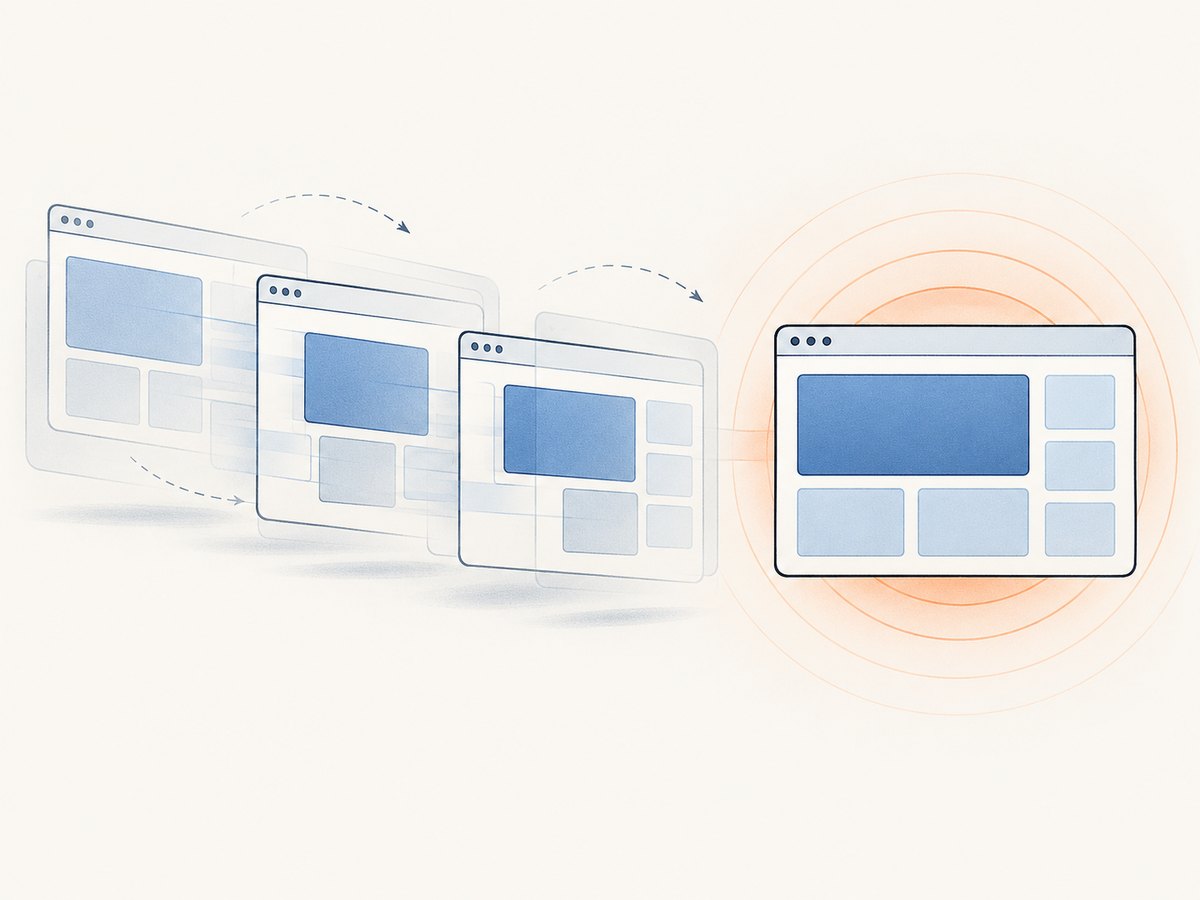
There are two related tasks: deciding whether important geometry has settled, and learning what changed over time. Rectangle sampling is a direct readiness check for selected elements. Mutation and resize observers record activity, while the Layout Instability API can report layout shifts where supported. These signals complement each other: DOM changes may not move anything, and a CSS-driven movement may occur without a DOM mutation.
Observe changes around a render action
Install observers before clicking a tab, submitting a filter, or triggering a client-side route, otherwise early changes can be missed. The following snippet records basic mutation, resize, and layout-shift evidence. Read the log after the application update.
await page.evaluate(() => {
  window.__changes = [];
  const record = type => () => window.__changes.push({
    type, t: performance.now(),
  });
  new MutationObserver(record('mutation')).observe(document.documentElement, {
    subtree: true, childList: true, attributes: true, characterData: true,
  });
  if ('ResizeObserver' in window) {
    new ResizeObserver(record('resize')).observe(document.documentElement);
  }
  if ('PerformanceObserver' in window) {
    try {
      new PerformanceObserver(list => {
        for (const entry of list.getEntries()) {
          window.__changes.push({
            type: 'layout-shift', value: entry.value,
            sources: entry.sources?.length ?? 0,
          });
        }
      }).observe({ type: 'layout-shift', buffered: true });
    } catch (_) { /* unsupported or rejected observer type */ }
  }
});

// Trigger the state change only after observers are installed.
await page.click('[data-action="refresh"]');
await page.waitForFunction(() => window.appReady === true, { timeout: 15000 });
const changes = await page.evaluate(() => window.__changes);
console.log(changes);
MutationObserver sees DOM structure, attribute, and text changes, not whether visible geometry changed. ResizeObserver reports observed size changes; observe the page shell and critical regions for more useful signals. A PerformanceObserver for layout-shift provides movement records and possible sources in supporting browsers. Feature-detect it and retain rectangle snapshots as a fallback.
Use Puppeteer metrics as diagnostics
Puppeteer exposes layout-related metrics such as LayoutCount. A rising count can help explain ongoing work, but it is a cumulative diagnostic metric, not a completion predicate: pages may legitimately relayout, and the count alone does not identify whether the captured region moved. Pair metrics with before-and-after boxes or observer records.
6. Troubleshooting common failures
| Symptom | Likely cause | Fix |
|---|---|---|
Navigation timeout exceeded |
Selected lifecycle event never occurs, a resource stalls, or navigation is slow. | Choose the least restrictive useful waitUntil, set a bounded timeout, then wait on app readiness separately. |
Waiting for network idle failed |
Polling, analytics, ads, sockets, or background requests keep traffic active. | Do not rely on idle alone. Use a selector or app flag and a short bounded quiet period. |
| Screenshot shows a spinner or empty shell | Navigation ended before client data or rendering completed. | Wait for a domain-specific ready state and verify expected content, not just page load. |
| Text wraps differently between runs | Font files were not ready or failed and fallback metrics changed layout. | Await document.fonts.ready; inspect font failures and use a stable font environment. |
| Images are blank or partially drawn | Image load/decode was pending, broken, or lazy loading was not triggered. | Check relevant image completion and decoding; scroll to trigger required lazy assets; log failed images. |
| Stability helper times out | Selector is absent, geometry keeps changing, or the threshold is too strict. | Confirm selectors, log their final rectangles, increase the bounded window modestly, or exclude animated regions. |
| Observer log is empty | Observer was attached late, browser lacks support, or the change was not of that type. | Install before the action; use geometry sampling and feature detection as fallbacks. |
| Full-page screenshot misses lower-page images | Lazy loading depends on scrolling into view. | Scroll through the capture region before waiting for visible image readiness, then return to the desired position. |
For reproducibility, log the URL, navigation milestone, elapsed time per readiness stage, final critical rectangles, image failures, and recent observer events. On timeout, these details make it possible to distinguish a slow page from an invalid readiness condition.
7. Reliability, performance, and cost considerations
Every wait trades capture speed against false readiness. A short fixed sleep is cheap to write but can be too short on a slow run and waste time on a fast one. Predicates finish as soon as their condition is met, while bounded timeouts prevent indefinite jobs. Keep the observed selector list small and relevant; sampling the whole DOM or waiting for every off-screen image adds work without necessarily improving the output.
For repeated captures, reuse a browser process where your workload and isolation requirements allow it, but create clean pages or contexts so cookies, storage, service workers, and application state do not leak between jobs. Close pages and browsers on errors. Cap concurrency according to available memory and CPU: each page can consume substantial resources, and launching unbounded browser instances can reduce throughput or destabilize the host.
Reliability improves when the application exposes a test-ready signal. If you cannot modify the page, combine observable content conditions with fonts, image readiness, and geometry stability, and preserve timeout diagnostics. Network idle is useful evidence but an unreliable contract for arbitrary websites. Screenshot cost for self-hosted Puppeteer includes browser compute, memory, storage, maintenance, and engineering time; measure those costs in your own workload because the dossier supplies no benchmark that applies universally.
8. Or skip the browser setup
ScreenshotNeo is a website screenshot API and MCP server for developers. One GET request can return a PNG, JPEG, WebP, or PDF. Its cleanup accepts cookie and consent banners and removes more than 60 known consent platforms, newsletter popups, and chat widgets before capture; each step can be turned off. Only clean shots are billed: bot checks or CAPTCHAs, blank pages, timeouts, failed loads, and cache hits cost nothing, and responses identify the outcome with X-Page-Verdict and X-Billed headers. AI agents can use its MCP tools for screenshots, page info, and PDF capture.
See the ScreenshotNeo API documentation for parameters and configuration. Here is the one-call cURL example, using the target page you want to capture:
curl -G "https://api.screenshotneo.com/v1/shot" \
  -d access_key=YOUR_API_KEY \
  --data-urlencode url=https://stripe.com \
  -o shot.webp
Equivalent Python and Node.js requests:
import requests

r = requests.get(
    "https://api.screenshotneo.com/v1/shot",
    params={"access_key": "YOUR_API_KEY", "url": "https://stripe.com"},
    timeout=90,
)
open("shot.webp", "wb").write(r.content)
const q = new URLSearchParams({
access_key: 'YOUR_API_KEY',
url: 'https://stripe.com'
});
const res = await fetch(`https://api.screenshotneo.com/v1/shot?${q}`);
if (!res.ok) throw new Error(`Screenshot request failed: ${res.status}`);
await require('node:fs/promises').writeFile('shot.webp', Buffer.from(await res.arrayBuffer()));ScreenshotNeo includes full-page and element capture, device presets and custom viewport sizes, retina scale, dark mode, PDF settings, custom CSS and JavaScript, selector waits, delays and network-idle waits, request blocking, custom headers and cookies, timezone and geolocation, caching, signed image links, asynchronous jobs, bulk capture up to 100 URLs per call, a usage API, and an OpenAPI spec. Common parameter names from other screenshot APIs also work to ease migration. Plans are 1,000 screenshots a month free with no card, Starter $5 for 3,000, Growth $15 for 15,000, Pro $39 for 60,000, Scale $99 for 250,000, and Business $249 for 1,000,000; annual billing gives two months free, and every feature is on every plan.
Cookie banners, popups, and chat widgets are removed before the shot; bot checks, blank pages, and failed loads are never billed; an MCP server lets AI agents take screenshots; and 1,000 screenshots a month are free with no card, with paid plans starting at $5 for 3,000. Sign up for ScreenshotNeo and start with 1,000 free screenshots a month, no card required.
9. Frequently asked questions
Is networkidle0 always safer than networkidle2?
No. A stricter quiet-network condition may be useful for static pages, but can wait indefinitely on background traffic. Choose based on the page and always add a timeout plus an app-specific condition.
Can stable rectangles guarantee a pixel-identical screenshot?
No. They detect movement and size changes in selected boxes. Canvas drawing, color changes, caret blinking, video, and animation can change pixels without changing those rectangles.
Should I wait for every image on the page?
Usually not. Scope the wait to visible or capture-critical images, define how failures are handled, and explicitly trigger lazy-loaded assets when the output includes them.
What is the best readiness signal when I control the application?
An application-owned flag or selector set only after the relevant data and view are ready, followed by resource and geometry checks for what the capture depends on.


