How to Detect User Saves and Export Events
Track saves and exports by measuring confirmed outcomes, not just button clicks. Learn how to define events, implement GA4 tracking, and validate your data.
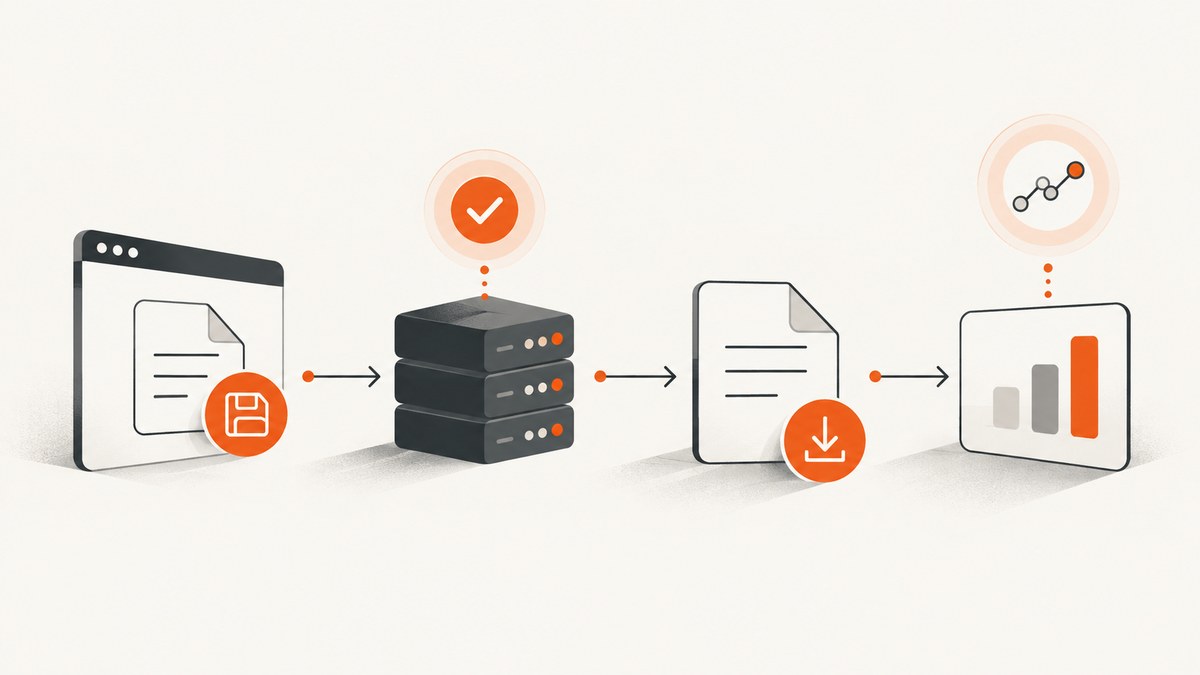
To detect user saves and export events accurately, emit custom analytics events when the meaningful outcome occurs: after the application confirms a save, and after an export finishes successfully. Track a separate event when a user requests an export if request intent matters. A button click shows intent; it does not prove the save or export succeeded.
Automatic file-download tracking can help with ordinary links to recognized file types. It may not cover generated files, background export jobs, or application-managed downloads. For those workflows, instrument the application lifecycle directly and verify that the events match what users actually experienced.
1. Define what counts as a save or export
Before writing code, decide what the event means and when it fires. Keep the definition stable so dashboards and reports remain interpretable.
| Event | When to emit | What it measures |
|---|---|---|
item_saved |
After the save is accepted and the item is in the saved state | Successful saves |
item_unsaved |
After removal from the saved state is confirmed | Removals, if relevant |
export_requested |
When the user starts an export | Export intent |
export_completed |
When the export process finishes successfully | Completed exports |
export_failed |
When the application confirms failure, if failure analysis matters | Failed operations |
These are example custom names, not names prescribed by Google Analytics 4 (GA4). Choose whether repeat saves emit another event, whether retries count as separate requests, and whether a repeated click while a request is pending is ignored. Document those choices alongside the event taxonomy.
2. Choose the right instrumentation point
Use the application layer that knows whether the operation succeeded. For a synchronous save, that is usually the successful response from the save operation. For an asynchronous export, emit completion when the job status changes to a successful terminal state—not when the user clicks Export or when the job is merely queued.

- On the user action, optionally emit
export_requested. - Submit the save or export operation and handle its result.
- After authoritative success, emit
item_savedorexport_completedonce. - On failure, do not emit the success event. Optionally emit a separate failure event.
- Include only useful, permitted context, such as item type, export format, result, or interaction method.
For example, a save button can be clicked and still fail because the network is unavailable. If item_saved fires on click, your successful-save metric will overcount. Conversely, if the UI optimistically changes state, decide whether “saved” means the optimistic display or the server-acknowledged state; for a durable-save metric, wait for confirmation.
3. Implement GA4 custom events in the browser
GA4 supports custom events when automatically collected, enhanced measurement, or recommended events do not represent the behavior you need. The example below assumes the Google tag is already installed and the application has received successful operation responses.
// Call this only after the save API confirms success.
function trackItemSaved(item) {
  if (typeof window.gtag !== 'function') return;
  window.gtag('event', 'item_saved', {
    item_type: item.type,
    interaction_method: 'button'
  });
}

async function saveItem(item) {
  const response = await fetch(`/api/items/${encodeURIComponent(item.id)}/save`, {
    method: 'POST'
  });
  if (!response.ok) throw new Error(`Save failed: ${response.status}`);
  const result = await response.json();
  if (result.saved === true) trackItemSaved(item);
  return result;
}

function trackExportRequested(format) {
  window.gtag?.('event', 'export_requested', { export_format: format });
}

function trackExportCompleted(format) {
  window.gtag?.('event', 'export_completed', {
    export_format: format,
    result_status: 'success'
  });
}
For a job-based export, call trackExportRequested when submission begins and trackExportCompleted from the code handling confirmed job completion. Do not call the latter just because the server returned a job ID. If the user can cancel, decide whether a cancellation event is useful and keep it distinct from completion.
4. Send events with Google Tag Manager
If your site uses Google Tag Manager (GTM), the application can push a semantic event to the data layer after success. Configure a custom event trigger for each event name, then map the relevant data-layer values into the GA4 event tag.
function publishSavedToDataLayer(item) {
  window.dataLayer = window.dataLayer || [];
  window.dataLayer.push({
    event: 'item_saved',
    item_type: item.type,
    interaction_method: 'button'
  });
}

function publishExportCompleted(format) {
  window.dataLayer = window.dataLayer || [];
  window.dataLayer.push({
    event: 'export_completed',
    export_format: format,
    result_status: 'success'
  });
}
In GTM, create a Custom Event trigger matching item_saved or export_completed, and a GA4 Event tag with the same event name. Add parameters for the values you want in reports. Preview the container before publishing, and confirm that a single successful operation produces one event.
5. Handle asynchronous exports and server-side confirmation
Some exports finish after the browser request returns. The browser may submit a job and receive an ID; a worker later generates the file. In that design, the browser can reliably report the request, while a backend that receives the job’s final status may be better placed to report completion.
GA4 Measurement Protocol can send events directly to Analytics and is intended to supplement collection through the Google tag, GTM, or Firebase SDK. Web requests use a client_id; app requests use an app_instance_id. Preserve the appropriate analytics identity from your existing collection flow so server events can be associated correctly. The exact setup depends on your application and GA4 configuration.
Keep server event delivery tied to a durable state transition. If a worker retries a job-completion handler, it can send duplicate events. Use an idempotency strategy around the business event, such as recording that analytics was emitted for a completed job, and avoid placing sensitive content or unnecessary user data in event parameters.
6. Add useful event parameters
Parameters explain what happened without turning event names into a separate name for every format or item category. Useful examples include:
item_type: a broad category such asreportortemplate.export_format: a supported format such ascsvorpdf.result_status: a controlled value such assuccessorfailure.interaction_method: a broad source such asbuttonormenu.
Use a stable item identifier only if it is useful and allowed by your privacy policy. Do not send document contents, names, email addresses, or other sensitive values as analytics parameters. In GA4, custom parameter values may require corresponding custom dimensions or metrics before they are available in reports. Keep event and parameter names consistent: GA4 event names are case-sensitive.
7. When automatic download tracking is enough
GA4 enhanced measurement can capture common interactions, including file downloads, when enabled. Amplitude also documents automatic capture for qualifying file links and exposes file-related properties. These features can cover a normal anchor link to a file with a recognized extension.
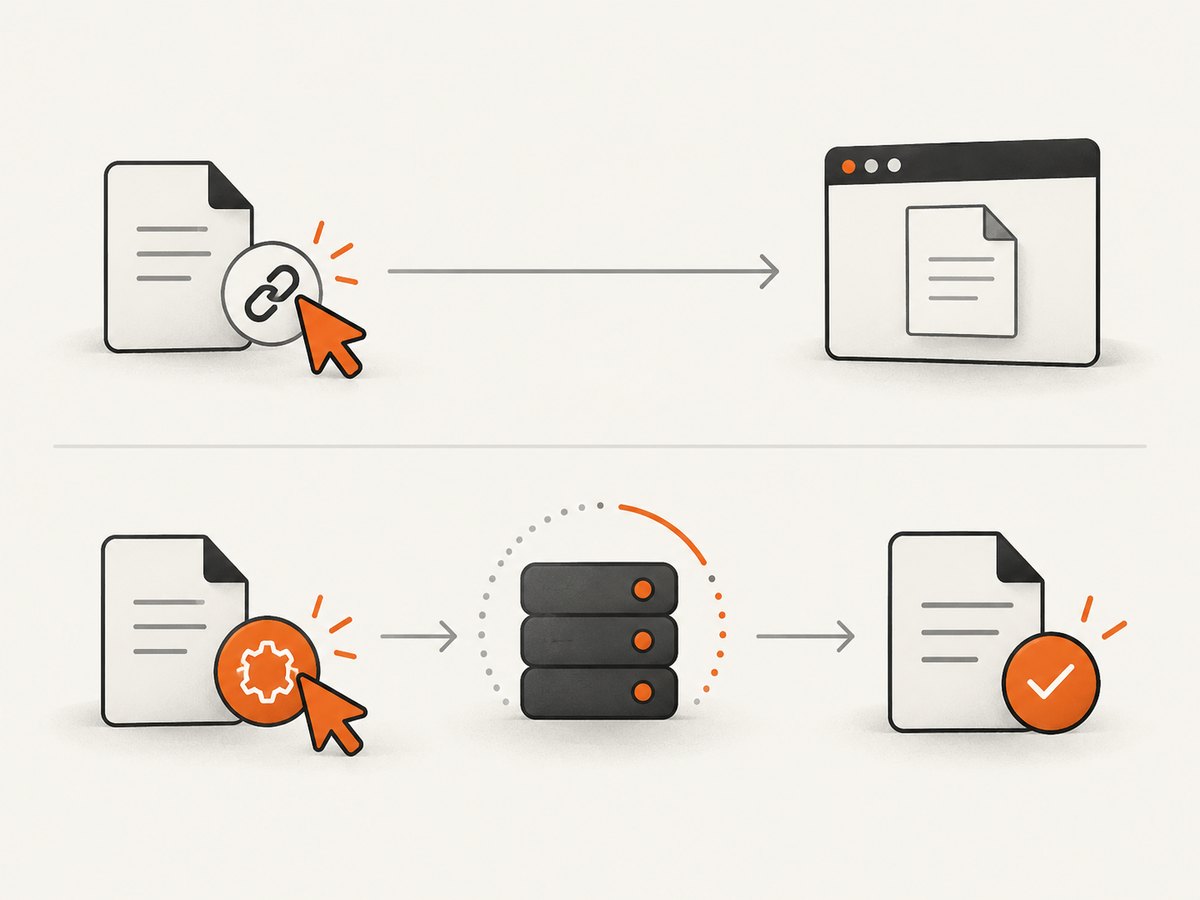
Check the trigger against your actual flow. A download might instead be created from a browser-generated Blob, returned by an API, delivered after a background job, or handled inside an application without a conventional file link. A link click also says that the user activated the link; it does not necessarily establish that a generated export completed successfully. Use automatic collection as a useful signal, not as a substitute for a semantic completion event when completion is the metric.
8. Validate the event lifecycle
Validate each outcome in a development or staging environment before relying on a dashboard. GA4 provides Realtime and DebugView for inspecting incoming events; GTM also provides preview mode for checking tag behavior.
- Save an item successfully and confirm one
item_savedevent with the expected parameters. - Force a save failure and confirm no successful-save event appears.
- Repeat a save, remove a save, and retry a request; check that counts match your documented rules.
- Complete, fail, and cancel an export. Confirm only successful completion emits
export_completed. - Compare automatic download events with the application events and identify any missing or duplicate coverage.
- Inspect names and parameter values in Realtime or DebugView, and inspect GTM tags in preview mode where applicable.
9. Naming rules and common troubleshooting
| Symptom | Likely cause | Fix |
|---|---|---|
| No event appears | The tag is absent, blocked, or the success branch never runs | Check the network and application result, then inspect the tag in DebugView or GTM preview. |
| Event appears on failed saves | Tracking runs on click or optimistic UI update | Move the success event to the confirmed-success branch. |
| Duplicate completion counts | Retries or repeated callbacks emit the same event | Guard the state transition and make server emission idempotent. |
| Download event is missing | The flow does not use a qualifying file link | Instrument the application’s export lifecycle explicitly. |
| Parameters are absent from reports | They are not mapped or registered for reporting | Check the sent payload and configure the relevant custom dimensions or metrics. |
| Event is rejected or ignored | Name may violate GA4 naming rules or use a reserved name | Use a name beginning with a letter, containing only letters, numbers, and underscores, and check reserved names and prefixes. |
GA4 event names must begin with a letter, use letters, numbers, or underscores, and avoid reserved names and prefixes. Names are case-sensitive, so item_saved and Item_Saved are different. Pick one spelling and use it in the application, GTM, and reporting setup.
10. Reliability, performance, and cost considerations
Analytics should not determine whether a save or export succeeds. A tracking call should be isolated so a missing analytics library or blocked request does not break the primary action. Avoid waiting for an analytics response before displaying a confirmed saved state or delivering an export.
For high-value lifecycle events, decide how you handle navigation immediately after completion, offline conditions, retries, and duplicate delivery. Browser-side events can be lost if the page closes or the network blocks collection. Server-side collection can observe server-confirmed outcomes, but it needs the right user or device identity and duplicate protection. GA4 Measurement Protocol supplements the normal collection methods; it does not remove the need to design identity and lifecycle handling for your product.
Keep payloads small and bounded. Send categories and formats rather than arbitrary user-entered strings. Set a retention and reporting plan for the dimensions you add, and avoid creating a different event name for every item or format. The direct cost and limits depend on the analytics platform and account, so check the platform’s current terms and configuration rather than assuming a universal rate.
Or skip the browser setup
If you need screenshots of the pages around a save or export flow for documentation, QA, or support, ScreenshotNeo is a website screenshot API and MCP server. It is separate from analytics instrumentation: it captures a page or PDF; it does not report whether a user’s save or export succeeded.
One GET request captures a URL as an image or PDF. The example below saves the response as WebP:
curl -G "https://api.screenshotneo.com/v1/shot" -d access_key=YOUR_API_KEY --data-urlencode url=https://stripe.com -o shot.webpimport requests
r = requests.get(
"https://api.screenshotneo.com/v1/shot",
params={"access_key": "YOUR_API_KEY", "url": "https://stripe.com"},
timeout=90,
)
open("shot.webp", "wb").write(r.content)const q = new URLSearchParams({ access_key: 'YOUR_API_KEY', url: 'https://stripe.com' });
const res = await fetch(`https://api.screenshotneo.com/v1/shot?${q}`);
if (!res.ok) throw new Error(`Screenshot request failed: ${res.status}`);
await require('node:fs/promises').writeFile('shot.webp', Buffer.from(await res.arrayBuffer()));See the ScreenshotNeo API documentation for request options. Cookie banners, popups, and chat widgets are removed before the shot. Bot checks, blank pages, and failed loads are never billed; an MCP server gives AI agents screenshot, page-info, and PDF tools. The free plan includes 1,000 screenshots a month with no card, and paid plans start at $5 for 3,000. Start with 1,000 free screenshots a month, no card required.
FAQ
Should a repeat save create another event?
Choose based on the metric. If the event measures a state transition, emit it only when the item changes from unsaved to saved. If it measures repeated user attempts, track attempts separately.
Can a download event prove the user opened the file?
No. A qualifying link interaction is not evidence that the file was opened or used. Track only the outcome your application can observe.
Should export failures be counted as completed exports?
No. Keep failure and completion meanings separate. A request event can count intent, while a completion event should mean the export reached the successful state defined by your product.
Where should I see a GA4 test event?
Use Realtime or DebugView during validation. If you use GTM, preview the container to confirm the trigger and event tag fire with the expected parameters.


