Detecting Website Fonts with Browser Extensions
Identify the font a webpage actually renders with WhatFont, Fontanello, or Chrome DevTools—plus fallback checks, licensing notes, and automation tips.
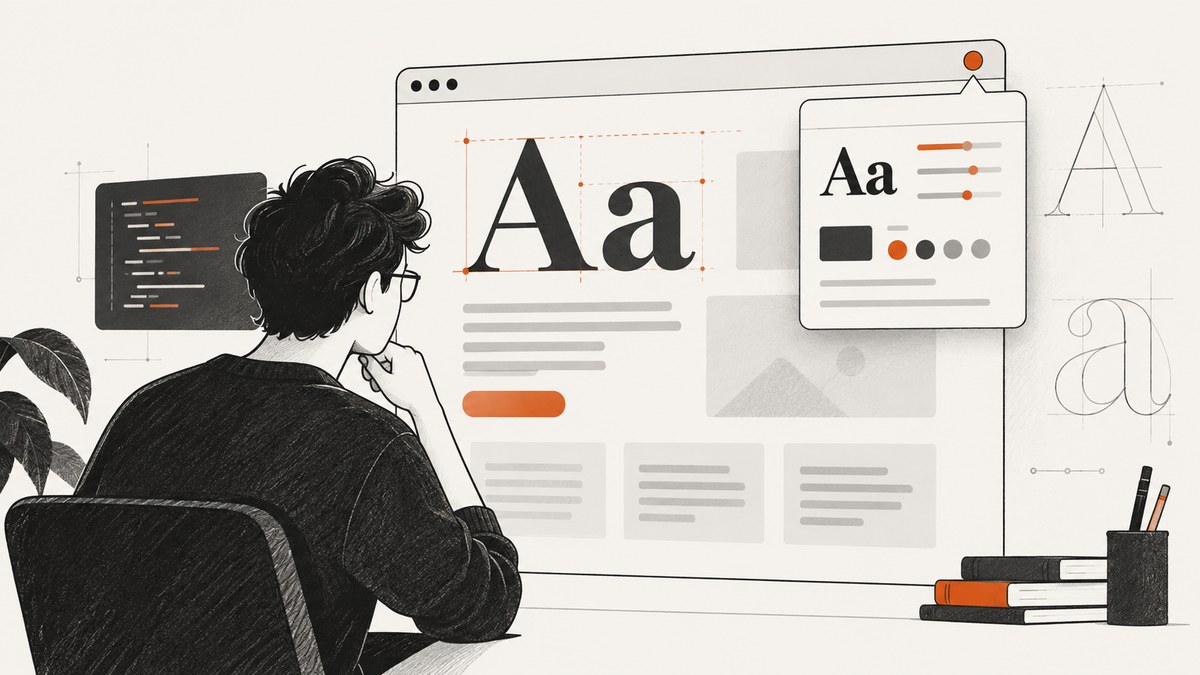
Short answer: install WhatFont for fast hover-based identification, use Fontanello when you want CSS details from a right-click, and verify the result in Chrome DevTools. DevTools can show the actual face Chrome rendered, including a fallback font used for a missing glyph or unavailable local face.
1. Choose the right font-detection method
Browser extensions identify live webpage text. They read the element under your pointer or selection and expose its typography. Chrome DevTools provides the verification step: it shows computed CSS and the rendered font face selected by Chrome’s text engine.
| Method | Setup | Trigger | Best use |
|---|---|---|---|
| WhatFont | Chrome extension | Activate, then hover and click text | Fast reconnaissance across a page |
| Fontanello | Chrome or Firefox extension | Select or right-click text | Typeface, weight, size, color and contrast |
| Chrome DevTools | Built into Chrome | Inspect an element | Computed values, rendered face and fallback diagnosis |
Do not inspect only the logo or hero heading. A design may use one family for headings, another for body copy, a separate weight for buttons and an icon font for controls. Check representative samples at the viewport size where the typography matters.
2. Identify a font with WhatFont
- Install the official WhatFont browser extension.
- Open the page and wait for its fonts to finish loading.
- Click the WhatFont toolbar button to activate it.
- Hover over a heading, paragraph, label and button. The overlay identifies the typeface applied to each sample.
- Click a sample when you need the extension’s detailed style readout, then record the family and weight separately.
- Click the toolbar button again, or press the extension’s exit control, to stop inspection.
WhatFont is efficient for mapping a page’s typography. Record a small inventory such as “display heading: Family A, 700; body: Family B, 400; navigation: Family A, 600.” The family name alone is not enough to reproduce the layout: weight, size, line height, letter spacing and text rendering all affect the result.
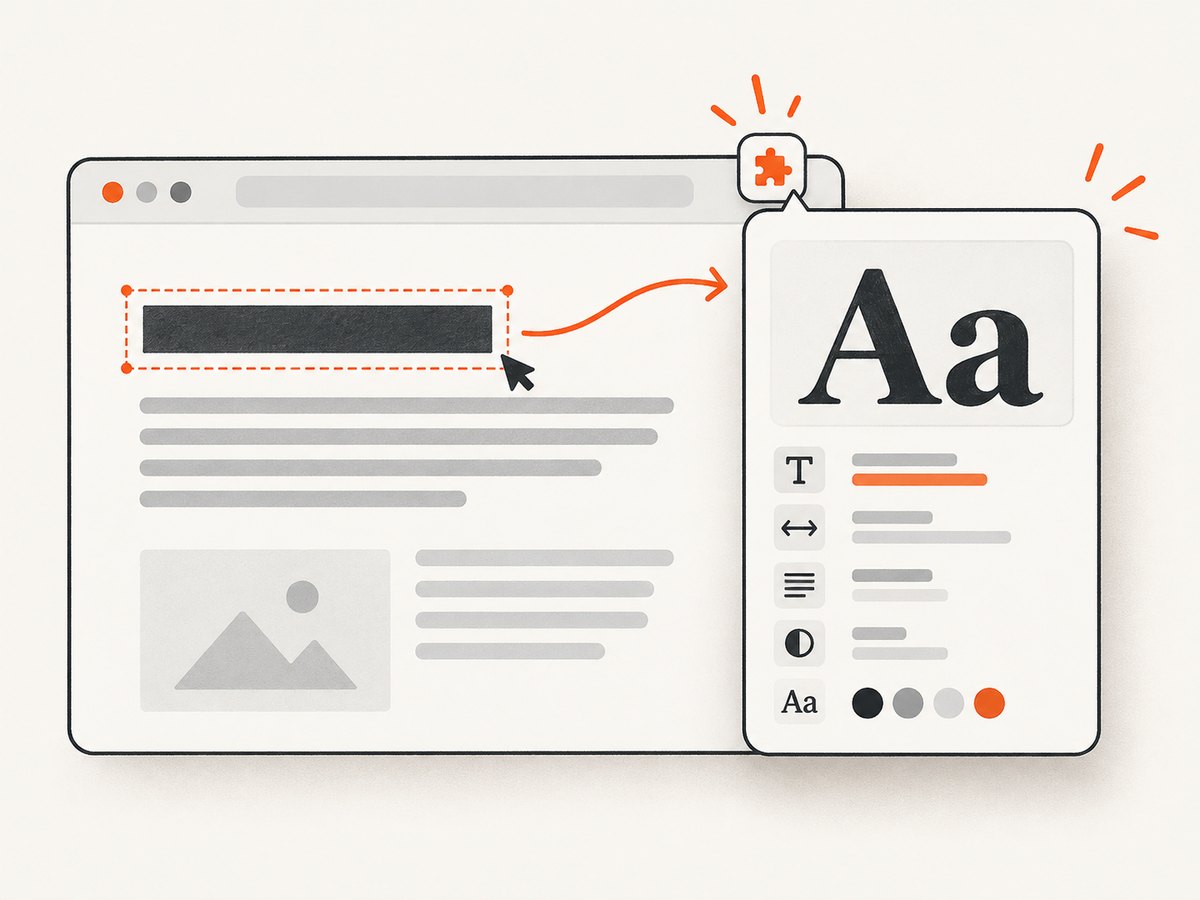
The Chrome Web Store listing describes WhatFont as a quick way to identify fonts on web pages and reports 3,000,000 users in its 2026 listing. Treat that figure as a listing snapshot, not an accuracy measurement.
3. Inspect typography with Fontanello
- Install Fontanello from the Chrome Web Store or Mozilla’s Firefox listing.
- Select a word or place the pointer over the text you want to inspect.
- Right-click and choose Fontanello.
- Read the reported typeface, weight, size, color and other CSS properties. Use the contrast value when checking text accessibility.
- Repeat on a heading, paragraph, navigation item and control because components often have separate rules.
Fontanello is useful when you need more than a family name. Its listing reports 60,000 users and version 1.3.0, updated April 21, 2024. Those are directory details, not a head-to-head accuracy study. If Fontanello and another tool disagree, use DevTools to determine what Chrome actually rendered.
4. Verify the rendered face in Chrome DevTools
- Right-click the text and choose Inspect, or enter inspection mode with Ctrl+Shift+C on Windows, Linux or ChromeOS, or Cmd+Shift+C on macOS.
- In the Elements panel, make sure the correct text node or element is selected.
- Open the Computed styles section and read
font-family,font-size,font-weight,font-style,font-stretch,line-heightandletter-spacing. - Open the Rendered Fonts section. Chrome lists the face used by its text-rendering layer and the glyph count supplied by each face.
- Compare the computed stack with the rendered face. A stack such as
"Inter", Arial, sans-serifis a preference list, not proof that Inter drew every character. - When a local installation may be masking a downloaded webfont, disable local fonts in DevTools, reload, and inspect again. Chrome documents this as a way to distinguish a webfont from a local fallback.
Chrome’s documentation explains that Rendered Fonts reports the actual typeface used by Chrome’s text-rendering layer. This is the authoritative check when an extension only displays the declared CSS stack.
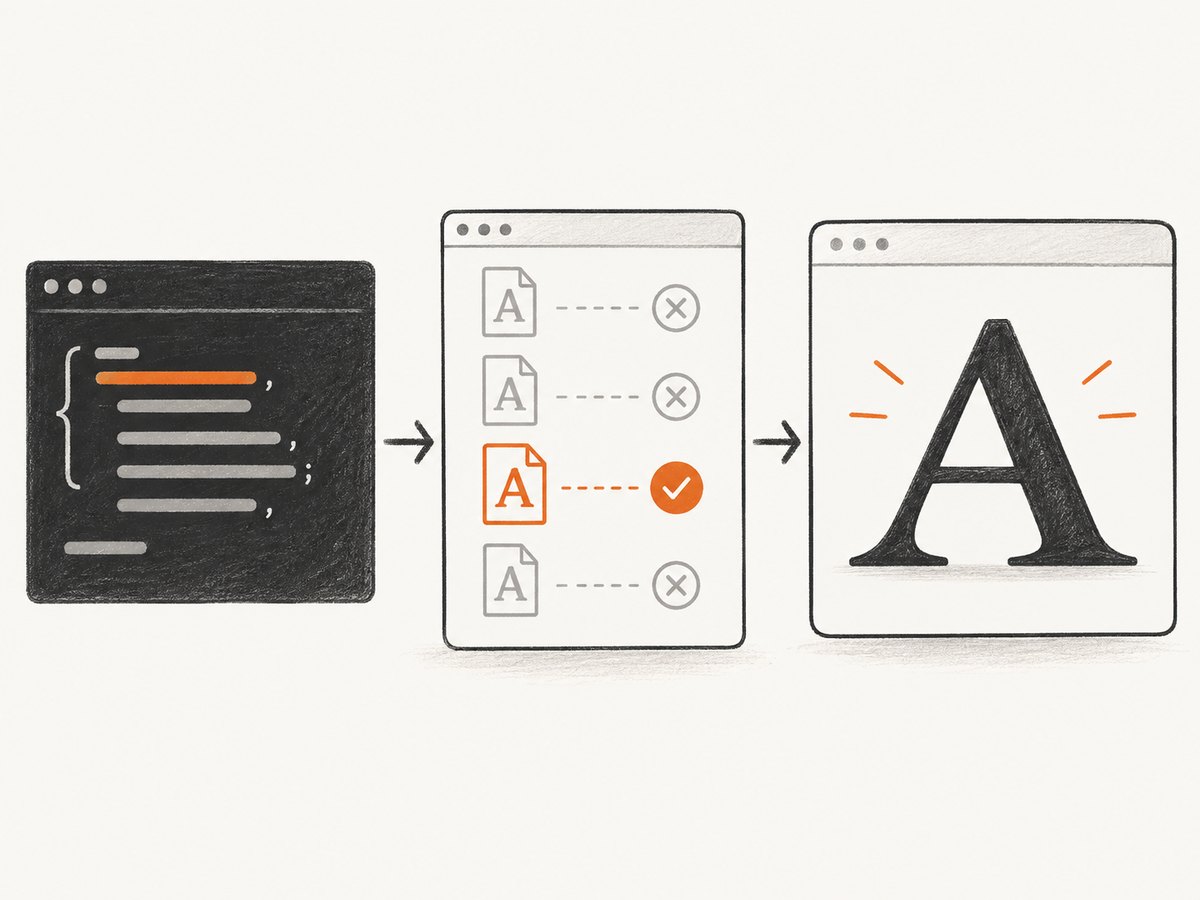
5. Understand why declared and rendered fonts differ
- Fallback order: the browser tries each family in the
font-familylist until a usable face is available. - Missing glyphs: one family can draw Latin characters while a later fallback supplies an emoji, symbol or less common script character. Inspect a sentence containing the characters you care about.
- Local fonts: an installed desktop font can satisfy
local()in an@font-facerule, producing different metrics from the hosted file. - Weight and style gaps: if a 600 or italic file is absent, the browser may synthesize the style or select a nearby face. Check the network panel and rendered-face list.
- Variable fonts: one variable file can serve many weights and widths. The family name stays constant while axes such as
wghtandwdthchange. - Font loading timing: capture the page before webfonts finish loading and you may see a temporary system fallback. Reload after the layout settles.
- Component isolation: shadow DOM, embedded documents and cross-origin iframes can have their own stylesheets and font resources.
6. A repeatable identification workflow
- Open the page at the desktop or mobile width relevant to your project.
- Run WhatFont or Fontanello over at least one heading and one paragraph. Note family, weight, size and color.
- Inspect the same element in DevTools and compare Computed values with Rendered Fonts.
- Test multiple characters, including punctuation, numerals, accented letters and any symbols your product needs.
- Check another viewport. Responsive rules may change family, weight, size or letter spacing.
- Reload with local fonts disabled if the result seems to match a font installed on your machine.
- Open the Network panel and filter for
fontto see whether WOFF2, WOFF or variable font files loaded successfully. - Save the family, exact weight, style, source URL and license information in your project notes.
A tiny JavaScript check can expose the browser’s computed declaration from the console:
const el = document.querySelector('h1');
const style = getComputedStyle(el);
console.log({
  family: style.fontFamily,
  size: style.fontSize,
  weight: style.fontWeight,
  style: style.fontStyle,
  lineHeight: style.lineHeight,
  letterSpacing: style.letterSpacing
});
This snippet reports CSS values, not a guarantee that one face rendered every glyph. Use the Rendered Fonts panel for that distinction.
7. Edge cases extensions cannot solve
Text inside images, SVG and canvas
If lettering is part of a PNG, JPEG, screenshot, rasterized SVG or canvas drawing, a webpage extension cannot recover the original font with certainty. Save a crop and use an image-oriented font identifier. Even image matching produces candidates that require manual confirmation.
Icons and ligatures
An icon may come from an icon font, an inline SVG, an SVG sprite or a ligature. Inspect the element, its pseudo-elements and accessible label. A family name such as “Material Icons” does not tell you whether the visible shape came from a font glyph or an SVG asset.
Dynamic and virtualized text
Menus, carousels and virtualized lists may not exist in the DOM until opened or scrolled into view. Trigger the state first, then inspect. If a web app replaces text after load, pause on the final state before recording values.
Frames and shadow roots
Inspect inside same-origin iframes directly. Cross-origin frames may restrict access, so open the frame URL in a separate tab when permitted. Expand a shadow root and inspect its internal element; page-level styles may not apply there.
8. Troubleshooting common detection errors
| Symptom | Likely cause | Fix |
|---|---|---|
| Extension shows a long family stack | It is reporting declared CSS | Compare DevTools Computed and Rendered Fonts. |
| Heading and paragraph report the same family but look different | Different weight, size, tracking or variable axis | Record all computed properties and inspect the loaded font face. |
| Only some characters look different | Glyph-specific fallback | Inspect samples containing those characters and check Rendered Fonts glyph counts. |
| Font changes after refresh | Webfont loading or cache timing | Wait for layout stabilization, then reload with the Network panel open. |
| DevTools shows a local face | Installed font satisfied local() |
Disable local fonts, reload and compare the hosted face. |
| Extension does nothing on a control | Text is generated by pseudo-element, canvas or an iframe | Inspect pseudo-elements, open the frame, or use an image workflow. |
| Font file request fails | CORS, CSP, 404 or blocked third-party resource | Read the Network error, verify response headers and inspect the fallback actually rendered. |
9. Capture a clean reference image for documentation
When documenting a typography audit, a screenshot preserves the exact viewport and state you inspected. Keep the font evidence (Computed values and Rendered Fonts) alongside the image so a future reader can distinguish visual appearance from font metadata.
10. Performance, reliability and licensing
Extensions add little work for a single inspection, but repeatedly scanning large applications can be slower when pages contain many nested elements or continuously changing text. DevTools is more reliable for a final answer because it exposes the browser’s selected face. Repeat checks after clearing site data or changing viewport when font loading behavior matters.
Do not assume that identifying a family grants permission to download, embed or redistribute it. Check the found typeface’s license, webfont terms and weight coverage before shipping. A fallback that looks similar may still have different licensing and metrics.
11. FAQ
Can an extension identify a font from a screenshot?
No. Extensions inspect live DOM text. Use an image-oriented identifier for rasterized or outlined lettering.
Why does font-family differ from Rendered Fonts?
The declaration is a candidate list. Missing faces, local installations and glyph coverage can cause Chrome to select a later fallback.
Do I need to install an extension?
No. Chrome DevTools is built in and provides the strongest verification. Extensions are faster for reconnaissance.
Why do headings and body text use different families?
Design systems commonly assign separate families or weights to display, text and controls. Inspect each component.
Can I reuse a detected commercial font?
Only after confirming its license permits your intended use, distribution and number of weights.
Or skip the browser setup
If you need a clean reference image of a page while documenting its typography, ScreenshotNeo returns a screenshot from one GET request. It handles the browser session for you; see the ScreenshotNeo API docs for all options.
curl -G "https://api.screenshotneo.com/v1/shot" \
  -d access_key=YOUR_API_KEY \
  --data-urlencode url=https://stripe.com \
  -o shot.webp
import requests
r = requests.get("https://api.screenshotneo.com/v1/shot", params={"access_key": "YOUR_API_KEY", "url": "https://stripe.com"}, timeout=90)
open("shot.webp", "wb").write(r.content)const q = new URLSearchParams({ access_key: 'YOUR_API_KEY', url: 'https://stripe.com' });
const res = await fetch(`https://api.screenshotneo.com/v1/shot?${q}`);- Cookie banners, newsletter popups and chat widgets are removed before the shot.
- Bot checks or CAPTCHAs, blank pages, timeouts, failed loads and cache hits are not billed; response headers identify the page verdict and whether it was billed through
X-Page-VerdictandX-Billed. - An MCP server lets AI agents such as Claude and Cursor take screenshots with
take_screenshot, inspect pages withget_page_infoand create PDFs withcapture_pdf. - The Free plan includes 1,000 screenshots per month with no card; paid plans start at $5 for 3,000 shots.


