How to Use the DevExpress WPF PDF Viewer
Add DevExpress PdfViewerControl to a WPF app, load PDFs, search, annotate, print, configure the UI, and troubleshoot common issues.
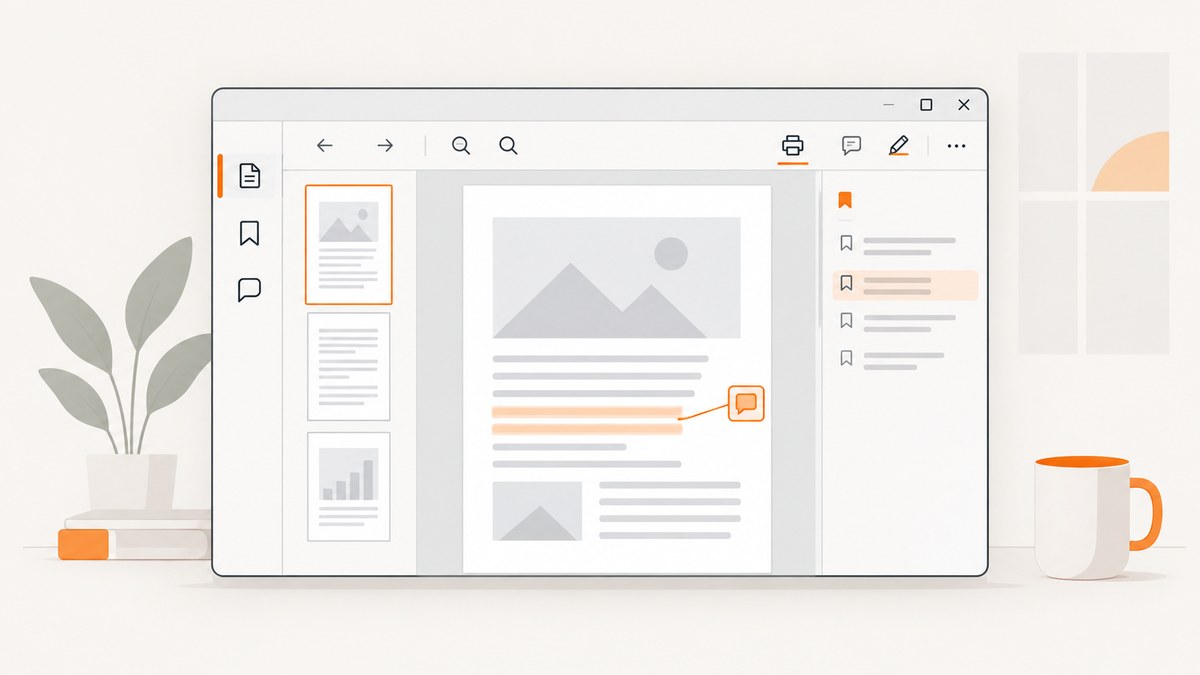
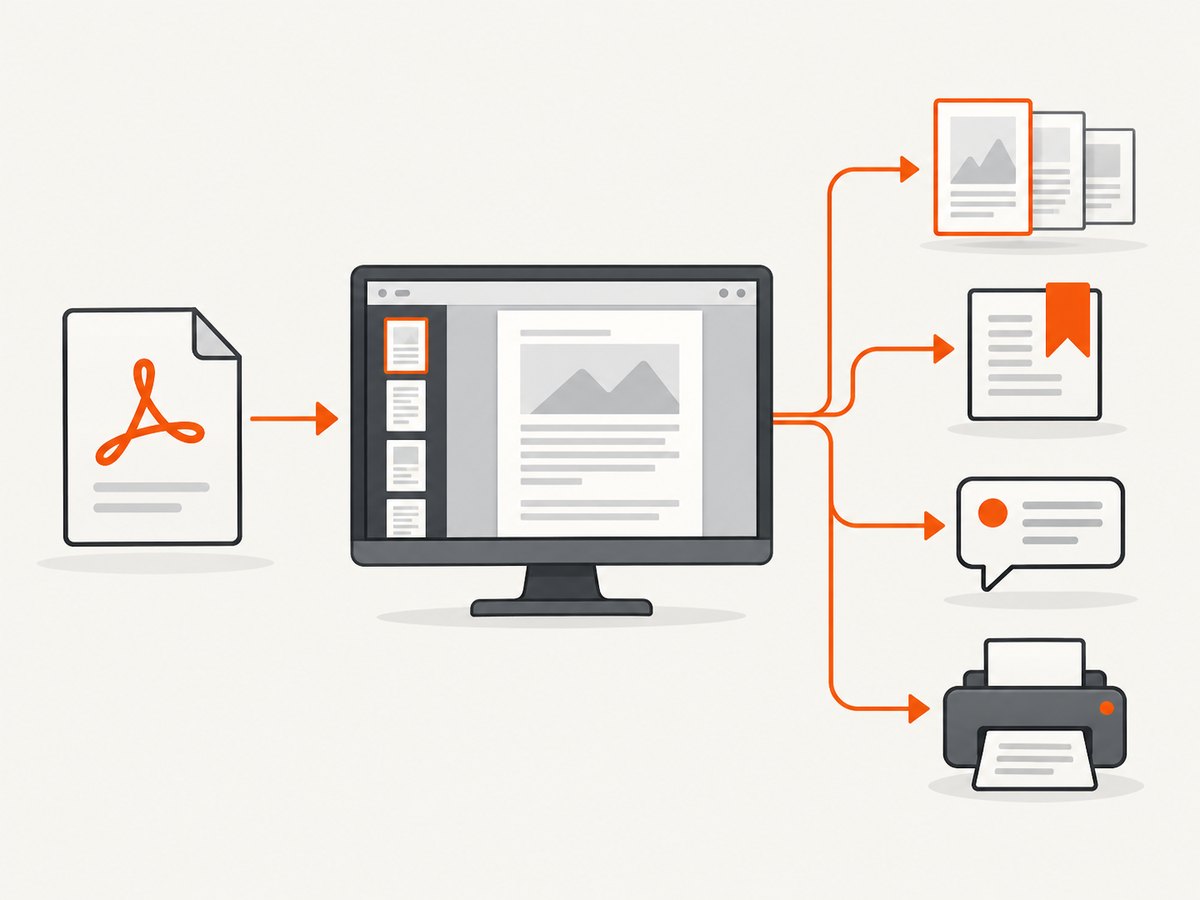
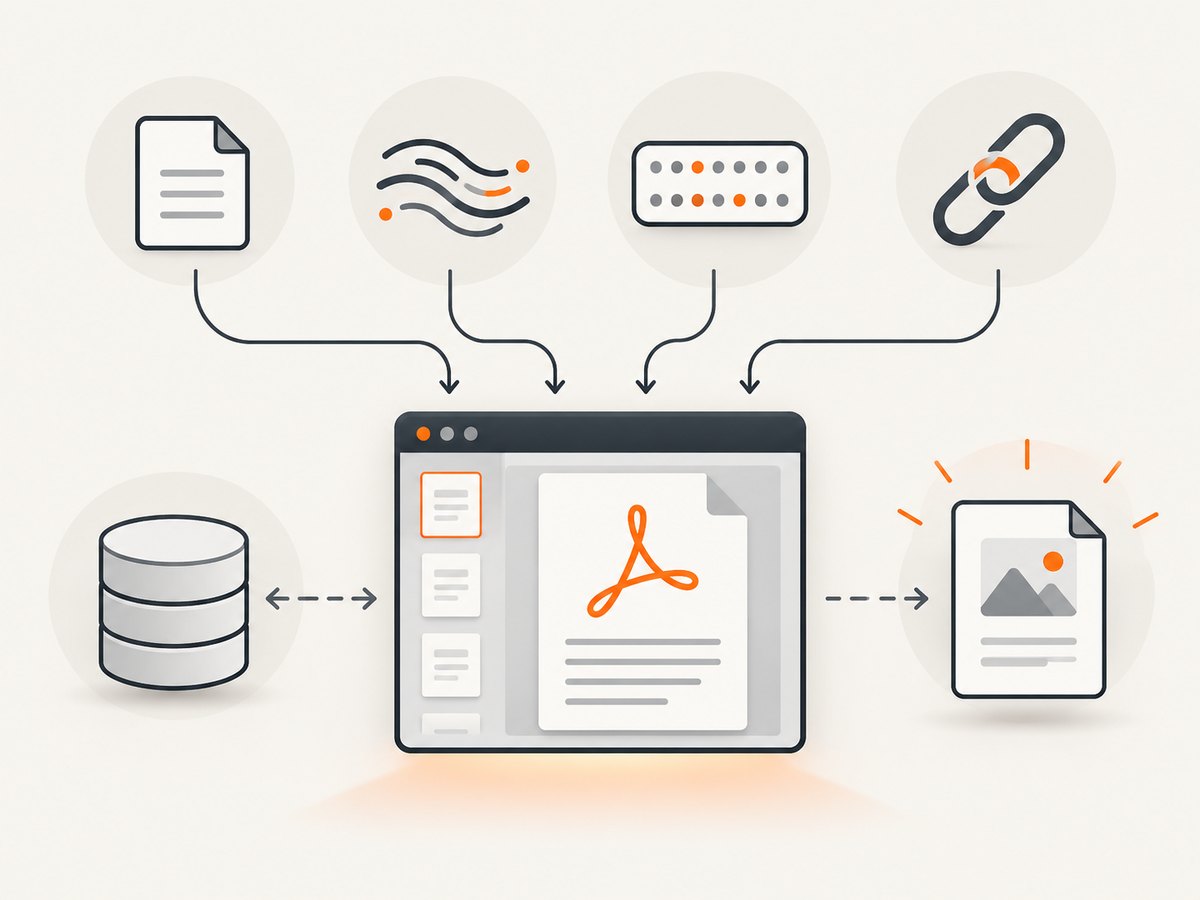
Direct answer: add the DevExpress WPF PDF Viewer package or assembly, place PdfViewerControl in your XAML, and assign a file path, URI, stream, or byte array to its document source. The control then provides built-in navigation, search, forms, annotations, bookmarks, attachments, and printing.
DevExpress changes package names and APIs between release lines. The examples below follow the 26.1 documentation and use the current DevExpress.Xpf.PdfViewer namespace and assembly. Match the documentation to the DevExpress version installed in your project.
1. Choose an installation route
Unified Component Installer
Use the DevExpress installer when your organization manages a standard DevExpress installation and license. Add the WPF PDF Viewer references from the installed product, then verify that the references match your target framework and DevExpress release.
NuGet
For a package-managed project, add DevExpress.Wpf.PdfViewer from the DevExpress package feed. Configure the feed using the credentials and package-source instructions supplied by DevExpress, then restore packages before building.
Check the installed references for the PDF Viewer assembly. The current API reference identifies DevExpress.Xpf.PdfViewer.v26.1.dll and the DevExpress.Xpf.PdfViewer namespace. See the DevExpress WPF documentation for the release-specific package and assembly names.
2. Add PdfViewerControl to XAML
The smallest usable viewer is a control inside a layout panel:
<Window
    x:Class="PdfDemo.MainWindow"
    xmlns="http://schemas.microsoft.com/winfx/2006/xaml/presentation"
    xmlns:x="http://schemas.microsoft.com/winfx/2006/xaml"
    xmlns:dxpdf="http://schemas.devexpress.com/winfx/2008/xaml/pdf"
    Title="PDF Viewer" Height="700" Width="1000">
    <Grid>
        <dxpdf:PdfViewerControl x:Name="Viewer" />
    </Grid>
</Window>
The XAML namespace is the DevExpress PDF namespace, not the general controls namespace. If the designer reports that dxpdf:PdfViewerControl is unknown, check the package reference, assembly version, target framework, and namespace declaration.
3. Load a PDF
Load a full file path
Use a full path when the application receives a local file selected by the user or stored in a known folder. The source must remain available for as long as the viewer needs it.
using System.Windows;

namespace PdfDemo;

public partial class MainWindow : Window
{
    public MainWindow()
    {
        InitializeComponent();
        Viewer.DocumentSource = @"C:\Documents\invoice.pdf";
    }
}
Load a URI or WPF resource
The quick-start documentation also demonstrates assigning a URI, including a WPF pack URI for a resource embedded in the application:
Viewer.DocumentSource = new Uri(
    "pack://application:,,,/PdfDemo;component/Assets/sample.pdf",
    UriKind.Absolute);
Use the correct resource build action and assembly name. A pack URI that points to a file copied beside the executable is different from one that points to a resource compiled into the assembly.
Load a stream or byte array
DocumentSource accepts a stream and a byte array. This is useful when a PDF comes from a database, an HTTP client, or an encrypted storage layer that your application has already authorized.
using System.IO;

byte[] pdfBytes = await File.ReadAllBytesAsync(@"C:\Documents\invoice.pdf");
Viewer.DocumentSource = pdfBytes;
await using var input = File.OpenRead(@"C:\Documents\invoice.pdf");
Viewer.DocumentSource = input;Follow the lifetime rules for the source type in your installed DevExpress version. If a stream is disposed too early, loading or later page rendering can fail. When in doubt, keep the stream open until the document is closed or use a byte array.
Use OpenDocument in code
The API reference documents OpenDocument as another code-based loading route. Use the overload that matches the source available to your application and confirm its signature against your installed release.
4. Configure the command bar and start screen
The built-in command surface can be shown as bars or removed:
<dxpdf:PdfViewerControl
    x:Name="Viewer"
    CommandBarStyle="Bars"
    ShowStartScreen="True"
    NumberOfRecentFiles="5"
ShowOpenFileOnStartScreen="False" />CommandBarStyle="Bars"displays the standard command bars.CommandBarStyle="None"gives your application a minimal viewer surface; provide your own commands if users still need open, save, print, search, or annotation actions.ShowStartScreen="True"displays the start screen before a document is loaded.NumberOfRecentFiles="5"limits the recent-file list in this example.ShowOpenFileOnStartScreen="False"hides the Open button on the start screen.
These are configuration examples, not required defaults. Pick the command surface and start behavior that fit your application’s navigation and file-permission model.
5. Use the navigation pane
The viewer includes built-in panels for thumbnails, bookmarks, attachments, comments, signatures, and layers. A practical document workflow is:
- Use thumbnails to jump between pages.
- Use bookmarks when the PDF contains a document outline.
- Inspect attachments from the attachments panel.
- Review comments and annotation status from the comments panel.
- Use the layers panel when the PDF contains optional content groups.
6. Search, forms, and document interaction
With a document loaded, users can search text, including case-sensitive and whole-word searches, copy selected text or images, fill forms, import or export form data, follow hyperlinks, and inspect attachments. The available commands depend on the PDF and the DevExpress release.
Keep form-data operations that use the separate PDF Document API inside the licensing scope described by DevExpress. The viewer’s basic display and interaction setup should not be presented as proof that every PDF API feature has the same entitlement.
7. Add and manage annotations
The annotation workflow supports sticky notes and text markup. Users can edit annotation properties, reply in the Comments pane, set review status, and remove annotations.
For a code-driven text highlight, the API includes methods such as HighlightSelectedText. The exact method parameters and selection requirements are version-sensitive, so inspect the API reference for the installed assembly before wiring it to a custom command.
When building a review workflow, decide where the edited PDF is saved and who owns conflict resolution. The viewer displays and edits annotations; your application still needs a persistence strategy for the resulting document.
8. Print a PDF
Let the user choose print settings
Users can open the print dialog from the File toolbar group, the context menu, or Ctrl+P. Code can invoke the same workflow with PdfViewerControl.Print() or PrintDocumentCommand.
private void PrintButton_Click(object sender, RoutedEventArgs e)
{
    Viewer.Print();
}
The dialog exposes printer selection, copies, page range, paper size and orientation, paper source, and print-to-file options. Use PageSetupDialogShowing when the application must configure dialog settings before it is shown.
Print with application-controlled settings
For unattended or tightly controlled workflows, use the documented Print overloads with printer settings such as PdfPrinterSettings. Confirm the overload in the versioned API reference before compiling because signatures can change between releases.
Printer drivers and the selected rendering path affect both performance and output. DevExpress documents XPS printing, DirectX/GDI+ compatibility, and legacy printing settings as troubleshooting areas. GDI+ has limitations that can cause content such as strokes, clipped text, transparency, or blend modes to be lost in some output paths.
9. A complete small window
<Window
    x:Class="PdfDemo.MainWindow"
    xmlns="http://schemas.microsoft.com/winfx/2006/xaml/presentation"
    xmlns:x="http://schemas.microsoft.com/winfx/2006/xaml"
    xmlns:dxpdf="http://schemas.devexpress.com/winfx/2008/xaml/pdf"
    Title="PDF Demo" Height="700" Width="1000">
    <Grid>
        <dxpdf:PdfViewerControl
            x:Name="Viewer"
            CommandBarStyle="Bars"
            ShowStartScreen="True"
            NumberOfRecentFiles="5"
            ShowOpenFileOnStartScreen="False" />
    </Grid>
</Window>
using System;
using System.IO;
using System.Windows;
namespace PdfDemo;
public partial class MainWindow : Window
{
public MainWindow()
{
InitializeComponent();
var path = Path.Combine(
AppDomain.CurrentDomain.BaseDirectory,
"Assets",
"sample.pdf");
if (File.Exists(path))
Viewer.DocumentSource = path;
}
private void PrintButton_Click(object sender, RoutedEventArgs e)
{
Viewer.Print();
}
}10. Troubleshooting
| Symptom | Likely cause | Fix |
|---|---|---|
PdfViewerControl is not found in XAML |
Missing package/reference or incorrect XML namespace | Install the version-matched WPF PDF Viewer package, verify the DevExpress assembly reference, and use the PDF XAML namespace shown above. |
| The designer loads but the build fails | Designer and project use different DevExpress versions | Align all DevExpress packages and references to one release line, then clean and rebuild. |
| A local PDF does not open | Relative path, missing file, or insufficient permissions | Resolve an absolute path, check File.Exists, and verify the process can read the file. |
| A pack URI fails | Wrong assembly name, path, or build action | Confirm the resource is embedded with the expected build action and construct the pack URI from the actual assembly and folder. |
| Loading from a stream fails later | The stream was disposed before rendering finished | Keep the stream alive for the document lifetime or load a byte array. |
| Printing is slow or output differs | Printer driver or rendering path | Try the documented XPS, DirectX/GDI+, or legacy printing settings and compare output with the target printer. |
| Transparency or clipped text is missing in print output | GDI+ limitations | Use another documented rendering path where possible and verify the result on the production printer. |
| Recent files expose unwanted paths | Start-screen recent-file behavior | Reduce NumberOfRecentFiles, disable the start screen, or choose a file-history policy appropriate for the application. |
11. Performance and reliability guidance
- Load large documents from a reliable local or buffered source and avoid repeatedly reopening the same file for each view.
- Keep expensive file and network work off the UI thread, then assign the completed source on the dispatcher as required by your application architecture.
- Dispose streams at the correct point, after the viewer no longer needs them.
- Test printing with the actual driver, paper sizes, and page ranges used in production.
- Record the DevExpress release with your application build so package and API changes are reproducible.
- For untrusted PDFs, apply your application’s file-access and sandbox policies before handing the source to the viewer.
12. Licensing boundary
DevExpress’s overview says an active Office File API Subscription or Universal Subscription is required in production for the listed PDF Document API capabilities, including programmatic form-data import/export, password protection, specifying a signature, editing form-field properties, and flattening annotations. Keep that statement attached to those PDF Document API features. It does not establish that every basic PdfViewerControl display scenario requires the same subscription. Verify current entitlements and license terms with DevExpress before purchase or deployment.
13. Or skip the browser setup
If your application needs screenshots of PDF-related web pages, documentation, or rendered reports instead of embedding a desktop viewer, ScreenshotNeo provides a single HTTP request. Read the ScreenshotNeo API documentation for the available options.
curl -G "https://api.screenshotneo.com/v1/shot" -d access_key=YOUR_API_KEY --data-urlencode url=https://stripe.com -o shot.webpimport requests
r = requests.get("https://api.screenshotneo.com/v1/shot", params={"access_key": "YOUR_API_KEY", "url": "https://stripe.com"}, timeout=90)
open("shot.webp", "wb").write(r.content)const q = new URLSearchParams({ access_key: 'YOUR_API_KEY', url: 'https://stripe.com' });
const res = await fetch(`https://api.screenshotneo.com/v1/shot?${q}`);Before capture, ScreenshotNeo accepts cookie and consent banners and removes more than 60 known consent platforms, newsletter popups, and chat widgets; each step can be turned off. Bot checks, blank pages, failed loads, timeouts, and cache hits are not billed, and the response identifies the page verdict and billing status in X-Page-Verdict and X-Billed headers. Its MCP server lets Claude, Cursor, and other MCP clients call take_screenshot, get_page_info, and capture_pdf. The Free plan includes 1,000 screenshots each month without a card; paid plans start at $5 for 3,000 shots.
Create a free ScreenshotNeo account with 1,000 screenshots per month and no card.
FAQ
Can I load a PDF directly from a byte array?
Yes. The documented DocumentSource options include a byte array, stream, full path, and URI. Choose the form that matches your source and lifetime management.
How do I hide the DevExpress command bars?
Set CommandBarStyle="None" and supply application commands for any operations users still need.
Can users print only selected pages?
Yes. The print dialog provides page-range controls. For code-driven printing, use the version-specific printer-settings API.
Does the viewer support comments and review status?
Yes. Users can create and edit supported annotations, reply in the Comments pane, set review status, and remove annotations.
Which DevExpress version should I use?
Use the release already approved for your application and read the matching documentation. Package names, assemblies, and method signatures are version-sensitive.


