Can You Take Device-Independent Screenshots With Puppeteer?
Puppeteer can control screenshot viewport, scale factor and device emulation. Learn what that does—and does not—guarantee, with runnable code and practical troubleshooting.
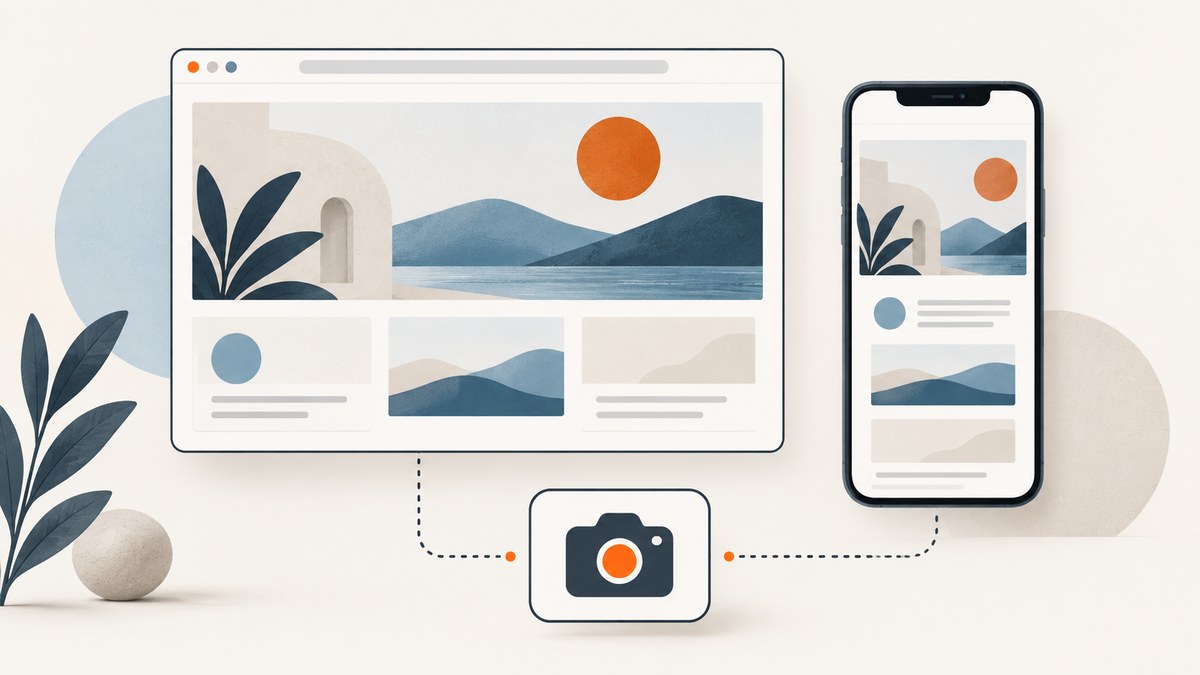
Yes, Puppeteer can make screenshots repeatable by controlling the browser viewport and device-emulation settings. Set the CSS-pixel width and height, device scale factor, and any mobile or touch behavior that matters. This controls the browser inputs and capture geometry; it does not guarantee pixel-identical output across physical devices, operating systems, browser versions, or environments.
For a stable screenshot artifact, use the same browser build, viewport, scale factor, navigation and capture options on each run. For responsive testing, deliberately vary the viewport or emulate a known device. Puppeteer’s screenshot guide uses Page.screenshot() for page captures and also documents element screenshots.
1. What “device-independent” means in Puppeteer
There are two different goals that are easy to conflate:
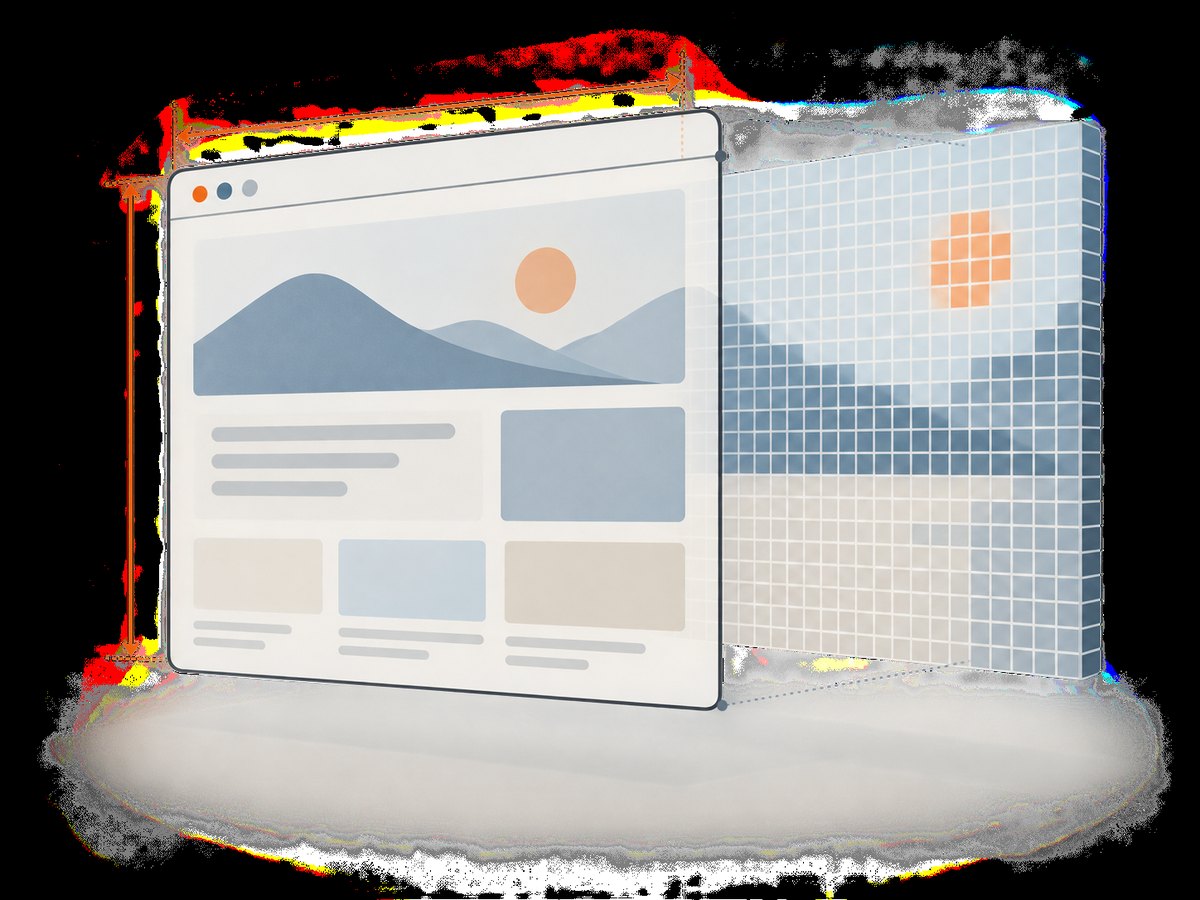
- Repeatable capture inputs: ask a controlled browser to render at a chosen viewport and scale factor. Puppeteer supports these controls.
- Identical pixels everywhere: expect the same image on different real devices or software stacks. Puppeteer’s documented controls do not promise this.
A viewport is the page’s visible area, measured in CSS pixels. The device scale factor controls the relationship between CSS pixels and output device pixels. The documented default scale factor is 1. Mobile emulation also exposes isMobile, touch support and landscape orientation. These settings describe emulated conditions, not a guarantee that a physical phone’s browser, fonts, graphics stack and rendering will match your capture exactly. See Puppeteer’s Viewport reference.
For screenshot-based regression checks, consistency is the useful target: pin the Puppeteer and browser versions in your project, use explicit settings, and capture with the same procedure. If the objective is to find responsive layout defects, run a set of intentionally different viewports and compare each viewport against its own expected result.
2. Install Puppeteer and capture a controlled viewport
Use a maintained Node.js installation and install Puppeteer in a project. The puppeteer package downloads a compatible browser during installation. Run the following commands from a new project directory:
npm init -y
npm install puppeteer
Save this as screenshot.mjs. It accepts a URL as an argument, fixes the viewport and scale factor before navigation, waits for navigation to settle, then writes a PNG. It closes the browser even if navigation or capture fails.
import puppeteer from 'puppeteer';

const url = process.argv[2] ?? 'https://example.com';
const browser = await puppeteer.launch({ headless: true });

try {
  const page = await browser.newPage();

  // Width and height are CSS pixels. Set all capture inputs explicitly.
  await page.setViewport({
    width: 1280,
    height: 800,
    deviceScaleFactor: 1,
    isMobile: false,
    hasTouch: false,
    isLandscape: false,
  });

  await page.goto(url, {
    waitUntil: 'networkidle2',
    timeout: 60000,
  });

  await page.screenshot({
    path: 'capture.png',
    type: 'png',
    fullPage: false,
  });

  console.log('Wrote capture.png');
} finally {
  await browser.close();
}
Run it with node screenshot.mjs https://example.com. The output is a viewport screenshot: content below the fold is not included. networkidle2 waits for network activity to fall to a low level, but pages with persistent requests may not reach that state promptly. If it times out, use a different navigation wait condition and wait for a page-specific selector or application-ready signal before capture.
3. Pick the right emulation and capture boundaries
Explicit viewport versus a known device
For a desktop or custom responsive breakpoint, explicit metrics make the intended geometry obvious. For a known device profile, Puppeteer’s KnownDevices and page.emulate() provide a shortcut that sets the user agent and viewport together. The API documentation advises emulating before navigation because some sites do not expect a phone viewport to change after the page loads. See Page.emulate().
import puppeteer, { KnownDevices } from 'puppeteer';

const browser = await puppeteer.launch({ headless: true });
try {
  const page = await browser.newPage();
  const device = KnownDevices['iPhone 17 Pro'];

  // Set device metrics and user agent before loading the site.
  await page.emulate(device);
  await page.goto('https://example.com', {
    waitUntil: 'networkidle2',
    timeout: 60000,
  });
  await page.screenshot({ path: 'mobile.png', fullPage: false });
} finally {
  await browser.close();
}
Device profile names are version-dependent; select an entry present in the installed Puppeteer version. If you only need a particular width and height, explicit setViewport() settings are easier to maintain than assuming that a named profile remains identical over time. A user-agent string alone is not a full device emulation: set the viewport and relevant mobile/touch settings too.
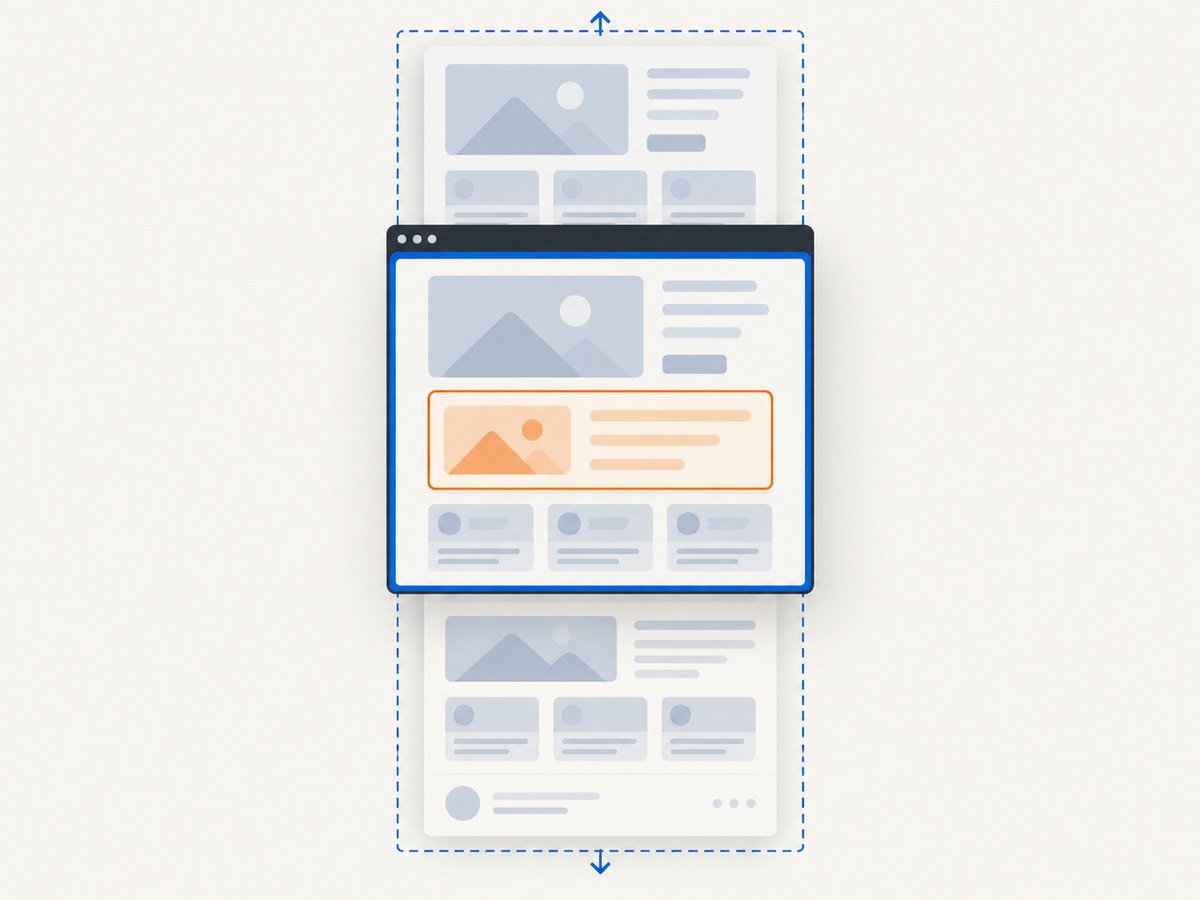
Viewport, full page, clip, or one element
| Capture | Use it for | Relevant API |
|---|---|---|
| Visible viewport | A fixed screen view or a viewport-based visual check | page.screenshot({fullPage: false}) |
| Full page | A long-page artifact including content below the fold | page.screenshot({fullPage: true}) |
| Clipped region | A known rectangular area of the page | clip: {x, y, width, height} |
| One element | A component, card or region identified in the DOM | elementHandle.screenshot() |
For an element capture, wait for the selector and then capture its handle. Puppeteer’s screenshot guide says element capture scrolls the element into view when necessary.
const card = await page.waitForSelector('.product-card', { timeout: 10000 });
if (!card) throw new Error('Product card was not found');
await card.screenshot({ path: 'product-card.png' });
At the page level, fullPage defaults to false. A clip specifies a rectangular region. captureBeyondViewport concerns capture outside the viewport and its documented default depends on whether a clip is supplied. Set capture boundaries deliberately rather than depending on a default. Other screenshot options include output type, format-specific quality where applicable, and omitBackground for a transparent background where supported. Consult the current ScreenshotOptions reference for the installed version’s supported fields.
4. Plan a useful device matrix
“Same screenshot at different screen sizes” can mean either one canonical screenshot or a responsive suite. A single capture cannot represent every layout state. For a suite, give each capture a stable name that encodes its settings and use explicit viewport dimensions for each run.
const viewports = [
  { name: 'desktop', width: 1280, height: 800, deviceScaleFactor: 1 },
  { name: 'tablet', width: 768, height: 1024, deviceScaleFactor: 1 },
  { name: 'mobile', width: 390, height: 844, deviceScaleFactor: 1 },
];

for (const viewport of viewports) {
  const page = await browser.newPage();
  await page.setViewport({ ...viewport, isMobile: false, hasTouch: false });
  await page.goto(url, { waitUntil: 'networkidle2', timeout: 60000 });
  await page.screenshot({ path: `${viewport.name}.png`, fullPage: false });
  await page.close();
}
This example exercises viewport breakpoints, not full phone behavior. For a mobile-emulated case, enable the relevant mobile and touch behavior or use a device profile, and do so before navigation. Keep each case’s intended settings documented with its baseline image. Otherwise, a difference caused by a changed scale factor or viewport can look like an application regression.
Wait for dynamic content explicitly when network idleness is not a reliable signal. For example, wait for a heading or a known app-ready selector with page.waitForSelector(). If images lazy-load only after scrolling, scroll the relevant content into view before taking a full-page capture. For animations or rotating content, make the page state deterministic in the application or disable the specific animation in a controlled test setup; an arbitrary delay alone may still capture different frames.
5. Headless screen settings are not viewport settings
The page viewport controls the dimensions used for layout and the screenshot region. The browser’s screen configuration is a separate concept that matters if page code reads screen-related properties. Puppeteer documents a default headless screen of 800×600 when no --screen-info argument is supplied, unless --window-size is used. The --screen-info switch is headless-only; headful Chrome uses the platform’s physical screens. Do not infer the page viewport from these screen dimensions. Configure the viewport directly with page.setViewport().
6. Troubleshooting
| Symptom | Likely cause | Fix |
|---|---|---|
| Layout differs from the intended mobile view | Viewport or mobile emulation was applied after navigation, or only the user agent was changed. | Set the viewport or call page.emulate() before goto(). Include the viewport meta behavior, touch setting and scale factor your case needs. |
| Image dimensions are larger than expected | The device scale factor multiplies output pixel density relative to CSS pixels. | Set deviceScaleFactor explicitly. If you need a 1:1 CSS-pixel output, use a factor of 1. |
| Screenshot is cut off | The capture is viewport-only, or the clip dimensions exclude content. | Use fullPage: true for a full-page capture, or revise the clip. Use an element screenshot for a specific component. |
| Navigation wait times out | The page keeps connections open, takes longer to load, or never reaches the selected network-idle condition. | Choose a suitable waitUntil condition, set a realistic timeout, then wait for a page-specific ready selector. |
| Fonts, images or app content are missing | Assets or client rendering were not ready when capture began, or a resource failed. | Wait for the relevant selector and, where needed, explicitly wait for fonts or images in page code. Check browser console and request failures to identify blocked or failed assets. |
| Repeated captures do not match | Browser versions, page data, animations, timestamps, ads, fonts or network responses vary. | Pin the browser environment, control test data and capture timing, and keep viewport and screenshot options constant. Treat remaining differences as potential rendering or content variance to investigate. |
| Known device key is undefined | The profile name is absent from that installed Puppeteer release. | Check the installed package’s KnownDevices entries or use explicit viewport and user-agent settings. |
7. Performance, reliability and cost
A browser launch has setup cost; in a batch, reuse a browser process and create or close pages as needed instead of launching a fresh browser for every URL. Avoid unbounded parallel pages: each page consumes browser resources, and excessive concurrency can make capture times less predictable. Full-page screenshots may require more memory and image processing than viewport captures, especially for unusually long pages. Capture only the area you need.
For reliability, always close pages and browsers in cleanup paths, set navigation and selector timeouts, and log the URL, viewport, device scale factor, browser version and failure details alongside each artifact. A timeout should result in an explicit failed job rather than a silently accepted partial image. For visual comparisons, keep the capture environment stable and investigate diffs instead of assuming all pixel variation is a layout change.
The Puppeteer API itself is a software library; the dossier establishes no universal cost or benchmark for running it. Your practical cost depends on where browser processes run and how much compute, memory and storage your workflow uses. Account for installing and maintaining the browser runtime, orchestration, retries and artifact retention when comparing a self-managed setup with a capture API.
8. Or skip the browser setup
If you need a screenshot without installing and running a browser, ScreenshotNeo is a website screenshot API. Its API documentation covers the available options. A basic request is one GET call:
curl -G "https://api.screenshotneo.com/v1/shot" -d access_key=YOUR_API_KEY --data-urlencode url=https://example.com -o shot.webpPython:
import requests

r = requests.get(
    "https://api.screenshotneo.com/v1/shot",
    params={"access_key": "YOUR_API_KEY", "url": "https://example.com"},
    timeout=90,
)
open("shot.webp", "wb").write(r.content)
Node.js:
const q = new URLSearchParams({
  access_key: 'YOUR_API_KEY',
  url: 'https://example.com',
});
const res = await fetch(`https://api.screenshotneo.com/v1/shot?${q}`);
if (!res.ok) throw new Error(`Screenshot request failed: ${res.status}`);
await import('node:fs/promises').then(fs => fs.writeFile('shot.webp', Buffer.from(await res.arrayBuffer())));
ScreenshotNeo accepts and removes cookie or consent banners, newsletter popups and chat widgets before capture; each step can be turned off. Bot checks or CAPTCHAs, blank pages, timeouts, failed loads and cache hits are not billed, and response headers identify the page verdict and billing status. It also has an MCP server with screenshot, page-info and PDF tools for AI agents. The free plan includes 1,000 screenshots a month with no card; paid plans start at $5 for 3,000 shots. Sign up for 1,000 free screenshots a month—no card required.
9. Frequently asked questions
Does Puppeteer emulate a real phone?
It can emulate device metrics and a user agent through a known device profile. This is useful for browser-based mobile checks, but it does not reproduce every physical phone’s hardware, OS or rendering stack.
What does deviceScaleFactor change?
It sets the emulated device scale factor, affecting the output pixel density relative to CSS-pixel layout. Puppeteer documents a default of 1; set it explicitly when output dimensions matter.
Should I use a viewport screenshot or full-page capture?
Use the viewport when the visible screen is the artifact or the test target. Use full-page capture for a long document. Choose element capture when the test concerns one component.
Can I make a screenshot identical across browser versions?
The controls described here do not promise cross-version pixel identity. Pinning a browser build and capture configuration improves repeatability within your workflow, but rendering changes can still affect output.


