Difference Between PDF and HTML Files: A Practical Guide for Developers
PDF preserves page layout for sharing and printing; HTML adapts in browsers. Learn which format fits accessibility, responsiveness, interaction, and delivery.

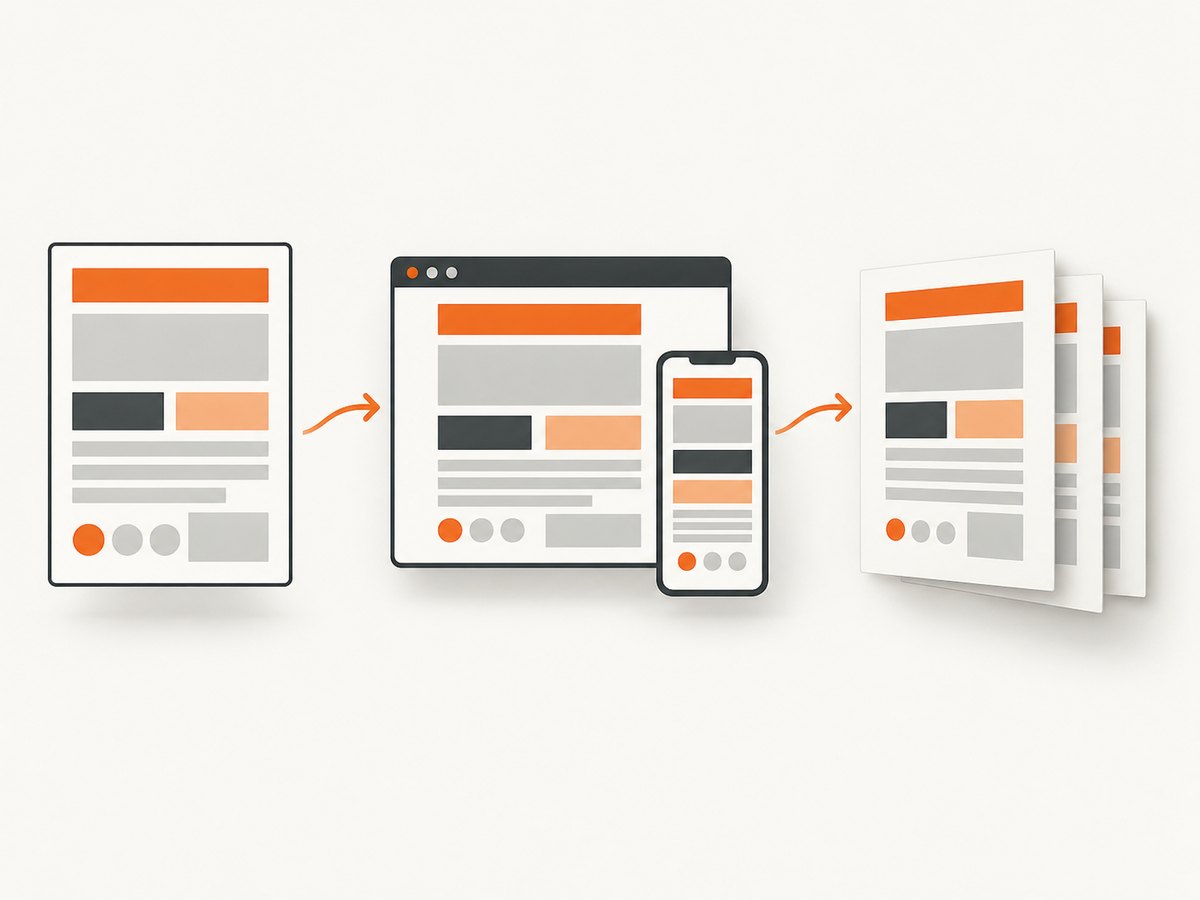
PDF is page-oriented: it is designed to preserve a document’s appearance across viewers and printed pages. HTML is browser-oriented: the browser parses it, applies CSS and scripts, and can adapt the presentation to different viewport sizes. Choose PDF when a stable, downloadable or printable artifact matters. Choose HTML when people need an accessible, linkable, interactive page that can respond to screen size.
Neither extension guarantees accessibility or visual quality. A well-structured tagged PDF can expose headings, reading order, text and reflow to assistive technology; poorly authored or scanned PDFs may not. HTML can reflow and support rich interaction, but only when its structure, CSS and behavior are implemented correctly. The WHATWG maintains the HTML Standard; W3C documents PDF accessibility techniques and WCAG requirements.
PDF and HTML compared
| Question | HTML | |
|---|---|---|
| Primary model | A document with pages and positioned content. | A document the browser parses and lays out. |
| Layout stability | Usually strong: page size, margins and breaks are part of the artifact. | Depends on viewport, browser, CSS, fonts and scripts. |
| Small screens | Often requires zooming or a capable viewer; tagged PDFs may offer reflow. | Can rearrange content for narrow screens when responsive CSS is used. |
| Interaction | Limited to supported links, forms, media and viewer features. | Native fit for navigation, forms, application state and dynamic content. |
| Printing | Designed for predictable pages and print workflows. | Browser print output depends on print CSS, margins, fonts and the browser. |
| Distribution | Downloadable, attachable and suitable for archival or approval workflows. | URL-based, indexable and easy to update centrally. |
| Accessibility | Depends on tags, reading order, text layer, metadata and viewer support. | Depends on semantic HTML, keyboard behavior, labels, contrast and responsive implementation. |
How PDF layout differs from HTML layout
PDF describes a page appearance
A PDF normally records page boundaries, coordinates, fonts, graphics and other instructions needed to display a page. That makes it a practical choice for a report, signed form, invoice, specification or handout where readers should see the same composition. The W3C’s PDF techniques describe how structure and reading order can be represented for accessibility.
“Fixed” does not mean “inaccessible.” A tagged PDF can contain a logical structure tree, alternative text, bookmarks, table semantics and a usable reading order. Viewer support still matters, and a scan without a text layer may require OCR. Adobe’s PDF accessibility guidance covers tagging, accessibility and reflow considerations.
HTML is processed at presentation time
HTML supplies document structure and content. The browser combines it with CSS, fonts, viewport dimensions, user settings and scripts to produce a rendered page. A heading, paragraph and list can therefore move, resize or stack differently on a phone and a desktop. HTML is also the natural delivery format for links, forms, progressive enhancement and client-side interaction.
Responsive behavior is not automatic. Use semantic elements, flexible widths, responsive images and media queries, then test at narrow widths. WCAG 2.1 Success Criterion 1.4.10 describes reflow at a width equivalent to 320 CSS pixels without loss of information or functionality or two-dimensional scrolling, except where a two-dimensional layout is essential. See the W3C explanation of reflow.
Choose by the reader’s task
| Reader needs | Usually choose | Reason |
|---|---|---|
| Read an article on many screen sizes | HTML | Content can reflow and links remain native to the web. |
| Download a report with stable pagination | Pages, breaks and margins travel with the file. | |
| Complete a rich form or workflow | HTML | Browser controls and validation support interaction. |
| Print a handout or submit a fixed artifact | The recipient receives a page-oriented document. | |
| Publish content that changes frequently | HTML | One URL can serve the current version. |
| Provide both screen reading and printing | HTML plus tagged PDF | Offer an adaptable web page and a properly structured printable file. |
Accessibility checklist
For HTML
- Use a logical heading hierarchy, landmarks, lists and tables.
- Give controls accessible names and make all functions keyboard usable.
- Use real text instead of text embedded in images.
- Set a viewport and test at 320 CSS pixels as well as larger widths.
- Preserve information and functionality when content reflows.
- Check focus visibility, contrast, zoom and reduced-motion behavior.
For PDF
- Export a real text layer; run OCR on scans when appropriate.
- Tag headings, paragraphs, lists, tables and figures.
- Verify reading order, language metadata, title and bookmarks.
- Add alternative text for meaningful figures and mark decorative graphics.
- Check links, form labels, tab order and color-independent meaning.
- Open the file in the viewers your audience uses and test with assistive technology.
Accessibility belongs to the authored file and its implementation, not to the filename extension. A semantic HTML page can still fail keyboard or reflow checks, and an untagged PDF can fail text extraction even when it looks perfect visually.
Build a responsive HTML document
This complete example uses semantic HTML and CSS that allows ordinary content to reflow. Save it as report.html and open it in a browser.
<!doctype html>
<html lang="en">
<head>
  <meta charset="utf-8">
  <meta name="viewport" content="width=device-width, initial-scale=1">
  <title>Project report</title>
  <style>
    :root { color-scheme: light dark; font-family: system-ui, sans-serif; }
    body { max-width: 70rem; margin: 0 auto; padding: 1rem; line-height: 1.6; }
    .layout { display: grid; grid-template-columns: minmax(0, 2fr) minmax(14rem, 1fr); gap: 2rem; }
    img, svg, video { max-width: 100%; height: auto; }
    table { width: 100%; border-collapse: collapse; }
    th, td { border: 1px solid #888; padding: .5rem; text-align: left; }
    @media (max-width: 48rem) {
      .layout { grid-template-columns: 1fr; }
      body { padding: .75rem; }
    }
    @media print {
      nav, .actions { display: none; }
      body { max-width: none; color: #000; background: #fff; }
      a { color: #000; text-decoration: none; }
    }
  </style>
</head>
<body>
  <header>
    <nav aria-label="Primary"><a href="/">Home</a></nav>
    <h1>Project report</h1>
    <p>A short summary that works on screens and on paper.</p>
  </header>
  <main class="layout">
    <article>
      <h2>Findings</h2>
      <p>Use paragraphs, headings and lists so structure survives different presentations.</p>
      <h2>Results</h2>
      <table><caption>Quarterly results</caption>
        <thead><tr><th scope="col">Quarter</th><th scope="col">Value</th></tr></thead>
        <tbody><tr><th scope="row">Q1</th><td>42</td></tr></tbody>
      </table>
    </article>
    <aside aria-label="Related information"><h2>Notes</h2><p>Keep supporting content understandable when it stacks below the main article.</p></aside>
  </main>
</body>
</html>
Generate a PDF from HTML with Node.js
A headless browser can execute CSS and JavaScript, load fonts and produce a paginated PDF. Install Playwright with npm install playwright, then save this as make-pdf.mjs. The target page must be reachable by the process.
import { chromium } from 'playwright';

const browser = await chromium.launch();
const page = await browser.newPage({ viewport: { width: 1280, height: 900 } });
await page.goto('https://example.com/report.html', { waitUntil: 'networkidle' });
await page.emulateMedia({ media: 'print' });
await page.pdf({
  path: 'report.pdf',
  format: 'A4',
  printBackground: true,
  margin: { top: '16mm', right: '16mm', bottom: '16mm', left: '16mm' },
  preferCSSPageSize: true
});
await browser.close();
For a local file, use an absolute file:// URL or serve the directory over HTTP. Wait for web fonts and application data explicitly when networkidle is insufficient. Add print CSS for page breaks, hidden navigation and readable colors.
Capture either format for review or documentation
If you need a visual record of an HTML page, a screenshot preserves pixels at a chosen viewport; a PDF preserves pages. Test both against the reader task. Screenshots are useful for visual regression and previews, while PDFs are better for a downloadable page artifact.
Or skip the browser setup
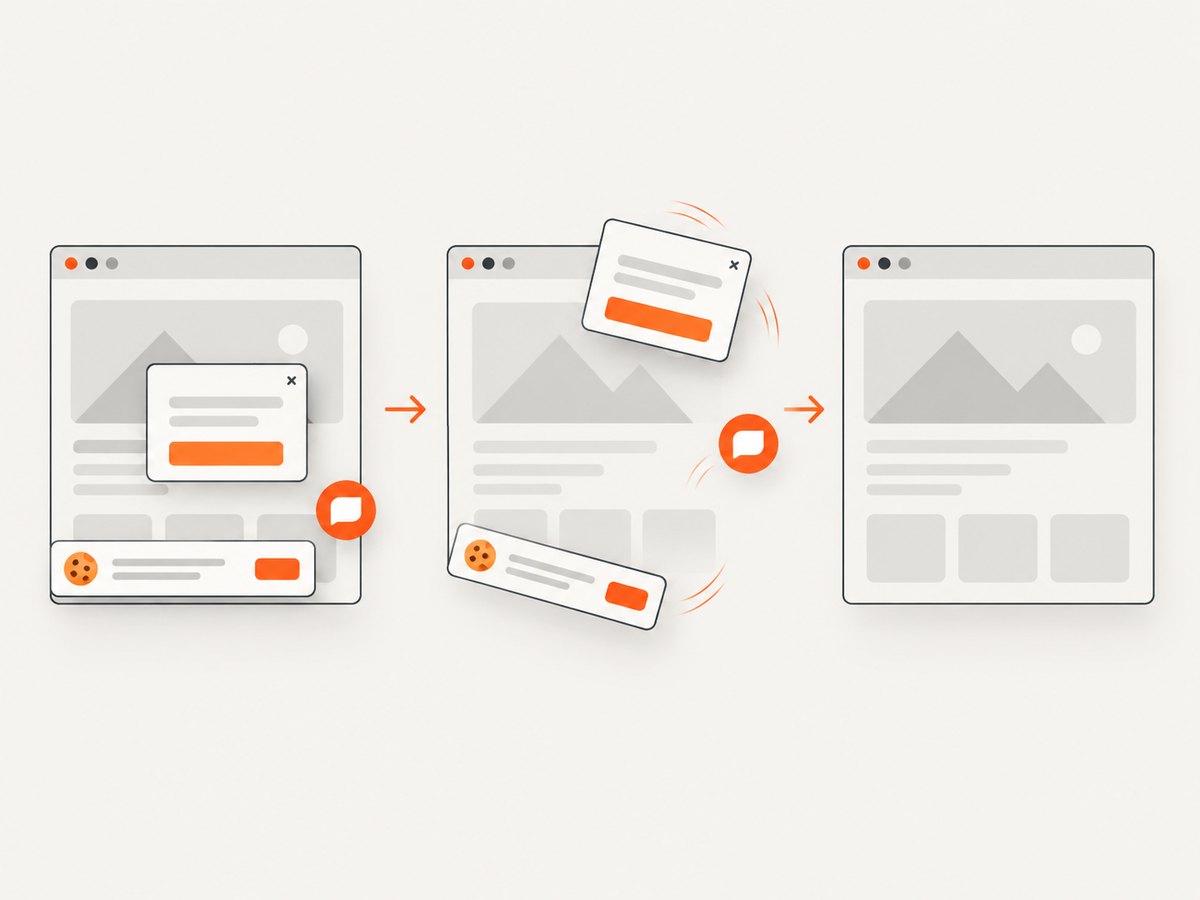
ScreenshotNeo provides a website screenshot API and MCP server. One GET request returns a PNG, JPEG, WebP or PDF. Before capture it accepts cookie or consent banners and removes more than 60 known consent platforms, newsletter popups and chat widgets; each step can be turned off. Bot checks, blank pages, timeouts, failed loads and cache hits are not billed, and the response reports the page verdict and billing status in X-Page-Verdict and X-Billed headers. See the ScreenshotNeo API documentation for the available capture options.
curl -G "https://api.screenshotneo.com/v1/shot" -d access_key=YOUR_API_KEY --data-urlencode url=https://stripe.com -o shot.webpimport requests
r = requests.get("https://api.screenshotneo.com/v1/shot", params={"access_key": "YOUR_API_KEY", "url": "https://stripe.com"}, timeout=90)
open("shot.webp", "wb").write(r.content)const q = new URLSearchParams({ access_key: 'YOUR_API_KEY', url: 'https://stripe.com' });
const res = await fetch(`https://api.screenshotneo.com/v1/shot?${q}`);It also includes an MCP server with take_screenshot, get_page_info and capture_pdf tools for Claude, Cursor and other MCP clients. Plans include 1,000 free shots per month with no card; paid plans start at $5 for 3,000 shots. Create a free ScreenshotNeo account.
Options that affect output
| Requirement | HTML approach | PDF or capture approach |
|---|---|---|
| Responsive reading | Flexible layout, media queries and semantic structure. | Use a viewer with reflow support; do not assume every PDF reflows. |
| Exact paper size | Print CSS with @page; browser defaults vary. |
Set paper size, margins, orientation and page ranges. |
| Only one component | Target the component in the DOM or create a print view. | Capture a CSS-selected element where the tool supports it. |
| Dynamic content | Wait for data, fonts and images before presenting. | Wait for a selector, a delay or network idle before capture. |
| Visual theme | Use CSS media features and explicit theme state. | Choose dark mode or inject custom CSS when supported. |
Troubleshooting
The PDF has missing fonts or shifted text
Cause: the browser finished before a web font loaded, or the font is unavailable in the runtime. Fix: preload or self-host the font, wait for document.fonts.ready, and verify the font license permits embedding.
Images are blank in the PDF
Cause: lazy loading, blocked cross-origin resources or capture before the image enters the viewport. Fix: scroll through the page, wait for image completion, check network errors and provide usable dimensions and alt text.
Content is cut off at the page edge
Cause: fixed widths, long unbreakable strings, transforms or an element wider than the paper. Fix: use max-width: 100%, allow wrapping, inspect print CSS and set margins deliberately.
The HTML looks different on another device
Cause: viewport width, browser engine, zoom, installed fonts and user preferences differ. Fix: define responsive rules, use a font stack, test representative browsers and avoid relying on pixel coordinates.
A PDF is searchable visually but not with a screen reader
Cause: it is a scan or has no usable text layer and structure tags. Fix: run OCR where appropriate, export tagged structure, set reading order and test extraction with the target assistive technology.
Responsive content scrolls horizontally
Cause: fixed-width tables, images or code blocks exceed the viewport. Fix: make media fluid, allow intentional code wrapping or contained scrolling, and confirm the page retains information and functionality at narrow widths.
A screenshot includes a cookie banner or chat bubble
Cause: the capture happened before those elements were dismissed or hidden. Fix: automate consent handling and hide known overlays, or use ScreenshotNeo’s pre-capture consent and cleanup steps.
Performance, reliability and cost
- HTML delivery: cache static assets, compress images, reserve image space to reduce layout shifts and avoid unnecessary client-side work.
- PDF generation: reuse a browser process for batches, wait only for the resources the document needs and keep page ranges small when a full document is unnecessary.
- Repeatability: pin fonts and browser versions in automated pipelines, set a known viewport and timezone, and record the source URL and generation timestamp.
- Failure handling: distinguish navigation errors, timeouts, blocked resources and invalid documents; retry transient navigation failures with a limit and retain the error context.
- Cost: self-hosted rendering consumes compute and maintenance. ScreenshotNeo bills only clean shots; bot checks, blank pages, timeouts, failed loads and cache hits cost nothing. Its free plan includes 1,000 shots monthly without a card, with paid plans from $5 for 3,000.
FAQ
Is PDF higher quality than HTML?
Neither is inherently higher quality. PDF is stronger for controlled pages and printing; HTML is stronger for adaptive, interactive web delivery.
Can HTML replace PDF?
For many web-first documents, yes. It is a poor replacement when recipients require a fixed, downloadable page artifact or a predictable print submission.
Can every PDF reflow like a webpage?
No. Reflow depends on the PDF’s structure and the viewer. A visually polished but untagged PDF may not reflow or read in a logical order.
Should a site publish both?
When readers need both adaptable reading and dependable printing, an accessible HTML page plus a properly tagged PDF is often the most useful combination.
Does a screenshot prove that a page is accessible?
No. A screenshot checks visual output at one viewport. Accessibility also requires semantic structure, keyboard behavior, text alternatives, reading order and assistive-technology testing.


