How to Run DinkToPdf on Linux in Azure Functions
Run DinkToPdf reliably in Azure Functions with a Linux custom container, compatible wkhtmltopdf binaries, publishing guidance, and fixes for native-library errors.

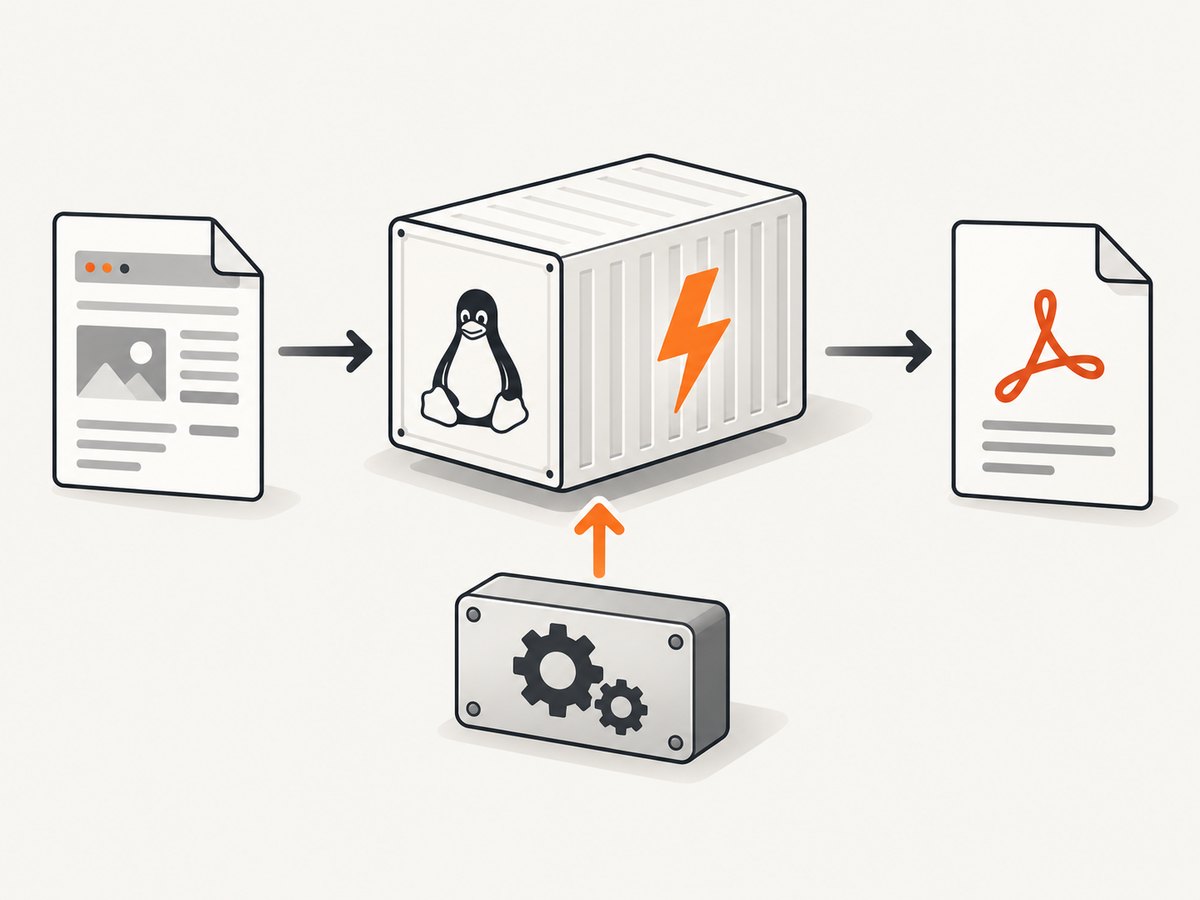
Use a Linux custom container based on the supported Azure Functions image for your .NET runtime. Put a Linux libwkhtmltox build and every shared-library dependency it needs in that image, publish your Function app into the image’s expected application directory, and invoke a conversion inside the finished image before deploying it. DinkToPdf is only a .NET P/Invoke wrapper; PDF rendering is performed by the native wkhtmltopdf library.
This approach gives you control over the operating-system packages, fonts, native architecture and loader paths that DinkToPdf requires. It also means you own image updates and compatibility checks.
Architecture at a glance
- Your HTTP-triggered or queue-triggered Function receives HTML or a URL.
- DinkToPdf calls the native
libwkhtmltoxlibrary. - wkhtmltopdf renders the document with its WebKit engine.
- The Function returns or stores the generated PDF.
Azure Functions supports custom Linux containers, and Microsoft documents selecting a custom image with linuxFxVersion in the form DOCKER|<IMAGE_URI>. Read the current custom-container guidance and app-settings reference for the hosting plan and runtime you use.
Prerequisites and compatibility checks
- A currently supported .NET version and the matching official Azure Functions Linux base image. Select the tag for your runtime instead of copying an old example; see Microsoft’s container support documentation.
- A Linux wkhtmltopdf native library matching the image operating system and process architecture (32-bit or 64-bit). DinkToPdf’s project README requires this OS and architecture match.
- All transitive shared libraries, font configuration and fonts required by that exact native build.
- A Function project using the isolated worker or in-process model appropriate for the selected base image.
The DinkToPdf NuGet package is a managed wrapper; it does not make a Windows DLL usable on Linux. The package description is available on NuGet. Treat old package or binary versions as compatibility signals and verify them against your chosen image.
Create the Function project
The following example uses an isolated-worker HTTP Function. Adapt the package versions and base-image tag to the versions currently supported by Azure.
dotnet new func --worker-runtime dotnet-isolated --name PdfFunction
cd PdfFunction
dotnet add package DinkToPdf
 dotnet restore
Put the native library in a predictable directory in the project, for example native/linux-x64/libwkhtmltox.so. The file name and subdirectory can differ, but the path you configure must match the image and loader.
Write a conversion Function
using System.Net;
using DinkToPdf;
using DinkToPdf.Contracts;
using Microsoft.Azure.Functions.Worker;
using Microsoft.Azure.Functions.Worker.Http;

public sealed class RenderPdf
{
    private readonly IConverter _converter;

    public RenderPdf(IConverter converter) => _converter = converter;

    [Function("RenderPdf")]
    public HttpResponseData Run(
        [HttpTrigger(AuthorizationLevel.Function, "post")] HttpRequestData request)
    {
        using var reader = new StreamReader(request.Body);
        var html = reader.ReadToEnd();
        if (string.IsNullOrWhiteSpace(html))
        {
            var bad = request.CreateResponse(HttpStatusCode.BadRequest);
            bad.WriteString("Request body must contain HTML.");
            return bad;
        }

        var document = new HtmlToPdfDocument
        {
            GlobalSettings =
            {
                PaperSize = PaperKind.A4,
                Orientation = Orientation.Portrait,
                Margins = new MarginSettings { Top = 15, Bottom = 15, Left = 15, Right = 15 }
            },
            Objects =
            {
                new ObjectSettings
                {
                    HtmlContent = html,
                    WebSettings = { DefaultEncoding = "utf-8", LoadImages = true }
                }
            }
        };

        var bytes = _converter.Convert(document);
        var response = request.CreateResponse(HttpStatusCode.OK);
        response.Headers.Add("Content-Type", "application/pdf");
        response.Body.Write(bytes);
        return response;
    }
}
Register the converter in Program.cs. Use SynchronizedConverter for a multithreaded web server, as recommended by the DinkToPdf project; use BasicConverter for a single-threaded application.
using DinkToPdf;
using DinkToPdf.Contracts;
using Microsoft.Extensions.DependencyInjection;
using Microsoft.Extensions.Hosting;

var builder = FunctionsApplication.CreateBuilder(args);
builder.Services.AddSingleton<IConverter>(new SynchronizedConverter(new PdfTools()));
builder.Build().Run();
Build a Linux custom container
Start from the official Azure Functions image for your exact .NET isolated version. The tag below is illustrative; select a currently supported tag from Microsoft’s documentation.
FROM mcr.microsoft.com/azure-functions/dotnet-isolated:4-dotnet-isolated8.0

# Install only packages required by your selected wkhtmltopdf build.
# The exact dependency closure varies by binary and base image.
RUN apt-get update && apt-get install -y --no-install-recommends \
    fontconfig \
    fonts-dejavu \
    && rm -rf /var/lib/apt/lists/*

WORKDIR /home/site/wwwroot
COPY publish/ ./
COPY native/linux-x64/libwkhtmltox.so /opt/wkhtmltox/libwkhtmltox.so

ENV LD_LIBRARY_PATH=/opt/wkhtmltox:$LD_LIBRARY_PATH
Do not assume this package list is sufficient for every wkhtmltopdf build. Inspect the exact binary with Linux dependency tools in a disposable environment and add the libraries it reports as missing. Keep the publish output at the location required by the selected Functions image. Microsoft’s isolated-worker guide explains that deployment content should match dotnet publish output, with the publish contents at the archive root: .NET isolated process guide.
Publish and build
dotnet publish -c Release -o publish
docker build -t myregistry.example/pdffunction:1 .
docker push myregistry.example/pdffunction:1
Configure Azure Functions to use the image
Set the Function App’s Linux runtime image to your registry image. The documented setting uses:
linuxFxVersion = DOCKER|myregistry.example/pdffunction:1Configure registry authentication, storage and plan-specific container settings according to the current Azure documentation. Premium or Dedicated plans may require settings that differ from Consumption hosting, so verify them before provisioning.
Validate inside the finished image
Run the same image you intend to deploy and invoke a representative conversion. Check all of these cases:
- Plain text and Unicode characters render correctly.
- Local CSS, images and fonts load.
- Remote assets either load within your network policy or fail with a clear, expected result.
- Large documents complete within your Function timeout.
- Two simultaneous invocations do not corrupt output or crash the native renderer.
docker run --rm -p 8080:80 myregistry.example/pdffunction:1
curl -X POST http://localhost:8080/api/RenderPdf \
  -H 'Content-Type: text/html' \
  --data '<html><body>Hello</body></html>' \
  -o result.pdf
Managed Linux versus a custom container
| Choice | Use it when | Trade-off |
|---|---|---|
| Managed Linux Function App | Your native renderer and all dependencies are already available in the supported runtime. | Less control; the researched sources do not establish that a particular managed image contains DinkToPdf’s native dependency. |
| Custom Linux container | You need a specific wkhtmltopdf build, fonts, shared libraries or loader configuration. | You maintain the image, dependency updates and rebuild process. |
Native-library troubleshooting
Unable to load shared library 'libwkhtmltox'
Cause: the file is absent, outside the loader path, has the wrong name, or one of its dependencies is missing. Fix: copy the Linux library into the image, set LD_LIBRARY_PATH or use an absolute path supported by your loading code, and inspect dependencies for the exact binary.

wrong ELF class or architecture errors
Cause: a 32-bit library is loaded by a 64-bit process, or the image architecture differs from the binary. Fix: rebuild or replace the native library for the container architecture. A Windows DLL or macOS dynamic library cannot satisfy a Linux process.
The file exists but still will not load
Cause: a transitive system library is missing. Fix: use the package manager and dependency inspection tools inside a container based on the final image; install the missing runtime packages, then repeat the conversion test.
Blank PDF or missing images
Cause: inaccessible URLs, blocked network requests, missing fonts, or HTML that depends on browser features unavailable to the WebKit renderer. Fix: make assets reachable from the Function, embed critical assets where practical, install required fonts, and test the exact HTML in the deployed image.
Works locally but fails in Azure
Cause: local and Azure images differ, or the publish files are in the wrong directory. Fix: run the published application in the same image used by Azure and verify the Functions image’s entrypoint and file layout.
Intermittent crashes under load
Cause: native renderer concurrency or resource pressure. Fix: use the converter pattern appropriate to your threading model, limit concurrent conversions, measure memory and execution time, and scale out only after validating the workload. DinkToPdf’s converter guidance does not establish Azure throughput numbers.
Performance, reliability and cost considerations
- Cold starts: a larger image and native initialization can increase startup time. Keep the image focused and remove unused packages.
- Memory: HTML with many images, large CSS files or multiple pages can consume substantially more memory than a small document. Set practical input and page limits.
- Timeouts: wait for remote resources deliberately and align Function, client and queue retry timeouts.
- Retries: make output names and storage writes idempotent so a retry does not create duplicate business records.
- Image maintenance: Microsoft places responsibility for updating custom-container base images on the image owner. Rebuild when the Functions base image or security packages change.
- Cost: Azure billing depends on the hosting plan, execution time, memory and related services. The supplied sources provide no benchmark for DinkToPdf throughput, so measure your document mix in the final image.
Or skip the browser setup
If the goal is a clean screenshot or PDF of a URL rather than server-side HTML-to-PDF control, ScreenshotNeo provides a single HTTP endpoint and an MCP server for AI agents. It removes cookie banners, newsletter popups and chat widgets before capture; bot checks, blank pages and failed loads are not billed; and every response identifies the page verdict and billing status.
See the ScreenshotNeo API documentation for all options. A basic request is:
curl -G "https://api.screenshotneo.com/v1/shot" -d access_key=YOUR_API_KEY --data-urlencode url=https://stripe.com -o shot.webpimport requests
r = requests.get("https://api.screenshotneo.com/v1/shot", params={"access_key": "YOUR_API_KEY", "url": "https://stripe.com"}, timeout=90)
open("shot.webp", "wb").write(r.content)const q = new URLSearchParams({ access_key: 'YOUR_API_KEY', url: 'https://stripe.com' });
const res = await fetch(`https://api.screenshotneo.com/v1/shot?${q}`);It supports full-page and element captures, device presets, dark mode, custom CSS and JavaScript, waiting rules, request blocking, headers, cookies, caching, PDFs, bulk jobs and signed webhooks. The MCP tools take_screenshot, get_page_info and capture_pdf work with Claude, Cursor and other MCP clients. The Free plan includes 1,000 screenshots each month with no card; paid plans start at $5 for 3,000. Create a free ScreenshotNeo account.
FAQ
Does DinkToPdf include wkhtmltopdf?
No. DinkToPdf is the managed wrapper; you must supply a compatible native Linux library and its dependencies.
Can I copy a Windows wkhtmltox.dll into the container?
No. Linux requires a Linux shared library matching the process architecture.
Should I use BasicConverter or SynchronizedConverter?
Follow DinkToPdf’s guidance: BasicConverter for single-threaded applications and SynchronizedConverter for multithreaded applications or web servers, then validate your Function’s concurrency separately.
Is a custom container mandatory?
No, but it is the most controllable option when the managed image does not provide the native renderer and operating-system dependencies you need.
Where should publish files go?
Use the selected Functions base image’s documented layout. For isolated-worker deployments, the package contents should correspond to dotnet publish output rather than an extra enclosing directory.


