How to Disable All MCP Servers
There is no universal “disable all MCP” switch. Find where MCP is configured, disable servers at that layer, then verify access is gone.
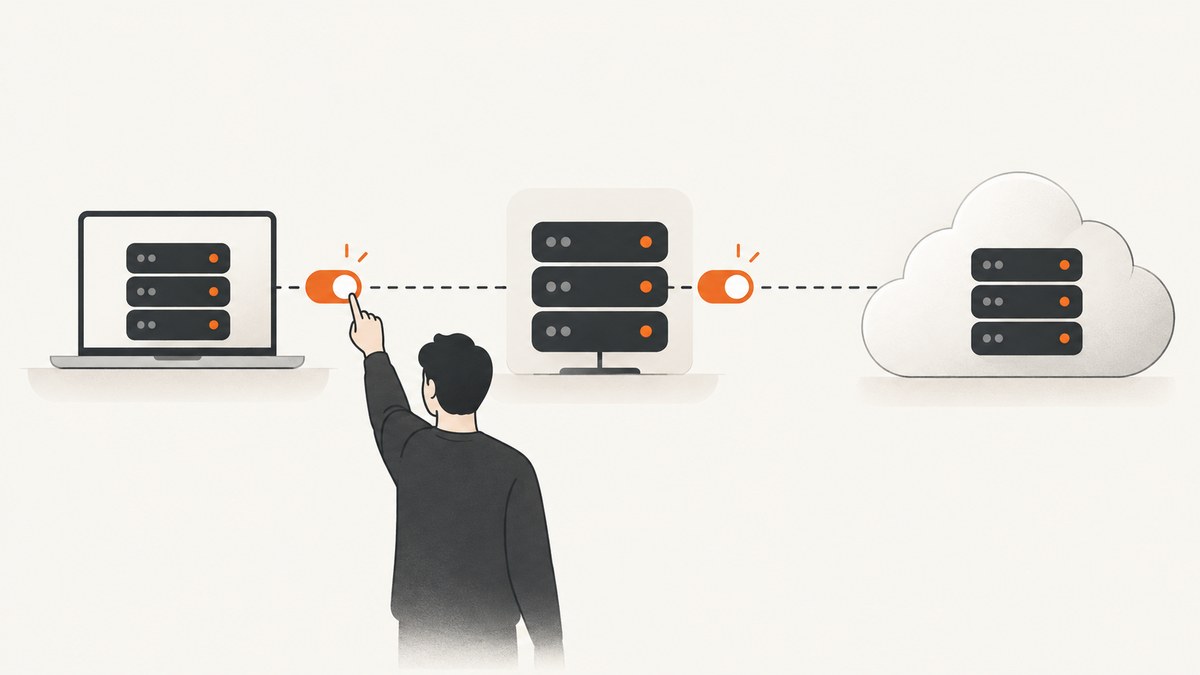
There is no documented universal switch that disables every MCP server across OpenAI products. “All” means all servers in a particular scope: your local Codex configuration, a plugin, a ChatGPT workspace app, or an OpenAI API project. Identify that scope first, disable each configured server there, restart or reload the client, and verify that the tools are unavailable.
Choose the scope you need to disable
| Where MCP is configured | What to change | What it affects |
|---|---|---|
| Local Codex CLI or IDE extension | Remove or disable every [mcp_servers.<name>] entry in user and trusted-project config |
That local Codex installation and project |
| Codex plugin | Set the specific bundled server policy to enabled = false |
That plugin server; other sources remain unchanged |
| ChatGPT workspace plugin or app | Use Workspace settings → Plugins or Apps controls | Workspace users and the selected plugin/app |
| OpenAI API project hosted MCP | Change organization hosted-tool policy, then remove MCP permission from the project | The selected API project |
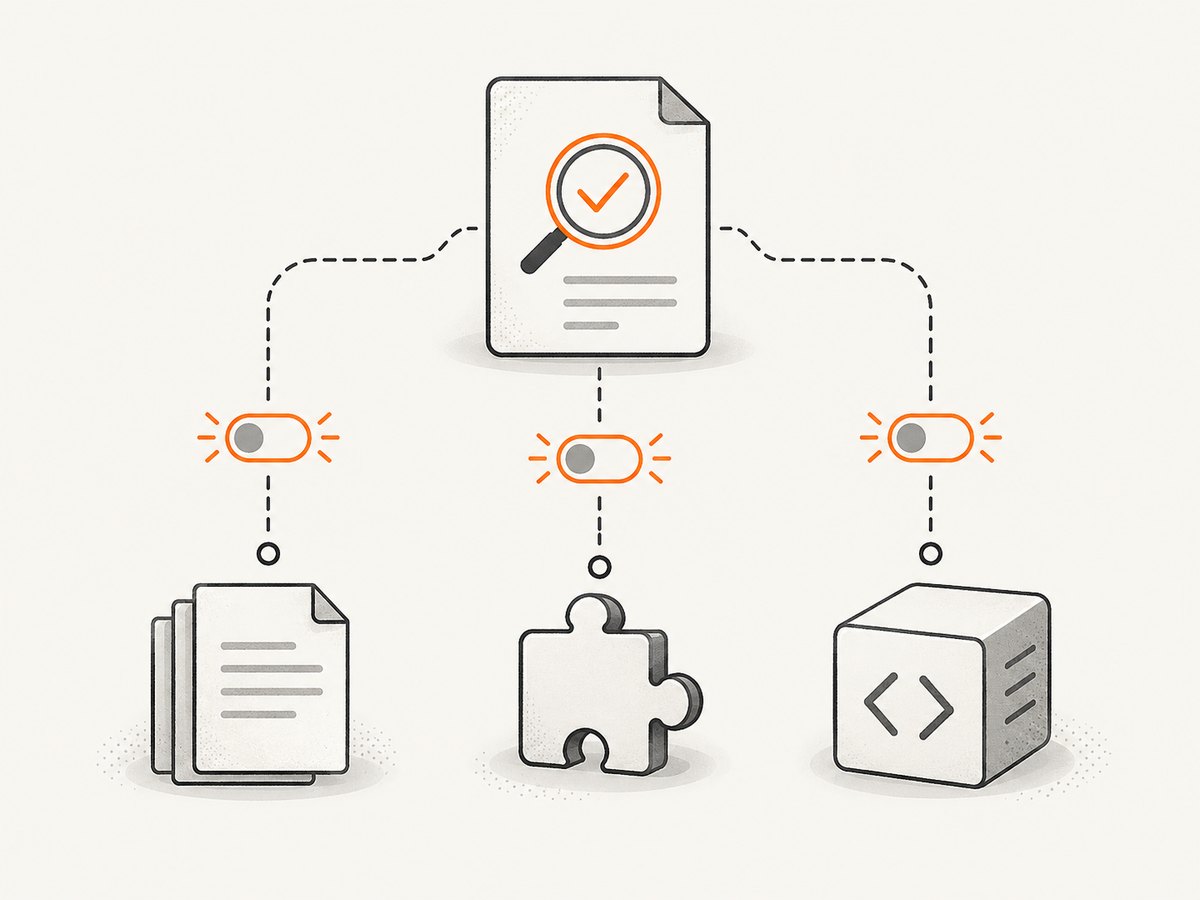
1. Disable locally configured Codex MCP servers
Codex CLI and the IDE extension share configuration layers. Personal defaults are stored in ~/.codex/config.toml. A repository can add .codex/config.toml for project-specific overrides, but Codex loads that project configuration only for trusted projects.
Inspect both configuration layers
# Show your personal Codex configuration if it exists
sed -n '1,240p' ~/.codex/config.toml

# From the repository root, inspect project configuration
sed -n '1,240p' .codex/config.toml

# Find MCP server blocks and references
rg -n --hidden --glob 'config.toml' 'mcp_servers|mcpServers|MCP' ~/.codex .codex 2>/dev/null
Look for entries such as:
[mcp_servers.docs]
command = "npx"
args = ["-y", "some-docs-server"]

[mcp_servers.database]
url = "https://example.invalid/mcp"
Disable the servers in the intended scope
To disable local servers, remove their complete [mcp_servers.<name>] sections or comment out the entries according to your configuration policy. Repeat for every server block in both the user file and any trusted project file.
# Example after removing all local server blocks
# ~/.codex/config.toml
model = "your-existing-model"
# No [mcp_servers.*] sections remain
If you only want to disable project servers, remove them from .codex/config.toml and leave your personal file unchanged. If you only want to disable personal servers, edit ~/.codex/config.toml. A project file can still add servers when the project is trusted.
Restart and verify
- Save both files.
- Quit and reopen Codex CLI or reload the IDE extension.
- Open a new session and inspect the available tools.
- Test the same project and account where the server was previously visible.
Changing a local file does not disable workspace-managed apps or API-hosted MCP tools.
2. Disable MCP servers bundled with a Codex plugin
A plugin-bundled server has a server-specific policy. Use the actual plugin and server names from your configuration:
[plugins."my-plugin".mcp_servers.docs]
enabled = false
Add one policy for each bundled server you want disabled. This is different from disabling the entire plugin. A local-marketplace plugin can be disabled for a project with:
[plugins."my-plugin"]
enabled = false
Project plugin settings apply to that project and require the project to be trusted. They do not change workspace installation policy for plugins imported through an administrator-managed Plugins catalog.
3. Disable workspace plugins and MCP apps
ChatGPT or Codex workspace plugins
- Open Workspace settings.
- Open Plugins.
- Open the plugin’s more-options menu.
- Choose Disable or Disable plugin when available.
- Ask affected users to reload their sessions and verify the plugin is no longer available.
Plugin installation, app access, and synchronization are separate controls. If the plugin depends on a shared app, review that app before disabling it. Disabling an app does not necessarily uninstall the plugin or remove skills that do not depend on the app.
Custom MCP apps
Custom MCP app availability and action controls depend on the workspace plan and the user’s role. Enterprise and Edu administrators can manage app access and action controls, but the exact controls are not identical for every plan or user. Use the workspace’s Apps or connector controls, then verify with an account that should no longer have access.
4. Disable MCP hosted by an OpenAI API project
API-hosted MCP access is governed by organization policy and project permissions. The documented policy can allow the tool for all projects, deny it for all projects, or allow selected projects.
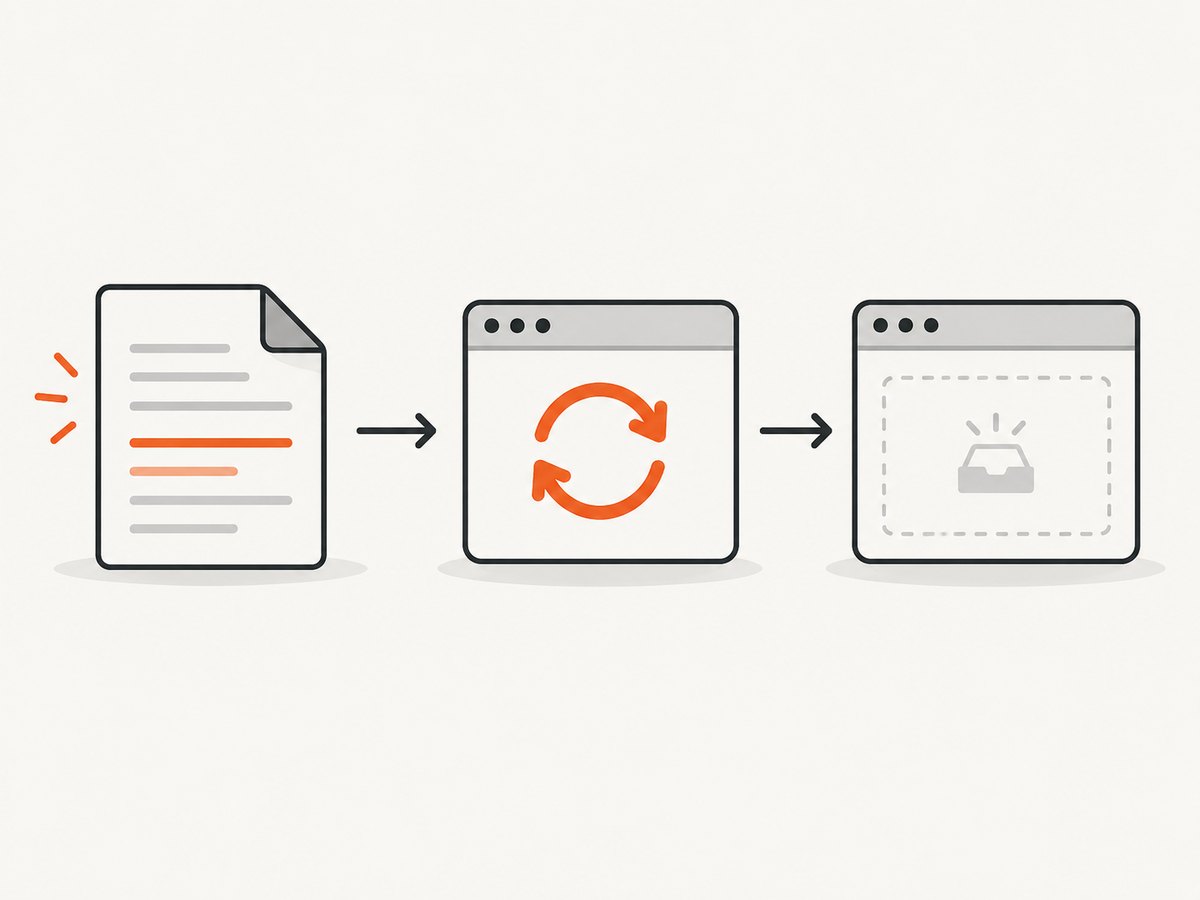
To disable MCP for one project while preserving the option for others:
- Open the organization’s hosted-tool policy.
- Change the organization policy from allowing MCP for all projects to allowing it for selected projects.
- Remove MCP permission from the target project by setting its project MCP permission to false.
- Run a request using that project and confirm that the hosted MCP tool is rejected or absent.
The project-level change fails while the organization still allows the tool for every project. This control affects API projects only; it does not disable local Codex servers or ChatGPT workspace apps.
5. Verify that “all” really means all in your scope
- Local Codex: check both
~/.codex/config.tomland a trusted project’s.codex/config.toml. - Plugins: inspect every plugin entry and every
mcp_serverschild. - Workspace: check plugin installation, app access, and sync separately.
- API: test the exact organization and project used by the application.
- Session state: restart or reload after changing configuration; an existing session can retain its previous tool list.
Common errors and fixes
| Symptom | Cause | Fix |
|---|---|---|
| MCP tools still appear after editing a file | The client was not restarted, or another config layer still defines a server | Restart Codex, then inspect both user and trusted-project files |
| A project server returns after removal | The repository’s .codex/config.toml is loaded because the project is trusted |
Remove the project entry or disable trust for that project |
enabled = false has no effect |
The policy names the wrong plugin or server | Copy the exact names from the plugin configuration and place the policy under [plugins."plugin".mcp_servers.server] |
| Disabling an app did not remove a plugin | App access and plugin installation are separate | Disable the plugin in Workspace settings → Plugins as well |
| Project MCP permission cannot be set to false | The organization still allows MCP for all projects | Switch the organization policy to selected projects first |
| One account still sees the tool | Workspace role, plan, or cached session differs | Check that account’s role and reload its session |
| Local changes did not affect an API request | API-hosted tools are controlled by organization/project policy | Change the API project policy separately |
Performance, reliability, and cost considerations
Disabling servers can reduce startup discovery and remove tool calls from future sessions, but the exact improvement depends on the number and behavior of configured servers. Restarting after a configuration change gives the most reliable verification because it clears the previous tool inventory.
There is no single cost switch. Local configuration changes do not alter workspace billing or API project usage. Review each surface’s own subscription, hosted-tool, and workspace policies after disabling access.
Or skip the browser setup
If your goal is to stop maintaining a browser-based screenshot MCP server while still giving agents a screenshot tool, ScreenshotNeo provides an MCP server with take_screenshot, get_page_info, and capture_pdf for Claude, Cursor, and other MCP clients. Its HTTP API also works without browser setup:
curl -G "https://api.screenshotneo.com/v1/shot" -d access_key=YOUR_API_KEY --data-urlencode url=https://stripe.com -o shot.webpimport requests
r = requests.get("https://api.screenshotneo.com/v1/shot", params={"access_key": "YOUR_API_KEY", "url": "https://stripe.com"}, timeout=90)
open("shot.webp", "wb").write(r.content)const q = new URLSearchParams({ access_key: 'YOUR_API_KEY', url: 'https://stripe.com' });
const res = await fetch(`https://api.screenshotneo.com/v1/shot?${q}`);See the ScreenshotNeo API documentation for request options. Cookie banners, newsletter popups, and chat widgets are removed before the shot; bot checks, blank pages, timeouts, failed loads, and cache hits are not billed. One thousand screenshots per month are free with no card, and paid plans start at $5 for 3,000 shots. Create a free ScreenshotNeo account.
FAQ
Is there a command that disables every MCP server?
No documented universal command or top-level setting disables local, workspace, plugin, and API-hosted servers together. Disable them in each scope that applies.
Does deleting ~/.codex/config.toml disable workspace apps?
No. That file controls local Codex configuration. Workspace apps and plugins use workspace administration controls.
Can I disable one plugin server without disabling the plugin?
Yes. Set enabled = false under that plugin’s specific mcp_servers entry.
Why do I need to change organization policy before project permission?
A project-level denial is only available when the organization uses the selected-project policy. It cannot override an organization policy that allows MCP for every project.
How do I know whether “all” is complete?
Write down the surface you are securing, enumerate every server or app visible there, disable each one, restart or reload, and test access from the same account and project.


