How to Disable Capture in Fiddler 4
Turn off Fiddler 4 traffic capture, clear existing sessions, restore browser proxy settings, and troubleshoot the most common problems.
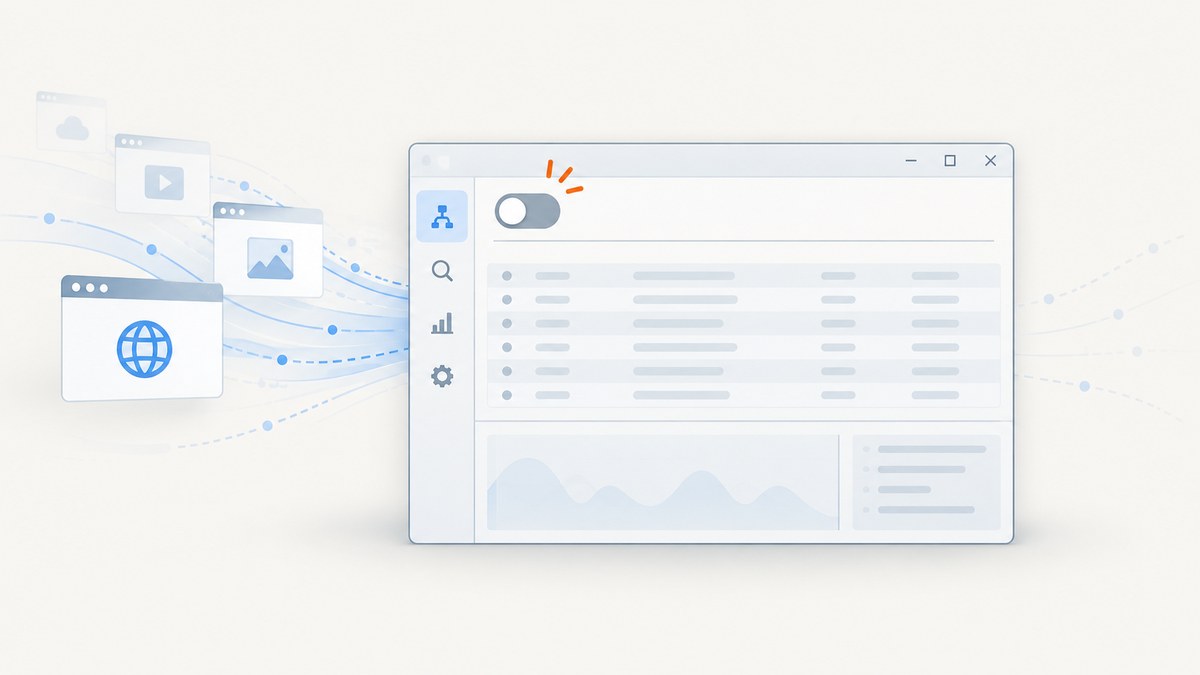
To disable capture in Fiddler 4 (Fiddler Classic), open File and click Capture Traffic so its check mark disappears. You can also press F12, which Microsoft documents as a capture toggle. Turning capture off stops new sessions; it does not delete sessions already listed in Fiddler.
What disabling capture changes
Fiddler has three separate states that are easy to confuse:
| Action | What it does | What it does not do |
|---|---|---|
| Disable File > Capture Traffic | Stops Fiddler from recording new traffic. | Does not remove existing sessions or necessarily undo a browser’s manually configured proxy. |
| Clear sessions with Ctrl+X | Removes the currently listed traces from the session list. | Does not change whether capture is enabled. |
| Revert a browser proxy | Returns a browser that was manually pointed at Fiddler to its previous proxy configuration. | Does not clear Fiddler’s existing session list. |
These distinctions are reflected in the official Telerik Fiddler Classic documentation and Microsoft’s Fiddler capture guidance. Fiddler Classic is the free, Windows-only HTTP(S) traffic debugging application documented in the official documentation repository.
Disable Fiddler 4 capture from the menu
- Bring the Fiddler window to the foreground.
- Open File in the top menu.
- Click Capture Traffic.
- Confirm that the check mark next to the command is gone.
- Generate a harmless request in the browser if you want to verify the change. No new session should appear for that request.
If the command still shows a check mark, click it again. The menu check mark is the clearest indication of Fiddler’s current capture state.
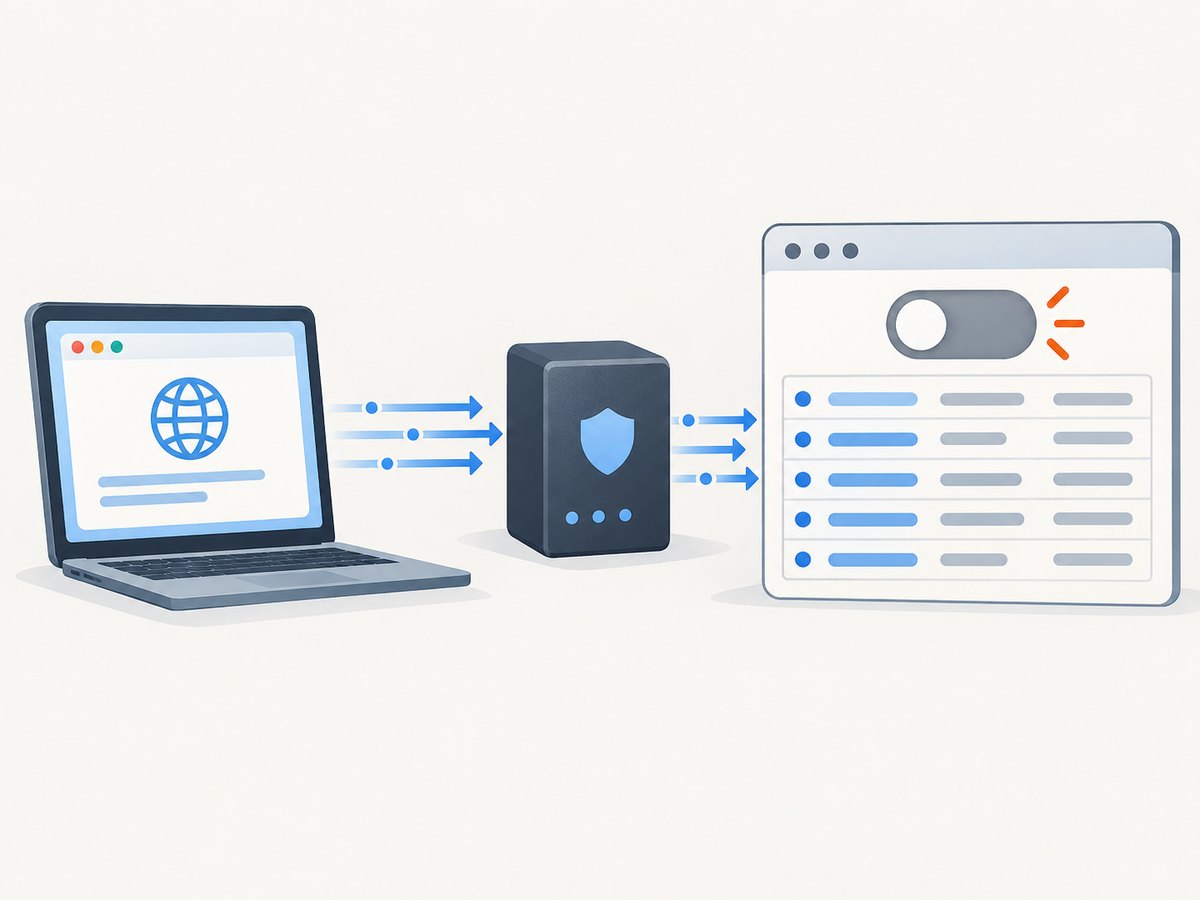
Use the F12 capture toggle
Microsoft’s procedure also documents F12 as a capture toggle. Press F12 while Fiddler is active, then check the File menu to confirm that Capture Traffic is unchecked. If F12 is intercepted by your keyboard, laptop firmware, or another application, use the menu command instead.
Clear sessions after stopping capture
Stopping capture leaves the sessions already collected in the list. If you no longer need them:
- Save the trace first if it may be needed for diagnosis or evidence.
- Click the session list and press Ctrl+X.
- Confirm that the list is empty.
- Leave File > Capture Traffic unchecked if you do not want new sessions to return.
Saving before clearing matters because Ctrl+X removes the current traces from the visible session list.
Restore a browser that was manually configured for Fiddler
Most browsers used with Fiddler Classic can be controlled through Fiddler’s capture command. A browser that was manually configured to use Fiddler as its proxy is different: it may continue trying to connect through Fiddler after capture is disabled or after Fiddler closes.
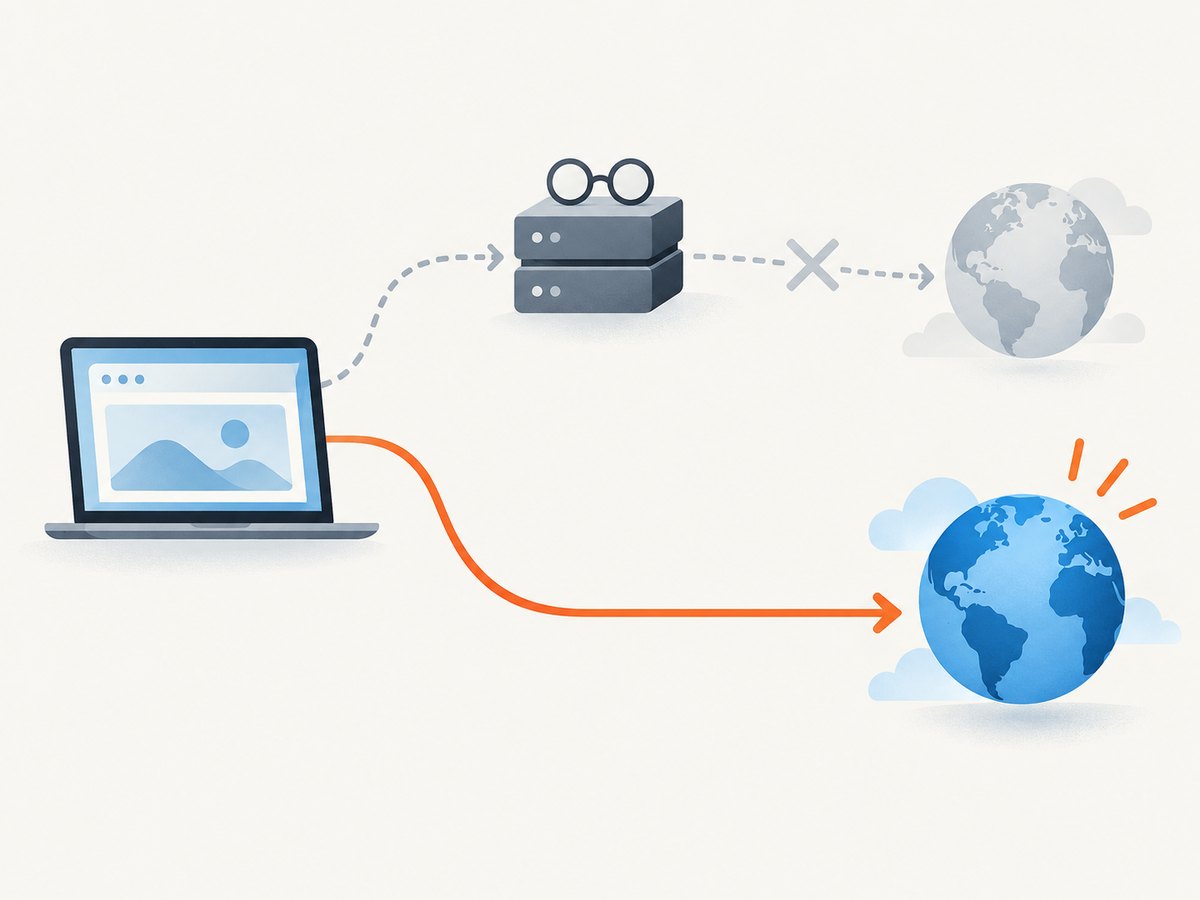
Telerik’s configuration example uses proxy address 127.0.0.1 and port 8888. If you entered those values directly in the browser or operating-system network settings, return the proxy setting to its previous value or select the option that lets the system detect or use no proxy, according to your original configuration.
- Open the browser’s network or system proxy settings.
- Find the manually entered Fiddler proxy address and port.
- Restore the values that were present before Fiddler was configured.
- Open a normal HTTPS page and confirm that it loads with Fiddler closed.
Do not change proxy settings merely to toggle capture if Fiddler configured them automatically. The proxy configuration and the capture checkbox are separate controls.
A safe capture workflow
When you are collecting a short troubleshooting trace, Microsoft recommends reducing unrelated traffic and limiting the capture window:
- Close unrelated applications and browser tabs or pages.
- Clear old sessions, saving them first when necessary.
- Enable File > Capture Traffic immediately before reproducing the issue.
- Perform only the action you need to investigate.
- Disable capture immediately afterward.
- Save the relevant sessions and clear the list if the traces are no longer needed.
This workflow improves signal-to-noise and reduces the chance of collecting unrelated or sensitive requests.
Troubleshooting
New sessions keep appearing
Cause: Capture Traffic is still enabled, or another Fiddler instance is running.
Fix: Check the mark beside File > Capture Traffic. If it is clear, close duplicate Fiddler windows and generate one test request. Existing rows in the list are not proof that capture remains enabled.
The old sessions are still visible
Cause: Disabling capture does not clear collected sessions.
Fix: Save anything important, click the session list, and press Ctrl+X.
F12 does nothing
Cause: The key may be handled by the keyboard, laptop function-key mode, or another application.
Fix: Use File > Capture Traffic. The menu command is the documented fallback.
The browser stops loading pages after Fiddler closes
Cause: The browser was manually configured to use Fiddler’s local proxy.
Fix: Revert the browser or system proxy settings, including any 127.0.0.1:8888 entry, to the values used before Fiddler.
Some traffic appears even after capture is disabled
Cause: You may be looking at sessions already collected, or another tool may be capturing traffic.
Fix: Clear the session list, make one test request, and verify that no new row appears. Also check for another proxy, VPN, browser developer tool, or second Fiddler process.
HTTPS behavior changed after troubleshooting
Cause: Fiddler’s HTTPS interception setup and the browser’s proxy configuration are independent of the capture checkbox.
Fix: First disable capture. Then restore any proxy or certificate configuration you changed for the investigation, following your organization’s procedure.
Performance, privacy, and reliability notes
- Performance: A shorter capture window means fewer sessions for Fiddler to display and inspect. Disabling capture also prevents additional recording until you turn it back on.
- Reliability: The File-menu check mark is the authoritative visual state. Use a small test request after changing it instead of relying only on the existing session count.
- Privacy: Captures can contain URLs, headers, cookies, request bodies, and other sensitive data. Close unrelated pages, stop capture promptly, and save or share traces only through approved channels.
- Cost: Fiddler Classic is documented as free software. The main operational cost is the time needed to configure and later restore proxy settings and to review or redact captured data.
Or skip the browser setup
If your goal is simply to obtain a page image rather than inspect HTTP(S) sessions, ScreenshotNeo returns a screenshot or PDF with one request. See the ScreenshotNeo API documentation for the available options.
cURL
curl -G "https://api.screenshotneo.com/v1/shot" -d access_key=YOUR_API_KEY --data-urlencode url=https://stripe.com -o shot.webpPython
import requests
r = requests.get("https://api.screenshotneo.com/v1/shot", params={"access_key": "YOUR_API_KEY", "url": "https://stripe.com"}, timeout=90)
open("shot.webp", "wb").write(r.content)
Node.js
const q = new URLSearchParams({ access_key: 'YOUR_API_KEY', url: 'https://stripe.com' });
const res = await fetch(`https://api.screenshotneo.com/v1/shot?${q}`);
ScreenshotNeo removes cookie and consent banners, newsletter popups, and chat widgets before capture. Bot checks, blank pages, failed loads, timeouts, and cache hits are not billed, and the response identifies the result with X-Page-Verdict and X-Billed headers. Its MCP server provides take_screenshot, get_page_info, and capture_pdf tools for Claude, Cursor, and other MCP clients. The Free plan includes 1,000 screenshots per month with no card; paid plans start at $5 for 3,000 shots. Create a free ScreenshotNeo account.
FAQ
Does disabling capture delete my Fiddler history?
No. It stops new capture. Use Ctrl+X to clear existing sessions, after saving anything you need.
Is F12 the same as File > Capture Traffic?
Yes, F12 is documented as a capture toggle. The File-menu command is the visible fallback when the shortcut is unavailable.
Do I need to uninstall Fiddler to stop traffic capture?
No. Uncheck File > Capture Traffic. Uninstalling is unrelated to stopping a capture.
Why does my browser fail only after Fiddler closes?
It may still be pointed at Fiddler’s manually configured proxy. Restore the browser or system proxy settings you used before the investigation.


