How to Disable Chrome’s Location Permission Pop-Up with a Browser Profile
Stop Chrome's recurring location permission prompt by changing the setting in the right browser profile, or deny access for one site only.
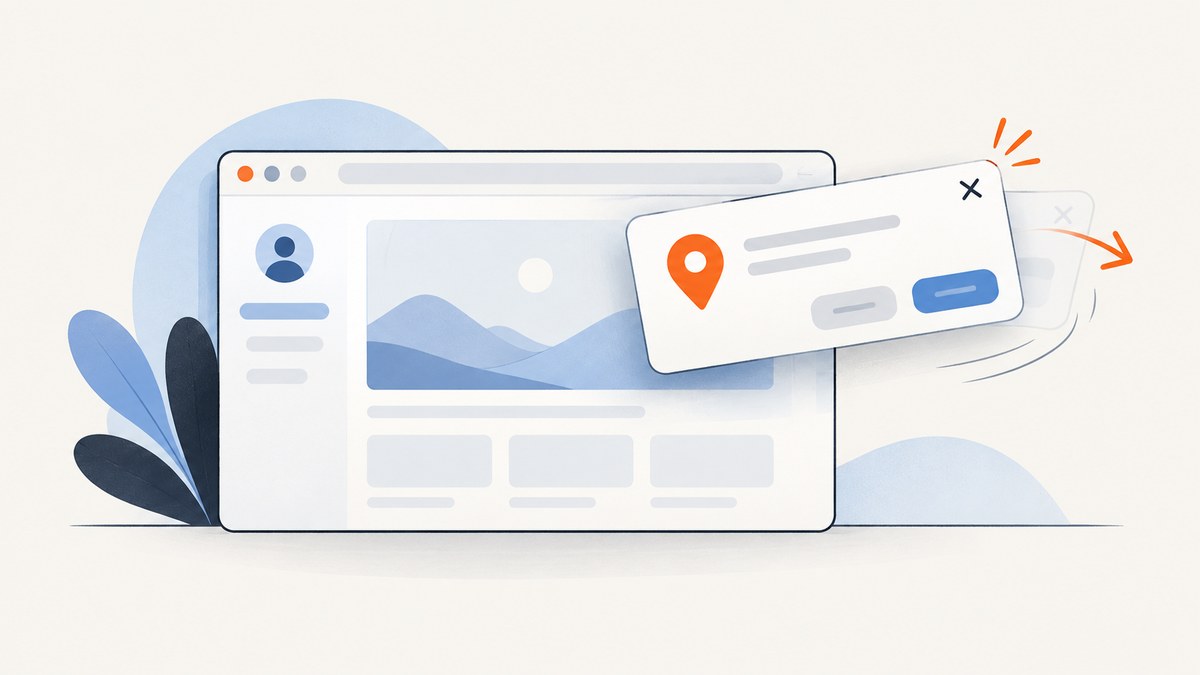
Chrome’s location permission prompt is controlled from Site settings. To stop websites asking in a particular Chrome profile, switch to that profile, open Settings → Privacy and security → Site settings → Permissions → Location, and change the default so sites cannot ask for your location. Chrome says it asks by default when a site wants location access. The exact label can vary between Chrome releases.
A browser profile matters because Chrome keeps settings, history, passwords and other browser information separate between profiles. Make the change in the profile where you want it to apply. If you only need to silence one website, leave the global default alone and change that site’s permission from the site information menu beside the address bar.
What the location pop-up means
The prompt usually contains an Allow or Block choice. It appears when a page calls the browser’s geolocation feature. Chrome treats this as a site permission. It is separate from the setting for pop-up windows and redirects, so disabling browser pop-ups will not normally stop a location request.
Chrome can offer three scopes of control:
| Scope | Where you change it | Effect |
|---|---|---|
| Default for the profile | Settings → Privacy and security → Site settings → Permissions → Location | Sets the behavior for sites that have not received their own decision. |
| One website | Site information icon → Site settings | Overrides the default for that origin. |
| One visit or request | The permission prompt, where offered | Allows, denies or limits the decision for the current interaction. |
Disable location requests in one Chrome profile
1. Switch to the correct profile
Open Chrome’s profile menu and select the profile that should stop receiving location prompts. If you need a separate context, choose the option to add a profile and complete the setup. Profiles are useful when one work or testing identity needs different permissions from your personal browsing identity.
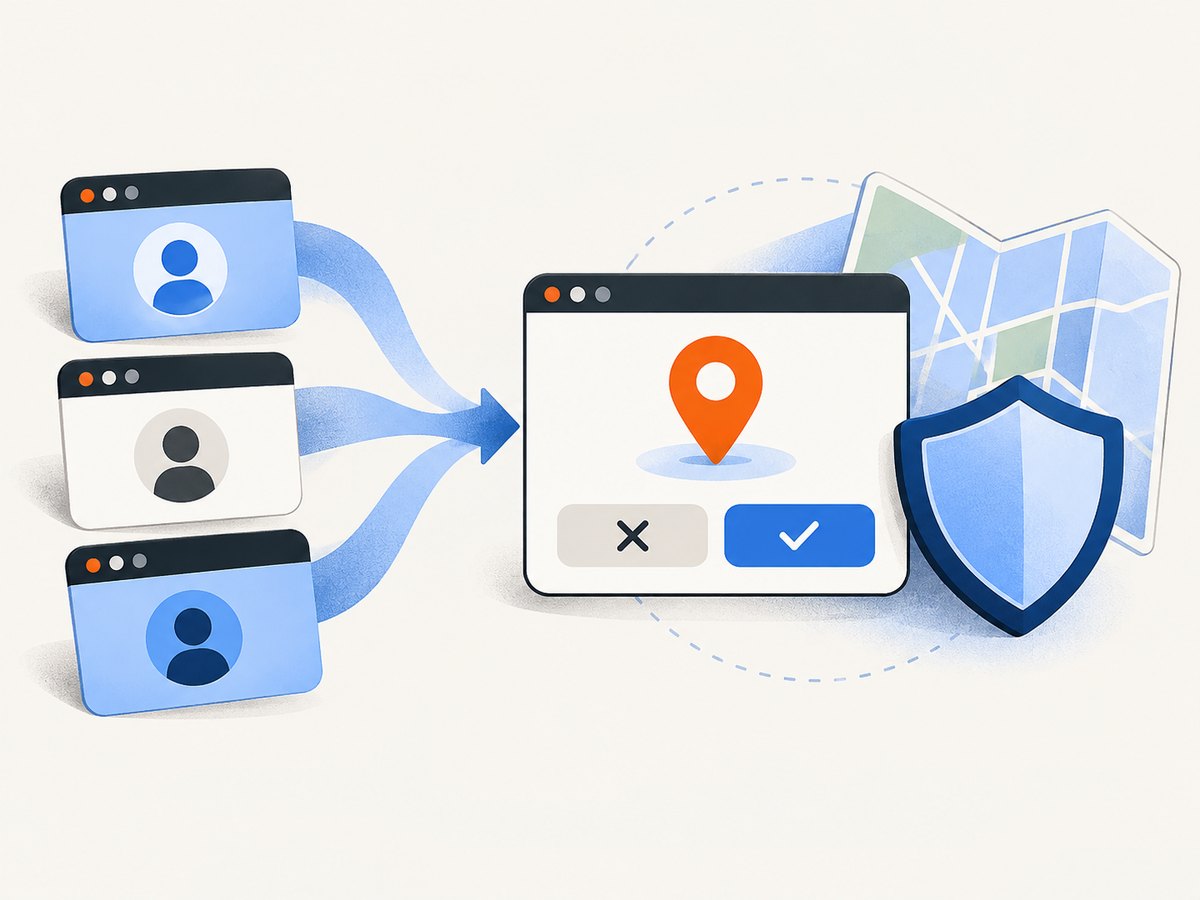
Do not make the change in a different profile and assume it will carry over. Chrome profiles keep their settings separate, so a site can continue asking when you later open it in another profile. Google’s profile guidance describes this separation for bookmarks, history, passwords and other settings.
2. Open Location permissions
- Open the Chrome menu using the three-dot button.
- Choose Settings.
- Select Privacy and security.
- Open Site settings.
- Under Permissions, select Location.
You can also paste chrome://settings/content/location into the address bar in desktop Chrome. If that internal address changes in a future release, use the menu path above.
3. Change the default behavior
Choose the control that prevents sites from asking for your location. Chrome’s wording differs by release, but the meaning is the same: set the default to deny or turn off the option that lets sites request location. This applies to sites without a more specific saved decision.
Existing site-specific permissions can still take precedence. Review the Not allowed to use your location and Allowed to use your location lists on the same page if a particular site behaves differently from the new default.
4. Test the profile
Open the affected site in the same profile, reload it, and perform the action that previously requested location. You should see a blocked result or no permission prompt, depending on how the page handles denial. If a prompt remains, check that you did not switch profiles, open an incognito window with different state, or use a different subdomain.
Block or allow one website only
Global blocking is unnecessary when only one site is noisy or untrusted. Open the site, then select the site information control to the left of the address. Choose Site settings, find Location, and select the available choice such as Allow, Block or Ask. Return to the page and reload it.
This per-site decision is useful for maps, delivery tools and test environments. You can block a site that repeatedly asks while preserving location access for a service that needs it. To remove the exception later, reset the permission from the same menu or from the Location settings page’s site list.
Profile setup for testing and automation
A dedicated Chrome profile makes repeatable testing easier. Create one profile for ordinary browsing and another for tests that must always deny geolocation. Keep extensions, cookies and permissions consistent in the test profile so a result is not affected by an unrelated personal setting.
- Create or select a profile named for the test purpose.
- Set the Location default to block requests.
- Open only the test URLs in that profile.
- Record any site-specific exceptions in the test instructions.
- Reset the profile’s site data when you need a clean permission state.
A profile controls Chrome’s permission state; it does not change the location that a website may infer from your IP address, account data or other signals. Blocking the browser permission prevents access to the browser geolocation API, but it cannot make a site forget information it already received or obtained independently.
When Chrome says location is turned off
On Windows and macOS, Chrome can report that location is disabled in the operating system’s privacy settings. Turn on system location only if you want Chrome to be able to grant permission to selected sites; then use Chrome’s per-profile and per-site controls to decide which pages may access it.
On a work or school computer, an administrator may manage geolocation. Enterprise policies can set location to be allowed by default, denied by default or requested each time. A managed policy can hide or override controls in Chrome, so the missing option may be intentional. Check whether the browser shows a “managed by your organization” message and contact the administrator if the policy is required for your work.
Common problems and fixes
| Symptom | Likely cause | Fix |
|---|---|---|
| The prompt still appears | You changed another profile, or the site has an explicit “Ask” exception. | Switch to the profile that opens the site, inspect its site information menu, and remove or block the exception. |
| Only one domain ignores the global setting | A site-specific allow rule overrides the default. | Open Site settings for that domain and set Location to Block, or reset the permission. |
| Chrome says location is unavailable | Operating-system location is disabled. | Review Windows or macOS privacy settings, then restart or reload Chrome. |
| The Location control is missing or locked | An enterprise policy controls geolocation. | Check the managed-browser notice and ask the administrator to change the policy. |
| The page still knows an approximate area | The site is using IP address, account or other data instead of browser geolocation. | Blocking the permission only blocks the browser location API; review the site’s own privacy and account controls. |
| A new tab or window opens | This is a pop-up or redirect permission, not a location request. | Manage Pop-ups and redirects separately under Site settings. |
| The change worked, then reverted | Profile data was reset, Chrome was managed, or a browser cleanup tool removed permissions. | Check profile selection, enterprise policy and cleanup software before repeating the change. |
Privacy and security considerations
Blocking location by default follows least-privilege access: sites must work without a sensitive permission unless you make an exception. Some features may degrade. A local store finder, map centering tool or delivery form might require a manually entered address or a one-time allow decision.
Use a site-specific allow rule when a trusted service genuinely needs geolocation. Remove it after a one-off task. Review the allowed list periodically because old exceptions can remain long after you stop using a site.
Or skip the browser setup
If your goal is to capture pages for documentation, monitoring or an automated workflow, you can avoid maintaining a Chrome profile entirely with ScreenshotNeo. Its screenshot API accepts a URL and returns a PNG, JPEG, WebP or PDF. Before capture it accepts consent banners and removes more than 60 known consent platforms, newsletter popups and chat widgets; each cleanup step can be turned off.
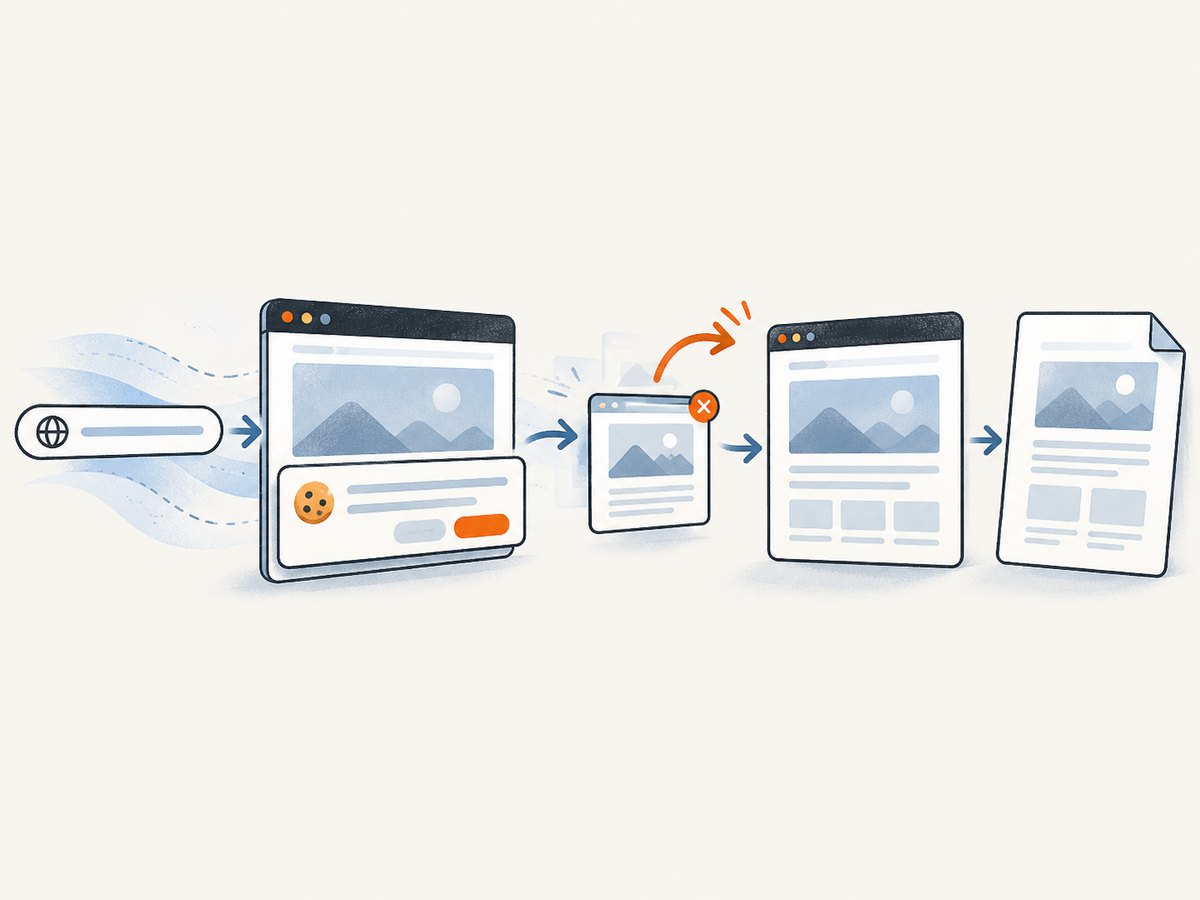
Use the API documentation at screenshotneo.com/docs for the full parameter list. A basic request looks like this:
cURL
curl -G "https://api.screenshotneo.com/v1/shot" \
  -d access_key=YOUR_API_KEY \
  --data-urlencode url=https://stripe.com \
  -o shot.webp
Python
import requests

r = requests.get(
    "https://api.screenshotneo.com/v1/shot",
    params={"access_key": "YOUR_API_KEY", "url": "https://stripe.com"},
    timeout=90,
)
r.raise_for_status()
open("shot.webp", "wb").write(r.content)
Node.js
const q = new URLSearchParams({
  access_key: 'YOUR_API_KEY',
  url: 'https://stripe.com'
});
const res = await fetch(`https://api.screenshotneo.com/v1/shot?${q}`);
if (!res.ok) throw new Error(`HTTP ${res.status}`);
const data = Buffer.from(await res.arrayBuffer());
await import('node:fs/promises').then(fs => fs.writeFile('shot.webp', data));
ScreenshotNeo reports whether a response was a clean shot and whether it was billed through the X-Page-Verdict and X-Billed headers. Bot checks or CAPTCHAs, blank pages, timeouts, failed loads and cache hits cost nothing. This is useful when a location prompt or another page overlay would otherwise make an automated capture unreliable.
For more control, configure full-page capture with lazy images, a CSS element selector, dark mode, device presets or a custom viewport, retina scale, custom CSS and JavaScript, click actions, hidden selectors, selector or network-idle waits, blocked ads and trackers, custom headers, cookies, user agents, authorization, timezone and geolocation. You can also set a transparent background, resize images, choose a cache TTL, create signed links for public image tags, submit asynchronous jobs with signed webhooks, capture up to 100 URLs per bulk call and query usage through the usage API. PDF options include paper size, margins, landscape mode and page ranges.
An MCP server provides take_screenshot, get_page_info and capture_pdf tools for Claude, Cursor and other MCP clients. That lets an AI agent request a capture without you wiring a browser profile into every workflow.
There is a free allowance of 1,000 screenshots per month with no card. Paid plans start at $5 for 3,000 shots; yearly billing gives two months free, and every feature is available on every plan. Create a free ScreenshotNeo account to try it.
Performance, reliability and cost notes
- Waits: Use a selector, delay or network-idle wait when a page renders location-dependent content after load. Avoid unnecessarily long delays because they increase response time.
- Full pages: Full-page mode loads lazy images, which can take longer than a viewport capture. Capture one CSS element when you need only a component.
- Caching: Choose a cache TTL for repeated URLs. Cache hits are not billed, according to the response verdict headers.
- Failures: Inspect HTTP status and the
X-Page-VerdictandX-Billedheaders. A timeout or failed load is identified instead of silently looking like a successful screenshot. - Bulk work: Use the bulk endpoint for up to 100 URLs per call when processing a list, and asynchronous jobs with signed webhooks when your request should not wait for rendering.
- Secrets: Keep the access key on a server or secure job runner. Do not embed it in client-side JavaScript that is sent to untrusted browsers.
FAQ
Does blocking location disable all Chrome pop-ups?
No. Location permission is separate from pop-up windows and redirects. Manage those categories independently in Site settings.
Will the setting apply to every Chrome profile?
No. Set it in each profile that needs the behavior. Profiles keep Chrome settings separate.
Can I let one site use location while blocking all others?
Yes. Set the profile default to block, then add an allow decision from that site’s information menu.
Why does a managed computer ignore my choice?
An administrator can enforce geolocation policy. A managed Chrome installation may lock or hide the user control.
Does ScreenshotNeo need my Chrome profile?
No. ScreenshotNeo captures a URL through its API. You can provide capture options such as headers, cookies, user agent, timezone and geolocation in the request instead of maintaining a local browser profile.
What should I do if a page’s content depends on geolocation?
For manual browsing, allow the trusted site temporarily or provide an address. For automated captures, configure the requested timezone or geolocation in ScreenshotNeo when the page supports those signals.


