How to Disable Chrome Spell Check in Puppeteer
Disable Chrome spell check in Puppeteer by setting `spellcheck="false"` on editable elements before typing. Covers page scope, browser settings, policy, and common pitfalls.
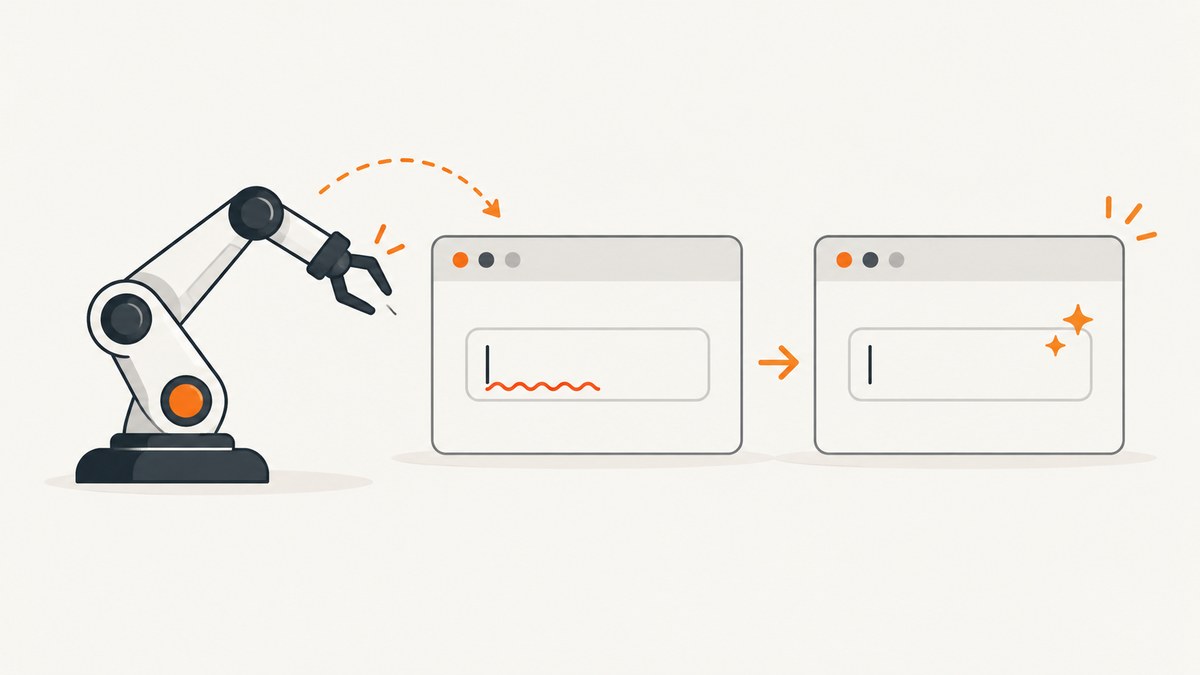
To disable Chrome spell check in Puppeteer for a page you control, set spellcheck="false" on the editable element before typing. For a third-party page, inject the setting after the field exists:
await page.evaluate(() => {
  document
    .querySelectorAll('input, textarea, [contenteditable="true"]')
    .forEach((el) => {
      el.spellcheck = false;
      el.setAttribute('spellcheck', 'false');
    });
});
This is the documented page-level control. It is a browser hint, so target the actual editing host and verify it in the browser you run. If you need browser-wide control, use Chrome Settings; managed environments can use the Chrome Enterprise SpellcheckEnabled policy. Puppeteer accepts Chrome launch arguments, but the sources cited here do not verify a spell-check-specific command-line switch.
1. Choose the scope you need
| Approach | Scope | Who controls it | When to use it |
|---|---|---|---|
spellcheck="false" |
One editable element, or inherited from an ancestor | Page developer or test script | A test, form, or page-specific behavior |
| Chrome Settings > Languages > Spell check | The browser profile | Browser user | Manual browsing or a profile configured by an operator |
SpellcheckEnabled=false |
Managed Chrome browser | Administrator | A centrally managed fleet |
| Launch argument | Potentially browser-wide | Automation configuration | Only if a flag is documented and supported for the Chrome build |
For most Puppeteer scripts that need to prevent a red underline in a particular field, use the first option. It keeps the change close to the field and avoids relying on an undocumented browser flag.
2. Set the attribute in markup you own
For markup under your control, add the attribute directly. The HTML spellcheck attribute is enumerated: false means the element should not be checked for spelling errors. If it is omitted, the value may be inherited from an ancestor. See MDN’s spellcheck reference.
<input name="handle" spellcheck="false">
<textarea name="message" spellcheck="false"></textarea>
<div contenteditable="true" spellcheck="false"></div>
Use this on text entry areas where spell correction or underlines interfere with the experience, such as code editors, usernames, identifiers, or test fixtures. It does not disable spell check for the entire browser.
3. Inject the setting in Puppeteer
For the current document
Navigate, wait for the target UI to render, set the property, and then type. This example is runnable when the page contains an element matching #message:

const puppeteer = require('puppeteer');

(async () => {
  const browser = await puppeteer.launch({ headless: true });
  try {
    const page = await browser.newPage();
    await page.goto('https://example.com/form', {
      waitUntil: 'domcontentloaded',
    });

    const selector = '#message';
    await page.waitForSelector(selector);
    await page.$eval(selector, (el) => {
      el.spellcheck = false;
      el.setAttribute('spellcheck', 'false');
    });

    await page.focus(selector);
    await page.type(selector, 'Text entered by automation');
  } finally {
    await browser.close();
  }
})();
Replace the example URL and selector with the page and field in your own script. Setting both the DOM property and attribute makes the intent explicit and keeps the markup inspectable.
For several editable fields
To apply the setting to common text controls and contenteditable hosts, run this after they exist:
await page.evaluate(() => {
  for (const el of document.querySelectorAll(
    'input:not([type="password"]), textarea, [contenteditable="true"]'
  )) {
    el.spellcheck = false;
    el.setAttribute('spellcheck', 'false');
  }
});
The password exclusion is optional; password inputs generally do not need spell checking. If a site uses a custom editor, inspect its DOM and target the actual editable host. A wrapper around an editor may not be the element receiving text.
Run before each document when appropriate
If your flow loads multiple pages and each should receive the setting before page scripts run, Puppeteer provides evaluateOnNewDocument. It registers code for new documents, but it cannot guarantee that a later-rendered or replaced editor node has the attribute. For dynamic pages, combine it with a post-render injection for the target element.
await page.evaluateOnNewDocument(() => {
  document.addEventListener('DOMContentLoaded', () => {
    document
      .querySelectorAll('input, textarea, [contenteditable="true"]')
      .forEach((el) => {
        el.spellcheck = false;
        el.setAttribute('spellcheck', 'false');
      });
  });
});

await page.goto('https://example.com/form');
For code that must run before page scripts, remember that DOM elements may not exist yet. Registering an early script is not equivalent to waiting for an application-rendered field; use waitForSelector and set the property after the field appears.
4. Configure Chrome beyond one page
Turn spell check off for a profile
In Chrome, open Settings > Languages > Spell check and turn off Check for spelling errors when you type text on web pages. This is a browser profile setting rather than a Puppeteer page setting. Chrome Help distinguishes Basic spell check, which does not send typed text to Google, from Enhanced spell check, which sends text entered in the browser to Google for improved suggestions. Consult Chrome Help for current settings and wording.
This is useful when a human-operated browser profile should have spell checking disabled across sites. A Puppeteer launch may use a different profile from the Chrome instance you configure manually, so confirm which user data directory the automation uses before relying on that setting.
Set a managed Chrome policy
For centrally managed Chrome on ChromeOS, Linux, Mac, or Windows, administrators can set the Chrome Enterprise policy SpellcheckEnabled to false. The policy documentation says it turns off spellcheck from all sources and users cannot turn it back on. Chrome Enterprise lists support starting with Chrome 65. See the SpellcheckEnabled policy reference.
Use policy when the requirement applies to managed browsers as a whole. It is an administrator control, not a setting a page author or ordinary Puppeteer script should assume it can change.
5. What about a Chrome launch flag?
Puppeteer supports passing additional arguments through launch({ args: [...] }). Its API documents the args option, and its troubleshooting guide shows a Chrome feature switch as an example of the mechanism. That proves how to pass an argument; it does not establish that a particular spell-check switch is a supported or current Chrome control. See the Puppeteer LaunchOptions API and Puppeteer troubleshooting guide.
const browser = await puppeteer.launch({
  args: [
    // Add only Chrome arguments verified for your browser version.
  ],
});
Some snippets on the web suggest --disable-features=SpellCheckingEnabled. The official Puppeteer and Chrome material in the research for this article does not document that as a spell-check control. Treat it as unverified: it may have no effect, change across versions, or be unsuitable for your build. Prefer the HTML attribute, a configured profile, or enterprise policy.
6. Verify the behavior you need
- Wait until the intended editor exists.
- Apply
spellcheck=falseto the editing host. - Enter a deliberately misspelled sample in a test environment if visible underlines matter.
- Check the actual outcome in the Chrome version and profile used by automation.
- If the app replaces the field after typing or navigation, reapply the setting to the new node.
The DOM property confirms the requested element value, but spell checking is a browser behavior and the attribute is a hint. Do not treat a property assertion alone as proof that every browser UI or application-specific editor has stopped spell checking.
7. Edge cases and timing
- Dynamic forms: A framework may replace the input after initial render. Wait for the final field and set the property on that node.
- Nested editable content: Put the attribute on the editing host or a deliberate ancestor. An omitted value can inherit, so inspect parent markup when behavior is unexpected.
- Custom editors: Rich-text editors may use a contenteditable node inside a wrapper, an iframe, or a separate editing surface. Target the element that actually receives keyboard input; for a same-origin frame, work with that frame’s page context.
- Shadow DOM: A regular document query does not traverse a component’s shadow root. Locate the component and query its shadow root if accessible, or configure the component through its supported API.
- Cross-origin frames: The parent document cannot directly edit a cross-origin frame’s DOM. Use Puppeteer’s frame APIs to select the frame context, subject to browser origin rules and the page’s structure.
- Mobile emulation and alternate executables: Emulation changes viewport and device behavior, not the meaning of the HTML attribute. A custom
executablePathcan select another browser revision; Puppeteer warns compatibility with arbitrary executables is not guaranteed. See LaunchOptions.
8. Troubleshooting
| Symptom | Likely cause | Fix |
|---|---|---|
| Red underline remains | The wrong node was changed, or the app replaced it | Inspect the active editing host, wait for the final render, then set both property and attribute on that node. |
| Injection runs but finds no fields | The selector ran before rendering or the editor is in a frame/shadow root | Wait for a selector; inspect frame and shadow DOM boundaries and query in the relevant context. |
el.spellcheck is undefined or the script errors |
The selected element is not the expected editable HTML element | Log the matched tag and inspect the DOM; narrow the selector to the actual input, textarea, or editing host. |
| A launch flag has no effect | The flag is undocumented, unsupported, or changed for the Chrome build | Remove reliance on it and use the page attribute, profile setting, or managed policy. |
| Manual Chrome is configured but Puppeteer still checks spelling | Puppeteer launched with a separate profile | Confirm the automation profile and configure that profile, or set the field attribute in the page. |
| Behavior differs after changing Chrome | A custom executable or browser revision changed | Check the actual browser binary and use a Puppeteer-supported pairing where possible. |
9. Performance, reliability, and privacy
Setting one property and attribute on a field is a small DOM operation. If you have many fields, query once and iterate rather than repeatedly scanning the whole document before each keystroke. For dynamic pages, run the adjustment when the editor is created or immediately before interaction; a mutation observer is possible, but avoid watching the entire page indefinitely when a targeted wait or application hook will do.
Reliability depends mostly on timing and targeting. The page-level approach has a narrow scope and is easy to audit, while profile and policy settings affect broader browsing contexts. Browser flags have the least certainty here because no spell-check-specific flag is verified by the cited official references. Chrome’s Enhanced spell check has a distinct data-handling implication: Chrome Help says it sends typed text to Google for improved suggestions; Basic does not. Choose a setting consistent with the test’s privacy requirements.
10. Or skip the browser setup
If your actual goal is to produce a screenshot of a page without configuring Puppeteer, ScreenshotNeo is a website screenshot API and MCP server from Yorker Media. It is a separate option from controlling spell check: it captures a page as an image or PDF, rather than changing the browser’s spell-check setting. Its consent cleanup accepts cookie banners like a visitor and removes 60+ known consent platforms, newsletter popups, and chat widgets before capture; each step can be turned off. Bot checks or CAPTCHAs, blank pages, timeouts, failed loads, and cache hits cost nothing, with the outcome identified in X-Page-Verdict and X-Billed response headers. AI agents can use its MCP server tools take_screenshot, get_page_info, and capture_pdf. The free plan includes 1,000 shots per month with no card; paid plans start at $5 for 3,000 shots. See the ScreenshotNeo documentation.

curl -G "https://api.screenshotneo.com/v1/shot" \
  -d access_key=YOUR_API_KEY \
  --data-urlencode url=https://stripe.com \
  -o shot.webp
Swap in your target URL and API key. Start with 1,000 free screenshots a month with no card.
11. Cost and operational notes
The DIY approach uses the Chrome browser you already automate; its practical cost is the runtime and maintenance of your browser setup. Keep selectors stable, pin or record the browser version used in important automation, and handle navigation and rendering explicitly. If the page fails to load, a spell-check setting cannot make the field appear; report navigation and selector failures separately from spell-check behavior.
For screenshot capture through ScreenshotNeo, the stated plans are Free: 1,000 shots/month; Starter: $5 for 3,000; Growth: $15 for 15,000; Pro: $39 for 60,000; Scale: $99 for 250,000; Business: $249 for 1,000,000. Yearly billing gives two months free, and every feature is on every plan. The API supports image formats and PDF, with options including full-page capture, element capture, viewport/device settings, waiting conditions, CSS/JavaScript, request blocking, headers/cookies, caching, bulk capture, and signed asynchronous jobs. Check the docs for parameter details before wiring it into a production workflow.
12. FAQ
Does spellcheck="false" stop Chrome checking every field?
No. It applies to the element where you set it and may be inherited from an ancestor. Apply it to each relevant editing host or choose a browser-wide control.
Can I turn spell check off before typing?
Yes. Wait for the input or editor to exist, set its property and attribute, then focus and type.
Is there a Puppeteer option named spellcheck?
The documented Puppeteer approach is to evaluate JavaScript in the page. The cited launch API provides generic Chrome arguments, not a spell-check-specific option.
Will this change the user’s Chrome settings?
No. Page injection changes the current document. Profile settings and managed policy have broader scope.
Can ScreenshotNeo disable spelling underlines?
ScreenshotNeo captures screenshots and PDFs and performs the listed consent and popup cleanup. It is not a spell-check configuration tool; use the page attribute or Chrome controls when the underline itself must be disabled.


