How to Disable Flash in Sauce Labs and Selenium WebDriver
Flash cannot run in current Sauce Labs browser sessions. Remove obsolete Flash settings from Selenium 4 and migrate the page or test fixture to a supported technology.

If you are asking how to disable Flash in Sauce Labs, the practical answer is to remove old Flash-enabling configuration from your Selenium test. Current Sauce Labs browser sessions do not provide a supported way to run retired Flash content. Adobe ended Flash Player support on December 31, 2020, and blocked Flash content from running on January 12, 2021. Chrome no longer plays Flash content in any version as of 2021. Remove the obsolete plugin preferences, extensions, command-line switches, and Flash-only assertions, then migrate the page or fixture to HTML5, JavaScript, WebGL, or another supported implementation. Adobe’s Flash Player end-of-life notice and Chrome Enterprise’s Flash guidance document the platform change.
There is no Selenium capability such as disableFlash that restores a modern browser’s ability to execute Flash. In Selenium 4, build a browser Options object for the target browser and put Sauce Labs settings inside sauce:options. The cleanup is usually deletion: remove the legacy settings and use a currently supported browser and operating system target. Sauce documents this W3C capability structure in its Selenium 4 migration guide.
1. Check what the test is actually trying to do
Before changing capabilities, identify whether “Flash” appears in browser setup, a page fixture, or an assertion. These are different problems:
- Browser setup: preferences, extensions, or command-line arguments may still request a Flash plugin. Remove them.
- Application content: the page may still embed a
.swffile or display a placeholder where a Flash component used to run. Replace or retire that content. - Test logic: assertions may expect a Flash plugin element, a plugin status, or a Flash interaction. Replace these with checks against the migrated user experience.
- Test selection: a configuration may be pinning an old browser or operating system. Select a currently supported Sauce Labs target that matches the browsers your users need.
Search the repository and CI configuration for strings such as flash, Shockwave, .swf, plugins, PepperFlash, --enable-, and old browser profile preferences. Review test data, setup helpers, Docker images, and pre-run scripts as well as the main Selenium test.
2. Remove Flash configuration in Selenium 4
The following Java example creates a Chrome session on Sauce Labs using Selenium 4. It intentionally contains no Flash capability, extension, plugin preference, or Flash command-line switch. Set your Sauce Labs credentials as environment variables before running it. Use the Sauce Labs data center endpoint for your account; the example endpoint is the US West endpoint used in Sauce’s Selenium documentation.
import java.net.URL;
import java.time.Duration;
import java.util.HashMap;
import java.util.Map;

import org.openqa.selenium.WebDriver;
import org.openqa.selenium.chrome.ChromeOptions;
import org.openqa.selenium.remote.RemoteWebDriver;

public class SauceSession {
    public static void main(String[] args) throws Exception {
        String username = System.getenv("SAUCE_USERNAME");
        String accessKey = System.getenv("SAUCE_ACCESS_KEY");
        if (username == null || accessKey == null) {
            throw new IllegalStateException(
                "Set SAUCE_USERNAME and SAUCE_ACCESS_KEY first");
        }

        ChromeOptions options = new ChromeOptions();
        options.setBrowserVersion("latest");
        options.setPlatformName("Windows 11");

        Map<String, Object> sauceOptions = new HashMap<>();
        sauceOptions.put("username", username);
        sauceOptions.put("accessKey", accessKey);
        sauceOptions.put("name", "flash-migration-check");
        sauceOptions.put("build", "current");
        options.setCapability("sauce:options", sauceOptions);

        WebDriver driver = new RemoteWebDriver(
            new URL("https://ondemand.us-west-1.saucelabs.com/wd/hub"),
            options);
        try {
            driver.manage().timeouts().pageLoadTimeout(Duration.ofSeconds(60));
            driver.get("https://example.com");
            System.out.println("Title: " + driver.getTitle());
        } finally {
            driver.quit();
        }
    }
}
Use the project’s normal Maven or Gradle setup with Selenium 4. The test’s target URL is a placeholder: replace it with your application or migration fixture. Sauce account credentials should come from environment variables or your CI secret store, not source control. For your actual region, browser, version, and language syntax, use Sauce’s Platform Configurator and Selenium setup guide.
Keep the capability namespaces correct
Selenium 4 browser settings belong in the browser’s Options class or its vendor-prefixed capability: for example, goog:chromeOptions for Chrome, moz:firefoxOptions for Firefox, and ms:edgeOptions for Edge. Sauce Labs session settings such as the job name and build belong in a sauce:options object. Standard W3C settings include browserName, browserVersion, and platformName. Avoid putting unprefixed custom keys at the top level. See Sauce’s test configuration options.
| Setting or code | Action | Reason |
|---|---|---|
| Flash plugin preference | Delete it | Modern browser builds do not ship an executable Flash Player plugin. |
| Flash extension or profile | Remove it from local and remote setup | An extension cannot supply supported Flash playback in current Chrome. |
| Flash command-line switch | Delete it | It cannot reverse the browser’s removal of Flash support. |
DesiredCapabilities legacy setup |
Move configuration into Selenium 4 Options | Sauce’s Selenium 4 guidance uses browser Options and W3C capabilities. |
| Flash-only assertion or fixture | Replace with a check for migrated behavior | The test should validate the supported implementation users receive. |
3. Migrate the page and assertions
Removing a capability only cleans up the automation setup. It does not convert an embedded Flash application. Make a separate application change or replace the test fixture:
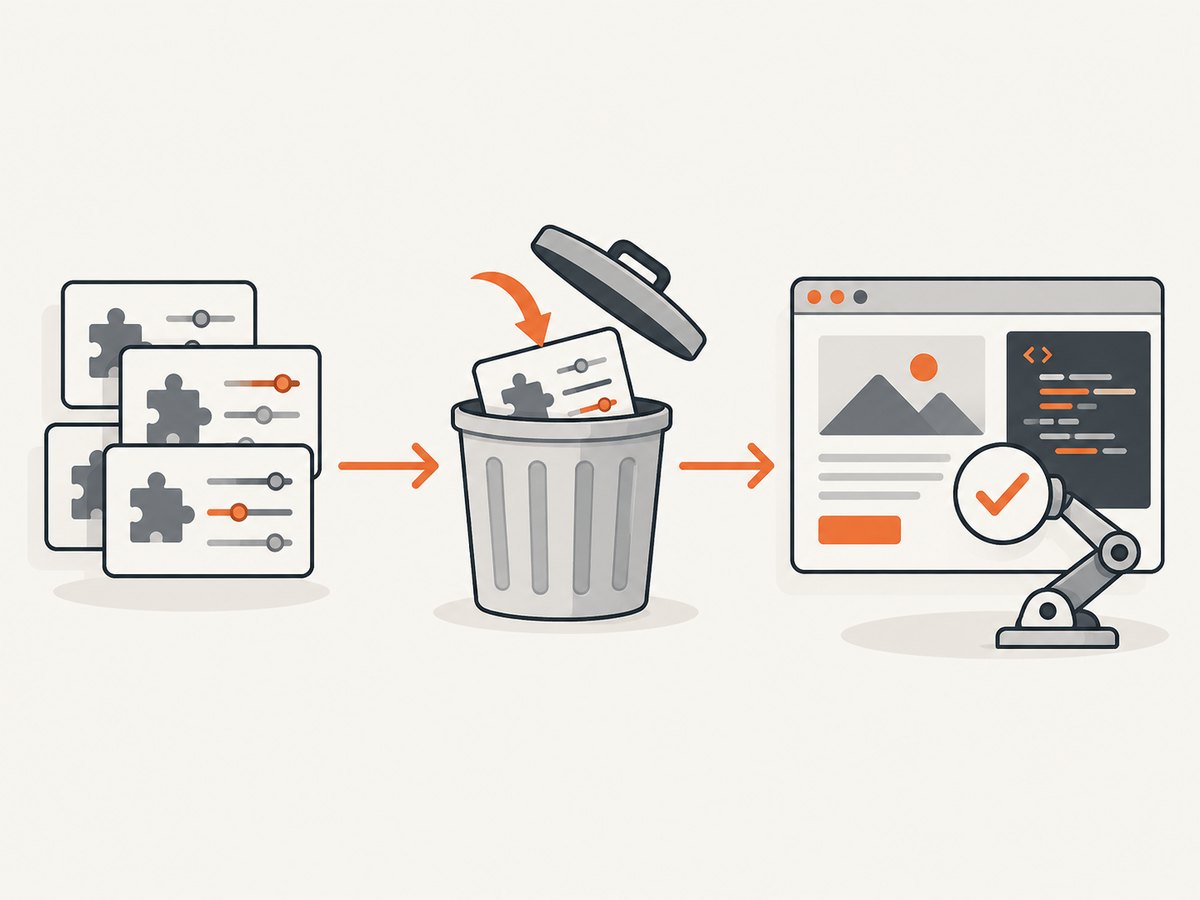
- Inventory Flash dependencies. Find embedded SWF files, object/embed elements, ActionScript code, and any data that the Flash client reads.
- Choose a supported replacement. Rebuild the interaction with HTML, CSS, and JavaScript, or use a suitable supported technology such as WebGL for graphics. Choose based on the actual feature, not on a browser flag.
- Define observable behavior. Identify the user-visible outcomes the old component provided: controls, validation, rendered content, keyboard behavior, or state changes.
- Rewrite the test around those outcomes. Locate the replacement DOM element, perform the user action, and assert the resulting state. Avoid testing for a plugin identifier or browser plugin list.
- Run a browser matrix. Test the current supported browser families and operating systems relevant to your users. A passing run on one local machine does not show that the migrated application works across targets.
When the legacy app cannot yet be migrated, treat that as a product or environment constraint and define an explicit deprecation plan. Do not make the test silently pass when the Flash feature fails to load: that can hide a missing feature from the team.
4. What about old Sauce Labs environments or pre-run scripts?
Sauce Labs pre-run executables download and run scripts on the virtual machine before a test. They can configure supported machine or browser settings where the environment permits it. They cannot make a current browser execute retired Flash content. Sauce describes their use for VM and browser configuration in its pre-run executable documentation.
If a pre-run script installs a plugin, changes a browser profile, or copies a legacy binary, remove that part of the setup. Keep a pre-run step only if it configures something still required by the test and is supported on the selected OS. Also check the script’s executable format and permissions for the target system; Sauce notes that Linux/macOS shell scripts and Windows batch files are not interchangeable. A VM configuration hook changes the VM. It does not change browser support policy or restore an ended product.
5. Troubleshooting common failures
| Symptom | Likely cause | Fix |
|---|---|---|
| “Flash” is missing or the page shows a plugin placeholder | The application still embeds SWF content. | Replace the content with a supported implementation and test its visible behavior. |
| Session creation rejects a capability | A legacy or unprefixed custom capability is being sent with Selenium 4. | Use a browser Options object, W3C standard keys, and Sauce settings nested in sauce:options. |
| The test passes locally but fails on Sauce | The local machine may have stale profile state or a different browser; the remote target may expose an obsolete dependency. | Log the browser/platform target, use a clean Options object, and inspect the remote job logs and page state. |
| A Flash assertion fails immediately | The test expects a plugin, SWF object, or plugin API that no longer exists. | Replace the assertion with an assertion against the migrated UI and its resulting state. |
| The pre-run script errors or has no effect | The script has the wrong OS format, its URL or storage reference is invalid, or it is attempting an unsupported installation. | Confirm the script runs on the selected VM and remove Flash installation steps; retain only supported setup actions. |
| The browser starts but the app times out | The app is waiting for a Flash component to initialize or for an event it will never receive. | Remove the Flash-dependent wait and synchronize on a real element or state from the replacement implementation. |
| Old capability examples conflict with current syntax | The sample may target Selenium 3 or the legacy JSON Wire Protocol. | Follow the Selenium 4 Options pattern and Sauce’s current language examples; do not paste old Flash recipes into new jobs. |
6. Reliability, performance, and cost considerations
Removing unused profile customization reduces the number of environment-specific assumptions in a test, which makes configuration easier to review and maintain. It does not guarantee a faster run; actual session time depends on session startup, application load, and test work. Set explicit page-load and element-wait conditions based on the application’s behavior instead of waiting for a Flash initialization signal that cannot occur.
Keep the target browser and platform explicit when diagnosing failures, and store Sauce credentials outside code. Prefer a small, representative browser matrix for each change, then run the project’s wider regression matrix as required. Separate failures in session setup from failures in application behavior: a rejected capability is a test configuration issue, while an absent or broken replacement UI is an application issue.
For cost, the dossier does not establish Sauce Labs rates or a pricing comparison, so check your current account plan and usage terms directly. Removing a plugin switch does not itself change the Sauce Labs pricing model. Selecting only the browser and operating system targets you need can keep the test matrix focused; balance that against the compatibility coverage the application requires.
Or skip the browser setup
If the immediate task is capturing a page screenshot rather than exercising interactive behavior, ScreenshotNeo offers a one-request screenshot API. It does not run Flash either; use it for pages whose relevant content renders in the browser’s supported technologies. One GET request can return an image or PDF. For a WebP screenshot of a modern page:
curl -G "https://api.screenshotneo.com/v1/shot" -d access_key=YOUR_API_KEY --data-urlencode url=https://stripe.com -o shot.webpSee the ScreenshotNeo API documentation for request options. Cookie banners, popups, and chat widgets are removed before the shot; bot checks, blank pages, and failed loads are never billed. An MCP server lets AI agents use screenshot tools. The free plan includes 1,000 screenshots a month with no card, and paid plans start at $5 for 3,000. Sign up for ScreenshotNeo’s free plan.
FAQ
Is there a Selenium capability that disables Flash?
No current capability is needed to disable it in modern Sauce Labs sessions. Remove obsolete Flash-enabling settings; Flash playback is unavailable in current browser versions.
Can I use Firefox or Edge instead of Chrome to run Flash?
Changing browser family does not revive retired Flash Player support. Choose a supported browser for the migrated application.
Will a Sauce Labs pre-run script restore Flash?
No. Pre-run scripts can configure supported VM or browser settings; they do not restore a retired browser plugin.
What should I test after removing the old configuration?
Test the user-visible feature through the supported replacement, including its key actions and resulting page state, on the browser targets your users rely on.
Primary references: Adobe Flash Player end of life; Chrome Enterprise Flash guidance; Sauce Labs Selenium 4 migration, Selenium setup, test configuration options, and pre-run executables.


