How to Disable Images in Chrome When Capturing Screenshots with Selenium
Block images in a Selenium Chrome session with a startup preference, then wait for the page state your screenshot needs. Includes code, caveats, troubleshooting, and an API alternative.
To stop Chrome from showing images in a Selenium screenshot, set a Chrome preference before creating the WebDriver session. In Python, the commonly used Chromium preference is profile.default_content_setting_values.images set to 2. This is a practical Chromium configuration example, not a stable, cross-version Selenium contract, so validate it with the Chrome version you deploy.
from selenium import webdriver
from selenium.webdriver.support.ui import WebDriverWait

options = webdriver.ChromeOptions()
options.add_experimental_option(
    "prefs",
    {"profile.default_content_setting_values.images": 2},
)

driver = webdriver.Chrome(options=options)
try:
    driver.get("https://example.com")
    WebDriverWait(driver, 15).until(
        lambda d: d.execute_script("return document.readyState") == "complete"
    )
    driver.save_screenshot("page-without-images.png")
finally:
    driver.quit()
Chrome’s image content setting has allow and block values; its documented default is to allow images. Selenium exposes Chrome-specific options and lets you pass experimental options. The exact preference key and numeric encoding above are implementation details that should be checked against your deployed browser. See the Chrome image content setting documentation and Selenium’s Chrome options guide.
1. What image blocking changes
The startup preference tells Chrome not to display image resources in the session. It applies to the Chrome session configured with that option, so set it before webdriver.Chrome(). Setting it after navigation is too late for images already requested or rendered.
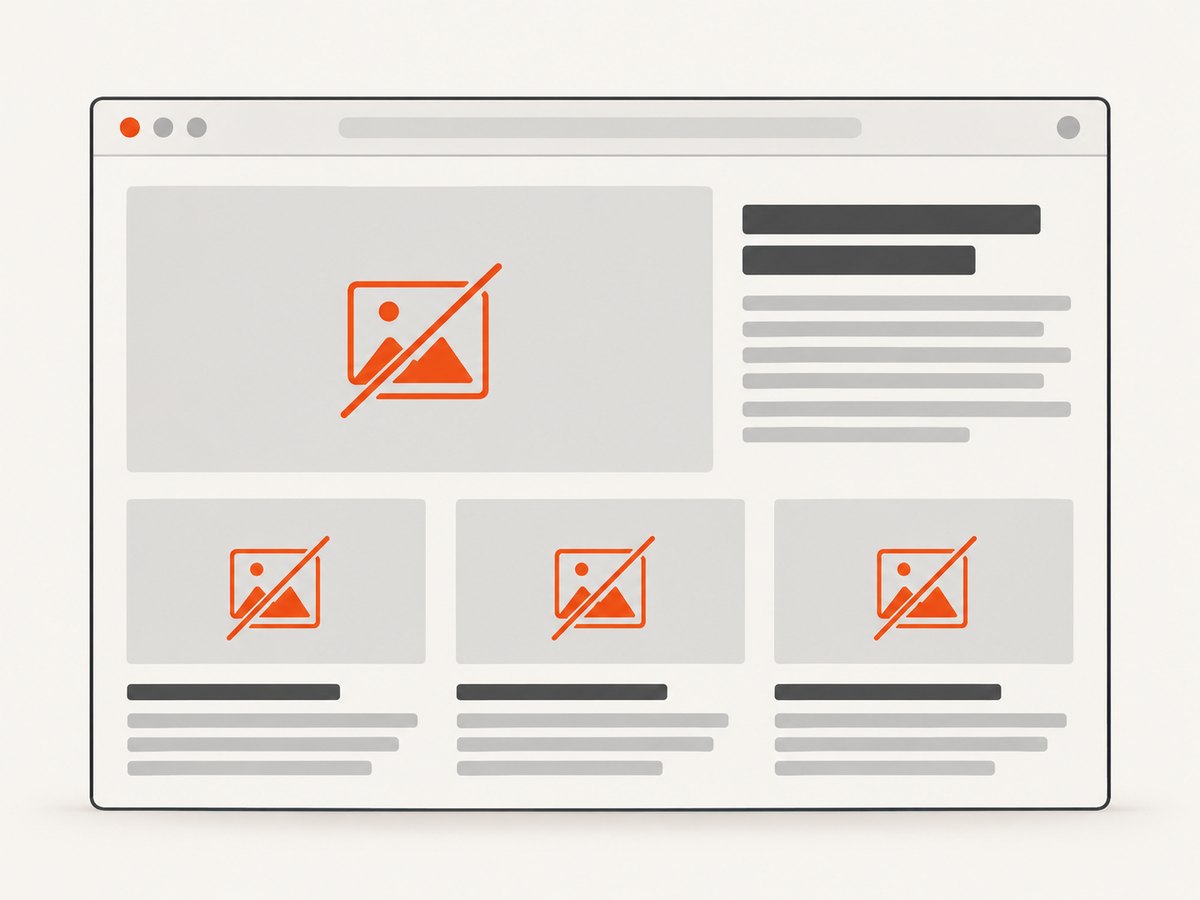
Image blocking is different from hiding elements with CSS. A CSS rule such as img { display: none } changes presentation after the page and its scripts run, while a browser content setting acts at the browser’s image-content level. The distinction matters if your goal is to avoid image loading or image-driven layout rather than simply omit image elements from the final pixels.
Expect some pages to look different. Removing images can leave blank areas, change lazy-loading behavior, or affect layout where dimensions are not reserved. That is a practical consequence of blocking image content; inspect representative pages rather than assuming the screenshot will otherwise be identical.
2. Set the preference before creating Chrome
Install Selenium
Use a current Selenium package in the Python environment that runs your capture script:
python -m pip install seleniumSelenium 4 supports Chrome 75 and newer according to its Chrome documentation, and Chrome and ChromeDriver major versions should match. Check the compatibility guidance for the versions in your deployment rather than assuming a local browser and production browser behave identically.
Complete screenshot script
This version uses an explicit wait for the document readiness state, saves one PNG and always quits the browser. A page reporting complete does not guarantee that a JavaScript application has finished rendering its meaningful content. Replace or supplement that wait with a locator for the content your capture actually requires.
from selenium import webdriver
from selenium.webdriver.support.ui import WebDriverWait
from selenium.webdriver.common.by import By

URL = "https://example.com"
OUTPUT = "capture.png"

options = webdriver.ChromeOptions()
options.add_experimental_option(
    "prefs",
    {"profile.default_content_setting_values.images": 2},
)

# Optional for environments with no graphical display:
# options.add_argument("--headless")

driver = webdriver.Chrome(options=options)
try:
    driver.set_window_size(1440, 1000)
    driver.get(URL)

    wait = WebDriverWait(driver, 20)
    wait.until(lambda d: d.execute_script(
        "return document.readyState"
    ) in ("interactive", "complete"))

    # Prefer a page-specific condition where possible:
    # wait.until(lambda d: d.find_element(By.CSS_SELECTOR, "main h1").is_displayed())

    driver.save_screenshot(OUTPUT)
finally:
    driver.quit()
The preference belongs in ChromeOptions, not in a navigation call. Selenium passes the experimental option to Chromium when starting the browser. The official Selenium API describes add_experimental_option as adding an option passed to Chromium.
3. Configure waits and page loading correctly
Image blocking and navigation timing solve different problems. Selenium’s page-load strategy controls when navigation returns; it does not set Chrome’s image content preference. The common strategies are:
| Strategy | Navigation return behavior | Screenshot implication |
|---|---|---|
normal |
Waits for the page load event | Can wait longer; dynamic application work may still continue. |
eager |
Returns after DOM content is loaded | Use an explicit wait for the content you need. |
none |
Returns without waiting for document readiness | Requires deliberate waits before capture to avoid incomplete output. |
For example, set eager loading like this, while retaining a separate explicit wait:
options = webdriver.ChromeOptions()
options.page_load_strategy = "eager"
options.add_experimental_option(
    "prefs",
    {"profile.default_content_setting_values.images": 2},
)
Do not use eager or none as a substitute for blocking images. Selenium cautions that earlier navigation returns need an adequate waiting strategy. A robust screenshot condition might be a visible heading, a chart container, a known loading indicator disappearing, or an application-specific ready marker.
4. Validate the result in your target environment
- Start a fresh Chrome session with the preference in the options.
- Navigate to a page containing obvious images, including any images loaded after scrolling or script execution.
- Wait for the content needed in your screenshot, then capture it.
- Inspect the output for images that remain, layout changes, and missing page content.
- Repeat with the same Chrome and ChromeDriver versions and launch mode used in deployment.
If images still appear, confirm that the intended options object was supplied to the driver constructor. Also check whether the visible content is actually an image: CSS backgrounds, canvas drawings, video frames, and image-like content rendered as SVG may not behave like ordinary image resources under this preference. This is a diagnostic checklist, not a guarantee of how each site implements its visuals.
5. Other approaches and when to use them
Chrome startup preference
Start here when all pages in a capture session should use the same image setting. It is concise and works at browser startup. Its main limitation is that the numeric preference example is Chromium-specific and not promised as a stable Selenium contract. Validate the exact browser build you use.
Runtime DevTools commands
Selenium exposes Chrome DevTools Protocol (CDP) support for runtime DevTools commands. CDP can be relevant when a rule must change during a session, but Selenium describes that support as temporary while WebDriver BiDi is implemented and notes that CDP functionality depends on Chrome’s version. It is not a stable, cross-browser testing API. See Selenium’s CDP documentation and WebDriver BiDi documentation. For a session-wide rule, begin with ChromeOptions; reach for CDP only when runtime control is needed and pin and validate versions.
CSS hiding
Injecting CSS to hide img elements can be useful when you want the browser to load the page normally but omit selected elements visually. It does not mean image requests were blocked, and it may not affect background images or content outside the selected DOM elements. Choose it only when visual omission, rather than browser-level image blocking, is the intended behavior.
6. cURL, Python requests, and Node.js alternatives
The Selenium workflow above is the do-it-yourself browser approach. If you instead want to request a screenshot from an API, these examples use ScreenshotNeo’s one-request endpoint. For the full parameter and configuration reference, see the ScreenshotNeo API documentation.
cURL
curl -G "https://api.screenshotneo.com/v1/shot" \
  -d access_key=YOUR_API_KEY \
  --data-urlencode url=https://example.com \
  -o shot.webp
Python requests
import requests

r = requests.get(
    "https://api.screenshotneo.com/v1/shot",
    params={"access_key": "YOUR_API_KEY", "url": "https://example.com"},
    timeout=90,
)
r.raise_for_status()
open("shot.webp", "wb").write(r.content)
Node.js
const q = new URLSearchParams({
  access_key: 'YOUR_API_KEY',
  url: 'https://example.com',
});
const res = await fetch(`https://api.screenshotneo.com/v1/shot?${q}`);
if (!res.ok) throw new Error(`Screenshot request failed: ${res.status}`);
await import('node:fs/promises').then(fs =>
  fs.writeFile('shot.webp', Buffer.from(await res.arrayBuffer()))
);
In the Node.js example, the await inside the callback above needs an async callback in JavaScript runtimes that enforce that syntax. Use this fully runnable form instead:
import { writeFile } from 'node:fs/promises';

const q = new URLSearchParams({
  access_key: 'YOUR_API_KEY',
  url: 'https://example.com',
});
const res = await fetch(`https://api.screenshotneo.com/v1/shot?${q}`);
if (!res.ok) throw new Error(`Screenshot request failed: ${res.status}`);
await writeFile('shot.webp', Buffer.from(await res.arrayBuffer()));
Or skip the browser setup
ScreenshotNeo is a website screenshot API and MCP server from Yorker Media. Cookie banners are accepted like a visitor and removed along with 60+ known consent platforms, newsletter popups, and chat widgets before the shot; each step can be turned off. Bot checks, blank pages, timeouts, failed loads, and cache hits cost nothing, and response headers report the page verdict and billing status. AI agents can use its MCP server tools, including take_screenshot, get_page_info, and capture_pdf. The free plan includes 1,000 shots a month with no card; paid plans start at $5 for 3,000.
curl -G "https://api.screenshotneo.com/v1/shot" \
  -d access_key=YOUR_API_KEY \
  --data-urlencode url=https://example.com \
  -o shot.webp
See the API docs for options, then sign up for 1,000 free screenshots a month with no card.
7. Configuration choices that affect screenshots
Blocking images only changes one part of the capture. Selenium’s viewport, readiness condition, browser version, and page behavior still determine the output. Decide these explicitly:
- Viewport: use a fixed window size when comparing captures; responsive layouts can move content across breakpoints.
- Capture scope:
save_screenshotcaptures the current visible browser viewport. A full-page image may require a separate browser or capture strategy; do not assume this code produces a stitched full-page screenshot. - Lazy content: content may not be inserted until a target element is visible or the page is scrolled. Wait for the relevant state and scroll as needed before capturing.
- Browser mode: validate headless and headed runs separately if both are used in production.
- Session profile: use a fresh or controlled profile so unrelated persisted browser settings do not muddy the result.
Keep screenshot setup deterministic: pin browser and driver versions in your environment, use fixed dimensions, and wait for the page-specific state. Selenium notes the Chrome/ChromeDriver major-version requirement in its Chrome documentation.
8. Troubleshooting
| Symptom | Likely cause | What to do |
|---|---|---|
| Images still appear | The option was added after driver creation, not passed to the active driver, or the deployed Chrome version handles the preference differently. | Build ChromeOptions first, pass that object to webdriver.Chrome(options=options), start a fresh session, and validate the preference against the exact browser build. |
| Some image-like content remains | The page may use CSS backgrounds, canvas, SVG, or video rather than ordinary image resources. | Inspect the element and its rendering method. If you only need visual removal, consider a narrowly scoped CSS approach; if you need request control, assess a version-pinned runtime method. |
| Screenshot is blank or incomplete | Navigation returned before the application finished rendering, or a required element has not appeared. | Wait for a page-specific element or ready state. Do not rely on eager or none alone. |
| Layout differs more than expected | Images may provide intrinsic dimensions or trigger layout behavior. | Check whether the page reserves image dimensions, compare against an unblocked capture, and decide whether image blocking matches the screenshot goal. |
| Session fails to start | Chrome and ChromeDriver may be incompatible, or the options were malformed. | Check matching major versions, simplify options, and read the driver startup error. Refer to Selenium’s compatibility guidance. |
| Works locally but not in CI | The browser build, launch flags, profile, or page timing differs. | Log Chrome and ChromeDriver versions, keep the viewport and options identical, and add explicit waits for the same page condition. |
| CDP approach breaks after an upgrade | CDP support is version-dependent and not designed as a stable testing API. | Pin and validate versions or use the startup preference when it meets the requirement. Track Selenium’s WebDriver BiDi support for standardized bidirectional features. |
9. Performance, reliability, and cost
Blocking images can reduce image-related work in the browser, but no fixed speedup follows from the setting: results depend on the page, network, browser, and what else it loads. If you use it for throughput, measure your own capture workload and keep a correctness sample that confirms essential content still appears.
Reliability comes from repeatable browser versions and waits tied to page state, not from changing the page-load strategy alone. If captures are used as evidence or regression baselines, save the configuration alongside the output: URL, viewport, Chrome version, and whether images were blocked. Image blocking is a deliberate change to the page’s visual output, so it may be unsuitable when the screenshot must represent the page as a normal visitor sees it.
Self-hosted Selenium has browser and infrastructure costs that depend on where and how it runs; the research does not establish a standard monetary cost. ScreenshotNeo’s listed monthly plans are Free: 1,000 shots, Starter: $5 for 3,000, Growth: $15 for 15,000, Pro: $39 for 60,000, Scale: $99 for 250,000, and Business: $249 for 1,000,000. Yearly billing gives two months free. Every feature is on every plan. Check the product site for current plan details before choosing.
10. FAQ
Does setting page-load strategy to eager block images?
No. It changes when Selenium’s navigation call returns. Configure image blocking separately and wait for the content needed in the screenshot.
Does the preference work in Firefox?
This preference is a Chromium-specific example. It should not be treated as a cross-browser Selenium setting.
Will disabling images hide CSS backgrounds?
Do not assume so. Backgrounds are styled resources and may be handled differently from ordinary image elements; inspect the site and test the deployed Chrome version.
Can I switch images back on later in the same session?
The example sets a startup preference. For runtime changes, investigate the browser’s supported controls and Selenium’s version-sensitive CDP or evolving BiDi capabilities, then validate that behavior with your pinned versions.
Is the numeric value 2 guaranteed by Selenium?
No. The official sources document Chrome’s allow/block content setting and Selenium’s option passing, but do not guarantee this exact preference encoding as a stable Selenium API. Treat it as a practical Chromium preference and verify it in your environment.


