How to Disable JavaScript in Headless Chrome with Selenium Python
Disable JavaScript in Selenium's headless Chrome session with a Chrome preference, verify it safely, and handle common version and profile issues.
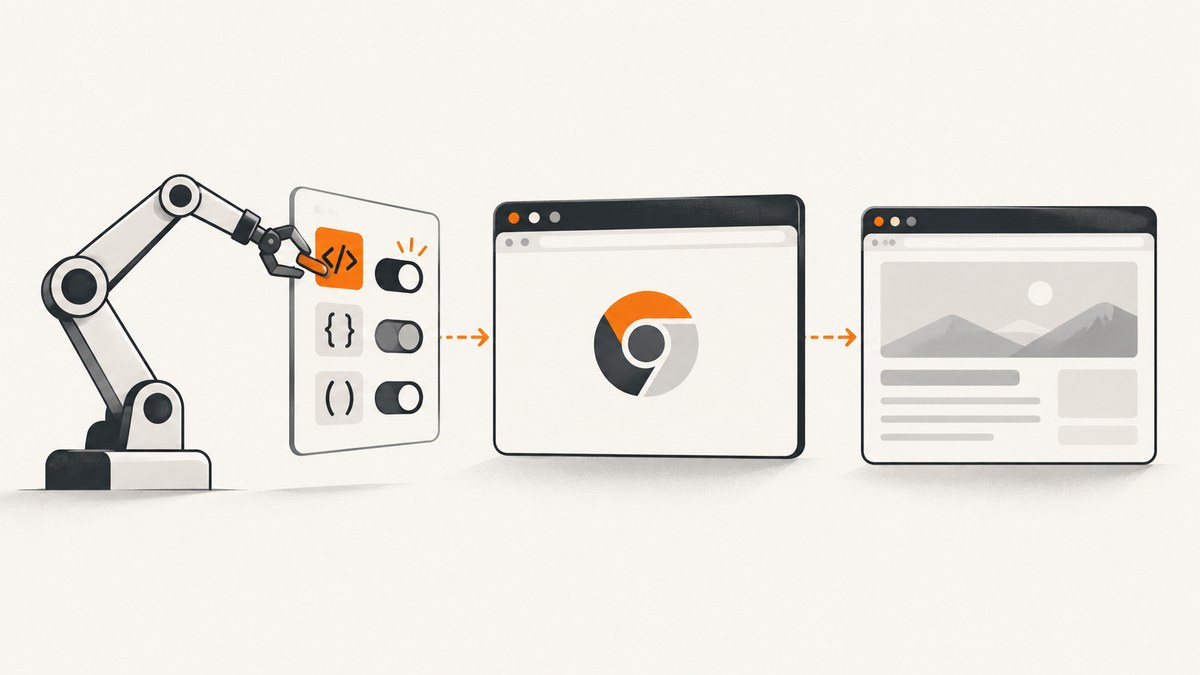
Use a Chrome preference through Selenium’s Options object, and add --headless separately. Headless mode hides the browser UI; it does not disable JavaScript. The commonly used preference is profile.default_content_setting_values.javascript: 2:
from selenium import webdriver
from selenium.webdriver.chrome.options import Options

options = Options()
options.add_argument("--headless")
options.add_experimental_option(
    "prefs",
    {"profile.default_content_setting_values.javascript": 2},
)

driver = webdriver.Chrome(options=options)
try:
    driver.get("https://example.com")
    print(driver.title)
finally:
    driver.quit()
ChromeDriver creates a temporary profile for the session by default. The preference is practical and widely used, but the official ChromeDriver capability documentation does not define this exact key/value as a permanent cross-version contract. Verify the behavior with the Chrome and ChromeDriver versions installed in your environment.
What the setting does
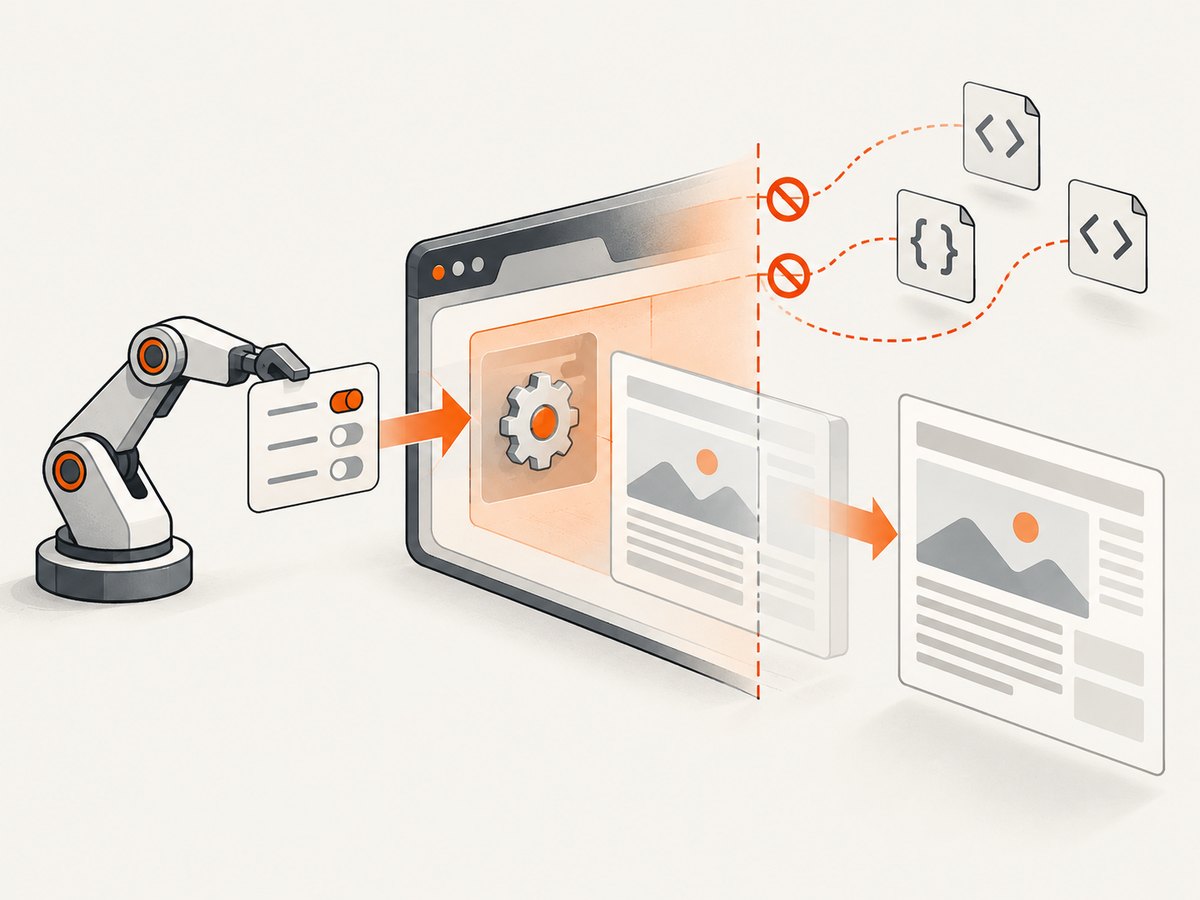
The preference asks Chrome to block JavaScript for the profile used by ChromeDriver. It affects pages loaded in that browser context, so script-generated content, event handlers, client-side navigation, analytics, and many interactive controls may stop working. A page that renders only after JavaScript runs can appear empty or incomplete.
The --headless argument is independent. Current Chrome documentation describes unified headless mode selected with --headless; headless controls whether Chrome displays a visible UI, while the profile preference controls whether sites may run JavaScript. Chrome’s older separate headless implementation is available as chrome-headless-shell beginning with Chrome 132. Follow the current Chrome headless documentation for the installed browser.
Complete Selenium Python example
Install Selenium, then let Selenium Manager locate a compatible driver when your Selenium version supports it:
python -m pip install -U seleniumSave this as disable_js.py:
from selenium import webdriver
from selenium.webdriver.chrome.options import Options
from selenium.common.exceptions import WebDriverException


def build_driver():
    options = Options()
    options.add_argument("--headless")
    options.add_argument("--window-size=1280,900")
    options.add_experimental_option(
        "prefs",
        {
            # 2 means block JavaScript for the profile.
            "profile.default_content_setting_values.javascript": 2,
        },
    )
    return webdriver.Chrome(options=options)


driver = build_driver()
try:
    driver.get("https://example.com")
    print("title:", driver.title)
    print("url:", driver.current_url)
    print("html bytes:", len(driver.page_source))
finally:
    driver.quit()
Use a try/finally block so the Chrome process is closed even when navigation or inspection raises an exception.
Verify that JavaScript is blocked
Do not infer success merely from headless mode or from a page that happens not to use scripts. Navigate to a controlled page where a script changes visible DOM content, then inspect the result.
from selenium import webdriver
from selenium.webdriver.chrome.options import Options

html = """
<!doctype html>
<html>
  <body>
    <div id="status">unchanged</div>
    <script>
      document.getElementById("status").textContent = "script-ran";
    </script>
  </body>
</html>
"""

options = Options()
options.add_argument("--headless")
options.add_experimental_option(
    "prefs",
    {"profile.default_content_setting_values.javascript": 2},
)

driver = webdriver.Chrome(options=options)
try:
    driver.get("data:text/html;charset=utf-8," + html)
    status = driver.find_element("id", "status").text
    print(status)  # Expected: unchanged when the preference is honored.
finally:
    driver.quit()
This check measures the behavior of the current browser/driver combination. It does not prove that every execution context, extension, or browser feature is blocked. Chrome’s DevTools documentation also recommends reloading a page after changing JavaScript settings when checking whether the page depends on JavaScript.
Use a fresh or persistent Chrome profile
Temporary profile (recommended for isolated runs)
With no user-data-dir argument, ChromeDriver normally creates a temporary profile. This prevents an existing desktop Chrome profile’s cookies, extensions, and preferences from changing the result and makes parallel jobs easier to isolate.
Dedicated persistent profile
If cookies or other browser state must survive between runs, provide a directory reserved for this automation:
from selenium import webdriver
from selenium.webdriver.chrome.options import Options

options = Options()
options.add_argument("--headless")
options.add_argument("--user-data-dir=/tmp/selenium-js-disabled-profile")
options.add_experimental_option(
    "prefs",
    {"profile.default_content_setting_values.javascript": 2},
)

driver = webdriver.Chrome(options=options)
try:
    driver.get("https://example.com")
finally:
    driver.quit()
Never start concurrent sessions against the same profile directory. Use a different directory per worker, or keep the default temporary profile.
Related Chrome options
| Option | Purpose | Consideration |
|---|---|---|
--headless |
Runs Chrome without a visible window. | Does not disable JavaScript. |
--window-size=1280,900 |
Sets the layout viewport used for rendering. | Useful when comparing screenshots or responsive layouts. |
--user-data-dir=... |
Uses a persistent profile directory. | Do not share one directory between concurrent sessions. |
--disable-gpu |
Historical workaround on some old Linux setups. | Usually unnecessary with current Chrome; add only when your environment requires it. |
Keep the JavaScript preference in add_experimental_option("prefs", ...). Do not confuse it with a command-line flag: the setting is a profile content permission, and the exact preference key is version-sensitive.
What breaks when JavaScript is disabled
- Single-page applications may show only a shell or blank document.
- Content inserted after an XHR or
fetchrequest will not appear. - Click handlers, menus, forms, client-side validation, and infinite scrolling will not run.
- Consent dialogs implemented in JavaScript may remain visible because their code never executes.
- Some bot checks may fail or present an alternate challenge.
- Pages can still load CSS, images, fonts, and other non-script resources unless you block them separately.
If your purpose is to inspect server-rendered HTML, this is useful. If your purpose is to capture the final state a visitor sees, disabling JavaScript can produce a misleading result.
Troubleshooting
The page still runs JavaScript
Cause: the preference was not applied, the browser is using a different profile, or the installed Chrome version handles the setting differently.
Fix: print the browser and driver versions, remove extensions and shared profiles, run the controlled data: URL test above, and try a fresh temporary session. Treat the preference as version-sensitive rather than as a guaranteed ChromeDriver API.
Chrome starts with a visible window
Cause: --headless was omitted or an older wrapper used a different convenience parameter.
Fix: add options.add_argument("--headless"). Current Chrome guidance uses the command-line argument; historical examples using headless=True or --headless=new may reflect older Chrome releases.
SessionNotCreatedException
Cause: ChromeDriver and Chrome are incompatible, Chrome is missing, or another process owns the profile directory.
Fix: update Selenium and Chrome, let Selenium Manager resolve the driver where supported, use a new profile directory, and check that the executable is available on the machine.
The page is blank or missing important content
Cause: the site depends on JavaScript for its content or navigation.
Fix: decide whether a non-script view is actually what you need. If you need the rendered application, remove the blocking preference and wait for a selector, a delay, or the page’s network activity instead.
Navigation hangs or times out
Cause: a page may keep connections open, redirect repeatedly, or behave differently without scripts.
Fix: set an explicit page-load timeout, capture browser logs, and inspect the final URL. A timeout is not evidence that JavaScript was successfully disabled.
driver.set_page_load_timeout(30)
try:
    driver.get("https://example.com")
except Exception as exc:
    print(type(exc).__name__, exc)
Performance, reliability, and cost
- Performance: disabling scripts can reduce client-side work, but navigation time is still affected by DNS, TLS, server response time, images, fonts, redirects, and other resources. Do not assume a fixed speed-up.
- Reliability: use pinned browser images or regularly checked Chrome/ChromeDriver versions, a clean profile per job, explicit timeouts, and
finally-based cleanup. Re-run the controlled verification page after browser upgrades. - Parallelism: separate profile directories are required for concurrent sessions. Temporary profiles are the simplest isolation strategy.
- Cost: Selenium itself does not charge per page, but browser processes consume CPU, memory, storage, and infrastructure time. The total cost depends on your runner and workload.
Or skip the browser setup
If the goal is a clean screenshot rather than browser-behavior research, ScreenshotNeo provides a single screenshot request. Its capture can accept consent banners and remove more than 60 known consent platforms, newsletter popups, and chat widgets before the shot; bot checks, blank pages, timeouts, failed loads, and cache hits are not billed, and response headers identify the page verdict and billing result. It also provides an MCP server for AI agents such as Claude and Cursor.
ScreenshotNeo API documentation:
curl -G "https://api.screenshotneo.com/v1/shot" -d access_key=YOUR_API_KEY --data-urlencode url=https://stripe.com -o shot.webpimport requests
r = requests.get("https://api.screenshotneo.com/v1/shot", params={"access_key": "YOUR_API_KEY", "url": "https://stripe.com"}, timeout=90)
open("shot.webp", "wb").write(r.content)const q = new URLSearchParams({ access_key: 'YOUR_API_KEY', url: 'https://stripe.com' });
const res = await fetch(`https://api.screenshotneo.com/v1/shot?${q}`);Every plan includes the capture options, PDF support, custom CSS and JavaScript, waits, blocking controls, headers and cookies, resizing, caching, signed links, async jobs, bulk capture, and usage access. The free plan includes 1,000 screenshots per month with no card; paid plans start at $5 for 3,000. Create a free ScreenshotNeo account.
FAQ
Does headless Chrome disable JavaScript automatically?
No. Headless controls the browser UI. Add the profile preference separately.
Is the preference key guaranteed by ChromeDriver?
The reviewed ChromeDriver documentation explains how preferences are passed, but does not guarantee this exact JavaScript key/value across Chrome versions. Verify it in your environment.
Can I disable JavaScript for only one domain?
This profile preference is broad. For domain-specific behavior, use a separate profile or Chrome’s site content settings and test the resulting session carefully.
Should I use a persistent profile in CI?
Usually no. A fresh temporary profile avoids stale cookies, extensions, locks, and unknown settings. Use a dedicated persistent directory only when state must persist.
Why does a server-rendered page still look different?
CSS, fonts, viewport size, cookies, redirects, blocked resources, and user-agent differences can change rendering even when JavaScript is disabled.
Primary references: ChromeDriver capabilities and preferences, Selenium Chrome options, Chrome headless mode, and Chrome DevTools JavaScript controls.


