How to Disable Logging in Pyppeteer
Quiet Pyppeteer without silencing your whole Python application: configure its logger, set launch or connect log levels, and handle Chromium output separately.
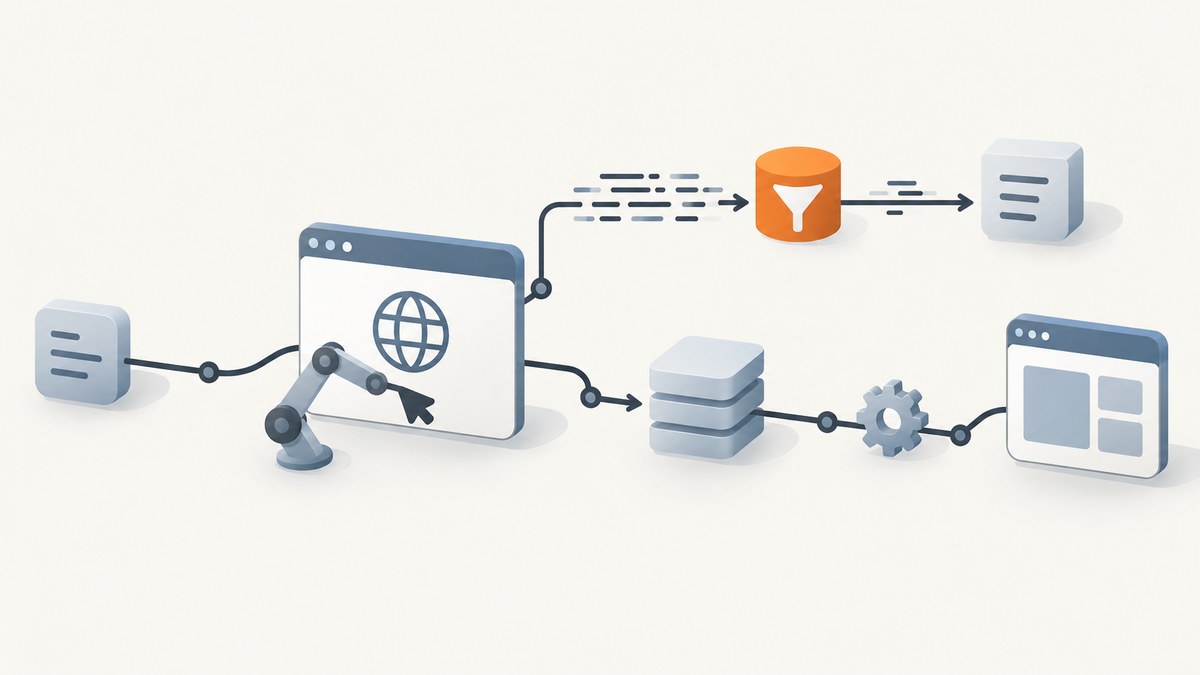
To disable Pyppeteer’s Python log messages, set the pyppeteer logger to logging.CRITICAL before launching or connecting to a browser. For a one-off setting, pass logLevel=logging.CRITICAL to launch() or connect(). This keeps your application’s other Python loggers working. If output still appears, check Chromium’s separate stdout and stderr streams controlled by dumpio.
import asyncio
import logging
from pyppeteer import launch

logging.getLogger("pyppeteer").setLevel(logging.CRITICAL)

async def main():
    browser = await launch()
    try:
        page = await browser.newPage()
        await page.goto("https://example.com", {"waitUntil": "domcontentloaded"})
        print(await page.title())
    finally:
        await browser.close()

asyncio.run(main())
The launcher’s documented logLevel option sets the Pyppeteer logger level. Both launch() and connect() accept it; it can be an integer logging constant or a string. The option defaults to the root logger’s effective level. See the Pyppeteer API reference and the project repository.
1. Choose how quiet Pyppeteer should be
Python logging uses severity thresholds. A logger emits records at the configured level and above. Choose the highest threshold that still preserves the messages you need. In particular, CRITICAL suppresses ordinary Pyppeteer warnings and errors too; use it only when that loss of diagnostic detail is acceptable.
| Level | What remains visible | Good fit |
|---|---|---|
logging.CRITICAL |
Only critical records | Quiet runs where routine Pyppeteer diagnostics should disappear |
logging.ERROR |
Errors and critical records | Keep failures visible while hiding warnings and lower levels |
logging.WARNING |
Warnings, errors and critical records | A practical production default when warnings help diagnose problems |
logging.INFO |
Info and more severe records | Routine investigation without full debug detail |
logging.DEBUG |
All standard levels, including verbose debug records | Short-lived diagnosis; turn it back down afterwards |
The Pyppeteer documentation specifically recommends logging.DEBUG for debugging. For normal use, avoid enabling it indefinitely: verbose logs add output and can make useful failures harder to spot. The appropriate threshold is a tradeoff between quieter output and the diagnostic detail you may need when browser startup, navigation or protocol communication fails.
2. Set the level for one browser launch or connection
Use the per-call option when different browser instances need different verbosity, or when you want the configuration next to the browser setup. Pyppeteer applies this setting when the launcher is created.
Launch a new Chromium process
import asyncio
import logging
from pyppeteer import launch

async def main():
    browser = await launch(logLevel=logging.ERROR)
    try:
        page = await browser.newPage()
        await page.goto("https://example.com")
    finally:
        await browser.close()

asyncio.run(main())
Connect to an existing browser
When attaching to a browser over its WebSocket endpoint, configure the level on connect() in the same way. Supply the endpoint you obtained from your browser process or deployment configuration:
import asyncio
import logging
from pyppeteer import connect

async def main():
    browser = await connect(
        browserWSEndpoint="ws://127.0.0.1:9222/devtools/browser/REPLACE_WITH_ENDPOINT",
        logLevel=logging.WARNING,
    )
    try:
        page = await browser.newPage()
        await page.goto("https://example.com")
    finally:
        await browser.disconnect()

asyncio.run(main())
Replace the example endpoint with a real browser WebSocket endpoint; the placeholder is not a working address. Use disconnect() when your script attached to a browser it does not own and should leave running. Use close() for a browser your code launched and should shut down.
3. Configure only the Pyppeteer logger
If you already configure logging for your application, adjust the named Pyppeteer logger rather than the root logger. This avoids changing the thresholds for your own modules and unrelated libraries.
import logging

pyppeteer_logger = logging.getLogger("pyppeteer")
pyppeteer_logger.setLevel(logging.CRITICAL)
Set this early in application startup, before code launches or connects to a browser. Python loggers are shared by name within a process, so this setting applies to Pyppeteer records throughout that process. If you want to hide Pyppeteer output only for one operation, use logLevel on that specific call instead.
A suggestion sometimes seen in discussions is logging.NOTSET. That does not mean “turn logging off.” It means the logger inherits its effective level from its ancestors. If the root logger is configured to display debug records, a Pyppeteer logger set to NOTSET can still emit them. For suppression, select a concrete threshold such as CRITICAL.
4. Distinguish Python logs from Chromium output
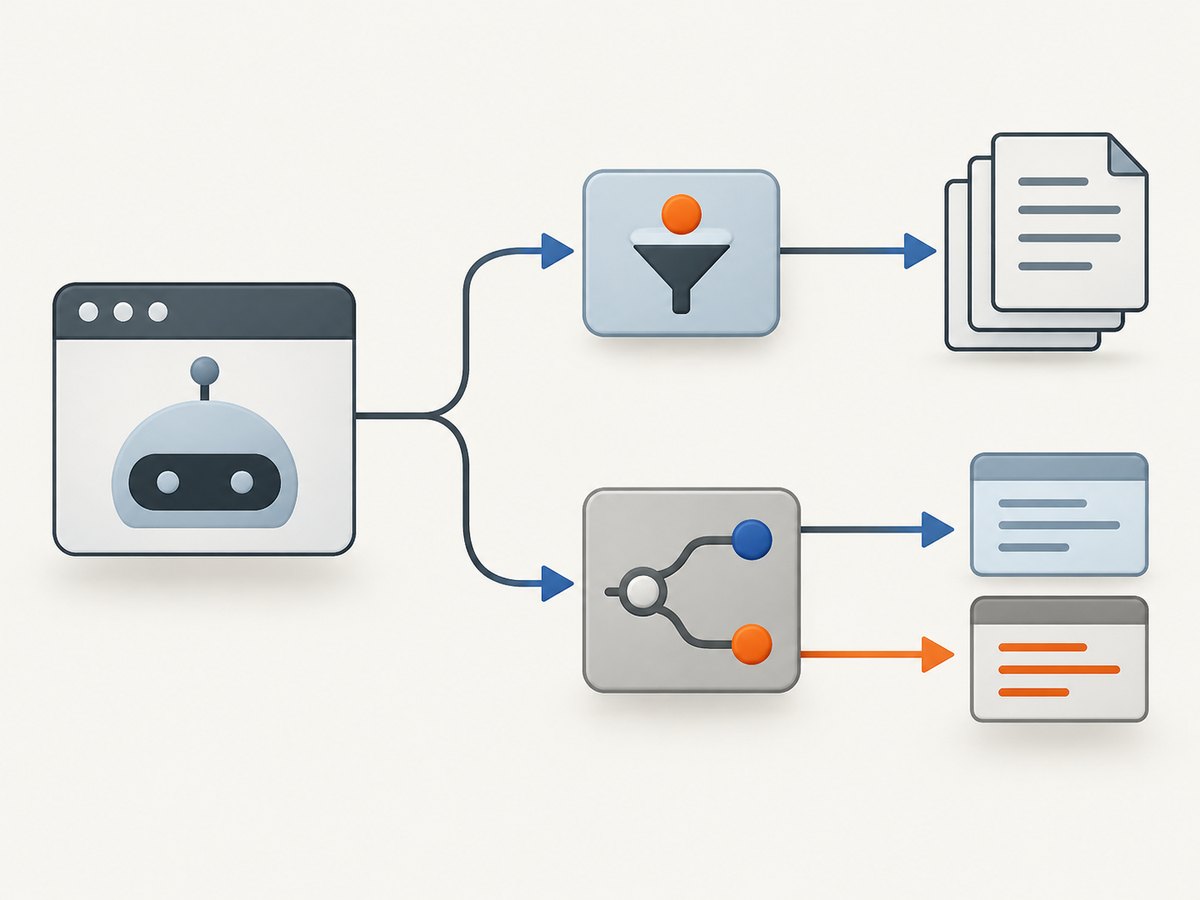
Pyppeteer’s logger and the Chromium child process produce different output streams. The dumpio launch option controls whether the browser process’s standard output and standard error are piped to the parent process. Changing the Python logger does not filter those process streams.
import asyncio
import logging
from pyppeteer import launch

async def main():
    browser = await launch(
        logLevel=logging.ERROR,
        dumpio=False,
    )
    try:
        page = await browser.newPage()
        await page.goto("https://example.com")
    finally:
        await browser.close()

asyncio.run(main())
dumpio=False is the default. If your code or a wrapper explicitly enables dumpio=True, disable it when Chromium’s process output is unwanted. Keep it enabled temporarily when you need to inspect browser-process diagnostics. This switch does not replace the logger threshold: configure both if you need control over both sources.
5. Troubleshoot messages that remain
| Symptom | Likely cause | What to do |
|---|---|---|
| Pyppeteer warnings still appear | The logger was configured after browser creation, the setting was applied to a different logger, or a later setup changed the level. | Set logging.getLogger("pyppeteer").setLevel(...) before launch() or connect(), or put logLevel directly on that call. |
Errors still appear with CRITICAL |
Another handler or code path may be emitting output; the message may be from your application or a different dependency rather than a Pyppeteer record. | Check the logger name and handler in the log format. Configure the actual emitting logger, while keeping application error reporting intact. |
| Chromium prints to the terminal | These are browser-process stdout/stderr streams, often forwarded with dumpio=True. |
Disable dumpio if the streams are not needed. If diagnosis is in progress, retain the output and identify whether it is useful before suppressing it. |
Setting NOTSET did not quiet output |
NOTSET delegates to ancestor logger configuration. |
Use an explicit level such as CRITICAL or ERROR. |
| Nothing logs, including useful failures | The threshold is too restrictive, or application-wide logging is not configured to handle the records you expect. | Temporarily switch to WARNING or DEBUG and inspect logger names. Restore a deliberate production level after diagnosis. |
| Logs appear only in a service or container | The runtime may collect stdout/stderr separately, or its logging configuration may differ from local development. | Check the deployment’s log routing and effective logger configuration. Test the same startup path and environment variables used by the service. |
6. Operational notes: lifecycle, performance and reliability
Logging configuration has no meaningful browser-rendering performance effect to rely on; its main effect is how much diagnostic output the process handles and retains. Keep routine production output at a useful threshold rather than treating silence as a reliability strategy. Warnings and errors can reveal launch failures, navigation problems and environment mismatches that otherwise look like a hung job.
Configure the logger once during process startup for consistent behavior. In a long-running worker, avoid toggling a shared logger level around concurrent tasks: since named loggers are process-wide, one task can affect records from another. If per-instance verbosity matters, prefer the launcher’s logLevel argument and keep worker-level configuration predictable.
Always close a launched browser in a finally block so exceptions do not leave Chromium processes running. For attached browsers, disconnect without terminating the browser process when ownership belongs elsewhere. When a job appears stalled, increase logging temporarily and inspect navigation and process output before permanently raising thresholds.
7. Project status and new Python automation
Pyppeteer describes itself as an unofficial Python port of Puppeteer. Its repository states that it is unmaintained and recommends Playwright Python as an alternative for new projects. The logging configuration above remains useful for existing Pyppeteer code, but for a new browser automation project, review the repository’s current maintenance notice and the Playwright Python documentation before choosing a dependency.
Or skip the browser setup
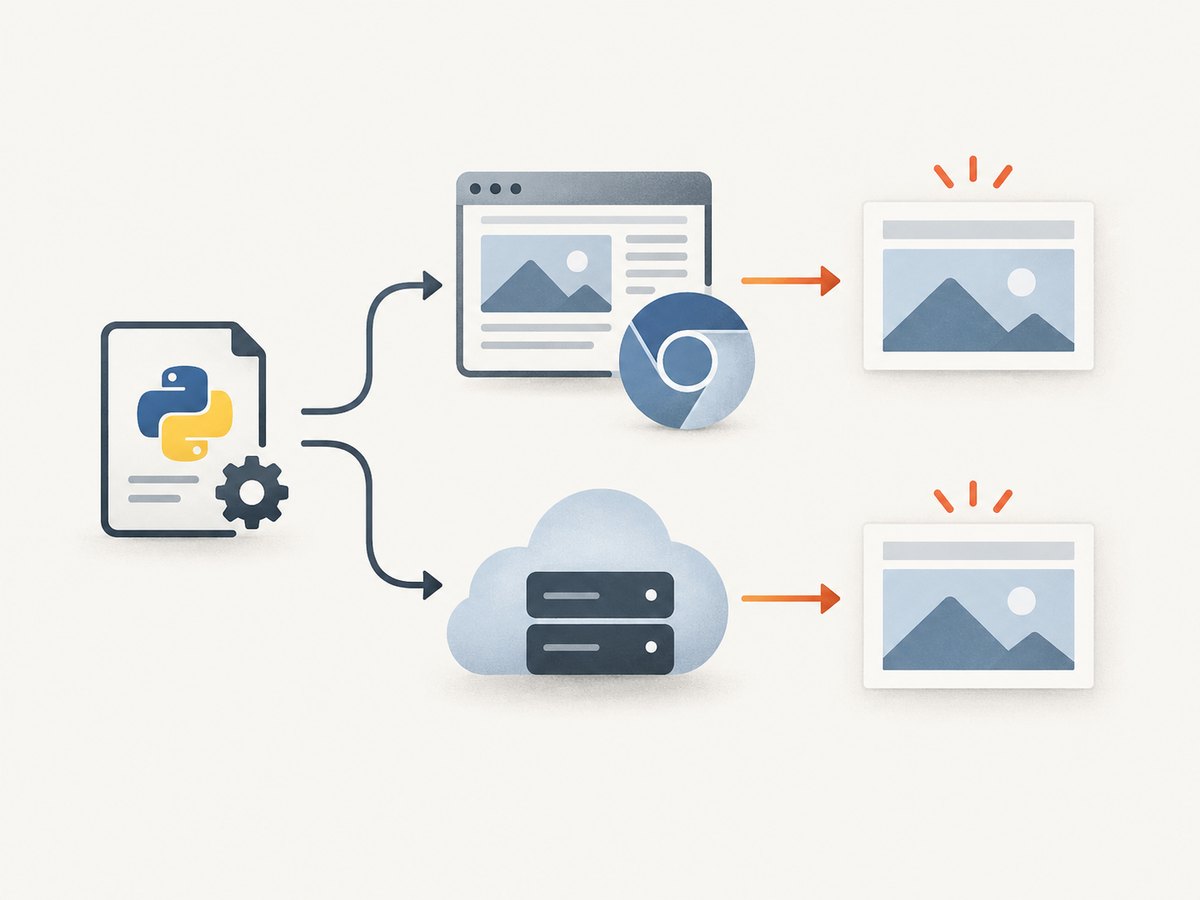
If the task is to create website screenshots rather than automate a browser workflow, ScreenshotNeo provides a screenshot API: one GET request returns an image or PDF. See the API documentation.
curl -G "https://api.screenshotneo.com/v1/shot" -d access_key=YOUR_API_KEY --data-urlencode url=https://stripe.com -o shot.webpimport requests
r = requests.get("https://api.screenshotneo.com/v1/shot", params={"access_key": "YOUR_API_KEY", "url": "https://stripe.com"}, timeout=90)
open("shot.webp", "wb").write(r.content)const q = new URLSearchParams({ access_key: 'YOUR_API_KEY', url: 'https://stripe.com' });
const res = await fetch(`https://api.screenshotneo.com/v1/shot?${q}`);- Cookie banners, newsletter popups and chat widgets are removed before the screenshot; each cleanup step can be turned off.
- Bot checks, blank pages, timeouts, failed loads and cache hits are not billed. Response headers report the page verdict and billing status.
- An MCP server provides screenshot tools for Claude, Cursor and other MCP clients.
- The free plan includes 1,000 screenshots per month with no card. Paid plans start at $5 for 3,000 screenshots.
Create a free ScreenshotNeo account for 1,000 screenshots a month, with no card required.
FAQ
Does setting the level to CRITICAL stop every message from the process?
No. It filters lower-severity records from the configured logger. Chromium stdout and stderr, Python warnings, print statements and messages from other loggers are separate output sources.
Should I use ERROR or WARNING in production?
Use WARNING when warnings help you catch operational problems. Choose ERROR when you intentionally want to retain only failures. Avoid CRITICAL if suppressing ordinary errors would make incidents harder to diagnose.
Can I turn logging back on while debugging?
Yes. Set the named logger or the launcher’s logLevel to logging.DEBUG, reproduce the issue, then restore the normal threshold. Debug output can be verbose.
Does this setting affect another Python process?
No. Python logger configuration is process-local. Configure every worker or service process that launches or connects to Pyppeteer.


