How to Disable Screenshot Capture in a WordPress Plugin
WordPress cannot guarantee screenshot prevention. Learn the practical deterrents, their limits, directory asset rules, and a cleaner ScreenshotNeo workflow.

Short answer: a WordPress plugin cannot guarantee that visitors will be unable to capture what their devices display. JavaScript can discourage casual copying and react to some browser-visible signals, but operating-system screenshot tools, browser extensions, hardware buttons, cameras and external capture remain outside a page’s control. Treat any implementation as a best-effort deterrent, explain its limits, and test its effect on accessibility and normal interaction.
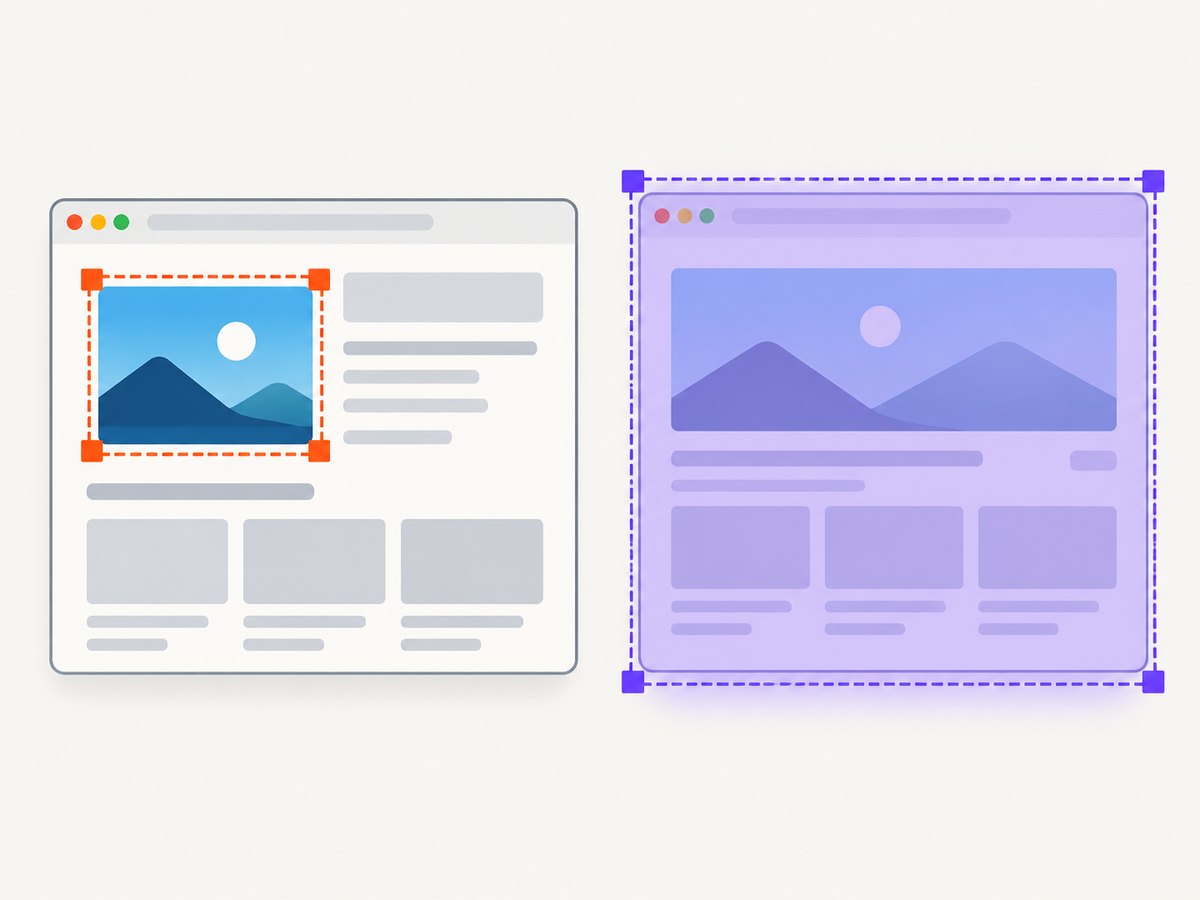
The word “screenshots” also has a second meaning in WordPress. WordPress.org plugin-directory screenshots are listing assets stored in your plugin’s SVN repository. Removing those images from a listing is an asset-management task, not a way to stop visitors taking screenshots of your site.
1. Decide which kind of screenshot you mean
Visitor screenshots of your website
This is the protection problem most site owners mean. A visitor’s browser renders pixels locally, and the operating system can usually capture those pixels without asking the page for permission. A plugin can intercept context menus, drag events, selected keyboard shortcuts, focus changes or visibility changes, and it can hide or blur selected media when those events occur. Those measures may inconvenience casual copying, but they do not provide universal prevention.
Screenshots displayed on your WordPress.org plugin page
WordPress.org calls the images shown on a plugin’s directory page “screenshots.” The official Plugin Assets guide says they illustrate the plugin admin dashboard or live examples. Put these files in the top-level assets directory beside trunk in the plugin’s SVN repository, using names such as screenshot-1.png or screenshot-2.jpg. Captions go in matching lines in readme.txt. Images must be local, and the guide lists a 10 MB maximum. Directory images are cached through a CDN, so updates can take several hours to appear under heavy load.
Those asset rules do not document a switch that disables visitor screen capture. If your goal is to remove a directory image, delete or rename the asset and update the readme; if your goal is to discourage copying on your site, continue with the browser-side approach below.
2. What a WordPress plugin can and cannot do
| Technique | What it may deter | What it cannot stop |
|---|---|---|
| Disable context menu | Casual “Save image” actions | OS capture, extensions, developer tools |
| Disable image dragging | Dragging an image to the desktop | Copying rendered pixels or taking a photo |
| Watch keyboard shortcuts | Some browser-visible shortcut attempts | Hardware buttons, OS utilities, remapped keys |
| Blur on focus or visibility loss | Some browser-based capture workflows | Capture methods outside page JavaScript |
| Watermark or lower resolution | Undetected redistribution | A screenshot of the watermark-free source if exposed elsewhere |
Plugin directory listings make these kinds of claims, but their descriptions are vendor-authored and are not independent evidence of universal effectiveness. One listing explicitly describes protection as a deterrent and says an operating-system screenshot cannot truly be blocked; another notes that JavaScript cannot fully prevent OS-level or browser-extension tools. Use those statements as limitations, not as performance guarantees.
3. Build a configurable, best-effort deterrent
A safe implementation should be opt-in, limited to the media or pages that need it, and easy to disable for administrators, assistive technology users and authenticated support staff. Avoid blocking every keyboard event or every right click across an entire site: those events are also used for ordinary navigation, text selection, browser features and accessibility workflows.
Step 1: Add a setting
Register a simple option so the site owner controls the feature. The following code belongs in a plugin file or an included PHP file:
<?php
add_action( 'admin_init', function () {
    register_setting(
        'myplugin_privacy',
        'myplugin_screenshot_deterrent',
        array(
            'type'              => 'boolean',
            'sanitize_callback' => 'rest_sanitize_boolean',
            'default'           => false,
        )
    );
} );

function myplugin_screenshot_deterrent_enabled() {
    return (bool) get_option( 'myplugin_screenshot_deterrent', false );
}
Step 2: Enqueue a small script only when enabled
<?php
add_action( 'wp_enqueue_scripts', function () {
    if ( ! myplugin_screenshot_deterrent_enabled() ) {
        return;
    }

    wp_enqueue_script(
        'myplugin-screenshot-deterrent',
        plugins_url( 'assets/screenshot-deterrent.js', __FILE__ ),
        array(),
        '1.0.0',
        true
    );
} );
Step 3: Mark protected media
Use a class or data attribute instead of treating every image as protected. That lets editors leave diagrams, code examples and ordinary content usable:
<img class="myplugin-protected-media"
     src="https://example.com/uploads/private-preview.jpg"
     alt="Product preview">
Step 4: Add the browser-side deterrent
(function () {
  'use strict';

  const protectedMedia = '.myplugin-protected-media';
  const isEditable = (target) => target && target.closest(
    'input, textarea, select, [contenteditable="true"]'
  );

  // Discourage save-image and drag interactions for marked media.
  document.addEventListener('contextmenu', (event) => {
    if (event.target.closest(protectedMedia)) {
      event.preventDefault();
    }
  }, { passive: false });

  document.addEventListener('dragstart', (event) => {
    if (event.target.closest(protectedMedia)) {
      event.preventDefault();
    }
  }, { passive: false });

  // React to common browser-visible capture shortcuts. This is not OS-level protection.
  document.addEventListener('keydown', (event) => {
    if (isEditable(event.target)) return;

    const key = event.key.toLowerCase();
    const captureShortcut =
      key === 'printscreen' ||
      (event.metaKey && event.shiftKey && ['3', '4', '5'].includes(key)) ||
      (event.ctrlKey && event.shiftKey && key === 's');

    if (captureShortcut) {
      document.documentElement.classList.add('myplugin-capture-warning');
      window.setTimeout(() => {
        document.documentElement.classList.remove('myplugin-capture-warning');
      }, 1200);
    }
  }, { passive: true });

  // Hide marked media briefly when the page loses visibility or focus.
  const setHidden = (hidden) => {
    document.querySelectorAll(protectedMedia).forEach((element) => {
      element.classList.toggle('myplugin-temporarily-hidden', hidden);
    });
  };

  document.addEventListener('visibilitychange', () => {
    setHidden(document.visibilityState !== 'visible');
  });
  window.addEventListener('blur', () => setHidden(true));
  window.addEventListener('focus', () => setHidden(false));
})();
.myplugin-temporarily-hidden {
  visibility: hidden !important;
}

.myplugin-capture-warning .myplugin-protected-media {
  filter: blur(14px) !important;
}
The code above demonstrates event handling; it does not establish that a browser or operating system will expose every capture action. A screenshot can happen before the visibility handler runs, after a copied asset URL is opened directly, or through software that never dispatches page events.
4. Make the feature usable and accessible
- Protect selectively. Apply the class to sensitive previews instead of the whole document.
- Keep alternatives available. Provide downloadable licensed assets, accessible text and support contact details where appropriate.
- Do not trap keyboard users. Never suppress typing in form controls, editor fields or search boxes.
- Explain the behavior. A short notice can tell users why a protected image behaves differently and how to request access.
- Test intended browsers and assistive workflows. Check keyboard navigation, screen readers, touch devices, zoom, reduced motion and browser privacy extensions. Aggressive blocking can create false positives and interfere with ordinary interaction.
- Use server-side authorization for real secrets. If an image must never be exposed to a visitor, do not send it to that visitor’s browser. Serve it only after an authorization check, and remember that an authorized viewer can still capture the rendered result.
5. WordPress settings that are often confused with screenshot protection
The wp_client_side_media_processing_enabled filter controls whether WordPress processes uploaded images in the browser. The editor-filter documentation shows that it defaults to true and can be disabled with:
add_filter( 'wp_client_side_media_processing_enabled', '__return_false' );This changes the upload pipeline; it does not disable visitor screenshots.
DISALLOW_FILE_EDIT disables the Dashboard plugin and theme file editor. WordPress’s hardening guide explains that it is a security hardening setting and does not prevent malicious uploads. It has no relationship to screen capture.
6. Troubleshooting
| Symptom | Likely cause | Fix |
|---|---|---|
| Right click still works | Script was not enqueued, or the target is not inside the protected selector | Verify the option value, script URL and class in browser developer tools. Confirm the listener is attached after the document loads. |
| Images disappear for normal users | A focus or visibility event fired during tab switching, autofill or an assistive workflow | Remove the blur behavior or limit it to a specific gallery. Add a visible recovery control and test keyboard navigation. |
| Shortcut blocking has no effect | The operating system handled the shortcut before the page received it | Document the limitation. Treat shortcut handling as a deterrent only. |
| Users can still download the image | The image URL is public in HTML, CSS, cache or network responses | Use access-controlled delivery and expiring URLs for licensed content. Do not promise that rendered content is impossible to copy. |
| Plugin breaks an editor or form | Global key or context-menu interception captured an editable interaction | Check input, textarea, select and contenteditable targets before acting; scope handlers to protected media. |
| WordPress.org screenshot change is missing | Directory CDN caching or an incorrectly placed asset | Use the top-level SVN assets directory, match the filename in readme.txt, and allow several hours for cache refresh. |
7. Performance, reliability and cost considerations
A small delegated event listener and a class toggle have little code overhead, but the user-visible cost can be high if they interfere with scrolling, copying, keyboard commands or assistive technology. Keep the script out of pages that have no protected media, avoid repeatedly querying the entire DOM, and do not poll continuously for screenshot activity. Browser behavior differs across desktop, mobile and embedded web views, so reliability means predictable degradation rather than guaranteed prevention.
Watermarks, lower-resolution previews and authenticated image delivery often protect business value better than blocking controls. They also make the limitation understandable: once pixels are visible, a determined viewer can reproduce them. Record the protected-media policy in your privacy and accessibility documentation, and provide a support path for legitimate reuse.
8. Or skip the browser setup
If your actual task is generating clean screenshots for documentation, QA, previews or an automation pipeline, ScreenshotNeo captures a URL through one API request. Before capture it accepts cookie or consent banners and removes more than 60 known consent platforms, newsletter popups and chat widgets; each step can be turned off. Bot checks, CAPTCHAs, blank pages, timeouts, failed loads and cache hits cost nothing, and the response identifies the result with X-Page-Verdict and X-Billed headers. Its MCP server provides take_screenshot, get_page_info and capture_pdf tools for Claude, Cursor and other MCP clients.

See the ScreenshotNeo API documentation for all options. A minimal request is:
curl -G "https://api.screenshotneo.com/v1/shot" -d access_key=YOUR_API_KEY --data-urlencode url=https://example.com -o shot.webpimport requests
r = requests.get(
"https://api.screenshotneo.com/v1/shot",
params={"access_key": "YOUR_API_KEY", "url": "https://example.com"},
timeout=90,
)
r.raise_for_status()
open("shot.webp", "wb").write(r.content)
const fs = require('node:fs/promises');

const q = new URLSearchParams({
  access_key: 'YOUR_API_KEY',
  url: 'https://example.com'
});
const res = await fetch(`https://api.screenshotneo.com/v1/shot?${q}`);
if (!res.ok) throw new Error(`Screenshot failed: ${res.status}`);
await fs.writeFile('shot.webp', Buffer.from(await res.arrayBuffer()));
For repeatable captures, ScreenshotNeo also supports full-page shots with lazy images loaded, CSS-selector element capture, dark mode, device presets and custom viewports, retina scale, PDF paper sizes and page ranges, custom CSS and JavaScript, clicks, selector or network-idle waits, request blocking, headers, cookies, user agents, authorization, timezone, geolocation, transparent backgrounds, resizing, configurable cache TTLs, signed image links, asynchronous jobs with signed webhooks, bulk capture of up to 100 URLs per call, a usage API and an OpenAPI specification. Existing parameter names used by other screenshot APIs also work, which can simplify migration.
The Free plan includes 1,000 screenshots each month with no card. Paid plans start at $5 for 3,000 shots; yearly billing gives two months free, and every feature is available on every plan. Create a free ScreenshotNeo account to start.
9. FAQ
Can a WordPress plugin stop screenshots on iPhone or Android?
No plugin can guarantee that. Mobile operating systems and hardware controls can capture the display independently of page JavaScript.
Does disabling right click protect an image?
It may stop one casual save action, but it does not remove the image from the page or prevent screen capture, developer tools, cached responses or extensions.
Can CSS hide an image during a screenshot?
CSS can react to events your page receives, such as visibility changes, but capture timing and tooling vary. Treat hiding or blurring as a best-effort reaction.
How do I remove screenshots from my WordPress.org listing?
Remove or rename the corresponding files in the top-level SVN assets directory and update readme.txt. Allow time for the directory CDN cache to refresh.
Should I use DISALLOW_FILE_EDIT?
Use it as Dashboard hardening, not screenshot protection. It disables the built-in file editor and does not prevent uploads or screen capture.
What is the strongest practical protection?
Keep genuinely secret material off the client, authorize access on the server, deliver appropriately sized previews, watermark where useful, and describe browser-side deterrents honestly. No method can control every way a viewer can record visible pixels.


