How to Disable Screenshots on a Website: Browser Limitations and Alternatives
Websites cannot guarantee screenshot prevention. Learn what JavaScript, browser policies, DRM, and watermarking can actually block.
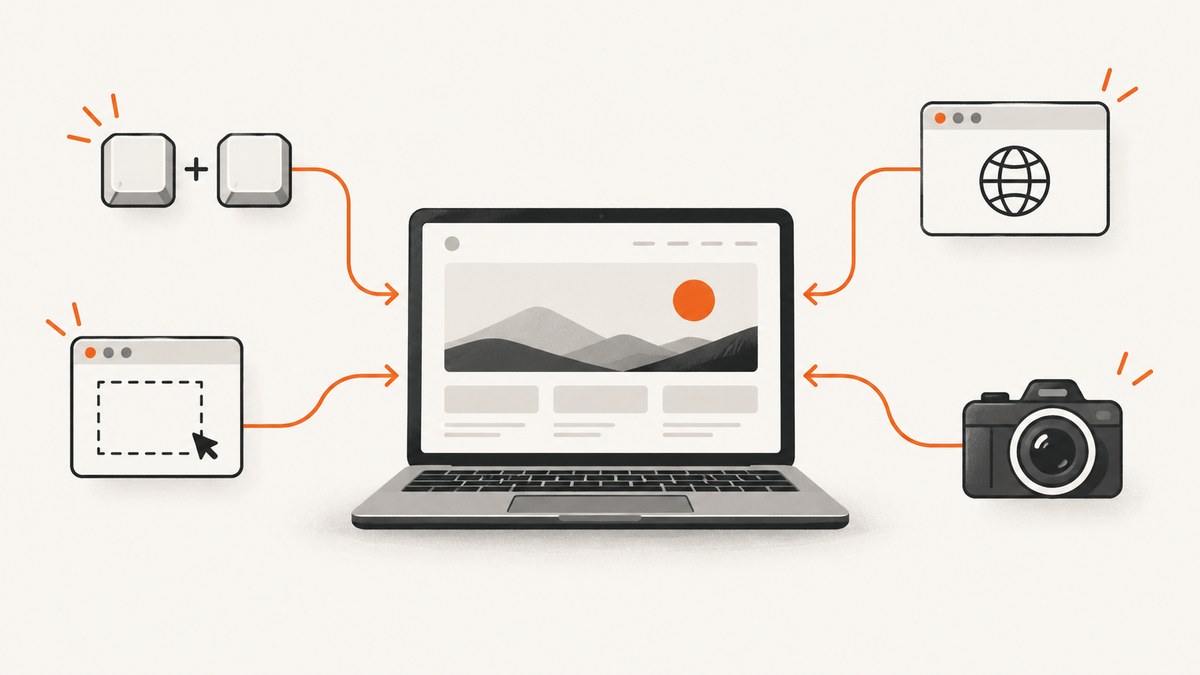
Short answer: a normal public website cannot guarantee that visitors will be unable to capture what appears on their screen. JavaScript can add friction by intercepting Print Screen, disabling context menus, or hiding content when a page-initiated capture is detected, but operating-system tools, browser features outside page code, extensions, other browsers, and cameras remain outside the page’s control.
Choose the control that matches your threat model:
- Casual copying: add key, context-menu, copy, and print friction.
- Page-initiated screen sharing: use
Permissions-Policy: display-capture=(). - Managed company devices: use Chrome Enterprise screenshot controls or Microsoft Edge’s
DisableScreenshotspolicy. - Premium video: combine authenticated delivery, DRM where supported, short-lived URLs, secure playback, and watermarking.
None of these is universal. Treat screenshot prevention as deterrence, access control, or leak attribution—not as a promise that pixels can never be copied.
1. Define what you are trying to stop
“Disable screenshots” can mean several different things. Write down the capture path and the users you need to protect against before choosing a control.
| Goal | What can help | What remains possible |
|---|---|---|
| Discourage casual copying | Key and context-menu friction, visible notices, copy restrictions | Users can disable JavaScript, use another browser, inspect the page, or photograph the screen |
| Stop your page calling screen capture | Permissions-Policy: display-capture=() |
It does not block the operating system’s screenshot command |
| Control enrolled employee devices | Chrome Enterprise Premium or Edge managed policies | Coverage depends on platform, license, enrollment, browser version, and policy scope |
| Protect paid video and trace leaks | DRM, secure playback, short-lived access, dynamic watermarks | Capture resistance varies by platform; a camera can still record the display |
2. Why a public website cannot guarantee prevention
The browser renders pixels for a user-controlled device. The page can control its DOM, styles, scripts, and network requests, but it does not own the operating system’s screenshot pipeline. A visitor can use a keyboard shortcut, an OS capture utility, a browser menu, an extension, a second browser, remote-desktop tooling, or a phone camera.
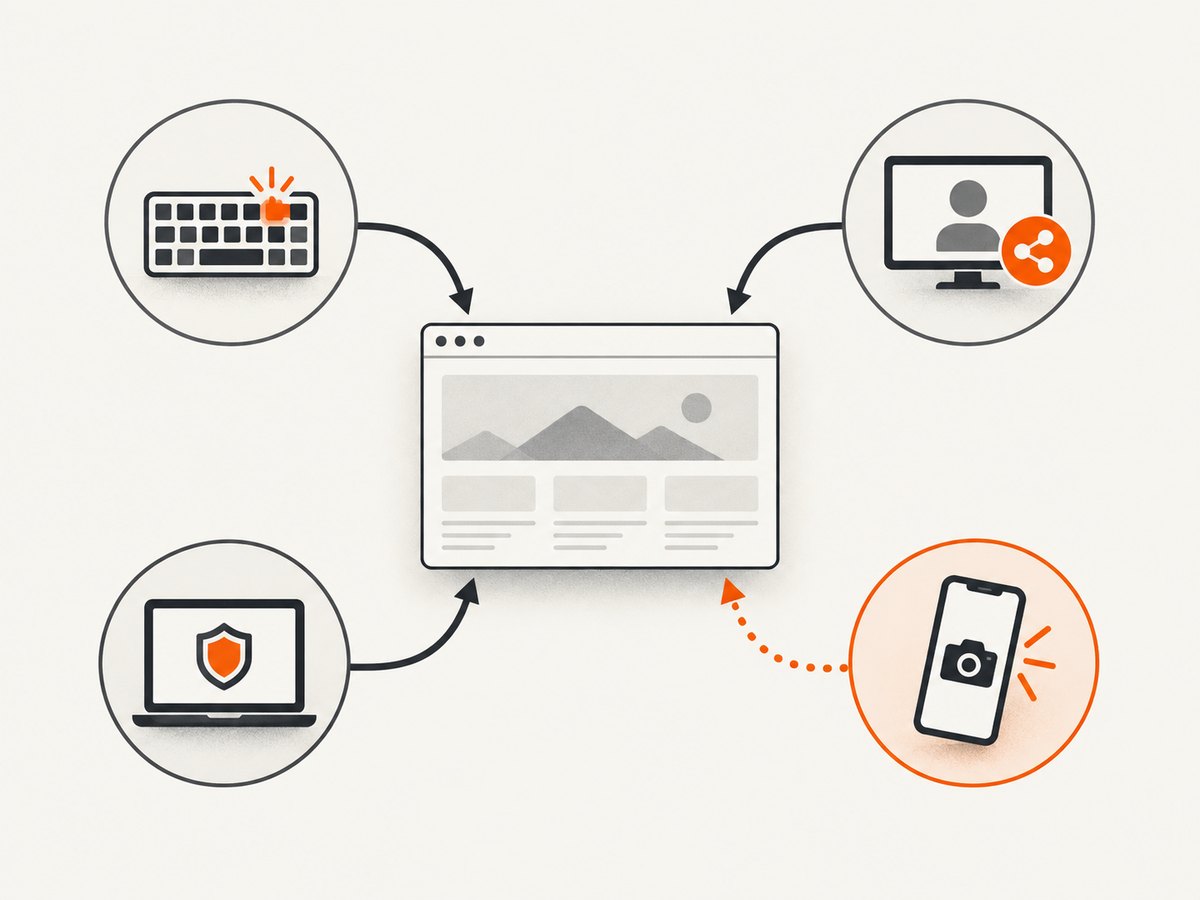
Microsoft’s Edge policy documentation makes the same limitation explicit: even when a screenshot policy is enabled, users may still capture with Web Capture or methods outside the browser. This is why a web page should never advertise JavaScript as absolute protection.
For paid material, focus on reducing unauthorized access and making leaks attributable. Authentication, authorization, expiring URLs, DRM, and watermarks address those goals more directly than trying to detect every screenshot.
3. Add JavaScript friction for casual users
The following script intercepts common actions. It is appropriate for a notice such as “Please use the download button” or for discouraging accidental copying. It is not a security boundary.
<script>
(() => {
  const blockedKeys = new Set(['PrintScreen']);

  document.addEventListener('keydown', (event) => {
    const key = event.key;
    const modified = event.ctrlKey || event.metaKey || event.shiftKey || event.altKey;
    const printScreen = blockedKeys.has(key);
    const printShortcut = (event.ctrlKey || event.metaKey) && key.toLowerCase() === 'p';
    const copyShortcut = (event.ctrlKey || event.metaKey) && key.toLowerCase() === 'c';

    if (printScreen || printShortcut || copyShortcut || modified && key === 'Insert') {
      event.preventDefault();
      event.stopPropagation();
      showCaptureNotice();
    }
  }, true);

  document.addEventListener('contextmenu', (event) => {
    event.preventDefault();
    showCaptureNotice();
  }, true);

  document.addEventListener('copy', (event) => {
    event.preventDefault();
    showCaptureNotice();
  }, true);

  document.addEventListener('dragstart', (event) => {
    event.preventDefault();
  }, true);

  function showCaptureNotice() {
    const notice = document.querySelector('[data-capture-notice]');
    if (!notice) return;
    notice.hidden = false;
    clearTimeout(notice.hideTimer);
    notice.hideTimer = setTimeout(() => { notice.hidden = true; }, 1800);
  }
})();
</script>
This code does not detect every screenshot. Print Screen events may not reach the page, browser and OS capture tools can run outside the document, and users can turn off the script or alter the page. Blocking copy also harms accessibility and legitimate workflows, so use it only when the product requirement justifies that friction.
Blur content when the page loses visibility
<style>
.capture-sensitive.is-hidden {
  filter: blur(18px);
}
</style>
<script>
const sensitive = document.querySelector('.capture-sensitive');

document.addEventListener('visibilitychange', () => {
  if (!sensitive) return;
  sensitive.classList.toggle('is-hidden', document.visibilityState !== 'visible');
});
</script>
Visibility changes also happen when a user switches tabs, opens a dialog, locks a device, or uses assistive software. It is therefore a blunt deterrent and can create a poor experience. Do not treat it as evidence that a screenshot occurred.
4. Use Permissions-Policy for page-initiated capture
To stop the document from initiating the Screen Capture API, send this response header:
Permissions-Policy: display-capture=()With this directive disabled, a call to navigator.mediaDevices.getDisplayMedia() fails with NotAllowedError. See the MDN display-capture documentation for the API scope and browser support.
async function shareScreen() {
  try {
    const stream = await navigator.mediaDevices.getDisplayMedia({ video: true });
    stream.getTracks().forEach(track => track.stop());
  } catch (error) {
    if (error.name === 'NotAllowedError') {
      console.log('Screen capture is blocked by permission or policy.');
    } else {
      console.error(error);
    }
  }
}
This header governs a page-initiated API call. It does not disable the user’s operating-system screenshot function, browser capture menu, extensions, or a camera. MDN labels the feature limited and experimental, so verify behavior in every browser you support.
5. Do not confuse CSP with screenshot prevention
Content Security Policy controls which scripts, frames, styles, images, and other resources a document may load. It is an important defense against classes of injection and data exfiltration, but it does not disable screenshots. The MDN CSP documentation describes CSP as a resource and script security policy.
Content-Security-Policy: default-src 'self'; img-src 'self' https:; script-src 'self'Use CSP for its security purpose. Do not claim that a CSP header protects pixels from capture.
6. Managed-browser controls for enrolled devices
Organizations that own and manage the device have stronger options than a public page.
Chrome Enterprise
Chrome Enterprise documents screenshot prevention for managed users and browsers with a Chrome Enterprise Premium license. Administrators can cover keyboard shortcuts and capture APIs and define URL exceptions. Support and behavior differ across Android, ChromeOS, iOS, and Chrome on Windows, macOS, and Linux. This is an administrator policy for enrolled environments, not a feature a random website can turn on.
Microsoft Edge
Edge exposes a DisableScreenshots policy. Microsoft lists Windows and macOS support from Edge 77, Android support from Edge 146, and no iOS support on the referenced policy page. The policy blocks keyboard shortcuts and extension APIs, while Microsoft cautions that Web Capture, operating-system features, and other applications may still capture content.
Before deployment, check browser version, operating-system scope, licensing, URL exceptions, and whether the device is actually enrolled. Test keyboard capture, browser capture, extensions, remote desktop, and print flows separately.
7. Protect premium video with layered controls
For paid video, use a layered design:
- Authenticate the account and authorize each playback session.
- Issue short-lived media or license URLs.
- Use platform DRM where your target browsers and devices support it.
- Use secure playback paths and disable unnecessary downloads.
- Overlay a visible or forensic watermark containing an account or session identifier.
- Log sessions and revoke access when abuse is detected.
DRM capture blocking varies by Windows, macOS, Linux, Android, iOS, browser, and hardware combinations. Watermarks deter casual redistribution and help identify the source of a leak, but neither DRM nor an overlay defeats every platform or a camera filming the display. Publish the actual supported device matrix instead of promising a universal black screen.
8. Option comparison
| Approach | Protection | Cost and limits | Best fit |
|---|---|---|---|
| JavaScript friction | Low | Cheap; easy to bypass; can hurt usability | Casual deterrence |
display-capture=() |
Narrow | Stops getDisplayMedia() only; limited browser support |
Preventing your own page from starting screen share |
| Chrome or Edge enterprise policy | Strongest browser-level option | Requires managed devices, policy administration, and sometimes paid licensing | Internal applications on enrolled hardware |
| DRM plus watermarking | Strong, platform-dependent | Integration and compatibility work; no camera-proof guarantee | Premium video and leak attribution |
9. Troubleshooting
Print Screen still works
Cause: the operating system may consume the key before the page receives a DOM event. Fix: treat JavaScript as a deterrent; use managed-device policy or protected media controls for stronger requirements.
getDisplayMedia() throws NotAllowedError
Cause: the user denied permission, the call was not made from an allowed interaction, or display-capture is disabled. Fix: check the response header, browser support, secure context, and user gesture. Do not assume this says anything about ordinary screenshots.
Context-menu blocking breaks accessibility
Cause: the handler blocks legitimate keyboard, screen-reader, or assistive workflows. Fix: remove the global block, or scope it to a specific sensitive element and provide an accessible alternative.
Blur triggers when users switch tabs
Cause: visibilitychange fires for many normal actions. Fix: use a short transition, preserve state, and avoid treating the event as proof of capture.
Enterprise policy has no effect
Cause: the browser is unmanaged, the policy is unsupported on that platform or version, licensing is missing, or an exception matches the URL. Fix: verify enrollment and effective policy output, then test each platform listed by the vendor.
DRM works on one device but not another
Cause: DRM and protected paths are platform and hardware dependent. Fix: maintain a support matrix, provide a compatible fallback, and keep watermarking and access controls enabled.
10. Performance, reliability, and cost
- Key and context-menu handlers add little CPU cost, but global event listeners and large blur filters can affect low-end devices.
- Visibility-based hiding can interrupt playback or user workflows; keep transitions deterministic and recoverable.
- Permissions-Policy is cheap to send, but browser support and user permission flows still need testing.
- Enterprise controls shift work to administration, licensing, enrollment, and support rather than page runtime.
- DRM adds license-server, packaging, compatibility, and operational costs. Watermarks add rendering or encoding work.
- Reliability comes from layers: authorization and expiring access should still protect content when JavaScript is disabled or capture controls fail.
11. Or skip the browser setup
If your goal is to capture websites for QA, documentation, monitoring, or an AI workflow, ScreenshotNeo provides a website screenshot API and MCP server. One GET request returns a PNG, JPEG, WebP, or PDF. Cookie and consent banners, newsletter popups, and chat widgets are removed before the shot; bot checks, blank pages, failed loads, timeouts, and cache hits are not billed. Its MCP server includes take_screenshot, get_page_info, and capture_pdf for Claude, Cursor, and other MCP clients.

See the ScreenshotNeo documentation for all options.
curl -G "https://api.screenshotneo.com/v1/shot" -d access_key=YOUR_API_KEY --data-urlencode url=https://stripe.com -o shot.webpimport requests
r = requests.get("https://api.screenshotneo.com/v1/shot", params={"access_key": "YOUR_API_KEY", "url": "https://stripe.com"}, timeout=90)
open("shot.webp", "wb").write(r.content)const q = new URLSearchParams({ access_key: 'YOUR_API_KEY', url: 'https://stripe.com' });
const res = await fetch(`https://api.screenshotneo.com/v1/shot?${q}`);Every response reports the page verdict and billing status with X-Page-Verdict and X-Billed headers. You can also use full-page capture, CSS-selector element capture, dark mode, device presets, custom viewport and retina scale, PDF settings, custom CSS and JavaScript, clicks, waits, blocked resources, headers, cookies, user agents, timezone, geolocation, transparent backgrounds, resizing, chosen cache TTLs, signed image links, asynchronous webhooks, bulk capture for 100 URLs per call, and the usage API. Plans include 1,000 free shots per month with no card; paid plans start at $5 for 3,000 shots.
Create a free ScreenshotNeo account and start with 1,000 screenshots a month at no charge.
12. FAQ
Can JavaScript detect every screenshot?
No. Some capture paths never notify the page, and users can disable or modify the script.
Does disabling right-click stop screenshots?
No. It only removes one browser interaction and can be bypassed immediately.
Does Permissions-Policy: display-capture=() block Print Screen?
No. It blocks the document’s getDisplayMedia() call, not the operating system’s screenshot command.
Can CSP prevent screenshots?
No. CSP restricts resource and script loading.
Is DRM enough for paid video?
DRM improves protection on supported platforms, but capture resistance varies and cameras remain outside browser control. Pair it with authorization, expiring access, and watermarking.
What should a public website promise?
Promise friction, access controls, or leak attribution that you can measure. Do not promise that displayed pixels can never be copied.


