How to Discover Brand Logos from DNS Records
DNS does not provide a universal logo directory. For email branding, query a domain’s BIMI TXT record and follow its indicator URL; for website logos, inspect the site’s assets separately.
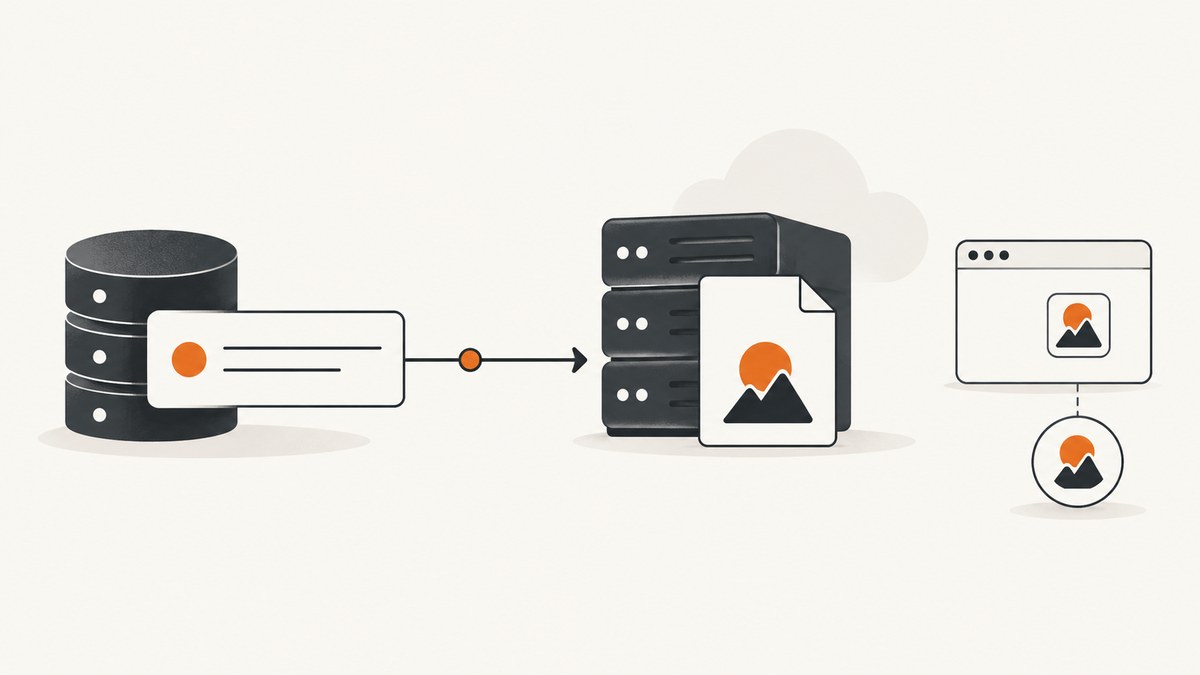
Direct answer: DNS is not a universal directory of brand logos. The DNS-based route relevant to email branding is BIMI (Brand Indicators for Message Identification): look up a selector-specific TXT record, usually default._bimi.example.com, and inspect its indicator URI. The TXT record points to an image; it does not contain the image itself. If no BIMI record is available, look for a logo or favicon on the company website. That is a separate, web-based lookup.
This distinction matters: BIMI is for associating an indicator with email, while website assets serve the site and its visitors. Finding a BIMI record does not guarantee that a particular inbox will display its indicator. Mail receivers decide whether and how to validate and show it.
1. What DNS can—and cannot—tell you
DNS translates names and publishes records used by internet services. A domain’s TXT records can carry different kinds of information, but that does not make TXT a general-purpose brand-image format. BIMI defines a specific use of TXT records: a domain owner publishes preferences beneath the _bimi namespace, and a mail receiver can use the record to discover an indicator URI.
The distinction between a record and the resource it references is important. A TXT response is text. A BIMI assertion record can include an l= tag whose value identifies the indicator location. You then retrieve that resource separately. DNS does not return the image bytes as part of the TXT response.
| Question | BIMI lookup | Website asset lookup |
|---|---|---|
| Purpose | Email sender branding | Website identity or browser icon |
| Where to look | Selector-specific TXT record under _bimi |
Website files and metadata |
| What you may find | A pointer to an indicator URI | A favicon or another image asset |
| What it does not establish | That every mailbox will show the indicator | That the file is the company’s full or official logo |
DNS-SD also uses TXT records, but for service-discovery information. RFC 6763 describes conventions for TXT records associated with advertised services; it does not define logo discovery. Seeing a TXT record, or a DNS-SD TXT record in particular, is not evidence that it contains a brand logo.
2. Find the BIMI record for an email domain
Step 1: Identify the relevant domain and selector
Start with the domain associated with the email’s From address. For example, for billing@example.com, the organizational domain to investigate may be example.com. The default BIMI selector is default, so the conventional lookup name is:
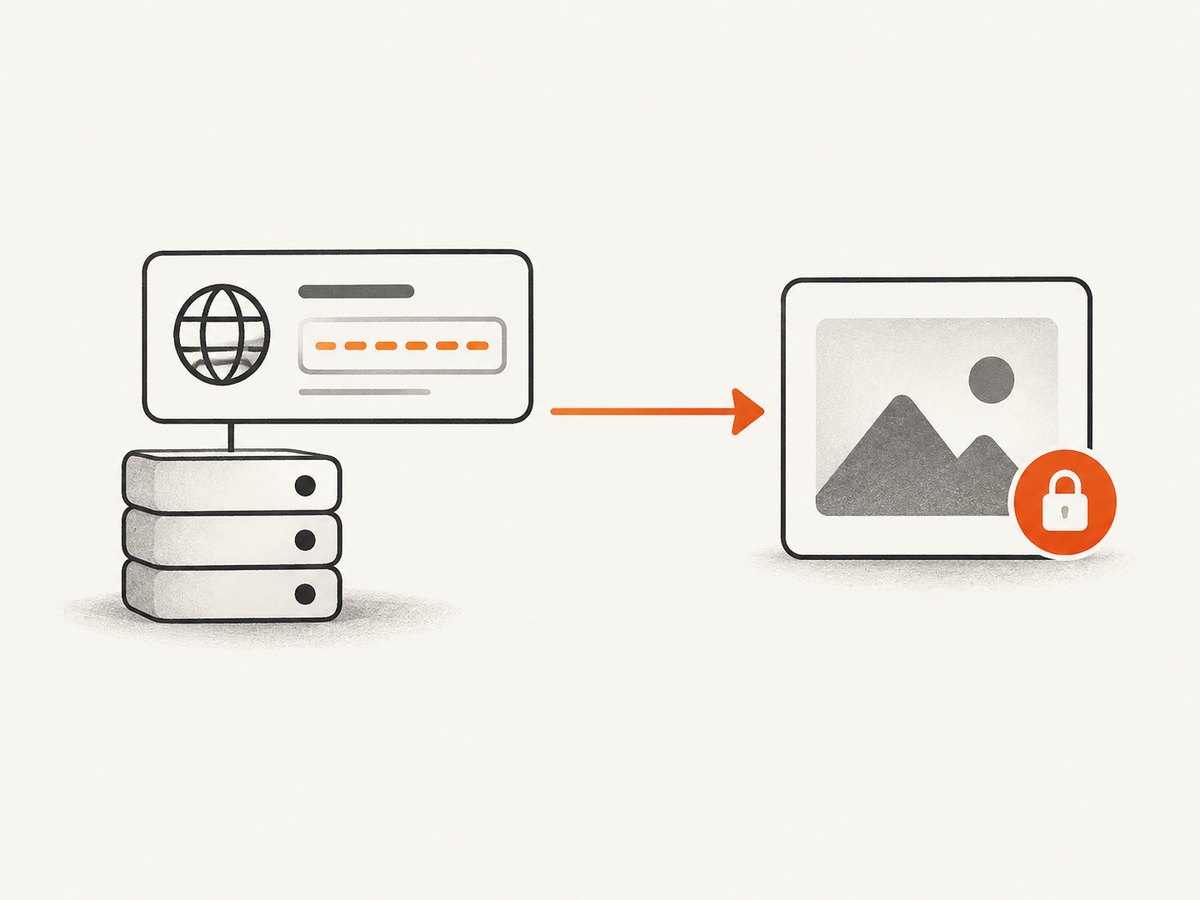
default._bimi.example.comBIMI supports named selectors. If you are investigating a specific message, inspect its optional BIMI-Selector header. A selector other than default means you should query the name built with that selector. Therefore, a missing default record alone does not prove the domain has no BIMI record.
Step 2: Query TXT records
Use a DNS inspection tool that can request TXT records. With dig:
dig TXT default._bimi.example.comOn systems with nslookup:
nslookup -type=TXT default._bimi.example.comReplace the example domain with the domain you are investigating. These commands ask DNS for TXT data at the selector-specific name. They do not download an image, verify a logo’s ownership, or establish that a receiver will display it.
Step 3: Check that the answer is a BIMI assertion record
A TXT answer is not automatically BIMI. Inspect the returned text and parse it according to BIMI’s assertion-record syntax, including the BIMI version tag and required syntax. A random TXT string at the same name should not be treated as an indicator declaration. The current BIMI source is an Internet-Draft, so describe it as a draft specification rather than a finalized RFC.
DNS tools may display one TXT record as multiple quoted character strings. Read the DNS tool’s output carefully: record presentation can split long TXT data, and multiple TXT records may also be returned. Do not mistake display formatting for multiple pieces of an image.
Step 4: Follow the indicator URI
If a valid assertion record includes an l= tag, treat its value as the indicator URI. The BIMI draft’s example uses an HTTPS URL. Fetch the referenced resource separately using a suitable HTTP client and inspect the result. The DNS query only discovered the location; it did not validate the fetched file or guarantee that a mail receiver accepts it.
Keep these questions separate when documenting results:
- Did DNS return a TXT record at the queried selector name?
- Does the text parse as a BIMI assertion record?
- Does that assertion contain an indicator URI?
- Can a client retrieve the referenced resource?
- Does a particular mail receiver validate and display it?
A “yes” to one does not imply a “yes” to all the others.
3. When BIMI is absent, inspect the website
If the relevant BIMI record is absent, first check whether the message names a non-default selector. If you do not have a message or selector to inspect, you can report that the default lookup returned no BIMI record; do not claim that no selector-specific record exists anywhere.
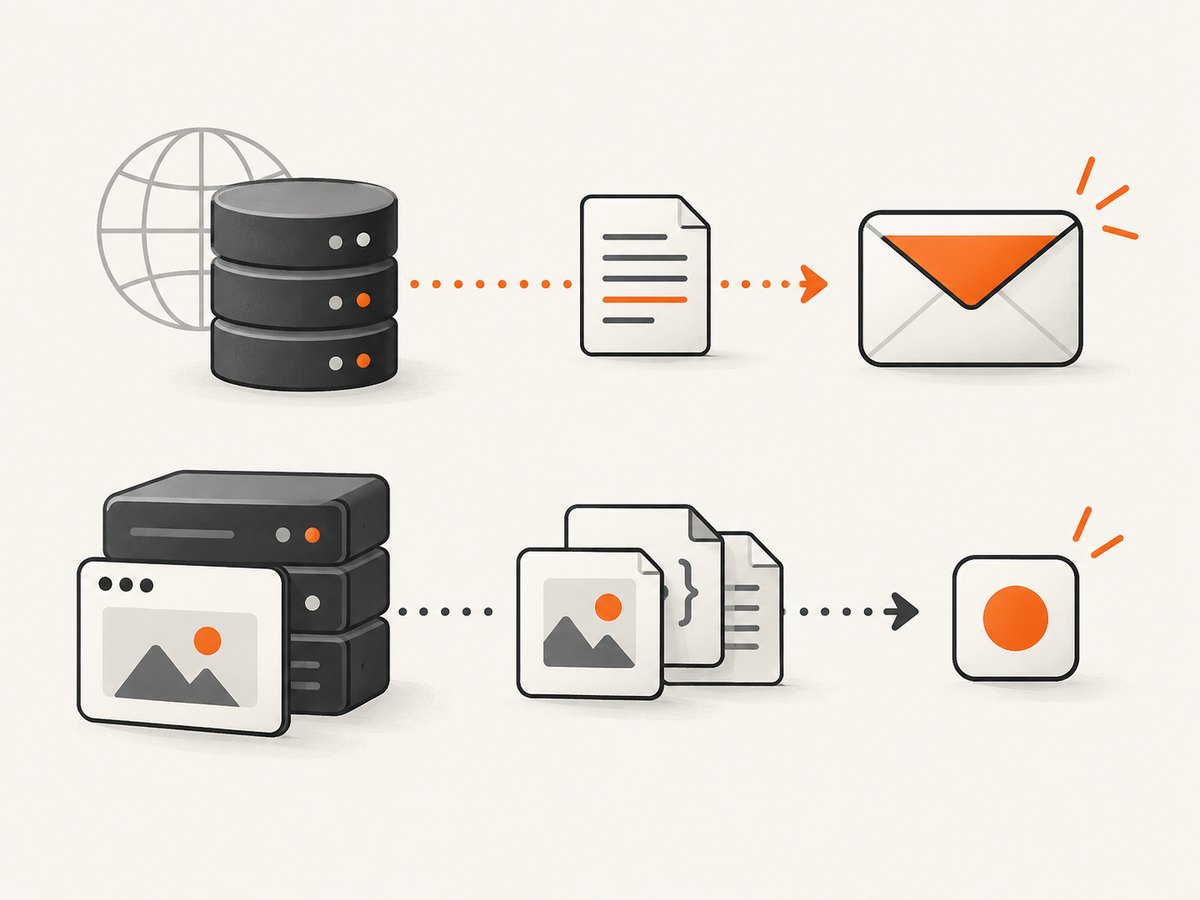
For a website logo, investigate the website itself: inspect its page metadata and assets, including its favicon links and image files. A favicon is a small site icon and may not be the complete brand mark. Google’s favicon documentation explains favicon handling for Google Search; it does not make a favicon a DNS record or a universal logo source.
When automating website inspection, record the URL and type of asset you found. Do not silently label a favicon as an official logo. A company may publish different assets for the site header, browser tab, email branding, products, and social profiles.
4. A repeatable investigation checklist
- Set the purpose. Is the goal to identify an email indicator or a website image?
- Choose the domain carefully. Use the domain associated with the sender, rather than assuming a display name or unrelated landing page identifies it.
- Determine the selector. Use the message’s optional
BIMI-Selectorheader if present; otherwise start withdefault. - Build the DNS name. Use
<selector>._bimi.<domain>. - Request TXT. Use
dig,nslookup, or another DNS client. - Parse the record. Confirm BIMI syntax and tags instead of treating arbitrary TXT text as an assertion.
- Fetch the indicator. If the assertion contains
l=, retrieve that URI separately and inspect the response. - Report the limits. State the selector queried and distinguish record discovery from image retrieval and inbox display.
- Use a separate fallback. If BIMI is missing or the goal concerns a website, inspect that site’s favicon and other assets.
5. Troubleshooting common lookup problems
| Symptom | Likely cause | What to do |
|---|---|---|
No TXT answer at default._bimi |
The domain does not publish the default record, the queried domain is wrong, or it uses another selector. | Verify the sender domain and inspect the message’s BIMI-Selector header, if available. Report the default lookup as absent rather than ruling out every selector. |
| TXT answer exists but looks unrelated | TXT is used for many purposes; the answer may not be a BIMI assertion. | Check the BIMI version tag and required record syntax. Do not infer BIMI from the record type alone. |
| The TXT value appears split | The DNS tool may show a long TXT value as multiple quoted chunks. | Use the client’s record presentation rules and inspect whether the chunks form the record’s text. Do not treat chunks as image data. |
The l= URL cannot be fetched |
The resource may be unavailable, the URI may be malformed, or the fetch may fail independently of DNS. | Copy the URI exactly, check the HTTP response with a client, and report retrieval failure separately from successful DNS discovery. |
| The image is found but does not appear in an inbox | Record discovery does not guarantee receiver acceptance or display. | Do not conclude the DNS lookup was wrong solely from display behavior. Mail receiver implementations control validation and presentation. |
| A favicon is found but is not the expected logo | A favicon is a site icon and may be a simplified or different asset. | Inspect other website assets and label the source precisely. Do not present the favicon as a BIMI indicator. |
6. Reliability, performance, and cost considerations
A DNS TXT lookup is a small query, but the answer is only as useful as the name and selector you queried and the way you parse the response. Make investigations reproducible by saving the queried name, selector, lookup time, raw TXT answer, and your interpretation. If you build a service, distinguish DNS lookup errors, missing records, invalid BIMI syntax, and failures fetching the indicator URI; they occur at separate stages.
Do not treat a cached DNS answer as proof that the domain’s current published configuration is unchanged. DNS caching and record updates can affect what a resolver returns at a given time. For consequential investigations, record which resolver or tool produced the answer and repeat the lookup when results conflict. Avoid turning a transient fetch failure into a claim that the DNS record is absent.
The workflow described here uses ordinary DNS and web retrieval. The research sources establish no special paid tool requirement or benchmark for this task. Cost is generally a matter of whichever DNS or HTTP infrastructure you choose to use; do not infer a service’s completeness from a logo in its interface.
7. Capture a website logo for documentation
Once you have identified a website asset or want to document the page where it appears, a browser screenshot can preserve the surrounding context. For a do-it-yourself capture, use a browser automation tool to open the page, wait for it to render, and capture the relevant page or element. If you only need the logo file, downloading the asset directly is usually more precise than taking a screenshot.
For visual documentation, decide whether the evidence should show the full page or just the relevant section. A full-page image can preserve surrounding context; a targeted capture can keep the asset readable. Pages with consent banners, newsletter popups, chat widgets, lazy-loaded content, or bot checks can change what a screenshot shows. Keep the capture URL and date with your notes so the image is not mistaken for a DNS response.
Or skip the browser setup
For a screenshot of the website or the page where an asset appears, ScreenshotNeo is a website screenshot API and MCP server from Yorker Media. It takes a URL in one GET request and returns PNG, JPEG, WebP, or PDF. The screenshot options include full-page capture, CSS-selector element capture, wait conditions, custom headers and cookies, and device viewports. See the ScreenshotNeo documentation for the API details.
curl -G "https://api.screenshotneo.com/v1/shot" -d access_key=YOUR_API_KEY --data-urlencode url=https://stripe.com -o shot.webpimport requests
r = requests.get("https://api.screenshotneo.com/v1/shot", params={"access_key": "YOUR_API_KEY", "url": "https://stripe.com"}, timeout=90)
open("shot.webp", "wb").write(r.content)const q = new URLSearchParams({ access_key: 'YOUR_API_KEY', url: 'https://stripe.com' });
const res = await fetch(`https://api.screenshotneo.com/v1/shot?${q}`);ScreenshotNeo accepts cookie and consent banners before capture and removes more than 60 known consent platforms, newsletter popups, and chat widgets; each step can be turned off. Bot checks, blank pages, failed loads, timeouts, and cache hits are not billed, and response headers report the page verdict and billing status. Its MCP server provides take_screenshot, get_page_info, and capture_pdf for Claude, Cursor, and other MCP clients.
The Free plan includes 1,000 shots a month with no card. Paid plans start at $5 for 3,000 shots; higher tiers are Growth at $15 for 15,000, Pro at $39 for 60,000, Scale at $99 for 250,000, and Business at $249 for 1,000,000. Yearly billing gives two months free, and every feature is on every plan. Sign up for 1,000 free screenshots a month, with no card required.
8. Frequently asked questions
Does every company have a BIMI record?
No. BIMI is published by domains that choose to provide an assertion record. An absent default lookup does not rule out a different selector.
Can I get the logo image directly from DNS?
No. The BIMI TXT record can point to an indicator URI. Fetch the image from that URI separately.
Does a BIMI record guarantee the logo appears in Gmail or another inbox?
No such guarantee follows from finding the record. Receiver behavior determines whether and how an indicator is validated and displayed.
Is a website favicon the same thing as a BIMI logo?
No. A favicon is a website asset; BIMI is a DNS-based email-branding assertion. They have different locations and purposes.
Is BIMI a finalized RFC?
The cited current source is an IETF Internet-Draft, not a finalized RFC. Its draft status and expiry date can change, so consult the current draft when relying on its specification details.


