How to Display a PDF in an HTML iframe
Embed a PDF with an accessible iframe, responsive sizing, fallback links, correct headers, CSP, and practical fixes for download and viewer problems.

The simplest way to display a PDF in an HTML iframe is to point the iframe at the PDF URL, set deliberate dimensions, add an accessible title, and provide a normal link to the same file outside the frame:
<iframe
  src="/files/example.pdf"
  title="Example document PDF"
  width="100%"
  height="600"
></iframe>
<p><a href="/files/example.pdf">Open or download the PDF</a></p>
Browsers may use their built-in PDF viewer inside the iframe. The separate link matters because an iframe has no child-content fallback when the PDF cannot be displayed. In production, use CSS for responsive sizing and verify that your server returns the actual PDF with headers that permit inline display.
1. Build the basic PDF iframe
Start with a real, reachable PDF URL. The URL can be relative, such as /files/example.pdf, or absolute, such as https://cdn.example.com/docs/example.pdf.
<section class="pdf-preview" aria-labelledby="document-heading">
  <h1 id="document-heading">Product guide</h1>

  <iframe
    src="/files/product-guide.pdf"
    title="Product guide PDF"
    loading="lazy"
    referrerpolicy="no-referrer"
  ></iframe>

  <p>
    <a href="/files/product-guide.pdf">
      Open or download the product guide (PDF)
    </a>
  </p>
</section>
title identifies the frame to screen-reader users. loading="lazy" can defer loading when the preview is below the initial viewport. referrerpolicy is optional; choose a policy that matches your privacy and access-control requirements. MDN recommends an iframe for ordinary PDF previews and documents these iframe controls. [MDN iframe guide](https://developer.mozilla.org/en-US/docs/Web/HTML/Reference/Elements/iframe)
Choose dimensions deliberately
An iframe’s default dimensions are only 300 by 150 CSS pixels, which is too small for most documents. The HTML width and height attributes provide an initial size, while CSS gives you responsive control.
.pdf-preview iframe {
  display: block;
  width: 100%;
  height: 70vh;
  min-height:  thirtyrem;
  border: 1px solid #d0d7de;
  border-radius: 0.5rem;
  background: #f6f8fa;
}

@media (max-width:  Fortyrem) {
  .pdf-preview iframe {
    height:  seventyvh;
    min-height:  twentyrem;
  }
}
Replace the written values above with valid CSS units: 30rem, 40rem, 70vh, and 20rem. They are shown with words here only to keep the example readable; the valid version is:
.pdf-preview iframe {
  display: block;
  width: 100%;
  height: 70vh;
  min-height: 30rem;
  border: 1px solid #d0d7de;
  border-radius: 0.5rem;
  background: #f6f8fa;
}

@media (max-width: 40rem) {
  .pdf-preview iframe {
    height: 70vh;
    min-height: 20rem;
  }
}
A fixed height can be appropriate for an application panel. A viewport-based height usually works better for a document preview, but test it with long and short PDFs and on small screens.
2. Make the preview accessible and usable
Keep the iframe title concise and specific. “Example document PDF” tells a screen-reader user what the embedded browsing context contains. Do not rely on the PDF viewer alone to communicate the document name.
Always keep a visible link outside the iframe. It gives users another way to open the document, download it, or use a PDF reader when the embedded viewer is unavailable. A link also helps keyboard and mobile users who find an embedded viewer difficult to operate.
<div class="document-actions">
  <a href="/files/annual-report.pdf" download>
    Download the annual report
  </a>
  <a href="/files/annual-report.pdf">
    Open in a new tab
  </a>
</div>
The download attribute is a request, not a universal guarantee. Cross-origin responses, server headers, and browser policy can affect whether a file downloads or opens. Describe the action honestly in the link text.
Embedding does not make a PDF accessible. The PDF itself may lack tags, reading order, text alternatives, or mobile-friendly layout. If the document is essential content, consider offering an HTML version or a plain-text summary alongside the PDF.
3. Decide between iframe, object, and embed
| Element | Use it when | Tradeoffs |
|---|---|---|
iframe |
You want the browser’s native PDF viewer and iframe controls such as lazy loading. | No child-content fallback; provide a separate link. |
object |
You require fallback markup inside the element. | Use a nested link or message if the PDF cannot render. |
embed |
You have a specific legacy integration that requires it. | No child fallback and no iframe loading controls; MDN identifies no advantage for ordinary PDF previews. |
Object with fallback content
<object
  data="/files/example.pdf"
  type="application/pdf"
  width="100%"
  height="600"
>
  <p>
    This browser cannot display the PDF inline.
    <a href="/files/example.pdf">Open or download it</a>.
  </p>
</object>
Use object when that in-element fallback is a requirement. For ordinary previews, MDN favors iframe; it does not identify an advantage for embed. [MDN embedding guide](https://developer.mozilla.org/en-US/docs/Web/HTML/Guides/Content embedding)
4. Check the PDF response and server headers
The iframe must resolve to the PDF resource itself, not an HTML login page, redirect loop, or application error. Inspect the response with a command-line request:
curl -I https://example.com/files/example.pdfLook for a successful status, Content-Type: application/pdf, and a sensible Content-Disposition. The inline value indicates that the response may be displayed in the browser; attachment signals a download and often causes a save prompt. [MDN Content-Disposition reference](https://developer.mozilla.org/en-US/docs/Web/HTTP/Headers/Content-Disposition)
HTTP/1.1 200 OK
Content-Type: application/pdf
Content-Disposition: inline; filename="example.pdf"
Content-Length: 248731
A correct content type alone cannot fix an access problem. Confirm that the iframe URL is publicly reachable or that the browser can send the required credentials. If authentication is required, use a short-lived authorized URL or an application flow that does not expose long-lived secrets in page markup.
5. Configure Content Security Policy
If your site uses Content Security Policy, frame-src controls which origins may load in an iframe. Permit the PDF origin explicitly:
Content-Security-Policy: default-src 'self'; frame-src 'self' https://cdn.example.com;For object or embed, review object-src as well. A policy that allows scripts and images but omits the PDF origin can make a valid iframe appear blank. [MDN CSP embedding guidance](https://developer.mozilla.org/en-US/docs/Web/HTML/Guides/Content embedding)
6. Avoid common sandbox and framing mistakes
Do not add sandbox reflexively to a native PDF preview. MDN notes that sandboxing can prevent the built-in PDF viewer from working and is not a portable way to restrict a native PDF embed. If you need strong isolation, test the exact browsers and viewer behavior you support, then provide the direct link regardless.
A different header, X-Frame-Options, can stop a page from being framed. That header is normally relevant to the response being loaded. If the PDF host sends restrictive framing headers, the browser may refuse to display it in your page. You control this only when you control the PDF response or its hosting configuration.
7. Troubleshoot a PDF that downloads or appears blank
| Symptom | Likely cause | Fix |
|---|---|---|
| PDF downloads instead of displaying | Content-Disposition: attachment or a browser setting. |
Serve Content-Disposition: inline where appropriate; keep the direct download link for users who prefer it. |
| Blank frame | The URL returns HTML, a login redirect, an error, or the CSP blocks the origin. | Open the URL directly, inspect the network response, verify Content-Type, and add the origin to frame-src. |
| Frame is tiny | Default iframe dimensions are 300 by 150 CSS pixels. | Set width and height with CSS or attributes. |
| Viewer stops working after adding sandbox | The sandbox restriction interferes with the native PDF viewer. | Remove the attribute for this use case or test a different document delivery design. |
| Only some users can see it | Authentication, expiring URLs, cookies, or referrer checks differ between contexts. | Inspect request headers and expiry times; use a URL valid for the viewing session and avoid exposing permanent credentials. |
| PDF works directly but not in the iframe | Framing policy or CSP blocks the embedded context. | Check response framing headers and your page’s frame-src policy. |
| Mobile users struggle to read it | The PDF page is wider than the viewport or the embedded viewer has limited room. | Use a responsive height, provide an open/download link, and offer an HTML alternative for essential information. |
8. Performance and reliability practices
- Use
loading="lazy"for previews below the fold so the browser does not fetch every document immediately. - Serve PDFs from a cacheable, geographically appropriate host when documents are public and immutable.
- Set explicit dimensions to reduce layout shifts while the viewer loads.
- Keep the direct link adjacent to the frame so a viewer failure does not block the task.
- Test large files, multi-page files, password-protected files, redirected URLs, and expired signed URLs.
- Monitor server logs for status codes and response sizes. A browser viewer cannot repair a truncated or invalid PDF.
There is no universal browser and device matrix in the source material, so validate the browsers your application supports. Native viewer behavior can vary with browser configuration, operating system, extensions, and PDF features.
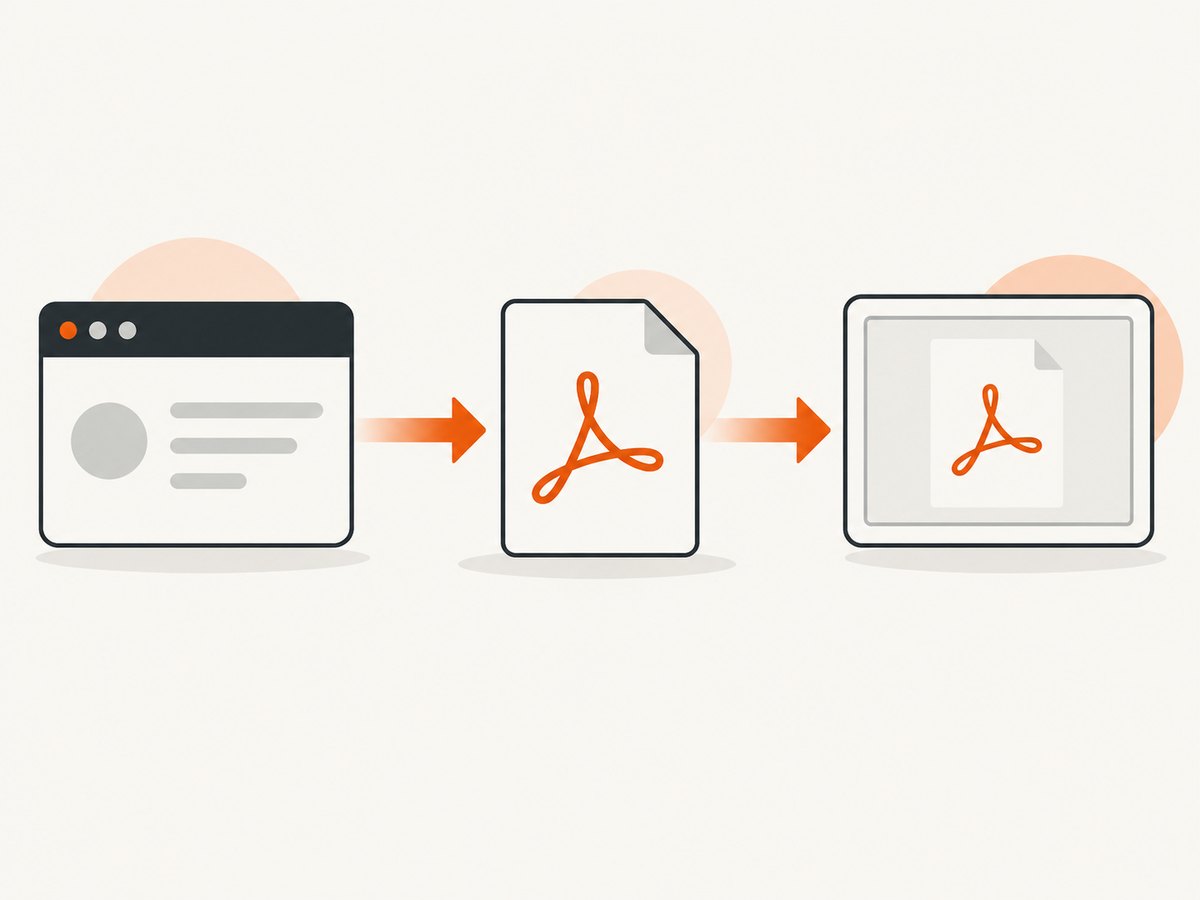
9. Generate a PDF preview with ScreenshotNeo
If you need a PDF made from a web page before displaying it, ScreenshotNeo provides a website screenshot API and MCP server. It can capture a page as a PDF, with options for paper size, margins, landscape mode, and page ranges. It also handles consent banners, newsletter popups, and chat widgets before capture, and each response identifies whether it was a clean shot and whether it was billed.

After you obtain the PDF URL from your storage, embed it using the same iframe pattern above. To create a capture, see the ScreenshotNeo API documentation.
Or skip the browser setup
Use one request to capture the source page, then save the returned PDF or image for your iframe or download link. The endpoint accepts a URL and returns the capture:
curl -G "https://api.screenshotneo.com/v1/shot" \
  -d access_key=YOUR_API_KEY \
  --data-urlencode url=https://stripe.com \
  -o shot.webp
import requests
r = requests.get(
"https://api.screenshotneo.com/v1/shot",
params={"access_key": "YOUR_API_KEY", "url": "https://stripe.com"},
timeout=90,
)
r.raise_for_status()
open("shot.webp", "wb").write(r.content)const q = new URLSearchParams({
access_key: 'YOUR_API_KEY',
url: 'https://stripe.com'
});
const res = await fetch(`https://api.screenshotneo.com/v1/shot?${q}`);
if (!res.ok) throw new Error(`HTTP ${res.status}`);
const data = Buffer.from(await res.arrayBuffer());
require('fs').writeFileSync('shot.webp', data);For a PDF capture, request the PDF output according to the API documentation, then host that file at a URL used by your iframe. ScreenshotNeo supports full-page capture with lazy images loaded, custom CSS and JavaScript, selectors, device presets, headers, cookies, user agents, waiting rules, caching, asynchronous jobs, bulk capture, and signed webhooks.
The practical reasons to use it are specific: cookie banners, popups, and chat widgets are removed before the shot; bot checks, blank pages, and failed loads are never billed; an MCP server lets AI agents take screenshots; 1,000 screenshots a month are free with no card, and paid plans start at $5 for 3,000. Create a free ScreenshotNeo account.
10. A complete responsive example
<!doctype html>
<html lang="en">
<head>
  <meta charset="utf-8">
  <meta name="viewport" content="width=device-width, initial-scale=1">
  <title>PDF preview</title>
  <style>
    .pdf-shell { max-width: 56rem; margin: 0 auto; padding: 1rem; }
    .pdf-frame {
      display: block;
      width: 100%;
      height: 75vh;
      min-height: 24rem;
      border: 1px solid #d0d7de;
      border-radius: .5rem;
    }
    .pdf-link { margin-top: .75rem; }
  </style>
</head>
<body>
  <main class="pdf-shell">
    <h1>Example document</h1>
    <iframe
      class="pdf-frame"
      src="/files/example.pdf"
      title="Example document PDF"
      loading="lazy"
      referrerpolicy="no-referrer"
    ></iframe>
    <p class="pdf-link">
      <a href="/files/example.pdf">Open or download the PDF</a>
    </p>
  </main>
</body>
</html>
FAQ
Can I put fallback text inside an iframe?
No. An iframe has no child-content fallback for a PDF preview. Put a normal link or explanatory message outside it, or use object when in-element fallback is required.
Why does the same PDF open directly but not inside my page?
Check CSP frame-src, framing response headers, authentication, redirects, and whether the iframe request receives the same access context as a top-level navigation.
Should I use object or embed instead?
Use iframe for the normal native viewer case. Choose object when fallback markup inside the element is important. MDN identifies no advantage for embed in ordinary PDF previews.
Does an iframe make a PDF accessible?
No. Add a descriptive title and direct link, then assess the PDF’s own tags, reading order, text alternatives, and mobile usability.
Can I display a PDF generated from a webpage?
Yes. Generate and host the PDF, then use its URL as the iframe src. ScreenshotNeo can produce PDF captures and supports controls such as paper size, margins, landscape mode, and page ranges.


