How to Display Selenium Screenshots in ReportNG Reports
Attach Selenium screenshots to ReportNG with a listener, stable report-relative paths, and unescaped HTML that renders in test details.
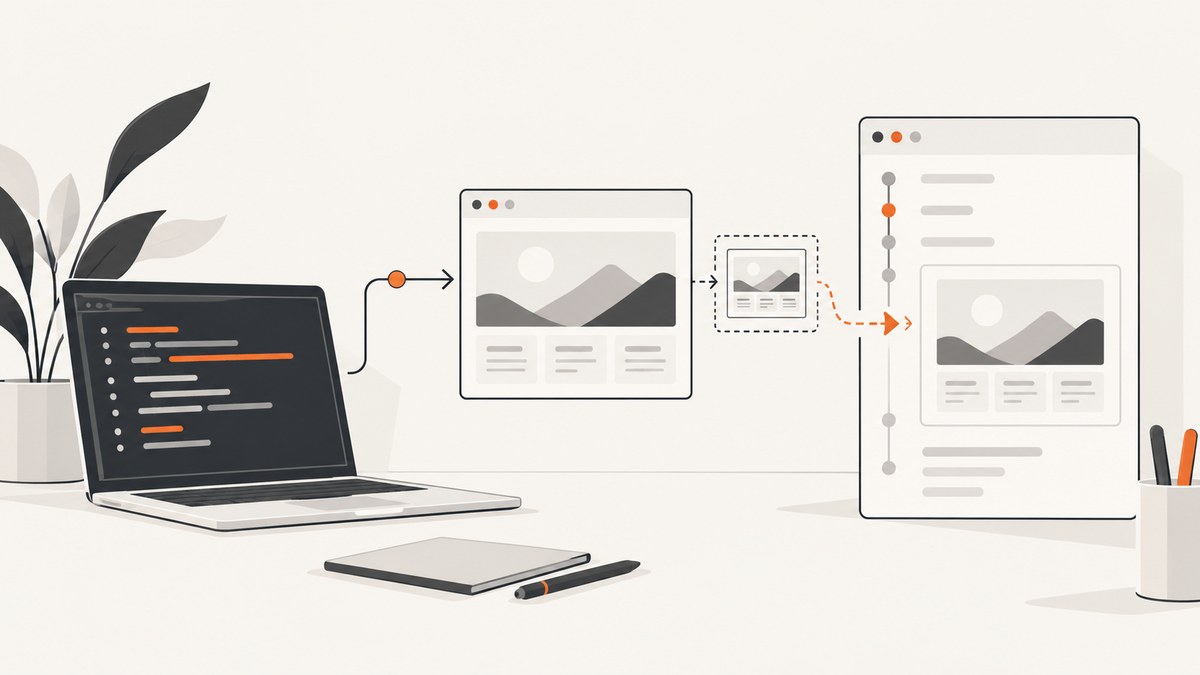
Direct answer: Selenium creates the image file, but ReportNG does not insert it automatically. Capture the screenshot while a TestNG listener still has access to WebDriver, copy it below the report directory, attach its relative path to ITestResult, and render that attribute through a custom ReportNG utility. Set org.uncommons.reportng.escape-output=false so the markup renders as HTML.
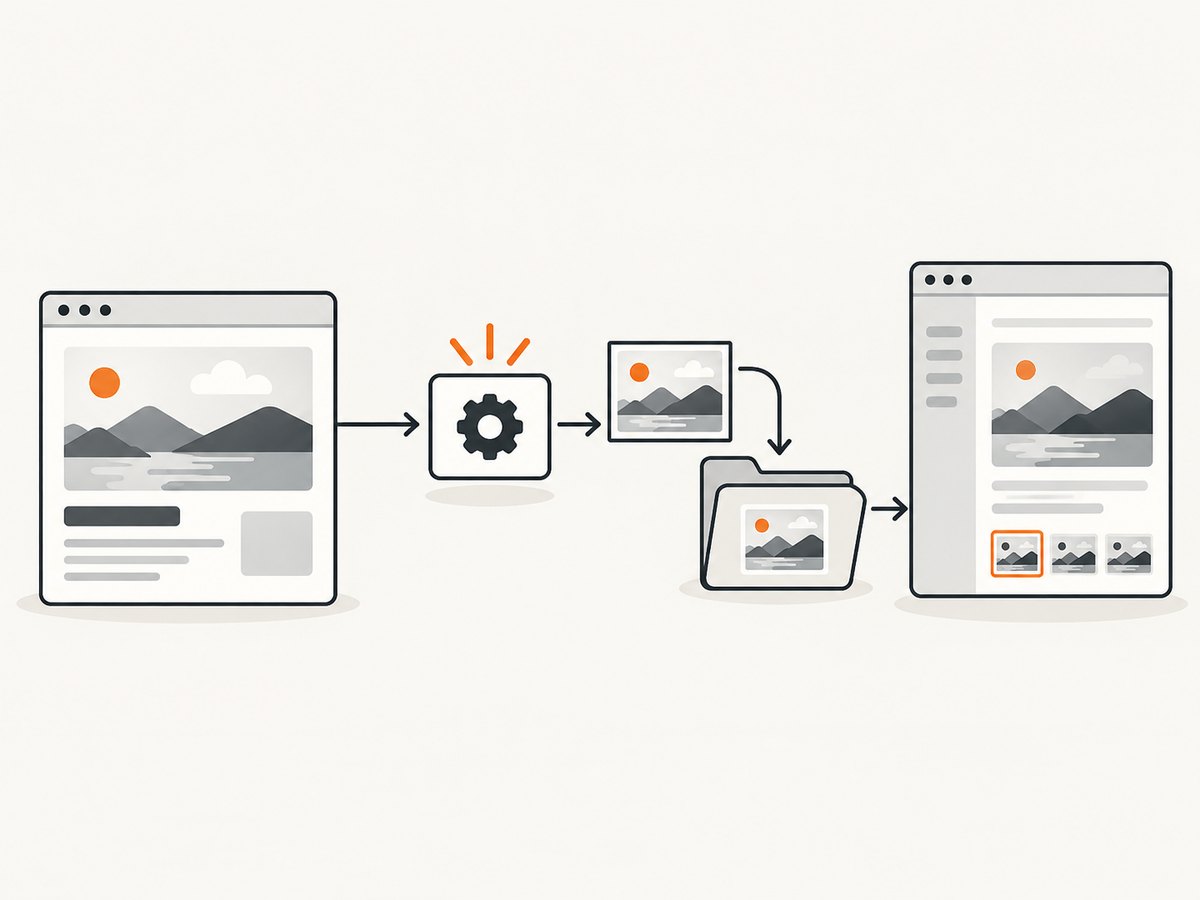
1. How the pieces fit
- Capture with Selenium’s
TakesScreenshotAPI. - Copy the PNG into a directory shipped with the generated report.
- Store a relative URL on
ITestResult. - Extend ReportNG output rendering to add a link or thumbnail.
- Disable output escaping and verify the path from the generated detail page.
2. Dependencies and configuration
The official ReportNG Maven coordinate is org.testng:reportng:1.2.2. Register org.uncommons.reportng.HTMLReporter and set:
org.uncommons.reportng.escape-output=falseWith escaping enabled, ReportNG displays <a> and <img> as text.
3. Capture and attach the screenshot
public final class ReportNgScreenshotListener implements ITestListener {
  @Override public void onTestFailure(ITestResult result) { capture(result); }
  @Override public void onTestSuccess(ITestResult result) { capture(result); }

  private void capture(ITestResult result) {
    ITestContext context = result.getTestContext();
    Object d = context.getAttribute("driver");
    Object r = context.getAttribute("reportRoot");
    if (!(d instanceof WebDriver) || !(r instanceof Path)) return;
    WebDriver driver = (WebDriver) d;
    Path root = (Path) r;
    String name = result.getTestClass().getName().replaceAll("[^A-Za-z0-9._-]", "_")
        + "-" + result.getMethod().getMethodName() + "-" + result.getEndMillis() + ".png";
    Path image = root.resolve("screenshots").resolve(name).normalize();
    try {
      Files.createDirectories(image.getParent());
      Path source = ((TakesScreenshot) driver).getScreenshotAs(OutputType.FILE).toPath();
      Files.copy(source, image, StandardCopyOption.REPLACE_EXISTING);
      result.setAttribute("screenshot", root.relativize(image).toString().replace('\\', '/'));
      result.setAttribute("pageUrl", driver.getCurrentUrl());
    } catch (IOException | RuntimeException ignored) {
      // Log this, but never replace the original test failure.
    }
  }
}
Register the listener with ReportNG:
<listeners>
  <listener class-name="example.reporting.ReportNgScreenshotListener"/>
  <listener class-name="org.uncommons.reportng.HTMLReporter"/>
</listeners>
Expose the active driver and report root before the test runs. For parallel suites, use a driver per thread or invocation.
@BeforeMethod(alwaysRun = true)
public void start(ITestContext context) {
  WebDriver driver = new ChromeDriver();
  context.setAttribute("driver", driver);
  context.setAttribute("reportRoot", Path.of("target", "reportng"));
}
4. Render the attribute in ReportNG
ReportNG obtains test output through ReportNGUtils#getTestOutput(ITestResult). Extend that utility and append markup for the generated filename. Match the protected method and context signatures in the ReportNG 1.2.2 artifact used by your build.
public final class ScreenshotReportNGUtils extends ReportNGUtils {
  @Override
  public List<String> getTestOutput(ITestResult result) {
    List<String> output = new ArrayList<>(super.getTestOutput(result));
    Object value = result.getAttribute("screenshot");
    if (value == null) return output;
    String path = value.toString();
    output.add("<a href=\"" + path + "\">Open screenshot</a>");
    output.add("<div><img src=\"" + path + "\" alt=\"Selenium screenshot\" style=\"max-width:100%;height:auto\"></div>");
    return output;
  }
}
Extend HTMLReporter#createContext() and place this utility under the key used by your ReportNG template. Then configure TestNG to use your reporter class.
5. Relative paths and report layout
Images must be reachable from the generated test-detail HTML file. A path correct from the report root can be wrong from a nested detail page. Open the generated HTML and resolve the link relative to that file.
- Archive the complete report directory, including
screenshots/. - Use forward slashes in HTML URLs.
- Sanitize names and include class, method, retry or invocation identifiers.
- Use links instead of thumbnails when reports contain many tests.
6. Listener timing and @AfterMethod
A historical TestNG Users report describes screenshots captured in @AfterMethod arriving after the reporter listener processed the result. The file exists, but the report has no link. Capture in onTestFailure or onTestSuccess while the driver remains available, or verify listener ordering if teardown owns capture.
7. Troubleshooting
| Symptom | Cause | Fix |
|---|---|---|
| Literal HTML tags | Escaping is enabled. | Set org.uncommons.reportng.escape-output=false. |
| Broken image | Wrong relative directory. | Resolve the URL from the detail HTML and adjust ../ segments. |
| No attribute | Listener missing or too late. | Register it and capture in listener callbacks. |
| Null driver | Driver is unavailable or belongs to another thread. | Publish it in the TestNG context and isolate parallel drivers. |
| Images overwrite | Filename uses only the method name. | Add class, invocation, retry and timestamp data. |
| Large or slow report | Every test embeds a full PNG. | Capture failures only, resize images, or emit links. |
| Blank screenshot | Capture occurred before rendering. | Wait for a meaningful selector or page state. |
8. Reliability, performance, and cost
- Keep capture best-effort so filesystem or screenshot errors do not replace the original assertion failure.
- Use isolated drivers, names, and directories for parallel execution.
- PNG encoding and disk I/O add runtime; failure-only capture is faster for CI.
- Delete old report folders after archiving them.
- Keep generated reports private because screenshots can contain page data.
- The local approach has no screenshot-service charge; its costs are browser time, storage, and CI artifact size.
9. Or skip the browser setup
ScreenshotNeo provides a GET screenshot API and an MCP server. It removes cookie banners, newsletter popups, and chat widgets before capture. Bot checks, blank pages, timeouts, failed loads, and cache hits are not billed, and response headers identify the verdict and billing. AI agents can call take_screenshot, get_page_info, and capture_pdf.

See the ScreenshotNeo API documentation for options.
curl -G "https://api.screenshotneo.com/v1/shot" -d access_key=YOUR_API_KEY --data-urlencode url=https://stripe.com -o shot.webpimport requests
r = requests.get("https://api.screenshotneo.com/v1/shot", params={"access_key": "YOUR_API_KEY", "url": "https://stripe.com"}, timeout=90)
r.raise_for_status()
open("shot.webp", "wb").write(r.content)const q = new URLSearchParams({ access_key: 'YOUR_API_KEY', url: 'https://stripe.com' });
const res = await fetch(`https://api.screenshotneo.com/v1/shot?${q}`);
if (!res.ok) throw new Error(`HTTP ${res.status}`);Every feature is available on every plan, including full-page and element capture, device presets, custom CSS and JavaScript, waits, request blocking, headers, cookies, PDFs, caching, signed links, async jobs, bulk capture, and a usage API. The free plan includes 1,000 screenshots per month with no card; paid plans start at $5 for 3,000. Create a free ScreenshotNeo account.
10. FAQ
Can ReportNG discover a PNG automatically?
No. Selenium writes a file; ReportNG needs a result attribute and custom output rendering.
Should every test include a thumbnail?
Only when visual review requires it. Failure-only links keep reports smaller.
Can reports remain portable?
Yes. Store images below the report directory and archive both together.


