Docker Desktop: The Easiest Way to Containerize Applications
Learn how Docker Desktop runs containers, packages your app, handles Compose and ports, and avoids common setup and licensing problems.
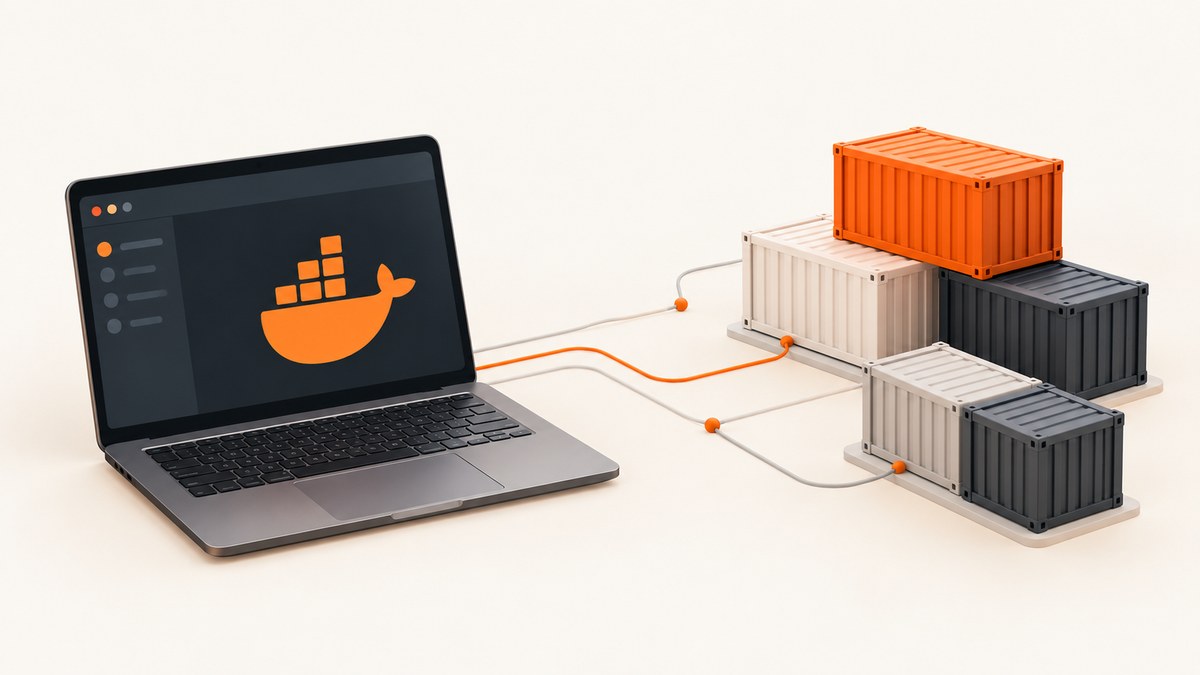
Docker Desktop is the simplest starting point for local containers: install the desktop application, verify Docker is running, start a prebuilt image, then add a Dockerfile that describes how your own application becomes an image. Desktop bundles a graphical interface with Docker Engine, the Docker CLI, Build, Compose and other development tools, so you can work from a terminal, the GUI, or both.
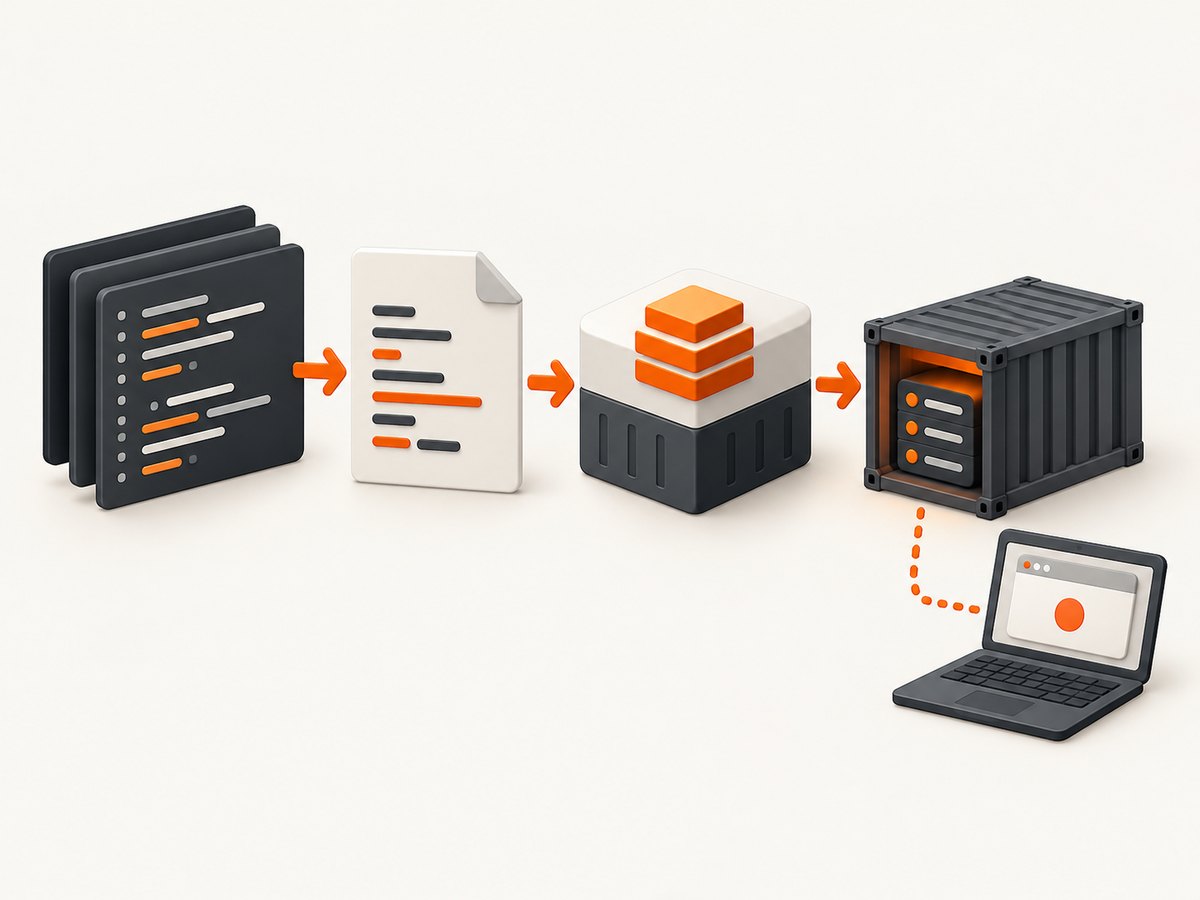
It does not automatically package arbitrary source code. Your project still needs a suitable build definition, usually a Dockerfile, plus application-specific settings such as dependencies, exposed ports, environment variables and database connections.
What Docker Desktop includes
Docker describes Desktop as an installable application for Mac, Linux and Windows for building, sharing and running containerized applications and microservices. Its current product overview lists Docker Engine, Docker CLI, Docker Build, Docker Compose, Docker Scout, Kubernetes, Docker Model Runner, Docker MCP Toolkit and Catalog, Docker Offload and Gordon among the available components. Availability and support can differ by platform and release, so check the live Docker Desktop overview.
| Term | Meaning |
|---|---|
| Image | A packaged filesystem containing an application and its dependencies. |
| Container | A running instance created from an image. |
| Docker Engine | The core technology that builds and runs images and containers. |
| Docker Desktop | The installable GUI and developer environment that packages Engine with CLI, Build, Compose and platform setup. |
Choose the right starting point
- Learning containers: run Docker’s getting-started image first.
- Containerizing one application: write a Dockerfile, build an image and publish the application’s port.
- Running several services: describe the application in a Compose file.
- Sharing with teammates: publish the image to a registry or share the project and its Compose configuration.
Check platform requirements before installing
| Platform | Key requirements and caveats |
|---|---|
| Mac | Docker’s Mac page supports the current and two previous major macOS releases and requires at least 4 GB RAM. Rosetta 2 is recommended for the best experience, although it is no longer strictly required. |
| Linux | Desktop runs in a VM. General requirements include 64-bit virtualization, KVM, QEMU 5.2 or later, systemd, a supported desktop environment and at least 4 GB RAM. Packages are listed for Ubuntu, Debian, RHEL and Fedora; Arch support is experimental. |
| Windows | Requirements depend on Windows version, architecture, installation mode and whether Windows containers are needed. WSL 2 is the default backend for most users; Hyper-V and Docker VMM (Beta) are also documented. Windows Server is not supported for Desktop. |
Use the platform-specific installation pages for current prerequisites: Mac, Linux and Windows.
Install Docker Desktop
- Download the installer for your operating system from Docker’s official documentation.
- Enable the virtualization or backend components requested by the installer. On Windows, WSL 2 is the usual choice. On Linux, make sure KVM and the required virtualization support are available.
- Start Docker Desktop and wait until it reports that Docker is running.
- Open a terminal and verify the CLI is connected:
docker version
docker context show
On Linux Desktop, the active context is normally desktop-linux. Desktop uses a VM and separate image and container storage, so objects in a separately installed Docker Engine do not automatically appear in Desktop. Switch contexts deliberately when both installations exist.
Run the official first container
Docker’s introductory example starts a prebuilt tutorial image. It demonstrates running an existing image; it does not turn your local project into a container.
docker run -d -p 80:80 docker/getting-started-druns the container in the background.-p 80:80maps port 80 on your computer to port 80 in the container.docker/getting-startedis the image name. Docker retrieves it from Docker Hub if it is not already local.
Open http://localhost. Inspect the result with:
docker ps
docker logs <container_id>
docker stop <container_id>
Containerize your own application
1. Create a Dockerfile
A Dockerfile is the build recipe for your image. The exact base image, dependency command and start command depend on your language and framework. This example uses a small Node.js HTTP application:
FROM node:22-alpine
WORKDIR /app
COPY package*.json ./
RUN npm ci --omit=dev
COPY . .
EXPOSE 3000
CMD ["npm", "start"]
Place it beside package.json. Your package must define a production start script, and the server must listen on 0.0.0.0 inside the container rather than only on localhost.
2. Add a .dockerignore file
node_modules
.git
.env
npm-debug.log
This keeps local dependencies, credentials and repository metadata out of the build context. Keep secrets outside the image and provide them at runtime.
3. Build the image
docker build -t my-app:dev .The final dot is the build context. Docker reads the Dockerfile and files allowed by .dockerignore. Tagging the image gives you a stable local name.
4. Run and publish the application port
docker run --rm --name my-app -p 3000:3000 my-app:devVisit http://localhost:3000. The host port is the first number; the container port is the second. If port 3000 is busy, use another host port:
docker run --rm -p 8080:3000 my-app:dev5. Iterate without losing data
For a quick edit, rebuild the image. For a development workflow, mount the source directory and use your framework’s watch mode:
docker run --rm -it -p 3000:3000 -v "$PWD":/app -w /app my-app:devBind mounts are convenient for development but can have filesystem performance and permission differences across Mac, Windows and Linux. Do not use them as a substitute for a reproducible production image.
Use Docker Compose for multiple services
Compose describes an application made of several containers, such as a web service and a database. Save this as compose.yaml and adjust the image, command and environment values for your project:
services:
  web:
    build: .
    ports:
      - "3000:3000"
    environment:
      DATABASE_URL: postgres://app:app@db:5432/app
    depends_on:
      - db
  db:
    image: postgres:16
    environment:
      POSTGRES_USER: app
      POSTGRES_PASSWORD: app
      POSTGRES_DB: app
    volumes:
      - db-data:/var/lib/postgresql/data

volumes:
  db-data:
docker compose up --build
docker compose ps
docker compose logs -f web
docker compose downWithin Compose, services reach one another by service name, so the web container uses db as the database hostname. The named volume keeps database files when containers are recreated. docker compose down -v also removes the named volume, which deletes that local database data.
Configure Desktop and containers
Ports
Publish only the ports you need. A port binding such as 127.0.0.1:3000:3000 limits access to your computer, while 3000:3000 may listen on all host interfaces depending on the platform and Docker configuration.
Environment and secrets
Use docker run -e NAME=value or Compose environment entries for non-secret configuration. Keep credentials in an ignored .env file or your development secret mechanism; do not bake them into a Dockerfile layer.
Storage
Use named volumes for stateful services. Containers are disposable by design, so files written only to a container’s writable layer disappear when that container is removed.
CPU, memory and disk
Desktop runs Docker in a managed environment. If builds or databases compete with your host applications, review Desktop’s resource settings and prune unused images, stopped containers, build cache and volumes carefully. Never prune a volume until you know it does not contain needed data.
GUI and CLI together
The Desktop dashboard is useful for viewing logs, images, ports and container status. The CLI is easier to script and reproduce. Use the same project names, tags and Compose files so teammates can repeat the workflow.
Common errors and fixes
| Error or symptom | Likely cause | Fix |
|---|---|---|
Cannot connect to the Docker daemon |
Desktop is not running, or the CLI is pointed at the wrong context. | Start Desktop, run docker context show, then select the intended context with docker context use. |
Bind for 0.0.0.0 failed: port is already allocated |
Another process or container already owns the host port. | Run docker ps, stop the conflicting container, or change the host-side port. |
| Files or images seem to be missing on Linux | Desktop’s desktop-linux context has isolated storage from a separate Engine installation. |
Check the active context and switch intentionally. |
| The browser cannot reach the app | The application listens on container localhost, the wrong port is published, or the process exited. |
Inspect docker logs, bind the server to 0.0.0.0, and verify the port mapping with docker ps. |
npm ci or another dependency step fails |
Manifest files do not match the lockfile, the base image is incompatible, or the build context omits required files. | Copy the correct lockfile, choose a compatible base image, and review .dockerignore. |
| Changes are not visible | The image was built before the edit, or a bind mount hides files copied into the image. | Rebuild with docker build --no-cache when necessary, and check mount paths. |
| Database data disappeared | The database ran without a persistent volume, or docker compose down -v removed it. |
Attach a named volume and avoid deleting volumes until backups or disposable status are confirmed. |
| Windows virtualization or WSL errors | Required Windows features, firmware virtualization or the selected backend is unavailable. | Follow the current Windows requirements for your edition and backend. |
Performance, reliability and cost considerations
- Build speed: order Dockerfile layers from stable to frequently changing steps. Copy dependency manifests and install dependencies before copying the rest of the source so unchanged layers can be reused.
- Image size: use an appropriate runtime base, a .dockerignore file and multi-stage builds when your toolchain is larger than the runtime needs.
- Repeatability: pin dependency lockfiles and record image tags. A Dockerfile makes the build process reviewable, but it does not replace application tests.
- Local reliability: health checks, restart policies and persistent volumes matter for multi-container development. Compose startup ordering alone does not prove that a database is ready to accept queries.
- Resource use: Desktop’s VM or backend consumes host CPU, memory and disk. Allocate enough resources for your workload and remove unused artifacts periodically.
- Network behavior: containers have their own network namespace. Use published ports for host access and service names for Compose-to-Compose communication.
Docker Desktop licensing
Docker’s installation guidance describes Desktop as free for personal use, education, non-commercial open-source projects and qualifying small businesses with fewer than 250 employees and less than $10 million USD in annual revenue. Paid subscriptions are required for other professional use and government entities. Review Docker’s current Subscription Service Agreement and FAQ for your organization; these thresholds are not legal advice.
Release and upgrade notes
Docker’s release notes list Desktop 4.93.0 dated 2026-09-28 on the research date. Docker says releases roll out gradually and may take up to a week to reach every account or platform, and versions more than six months older than the latest release may no longer be available for download. Treat version numbers and platform support as time-sensitive and check the current release notes before standardizing an upgrade.
Or skip the browser setup
If your containerized application needs website screenshots for documentation, visual regression checks or a gallery, you can run a browser yourself or call ScreenshotNeo. It accepts one GET request and returns a PNG, JPEG, WebP or PDF. Cookie and consent banners, newsletter popups and chat widgets are removed before capture; bot checks, blank pages, timeouts, failed loads and cache hits are not billed. An MCP server provides take_screenshot, get_page_info and capture_pdf tools for Claude, Cursor and other MCP clients. The free plan includes 1,000 screenshots per month without a card, and paid plans start at $5 for 3,000 shots.

See the ScreenshotNeo API documentation for all options.
curl -G "https://api.screenshotneo.com/v1/shot" -d access_key=YOUR_API_KEY --data-urlencode url=https://stripe.com -o shot.webpimport requests
r = requests.get("https://api.screenshotneo.com/v1/shot", params={"access_key": "YOUR_API_KEY", "url": "https://stripe.com"}, timeout=90)
open("shot.webp", "wb").write(r.content)const q = new URLSearchParams({ access_key: 'YOUR_API_KEY', url: 'https://stripe.com' }); const res = await fetch(`https://api.screenshotneo.com/v1/shot?${q}`);Create a free ScreenshotNeo account with 1,000 screenshots each month and no card.
FAQ
Does Docker Desktop containerize my source code automatically?
No. It runs existing images immediately, but your project needs a Dockerfile or another build definition that describes dependencies and startup.
Should I install Docker Engine separately?
Usually not for a Desktop workflow. Desktop includes Engine and manages its own environment. On Linux, a separate Engine can coexist, but its contexts and storage are isolated.
Can I use Docker Desktop without the GUI?
Yes. Once Desktop is running, use the Docker CLI and Compose commands from a terminal. The GUI remains available for inspection and management.
Is Docker Desktop free for a company?
Only within Docker’s stated free-use categories and qualifying small-business limits. Other professional and government use requires a paid subscription.
Why does a container work on one computer but not another?
Check platform architecture, backend, published ports, environment variables, filesystem mounts and dependency lockfiles. Desktop standardizes much of the runtime, but host and application configuration still matter.


