Document Retrieval Automation with Browsers
Learn how to automate browser downloads reliably: capture Playwright download events, save files explicitly, validate results, and handle failures.
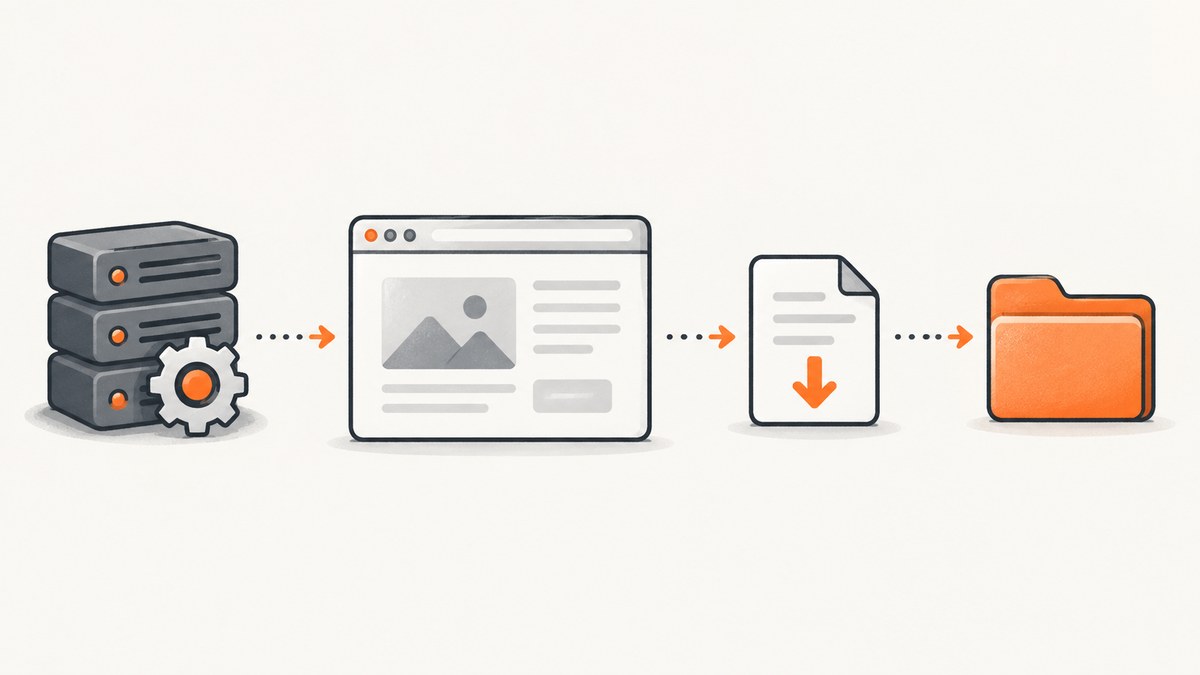
Automatically downloading a document from a website requires more than clicking a link. Your automation must identify the document, start waiting for the browser’s download event before triggering the action, save the temporary download to a deliberate location, and verify that the resulting file is usable. Playwright’s download API is designed around this sequence.
This guide shows a complete Playwright workflow, explains browser and hosted execution choices, covers authentication and difficult pages, and lists the failures that commonly make an apparently successful download disappear.
1. The direct answer: wait for the download, then save it
In Playwright, create a download promise before clicking the link or button. Await the promise, then call saveAs (or copy the file yourself) before closing the browser context. Browser downloads live in a temporary directory and are deleted when their producing context closes, so a click alone does not create a durable artifact. See the official Playwright downloads guide.

import { chromium } from 'playwright';
import fs from 'node:fs/promises';

const browser = await chromium.launch();
const context = await browser.newContext({ acceptDownloads: true });
const page = await context.newPage();

try {
  await page.goto('https://example.com/reports', { waitUntil: 'domcontentloaded' });

  // Start listening before the click. Fast downloads can otherwise be missed.
  const downloadPromise = page.waitForEvent('download');
  await page.getByRole('link', { name: /annual report/i }).click();
  const download = await downloadPromise;

  const suggested = download.suggestedFilename();
  const destination = `./downloads/${suggested || 'report.bin'}`;
  await fs.mkdir('./downloads', { recursive: true });
  await download.saveAs(destination);

  const failure = await download.failure();
  if (failure) throw new Error(`Download failed: ${failure}`);

  console.log(`Saved ${destination}`);
} finally {
  await context.close();
  await browser.close();
}
The acceptDownloads context option makes the intent explicit. Use a stable locator based on accessible role, link text, or a data attribute instead of a brittle generated CSS class. If several controls can download files, narrow the locator to the document’s row or card.
2. A production workflow, step by step
Identify the correct document
Begin at a known page and establish what “the document” means. A URL can contain multiple revisions, language variants, or links that generate a file only after a form submission. Record the source URL, the document label or identifier, and the expected extension. Prefer stable text, ARIA roles, data-testid attributes, or a semantic relationship such as a table row.
Navigate and establish state
Use page.goto with an explicit wait policy. domcontentloaded is often enough for a page whose download control is server-rendered. A client-rendered application may require networkidle, a specific selector, or a short bounded delay. Avoid unbounded waits: a page with analytics or a streaming connection may never become idle.
Authentication must be handled in the way the site supports. You can create a context with stored cookies, log in through the UI, or provide headers for an approved API endpoint. Keep credentials outside source control and do not save a reusable authenticated state file where other users or jobs can read it.
Arm the event before the action
Always create page.waitForEvent('download') before clicking. A fast response can complete between a click and a later listener. For a download triggered by a popup, wait for both events with separate promises and inspect which page owns the download.
const [download] = await Promise.all([
  page.waitForEvent('download'),
  page.locator('[data-testid="download-report"]').click()
]);
Persist deliberately
Use a destination directory owned by the job, not the browser’s temporary folder. Generate a collision-resistant name when the source filename is untrusted. Keep the original suggested name as metadata, but sanitize path separators and control characters before using it in a filesystem path.
import path from 'node:path';
import crypto from 'node:crypto';

const safeName = (download.suggestedFilename() || 'download.bin')
  .replace(/[^a-zA-Z0-9._-]/g, '_');
const id = crypto.randomUUID();
const output = path.join('/var/lib/my-worker/downloads', `${id}-${safeName}`);
await download.saveAs(output);
Validate the artifact
A successful download event does not prove that the bytes are the intended document. Check the final path exists, enforce reasonable size limits, and inspect the file signature or parse it with the appropriate library. A response that saves as .pdf may actually be an HTML login page. For sensitive workflows, calculate a checksum and store it with the source URL and retrieval time.
import fs from 'node:fs/promises';

const stat = await fs.stat(output);
if (stat.size < 100) throw new Error('File is unexpectedly small');
const head = await fs.readFile(output, { encoding: 'utf8' }).catch(() => '');
if (safeName.endsWith('.pdf')) {
  const bytes = await fs.readFile(output);
  if (bytes.subarray(0, 5).toString() !== '%PDF-') {
    throw new Error('Expected a PDF signature; likely received an error page');
  }
}
3. Complete runnable Playwright example
Install Playwright and its browser binaries, then run this script against a page you are authorized to access:
npm init -y
npm install playwright
npx playwright install chromium
import { chromium } from 'playwright';
import fs from 'node:fs/promises';
const source = process.env.DOCUMENT_PAGE || 'https://example.com/reports';
const browser = await chromium.launch({ headless: true });
const context = await browser.newContext({ acceptDownloads: true });
const page = await context.newPage();
page.setDefaultTimeout(15000);
try {
await page.goto(source, { waitUntil: 'domcontentloaded', timeout: 30000 });
const control = page.getByRole('link', { name: /download|pdf|report/i }).first();
await control.waitFor({ state: 'visible' });
const [download] = await Promise.all([
page.waitForEvent('download', { timeout: 30000 }),
control.click()
]);
const failure = await download.failure();
if (failure) throw new Error(failure);
await fs.mkdir('./downloads', { recursive: true });
const filename = (download.suggestedFilename() || 'document.bin')
.replace(/[^a-zA-Z0-9._-]/g, '_');
const output = `./downloads/${Date.now()}-${filename}`;
await download.saveAs(output);
const stat = await fs.stat(output);
console.log(JSON.stringify({ source, output, bytes: stat.size }));
} finally {
await context.close();
await browser.close();
}4. Browser engines, versions, and deployment
Playwright supports Chromium, Firefox, and WebKit, as well as branded Google Chrome and Microsoft Edge channels. Each Playwright release expects compatible browser binaries; after upgrading the package, install the matching browsers and test the combination you deploy. The Playwright browsers documentation also covers proxies, custom certificates, and custom browser-download hosts for restricted networks.
| Choice | Use it when | Operational concern |
|---|---|---|
| Chromium | The target behaves like Chrome and you want the broadest common baseline | Pin Playwright and browser versions together |
| Firefox or WebKit | You need cross-engine coverage or browser-specific behavior | Rendering, downloads, codecs, and policies can differ |
| Branded Chrome/Edge | Your organization requires the installed branded browser | Channel policies and installed versions are separate variables |
| Local or self-hosted | You need control of filesystem, network, and credentials | You own patching, isolation, capacity, and binary distribution |
| Managed browser service | You prefer an API or hosted sessions over maintaining browsers | Evaluate network access, state handling, integration, and operational ownership |
Robot Framework Browser is a higher-level alternative for keyword-driven teams. Its installation guide says it is a Python library driving Playwright through Node.js, requires Python 3.10 or newer, and can use bundled or separately installed Node.js: installation documentation.
Cloudflare Browser Run separates stateless Quick Actions such as screenshots, PDFs, and scraping from interactive sessions driven by Playwright, Puppeteer, or CDP. That distinction is useful when choosing between a one-off action and a stateful workflow: Browser Run guide.
5. Security and access boundaries
A browser process can reach destinations available to its network. Treat every user-provided URL as untrusted input. Validate schemes and hosts, block loopback and private address ranges where they are not required, restrict outbound egress, cap page and download sizes, and run workers with minimal filesystem permissions. The Open Assistant browser integration documentation also warns that browser automation can access internal networks: browser automation guidance.
Do not use automation to bypass authentication, CAPTCHAs, paywalls, robots controls, or other access restrictions. Handle consent overlays and login flows according to the site’s supported policies. Store only the credentials, cookies, and downloaded content your job requires.
6. Common errors and fixes
| Symptom | Likely cause | Fix |
|---|---|---|
page.waitForEvent('download') times out |
The click navigates, opens a new tab, or does not trigger a download | Inspect the control, wait for a popup if needed, and verify the response’s content disposition |
| File vanishes after the script exits | It was left in Playwright’s temporary directory | Call saveAs before closing the context |
| Saved file is HTML | Expired login, consent page, bot check, or server error | Check status and content type, capture a diagnostic screenshot, and refresh authentication |
| Strict-mode locator error | Several matching links exist | Scope the locator to a row, use a stable attribute, or select an exact accessible name |
| Browser executable missing | Package and browser binaries are out of sync | Run the matching npx playwright install command in the build image |
| Navigation hangs | Long-lived requests prevent the chosen readiness condition | Use a bounded timeout plus a specific selector instead of waiting forever for network idle |
| Corporate network blocks installation | Proxy, certificate, or download-host restrictions | Configure the documented proxy/custom certificate/download host and bake browsers into the image |
| Download is incomplete or enormous | Connection reset, server streaming, or no size limit | Set timeouts and job limits, retry safely, and validate size and file signature |
7. Reliability, performance, and cost planning
- Reuse responsibly: launching a browser is expensive; reuse a browser process for a batch while creating a fresh context per identity or job.
- Bound every wait: navigation, selectors, downloads, and total job duration need deadlines.
- Retry only safe steps: retry transient navigation or transport failures with backoff. Do not blindly repeat a form submission that may create a record.
- Control concurrency: limit pages per browser and downloads per worker so memory, CPU, and bandwidth remain predictable.
- Observe outcomes: log source, document identity, browser version, duration, bytes, and failure category without logging secrets.
- Plan storage: clean old artifacts, encrypt sensitive files, and define retention before production.
The WebRobot paper evaluated 76 web RPA benchmarks and reported that its system automated a majority effectively; that result is a research evaluation, not a current benchmark for Playwright or hosted browser products: WebRobot paper.
8. Or skip the browser setup
If your requirement is a screenshot or PDF of a public page rather than a multi-step authenticated download, ScreenshotNeo provides a single request. It handles the capture browser for you and returns PNG, JPEG, WebP, or PDF. The API accepts options for full-page capture with lazy images, element selectors, dark mode, device presets, custom viewports, retina scale, PDF paper settings, custom CSS and JavaScript, clicks, waits, blocked resources, headers, cookies, authorization, timezone, geolocation, transparent backgrounds, resizing, caching, signed links, async jobs, webhooks, bulk capture, and usage reporting. See the ScreenshotNeo API documentation.
curl -G "https://api.screenshotneo.com/v1/shot" -d access_key=YOUR_API_KEY --data-urlencode url=https://stripe.com -o shot.webpimport requests
r = requests.get("https://api.screenshotneo.com/v1/shot", params={"access_key": "YOUR_API_KEY", "url": "https://stripe.com"}, timeout=90)
open("shot.webp", "wb").write(r.content)const q = new URLSearchParams({ access_key: 'YOUR_API_KEY', url: 'https://stripe.com' });
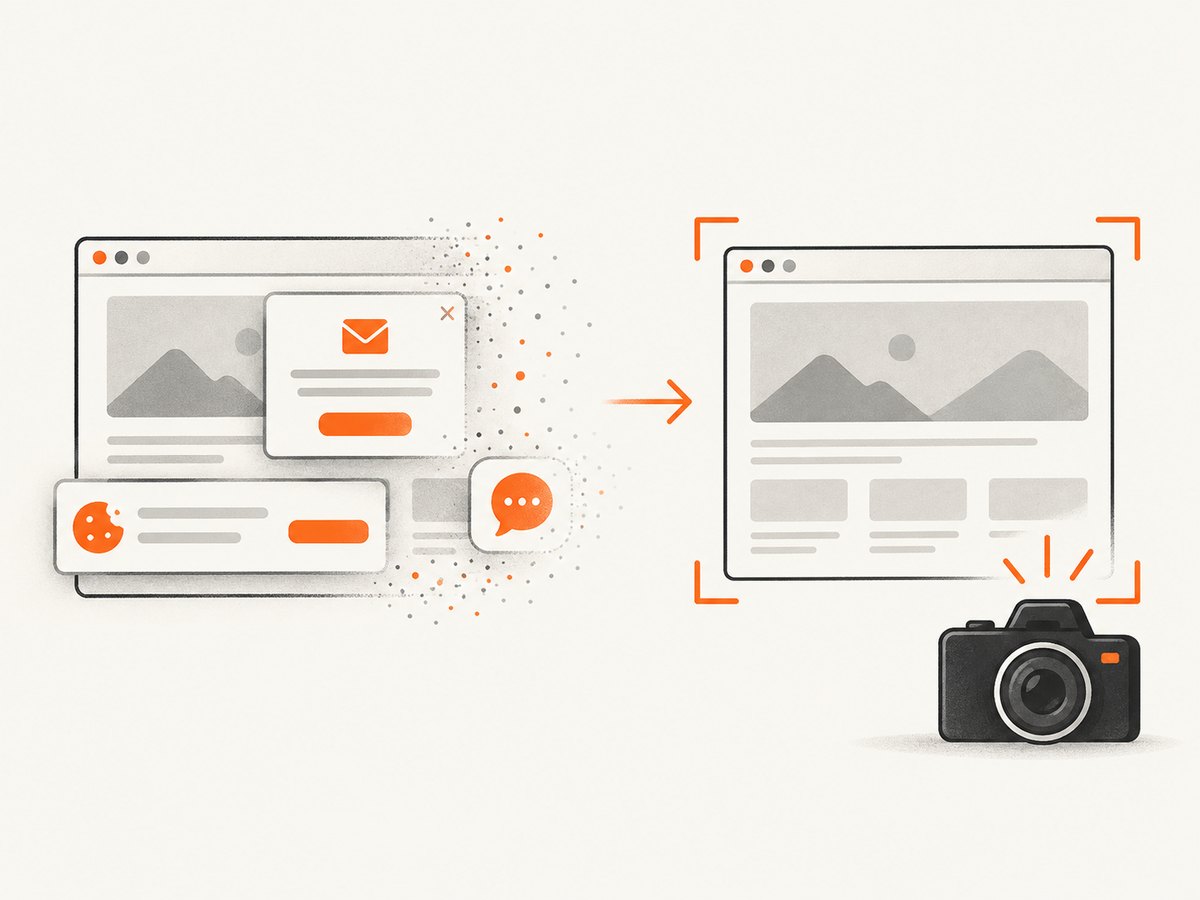
const res = await fetch(`https://api.screenshotneo.com/v1/shot?${q}`);Cookie and consent banners are accepted and removed before capture, along with more than 60 known consent platforms, newsletter popups, and chat widgets; each step can be disabled. Bot checks, blank pages, timeouts, failed loads, and cache hits are not billed, and response headers report the page verdict and billing status. An MCP server exposes take_screenshot, get_page_info, and capture_pdf to Claude, Cursor, and other MCP clients.
The Free plan includes 1,000 screenshots each month with no card. Paid plans start at $5 for 3,000 shots; every feature is available on every plan. Create a free account at ScreenshotNeo sign-up.
9. FAQ
Can I save a download without Playwright?
Yes, if the document URL is a stable, authorized HTTP endpoint, an HTTP client may be simpler. Use a browser when navigation, JavaScript, cookies, or user interaction is required.
Why does a click open a PDF instead of emitting a download?
The server may serve it inline. Treat it as a navigation, wait for the response or new page, then fetch and persist the response body if that behavior is supported by the site.
Should I use screenshots to prove a file was retrieved?
A screenshot is useful evidence of page state, but it is not the document bytes. Save and validate the actual download, and retain a screenshot only when it helps diagnose the workflow.
How do I handle a changing filename?
Use download.suggestedFilename() for display, sanitize it, and assign your own stable identifier based on the document and retrieval time.
What should I do when the target requires a CAPTCHA?
Do not attempt to defeat it. Use an approved access method, request an API or export, or stop and report that the site requires human or permitted authentication.


