How to Double-Click a Calendar Item with Selenium WebDriver
Use Selenium’s Actions API to double-click a calendar item in Java or Python, then wait for and assert the state your calendar should enter.
To double-click a calendar item with Selenium WebDriver, target the item with the Actions API and perform the gesture. In Java:
WebElement calendarItem = driver.findElement(By.cssSelector("[data-testid='calendar-item']"));
new Actions(driver)
    .doubleClick(calendarItem)
    .perform();
In Python:
calendar_item = driver.find_element(By.CSS_SELECTOR, "[data-testid='calendar-item']")
ActionChains(driver).double_click(calendar_item).perform()
Replace the example selector with one that is stable in your calendar. The double-click sends two left mouse-button press-and-release cycles at the element’s center. Selenium performs the gesture; the calendar decides whether that opens details, enters edit mode, or does something else. Wait for and assert the expected application state after the action.
1. What Selenium’s double-click does
Selenium’s mouse Actions API models pointer input. Its doubleClick(element) convenience method moves the pointer to the element’s center, then presses and releases the left mouse button twice. The Python equivalent is ActionChains(driver).double_click(on_element). See Selenium’s mouse actions documentation, Actions API overview, and Python ActionChains reference.
This is a real WebDriver pointer gesture, not two calls to JavaScript click handlers. That distinction matters when the calendar responds specifically to a double-click event, as opposed to two individual clicks. Selenium does not define what the gesture means to the application: that behavior belongs to the calendar implementation.
2. Find the right calendar item
The sample selector [data-testid='calendar-item'] is illustrative. A calendar can render many matching events, repeat similar markup across weeks, or replace the DOM as the user changes views. Identify the intended item by a stable property and, where necessary, scope it to the right date, calendar, or visible region.
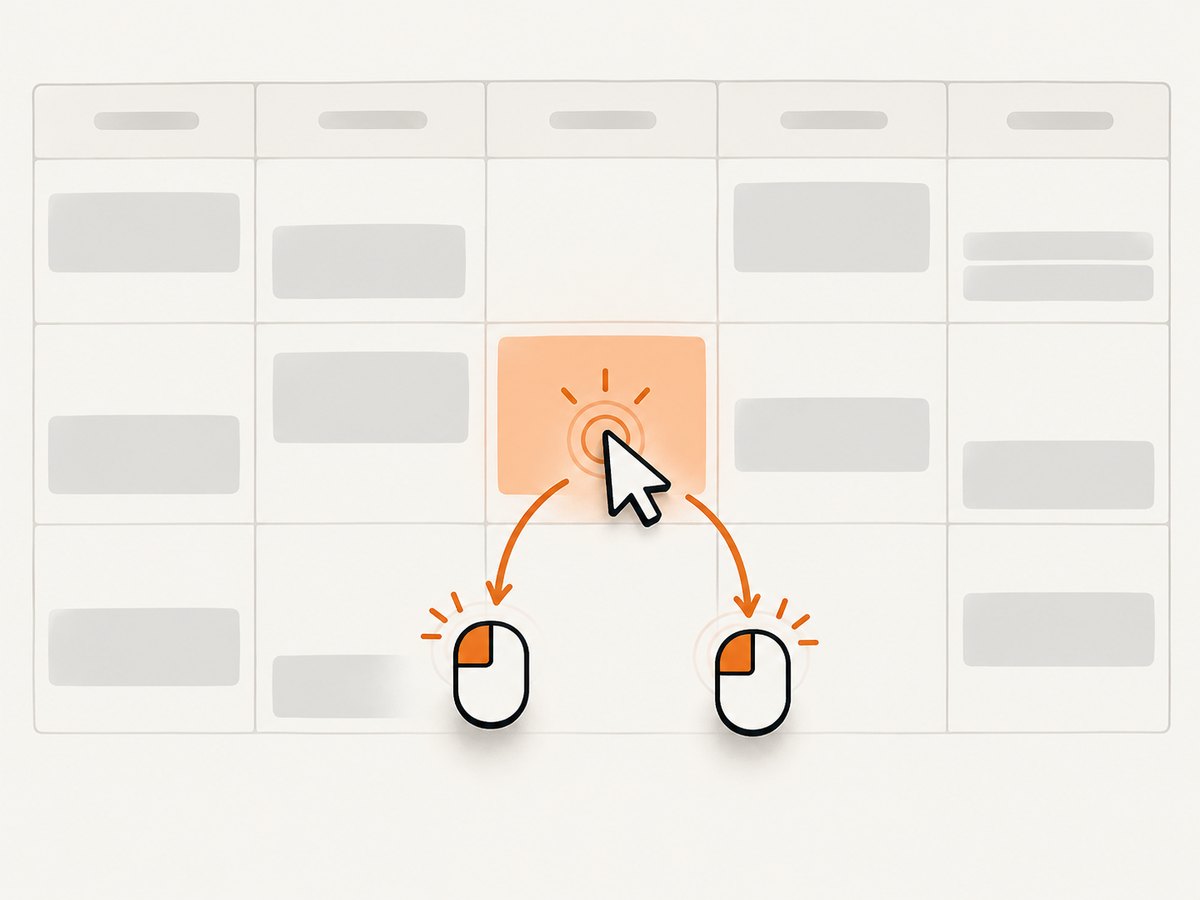
Prefer stable locators
- Use a test attribute when available. Attributes such as
data-testidare generally less coupled to styling and layout than CSS class names. - Use accessible roles and names where practical. A role-and-name locator can reflect how a user identifies the event, if the app exposes useful accessibility semantics.
- Scope repeated events. Find the day or calendar container first, then locate the event within it so a repeated title does not select the wrong occurrence.
- Verify uniqueness. If a locator can match multiple items, disambiguate it instead of relying on an accidental first match.
Calendar widgets often virtualize dates or render events only after a view change. Find the element after the relevant calendar view is ready. If the event is not in the DOM yet, first perform the application-specific navigation or wait for the view to load.
3. Runnable Java example
This example assumes a Selenium 4 project and an application under test that has an event with a stable test attribute. It waits for the item to become clickable, performs the double-click, then waits for a detail panel. Change the URL, selector, and expected state to match your app.
import java.time.Duration;

import org.openqa.selenium.By;
import org.openqa.selenium.WebDriver;
import org.openqa.selenium.WebElement;
import org.openqa.selenium.chrome.ChromeDriver;
import org.openqa.selenium.interactions.Actions;
import org.openqa.selenium.support.ui.ExpectedConditions;
import org.openqa.selenium.support.ui.WebDriverWait;

public class DoubleClickCalendarItem {
    public static void main(String[] args) {
        WebDriver driver = new ChromeDriver();
        try {
            driver.get("https://your-app.example/calendar");
            WebDriverWait wait = new WebDriverWait(driver, Duration.ofSeconds(10));

            By event = By.cssSelector("[data-testid='calendar-item']");
            WebElement calendarItem = wait.until(
                ExpectedConditions.elementToBeClickable(event)
            );

            new Actions(driver)
                .doubleClick(calendarItem)
                .perform();

            // Replace with the state your calendar is expected to show.
            wait.until(ExpectedConditions.visibilityOfElementLocated(
                By.cssSelector("[data-testid='event-details']")
            ));
        } finally {
            driver.quit();
        }
    }
}
elementToBeClickable is a useful readiness check, but it does not prove the application will react to a double-click or that the expected result appeared. The post-action wait should target a meaningful state: a dialog, edit form, selected event, route change, or other observable result. Add an assertion using your test framework so a missing result fails the test.
Using an accessible name with Java
If the application exposes the event as a button with an accessible name, Selenium’s locator support can reduce dependence on internal styling. The exact locator depends on your Selenium version and markup; a CSS test attribute remains a portable example. Do not replace a stable locator with a guessed accessible name unless the app actually exposes it.
4. Runnable Python example
This version uses Selenium’s Python bindings, an explicit wait, and a post-action condition. Install Selenium in the environment that runs the test, and make sure a compatible browser and driver are available according to your setup.
from selenium import webdriver
from selenium.webdriver.common.by import By
from selenium.webdriver.common.action_chains import ActionChains
from selenium.webdriver.support import expected_conditions as EC
from selenium.webdriver.support.ui import WebDriverWait


driver = webdriver.Chrome()
try:
    driver.get("https://your-app.example/calendar")
    wait = WebDriverWait(driver, 10)

    event = wait.until(EC.element_to_be_clickable(
        (By.CSS_SELECTOR, "[data-testid='calendar-item']")
    ))
    ActionChains(driver).double_click(event).perform()

    # Replace with the expected result for this calendar.
    wait.until(EC.visibility_of_element_located(
        (By.CSS_SELECTOR, "[data-testid='event-details']")
    ))
finally:
    driver.quit()
The Python method accepts an optional target element. Calling double_click() without one acts at the current pointer location, which is usually less clear and more fragile for a test. Passing the element makes the target explicit.
5. Waiting for dynamic calendars and asserting results
Do not use a fixed sleep as the main synchronization strategy. A sleep can be too short on a slow run and waste time on a fast one. Use an explicit wait for the state that matters to the next step.
- Wait for the calendar view or date navigation to finish.
- Locate the particular event after it is rendered.
- Wait until it is visible and interactable.
- Perform the double-click once.
- Wait for the expected result and assert its content or state.
For a dynamically replaced calendar, an element reference located before a rerender can become stale. Re-locate the item after the view settles. If the application updates asynchronously after the gesture, wait for a changed attribute, visible panel, or other reliable condition instead of repeating the double-click immediately.
WebDriver checks visibility and interactability for element interactions, but the exact wait condition is application-specific. Selenium’s element interaction guidance describes these interaction considerations.
6. Choosing target and interaction options
Element center versus a specific point
The convenience method targets the element center. That is normally the clearest choice for an event tile. If the center is covered by a floating control, tooltip, or overlay, the gesture may be intercepted or reach the wrong layer. First determine whether the overlay should disappear or whether the test should target a different, genuinely interactive part of the item. Selenium’s Actions API also supports lower-level pointer actions when a test has a reason to position the pointer precisely, but coordinate-based interactions are more sensitive to layout changes.
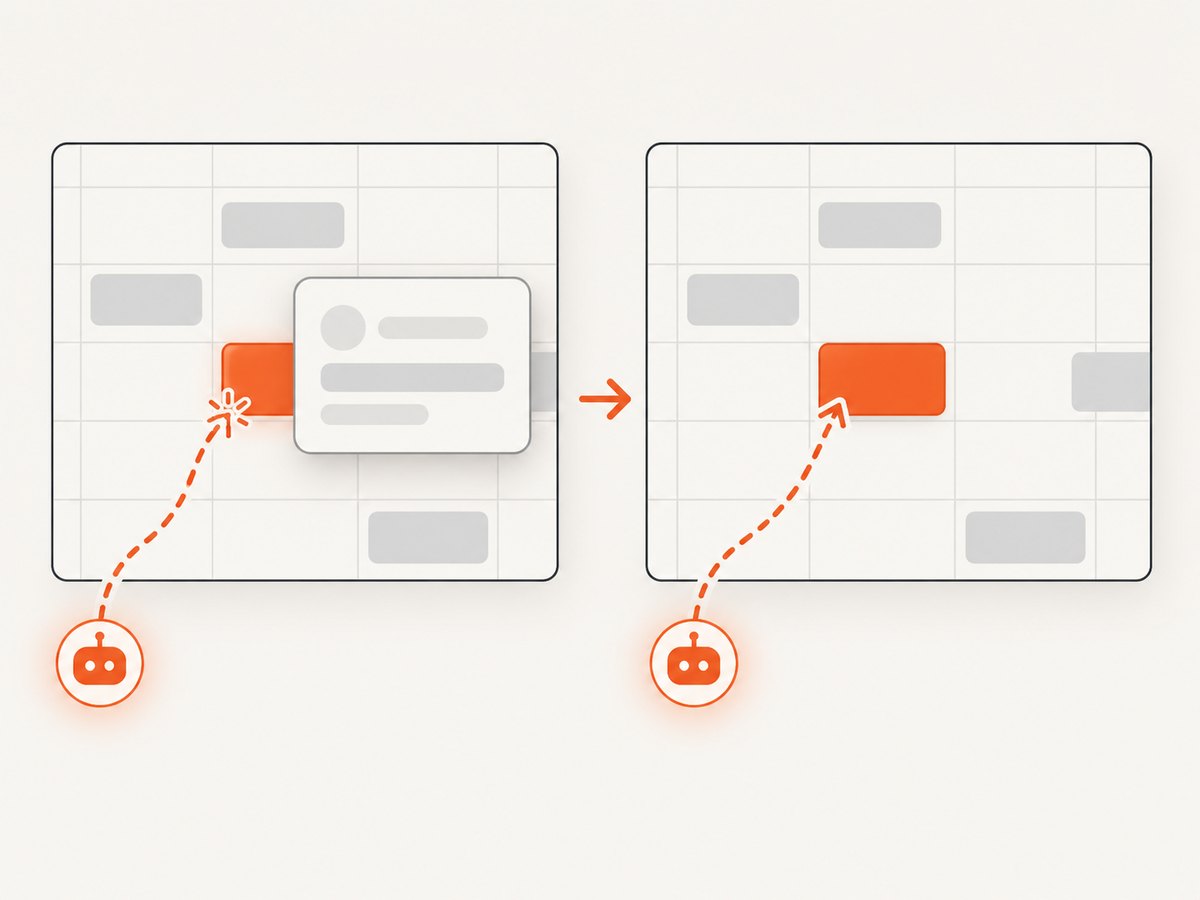
One event among several
For calendars with recurring events or duplicate titles, constrain the locator to the intended date or calendar column. Avoid selecting by list index unless ordering is itself part of the requirement. A change in sorting or hidden events can silently redirect the test to another occurrence.
Do not double-click twice to “make it work”
Sending the gesture again can toggle an editor closed, submit an action twice, or create a second effect. When the expected result is missing, inspect the target, overlays, and application state before retrying. A retry policy is appropriate only when the test has established that the first action did not take effect and repeating it is safe.
7. Troubleshooting
| Symptom | Likely cause | What to do |
|---|---|---|
NoSuchElementException |
The selector is wrong, the view has not rendered, or the event is outside a virtualized viewport. | Inspect the live DOM, navigate to the date, wait for the calendar view, then locate the item. Confirm the selector matches the intended event. |
ElementNotInteractableException |
The item is hidden, disabled, outside the usable layout, or not ready for pointer input. | Wait for visibility and interactability. Check whether the event is covered by a collapsed or inactive view. |
ElementClickInterceptedException |
An overlay obscures the center point Selenium targets, or another element receives the input. | Identify the intercepting element. Wait for a legitimate overlay to close, dismiss it through the UI if that is part of the scenario, or choose a suitable target within the event. |
StaleElementReferenceException |
The calendar rerendered after the event was located. | Wait for the rerender to finish and locate the event again immediately before the gesture. |
| The gesture succeeds but nothing changes | The app may not bind double-click behavior to that item, or the test expected the wrong outcome. | Check the app’s actual interaction contract and event handling. Assert the state the calendar is designed to produce. |
| Two single-click effects occur | The calendar responds to each click independently and has no distinct double-click behavior. | Confirm whether this is the app’s intended behavior. If it is not, investigate the application event logic; Selenium’s gesture cannot define the app’s semantics. |
| Flaky success across runs | Timing, animations, overlays, or inconsistent element selection can change where input lands. | Use explicit waits, a stable locator, and a post-action state assertion. Capture diagnostic browser logs or a screenshot when the failure occurs. |
Selenium can report that an input command completed without proving that the application reached the test’s desired state. The assertion after the gesture is what makes the test verify the user-visible outcome.
8. Reliability, speed, and cost considerations
A double-click is one interaction sequence, but end-to-end test time is usually shaped by browser startup, page loading, calendar rendering, and the waits needed for application state. Keep synchronization tied to explicit conditions rather than adding arbitrary delays. Reuse a browser session when the suite design allows it, while isolating test data and restoring calendar state so one test does not influence another.
For reliability, prefer a stable event identifier, wait for the correct calendar view, and assert a result that is specific enough to catch a wrong target. Be careful with retries: a double-click may not be idempotent. If the first attempt partially succeeded, repeating it can produce a different state.
Browser automation consumes execution capacity and infrastructure time, but the dossier provides no benchmark or fixed cost figure for this gesture. Measure the full test in your own CI environment, including browser provisioning and application data setup. Keep the test focused if the purpose is to verify this interaction, and place broader calendar workflows in separate tests.
9. Inspect a captured page when layout gets in the way
When a calendar is hard to inspect because a consent banner, newsletter popup, or chat widget covers the event, a page capture can help you examine the rendered layout. ScreenshotNeo is a website screenshot API and MCP server from Yorker Media; it is useful for page inspection, but it does not replace WebDriver’s double-click gesture or prove how the calendar handles it.
10. Or skip the browser setup
If your goal is to capture the page rather than test a mouse interaction, a screenshot API can avoid setting up a browser session. ScreenshotNeo accepts one GET request with a URL and returns a PNG, JPEG, WebP, or PDF. See the ScreenshotNeo API documentation.
curl -G "https://api.screenshotneo.com/v1/shot" \
  -d access_key=YOUR_API_KEY \
  --data-urlencode url=https://your-app.example/calendar \
  -o calendar.webp
The equivalent Python request is:
import requests

r = requests.get(
    "https://api.screenshotneo.com/v1/shot",
    params={"access_key": "YOUR_API_KEY", "url": "https://your-app.example/calendar"},
    timeout=90,
)
open("calendar.webp", "wb").write(r.content)
And Node.js:
const q = new URLSearchParams({
  access_key: 'YOUR_API_KEY',
  url: 'https://your-app.example/calendar'
});
const res = await fetch(`https://api.screenshotneo.com/v1/shot?${q}`);
if (!res.ok) throw new Error(`Screenshot request failed: ${res.status}`);
await Bun.write('calendar.webp', new Uint8Array(await res.arrayBuffer()));
In Node.js versions without Bun, write the response bytes with your preferred filesystem API. Check the response status before treating the body as an image. Keep API keys out of source control.
ScreenshotNeo removes cookie banners, popups, and chat widgets before the shot; bot checks, blank pages, and failed loads are never billed. Its MCP server lets AI agents take screenshots. The free plan includes 1,000 screenshots a month with no card, and paid plans start at $5 for 3,000. Sign up for 1,000 free screenshots a month.
11. Short FAQ
Does Selenium double-click open an event?
It sends the mouse gesture. The calendar’s event handlers determine whether that opens details, enters edit mode, or has another effect.
Can I use two regular clicks instead?
Use the Actions API double-click for a pointer double-click. Two separate click commands may have different timing and application behavior.
Why does the event receive only one action?
Check that the locator targets the intended visible item, no overlay blocks its center, and the app supports a distinct double-click interaction there. Then verify the expected state with an explicit wait and assertion.
Should I use JavaScript to trigger a double-click?
For a user-like WebDriver pointer gesture, use the Actions API. JavaScript event dispatch tests a different mechanism and may bypass the browser interaction path you intend to cover.
12. Quick checklist
- Use a stable selector for the intended calendar item.
- Wait until the relevant view and item are ready.
- Perform
Actions(driver).doubleClick(item).perform()in Java orActionChains(driver).double_click(item).perform()in Python. - Check that the element center is unobscured.
- Wait for and assert the calendar’s actual post-gesture state.
- Do not retry blindly if the gesture may already have changed the application.
The complete pattern is simple: locate the right item, send the Actions API gesture, and verify the result the application promises.


