How to Download CSV and Excel Files with Pyppeteer
Configure Pyppeteer downloads, wait for CSV or Excel exports to finish, validate files, troubleshoot failures, and compare Playwright.

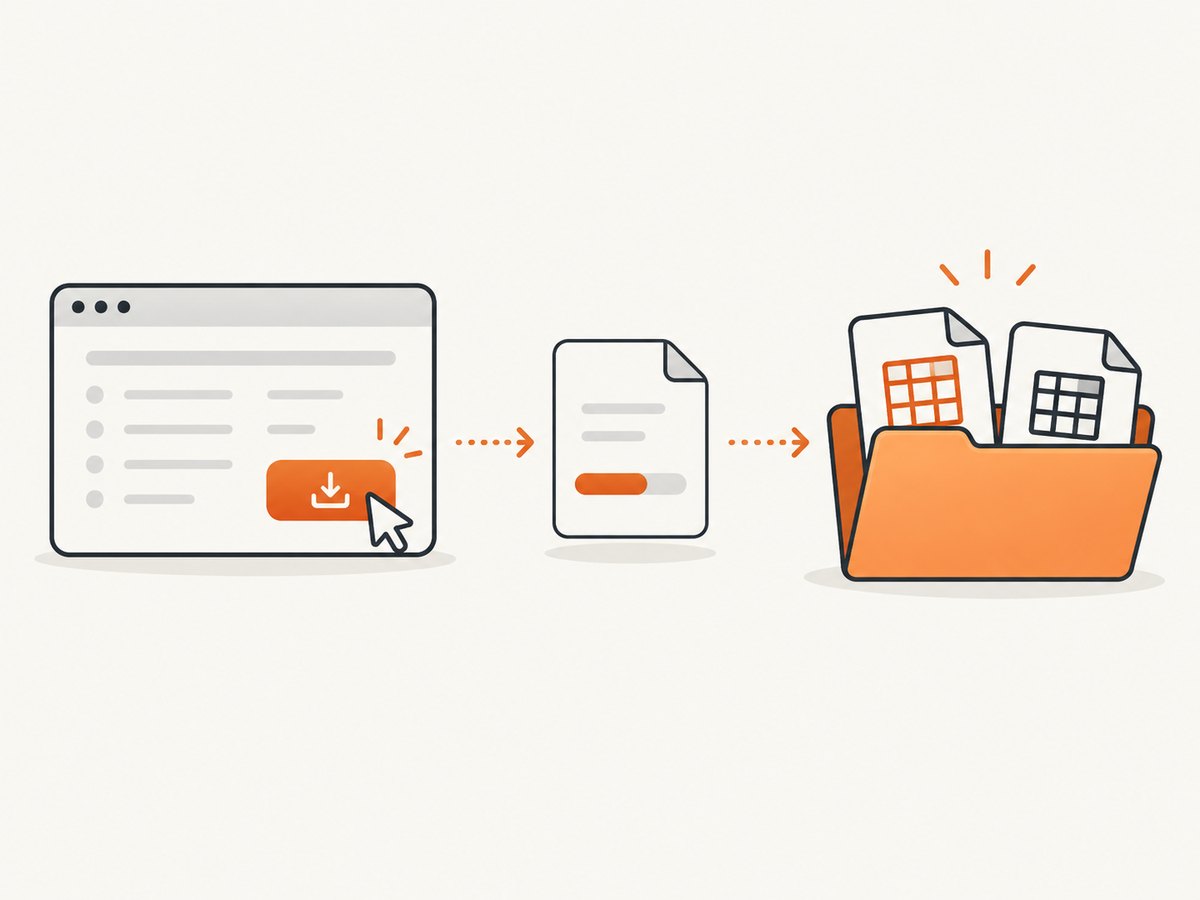
Direct answer: create a writable download directory, set Chromium’s download behavior before clicking the export control, wait for the matching navigation or export response, then poll for a nonempty .csv, .xls, or .xlsx file while ignoring temporary .crdownload files. Use a fresh directory for every run so an old export cannot look like a successful download.
Pyppeteer is an unofficial Python port of Puppeteer for controlling headless Chrome or Chromium. Its current repository says it requires Python 3.8 or newer and is unmaintained, recommending that new projects consider Playwright. The procedure below remains useful for existing Pyppeteer jobs.
1. Install Pyppeteer and prepare Chromium
Install the package in a virtual environment:
python -m venv .venv
source .venv/bin/activate
python -m pip install --upgrade pip
python -m pip install pyppeteer
Pyppeteer downloads a compatible Chromium build the first time it launches unless you point it at an existing executable. In CI, cache that browser directory or install Chromium through the operating system package manager. The Pyppeteer repository documents the current project status and installation details.
2. A complete Pyppeteer CSV/Excel downloader
This example creates an isolated directory, enables downloads before navigation, waits for the export button, clicks it, and accepts only completed spreadsheet files.
import asyncio
from pathlib import Path
from pyppeteer import launch


async def download_export(url: str, selector: str, out_dir: str):
    download_dir = Path(out_dir).resolve()
    download_dir.mkdir(parents=True, exist_ok=True)

    browser = await launch(headless=True)
    page = await browser.newPage()
    try:
        # Page.setDownloadBehavior is widely used by Pyppeteer examples.
        # Browser.setDownloadBehavior is the current CDP Browser-domain form.
        await page._client.send(
            "Page.setDownloadBehavior",
            {"behavior": "allow", "downloadPath": str(download_dir)},
        )

        await page.goto(url, {"waitUntil": "networkidle2"})
        await page.waitForSelector(selector, {"visible": True})
        await page.click(selector)

        # Wait up to 60 seconds for a completed spreadsheet.
        for _ in range(120):
            files = [
                p for p in download_dir.iterdir()
                if p.suffix.lower() in {".csv", ".xls", ".xlsx"}
                and p.stat().st_size > 0
            ]
            partials = list(download_dir.glob("*.crdownload"))
            if files and not partials:
                return max(files, key=lambda p: p.stat().st_mtime)
            await asyncio.sleep(0.5)

        raise TimeoutError("The CSV/Excel download did not complete")
    finally:
        await browser.close()


async def main():
    path = await download_export(
        "https://example.com/reports",
        "button[data-export='xlsx']",
        "./downloads/run-001",
    )
    print(f"Downloaded: {path}")


if __name__ == "__main__":
    asyncio.run(main())
The Chrome DevTools Protocol defines Browser.setDownloadBehavior as the command for setting download behavior and requires downloadPath when behavior is allow or allowAndName. The older Page.setDownloadBehavior method is marked deprecated in the current protocol documentation, but is still the practical bridge exposed in many Pyppeteer examples. Test the command against the Chromium version used by your deployment.
3. Synchronize the click with the page behavior
When clicking causes navigation
A download link may navigate to a response or a server-generated export page. Start the navigation wait before the click and await both operations together:
await asyncio.gather(
    page.waitForNavigation({"waitUntil": "networkidle2"}),
    page.click("a.export-csv"),
)
Do not wait for navigation if the control uses JavaScript to start a background request; a navigation wait can then time out even though the file is being written.
When the export request URL is known
Use a response predicate when the site exposes a stable export endpoint. Keep the filesystem check as the final confirmation that Chromium finished writing the file.
response_task = page.waitForResponse(
    lambda response: "/exports/" in response.url
    and response.status == 200
)
await page.click("button.export")
response = await response_task
print(response.url)
If the site exposes a request rather than a response that is easier to identify, use waitForRequest with the same pattern.
When completion is visible in the page
Some applications queue an export and display a download link later. Wait for that link, then click it after setting download behavior:
await page.click("button.generate")
await page.waitForSelector("a.download-ready", {"visible": True})
await page.click("a.download-ready")
4. Validate CSV and Excel output
- Use a unique directory per job, such as a UUID or run ID.
- Accept only
.csv,.xls, and.xlsxextensions. - Require a nonzero file size.
- Ignore
.crdownloadfiles; they are partial Chrome downloads. - Preserve the server-suggested filename when possible.
- For CSV, optionally check that the first line contains expected headers.
- For Excel, parse the completed workbook with a separate validator after the browser closes.
Do not infer the format from the button label alone. Inspect the downloaded filename or response metadata when available. A server can return CSV data from a control labelled “Excel,” or an Excel workbook with a generated filename.
5. Authentication, consent dialogs, and pop-ups
The export request inherits the browser session. Complete login before triggering the export, or load the site’s cookies into the page. Handle consent dialogs and modal pop-ups that cover the export control. If a new tab opens, obtain it from the browser’s pages and configure download behavior for that page as required by the site.
await page.goto("https://example.com/login", {"waitUntil": "networkidle2"})
await page.type("input[name=email]", "user@example.com")
await page.type("input[name=password]", "PASSWORD_FROM_SECRET_STORE")
await page.click("button[type=submit]")
await page.waitForNavigation({"waitUntil": "networkidle2"})
await page.goto("https://example.com/reports", {"waitUntil": "networkidle2"})
Keep credentials in environment variables or a secret manager. Selectors, login flows, and export URLs are site-specific.
6. cURL for a direct export URL
If the export endpoint is directly accessible and does not require browser-only JavaScript, cURL is simpler than Pyppeteer:
curl -L \
  -H 'Authorization: Bearer YOUR_TOKEN' \
  -o report.xlsx \
  'https://example.com/api/reports/export?format=xlsx'
Use -c cookies.txt and -b cookies.txt when the endpoint relies on a cookie session. Browser automation is still needed when the export URL is created dynamically, requires an interaction, or depends on browser state.
7. Node.js alternative
For a direct export endpoint, Node.js can stream the response to disk:
import { createWriteStream } from 'node:fs';
import { pipeline } from 'node:stream/promises';

const response = await fetch('https://example.com/api/reports/export?format=csv', {
  headers: { Authorization: `Bearer ${process.env.EXPORT_TOKEN}` }
});
if (!response.ok || !response.body) {
  throw new Error(`Export failed: ${response.status}`);
}
await pipeline(response.body, createWriteStream('./report.csv'));
For a browser-driven export, use a maintained browser library with a first-class download event. Playwright’s official Python guide demonstrates waiting for a download and calling save_as; it is the clearest migration path for new automation.
8. Common errors and fixes
| Error or symptom | Cause | Fix |
|---|---|---|
| No file appears | Download behavior was configured after the click, or the selector clicked the wrong element. | Set download behavior before navigation and clicking; verify the selector with waitForSelector. |
Only a .crdownload file exists |
Chrome is still writing the file, or the transfer failed. | Poll until the partial file disappears, require a nonzero final file, and increase the timeout for large exports. |
| Navigation timeout | The click starts a background export instead of navigating. | Remove waitForNavigation and wait for a matching response, request, selector, or file. |
| Timeout waiting for the export button | The page is still loading, the selector changed, or a modal covers the control. | Use an explicit wait, inspect the DOM, dismiss the modal, and use a stable data attribute. |
| Permission denied | The directory does not exist or is not writable by the Chromium process. | Resolve an absolute path, create it first, and check container or CI filesystem permissions. |
| Old file reported as new | A previous run shared the same directory. | Use a fresh per-run directory and compare modification times only as a secondary check. |
| Downloaded HTML instead of CSV/XLSX | The session expired or the endpoint returned a login/error page. | Check response status and content type, re-authenticate, and inspect the file before parsing it. |
| Chromium fails to launch | Missing browser dependencies, incompatible executable, or restricted sandbox. | Install the required system dependencies, set executablePath explicitly when needed, and follow the deployment environment’s Chromium guidance. |
9. Reliability and performance checklist
- Use
networkidle2only when the site settles; SPAs with long-lived connections may never become idle. - Prefer a response predicate or export-ready selector over a fixed sleep.
- Set a bounded overall timeout and close the browser in
finally. - Retry transient navigation or server failures with a new page or browser context, while avoiding duplicate exports if the server queues jobs.
- Use one browser process with isolated pages for controlled parallelism; cap concurrency according to available CPU, memory, and the target site’s limits.
- For large workbooks, allow more time and disk space, and validate after the write completes.
- Log the URL, selector, response status, chosen filename, file size, and elapsed time without logging credentials.
10. Or skip the browser setup
If your goal is a clean image or PDF of an export page rather than the spreadsheet bytes themselves, ScreenshotNeo provides a single screenshot request. Its consent step accepts cookie banners and removes more than 60 known consent platforms, newsletter popups, and chat widgets before capture. Bot checks, blank pages, failed loads, timeouts, and cache hits are not billed, and response headers identify the page verdict and billing status. An MCP server lets Claude, Cursor, and other MCP clients call take_screenshot, get_page_info, and capture_pdf.

Read the ScreenshotNeo API documentation for all options, then call it with:
curl -G "https://api.screenshotneo.com/v1/shot" -d access_key=YOUR_API_KEY --data-urlencode url=https://example.com/reports -o shot.webpimport requests
r = requests.get("https://api.screenshotneo.com/v1/shot", params={"access_key": "YOUR_API_KEY", "url": "https://example.com/reports"}, timeout=90)
open("shot.webp", "wb").write(r.content)const q = new URLSearchParams({ access_key: 'YOUR_API_KEY', url: 'https://example.com/reports' });
const res = await fetch(`https://api.screenshotneo.com/v1/shot?${q}`);ScreenshotNeo includes full-page capture, element capture, custom CSS and JavaScript, waits, blocking controls, authentication headers and cookies, PDFs, caching, signed links, asynchronous jobs, bulk capture, and a usage API. One thousand screenshots per month are free with no card; paid plans start at $5 for 3,000. Create a free ScreenshotNeo account.
FAQ
Can Pyppeteer download an Excel file?
Yes. Chromium downloads .xls and .xlsx like other files when download behavior is allowed. Confirm the final extension and validate the workbook separately.
Why does clicking the export button do nothing?
The click may require authentication, a consent dismissal, a second “download ready” step, or a response wait instead of navigation. Inspect the page and network request, then choose the corresponding synchronization method.
Should a new project use Pyppeteer?
The current Pyppeteer repository describes the project as unmaintained and points readers toward Playwright. Keep Pyppeteer for compatible existing code, but evaluate Playwright for new automation.
Is a nonzero file enough to prove a valid export?
No. A login page or server error can also be nonempty. Check the extension, response metadata when available, expected headers for CSV, and parse the completed workbook before accepting the job.


