How to Download a PDF of the Current Page with Puppeteer
Use Puppeteer’s page.pdf() to save the rendered page, return PDF bytes, control print CSS, fonts, paper size, backgrounds, and downloads.

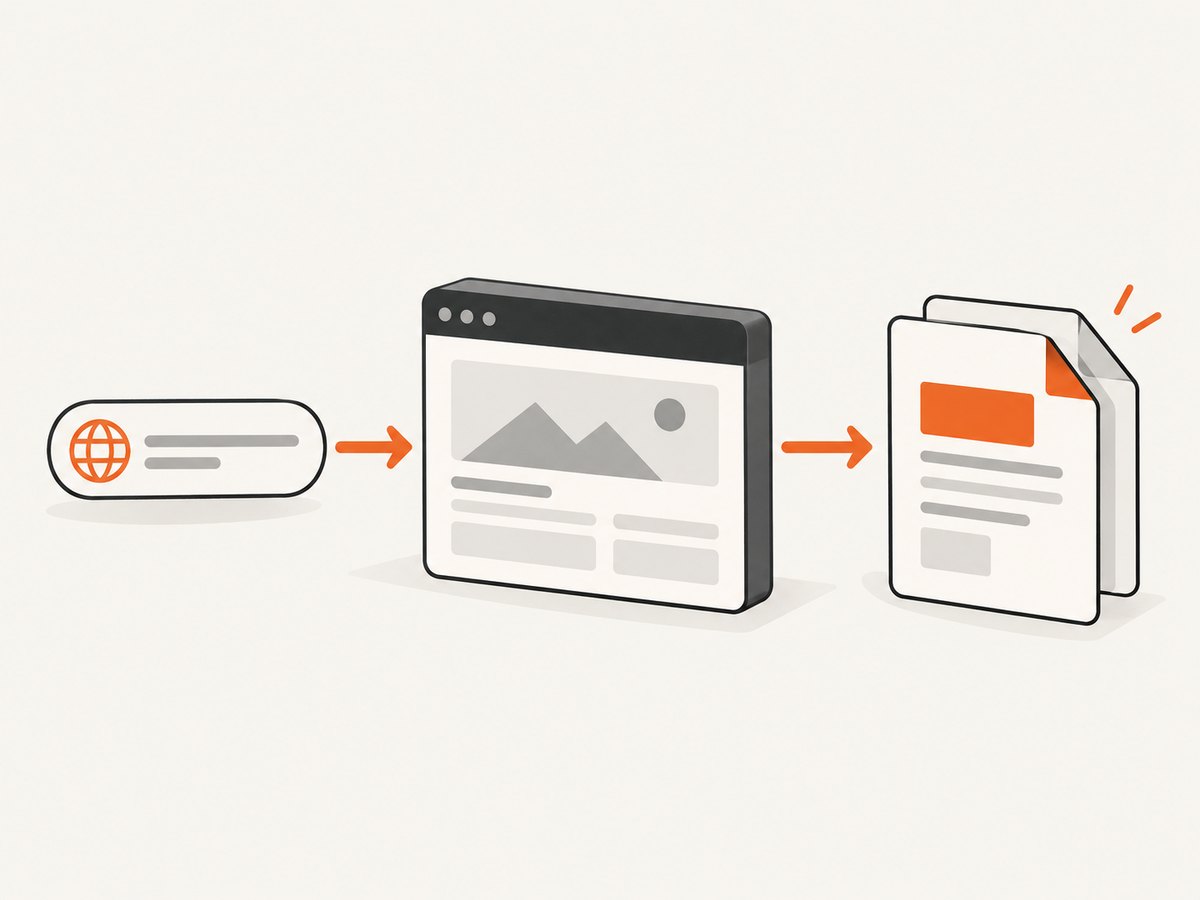
The direct answer: open a Puppeteer Page, navigate to the URL, wait until the content you need is ready, then call page.pdf(). Pass a path to save a file, or omit it and use the returned Uint8Array in an HTTP response or object store.
import puppeteer from 'puppeteer';

const browser = await puppeteer.launch();
const page = await browser.newPage();

await page.goto('https://example.com', {
  waitUntil: 'networkidle2',
});

await page.pdf({
  path: 'current-page.pdf',
  format: 'A4',
  printBackground: true,
});

await browser.close();
This follows Puppeteer’s documented PDF workflow: launch a browser, navigate, and use Page.pdf() to print the page. The networkidle2 event means navigation has reached a low-request state; it does not prove that every chart, delayed component, or application request has finished.
What “the current page” means
Puppeteer does not capture your visible desktop window. It prints the URL and rendered state held by a particular Page object when page.pdf() runs. If you start with a URL, call page.goto(). If your script has already clicked tabs, filled a form, expanded an accordion, or changed the DOM, call page.pdf() after those interactions.
For application-rendered pages, add a readiness condition owned by the page:
await page.goto('https://example.com/report', {
  waitUntil: 'networkidle2',
});

// Wait for the component that proves the report is rendered.
await page.waitForSelector('[data-report-ready]', { timeout: 30_000 });

await page.pdf({
  path: 'report.pdf',
  format: 'A4',
  printBackground: true,
});
Use a selector that represents usable content, rather than waiting an arbitrary number of seconds. A fixed delay can still be useful for a known animation or delayed widget, but it makes every request slower when the page is already ready.
Save a PDF file
Set path when your process should write the PDF itself. Relative paths are resolved from the current working directory. Make sure the destination directory exists and that the process has write permission.
import puppeteer from 'puppeteer';

const browser = await puppeteer.launch();
try {
  const page = await browser.newPage();
  await page.goto('https://example.com', { waitUntil: 'networkidle2' });
  await page.pdf({
    path: './output/current-page.pdf',
    format: 'A4',
    printBackground: true,
  });
} finally {
  await browser.close();
}
Use a stable absolute path in a worker or container when the working directory can vary. Keep the browser.close() call in a finally block so failed navigations do not leave Chromium processes behind.
Return PDF bytes from an API
Omit path and Puppeteer returns a Promise<Uint8Array>. Your web framework can send those bytes with a PDF content type and an attachment filename.
import express from 'express';
import puppeteer from 'puppeteer';

const app = express();
const browser = await puppeteer.launch();

app.get('/download', async (req, res) => {
  const page = await browser.newPage();
  try {
    await page.goto('https://example.com', { waitUntil: 'networkidle2' });
    const pdfBytes = await page.pdf({
      format: 'A4',
      printBackground: true,
    });

    res.setHeader('Content-Type', 'application/pdf');
    res.setHeader('Content-Disposition', 'attachment; filename="current-page.pdf"');
    res.send(Buffer.from(pdfBytes));
  } catch (error) {
    res.status(502).json({ error: 'Could not generate PDF' });
  } finally {
    await page.close();
  }
});

app.listen(3000);
The response code is framework-specific, but the important Puppeteer behavior is consistent: no path means application-managed bytes. Reuse a browser process for multiple requests, while creating and closing a fresh page per request.
Control print CSS and screen CSS
page.pdf() generates output using the print CSS media type by default. That is correct for print-specific layouts, but it can make a PDF differ from what a user sees on screen. Select screen media when the on-screen design is the source of truth:
await page.emulateMediaType('screen');
await page.pdf({
  path: 'screen-layout.pdf',
  format: 'A4',
  printBackground: true,
});
For exact colors, add this CSS to the page or inject it before printing:
await page.addStyleTag({
  content: `
    * {
      -webkit-print-color-adjust: exact !important;
      print-color-adjust: exact !important;
    }
  `,
});
Print styles can also be defined in your stylesheet:
@media print {
  .site-navigation,
  .cookie-banner,
  .interactive-controls {
    display: none;
  }
}

@page {
  size: A4;
  margin: 18mm 14mm;
}
Important PDF options
| Option | Use | Default or behavior |
|---|---|---|
path |
Write a file directly. | Omit it for returned bytes. |
format |
Choose paper such as A4 or letter. |
letter is documented as the default. It takes priority over width and height. |
width, height |
Set custom paper dimensions. | Use preferCSSPageSize when CSS should win. |
preferCSSPageSize |
Honor @page dimensions. |
Otherwise content is scaled to the selected paper. |
landscape |
Use horizontal orientation. | Useful for wide tables and dashboards. |
margin |
Set top, right, bottom, and left margins. | Accepts CSS-like units. |
printBackground |
Include background graphics and colors. | false by default; set true for designed pages. |
pageRanges |
Print selected pages. | Examples: 1-5, 8, 11-13; empty prints all pages. |
scale |
Adjust rendered size. | Range 0.1–2; default 1. |
timeout |
Limit PDF generation. | Default 30,000 ms; 0 disables this timeout. |
waitForFonts |
Wait for document.fonts.ready. |
true by default. |
tagged |
Create a tagged accessibility PDF. | Experimental; default true. |
outline |
Generate a document outline. | Experimental; default false. |
These options are defined in the Puppeteer PDFOptions reference. If you set format, do not expect width and height to control the paper. If your design contains @page rules, use preferCSSPageSize: true.
Fonts, images, and dynamic content
Puppeteer waits for fonts by default. A background page can prevent the font promise from resolving; the reference recommends bringing that page to the front before PDF generation:
await page.bringToFront();
await page.pdf({
  path: 'fonts-ready.pdf',
  waitForFonts: true,
  printBackground: true,
});
Web fonts and images can still be wrong when the page’s own rendering has not completed. Wait for an application marker, inspect document.fonts.status, or wait for specific images:
await page.waitForFunction(() => document.fonts.status === 'loaded');
await page.waitForFunction(() =>
  [...document.images].every((image) => image.complete)
);
For lazy-loaded content, scroll through the page before printing so intersection observers have a chance to load images:
await page.evaluate(async () => {
  await new Promise((resolve) => {
    let y = 0;
    const step = 600;
    const timer = setInterval(() => {
      window.scrollBy(0, step);
      y += step;
      if (y >= document.body.scrollHeight) {
        clearInterval(timer);
        window.scrollTo(0, 0);
        resolve();
      }
    }, 100);
  });
});
Use this only when needed: scrolling adds work and can trigger analytics or other client behavior.
Why the PDF differs from the screen
- Print media is active. Call
emulateMediaType('screen')or adjust your print stylesheet. - Backgrounds are disabled. Set
printBackground: true. - Paper dimensions change layout. Set
format, margins, orpreferCSSPageSizedeliberately. - Content is still rendering. Wait for a selector or application-specific ready signal after navigation.
- Fonts are late. Keep
waitForFonts: true, and bring a background page to the front if needed. - Color adjustment changes output. Use
-webkit-print-color-adjust: exactwhen exact colors matter. - Animations capture an intermediate frame. Disable transitions or wait for the desired state before calling
pdf().
Common errors and fixes
| Error or symptom | Likely cause | Fix |
|---|---|---|
Failed to launch the browser process |
Missing Chromium dependencies, sandbox restrictions, or an invalid executable path. | Install Puppeteer’s browser, provide the correct executable, and follow your deployment environment’s Chromium requirements. |
| Navigation timeout | The site keeps requests open or responds slowly. | Increase the navigation timeout, use a suitable waitUntil, and separately wait for the content selector you require. |
| Blank or partial PDF | JavaScript content has not rendered, or a protected page blocked the browser. | Check the response and console, wait for a readiness marker, and handle authentication or bot checks explicitly. |
| Missing colors or images | Print backgrounds are disabled, resources failed, or CSS hides them in print. | Set printBackground: true, verify resource URLs, and inspect @media print rules. |
| Wrong page size | format overrides custom dimensions, or CSS @page is not preferred. |
Remove format when using dimensions, or set preferCSSPageSize: true. |
| PDF request hangs at fonts | A background page prevents the font-ready promise from resolving. | Call page.bringToFront() before printing, or investigate the font request. |
| File cannot be opened | The output directory does not exist or is not writable. | Create the directory, use an absolute path, and check process permissions. |
| Memory grows over time | Pages or browsers are not closed after requests. | Close every page in finally; recycle browser workers according to your workload. |
Performance and reliability checklist
- Launch one long-lived browser per worker rather than launching Chromium for every request.
- Create a new page per job and always close it.
- Set navigation and PDF timeouts explicitly so a stuck site cannot hold a worker forever.
- Wait for a meaningful selector instead of using a large fixed sleep.
- Use
pageRangeswhen callers need only a few pages. - Reuse cached browser assets carefully; stale application data can change the PDF.
- Log the target URL, navigation timing, PDF timing, page count when available, and failure reason.
- Limit concurrent pages to the memory available in your container. Wide pages, large images, and many fonts increase memory use.
- Retry transient navigation failures with a fresh page, while avoiding duplicate side effects on pages that submit forms.
PDF generation is a rendering job, so its cost is mostly browser CPU, memory, network transfer, and storage. The PDF itself can be large when it contains high-resolution images or many embedded fonts. Compress or store files according to your retention requirements, and avoid generating the same immutable page repeatedly when a cache is appropriate.
Or skip the browser setup
ScreenshotNeo provides a one-call website capture API with PDF output, so you do not have to package Chromium or maintain page lifecycle code. See the ScreenshotNeo documentation for request options.

cURL
curl -G "https://api.screenshotneo.com/v1/shot" \
  -d access_key=YOUR_API_KEY \
  --data-urlencode url=https://stripe.com \
  -o current-page.pdf
Python
import requests

r = requests.get(
    "https://api.screenshotneo.com/v1/shot",
    params={
        "access_key": "YOUR_API_KEY",
        "url": "https://stripe.com",
        "format": "pdf",
    },
    timeout=90,
)
r.raise_for_status()
open("current-page.pdf", "wb").write(r.content)
Node.js
const q = new URLSearchParams({
  access_key: 'YOUR_API_KEY',
  url: 'https://stripe.com',
  format: 'pdf',
});
const res = await fetch(`https://api.screenshotneo.com/v1/shot?${q}`);
if (!res.ok) throw new Error(`ScreenshotNeo returned ${res.status}`);
const bytes = Buffer.from(await res.arrayBuffer());
await import('node:fs/promises').then((fs) => fs.writeFile('current-page.pdf', bytes));
ScreenshotNeo accepts the cookie or consent banner like a visitor, then removes more than 60 known consent platforms, newsletter popups, and chat widgets before capture; each step can be turned off. Bot checks and CAPTCHAs, blank pages, timeouts, failed loads, and cache hits cost nothing, and the response identifies the result with X-Page-Verdict and X-Billed headers. Its MCP server gives Claude, Cursor, and other MCP clients take_screenshot, get_page_info, and capture_pdf tools.
The free plan includes 1,000 shots per month with no card. Paid plans start at $5 for 3,000 shots; yearly billing gives two months free, and every feature is on every plan. Create a free ScreenshotNeo account.
FAQ
Does page.pdf() capture only what is visible?
No. It prints the document, including content beyond the viewport, according to its layout and page-break rules.
Can I download only pages 2 and 3?
Yes. Pass pageRanges: '2-3'. An empty range prints the complete document.
Should I use networkidle0 instead of networkidle2?
Only when the application reliably becomes completely idle. Sites with analytics, polling, or persistent connections may never reach networkidle0; a content-specific selector is usually a better readiness check.
How do I make an accessible PDF?
Use the documented tagged option, which is experimental and defaults to true, then verify the generated document with the accessibility tools required by your project.
Can I return a PDF without writing a temporary file?
Yes. Omit path, convert the returned Uint8Array to your framework’s byte or buffer type, and send it with Content-Type: application/pdf.


